> ## Documentation Index
> Fetch the complete documentation index at: https://notes.kodekloud.com/llms.txt
> Use this file to discover all available pages before exploring further.
# Demo Run FIS Experiment
> This tutorial explains how to run a Fault Injection Simulator experiment in AWS to terminate 50% of instances in an Auto Scaling group.
In this tutorial, you’ll learn how to run a Fault Injection Simulator (FIS) experiment in AWS Resilience Hub to terminate 50% of instances in an Auto Scaling group. We’ll cover:
* Selecting an experiment template
* Verifying target EC2 instances
* Executing the experiment
* Troubleshooting and adjusting your Auto Scaling group
* Rerunning and monitoring the experiment
## 1. Select the FIS Experiment Template
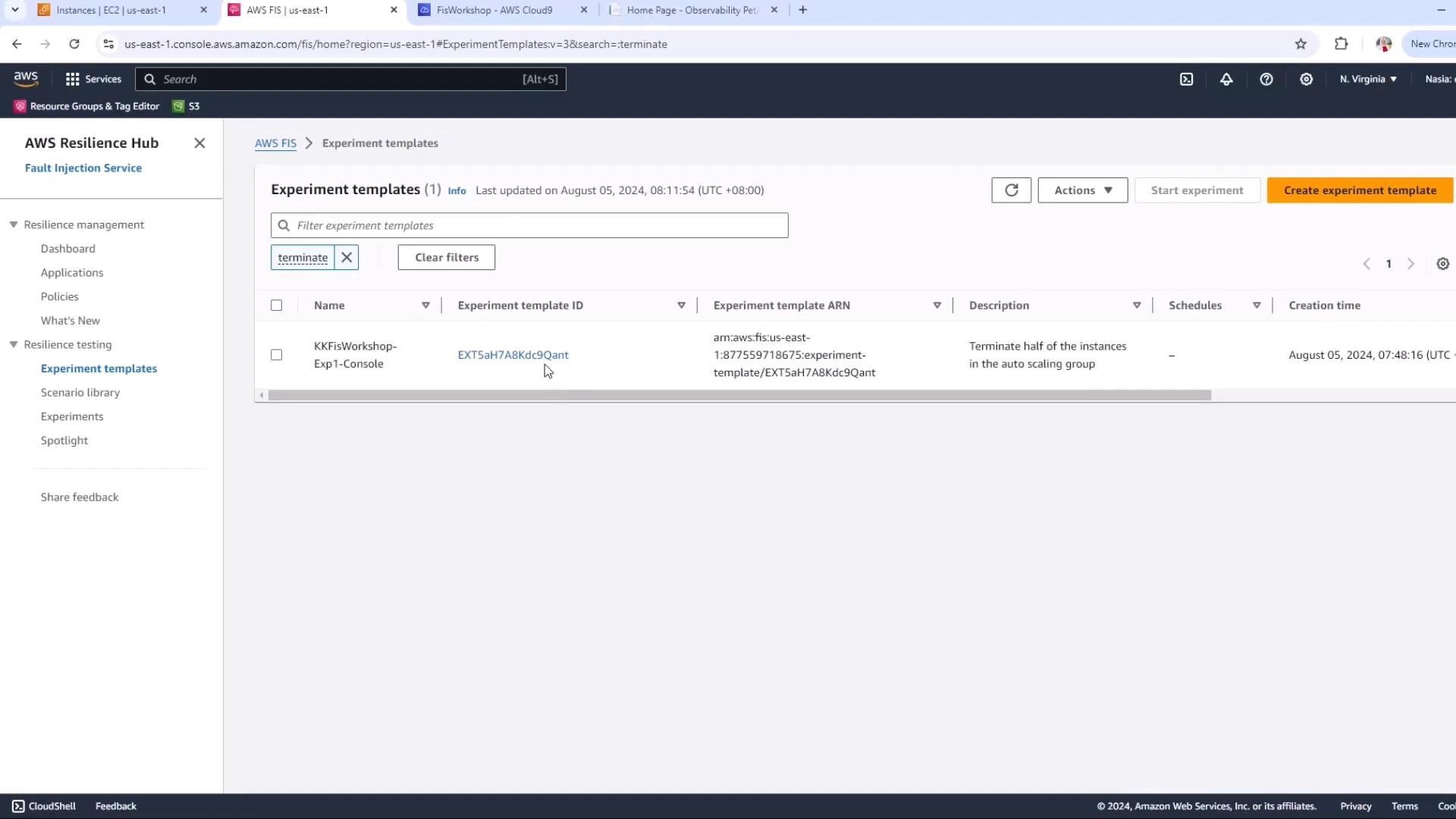
1. Open the **AWS Resilience Hub** console.
2. Navigate to **Experiment templates**.
3. Choose the template named **Terminate 50% of instances in an Auto Scaling group**.
## 2. Confirm Affected Instances
Before you start, ensure your resource filters match the instances you want to target:
* State: `running`
* Tag: `experiment-ready`
In the **EC2 console**, apply these filters to see only the instances that the experiment will affect.
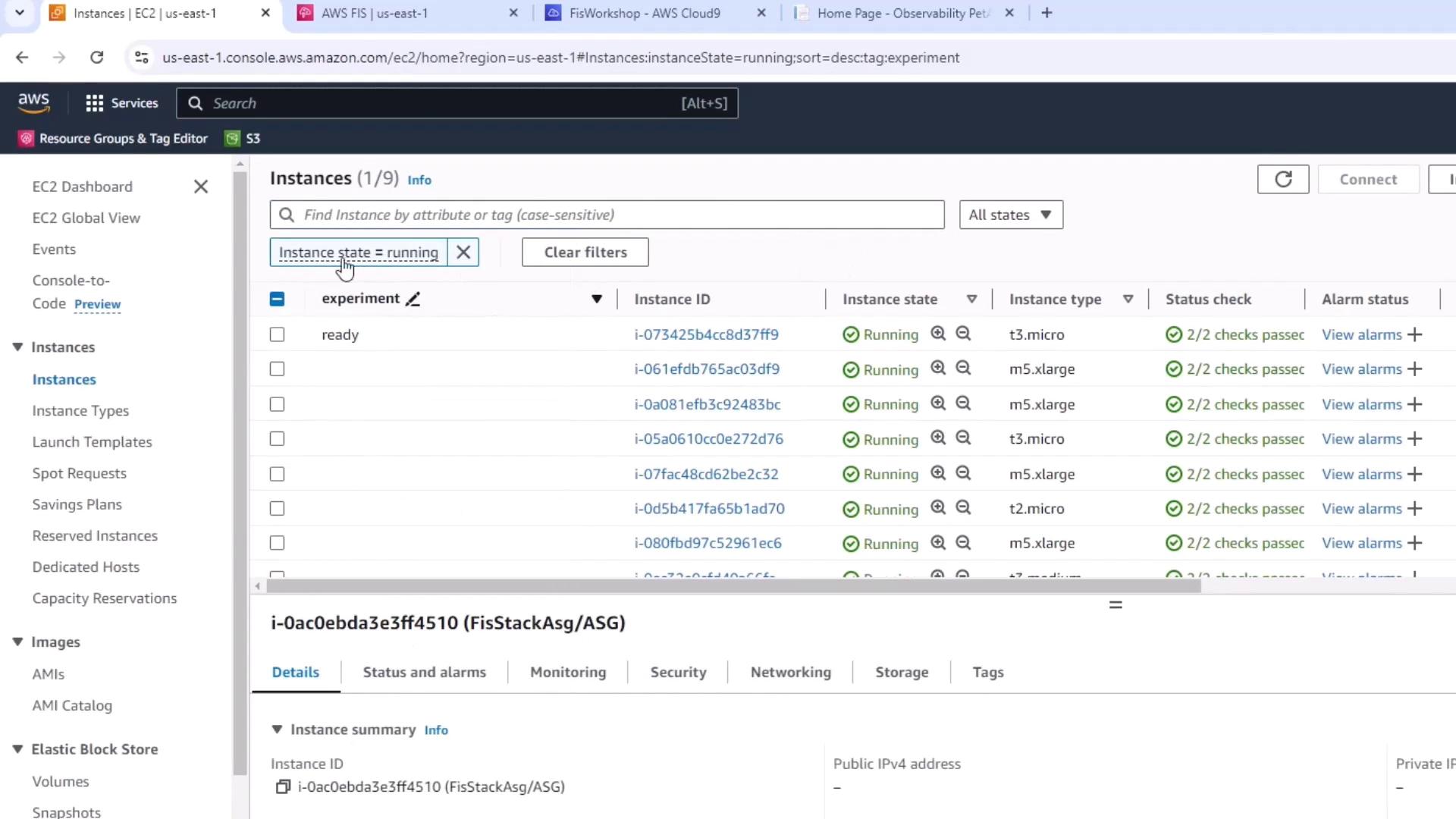
Here, instance `37FF9…` matches both filters and is the only target.
## 3. Start the FIS Experiment
Back in the FIS console:
1. Select your experiment template.
2. Click **Start experiment**.
3. Confirm the prompt (this action is disruptive).
Starting a Chaos Engineering experiment will terminate live EC2 instances. Ensure this is performed in a non-production environment or during a maintenance window.
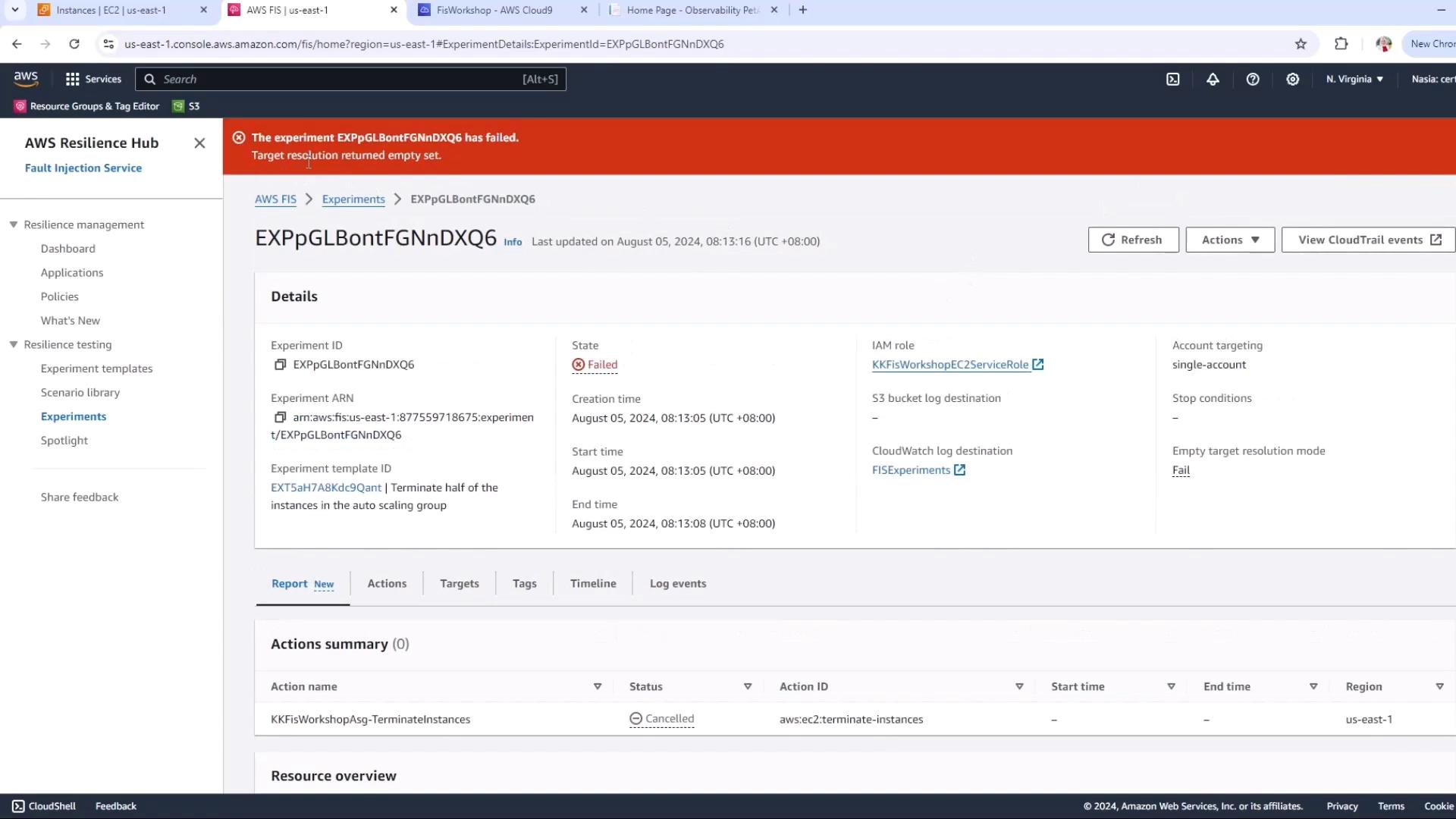
Once initiated, you’ll see the experiment state transition to `Initiating` and then `Pending`. In our first run, the experiment failed immediately:
## 4. Inspect Experiment Logs
To diagnose the failure, open the **Timeline** or **Log events** in the FIS console and refresh:
```json theme={null}
{
"id": "EXpPGlBontFGnDXQ6",
"log_type": "target-resolution-start",
"event_timestamp": "2024-08-05T00:13:06.913Z",
"details": {
"target_name": "KKFisWorkshopAsg-50Percent"
}
}
```
```json theme={null}
{
"id": "EXpPGlBontFGnDXQ6",
"log_type": "target-resolution-detail",
"event_timestamp": "2024-08-05T00:13:07.189Z",
"details": {
"resolved_targets_count": 0,
"status": "completed"
}
}
```
The `resolved_targets_count` is `0` because with a single instance, terminating 50% rounds down to zero.
Chaos experiments require sufficient targets. If your Auto Scaling group has only one instance, 50% of one equals zero.
## 5. Identify & Fix the Root Cause
Inspect your Auto Scaling group in the **EC2 console**:
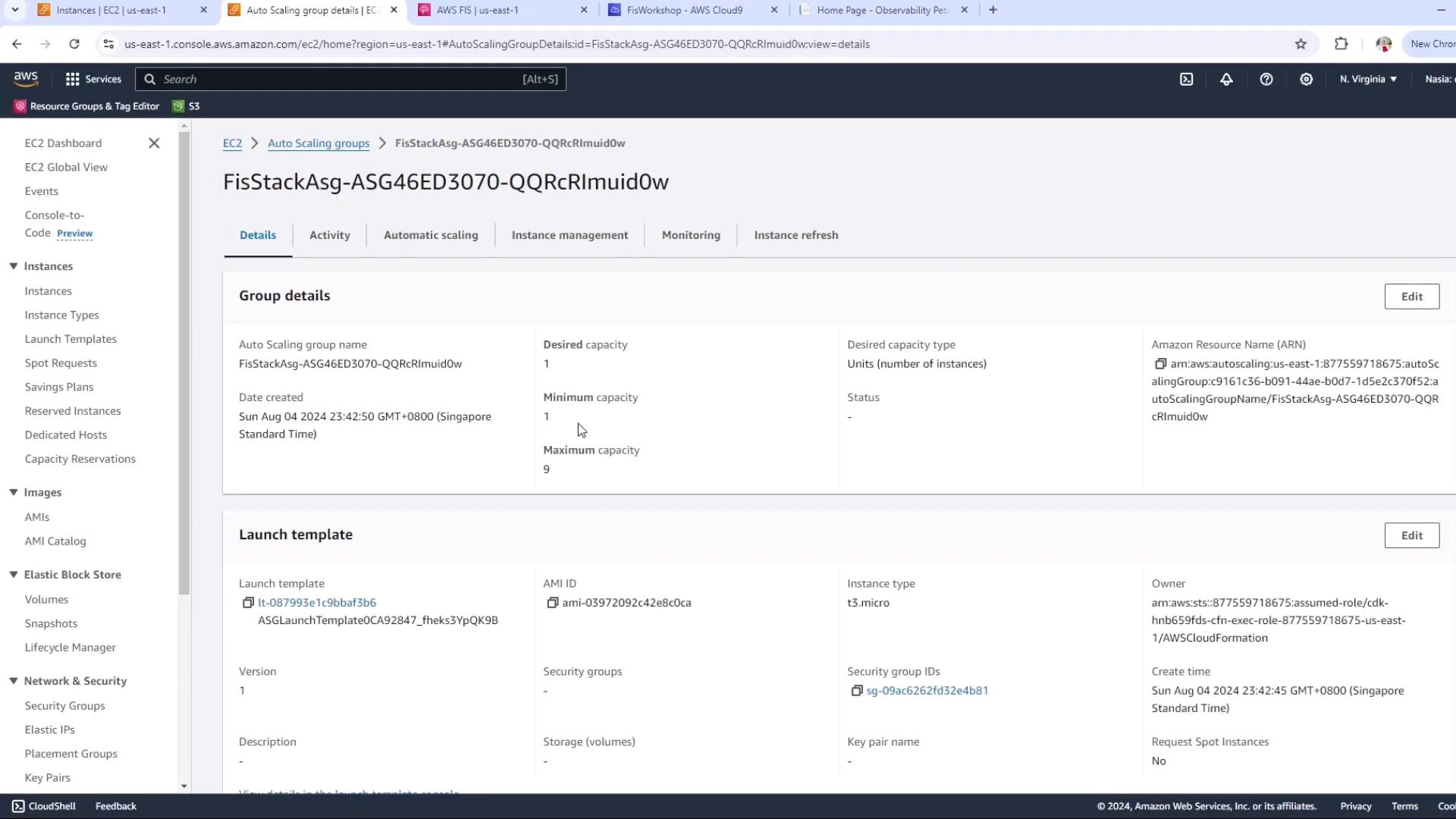
Current settings:
| Setting | Value |
| ---------------- | ----- |
| Desired capacity | 1 |
| Minimum capacity | 1 |
| Maximum capacity | 3 |
To guarantee at least one instance is terminated:
| Setting | Updated Value |
| ---------------- | ------------- |
| Desired capacity | 2 |
| Minimum capacity | 2 |
| Maximum capacity | 3 |
This ensures 50% of 2 = 1 instance will be terminated.
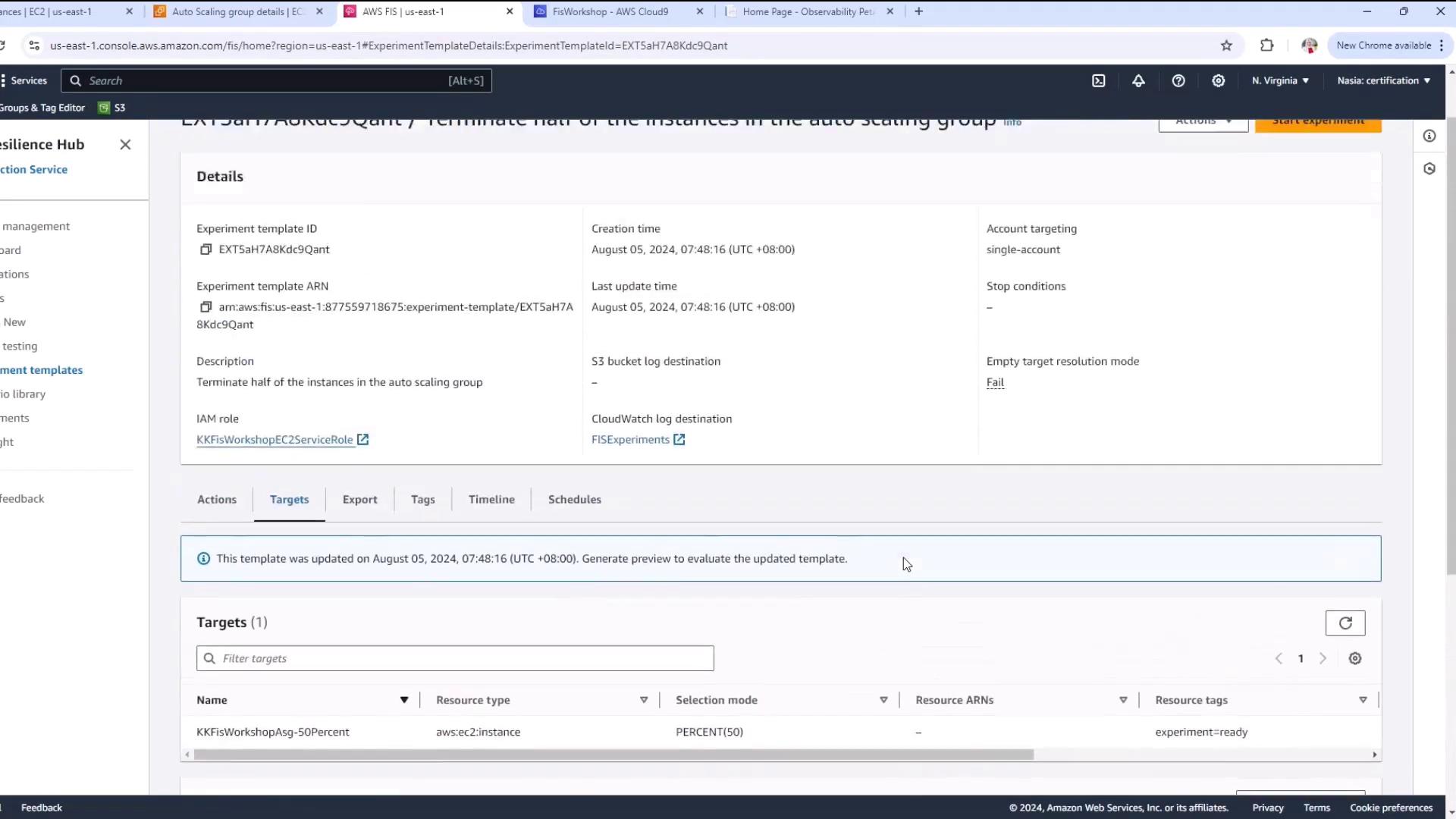
## 6. Preview Targets Before Rerunning
Wait for the second instance to launch, then in the FIS console:
1. Select your experiment template.
2. Click **Preview**.
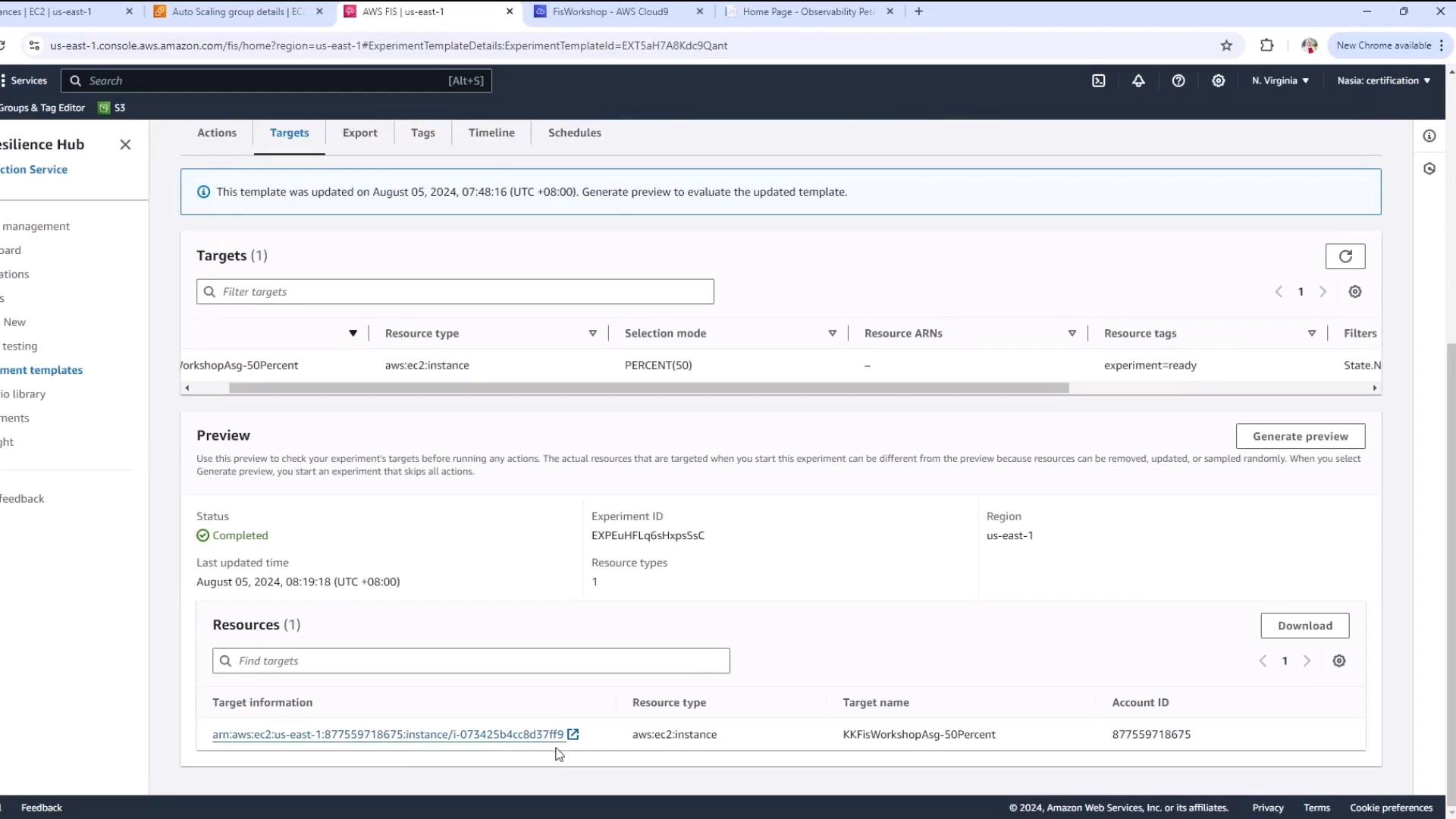
You’ll see exactly one target instance:
Generate the preview:
## 7. Rerun the Experiment
With your template preview confirming one target:
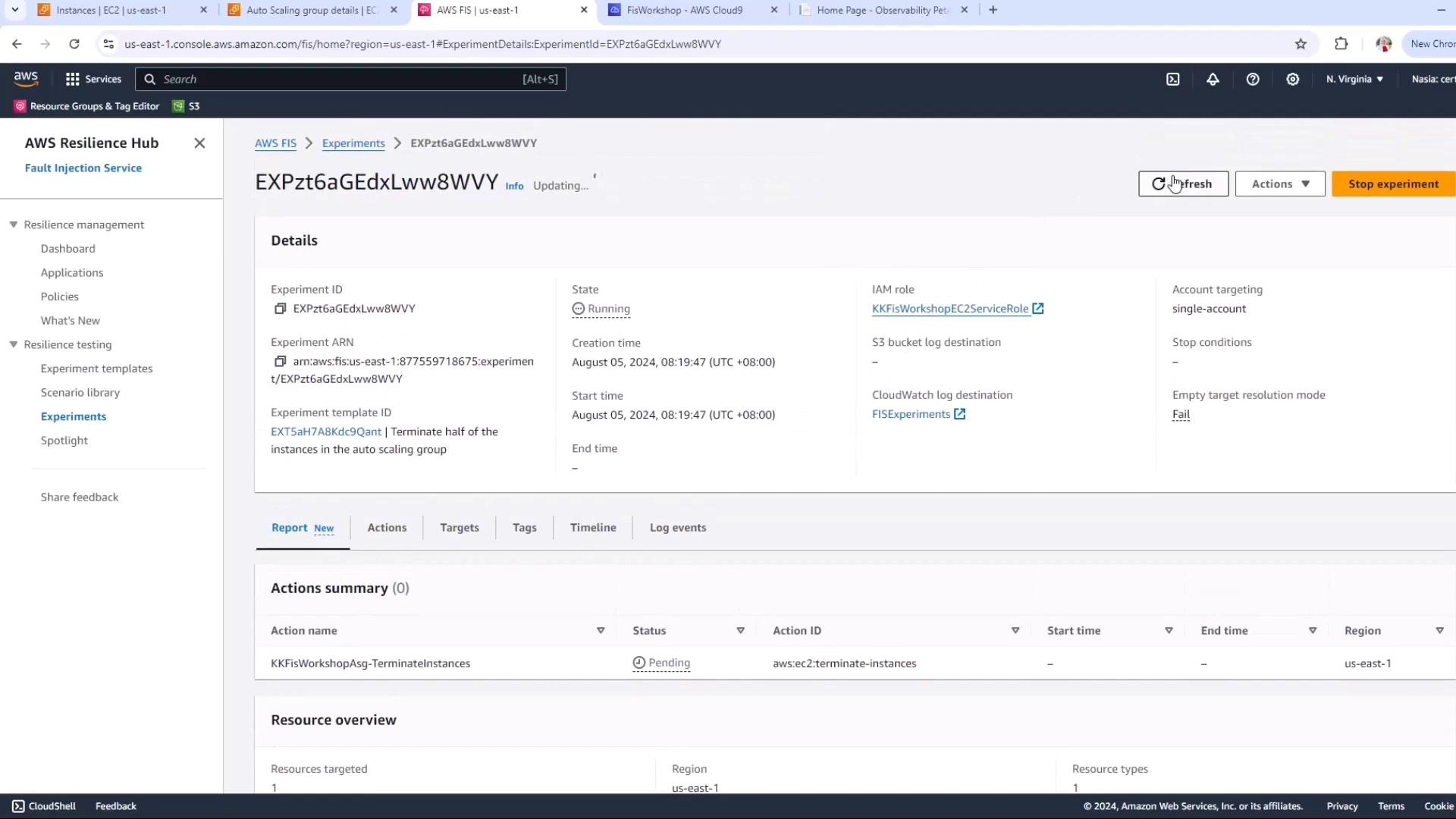
1. Click **Start experiment** again.
2. Watch the state change to `Running`.
## 8. Monitor the Impact
Switch to the **EC2 console** to view instance states. One instance will terminate, while the other continues running, ensuring high availability:
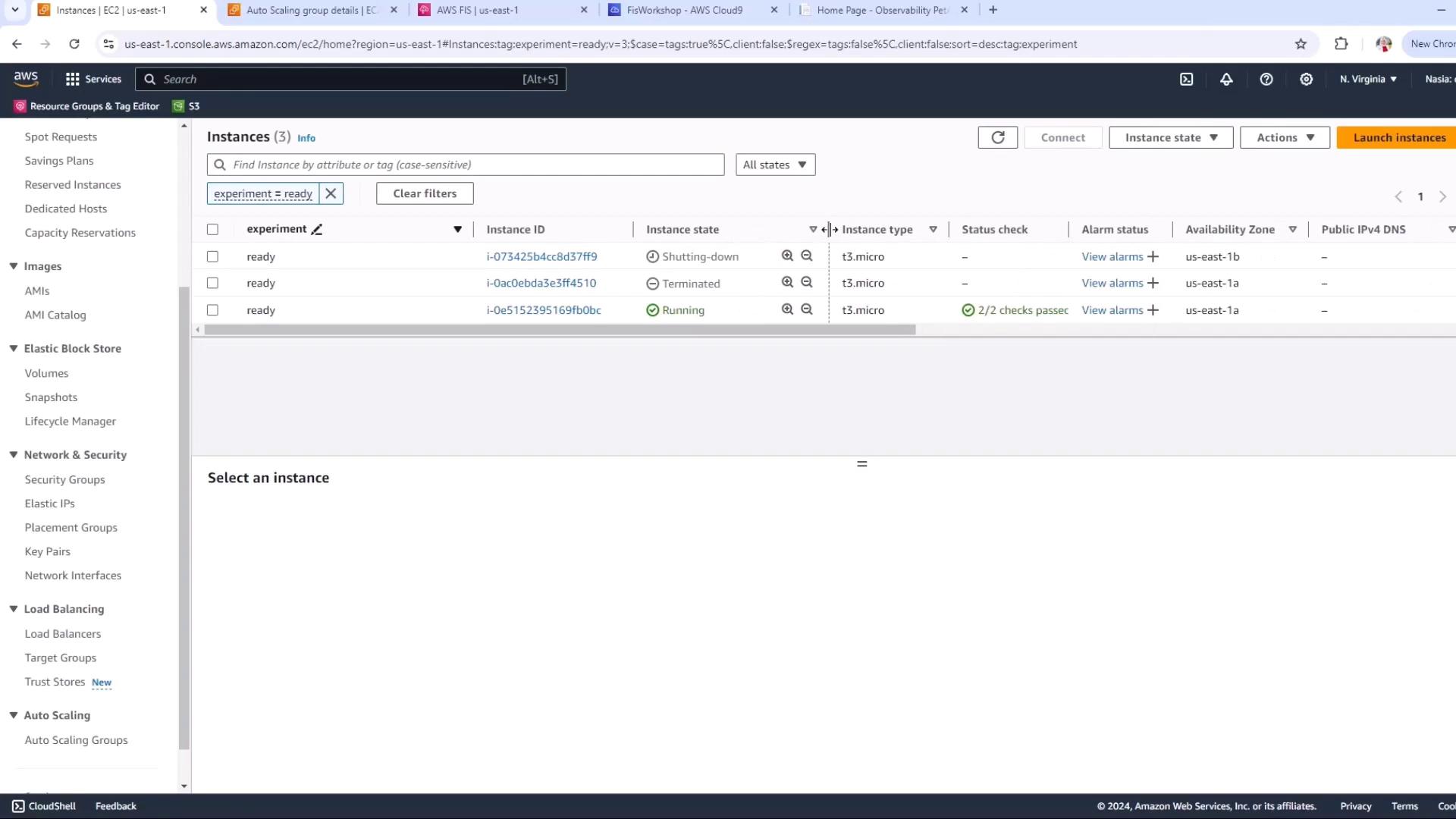
With two instances in the group, terminating 50% yields a controlled disruption without downtime.
***
## Links and References
* [AWS Fault Injection Simulator User Guide](https://docs.aws.amazon.com/fis/latest/userguide/)
* [AWS EC2 Auto Scaling Groups](https://docs.aws.amazon.com/autoscaling/ec2/userguide/what-is-amazon-ec2-auto-scaling.html)
* [AWS Resilience Hub Concepts](https://docs.aws.amazon.com/resiliencehub/latest/userguide/what-is-resilience-hub.html)