> ## Documentation Index
> Fetch the complete documentation index at: https://notes.kodekloud.com/llms.txt
> Use this file to discover all available pages before exploring further.

# Demo Create and Run FIS experiment and After Metrics and DB state

> This tutorial teaches how to create an AWS FIS experiment to reboot an Aurora RDS reader instance and verify application impact.

In this tutorial, you’ll learn how to build an AWS Fault Injection Simulator (FIS) experiment template that reboots an Amazon Aurora RDS reader instance. You’ll then inspect CloudWatch metrics and verify the database state before and after the experiment to confirm minimal impact on your application.

## Prerequisites

| Service                             | Purpose                                       | Documentation                                                                                                                                                      |
| ----------------------------------- | --------------------------------------------- | ------------------------------------------------------------------------------------------------------------------------------------------------------------------ |
| Amazon RDS                          | Host Aurora reader & writer instances         | [https://docs.aws.amazon.com/rds/latest/Concepts/Welcome.html](https://docs.aws.amazon.com/rds/latest/Concepts/Welcome.html)                                       |
| AWS Fault Injection Simulator (FIS) | Inject faults into AWS resources              | [https://docs.aws.amazon.com/fis/latest/userguide/what-is-fis.html](https://docs.aws.amazon.com/fis/latest/userguide/what-is-fis.html)                             |
| Amazon CloudWatch                   | Collect metrics, logs, and ServiceLens traces | [https://docs.aws.amazon.com/AmazonCloudWatch/latest/monitoring/ServiceLens.html](https://docs.aws.amazon.com/AmazonCloudWatch/latest/monitoring/ServiceLens.html) |

<Callout icon="lightbulb" color="#1CB2FE">
  Ensure you have an IAM role with the managed policy `AWSFISFullAccess` and permissions to reboot RDS instances. Assign this role when you create the FIS experiment template.
</Callout>

## 1. Identify the Reader Instance

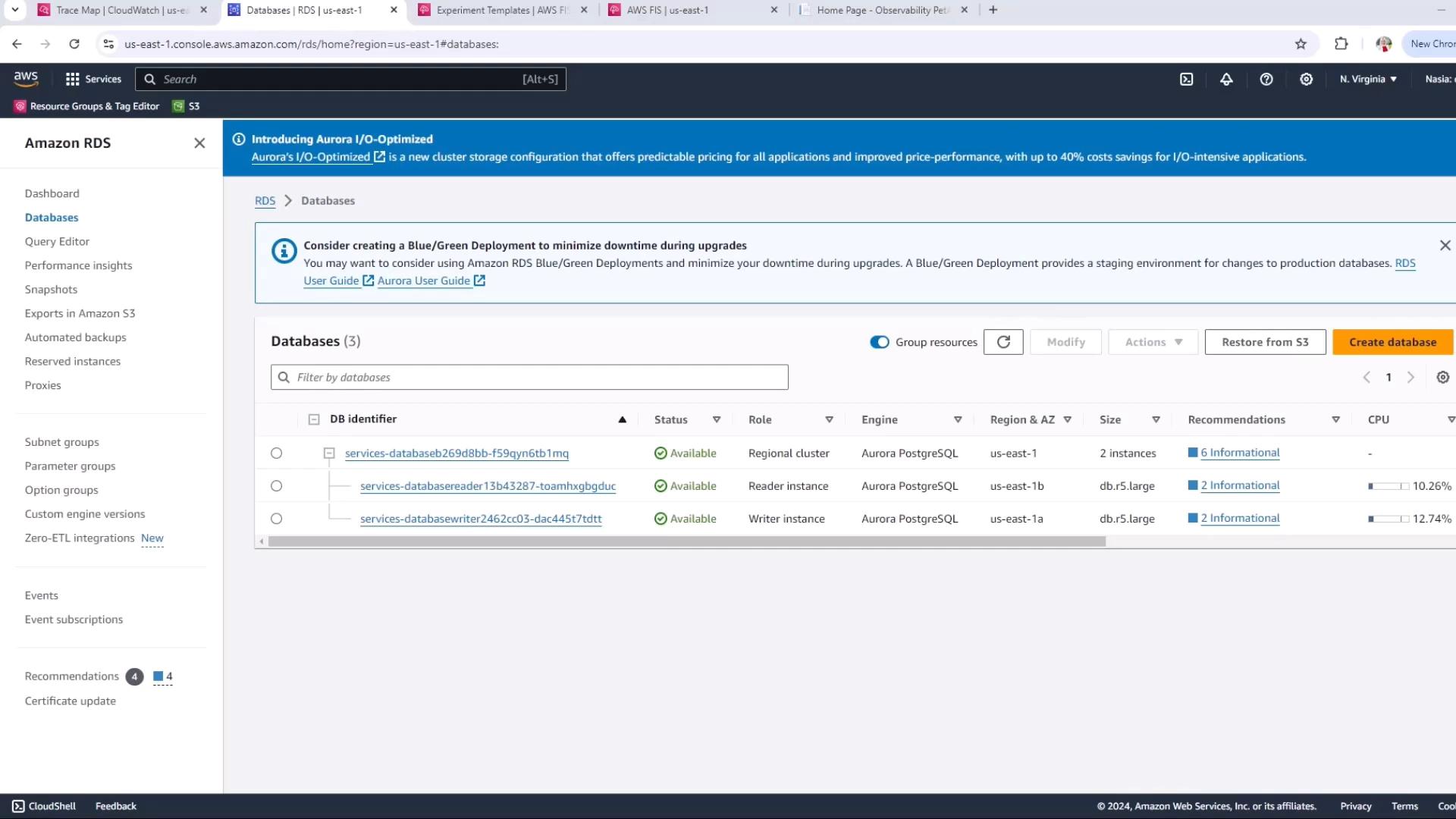
Navigate to the Amazon RDS console and locate the reader instance you plan to reboot. In this example, the reader node identifier ends with **BGDUC**.
<Frame>
  ![The image shows the Amazon RDS dashboard displaying a list of databases, their statuses, roles, and other details like engine type and region. It includes options for creating a database and managing existing ones.](https://kodekloud.com/kk-media/image/upload/v1752871852/notes-assets/images/Chaos-Engineering-Demo-Create-and-Run-FIS-experiment-and-After-Metrics-and-DB-state/amazon-rds-dashboard-database-list.jpg)
</Frame>

## 2. Create the FIS Experiment Template

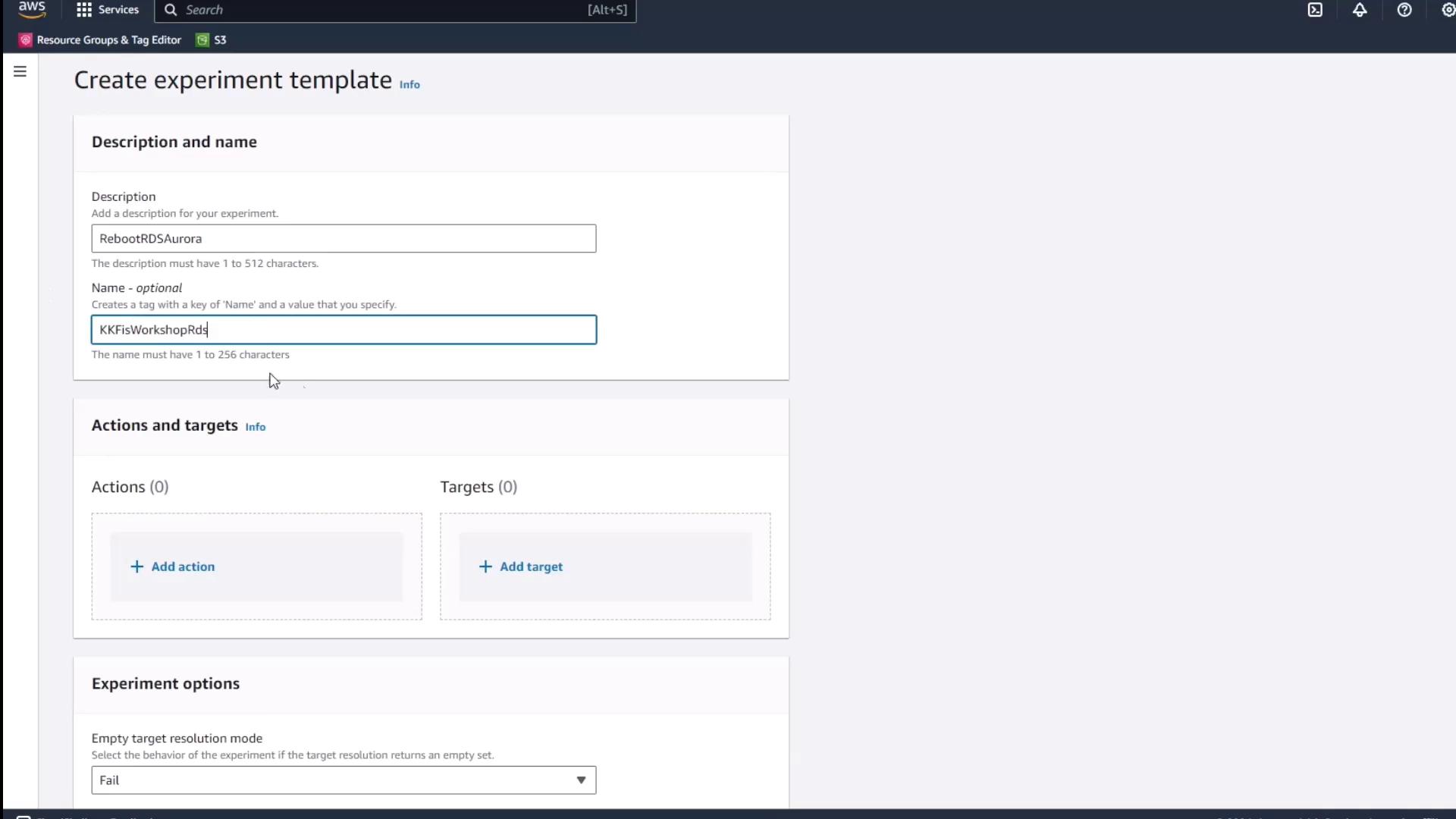
1. Open the [AWS FIS console](https://console.aws.amazon.com/fis).
2. In the sidebar, choose **Experiment templates** → **Create experiment template**.
3. Fill in:
   * **Description**: reboot RDS Aurora
   * **Template name**: FIS-workshop-RDS
<Frame>
  ![The image shows a web interface for creating an experiment template, with fields for description and name, and options to add actions and targets.](https://kodekloud.com/kk-media/image/upload/v1752871853/notes-assets/images/Chaos-Engineering-Demo-Create-and-Run-FIS-experiment-and-After-Metrics-and-DB-state/experiment-template-web-interface-fields.jpg)
</Frame>

## 3. Add the Reboot Action

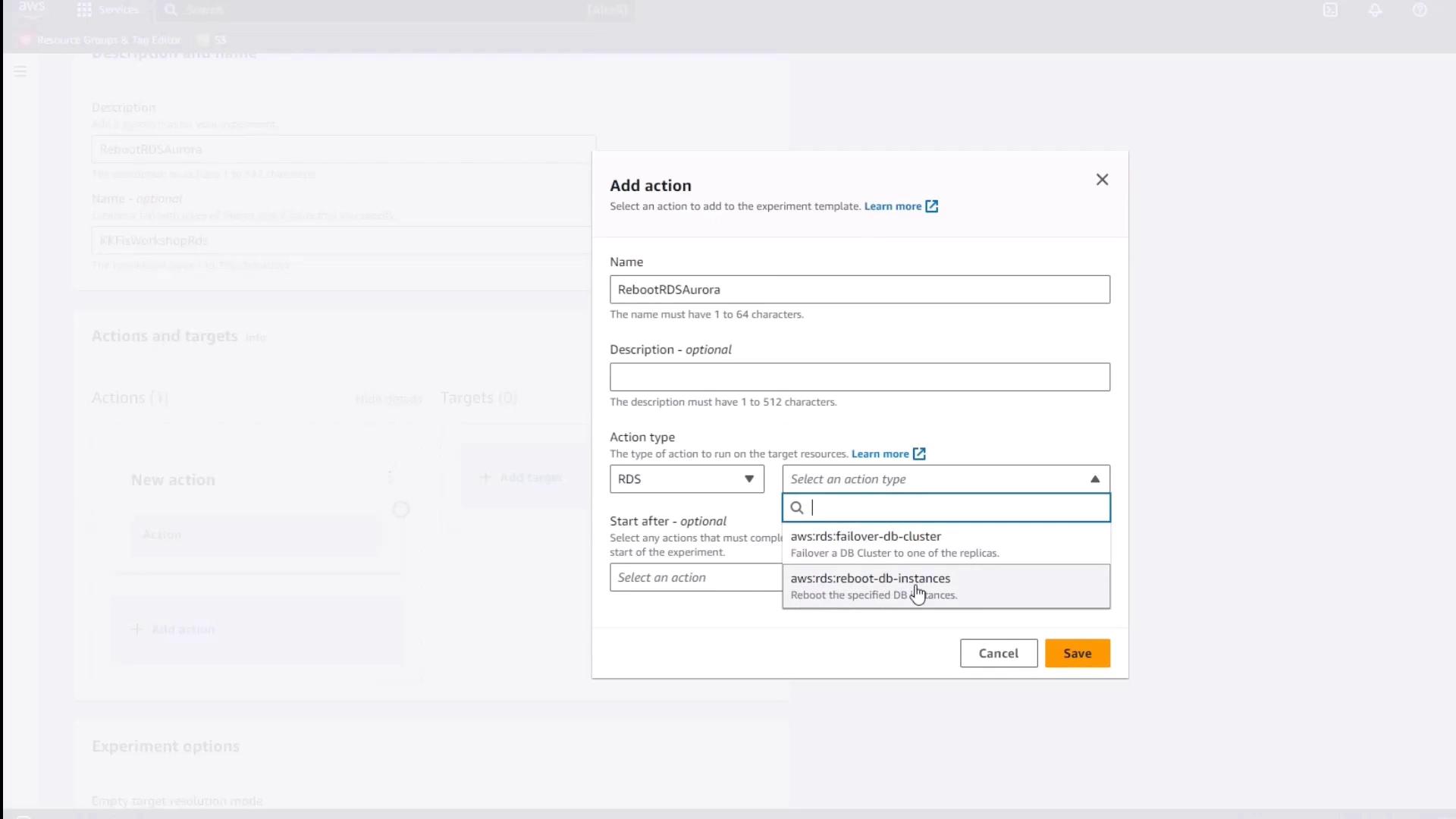
1. Click **Add action**.
2. Configure:
   * **Action name**: rebootAurora
   * **Service**: RDS
   * **Action type**: reboot-db-instances
3. Leave **Start after** blank to execute immediately. Keep the default target placeholder.
<Frame>
  ![The image shows a dialog box titled "Add action" within an AWS interface, where a user is configuring an action to reboot RDS Aurora. The action type is set to "RDS," and options for selecting an action type are displayed.](https://kodekloud.com/kk-media/image/upload/v1752871854/notes-assets/images/Chaos-Engineering-Demo-Create-and-Run-FIS-experiment-and-After-Metrics-and-DB-state/add-action-aws-rds-reboot-dialog.jpg)
</Frame>

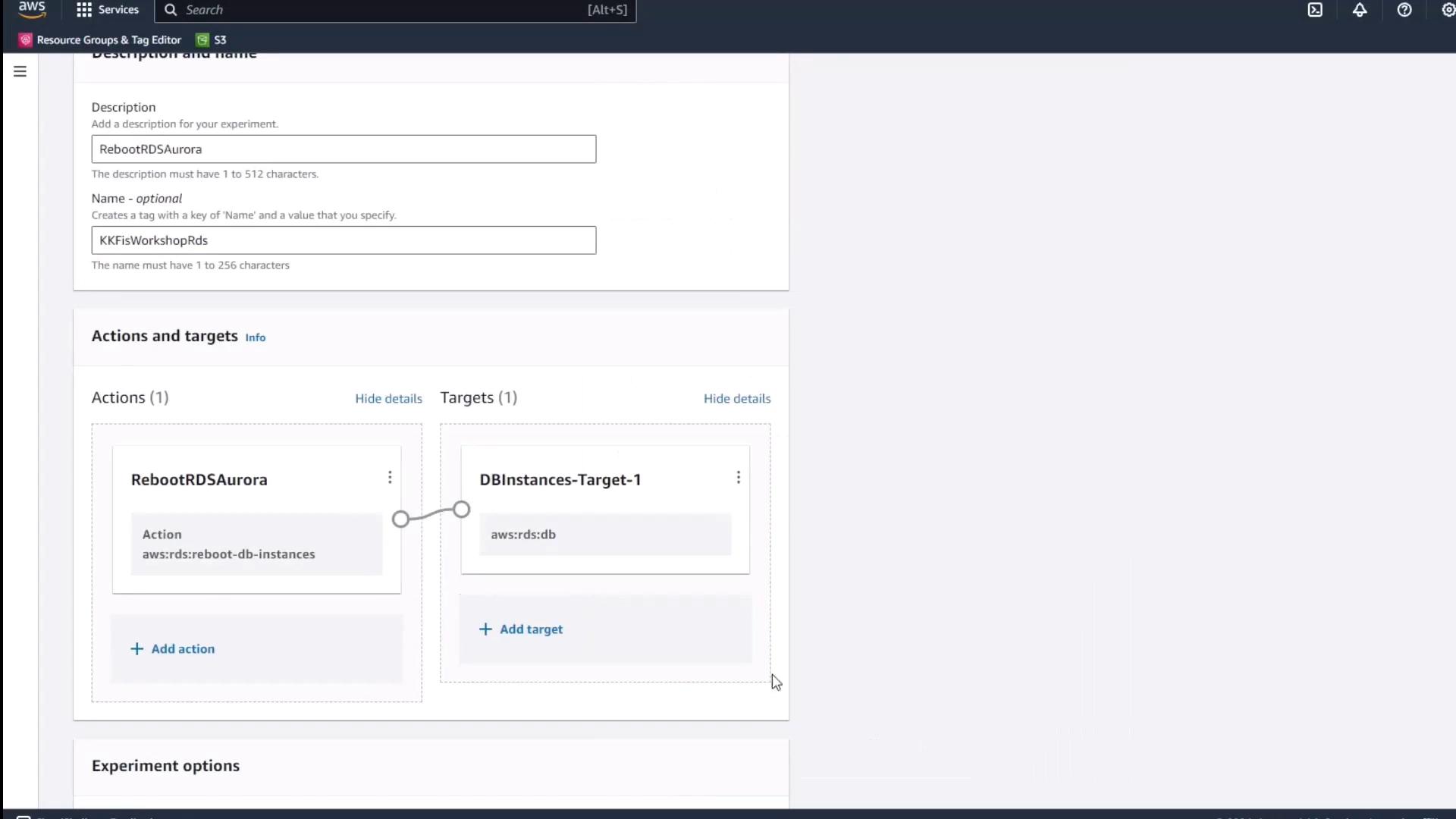
## 4. Review the Action & Target Panel

After adding the action, confirm it appears alongside the default target in the template editor.
<Frame>
  ![The image shows an AWS management console interface, specifically a section for setting up an experiment with actions and targets related to rebooting RDS Aurora instances.](https://kodekloud.com/kk-media/image/upload/v1752871855/notes-assets/images/Chaos-Engineering-Demo-Create-and-Run-FIS-experiment-and-After-Metrics-and-DB-state/aws-management-console-rds-aurora-experiment.jpg)
</Frame>

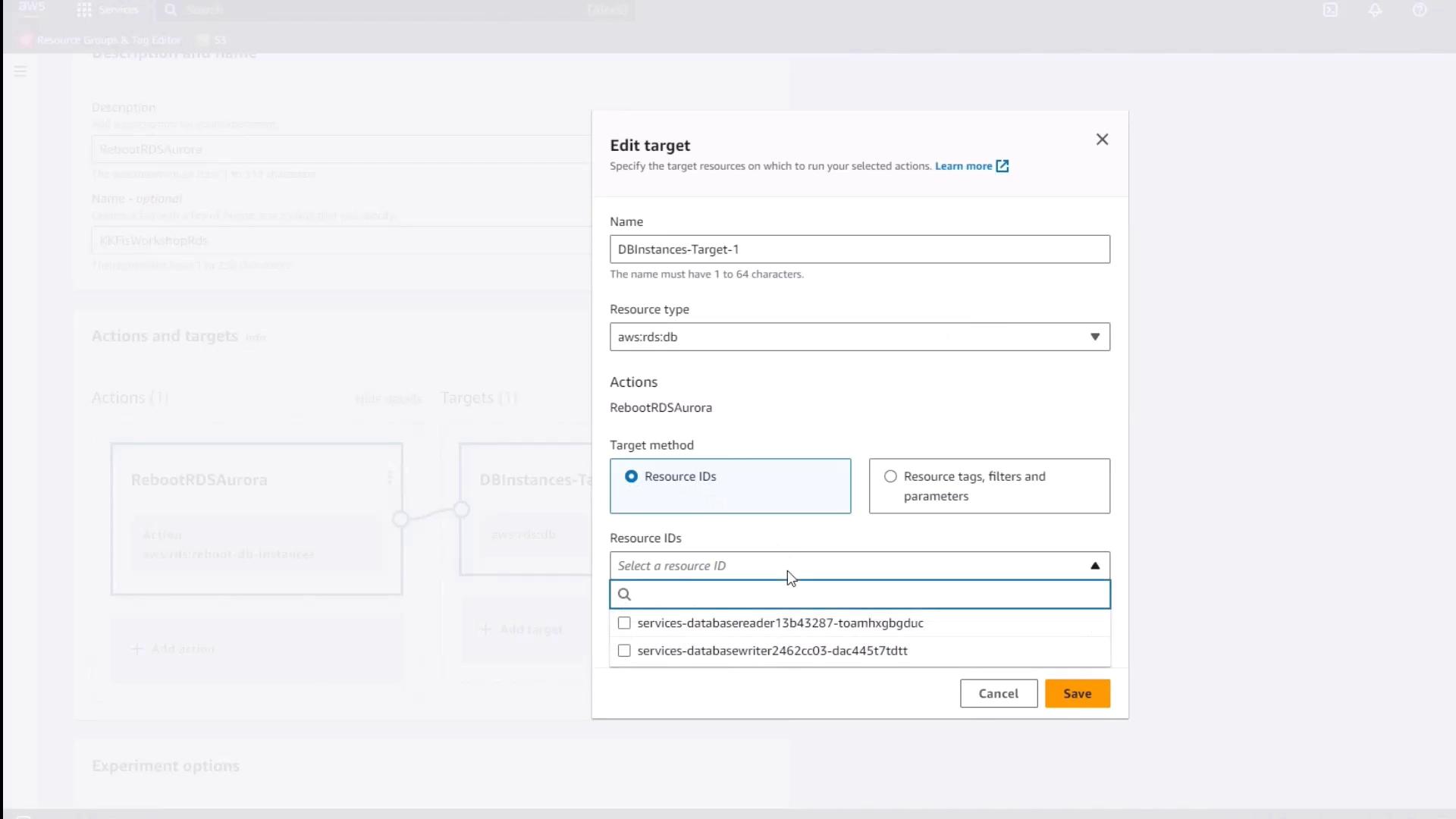
## 5. Define the Target

1. Under **Targets**, click the default target name.
2. Set **Resource type** to **Resource ID**.
3. Paste the reader instance identifier (ending in **BGDUC**).
4. Click **Save**.
<Frame>
  ![The image shows a user interface for editing a target in AWS, where the user can specify target resources for actions, including selecting resource IDs for a database instance.](https://kodekloud.com/kk-media/image/upload/v1752871856/notes-assets/images/Chaos-Engineering-Demo-Create-and-Run-FIS-experiment-and-After-Metrics-and-DB-state/aws-target-editing-user-interface.jpg)
</Frame>

## 6. Assign IAM Role & Enable Logs

1. In **Experiment role**, select the FIS role you created earlier.
2. Under **Logs**, enable **CloudWatch Logs** and choose the **FIS experiments** log group.
3. Click **Create** to finalize the template.

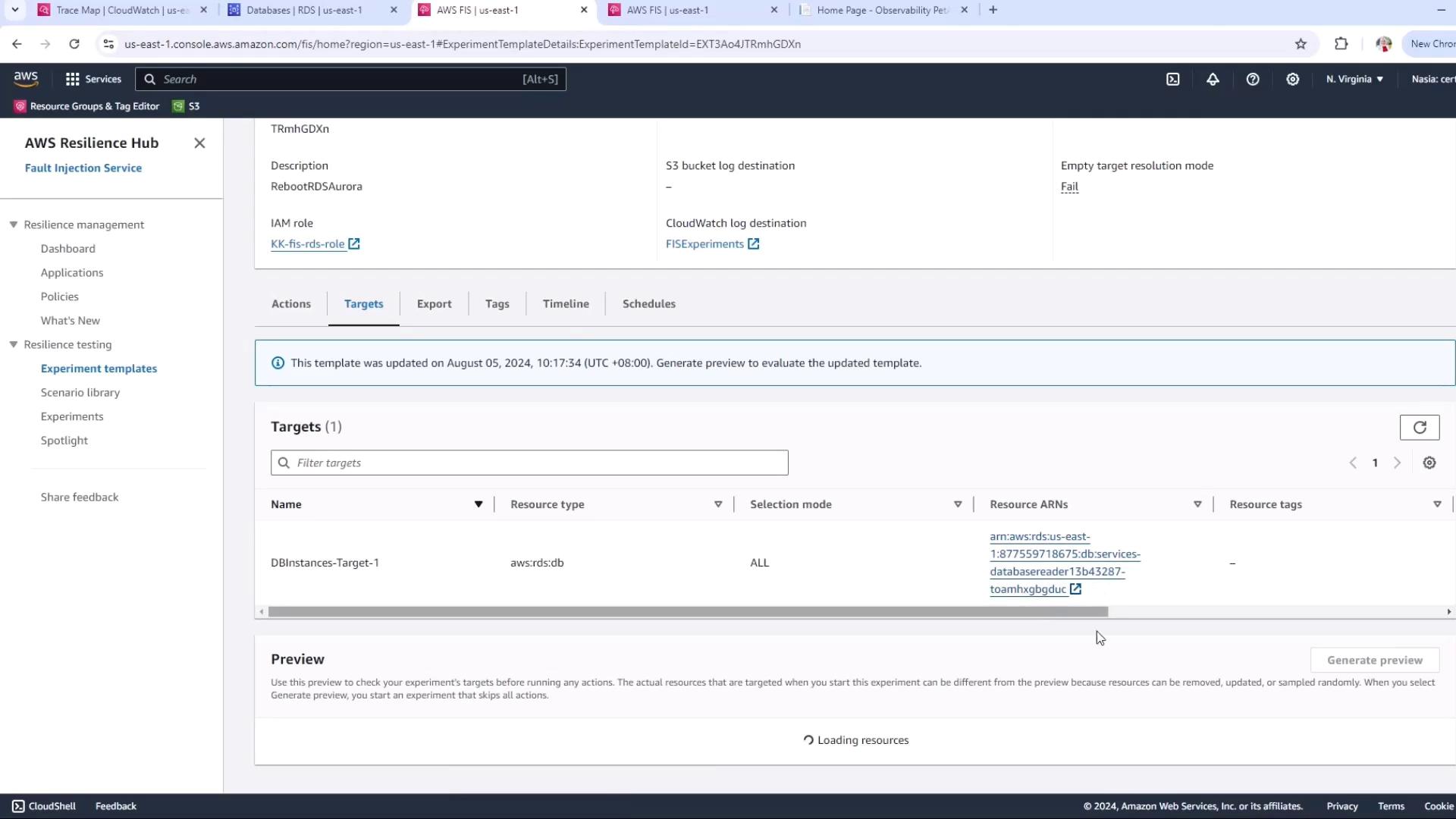
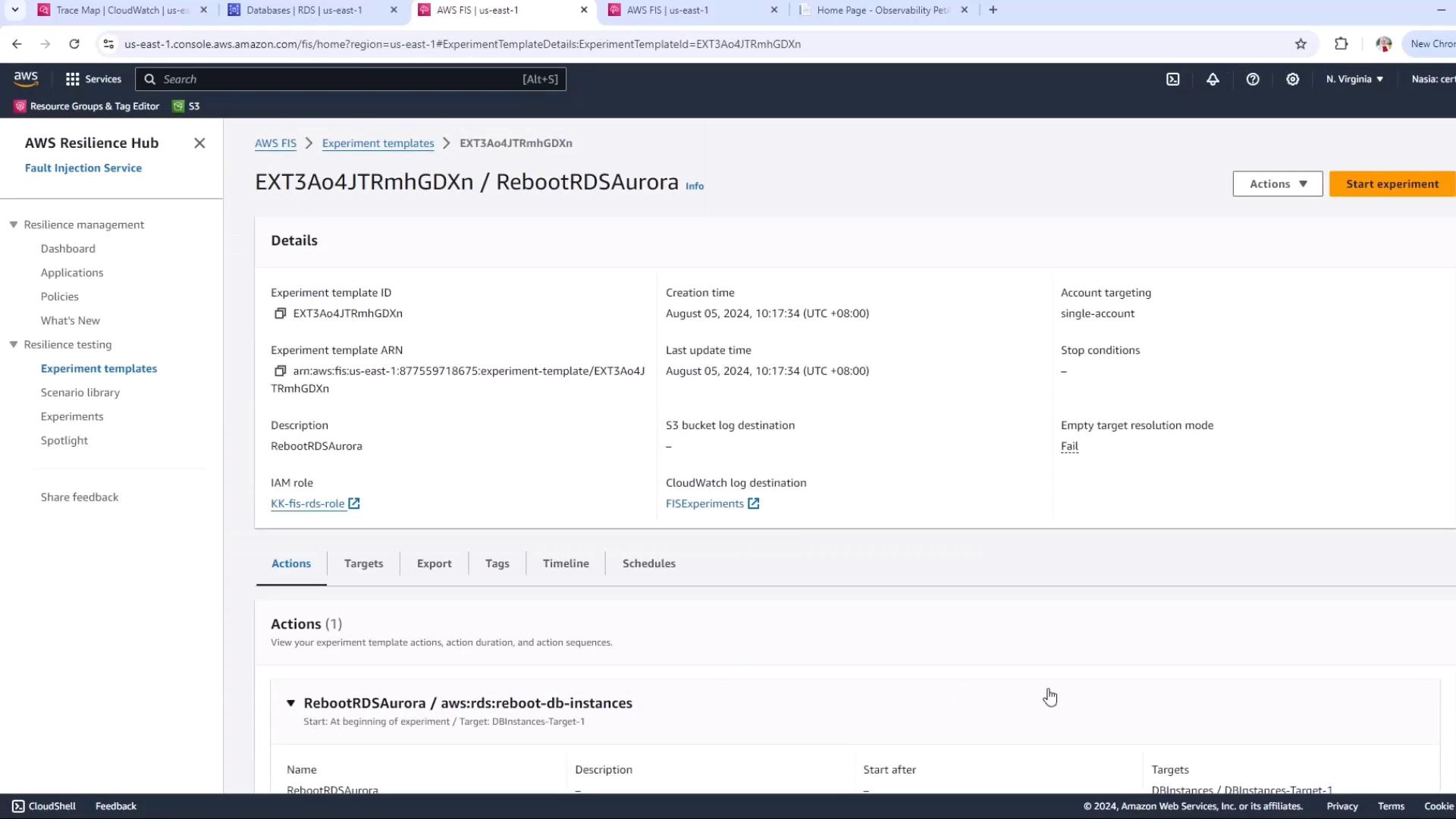
## 7. Generate a Preview

Before starting, click **Generate preview** to verify your target matches the reader instance.
<Frame>
  ![The image shows an AWS Fault Injection Simulator (FIS) interface with details of an experiment template named "RebootRDSAurora," including its ID, creation time, and associated IAM role.](https://kodekloud.com/kk-media/image/upload/v1752871857/notes-assets/images/Chaos-Engineering-Demo-Create-and-Run-FIS-experiment-and-After-Metrics-and-DB-state/aws-fault-injection-simulator-reboot-rds.jpg)
</Frame>

<Frame>
  ![The image shows an AWS Resilience Hub interface, specifically the Fault Injection Service (FIS) section, displaying details of an experiment template with targets and resource information.](https://kodekloud.com/kk-media/image/upload/v1752871859/notes-assets/images/Chaos-Engineering-Demo-Create-and-Run-FIS-experiment-and-After-Metrics-and-DB-state/aws-resilience-hub-fis-experiment-template.jpg)
</Frame>

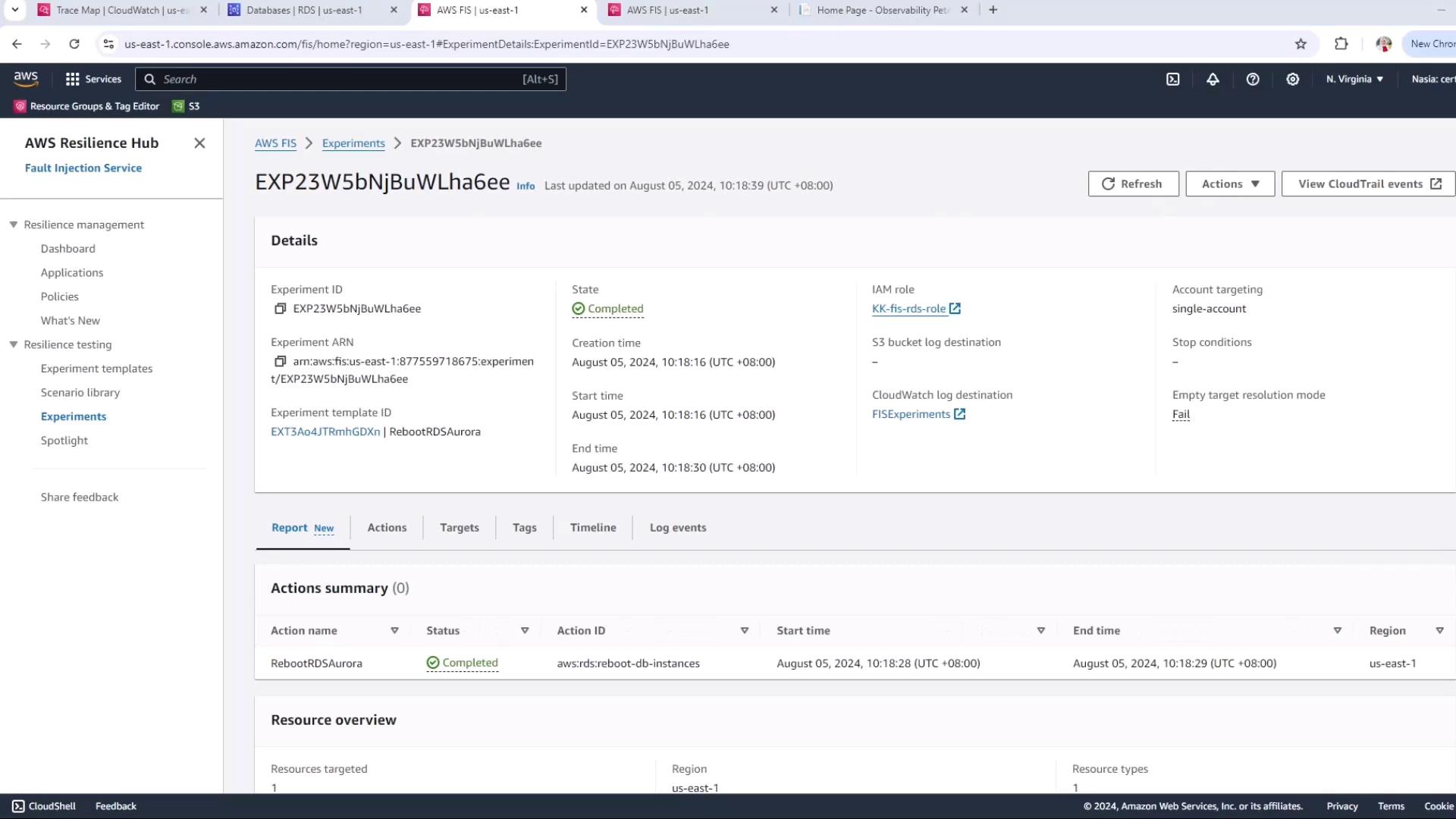
## 8. Start the Experiment

Click **Start experiment**. You will see the status progress through **Initiating**, **Pending**, **Running**, and finally **Completed**.
<Frame>
  ![The image shows an AWS Fault Injection Simulator (FIS) dashboard displaying details of a completed experiment, including its ID, state, creation time, and actions summary.](https://kodekloud.com/kk-media/image/upload/v1752871861/notes-assets/images/Chaos-Engineering-Demo-Create-and-Run-FIS-experiment-and-After-Metrics-and-DB-state/aws-fault-injection-simulator-dashboard.jpg)
</Frame>

## 9. Review Post-Experiment State

1. Return to the RDS console. Observe the reader node restarting, then returning to **Available**.
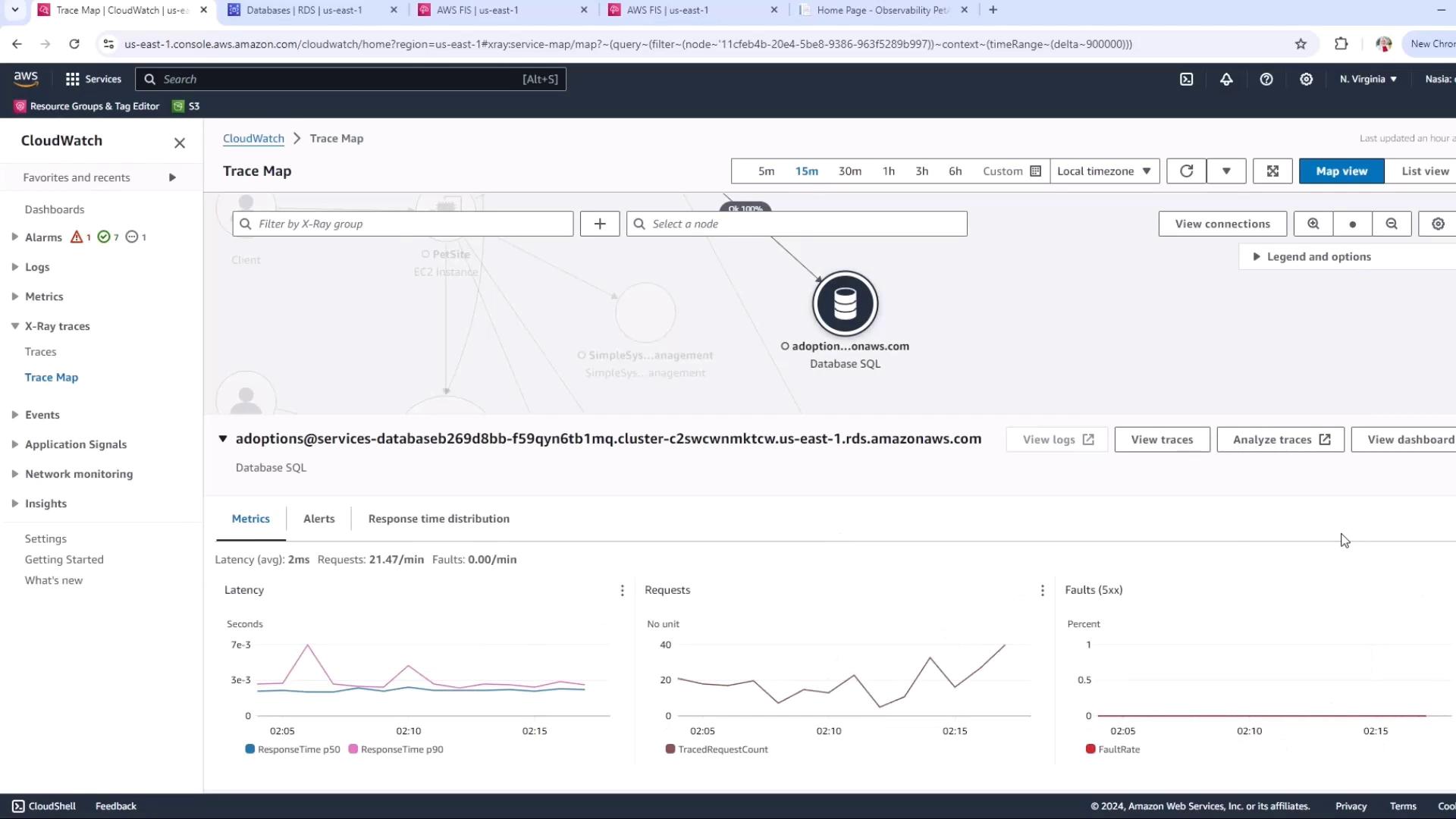
2. Open CloudWatch ServiceLens to inspect latency, request rates, and fault rates. Since only the reader was rebooted, the writer node continues to serve writes uninterrupted.
<Frame>
  ![The image shows an AWS CloudWatch Trace Map interface displaying metrics for a database service, including latency, requests, and fault rates over a selected time period.](https://kodekloud.com/kk-media/image/upload/v1752871862/notes-assets/images/Chaos-Engineering-Demo-Create-and-Run-FIS-experiment-and-After-Metrics-and-DB-state/aws-cloudwatch-trace-map-metrics.jpg)
</Frame>

<Callout icon="triangle-alert" color="#FF6B6B">
  Rebooting the reader node confines the blast radius, but always validate your high-availability configuration before injecting faults in production.
</Callout>

***

By following these steps, you confirm that rebooting an Aurora reader instance via AWS FIS has minimal impact on application availability and maintains overall cluster resilience.

<CardGroup>
  <Card title="Watch Video" icon="video" cta="Learn more" href="https://learn.kodekloud.com/user/courses/chaos-engineering/module/93135794-0ff5-4810-98ca-31959adc4eab/lesson/6aa65fda-fcd5-4636-9ddc-0a5dca82c086" />
</CardGroup>