> ## Documentation Index
> Fetch the complete documentation index at: https://notes.kodekloud.com/llms.txt
> Use this file to discover all available pages before exploring further.
# Demo Pre requisite for FIS experiment Create IAM role and Current State
> This guide verifies the Aurora PostgreSQL cluster configuration and sets up the IAM role for AWS Fault Injection Simulator.
In this guide, we’ll verify the configuration of our Aurora PostgreSQL cluster and set up the IAM role required for AWS Fault Injection Simulator (FIS).
## 1. Review Aurora PostgreSQL Cluster Configuration
Ensure your Aurora PostgreSQL cluster is deployed regionally with the following setup:
| Instance Role | Availability Zone | Status |
| ------------- | ----------------- | --------- |
| Writer | us-east-1a | Available |
| Reader | us-east-1b | Available |
## 2. Establish Baseline Metrics in CloudWatch
Before running an FIS experiment, capture steady-state performance metrics:
1. Open the AWS Console and navigate to **CloudWatch** → **X-Ray Trace Map**.
2. Select your target database (e.g., the `adoption` PostgreSQL cluster).
3. Set the time range to the last 30 minutes.
You should observe metrics similar to these:
| Metric | Typical Value |
| ------------ | ----------------- |
| Latency | \~2 ms |
| Request Rate | \~26 requests/min |
| Faults | None |
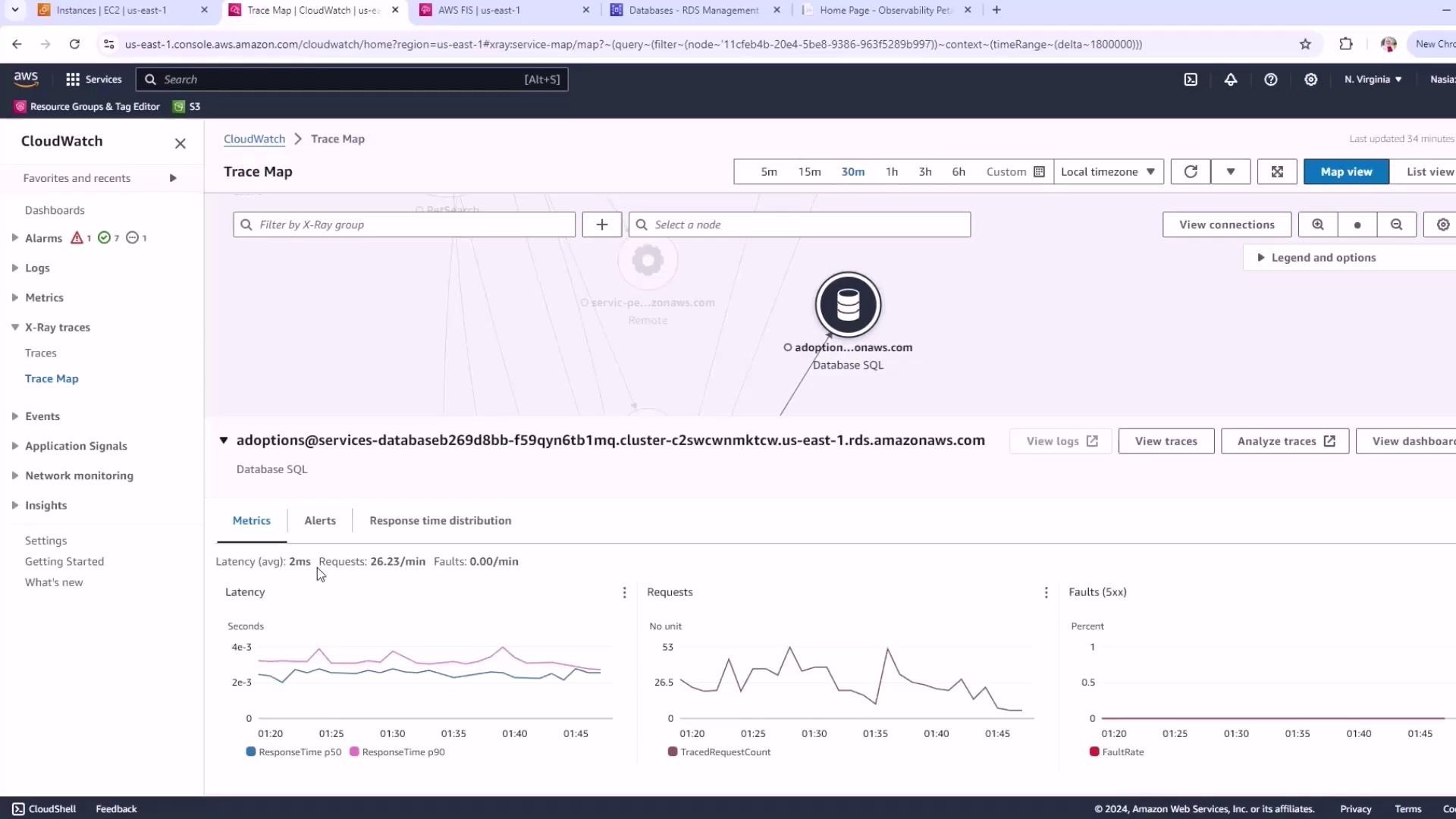
Recording baseline metrics is essential for measuring the impact of your FIS experiments. Always capture steady-state data first.
## 3. Create an IAM Role for FIS
AWS FIS needs permission to act on your RDS resources and write logs. Follow these steps:
1. Navigate to **IAM** → **Roles** → **Create role**.
2. Under **Trusted entity**, choose **AWS service**, then select **FIS**.
3. For **Use case**, pick **RDS**.
4. Name the role `FISRDSRole`.
5. In the **Trust policy** editor, replace the JSON with:
```json theme={null}
{
"Version": "2012-10-17",
"Statement": [
{
"Effect": "Allow",
"Action": ["sts:AssumeRole"],
"Principal": {
"Service": ["fis.amazonaws.com"]
}
}
]
}
```
6. Attach the managed policy `CloudWatchLogsFullAccess` (or a least-privilege equivalent) to enable logging.
Your IAM role is now ready to be selected when you configure and run your FIS experiment.
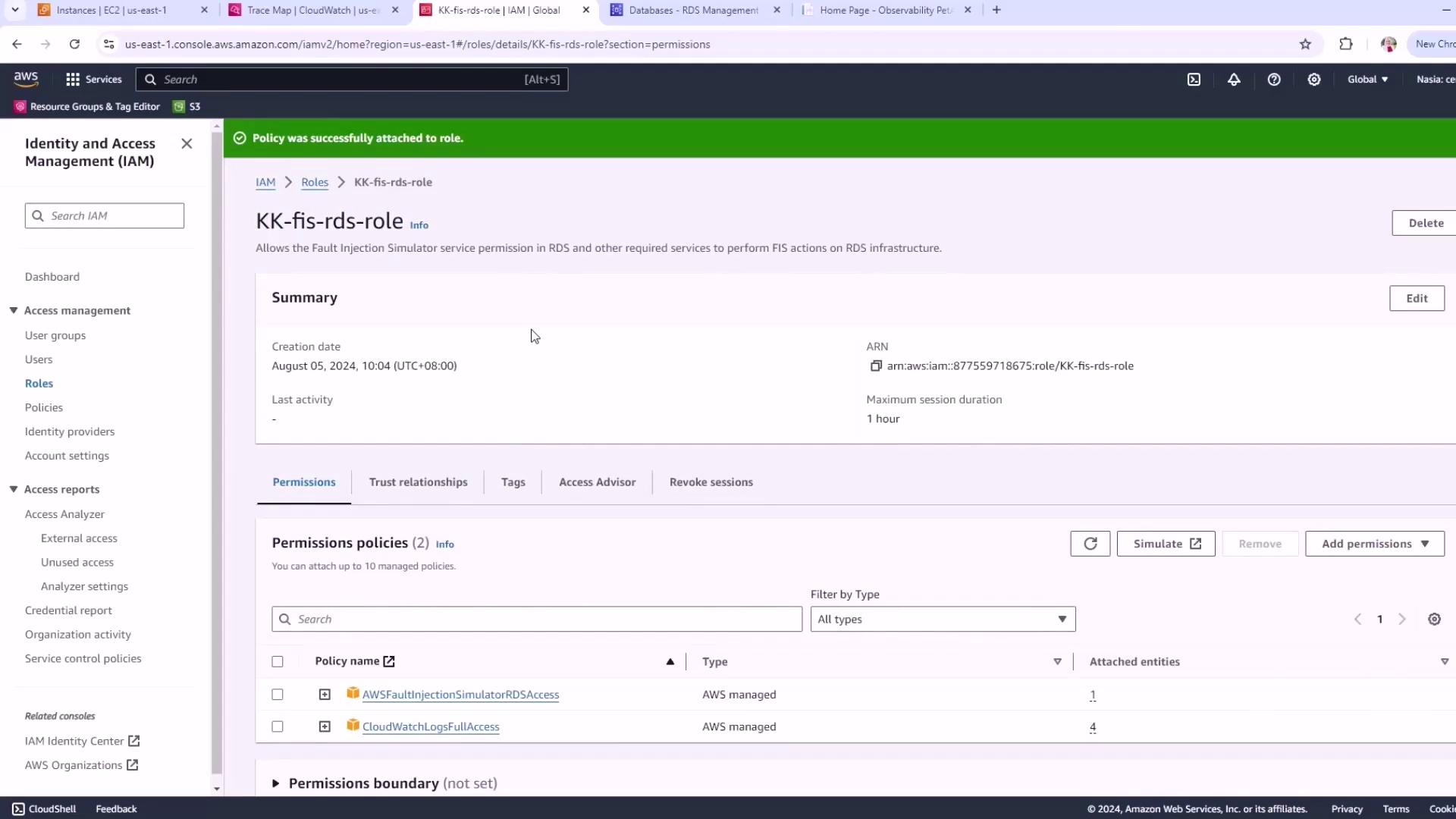
Always follow the principle of least privilege. Grant only the permissions necessary for your FIS experiments to reduce security risks.
## References
* [AWS Fault Injection Simulator (FIS)](https://docs.aws.amazon.com/fis/latest/userguide/)
* [Aurora PostgreSQL User Guide](https://docs.aws.amazon.com/AmazonRDS/latest/AuroraUserGuide/AuroraPostgreSQL.html)
* [CloudWatch X-Ray Trace Map](https://docs.aws.amazon.com/xray/latest/devguide/xray-console.html)