> ## Documentation Index
> Fetch the complete documentation index at: https://notes.kodekloud.com/llms.txt
> Use this file to discover all available pages before exploring further.
# EKS Explanation
> This guide demonstrates using AWS Fault Injection Simulator to simulate high memory utilization on an Amazon EKS cluster and test system resilience.
In this guide, we demonstrate how to use AWS Fault Injection Simulator (FIS) to simulate a high memory utilization scenario on an Amazon EKS cluster. You’ll learn how to design the experiment, inject a memory fault, and observe your system’s resilience under stress.
## Architecture Overview
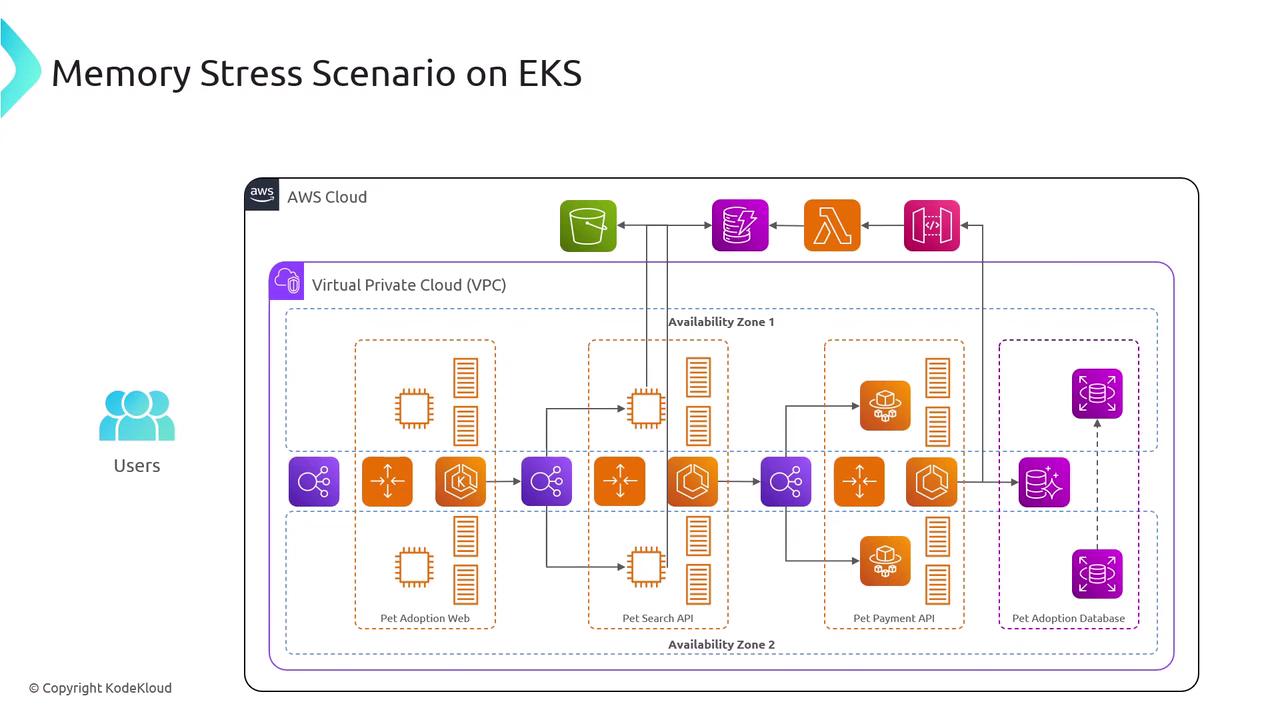
Our pet adoption application runs on Amazon EKS using a microservices architecture. Key resources involved:
| Resource | Purpose | Example Command |
| ------------------ | -------------------------------------------- | ------------------------------------------------------------------ |
| EKS Cluster | Hosts and orchestrates Kubernetes workloads | `eksctl create cluster --name pet-adopt-cluster` |
| VPC & Subnets | Network isolation and multi-AZ deployment | Custom VPC with public/private subnets |
| AWS FIS Experiment | Injects faults to test resilience | `aws fis start-experiment --cli-input-json file://experiment.json` |
| CloudWatch Metrics | Monitors memory, CPU, and application health | Automatically integrated with EKS |
## Experiment Design
To ensure a structured approach, we define the **Given** (current state) and the **Hypothesis** (expected outcome under failure conditions).
### Given
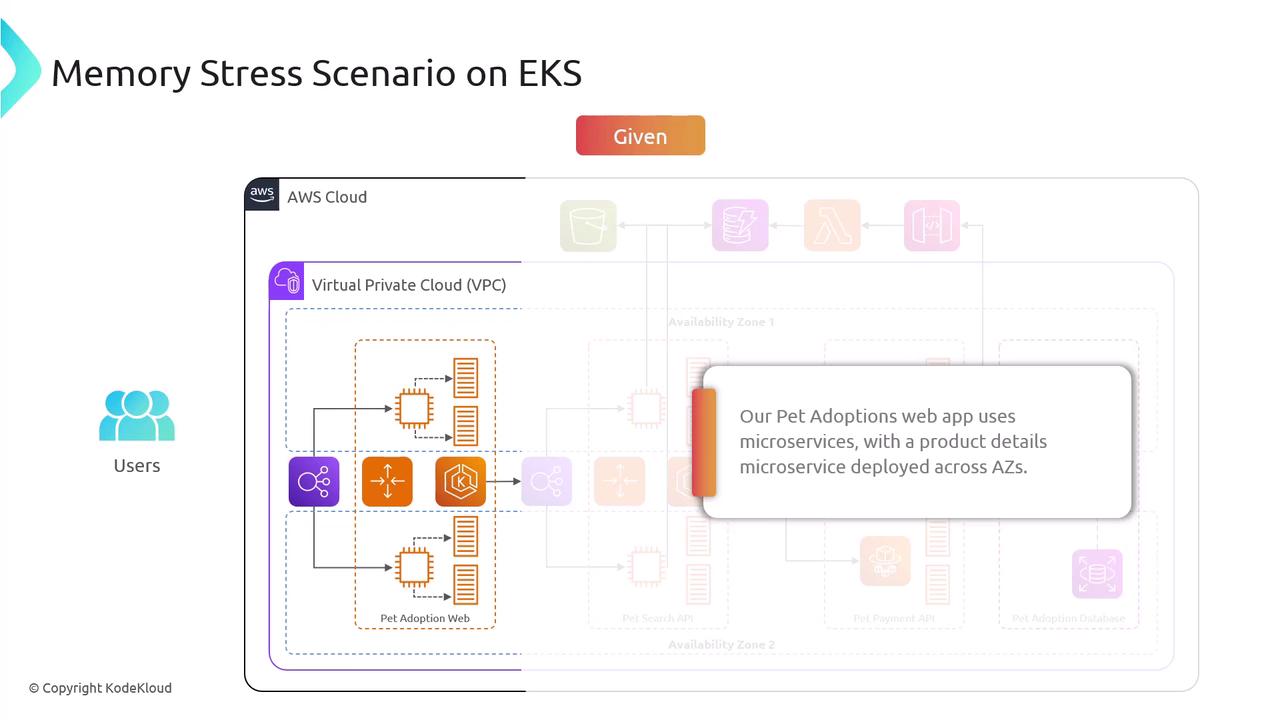
The **product details** microservice is deployed across multiple Availability Zones to guarantee high availability and fault tolerance.
### Hypothesis
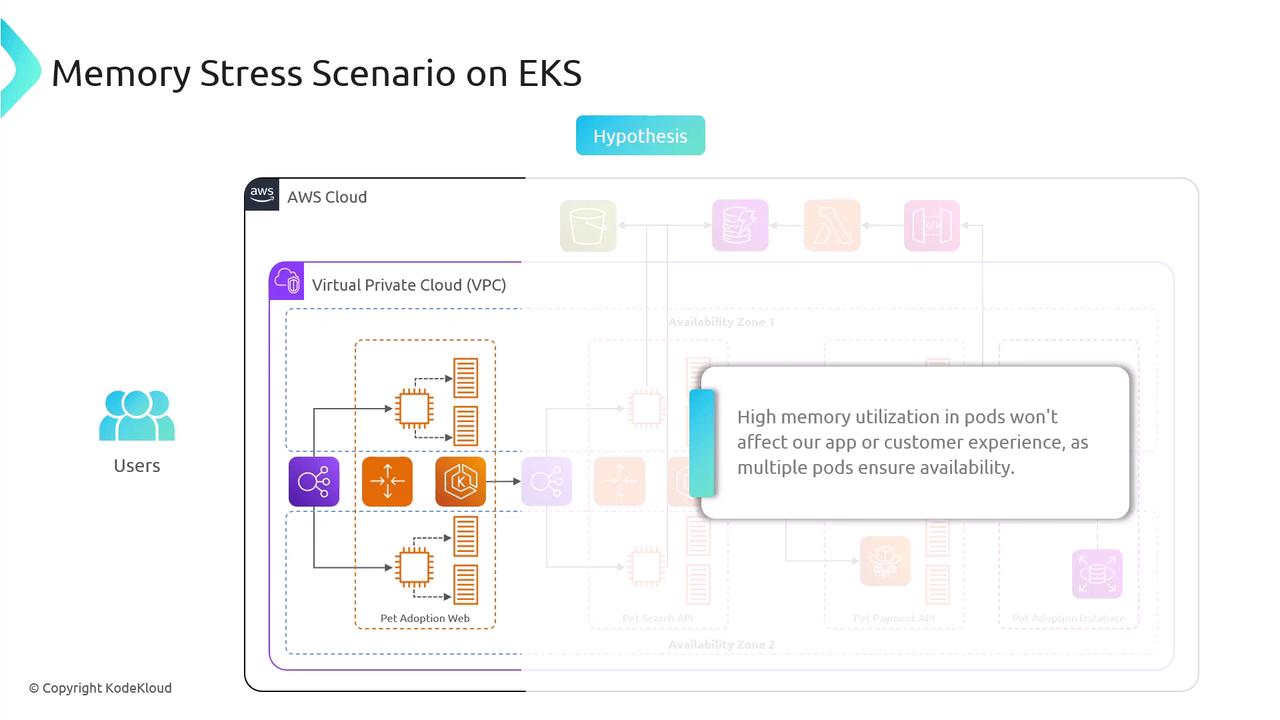
Even if one pod in a single AZ experiences memory saturation, the remaining pods will handle the traffic without impacting the end-user experience.
* An existing EKS cluster with worker nodes across at least two Availability Zones
* IAM permissions for `eks:*`, `fis:*`, and CloudWatch metrics
* AWS CLI configured for your target region
Next, we’ll create an AWS FIS experiment that injects a high-memory-hog workload into one pod. You can monitor the memory usage via CloudWatch dashboards and the Kubernetes Metrics API to validate the hypothesis.