> ## Documentation Index
> Fetch the complete documentation index at: https://notes.kodekloud.com/llms.txt
> Use this file to discover all available pages before exploring further.
# Demo Fargate IAM role creation
> Learn to create an IAM role for chaos experiments on Amazon ECS Fargate using AWS Fault Injection Simulator.
In this walkthrough, you'll learn how to create an IAM role for running chaos experiments on Amazon ECS Fargate using AWS Fault Injection Simulator (FIS). By the end, your `ECS-Fargate-FIS-Role` will have the permissions needed for logging, SSM commands, and ECS operations.
## Prerequisites
* An AWS account with permissions to create roles and attach policies (`iam:CreateRole`, `iam:AttachRolePolicy`).
* Basic familiarity with AWS IAM, ECS Fargate, and AWS FIS.
## Step 1: Start Role Creation
1. Open the AWS IAM console and click **Create role**.
2. Under **Select trusted entity**, choose **AWS service**.
3. From the service list, select **AWS Fault Injection Simulator (FIS)**.
4. In the **Use case** section, pick **ECS Fargate** since your experiments will target Fargate tasks.
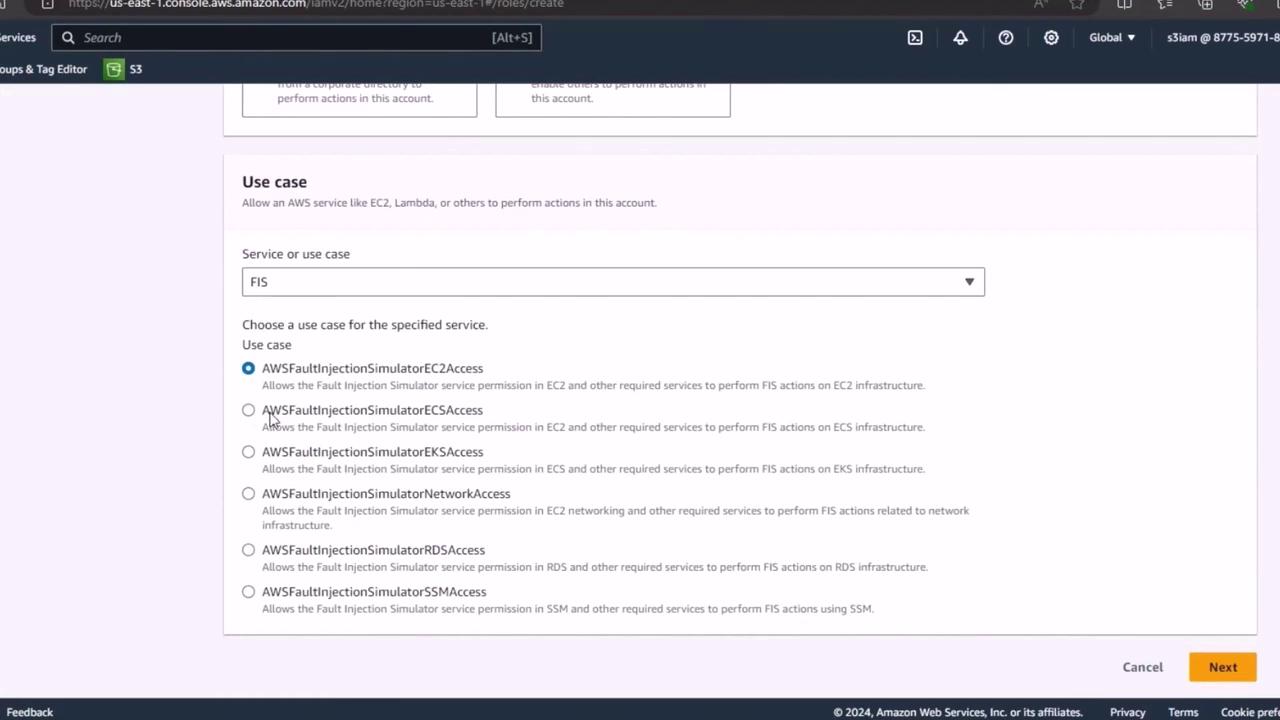
Selecting the correct trusted entity and use case ensures FIS can assume this role during experiments.
## Step 2: Configure Role Details
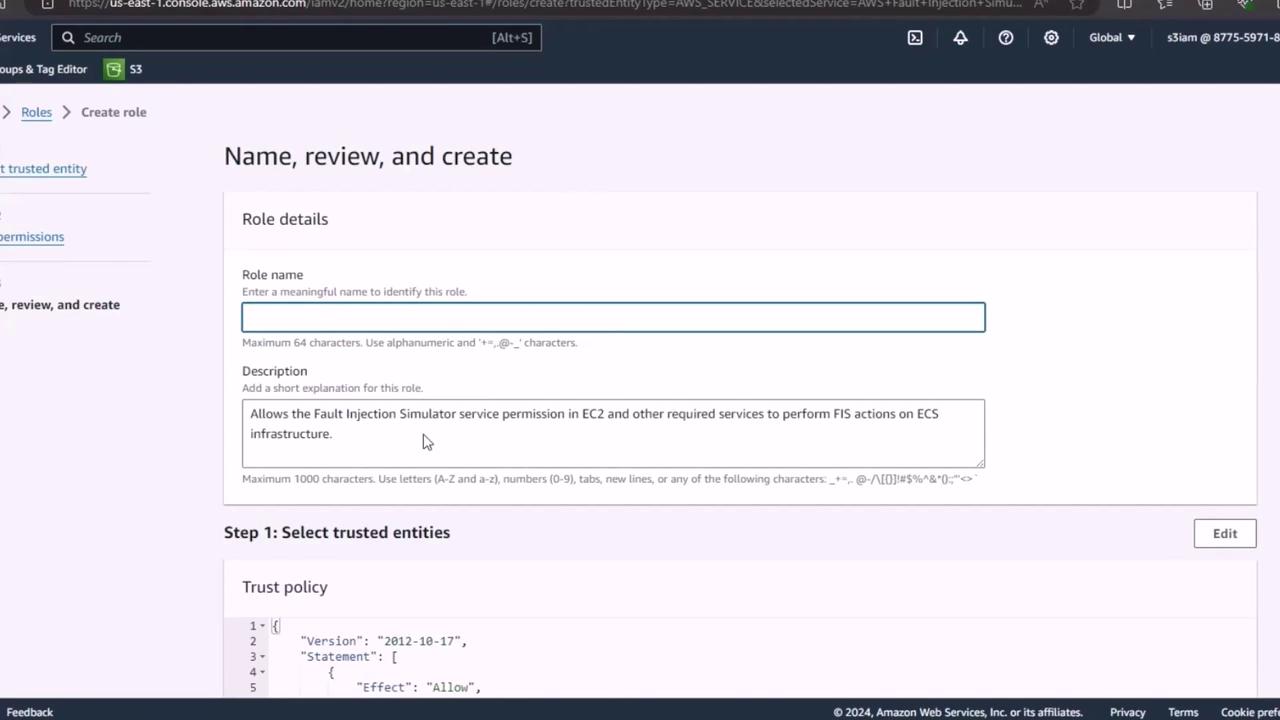
1. Click **Next** to proceed to the role details page.
2. Enter a descriptive name, for example `ECS-Fargate-FIS-Role`.
3. (Optional) Add a description such as “Role for FIS chaos experiments on ECS Fargate.”
4. Click **Create role** to finalize.
## Step 3: Attach Required IAM Policies
Now that the role exists, attach the following managed policies to grant FIS the necessary permissions:
| Policy Name | Purpose |
| ----------------------------------- | ------------------------------------------------------------- |
| CloudWatch Logs Full Access | Allow FIS to write experiment logs to CloudWatch Logs |
| AmazonSSMFullAccess | Enable running SSM documents (commands) during the experiment |
| AWSFaultInjectionSimulatorECSAccess | Grant FIS permissions specific to ECS operations on Fargate |
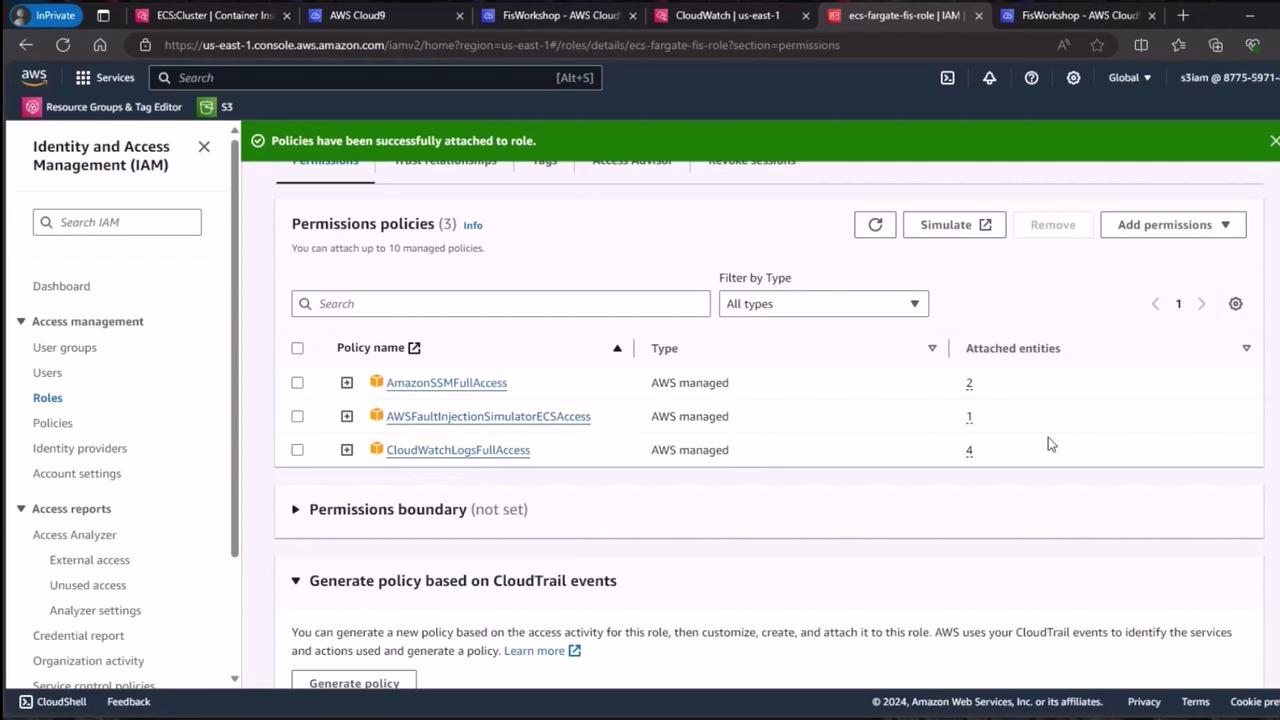
For production environments, consider using least-privilege custom policies rather than full-access managed policies.
## Finalize and Verify
Your IAM role `ECS-Fargate-FIS-Role` is now ready. You can reference this role ARN when creating FIS experiments targeting ECS Fargate tasks.
## Links & References
* [AWS Fault Injection Simulator (FIS)](https://docs.aws.amazon.com/fis/latest/userguide/what-is-fault-injection-simulator.html)
* [Amazon ECS Fargate](https://aws.amazon.com/fargate/)
* [AWS Identity and Access Management (IAM) Documentation](https://docs.aws.amazon.com/iam/latest/UserGuide/)