> ## Documentation Index
> Fetch the complete documentation index at: https://notes.kodekloud.com/llms.txt
> Use this file to discover all available pages before exploring further.
# Cleanup Process
> This article outlines the steps to clean up AWS resources after a workshop to avoid unexpected charges.
After completing the workshop, it’s important to remove all AWS resources to prevent unexpected charges. Follow these steps in sequence:
| Step | Resource Type | Action |
| ---- | ------------------------------------ | ----------------------------------------------- |
| 1 | Amazon S3 Buckets | Empty buckets before deletion |
| 2 | Amazon RDS Snapshots | Delete manual Aurora snapshots |
| 3 | AWS CDK Stacks | Run `cdk destroy` for all CDK-managed resources |
| 4 | Auto Scaling Group & Launch Template | Delete the group and associated launch template |
| 5 | CloudWatch Log Groups | Delete the log group in CloudWatch |
## 1. Empty Amazon S3 Buckets
Before tearing down your CloudFormation stacks or CDK apps, you must empty every S3 bucket. AWS will not delete buckets that contain objects.
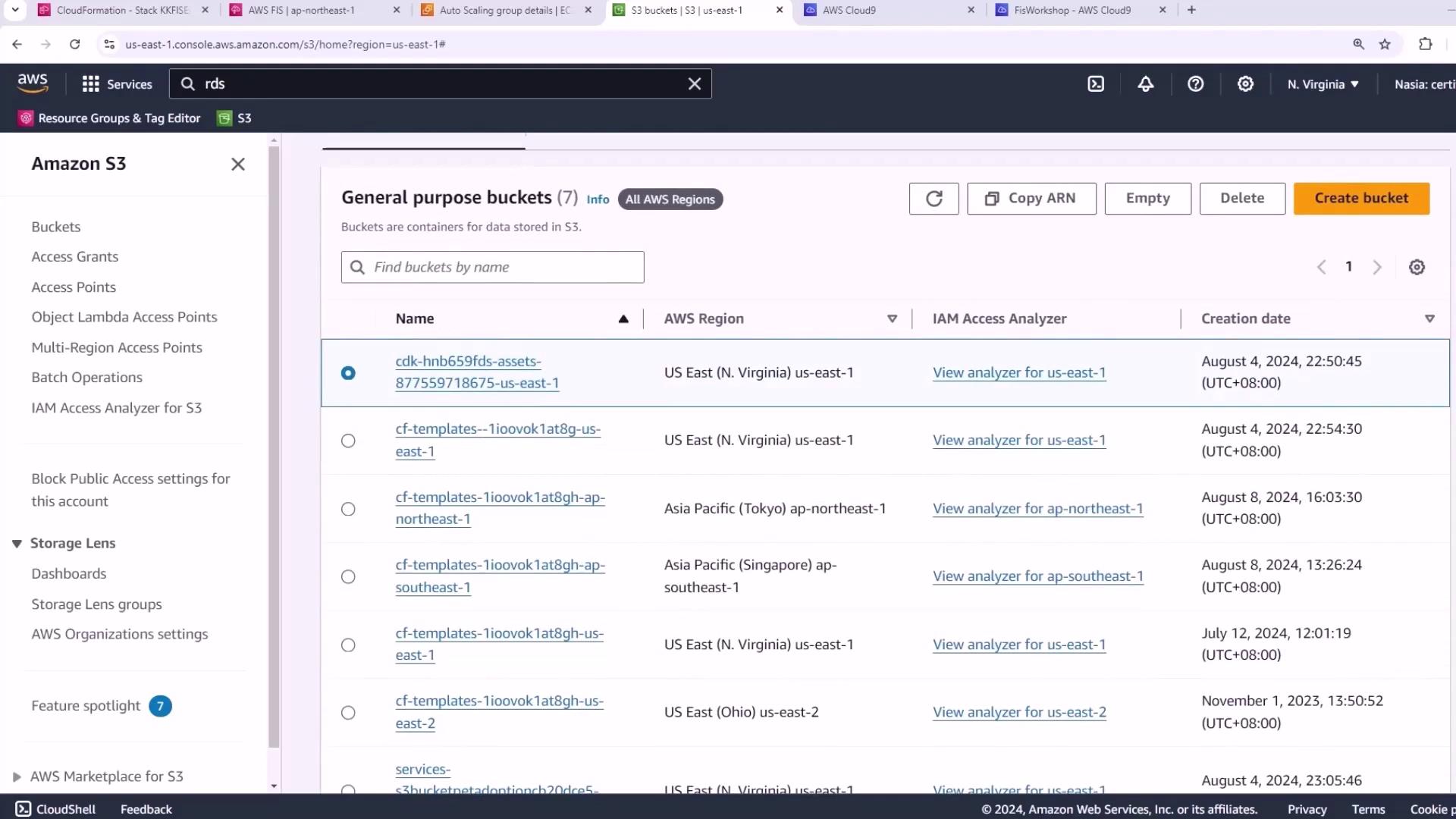
Buckets with existing objects will block stack deletion. Ensure all objects are removed first.
1. Open the [Amazon S3 console](https://console.aws.amazon.com/s3/).
2. Select each workshop bucket.
3. Click **Empty**.
4. Type **permanently delete** and confirm.
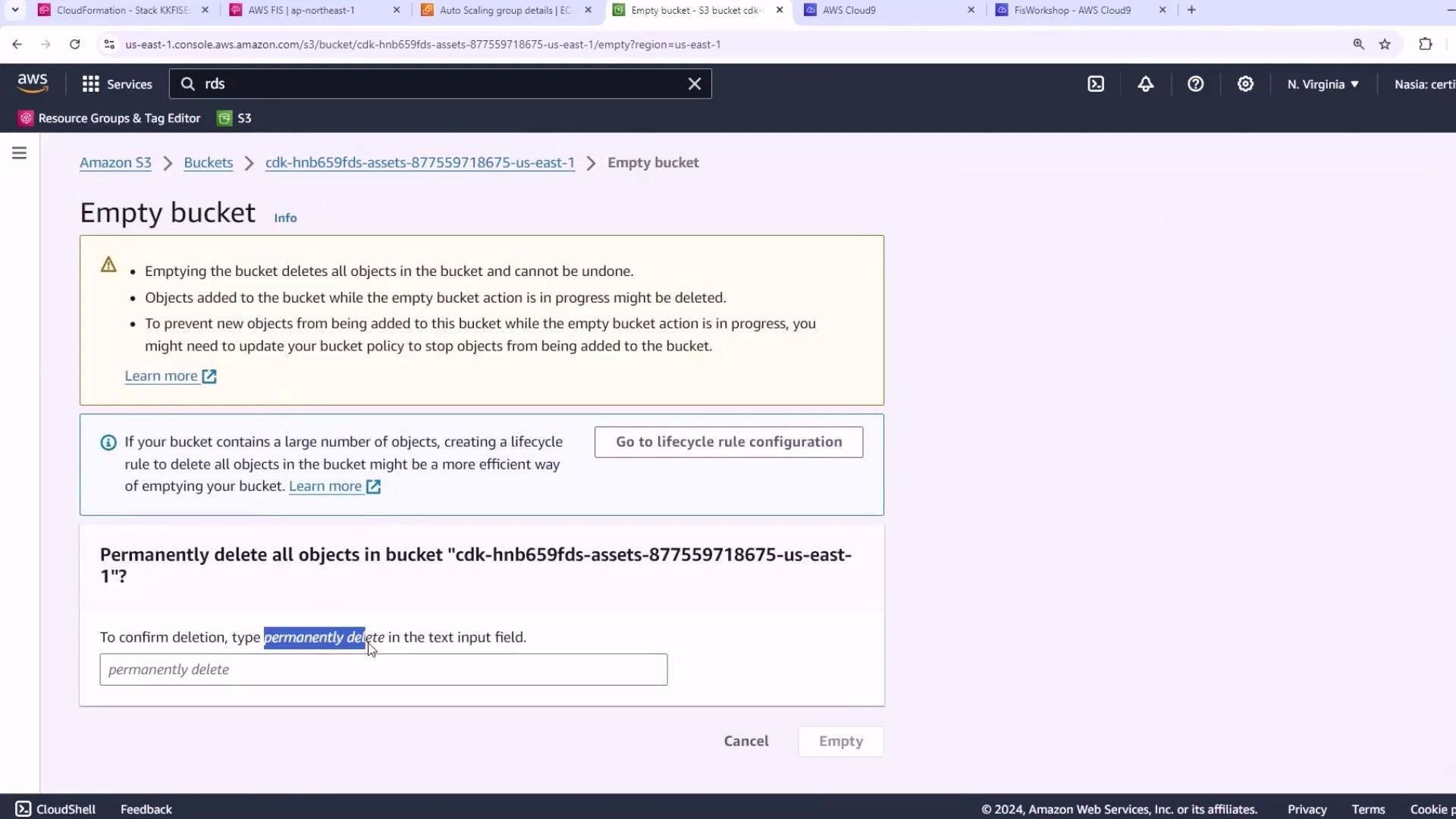
Repeat for all seven buckets.
## 2. Delete RDS Snapshots
Remove any manual snapshots of your Aurora database. Retained snapshots prevent the CloudFormation stack from deleting the database instances.
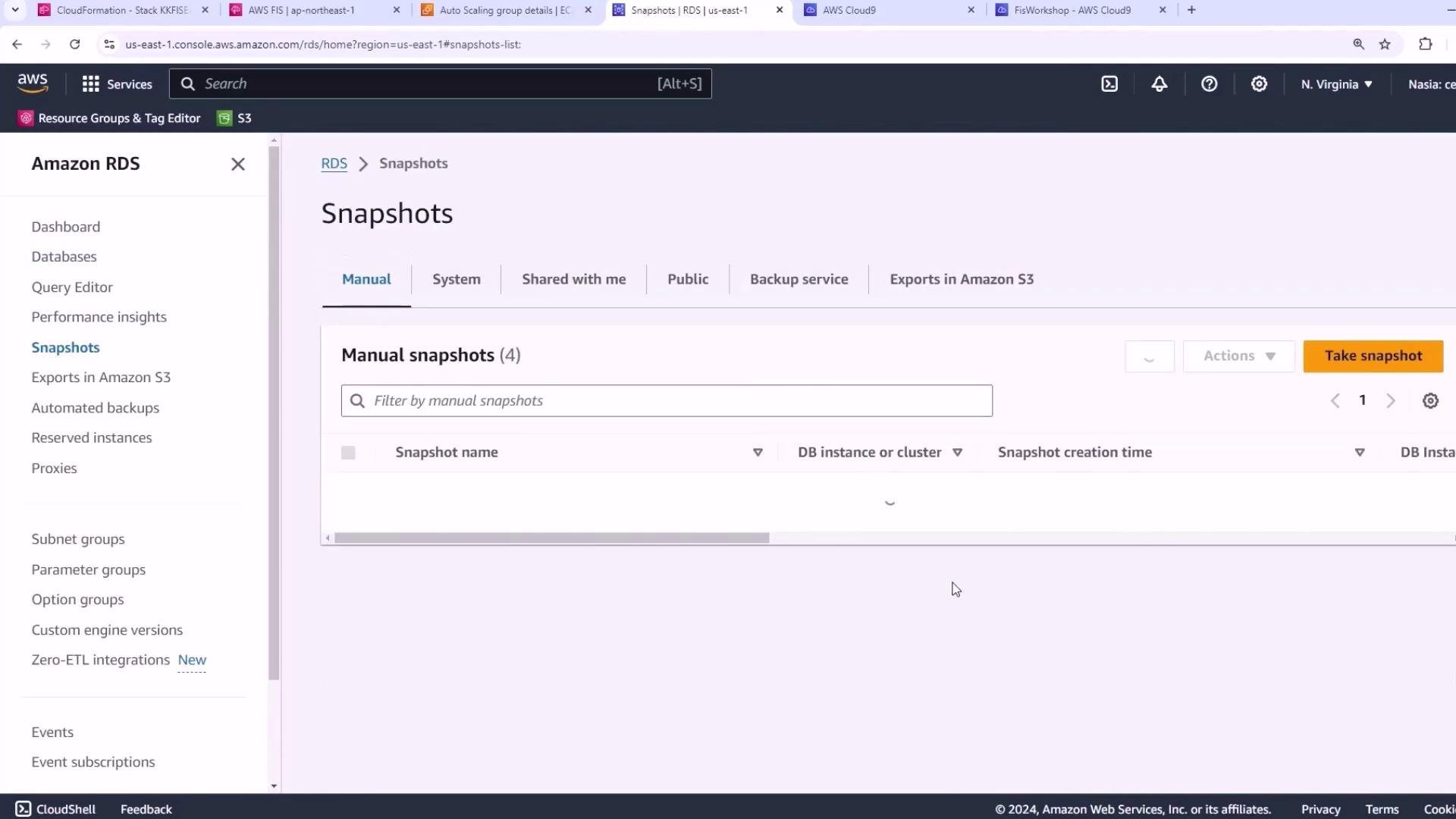
1. Go to the [Amazon RDS console](https://console.aws.amazon.com/rds/).
2. Choose **Snapshots** in the navigation pane.
3. Select each manual snapshot and delete.
Automated snapshots created by RDS are cleaned up when you delete the database instance.
## 3. Destroy CDK Stacks
With buckets and snapshots removed, destroy your CDK-managed stacks:
```bash theme={null}
cd ~/environment/workshopfiles/fis-workshop/intro-experiment/cdk
cdk destroy --all \
--context admin_role_arn=$KS_ADMIN_ARN \
--context dashboard_role_arn=$CONSOLE_ROLE_ARN \
--require-approval never
```
When prompted, type `y` to confirm. For more details, see the [AWS CDK CLI Reference](https://docs.aws.amazon.com/cdk/v2/guide/cli.html#cli-destroy).
## 4. Remove Manual Auto Scaling Resources
If you created an Auto Scaling group and launch template manually, delete them now.
1. Navigate to the [Auto Scaling Groups console](https://console.aws.amazon.com/ec2autoscaling/).
2. Select the group (e.g., in the Tokyo region).
3. Click **Delete**, then type **delete** to confirm.
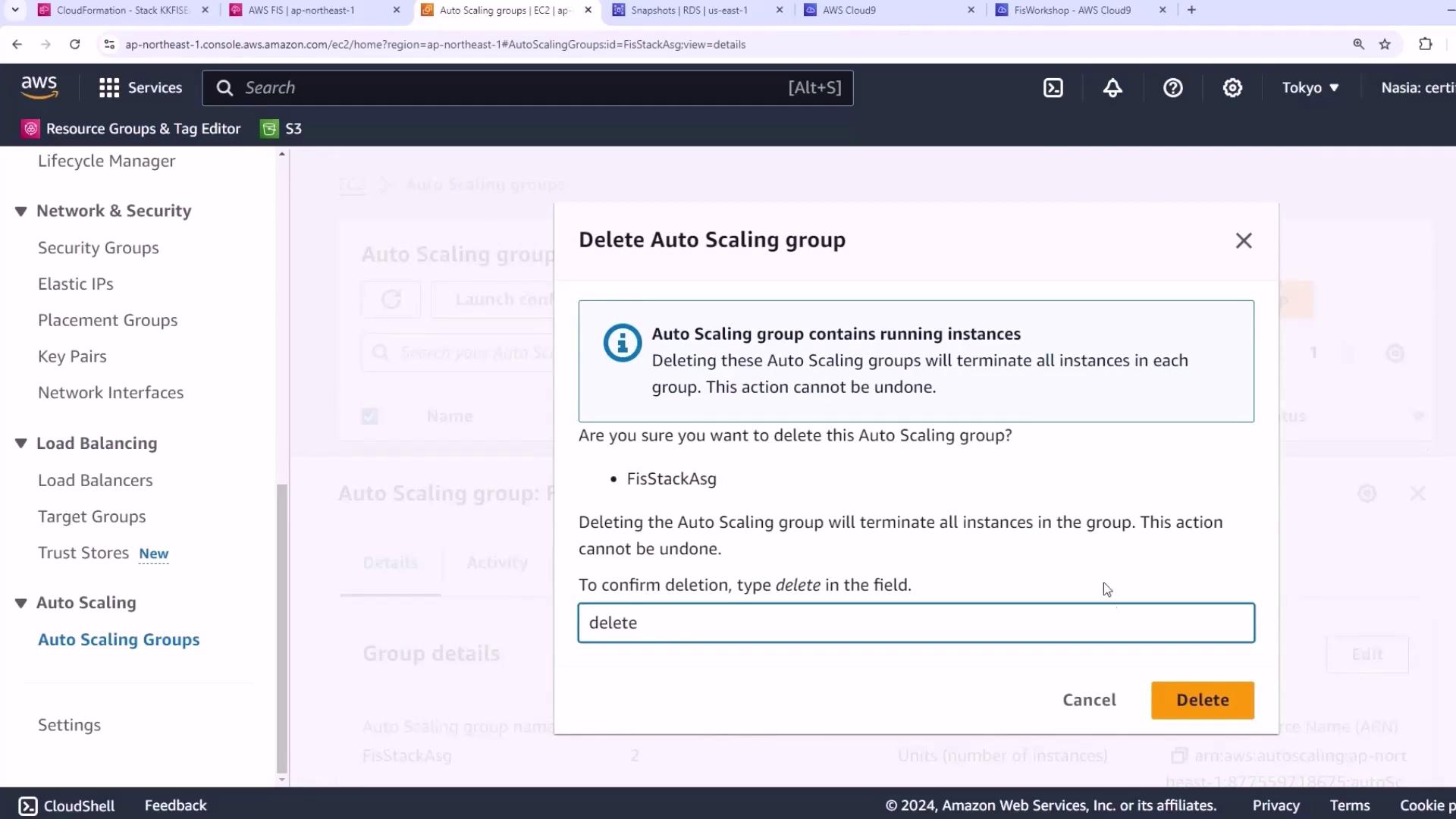
4. Finally, delete the associated launch template to terminate any remaining EC2 instances.
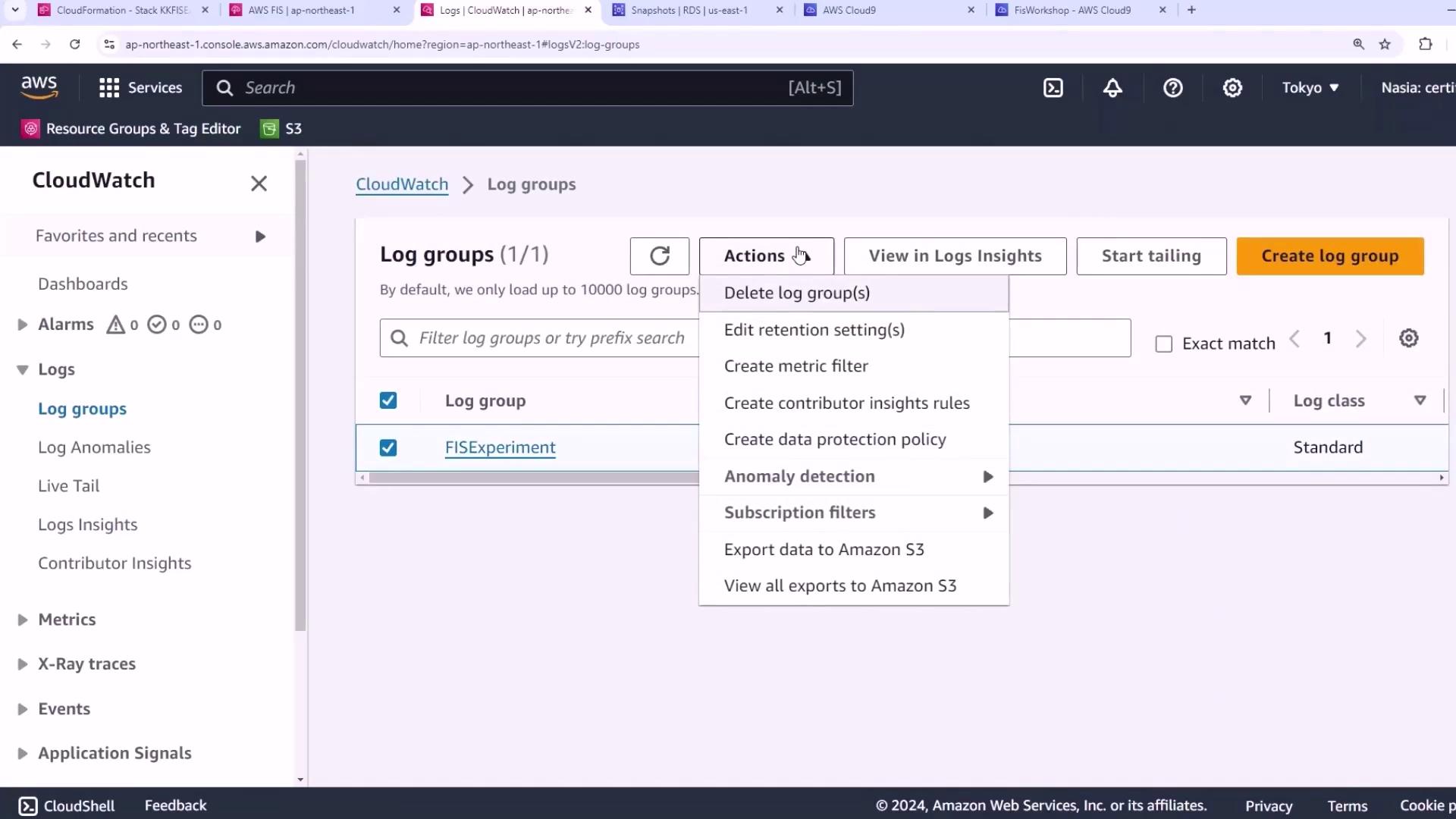
## 5. Delete CloudWatch Log Group
Remove the CloudWatch Logs group created during the workshop.
1. Open the [CloudWatch console](https://console.aws.amazon.com/cloudwatch/).
2. Click **Log groups**.
3. Select your log group, then choose **Actions → Delete log group**.
With these steps complete, all workshop resources are cleaned up.
## References
* [Deleting Amazon S3 Buckets](https://docs.aws.amazon.com/AmazonS3/latest/userguide/delete-bucket.html)
* [Deleting Amazon RDS Snapshots](https://docs.aws.amazon.com/AmazonRDS/latest/UserGuide/USER_DeleteSnapshot.html)
* [AWS CDK CLI Reference](https://docs.aws.amazon.com/cdk/v2/guide/cli.html#cli-destroy)
* [Deleting Auto Scaling Groups](https://docs.aws.amazon.com/autoscaling/ec2/userguide/deleting-asg.html)
* [Deleting CloudWatch Log Groups](https://docs.aws.amazon.com/AmazonCloudWatch/latest/logs/Working-with-log-groups-and-streams.html#delete-log-group)