> ## Documentation Index
> Fetch the complete documentation index at: https://notes.kodekloud.com/llms.txt
> Use this file to discover all available pages before exploring further.
# Demo Installing Claude on Ubuntu Virtual Machines
> Guide to installing Claude Code on Ubuntu VMs, avoiding npm permission errors and using the native installer with tips for PATH, Node alternatives, and VM sizing
This guide explains a common issue when installing Claude Code on typical Ubuntu virtual machines (EC2, Lightsail, etc.) and provides a safe, recommended workaround using the native installer. It preserves the original troubleshooting steps and shows how to avoid permission problems that occur with global npm installs.
## 1 — Update and upgrade the system
Always start by updating package lists and upgrading installed packages:
```bash theme={null}
sudo apt update
sudo apt upgrade -y
```
If a kernel was upgraded, apt may report a pending kernel upgrade and suggest a reboot. Example output:
```text theme={null}
Pending kernel upgrade!
Running kernel version:
6.14.0-1010-aws
Diagnostics:
The currently running kernel version is not the expected kernel version 6.14.0-1012-aws.
Restarting the system to load the new kernel will not be handled automatically, so you should consider rebooting.
```
If the system indicates a pending kernel upgrade, plan a reboot. Some kernel upgrades require a restart before the VM behaves as expected — especially on cloud images that use kernel packages from the provider (e.g., `*-aws` kernels).
## 2 — Node.js / npm and a common permissions error
Many older guides instruct installing Claude Code via a global npm package:
```bash theme={null}
sudo apt install -y nodejs npm
```
Then attempting:
```bash theme={null}
npm install -g @anthropic-ai/claude-code
```
may fail with permission errors when npm tries to write to `/usr/local/lib/node_modules`. Example failure:
```text theme={null}
npm ERR! code EACCES
npm ERR! syscall mkdir
npm ERR! path /usr/local/lib/node_modules
npm ERR! errno -13
npm ERR! Error: EACCES: permission denied, mkdir '/usr/local/lib/node_modules'
...
The operation was rejected by your operating system.
It is likely you do not have the permissions to access this file as the current user
A complete log of this run can be found in:
/home/ubuntu/.npm/_logs/-debug-0.log
```
Anthropic explicitly recommends not using `sudo` with `npm install -g` because it can create permission and ownership issues. Prefer user-local installations (see npm 'prefix': [https://docs.npmjs.com/cli/v9/using-npm/config#prefix](https://docs.npmjs.com/cli/v9/using-npm/config#prefix)), [nvm](https://github.com/nvm-sh/nvm), or the native installer instead.
## 3 — Options to resolve npm permission issues
Choose one of these approaches to avoid global permission errors and maintain a safe system configuration:
| Resource / Approach | Use Case | Links / Notes |
| ------------------------------ | -----------------------------------------------------------------: | -------------------------------------------------------------------------------------------------------------- |
| nvm (Node Version Manager) | Install Node for your user and use per-user global packages | [https://github.com/nvm-sh/nvm](https://github.com/nvm-sh/nvm) |
| npm prefix (user-local global) | Reconfigure npm global install directory under your home directory | [https://docs.npmjs.com/cli/v9/using-npm/config#prefix](https://docs.npmjs.com/cli/v9/using-npm/config#prefix) |
| Native installer (recommended) | Quick, VM-friendly install without npm permission issues | See installer steps below |
## 4 — Recommended: Use the native Claude Code installer (quick and simple)
On a freshly provisioned VM, install curl and git (if not already installed), then run Anthropic’s installer script:
```bash theme={null}
sudo apt install -y curl git
curl -fsSL https://claude.ai/install.sh | bash
```
The installer typically places the `claude` binary under `~/.local/bin` and may prompt that this directory is not in your PATH. Example installer output:
```text theme={null}
Setting up Claude Code...
⚠ Setup notes:
• ~/.local/bin is not in your PATH
• Add it by running: export PATH="$HOME/.local/bin:$PATH"
✓ Claude Code successfully installed!
Version: 1.0.98
Location: ~/.local/bin/claude
Next: Run claude --help to get started
✅ Installation complete!
```
If `~/.local/bin` is not in your PATH, add it permanently to your shell startup file or re-login:
```bash theme={null}
echo 'export PATH="$HOME/.local/bin:$PATH"' >> ~/.profile
source ~/.profile
```
Now verify the installation:
```bash theme={null}
claude --help
```
You should see the command help and available subcommands, confirming a successful installation.
## 5 — Instance sizing and system requirements
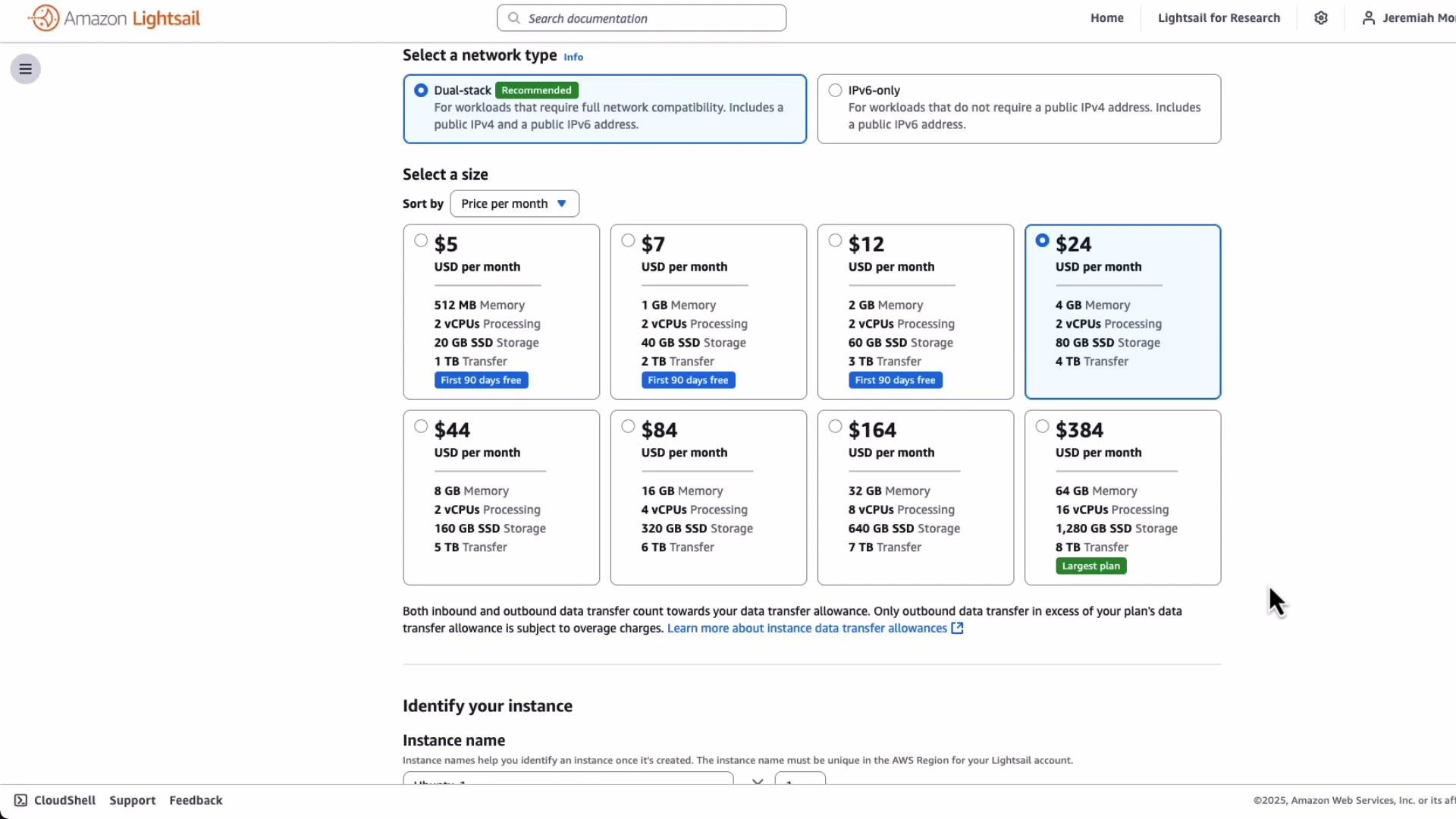
When provisioning a VM for Claude Code, ensure the instance meets Anthropic’s recommended system requirements — in particular, at least 4 GB RAM. Choose an instance size with adequate memory and CPU.
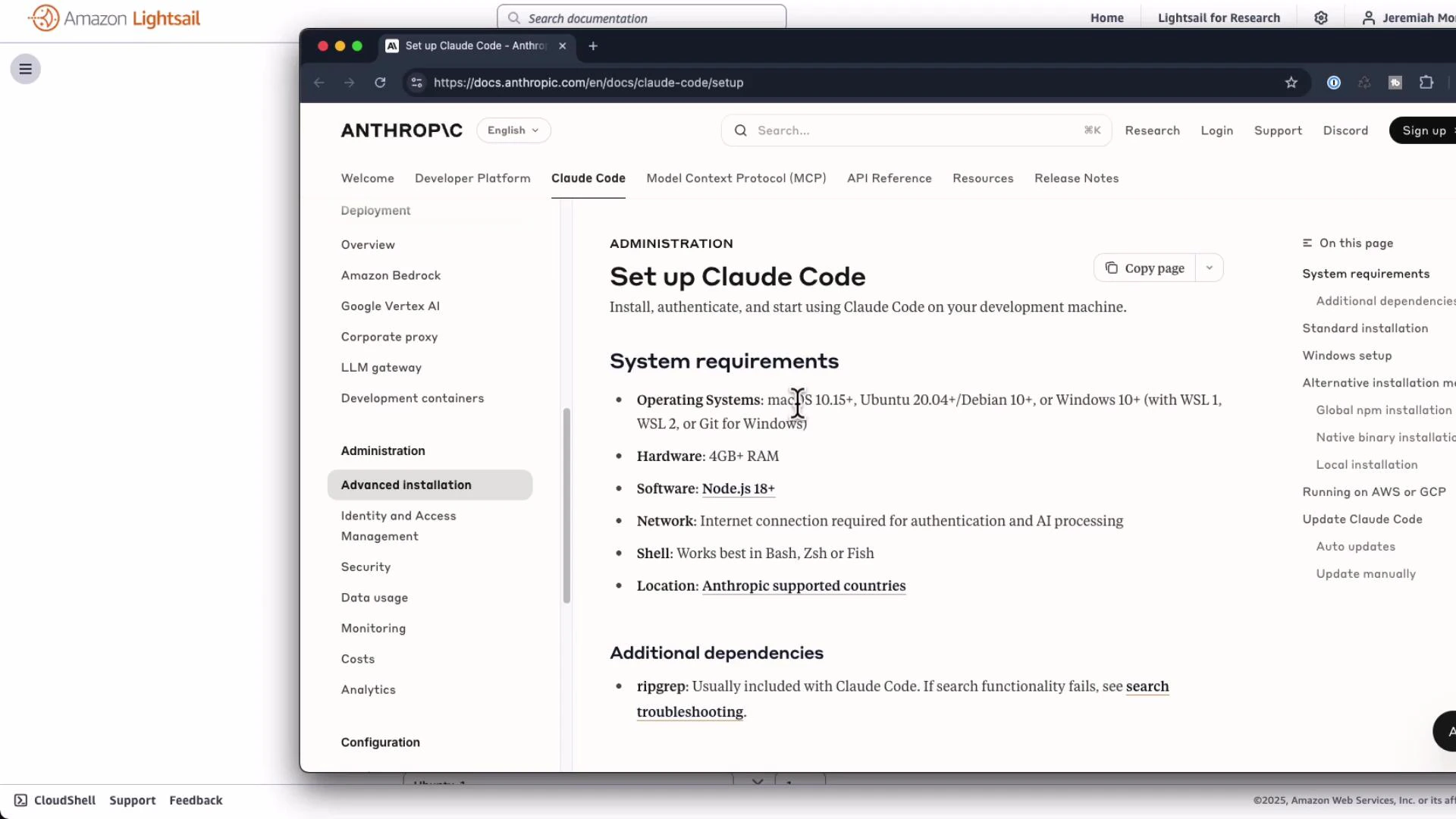 For example, Lightsail and many cloud providers expose a grid of plans. Pick an instance with 4 GB RAM or more:
 ## 6 — Summary and best practices
* Prefer the native installer to avoid global npm permission issues on VMs.
* If you must use Node/npm, use nvm or configure npm's `prefix` so global packages install under your home directory.
* Reboot the VM after kernel upgrades if apt reports a pending kernel; this avoids inconsistent behavior.
* Pick an instance size with at least 4 GB RAM for reliable performance.
Useful links and references:
* [Node.js](https://nodejs.org/)
* [nvm — Node Version Manager](https://github.com/nvm-sh/nvm)
* [npm config 'prefix'](https://docs.npmjs.com/cli/v9/using-npm/config#prefix)
* Anthropic installer: [https://claude.ai/install.sh](https://claude.ai/install.sh)
Example small diff shown in the original notes:
```diff theme={null}
1 function greet() {
2 - console.log("Hello, World!");
3 + console.log("Hello, Claude!");
4 }
```
## 6 — Summary and best practices
* Prefer the native installer to avoid global npm permission issues on VMs.
* If you must use Node/npm, use nvm or configure npm's `prefix` so global packages install under your home directory.
* Reboot the VM after kernel upgrades if apt reports a pending kernel; this avoids inconsistent behavior.
* Pick an instance size with at least 4 GB RAM for reliable performance.
Useful links and references:
* [Node.js](https://nodejs.org/)
* [nvm — Node Version Manager](https://github.com/nvm-sh/nvm)
* [npm config 'prefix'](https://docs.npmjs.com/cli/v9/using-npm/config#prefix)
* Anthropic installer: [https://claude.ai/install.sh](https://claude.ai/install.sh)
Example small diff shown in the original notes:
```diff theme={null}
1 function greet() {
2 - console.log("Hello, World!");
3 + console.log("Hello, Claude!");
4 }
```