> ## Documentation Index
> Fetch the complete documentation index at: https://notes.kodekloud.com/llms.txt
> Use this file to discover all available pages before exploring further.
# Installing Claude on Ubuntu Virtual Machines
> Guide to installing Claude Code on Ubuntu cloud instances, avoiding npm global permission errors by using user-local installs or the native installer and adjusting PATH
This guide addresses a common installation issue when installing Claude Code on Ubuntu cloud instances (for example, Amazon EC2 or Lightsail). It explains why a global `npm` install can fail with permission errors and shows a reliable workaround using Claude's native installer that installs to a user-local directory.
Start from a typical Ubuntu shell prompt:
```bash theme={null}
ubuntu@ip-172-26-8-154:~$
```
1. Update and upgrade the system
Always start by updating package lists and installing available upgrades:
```bash theme={null}
sudo apt update
sudo apt upgrade -y
```
Example output you might see:
```bash theme={null}
Fetched 36.9 MB in 12s (3002 kB/s)
Reading package lists... Done
Building dependency tree... Done
Reading state information... Done
24 packages can be upgraded. Run 'apt list --upgradable' to see them.
```
If a kernel upgrade is included, the system may warn that a reboot is required to load the new kernel:
```bash theme={null}
Pending kernel upgrade!
Running kernel version:
6.14.0-1010-aws
Diagnostics:
The currently running kernel version is not the expected kernel version 6.14.0-1012-aws.
Restarting the system to load the new kernel will not be handled automatically, so you should consider rebooting.
```
If you see such a message, schedule or perform a reboot so the new kernel is active before proceeding.
2. Why global npm install can fail (EACCES permissions)
The Claude Code docs provide an npm-based install command:
```bash theme={null}
npm install -g @anthropic-ai/claude-code
```
On many cloud images, running that command as a non-root user produces an EACCES error because the default global npm directory (commonly `/usr/local/lib/node_modules`) is owned by root:
```bash theme={null}
npm ERR! code EACCES
npm ERR! syscall mkdir
npm ERR! path /usr/local/lib/node_modules
npm ERR! errno -13
npm ERR! Error: EACCES: permission denied, mkdir '/usr/local/lib/node_modules'
...
npm ERR! The operation was rejected by your operating system.
npm ERR! It is likely you do not have the permissions to access this file as the current user
```
Anthropic recommends not using `sudo npm install -g ...` for their package. Instead, prefer one of the safer alternatives below.
Anthropic's documentation warns against running `sudo npm install -g ...`. Use a user-local npm prefix, change ownership only if appropriate, or use the native installer that places the binary in `~/.local/bin`.
Options to resolve the EACCES error:
| Option | When to use | Command(s) |
| - | - | - |
| Install globals in a user directory | Best for single-user environments | `mkdir -p ~/.local/lib ~/.local/bin`
`npm config set prefix "$HOME/.local"`
`export PATH="$HOME/.local/bin:$PATH"` (persist in `~/.profile` or `~/.bashrc`) |
| Change ownership of global folder | Use only on controlled systems where you manage users | `sudo chown -R $(whoami) /usr/local/lib/node_modules` |
| Use the Claude native installer | Recommended to avoid npm-global issues completely | See step 4 below (installer places `claude` in `~/.local/bin`) |
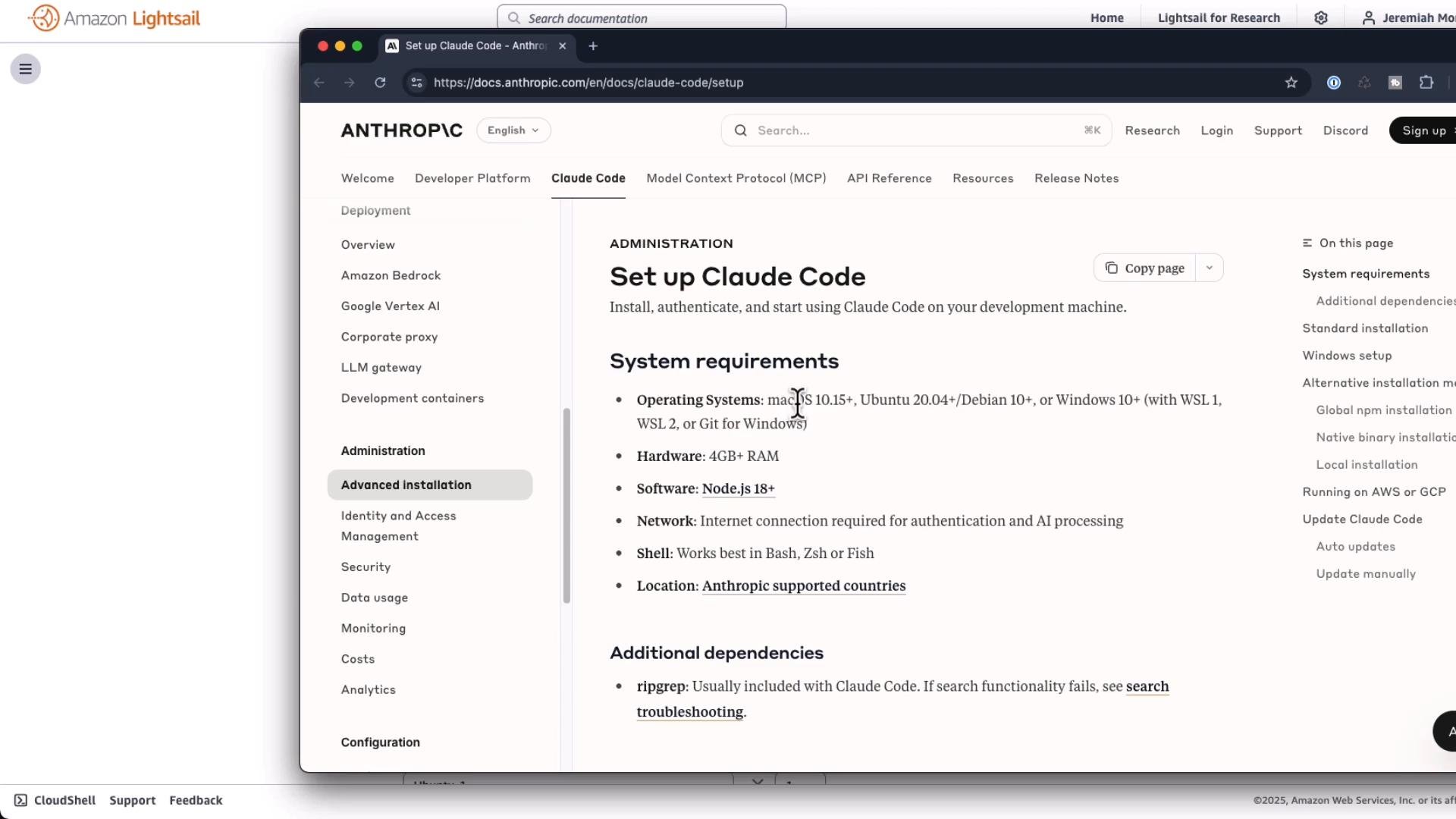
3. System requirements — choose an instance with at least 4 GiB RAM
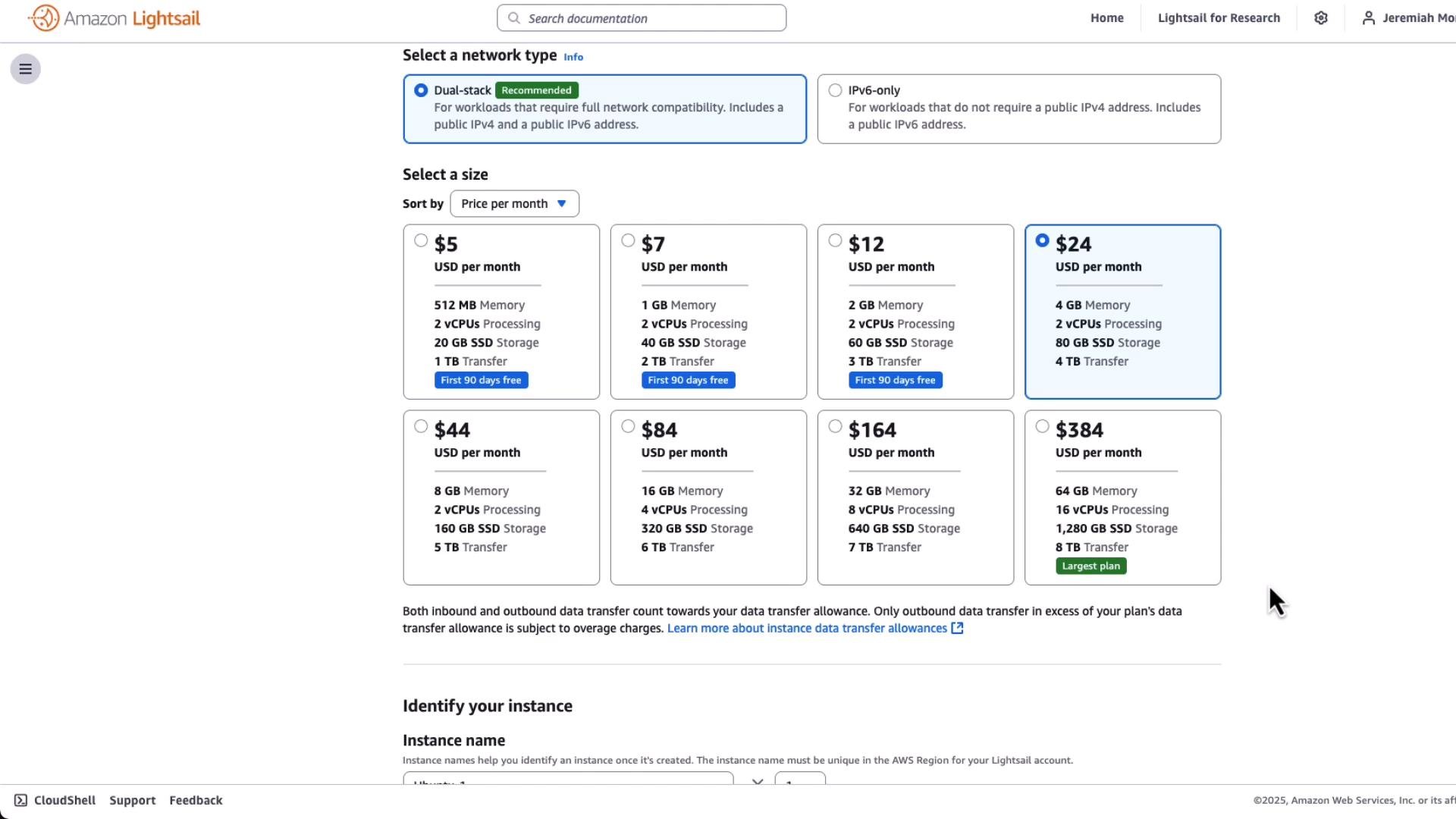
Claude Code’s documentation lists system requirements; in practice you should provision an instance with at least 4 GiB of RAM and adequate CPU and disk for your workflows. If you’re using Lightsail, select a plan that meets those minimums.
 If you use Amazon Lightsail or a similar provider, pick a plan that matches the memory/CPU needs — for example, a plan with 4 GiB RAM.
 4. Install the native Claude Code binary (recommended)
The easiest and most reliable method that avoids global npm permissions is to use the native installer provided by Claude. First ensure basic prerequisites are available:
```bash theme={null}
sudo apt install -y curl git
```
Then run the installer script (you can review the script before running it if you prefer):
```bash theme={null}
curl -fsSL https://claude.ai/install.sh | bash
```
Typical successful installer output:
```bash theme={null}
Setting up Claude Code...
⚠ Setup notes:
• ~/.local/bin is not in your PATH
• Add it by running: export PATH="$HOME/.local/bin:$PATH"
✔ Claude Code successfully installed!
Version: 1.0.98
Location: ~/.local/bin/claude
Next: Run claude --help to get started
✅ Installation complete!
```
If the installer warns that `~/.local/bin` is not in your PATH, add it and reload your shell (or log out and log back in):
```bash theme={null}
export PATH="$HOME/.local/bin:$PATH"
# To persist, add the above line to ~/.profile or ~/.bashrc
```
After that, verify the installation:
```bash theme={null}
claude --help
```
Example (truncated) output from `claude --help`:
```bash theme={null}
--disallowedTools, --disallowed-tools Comma or space-separated list of tool names to deny (e.g. "Bash(git:*), Edit")
--mcp-config Load MCP servers from JSON files or strings (space-separated)
--append-system-prompt Append a system prompt to the default system prompt
--permission-mode Permission mode to use for the session (choices: "acceptEdits", "bypassPermissions", "default", "plan")
...
Commands:
config Manage configuration (eg. claude config set -g theme dark)
mcp Configure and manage MCP servers
migrate-installer Migrate from global npm installation to local installation
setup-token Set up a long-lived authentication token (requires Claude subscription)
doctor Check the health of your Claude Code auto-updater
update Check for updates and install if available
install [options] [target] Install Claude Code native build...
```
Security tip: Always inspect a script before piping it into `bash`, especially in production or sensitive environments. Review `https://claude.ai/install.sh` if you have concerns.
5. Notes, troubleshooting, and closing
* Root cause on many cloud images: the default global npm folder is owned by root, causing `EACCES` when non-root users attempt a global install. Using a user-local npm prefix or the native installer avoids this.
* If you previously attempted `sudo npm install -g @anthropic-ai/claude-code`, you can use the `migrate-installer` command after installing the native binary to cleanly transition:
```bash theme={null}
claude migrate-installer
```
* If the `claude` executable still isn’t found after installing and adjusting PATH, confirm `~/.local/bin/claude` exists and that `echo $PATH` contains `~/.local/bin`.
* Package behavior on specific cloud images may change over time; the native installer is a robust alternative when global npm installs present permission problems.
Example diff snippet referenced in the original instructions:
```diff theme={null}
1 function greet() {
2 - console.log("Hello, World!");
2 + console.log("Hello, Claude!");
3 }
```
Further reading and references
* Claude Code docs: [https://claude.ai/](https://claude.ai/) (installer and usage)
* npm documentation: [https://docs.npmjs.com/](https://docs.npmjs.com/)
* AWS Lightsail: [https://aws.amazon.com/lightsail/](https://aws.amazon.com/lightsail/)
* AWS EC2: [https://aws.amazon.com/ec2/](https://aws.amazon.com/ec2/)
This documentation is built and hosted on [Mintlify](https://mintlify.com), a developer documentation platform.
4. Install the native Claude Code binary (recommended)
The easiest and most reliable method that avoids global npm permissions is to use the native installer provided by Claude. First ensure basic prerequisites are available:
```bash theme={null}
sudo apt install -y curl git
```
Then run the installer script (you can review the script before running it if you prefer):
```bash theme={null}
curl -fsSL https://claude.ai/install.sh | bash
```
Typical successful installer output:
```bash theme={null}
Setting up Claude Code...
⚠ Setup notes:
• ~/.local/bin is not in your PATH
• Add it by running: export PATH="$HOME/.local/bin:$PATH"
✔ Claude Code successfully installed!
Version: 1.0.98
Location: ~/.local/bin/claude
Next: Run claude --help to get started
✅ Installation complete!
```
If the installer warns that `~/.local/bin` is not in your PATH, add it and reload your shell (or log out and log back in):
```bash theme={null}
export PATH="$HOME/.local/bin:$PATH"
# To persist, add the above line to ~/.profile or ~/.bashrc
```
After that, verify the installation:
```bash theme={null}
claude --help
```
Example (truncated) output from `claude --help`:
```bash theme={null}
--disallowedTools, --disallowed-tools Comma or space-separated list of tool names to deny (e.g. "Bash(git:*), Edit")
--mcp-config Load MCP servers from JSON files or strings (space-separated)
--append-system-prompt Append a system prompt to the default system prompt
--permission-mode Permission mode to use for the session (choices: "acceptEdits", "bypassPermissions", "default", "plan")
...
Commands:
config Manage configuration (eg. claude config set -g theme dark)
mcp Configure and manage MCP servers
migrate-installer Migrate from global npm installation to local installation
setup-token Set up a long-lived authentication token (requires Claude subscription)
doctor Check the health of your Claude Code auto-updater
update Check for updates and install if available
install [options] [target] Install Claude Code native build...
```
Security tip: Always inspect a script before piping it into `bash`, especially in production or sensitive environments. Review `https://claude.ai/install.sh` if you have concerns.
5. Notes, troubleshooting, and closing
* Root cause on many cloud images: the default global npm folder is owned by root, causing `EACCES` when non-root users attempt a global install. Using a user-local npm prefix or the native installer avoids this.
* If you previously attempted `sudo npm install -g @anthropic-ai/claude-code`, you can use the `migrate-installer` command after installing the native binary to cleanly transition:
```bash theme={null}
claude migrate-installer
```
* If the `claude` executable still isn’t found after installing and adjusting PATH, confirm `~/.local/bin/claude` exists and that `echo $PATH` contains `~/.local/bin`.
* Package behavior on specific cloud images may change over time; the native installer is a robust alternative when global npm installs present permission problems.
Example diff snippet referenced in the original instructions:
```diff theme={null}
1 function greet() {
2 - console.log("Hello, World!");
2 + console.log("Hello, Claude!");
3 }
```
Further reading and references
* Claude Code docs: [https://claude.ai/](https://claude.ai/) (installer and usage)
* npm documentation: [https://docs.npmjs.com/](https://docs.npmjs.com/)
* AWS Lightsail: [https://aws.amazon.com/lightsail/](https://aws.amazon.com/lightsail/)
* AWS EC2: [https://aws.amazon.com/ec2/](https://aws.amazon.com/ec2/)
This documentation is built and hosted on [Mintlify](https://mintlify.com), a developer documentation platform.