> ## Documentation Index
> Fetch the complete documentation index at: https://notes.kodekloud.com/llms.txt
> Use this file to discover all available pages before exploring further.
# Prerequisites and Initial Setup
> Quick start guide for installing and authenticating the Claude Code CLI, setting up Node.js and npm, and generating and running example code such as a Python CSV reader.
This lesson covers the prerequisites and the quick start for using Claude Code — the developer CLI that helps you generate, inspect, and run code in your project. Claude Code is available as an npm package (`@anthropic-ai/claude-code`). If you already use npm, installation is straightforward; otherwise, you only need a recent Node.js runtime (Node 18+) and an active Claude or Anthropic Console account.
Ensure Node.js 18 or newer is installed and that you have an active Claude (or Anthropic Console) account before continuing.
## What you'll need
| Item | Purpose | Notes / Example |
| - | - | - |
| Node.js 18+ | Runtime for the CLI | Install via package manager, nvm, or the official installer: [https://nodejs.org/](https://nodejs.org/) |
| npm | Installs the Claude Code package | Bundled with Node.js |
| Claude account or Anthropic Console | Authentication for the CLI | Use subscription-based login or API-key via console |
| Terminal / shell | Run the `claude` command | macOS, Linux, Windows PowerShell, WSL, or VS Code integrated terminal |
## Install Node.js
On macOS (Homebrew):
```bash theme={null}
# macOS (Homebrew)
brew install node
```
Typical output when Node is already installed:
```text theme={null}
jeremy@MACSTUDIO Demos % brew install node
Warning: node 24.4.1 is already installed and up-to-date.
To reinstall 24.4.1, run:
brew reinstall node
jeremy@MACSTUDIO Demos %
```
On Debian/Ubuntu, the distribution repos may contain older Node versions. Use NodeSource for Node 18:
```bash theme={null}
# Debian/Ubuntu (NodeSource installer for Node 18)
curl -fsSL https://deb.nodesource.com/setup_18.x | sudo -E bash -
sudo apt-get install -y nodejs
```
Or use nvm to manage multiple Node versions:
```bash theme={null}
# Install nvm (follow printed instructions to add to your shell)
curl -o- https://raw.githubusercontent.com/nvm-sh/nvm/v0.39.3/install.sh | bash
# Then restart your shell and install Node 18
nvm install 18
nvm use 18
```
On Windows, download and run the installer from the official site: [https://nodejs.org/](https://nodejs.org/). The important requirement is Node.js 18+.
## Install Claude Code (global)
Install the CLI globally so you can run `claude` from any project folder:
```bash theme={null}
npm install -g @anthropic-ai/claude-code
```
Example output after installation:
```text theme={null}
jeremy@MACSTUDIO demos % npm install -g @anthropic-ai/claude-code
added 12 packages in 1s
11 packages are looking for funding
run `npm fund` for details
jeremy@MACSTUDIO demos %
```
Note: the `-g` flag installs the package globally. Without `-g` the package installs into the current project only. On some systems you may need `sudo` for global installs or to configure npm to use a user-writable global directory.
If you see permission errors installing globally, avoid using `sudo` as a first choice — instead configure npm to use a user-owned global directory or use a version manager (nvm) to install Node and npm without elevated privileges.
## First run and authentication
Start the CLI:
```bash theme={null}
claude
```
On first run the CLI will prompt for initial preferences (for example, text/ANSI color settings) and then guide you through authentication. The CLI supports two login flows:
* Sign in with your Claude subscription account (Pro, Max, etc.).
* Sign in via Anthropic Console (API / key-based billing).
The CLI attempts to open a browser for OAuth. If a browser cannot be opened (for example, when using WSL, SSH, or a headless environment), the CLI prints a URL that you can copy into any browser to complete sign-in.
Example output when the CLI prints an authorization URL (wraps across lines):
```text theme={null}
Browser didn't open? Use the url below to sign in:
https://claude.ai/oauth/authorize?code=true&client_id=9d1c250a-...&response_type=code&redirect_uri=https%3A%2F%2Fconsole.anthropic.com%2Foauth%2Fcode%2Fcallback&scope=org%3Acreate_api_key+user%3Aprofile+user%3Ainference&code_challenge=...&code_challenge_method=S256&state=...
Paste code here if prompted >
```
After authorizing in the browser you’ll receive a short code to paste back into the CLI. A successful login looks like:
```text theme={null}
Login successful.
Press Enter to continue.
```
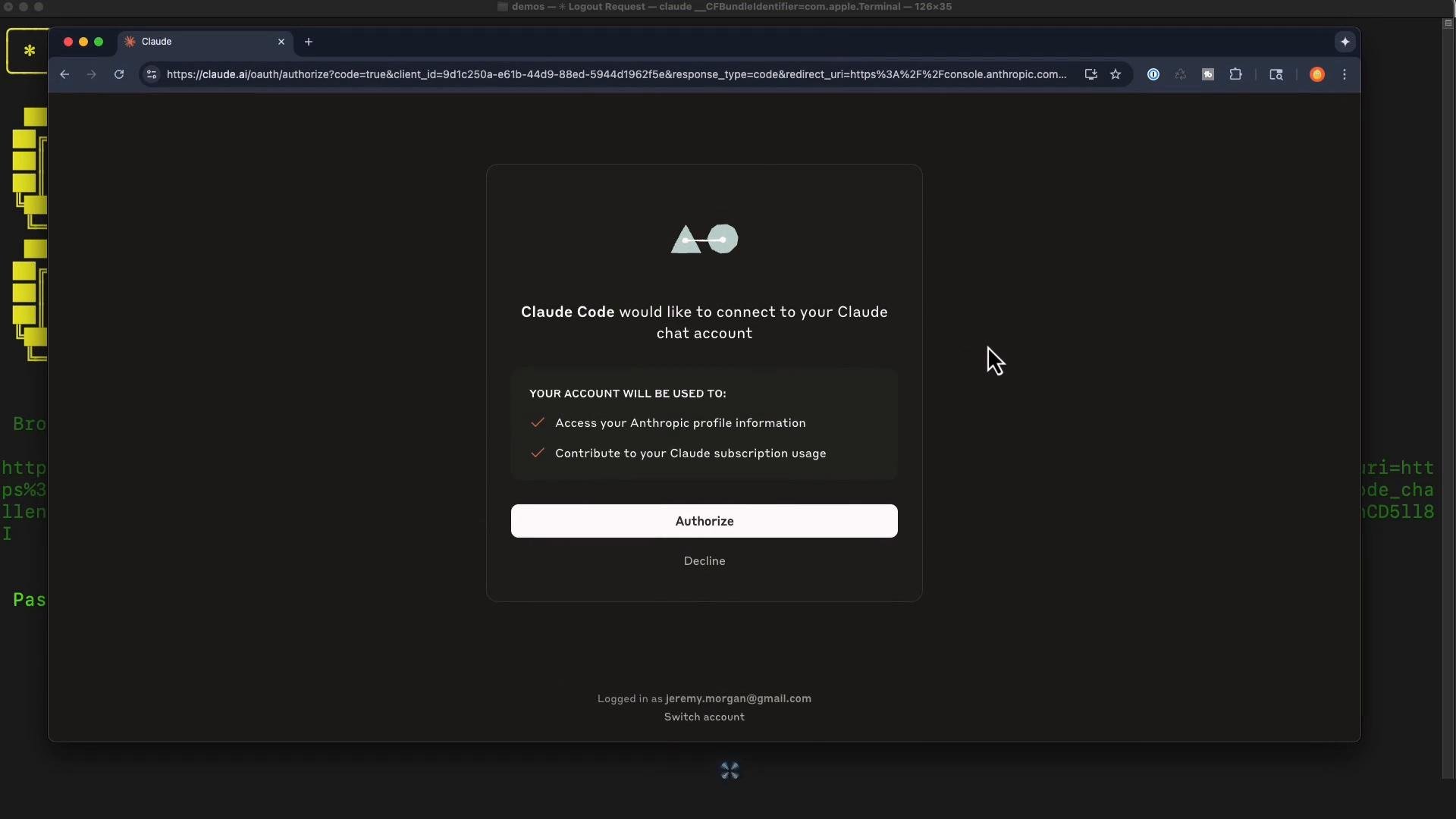 The browser prompt asks you to allow Claude Code to access your account (profile info, usage contribution, etc.). Authorize to proceed.
## Quick demo — generate a Python script that reads a CSV
This quick example shows Claude Code generating a small Python script to read `members.csv` and print first and last names.
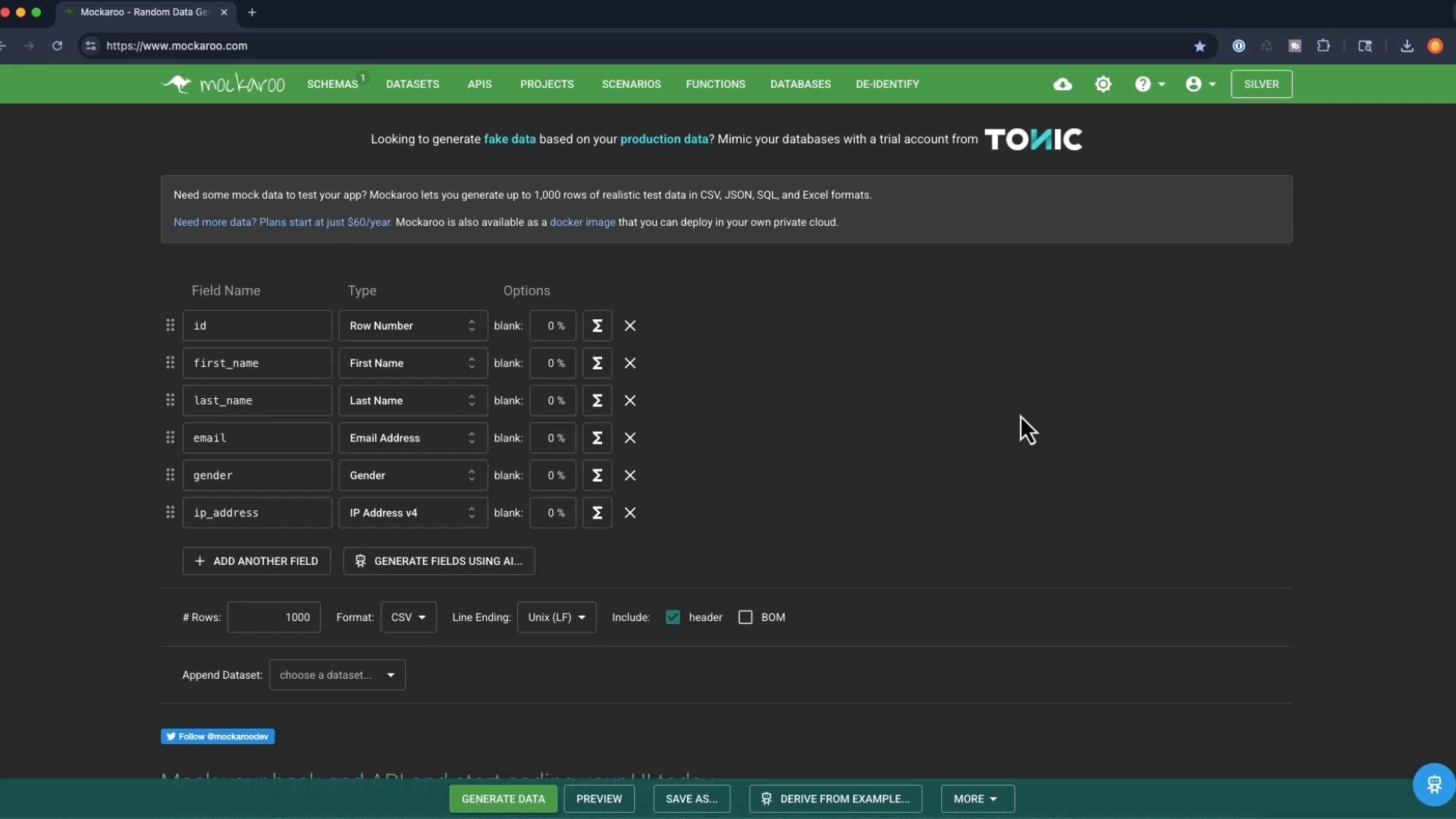
I created a `members.csv` file using Mockaroo and placed it into a project folder.
The browser prompt asks you to allow Claude Code to access your account (profile info, usage contribution, etc.). Authorize to proceed.
## Quick demo — generate a Python script that reads a CSV
This quick example shows Claude Code generating a small Python script to read `members.csv` and print first and last names.
I created a `members.csv` file using Mockaroo and placed it into a project folder.
 At the Claude Code prompt I asked it to create a Python file that reads `members.csv` and displays first and last names. Claude Code inspected the current directory and generated this robust script using Python’s `csv` module.
Generated file: `read_members.py`
```python theme={null}
import csv
def read_members():
try:
with open('members.csv', 'r', newline='') as file:
reader = csv.DictReader(file)
for row in reader:
# Support different possible header capitalizations
first_name = row.get('first_name', row.get('First Name', ''))
last_name = row.get('last_name', row.get('Last Name', ''))
print(f"{first_name} {last_name}")
except FileNotFoundError:
print("Error: members.csv file not found")
except Exception as e:
print(f"Error reading file: {e}")
if __name__ == "__main__":
read_members()
```
Why this script is practical:
* Uses `csv.DictReader` to work with named columns.
* Handles header capitalization differences (`first_name` vs `First Name`).
* Catches `FileNotFoundError` and general exceptions for clearer error messages.
## Run the generated script
From the same project folder you can run the script directly. Optionally create and activate a virtual environment first:
```bash theme={null}
python -m venv venv
# macOS / Linux
source venv/bin/activate
# Windows (PowerShell)
venv\Scripts\Activate.ps1
```
Then execute:
```bash theme={null}
python read_members.py
```
Example output (first and last names from the CSV):
```text theme={null}
Marleah Danes
Jenica Jansie
Shepperd Kemmett
Floris Bolsover
Archie St. Queintain
Ansel Wandrey
Ola Puncher
Driren Vanner
Gusella Nairne
Concettina Khotler
Fidelity Clemens
Danita Excell
Ilyse Pusey
Hurlee Devereu
Katharine Vasyukhin
Jammie Grisedale
Lucila Portingale
Peria Buffin
```
Keep Claude Code running in any terminal (for example, the integrated terminal in VS Code) and continue issuing requests, generating or editing files, and iterating interactively.
## Troubleshooting tips
* If `claude` is not found after global install, ensure your npm global binaries directory is on your `PATH`. For many systems that directory is `~/.npm-global/bin` or the location printed by `npm bin -g`.
* If OAuth browser flow doesn’t open, copy the printed URL into a browser and follow the instructions. Paste the verification code back into the CLI when prompted.
* Use `nvm` to avoid permission issues and to switch Node versions without sudo.
## Summary and next steps
* Install Node.js 18+ and verify `npm` is available.
* Install Claude Code globally: `npm install -g @anthropic-ai/claude-code`.
* Authenticate the CLI via browser OAuth or Anthropic Console.
* Use Claude Code to generate code (like a Python CSV reader), inspect, and run it — then iterate.
Further lessons will cover advanced workflows, integrations (editors and CI), and project-specific customization.
## Links and references
* Claude Code npm package: [https://www.npmjs.com/package/@anthropic-ai/claude-code](https://www.npmjs.com/package/@anthropic-ai/claude-code)
* Node.js: [https://nodejs.org/](https://nodejs.org/)
* Mockaroo (sample data generation): [https://mockaroo.com/](https://mockaroo.com/)
* nvm (Node Version Manager): [https://github.com/nvm-sh/nvm](https://github.com/nvm-sh/nvm)
* Visual Studio Code: [https://code.visualstudio.com/](https://code.visualstudio.com/)
This documentation is built and hosted on [Mintlify](https://mintlify.com), a developer documentation platform.
At the Claude Code prompt I asked it to create a Python file that reads `members.csv` and displays first and last names. Claude Code inspected the current directory and generated this robust script using Python’s `csv` module.
Generated file: `read_members.py`
```python theme={null}
import csv
def read_members():
try:
with open('members.csv', 'r', newline='') as file:
reader = csv.DictReader(file)
for row in reader:
# Support different possible header capitalizations
first_name = row.get('first_name', row.get('First Name', ''))
last_name = row.get('last_name', row.get('Last Name', ''))
print(f"{first_name} {last_name}")
except FileNotFoundError:
print("Error: members.csv file not found")
except Exception as e:
print(f"Error reading file: {e}")
if __name__ == "__main__":
read_members()
```
Why this script is practical:
* Uses `csv.DictReader` to work with named columns.
* Handles header capitalization differences (`first_name` vs `First Name`).
* Catches `FileNotFoundError` and general exceptions for clearer error messages.
## Run the generated script
From the same project folder you can run the script directly. Optionally create and activate a virtual environment first:
```bash theme={null}
python -m venv venv
# macOS / Linux
source venv/bin/activate
# Windows (PowerShell)
venv\Scripts\Activate.ps1
```
Then execute:
```bash theme={null}
python read_members.py
```
Example output (first and last names from the CSV):
```text theme={null}
Marleah Danes
Jenica Jansie
Shepperd Kemmett
Floris Bolsover
Archie St. Queintain
Ansel Wandrey
Ola Puncher
Driren Vanner
Gusella Nairne
Concettina Khotler
Fidelity Clemens
Danita Excell
Ilyse Pusey
Hurlee Devereu
Katharine Vasyukhin
Jammie Grisedale
Lucila Portingale
Peria Buffin
```
Keep Claude Code running in any terminal (for example, the integrated terminal in VS Code) and continue issuing requests, generating or editing files, and iterating interactively.
## Troubleshooting tips
* If `claude` is not found after global install, ensure your npm global binaries directory is on your `PATH`. For many systems that directory is `~/.npm-global/bin` or the location printed by `npm bin -g`.
* If OAuth browser flow doesn’t open, copy the printed URL into a browser and follow the instructions. Paste the verification code back into the CLI when prompted.
* Use `nvm` to avoid permission issues and to switch Node versions without sudo.
## Summary and next steps
* Install Node.js 18+ and verify `npm` is available.
* Install Claude Code globally: `npm install -g @anthropic-ai/claude-code`.
* Authenticate the CLI via browser OAuth or Anthropic Console.
* Use Claude Code to generate code (like a Python CSV reader), inspect, and run it — then iterate.
Further lessons will cover advanced workflows, integrations (editors and CI), and project-specific customization.
## Links and references
* Claude Code npm package: [https://www.npmjs.com/package/@anthropic-ai/claude-code](https://www.npmjs.com/package/@anthropic-ai/claude-code)
* Node.js: [https://nodejs.org/](https://nodejs.org/)
* Mockaroo (sample data generation): [https://mockaroo.com/](https://mockaroo.com/)
* nvm (Node Version Manager): [https://github.com/nvm-sh/nvm](https://github.com/nvm-sh/nvm)
* Visual Studio Code: [https://code.visualstudio.com/](https://code.visualstudio.com/)
This documentation is built and hosted on [Mintlify](https://mintlify.com), a developer documentation platform.