> ## Documentation Index
> Fetch the complete documentation index at: https://notes.kodekloud.com/llms.txt
> Use this file to discover all available pages before exploring further.
# Using the Pack CLI
> Learn to utilize the Pack CLI for building container images from source code while ensuring prerequisites are met.
In this guide, you'll learn how to utilize the Pack CLI for building container images from your source code. Before proceeding, ensure that all prerequisites are met.
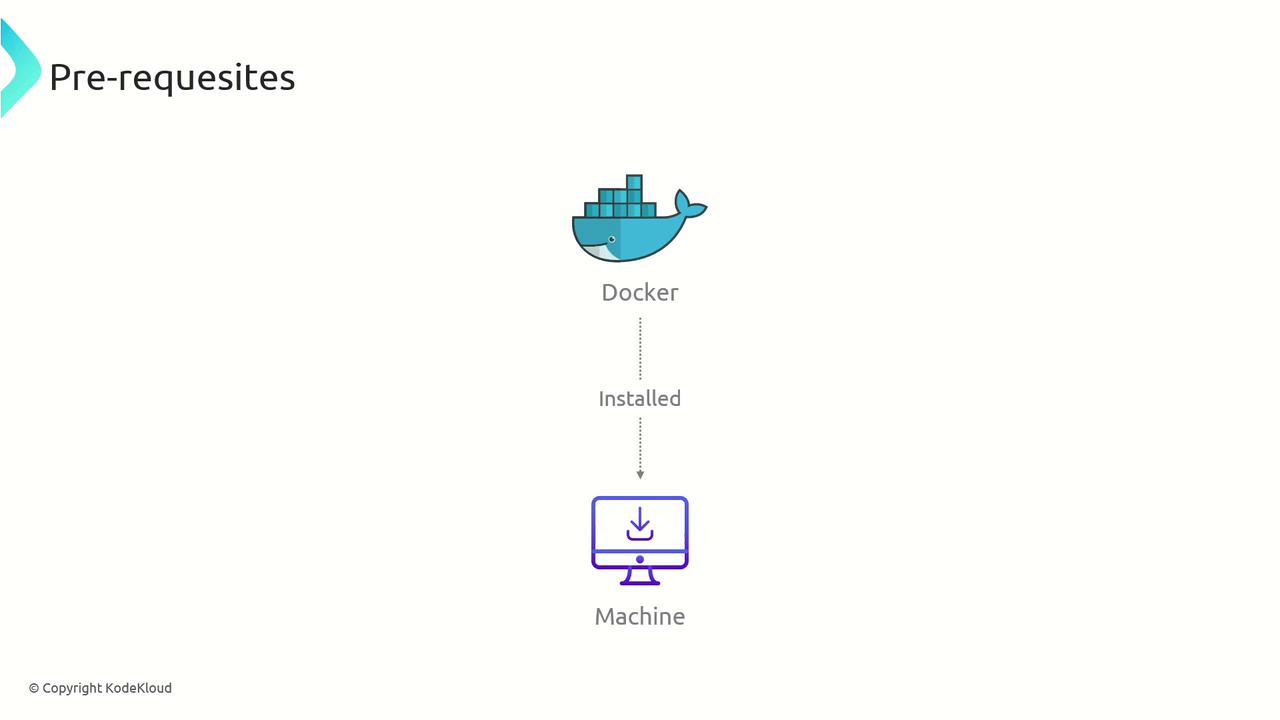
Docker must be installed on your machine, as Pack CLI relies on Docker to create and pull images.
## Installing the Pack CLI
The installation process for the Pack CLI varies by operating system and distribution. For Ubuntu users, follow these steps to add the repository, update your package list, and install the CLI:
```bash theme={null}
sudo add-apt-repository ppa:cncf-buildpacks/pack-cli
```
After adding the repository, update your packages and install the Pack CLI to get full access to its features.
## Suggesting Builders
One of the first commands to explore is `pack builder suggest`. This command lists recommended builders that you can use to create images from your source code. These builders have been rigorously tested and are widely used in the community. To see the suggested builders, execute:
```bash theme={null}
pack builder suggest
```
The output may resemble the following:
```text theme={null}
Suggested builders:
Google: gcr.io/buildpacks/builder:google-22
Ubuntu 22.04 base image with
buildpacks for .NET, Dart, Go, Java, Node.js, PHP, Python, and Ruby
Heroku: heroku/builder:24
Ubuntu 24.04 AMD64+ARM64 base
image with buildpacks for .NET, Go, Java, Node.js, PHP, Python, Ruby & Scala.
Paketo Buildpacks: paketo-buildpacks/builder-jammy-base
Ubuntu 22.04 Jammy Jellyfish
base image with buildpacks for Java, Go, .NET Core, Node.js, Python, Apache HTTPD, NGINX and Procfile
Paketo Buildpacks: paketo-buildpacks/builder-jammy-buildpackless-static
Static base image (Ubuntu Jammy Jellyfish build image, distroless-like run image) with no buildpacks included. To use, specify buildpacks at build time.
Paketo Buildpacks: paketo-buildpacks/builder-jammy-full
Ubuntu 22.04 Jammy Jellyfish full image with buildpacks for Apache HTTPD, Go, Java, Java Native Image, .NET, NGINX, Node.js, PHP, Procfile, Python, and Ruby
Paketo Buildpacks: paketo-buildpacks/builder-jammy-tiny
Tiny base image (Ubuntu Jammy Jellyfish build image, distroless-like run image) with buildpacks for Java, Java Native Image and Go
Tip: Learn more about a specific builder with:
pack builder inspect
```
This list includes multiple builders such as the Google builder (`gcr.io/buildpacks/builder:google-22`), which is based on Ubuntu 22.04 and supports a wide range of languages, as well as several options from Heroku and Paketo Buildpacks. If you have not created your own builder, simply choose one of these recommended options.
## Building an Image
Once you've selected a builder, you can build an image using the `pack build` command. Specify the image name and select a builder with the `--builder` flag. To publish the image directly to Docker Hub or another container registry, include the `--publish` flag. For example:
```bash theme={null}
pack build my-image --builder cnbs/sample-builder:jammy --publish
```
In this command, the image is named "my-image" and is built using the `cnbs/sample-builder:jammy` builder. You can modify the builder image and image name as needed.
## Inspecting the Built Image
After building your image, you can inspect it to obtain detailed information such as the base image, layers, run image, buildpacks used, and the processes configured for your application. Run the following command:
```bash theme={null}
pack inspect my-image
```
A typical sample output might look like this:
```plaintext theme={null}
Inspecting image: my-image
REMOTE:
(not present)
LOCAL:
Stack: io.buildpacks.samples.stacks.jammy
Base Image:
Reference: 758d79de4a1c70f3e53634fb2f9af4a05af19e705d1cf6230b91706117939c0
Top Layer: sha256:115b6a185d688fbb39d771faa8aae0aa2eb1e3b0f5c3ea47e2dfc25a831764
Run Images:
cnbs/sample-base-run:jammy
Rebasable: true
Buildpacks:
ID VERSION HOMEPAGE
samples/java-maven 0.0.2 https://github.com/buildpacks/samples/tree/main/buildpacks/java-maven
Processes:
TYPE SHELL COMMAND ARGS WORK DIR
web (default) java -jar target/sample-0.0.1-SNAPSHOT.jar /workspace
```
This detailed output provides valuable insights into your image, including stack information, layered components, and runtime configurations.
By following these steps, you can efficiently install, configure, build, and inspect container images using the Pack CLI. For more detailed information on buildpacks, check out the [official documentation](https://buildpacks.io/docs/).