> ## Documentation Index
> Fetch the complete documentation index at: https://notes.kodekloud.com/llms.txt
> Use this file to discover all available pages before exploring further.
# Demo Application Overview
> This article examines the structure and operation of a Node.js application, focusing on key files and their roles in the build process.
In this article, we examine how a Node.js application operates by taking a closer look at the various files that comprise the application. Even if you work with a different language or runtime, understanding these files is crucial when creating a build script since you need to know what each file does, the dependencies required, and how the application is started.
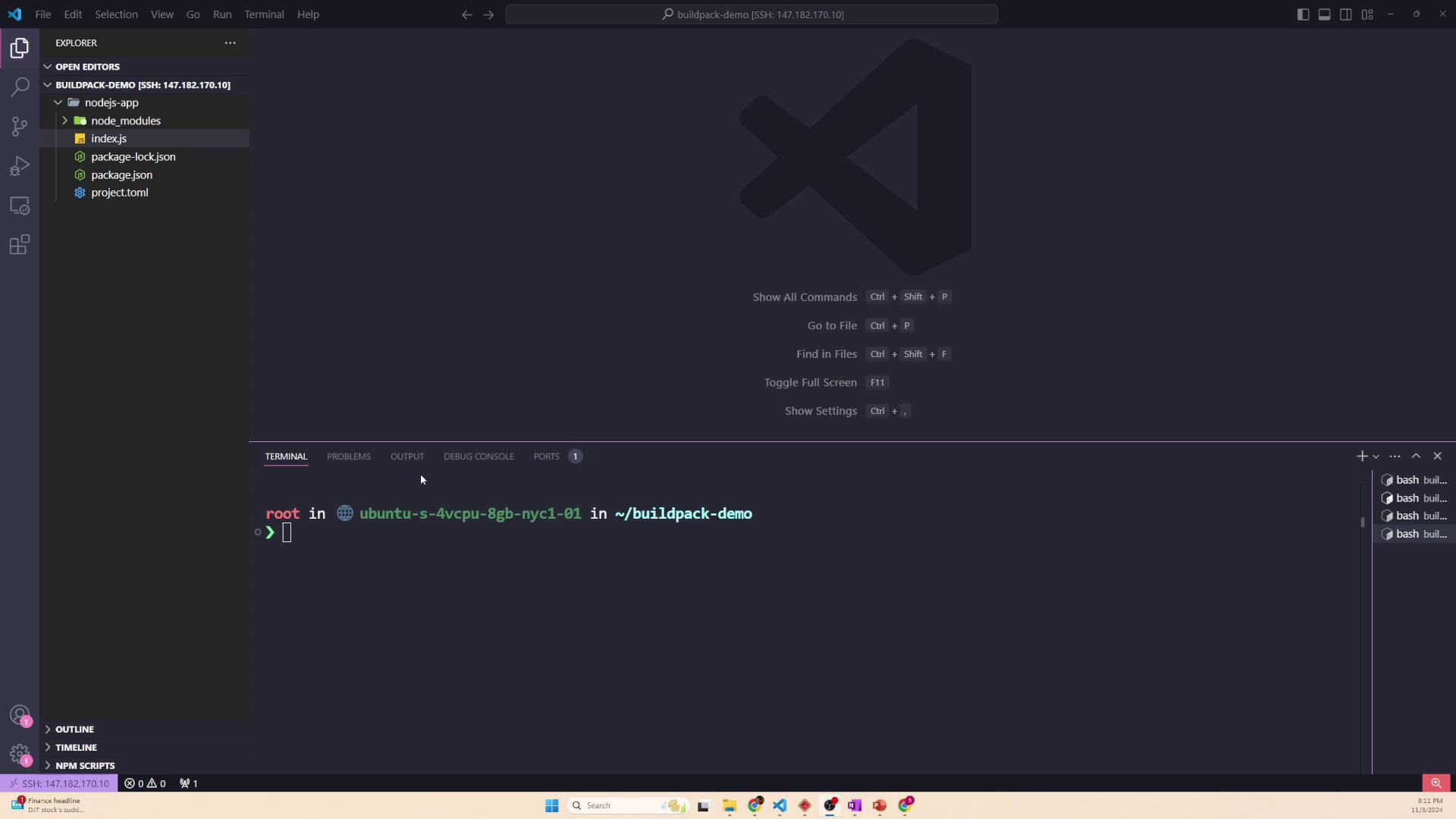
Below is a detailed breakdown of the application's structure.
***
## The Application Entry Point (`index.js`)
The `index.js` file is the heart of the application and acts as its entry point. It contains all the necessary code to start a simple web server, which listens on port 8080 by default (or on a port specified in the environment). To run the application, simply execute:
```bash theme={null}
node index.js
```
If the required dependencies are missing, you might encounter an error similar to the one below:
Attempting to start the application without installing all the necessary packages will result in errors, such as the missing `express` module.
Below is the sample code from `index.js`:
```javascript theme={null}
console.log(process.env.NODE_PATH);
const express = require('express');
const app = express();
const PORT = process.env.PORT || 8080;
// Define a route for the root URL
app.get('/', (req, res) => {
res.send('Hello, World!');
});
// Start the server
app.listen(PORT, () => {
console.log(`Server is running on http://localhost:${PORT}`);
});
```
If you try to launch the application in the absence of its required dependencies, you might see an error like:
```plaintext theme={null}
node:internal/modules/cjs/loader:1252
throw err;
^
Error: Cannot find module 'express'
Require stack:
- /root/buildpack-demo/nodejs-app/index.js
at Function._resolveFilename (node:internal/modules/cjs/loader:1249:15)
at Function._load (node:internal/modules/cjs/loader:1075:27)
```
***
## Project Dependencies (`package.json`)
The `package.json` file holds vital metadata about the project, including a list of dependencies required by the application. In this example, our Node.js app depends on the Express framework for building web applications and UUID for generating unique identifiers. This file is analogous to Python’s `requirements.txt` and is essential for managing third-party libraries.
Below is a typical `package.json` file:
```json theme={null}
{
"name": "example-application",
"version": "1.0.0",
"main": "index.js",
"scripts": {
"test": "echo \"Error: no test specified\" && exit 1"
},
"author": "",
"license": "ISC",
"description": "",
"engines": {
"node": "18.18.0"
},
"dependencies": {
"express": "^4.21.1",
"uuid": "^11.0.2"
}
}
```
Every time you install a new dependency using a command like `npm install `, it is automatically added to the `"dependencies"` list. The actual package files are then stored within the `node_modules` folder.
***
## Locking Dependency Versions (`package-lock.json`)
In addition to `package.json`, the `package-lock.json` file is created to record the exact versions of every installed dependency, including nested dependencies. This file ensures consistent installation across different environments (development, production, CI/CD pipelines) and avoids version discrepancies.
Here’s an excerpt from a `package-lock.json` file that demonstrates its structure:
```json theme={null}
{
"packages": {
"": {
"engines": {
"node": "23.1.0"
}
},
"node_modules/accepts": {
"version": "1.3.8",
"resolved": "https://registry.npmjs.org/accepts/-/accepts-1.3.8.tgz",
"integrity": "sha512-PYAthTa2m2VKxuvSD3DPC/GyU+sO1LAuT8mkmRuvw+NACsaeXEQ+NHcVF7ONl6qaxV3Ueumawk+7+SJlw==",
"license": "MIT",
"dependencies": {
"mime-types": "~2.1.34",
"negotiator": "0.6.3"
},
"engines": {
"node": ">= 0.6"
}
}
}
}
```
This file is updated automatically when dependencies are installed or updated. It should be checked into source control to guarantee reproducible builds.
***
## Installing Dependencies
Before running the application, you need to install all the necessary dependencies listed in the `package.json` file. If you skip this step, Node.js will not be able to locate modules such as Express.
To install all dependencies, navigate to your project directory and run:
```bash theme={null}
npm install
```
After running this command, a `node_modules` folder is created that contains Express, UUID, and all other required modules.
In certain environments, you might want to perform a clean installation based on the exact versions recorded in `package-lock.json`. In that case, use the `npm ci` command.
A typical console output after installing dependencies might look like:
```plaintext theme={null}
npm warn EBADENGINE current: { node: 'v22.11.0', npm: '10.9.0' }
npm warn EBADENGINE
added 66 packages, and audited 67 packages in 2s
14 packages are looking for funding
run `npm fund` for details
found 0 vulnerabilities
```
When managing your code with a Git repository or creating a container image, the `node_modules` folder is often excluded (typically via a `.gitignore` file) because the dependencies can be installed on demand.
***
## Buildpack Configuration
When creating a container image for this Node.js application using a buildpack, you generally copy over the source code and dependency descriptions, but exclude the `node_modules` folder. Below is an example `project.toml` file that specifies which files and directories should be excluded:
```toml theme={null}
version = "1.0.0"
[io.buildpacks]
builder = "gcr.io/buildpacks/builder:google-22"
exclude = [
"node_modules",
".env",
"tests/**",
"dummfile.txt"
]
```
After running dependency installation commands like `npm ci`, the console output might appear as follows:
```plaintext theme={null}
npm warn EBADENGINE current: { node: 'v22.11.0', npm: '10.9.0' }
npm warn EBADENGINE
added 66 packages, and audited 67 packages in 2s
14 packages are looking for funding
run `npm fund` for details
found 0 vulnerabilities
root in ubuntu-s-4vcpu-8gb-nyc1-01 in ~/buildpack-demo/nodejs-app is v1.0.0 via v22.11.0
> npm ci
```
***
## Summary
This article provided an overview of the basic structure of a Node.js application:
* The `index.js` file acts as the entry point that launches the web server.
* The `package.json` file contains project metadata and dependency details (similar to Python’s `requirements.txt`).
* The `package-lock.json` file ensures consistent dependency installations by locking down exact package versions.
* Dependencies are installed locally in the `node_modules` folder using commands such as `npm install` or `npm ci`.
Understanding these components is essential when working with buildpacks and deploying Node.js applications. In the next lesson, we will start building our first buildpack.