> ## Documentation Index
> Fetch the complete documentation index at: https://notes.kodekloud.com/llms.txt
> Use this file to discover all available pages before exploring further.
# Hardware
> Overview of computer hardware components and data flow from keyboard input through motherboard, covering CPUs, GPUs, memory, storage, power, cooling, and peripherals
Welcome! This lesson takes a practical, component-level look at computer hardware. We'll trace what happens when you press the letter "k" on a keyboard and use a human-body analogy to make each part's role easier to visualize. Along the way you'll learn about external and internal hardware and get a high-level overview of CPUs, GPUs, memory, storage, and motherboards. By the end you'll be able to identify key components, explain their responsibilities, and reason about how data flows through a system.
 With Kody as our guide, we'll follow a keystroke from the keyboard through the internal hardware until it appears on screen. First, we'll cover the external components you can see and touch, grouped as inputs, outputs, and peripherals.
 ## External hardware: inputs, outputs, and peripherals
Inputs are how the outside world communicates with the computer; outputs are how the computer responds.
Input devices
* Keyboard and mouse are the computer's "hands": they let users send commands and text. Modern keyboards use a key matrix and a microcontroller to detect key presses. That microcontroller sends a scan code over an interface (commonly USB using the HID profile) to the operating system, which maps it to a character such as `k` (modified by keys like Shift or Caps Lock).
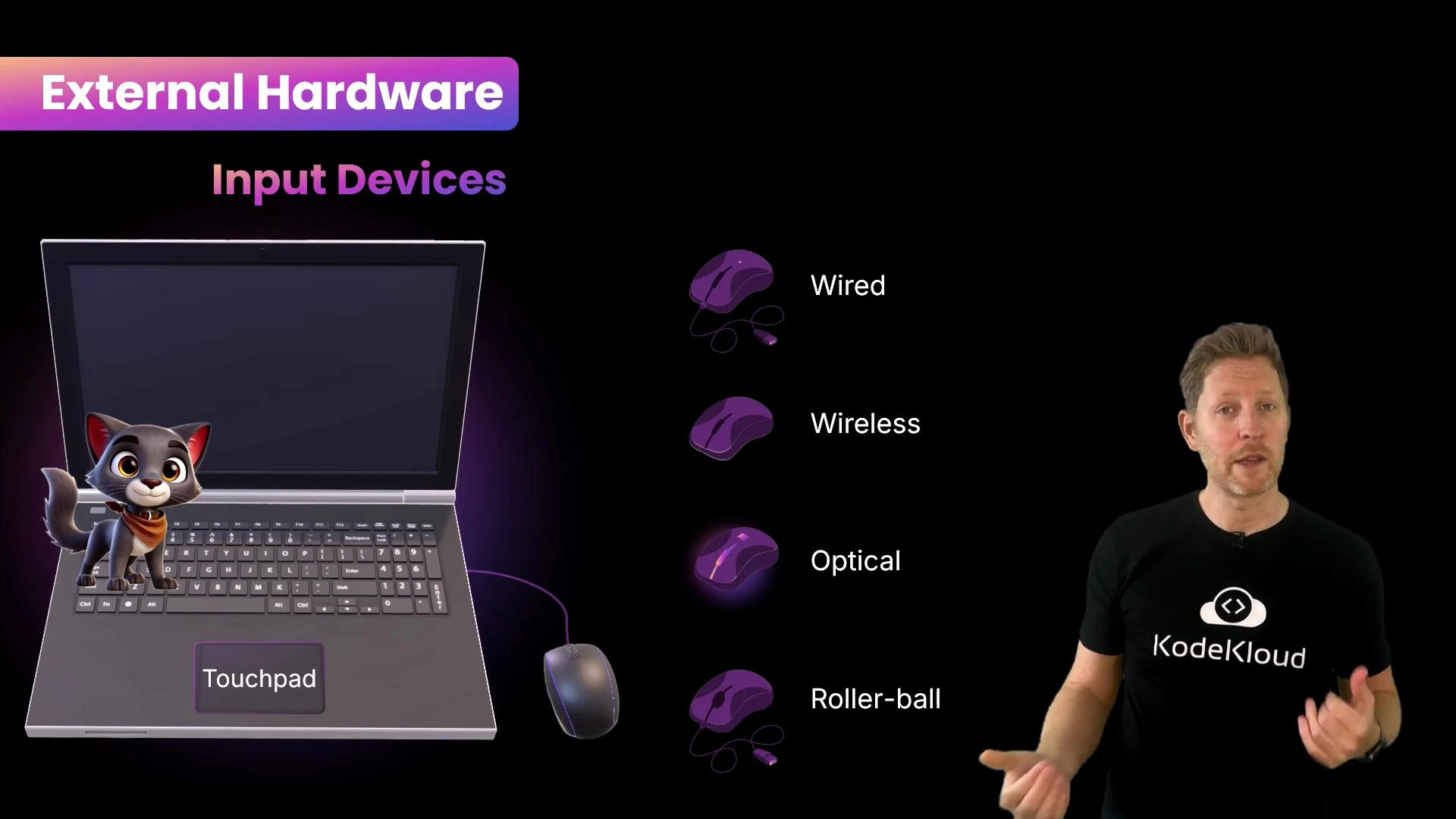
* Touchpads perform the same role as a mouse on many laptops. Mice exist as wired, wireless, optical, and older roller-ball designs.
## External hardware: inputs, outputs, and peripherals
Inputs are how the outside world communicates with the computer; outputs are how the computer responds.
Input devices
* Keyboard and mouse are the computer's "hands": they let users send commands and text. Modern keyboards use a key matrix and a microcontroller to detect key presses. That microcontroller sends a scan code over an interface (commonly USB using the HID profile) to the operating system, which maps it to a character such as `k` (modified by keys like Shift or Caps Lock).
* Touchpads perform the same role as a mouse on many laptops. Mice exist as wired, wireless, optical, and older roller-ball designs.
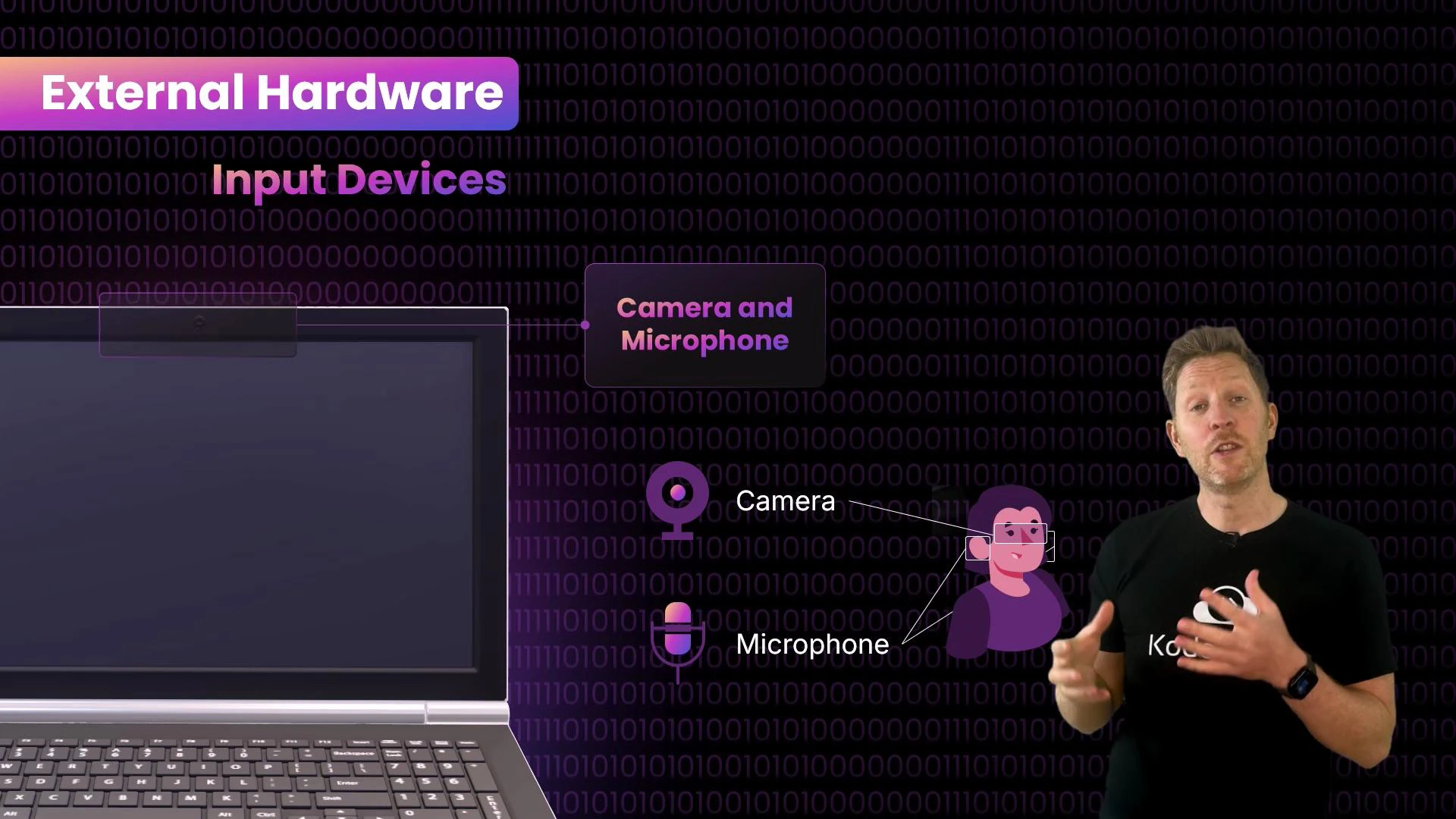
 * Camera and microphone are the computer's "eyes and ears": they capture sight and sound and convert analog signals into digital data the computer can process. (Fun fact: the first webcam was set up in 1991 at the University of Cambridge to monitor the Trojan Room coffee pot so researchers wouldn't walk to an empty pot — read more at the [Trojan Room coffee pot](https://en.wikipedia.org/wiki/Trojan_Room_coffee_pot).)
 Power and cooling
* The power supply is the system's "heart": it converts mains power into voltages required by components. Laptops add a battery for portable operation.
* Cooling prevents overheating: fans, vents, heat sinks, heat pipes, and liquid cooling move heat away from hot components. Thermal paste improves the contact between CPU die and heat spreader.
Avoid abruptly removing laptop power or the battery while the system is running. Sudden power loss can cause data corruption and hardware issues.
Display and audio
* Monitors and speakers are the "face and mouth": they present visual and audio output. Speakers convert electrical signals into sound using vibrating diaphragms; larger diaphragms produce lower frequencies.
Peripherals and ports
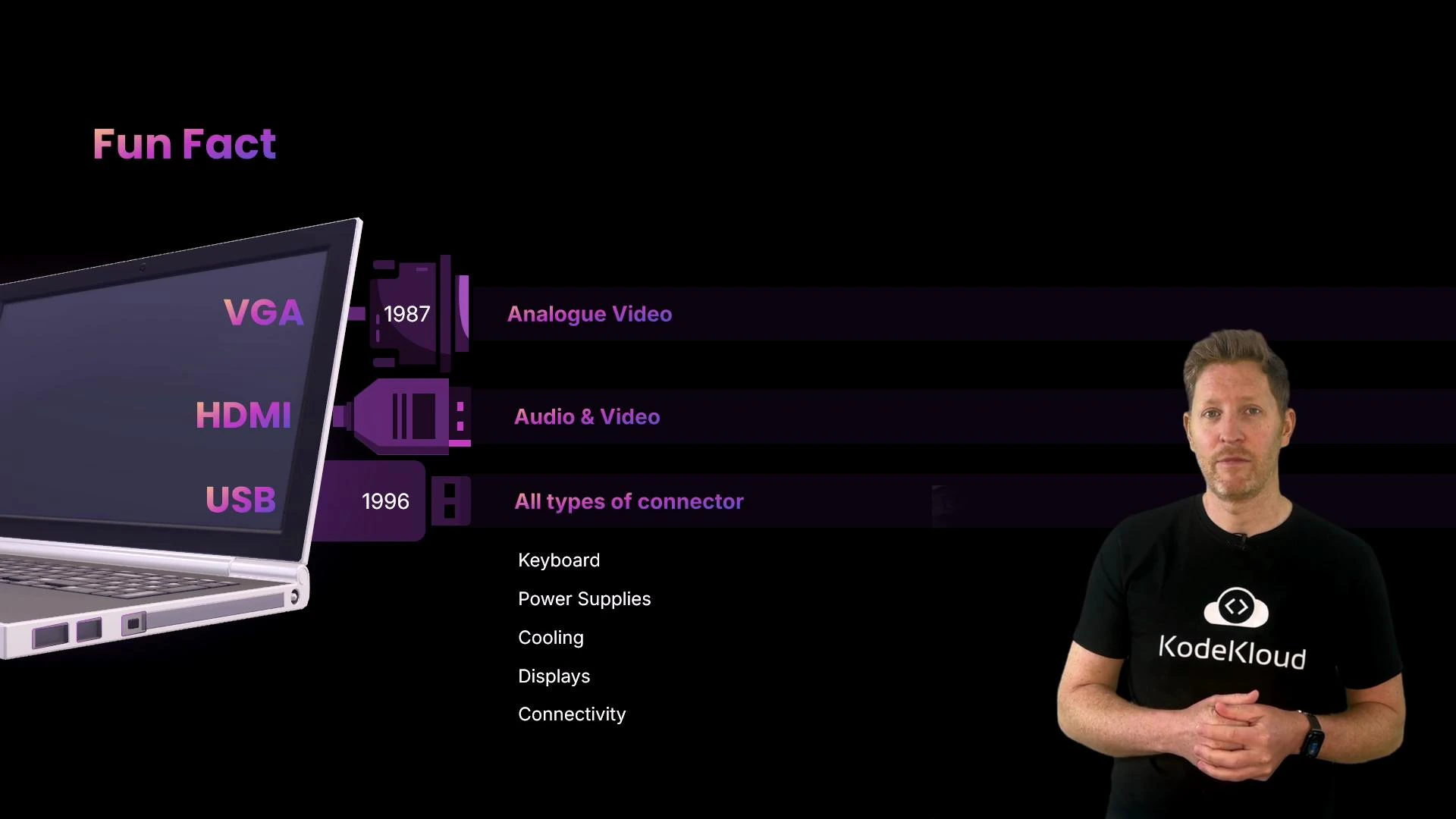
* Physical connectors let us attach peripherals: USB, HDMI, Ethernet, VGA (legacy), and others. USB standardized peripheral connections in the late 1990s — see [USB](https://en.wikipedia.org/wiki/USB) for details. HDMI carries both audio and video and has largely replaced analog VGA for modern displays — more at [HDMI](https://en.wikipedia.org/wiki/HDMI).
Power and cooling
* The power supply is the system's "heart": it converts mains power into voltages required by components. Laptops add a battery for portable operation.
* Cooling prevents overheating: fans, vents, heat sinks, heat pipes, and liquid cooling move heat away from hot components. Thermal paste improves the contact between CPU die and heat spreader.
Avoid abruptly removing laptop power or the battery while the system is running. Sudden power loss can cause data corruption and hardware issues.
Display and audio
* Monitors and speakers are the "face and mouth": they present visual and audio output. Speakers convert electrical signals into sound using vibrating diaphragms; larger diaphragms produce lower frequencies.
Peripherals and ports
* Physical connectors let us attach peripherals: USB, HDMI, Ethernet, VGA (legacy), and others. USB standardized peripheral connections in the late 1990s — see [USB](https://en.wikipedia.org/wiki/USB) for details. HDMI carries both audio and video and has largely replaced analog VGA for modern displays — more at [HDMI](https://en.wikipedia.org/wiki/HDMI).
 Summary: external hardware at a glance
| Category | Role / Analogy | Examples |
| ------------------: | --------------------------------------------- | --------------------------------------------- |
| Input | Hands / senses — let users send data | Keyboard, mouse, touchpad, camera, microphone |
| Output | Face / voice — show results | Monitor, speakers, headphones |
| Power & Cooling | Heart & lungs — power and temperature control | PSU, battery, fans, heat sinks |
| Ports & Peripherals | Connectors — expand functionality | `USB`, `HDMI`, Ethernet, legacy `VGA` |
These are the visible building blocks. Next, open the case: we'll follow the keystroke into the internal hardware.
## From keypress to character: tracing the signal
The journey begins at the keyboard (the computer's hands). When you press `k`:
1. The keyboard matrix closes a circuit and the keyboard microcontroller detects the keypress.
2. The microcontroller sends a scan code to the host (typically over USB/HID).
3. The operating system maps the scan code to the character `k` (or `K` if Shift/Caps Lock is active).
A scan code is a hardware-level identifier for a key. The OS translates scan codes into characters depending on the active keyboard layout and modifier keys.
The electrical event and its encoded binary representation then flow through the system:
```text theme={null}
01101011
```
Binary is the lingua franca of hardware: electronic components represent two states — on or off — naturally mapping to `1` and `0`.
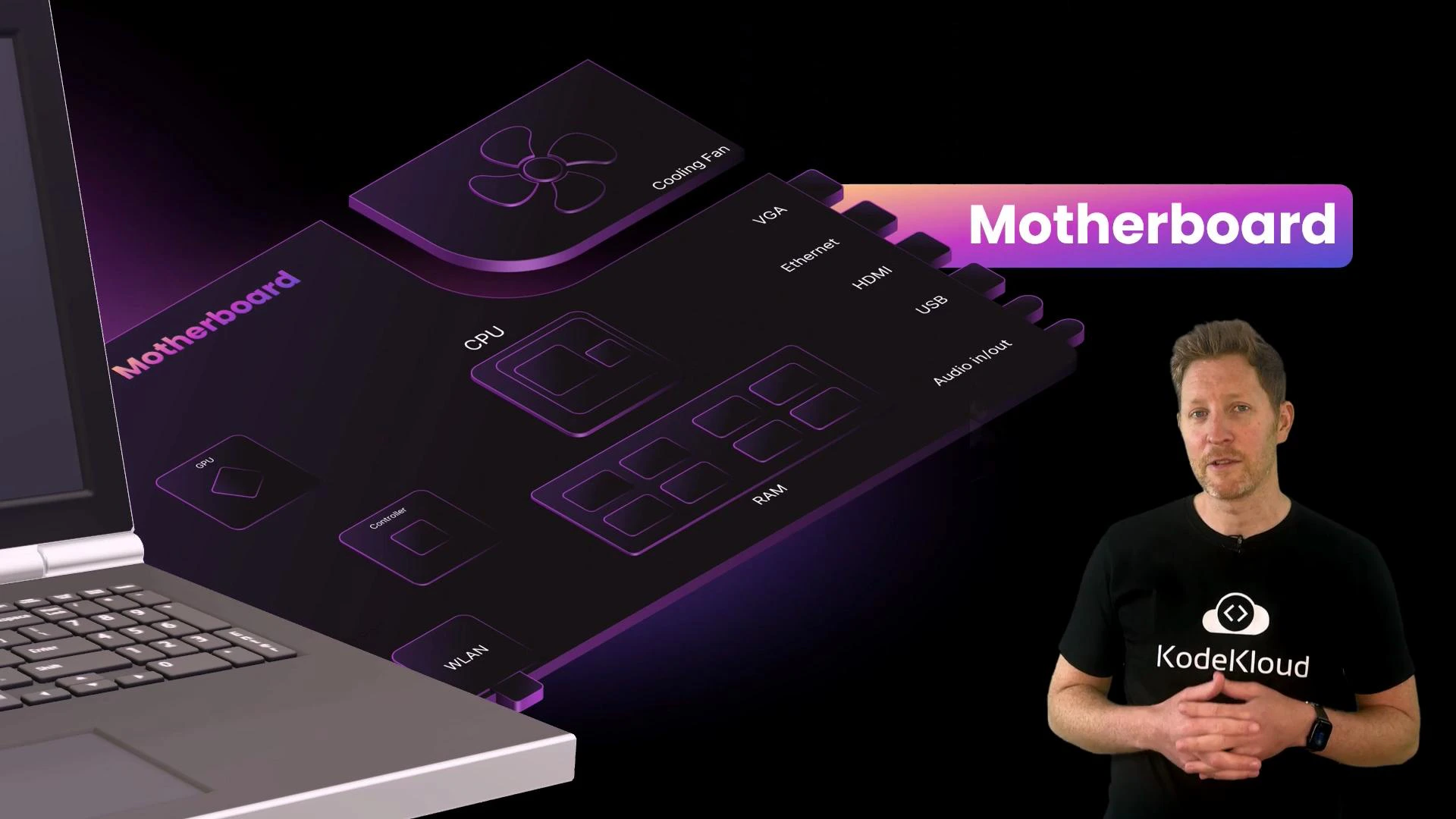
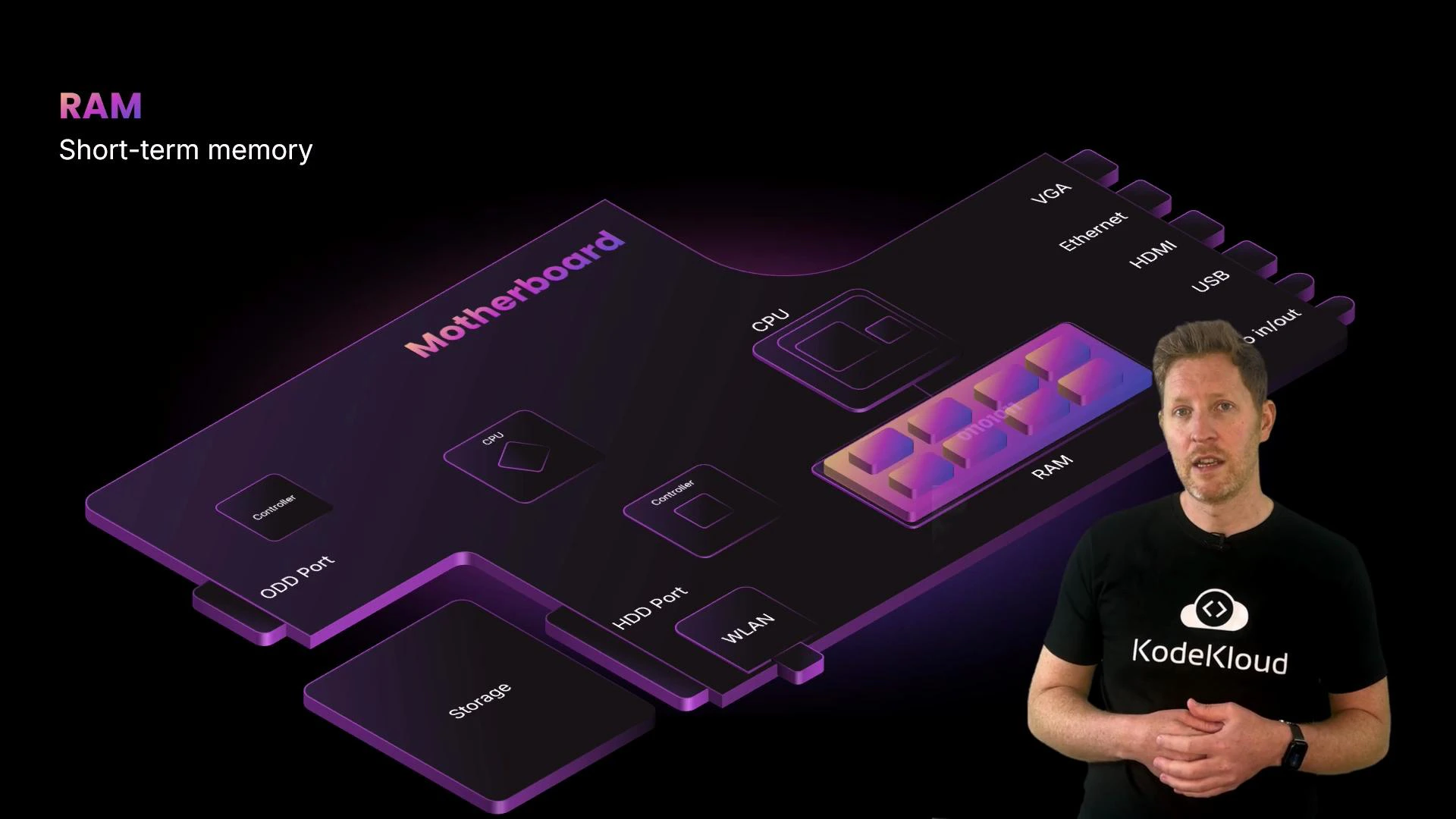
All internal communication travels across the motherboard — the computer's "nervous system." The motherboard is a printed circuit board (PCB) that connects CPU, RAM, storage, GPU, and I/O devices so data can move between them. It's also called a mainboard, baseboard, or mobo.
Summary: external hardware at a glance
| Category | Role / Analogy | Examples |
| ------------------: | --------------------------------------------- | --------------------------------------------- |
| Input | Hands / senses — let users send data | Keyboard, mouse, touchpad, camera, microphone |
| Output | Face / voice — show results | Monitor, speakers, headphones |
| Power & Cooling | Heart & lungs — power and temperature control | PSU, battery, fans, heat sinks |
| Ports & Peripherals | Connectors — expand functionality | `USB`, `HDMI`, Ethernet, legacy `VGA` |
These are the visible building blocks. Next, open the case: we'll follow the keystroke into the internal hardware.
## From keypress to character: tracing the signal
The journey begins at the keyboard (the computer's hands). When you press `k`:
1. The keyboard matrix closes a circuit and the keyboard microcontroller detects the keypress.
2. The microcontroller sends a scan code to the host (typically over USB/HID).
3. The operating system maps the scan code to the character `k` (or `K` if Shift/Caps Lock is active).
A scan code is a hardware-level identifier for a key. The OS translates scan codes into characters depending on the active keyboard layout and modifier keys.
The electrical event and its encoded binary representation then flow through the system:
```text theme={null}
01101011
```
Binary is the lingua franca of hardware: electronic components represent two states — on or off — naturally mapping to `1` and `0`.
All internal communication travels across the motherboard — the computer's "nervous system." The motherboard is a printed circuit board (PCB) that connects CPU, RAM, storage, GPU, and I/O devices so data can move between them. It's also called a mainboard, baseboard, or mobo.
 ## Core internal components
Processors and cooling
* The CPU is the computer's "brain." It interprets instructions and coordinates tasks. Modern CPUs contain multiple cores and functional units that execute instructions, perform arithmetic/logic, and manage control flow.
* CPUs are mounted under cooling modules (heat spreaders, fans, heat pipes). Thermal paste improves heat transfer between the CPU package and the cooler.
RAM and storage
* RAM (Random Access Memory) is short-term memory: the CPU keeps active data and instructions in RAM during processing. RAM is volatile — its contents are lost when power is removed.
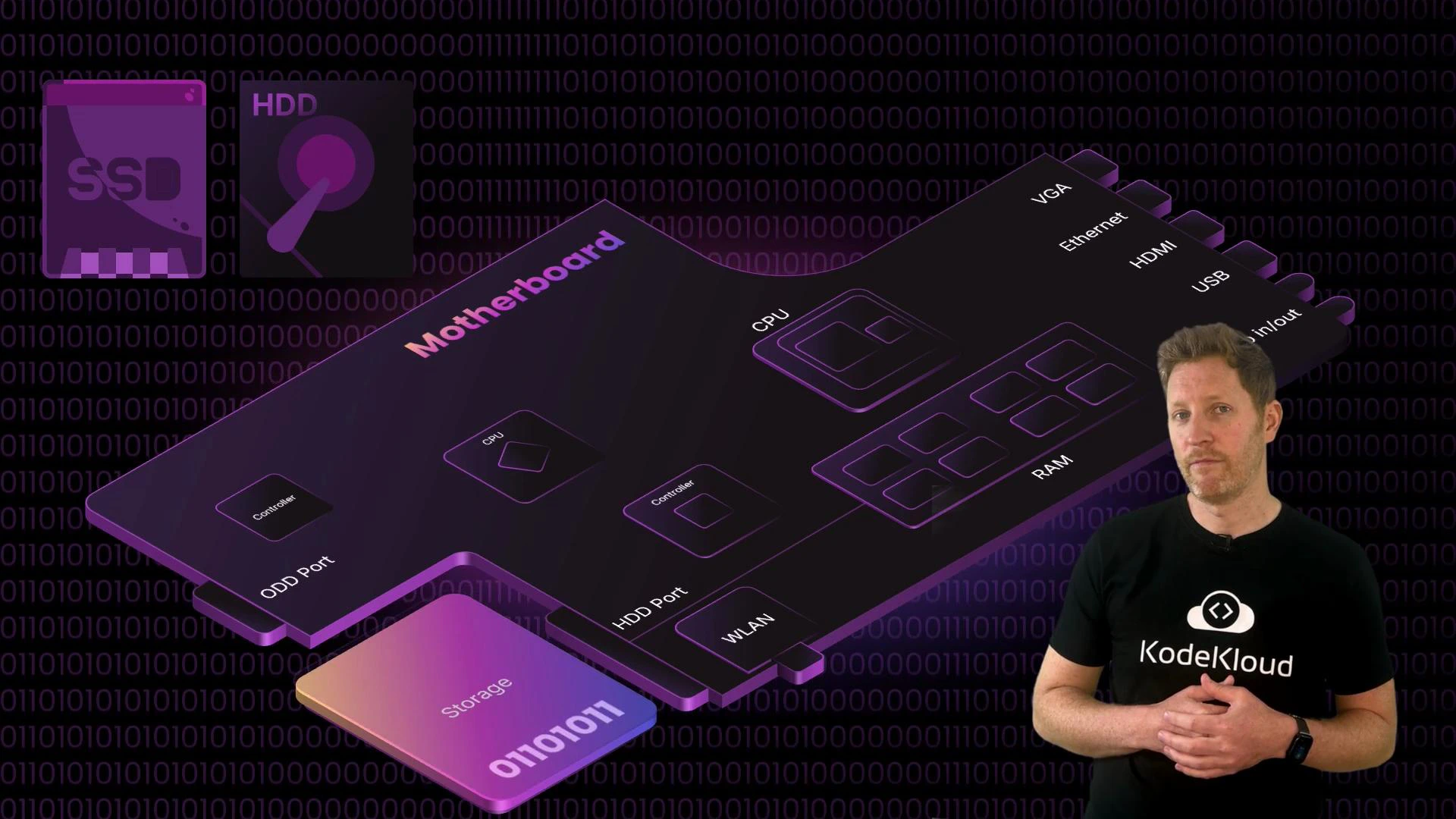
* Long-term storage includes HDDs (mechanical, higher capacity per dollar) and SSDs (solid-state, much faster). HDDs are suitable for bulk storage and backups; SSDs dramatically improve boot and load times.
## Core internal components
Processors and cooling
* The CPU is the computer's "brain." It interprets instructions and coordinates tasks. Modern CPUs contain multiple cores and functional units that execute instructions, perform arithmetic/logic, and manage control flow.
* CPUs are mounted under cooling modules (heat spreaders, fans, heat pipes). Thermal paste improves heat transfer between the CPU package and the cooler.
RAM and storage
* RAM (Random Access Memory) is short-term memory: the CPU keeps active data and instructions in RAM during processing. RAM is volatile — its contents are lost when power is removed.
* Long-term storage includes HDDs (mechanical, higher capacity per dollar) and SSDs (solid-state, much faster). HDDs are suitable for bulk storage and backups; SSDs dramatically improve boot and load times.
 Rendering and display
* The GPU (graphics processing unit) is the system's "visual cortex": it takes prepared frame data and renders pixels for the display. The GPU output is sent to the monitor, which converts the signal into visible pixels.
Quick-reference: responsibilities of major components
| Component | Role / Analogy | Typical responsibilities |
| ----------------- | ----------------- | --------------------------------------------- |
| CPU | Brain | Execute instructions, manage processes |
| GPU | Visual cortex | Render graphics, offload parallel workloads |
| RAM | Short-term memory | Store active data and instructions (volatile) |
| Storage (SSD/HDD) | Filing cabinet | Persistent data storage |
| Motherboard | Nervous system | Connects components, provides buses and I/O |
That's the end of our keystroke journey. You should now have a clear mental model of how a single keypress moves from an external input device through the motherboard and internal components to become a visible character on the screen. This foundation will help you explore deeper topics like CPU architecture, memory hierarchies, storage technologies, and peripheral interfaces.
Rendering and display
* The GPU (graphics processing unit) is the system's "visual cortex": it takes prepared frame data and renders pixels for the display. The GPU output is sent to the monitor, which converts the signal into visible pixels.
Quick-reference: responsibilities of major components
| Component | Role / Analogy | Typical responsibilities |
| ----------------- | ----------------- | --------------------------------------------- |
| CPU | Brain | Execute instructions, manage processes |
| GPU | Visual cortex | Render graphics, offload parallel workloads |
| RAM | Short-term memory | Store active data and instructions (volatile) |
| Storage (SSD/HDD) | Filing cabinet | Persistent data storage |
| Motherboard | Nervous system | Connects components, provides buses and I/O |
That's the end of our keystroke journey. You should now have a clear mental model of how a single keypress moves from an external input device through the motherboard and internal components to become a visible character on the screen. This foundation will help you explore deeper topics like CPU architecture, memory hierarchies, storage technologies, and peripheral interfaces.