> ## Documentation Index
> Fetch the complete documentation index at: https://notes.kodekloud.com/llms.txt
> Use this file to discover all available pages before exploring further.
# Amazon VPC
> Overview of AWS Virtual Private Clouds, explaining VPC concepts, components, default VPC and subnets, networking and security controls, internet access, and launching EC2 instances
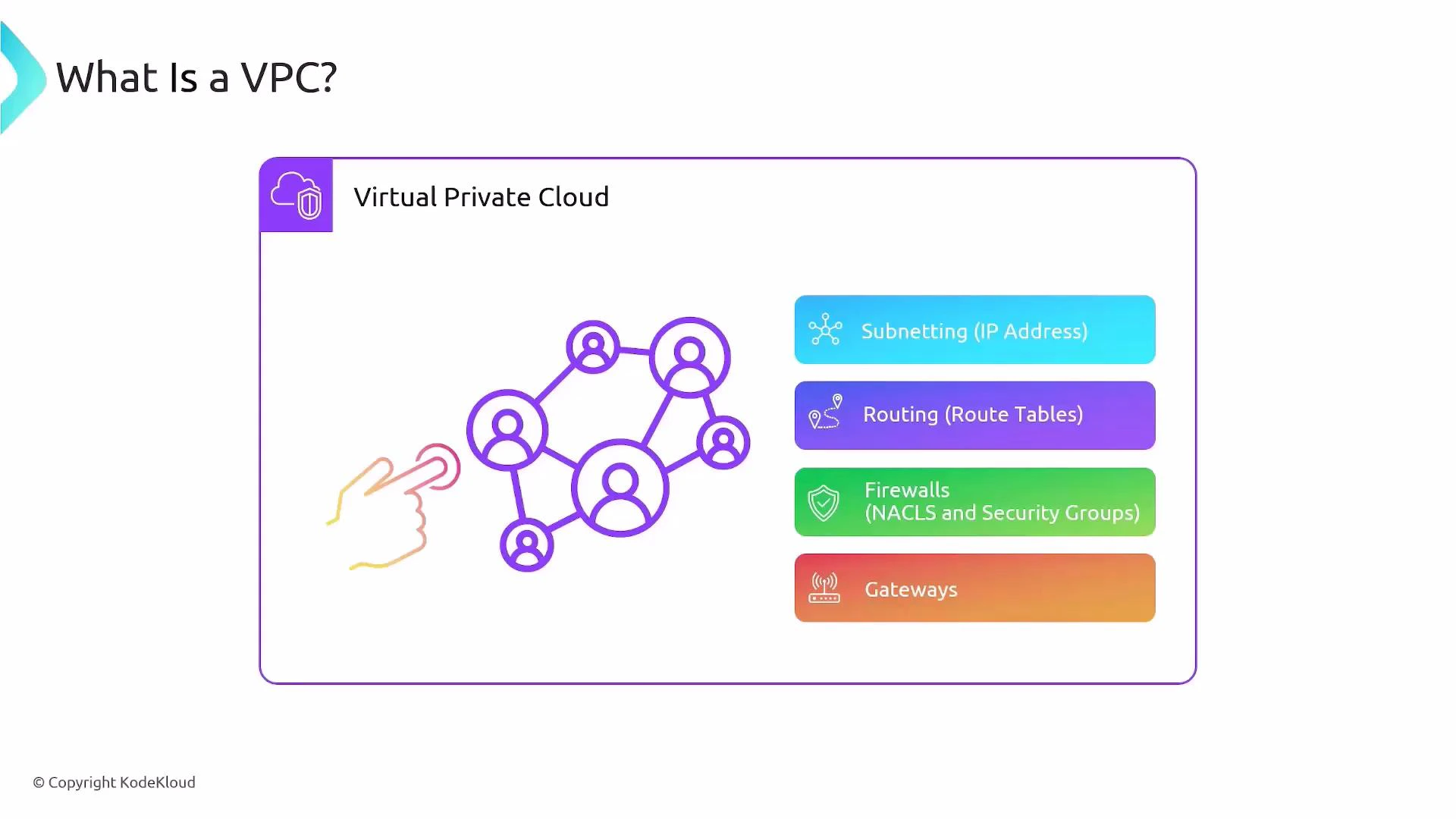
In this lesson we'll cover a core AWS networking concept: VPCs (Virtual Private Clouds). A VPC is a logically isolated, secure network you create in AWS. VPCs let you isolate resources so one customer's resources cannot communicate with another's. Within a single AWS account you can also isolate environments or applications by placing resources in separate VPCs.
VPCs give you full control over networking in the cloud:
* Subnetting — you choose the IP address ranges
* Routing — route tables determine packet paths
* Firewalls — Security Groups and Network ACLs control traffic
* Gateways — Internet Gateways, NAT Gateways, Virtual Private Gateways, etc.
Conceptually this resembles managing on-premises routers, switches, and firewalls, but AWS streamlines and automates much of the operational work.
 ## Key VPC characteristics
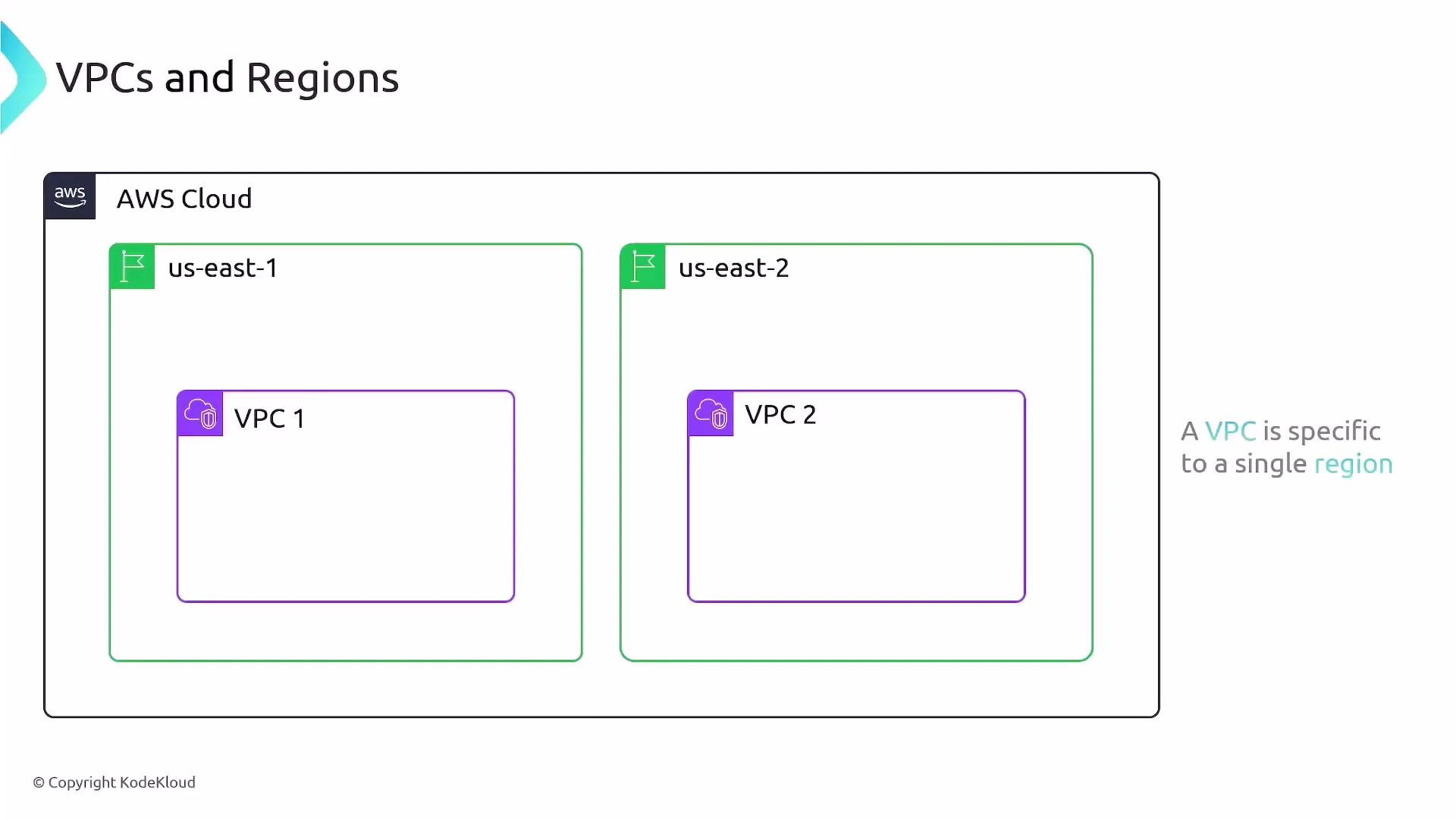
* Region-scoped: a VPC exists in a single AWS region and cannot span regions. For example, a VPC in `us-east-1` is separate from a VPC in `us-east-2`.
* Isolation by default: resources in different VPCs are isolated. You must explicitly enable connectivity (VPC Peering, Transit Gateway, or an internet gateway plus routing/security).
* Control plane for networking: you design CIDR blocks, subnets, route tables, and firewall rules.
## Key VPC characteristics
* Region-scoped: a VPC exists in a single AWS region and cannot span regions. For example, a VPC in `us-east-1` is separate from a VPC in `us-east-2`.
* Isolation by default: resources in different VPCs are isolated. You must explicitly enable connectivity (VPC Peering, Transit Gateway, or an internet gateway plus routing/security).
* Control plane for networking: you design CIDR blocks, subnets, route tables, and firewall rules.
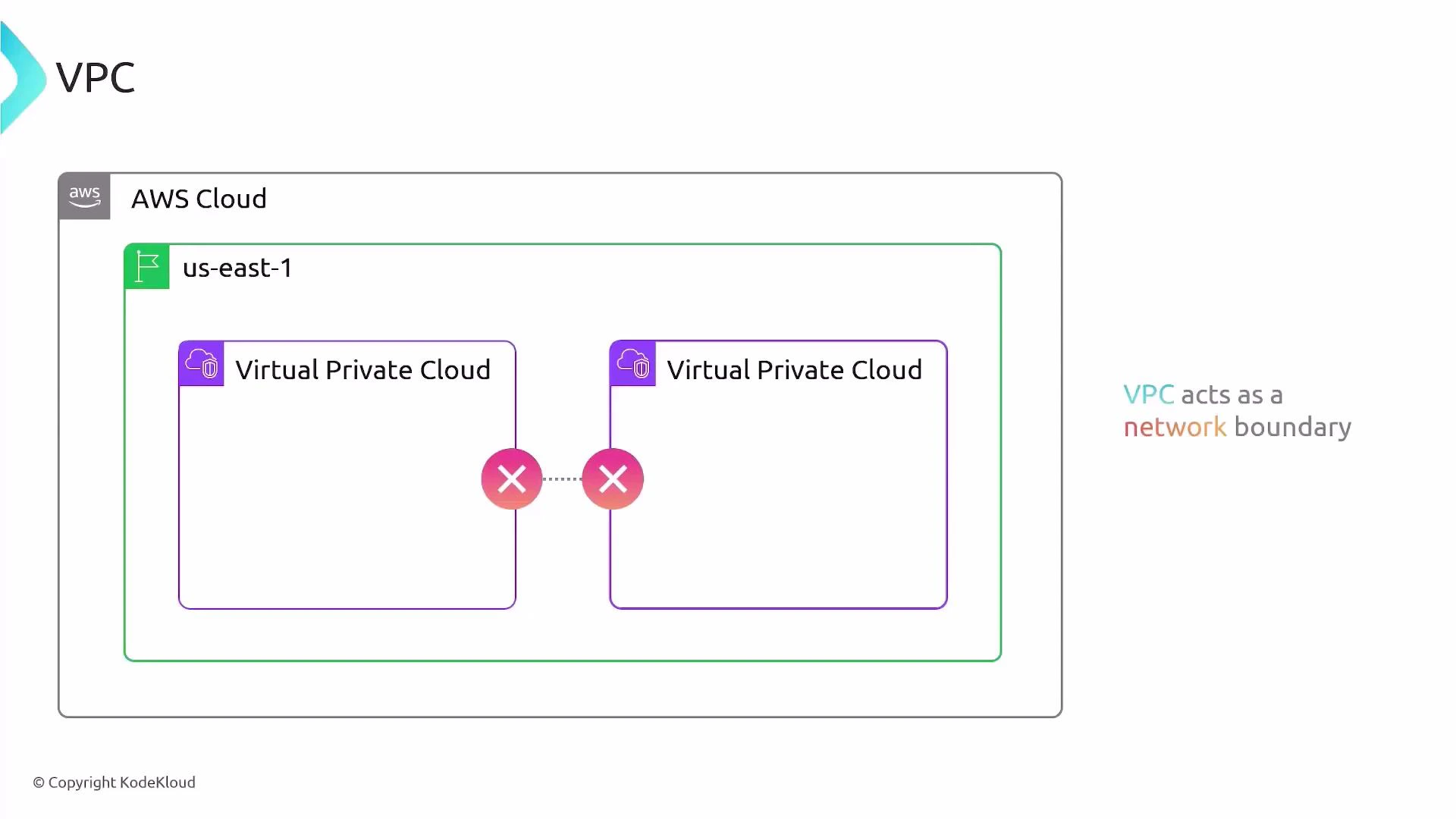
 VPCs act as clear network boundaries. By default there is no routing between VPCs unless you configure peering, Transit Gateway, or other connectivity mechanisms.
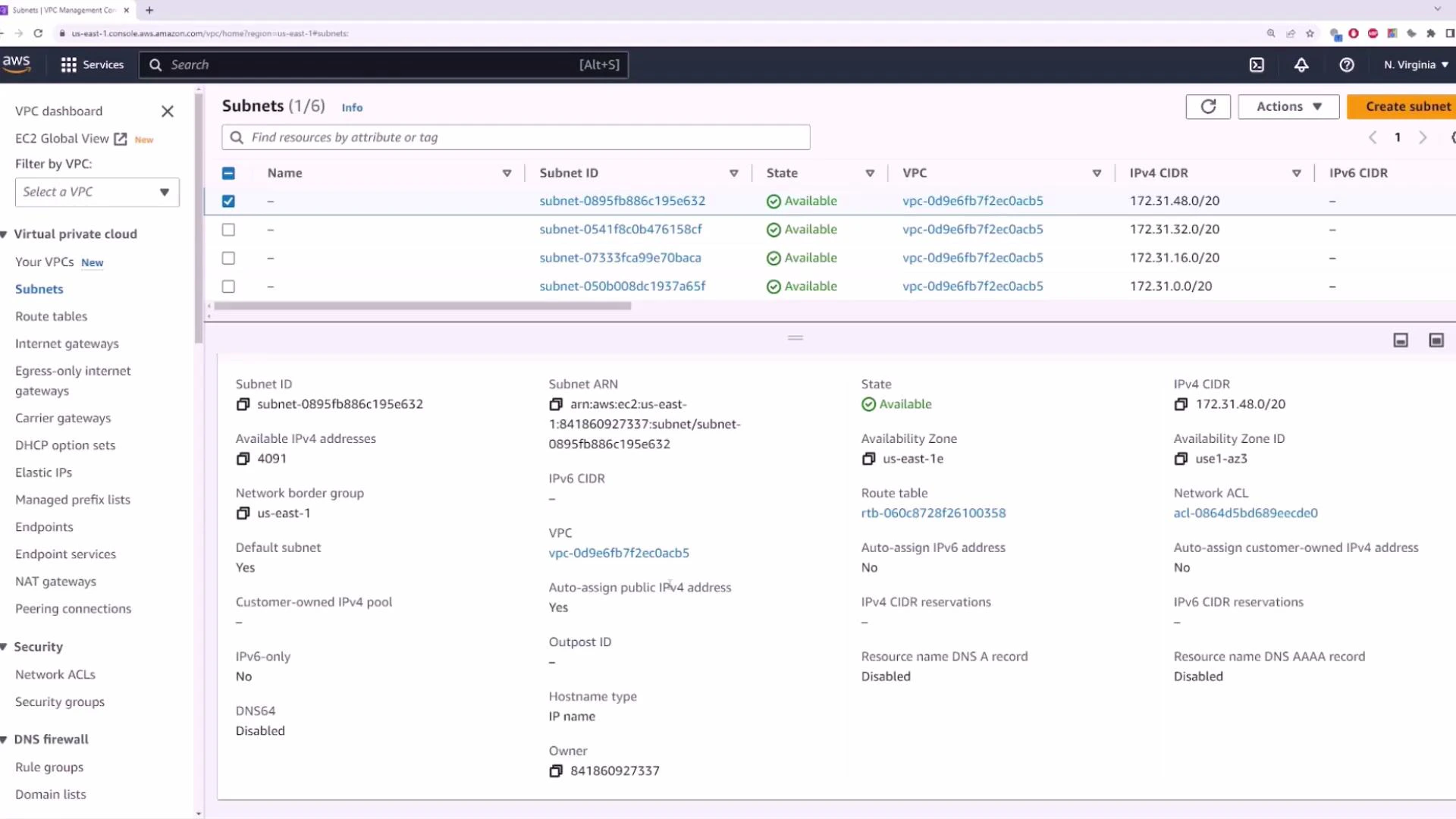
 Each AWS region includes a *default VPC* created automatically. The default VPC typically uses the CIDR block `172.31.0.0/16`, comes with default subnets (one per AZ), a default route table, and an Internet Gateway so you can launch instances with internet connectivity immediately.
## Default VPC and default subnets
In a new AWS account you will see one default VPC per region. Each default VPC:
* Uses `172.31.0.0/16` (by default)
* Contains one default subnet per Availability Zone in the region
* Has an Internet Gateway attached and a default route table that can route `0.0.0.0/0` to the IGW (if you configure subnets as public)
Use the VPC Console's resource map and subnet list to visualize which subnets map to which AZs and which route tables are associated.
Each AWS region includes a *default VPC* created automatically. The default VPC typically uses the CIDR block `172.31.0.0/16`, comes with default subnets (one per AZ), a default route table, and an Internet Gateway so you can launch instances with internet connectivity immediately.
## Default VPC and default subnets
In a new AWS account you will see one default VPC per region. Each default VPC:
* Uses `172.31.0.0/16` (by default)
* Contains one default subnet per Availability Zone in the region
* Has an Internet Gateway attached and a default route table that can route `0.0.0.0/0` to the IGW (if you configure subnets as public)
Use the VPC Console's resource map and subnet list to visualize which subnets map to which AZs and which route tables are associated.
 ## VPC components at a glance
| Component | Purpose | AWS resource example |
| ---------------------- | ---------------------------------------- | -------------------------------------------- |
| Subnets | Segment VPC CIDR into AZ-specific ranges | `subnet-xxxx` |
| Route tables | Control routing for each subnet | `rtb-xxxx` |
| Security groups | Instance-level firewall (stateful) | `sg-xxxx` |
| Network ACLs | Subnet-level firewall (stateless) | `acl-xxxx` |
| Internet access | Enable Internet traffic | Internet Gateway (`igw-xxxx`) or NAT Gateway |
| Cross-VPC connectivity | Connect VPCs or on-premises networks | VPC Peering, Transit Gateway, VPN Gateway |
## Internet access and public subnets
To enable internet connectivity for instances in a VPC you typically need:
1. An Internet Gateway attached to the VPC.
2. A route in the subnet's route table directing `0.0.0.0/0` to the Internet Gateway.
3. The instance in a subnet that auto-assigns public IPv4 addresses (or an Elastic IP attached).
4. Security Group rules permitting the desired inbound/outbound traffic.
## Example: Launching an EC2 instance into the default VPC
EC2 is the AWS service for virtual servers. Using the default VPC and default subnet settings lets you get an instance with internet access quickly.
Steps in the EC2 Launch Wizard:
* Choose an AMI (for example, Amazon Linux 2023)
* Choose an instance type (e.g., `t2.micro` for free tier)
* Create or select a key pair for SSH access (this downloads a `.pem` file)
* Configure a Security Group (allow port 22 for SSH if you need remote access)
* Select the default VPC and a default subnet (or leave subnet as "No preference")
* Enable Auto-assign Public IPv4 if you want the instance to receive a public IP
## VPC components at a glance
| Component | Purpose | AWS resource example |
| ---------------------- | ---------------------------------------- | -------------------------------------------- |
| Subnets | Segment VPC CIDR into AZ-specific ranges | `subnet-xxxx` |
| Route tables | Control routing for each subnet | `rtb-xxxx` |
| Security groups | Instance-level firewall (stateful) | `sg-xxxx` |
| Network ACLs | Subnet-level firewall (stateless) | `acl-xxxx` |
| Internet access | Enable Internet traffic | Internet Gateway (`igw-xxxx`) or NAT Gateway |
| Cross-VPC connectivity | Connect VPCs or on-premises networks | VPC Peering, Transit Gateway, VPN Gateway |
## Internet access and public subnets
To enable internet connectivity for instances in a VPC you typically need:
1. An Internet Gateway attached to the VPC.
2. A route in the subnet's route table directing `0.0.0.0/0` to the Internet Gateway.
3. The instance in a subnet that auto-assigns public IPv4 addresses (or an Elastic IP attached).
4. Security Group rules permitting the desired inbound/outbound traffic.
## Example: Launching an EC2 instance into the default VPC
EC2 is the AWS service for virtual servers. Using the default VPC and default subnet settings lets you get an instance with internet access quickly.
Steps in the EC2 Launch Wizard:
* Choose an AMI (for example, Amazon Linux 2023)
* Choose an instance type (e.g., `t2.micro` for free tier)
* Create or select a key pair for SSH access (this downloads a `.pem` file)
* Configure a Security Group (allow port 22 for SSH if you need remote access)
* Select the default VPC and a default subnet (or leave subnet as "No preference")
* Enable Auto-assign Public IPv4 if you want the instance to receive a public IP
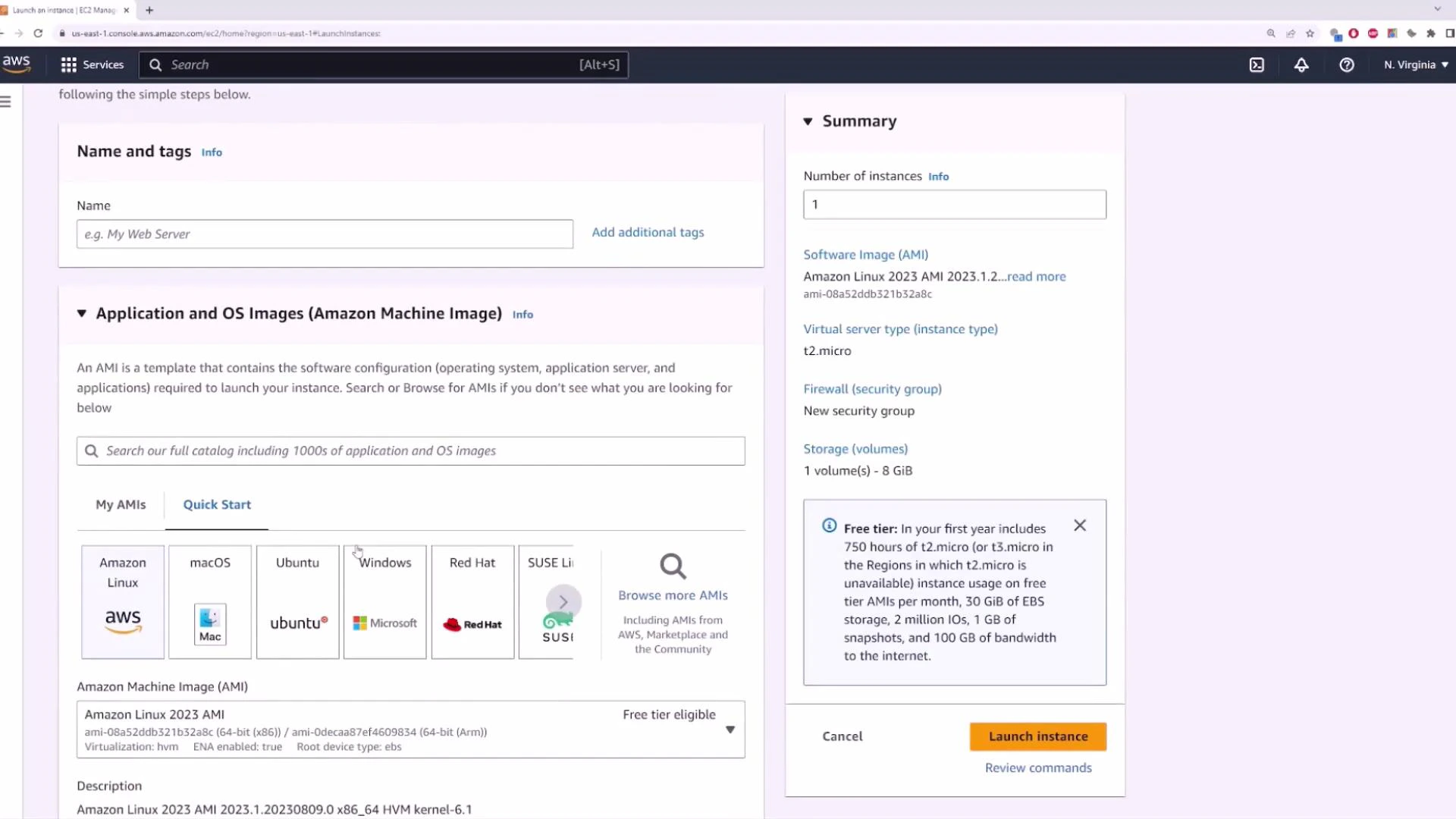 When creating the key pair, pick a secure filename and download the `.pem`. You’ll use that to SSH into the instance.
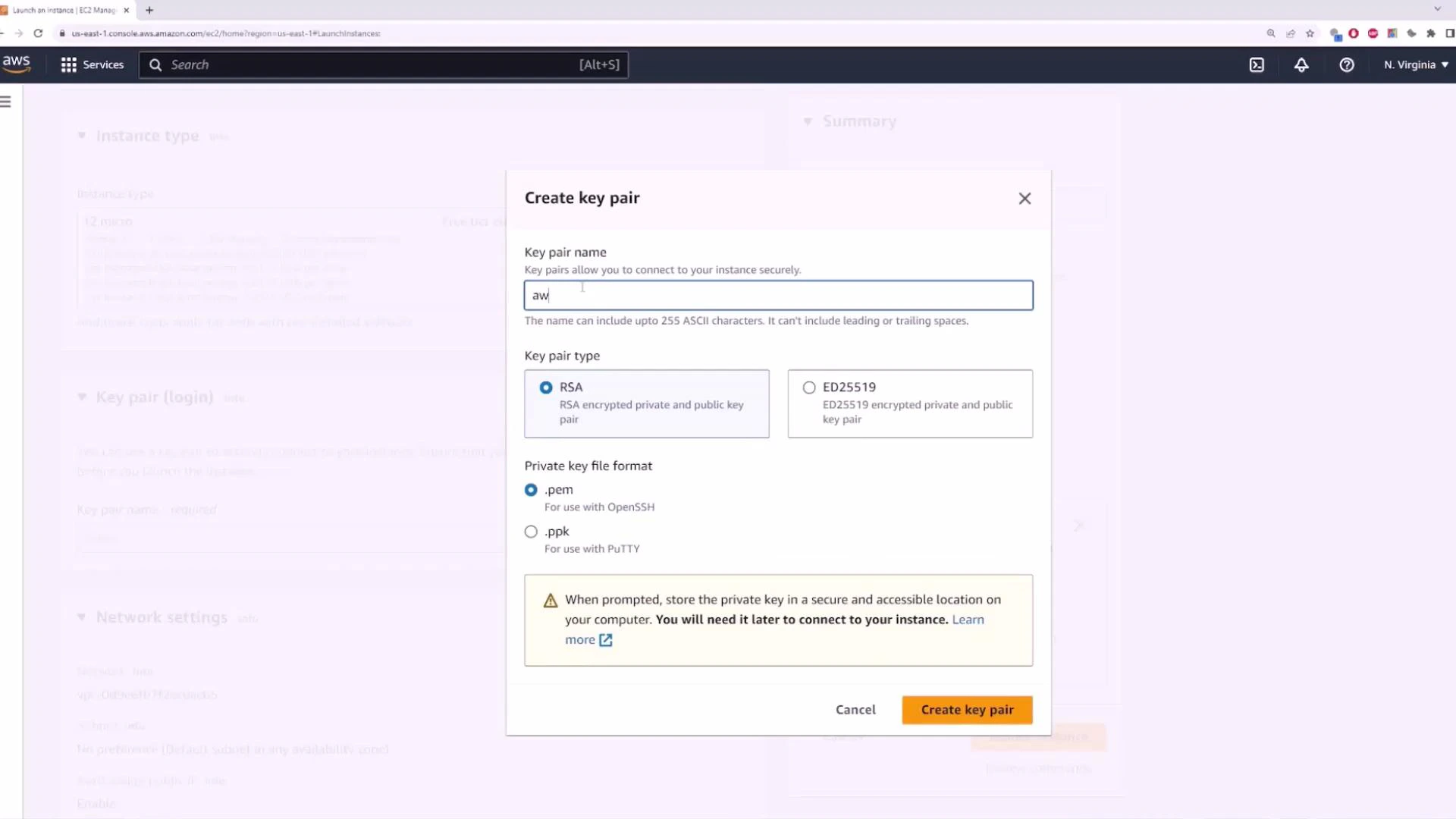 When configuring a Security Group for demo purposes you might allow SSH from anywhere (`0.0.0.0/0`), but for production restrict SSH to specific IP ranges.
For production workloads, never leave SSH open to the world. Restrict Security Group inbound rules to specific IP addresses or use a bastion host or AWS Systems Manager Session Manager for secure access.
When configuring a Security Group for demo purposes you might allow SSH from anywhere (`0.0.0.0/0`), but for production restrict SSH to specific IP ranges.
For production workloads, never leave SSH open to the world. Restrict Security Group inbound rules to specific IP addresses or use a bastion host or AWS Systems Manager Session Manager for secure access.
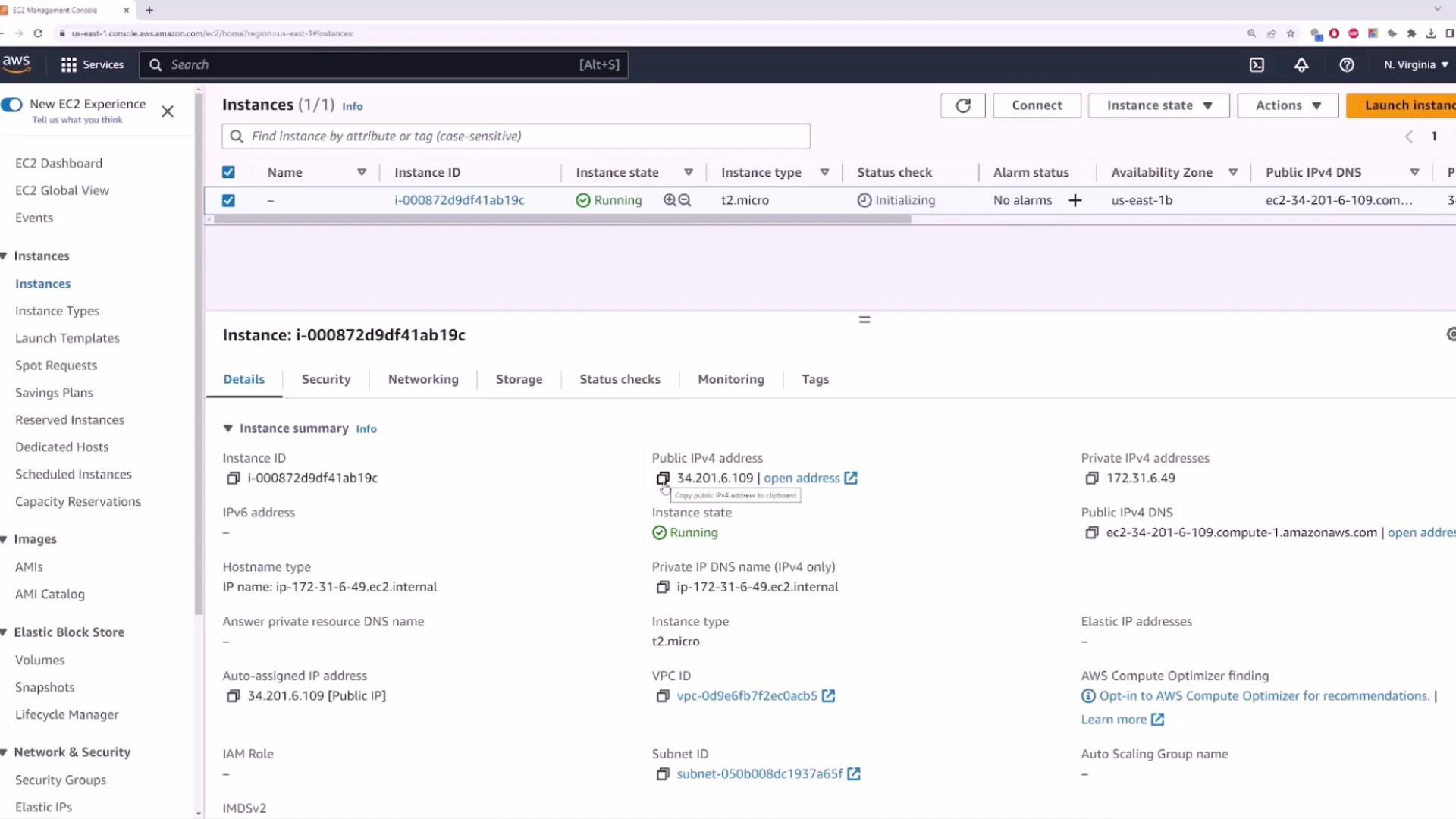
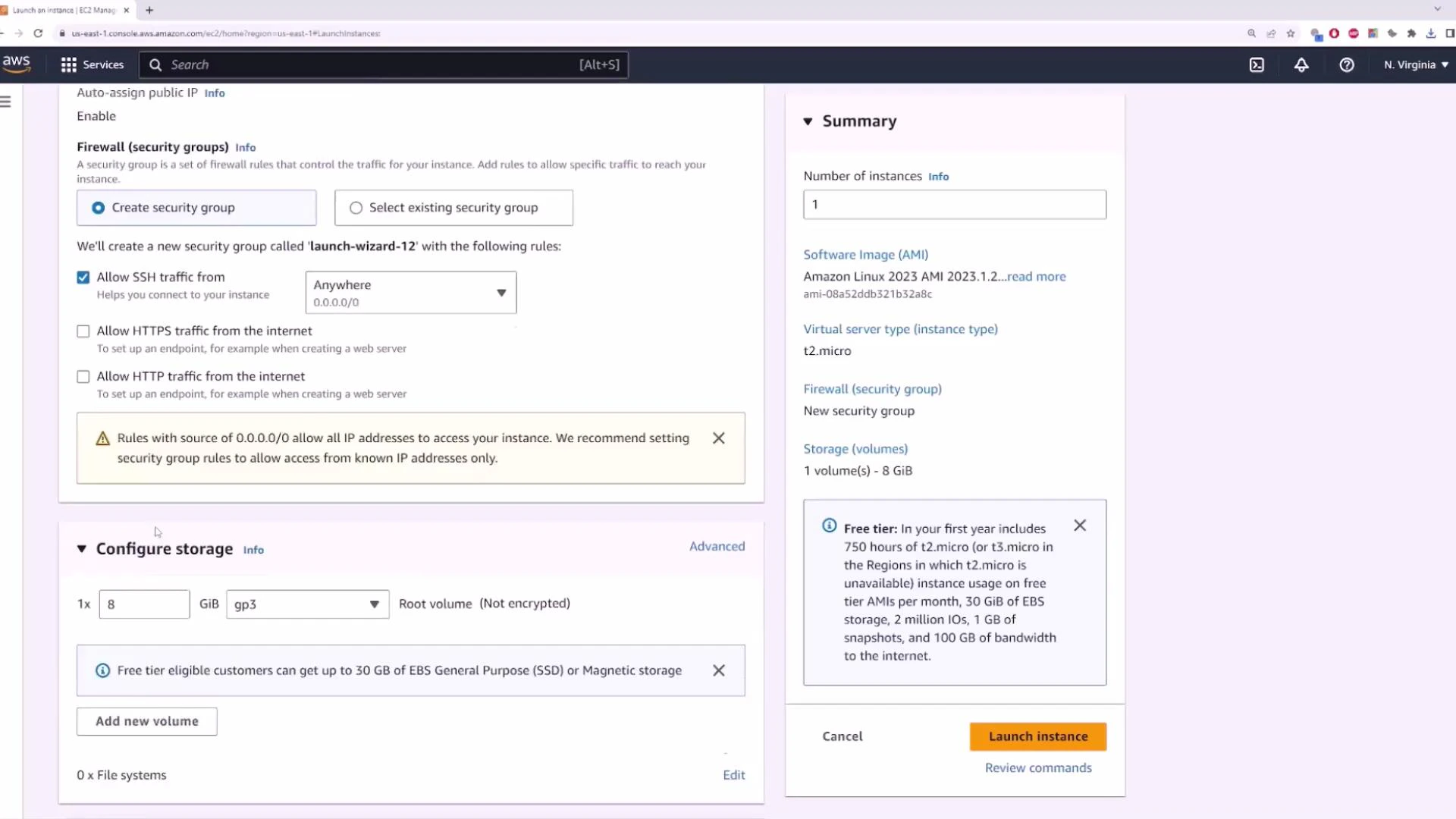 Make sure the instance is assigned to the default VPC (for example, a VPC ID ending in `ACB5`) and confirm Auto-assign Public IPv4 is enabled if you want the instance to receive a public IP automatically.
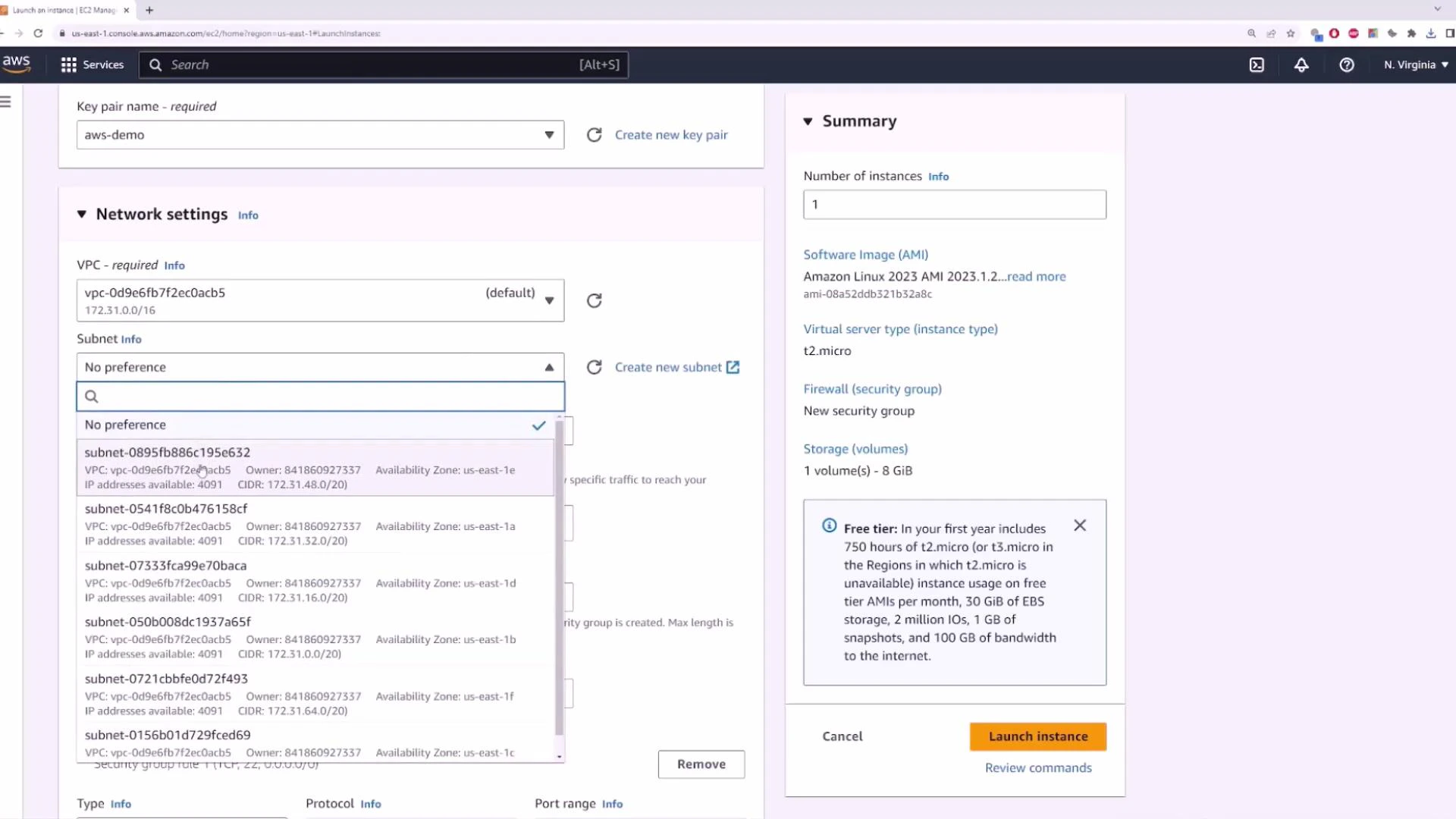 After launching, the instance appears in the EC2 Instances list. You will see:
* Instance ID (e.g., `i-000872d9df41ab19c`)
* Instance type (e.g., `t2.micro`)
* Private IP from the subnet (e.g., `172.31.6.49`)
* Public IP if auto-assigned (e.g., `34.201.6.109`)
After launching, the instance appears in the EC2 Instances list. You will see:
* Instance ID (e.g., `i-000872d9df41ab19c`)
* Instance type (e.g., `t2.micro`)
* Private IP from the subnet (e.g., `172.31.6.49`)
* Public IP if auto-assigned (e.g., `34.201.6.109`)
 You can SSH into the instance using the PEM key you downloaded. Example Windows (PowerShell or CMD) session:
```bash theme={null}
Microsoft Windows [Version 10.0.19045.3324]
(c) Microsoft Corporation. All rights reserved.
C:\Users\sanje\Documents\scratch\aws-demo>ssh -i aws-demo.pem ec2-user@34.201.6.109
The authenticity of host '34.201.6.109 (34.201.6.109)' can't be established.
ECDSA key fingerprint is SHA256:faOCPuUMP2Fvn9aHeAewW56Eei94znaTnFefIDRDg1mE.
Are you sure you want to continue connecting (yes/no/[fingerprint])? yes
Warning: Permanently added '34.201.6.109' (ECDSA) to the list of known hosts.
, #_
~\_ ####_
~~\__#####\
~~ \####|
~~ \#/
~~ \/__ https://aws.amazon.com/linux/amazon-linux-2023
\- ' ' ->
[ec2-user@ip-172-31-6-49 ~]$ ping -c 4 8.8.8.8
PING 8.8.8.8 (8.8.8.8) 56(84) bytes of data.
64 bytes from 8.8.8.8: icmp_seq=1 ttl=116 time=20.1 ms
64 bytes from 8.8.8.8: icmp_seq=2 ttl=116 time=19.8 ms
64 bytes from 8.8.8.8: icmp_seq=3 ttl=116 time=19.9 ms
64 bytes from 8.8.8.8: icmp_seq=4 ttl=116 time=19.7 ms
--- 8.8.8.8 ping statistics ---
4 packets transmitted, 4 received, 0% packet loss, time 3003ms
rtt min/avg/max/mdev = 19.700/19.875/20.100/0.160 ms
```
This SSH session and successful ping to `8.8.8.8` demonstrate that an instance launched into the default VPC (with an Internet Gateway and a public IP) can reach the internet and is reachable from the internet, subject to Security Group rules.
If you're new to EC2, this example simply shows the default VPC behavior: an Internet Gateway attached to the VPC, a default route table, one default subnet per AZ, and the option to auto-assign public IPv4 addresses so instances can communicate with the internet quickly.
## Links and references
* [AWS VPC documentation](https://docs.aws.amazon.com/vpc/latest/userguide/what-is-amazon-vpc.html)
* [AWS EC2 documentation](https://docs.aws.amazon.com/ec2/)
* [Solutions Architect Associate course (example reference)](https://learn.kodekloud.com/user/courses/aws-solutions-architect-associate-certification)
You can SSH into the instance using the PEM key you downloaded. Example Windows (PowerShell or CMD) session:
```bash theme={null}
Microsoft Windows [Version 10.0.19045.3324]
(c) Microsoft Corporation. All rights reserved.
C:\Users\sanje\Documents\scratch\aws-demo>ssh -i aws-demo.pem ec2-user@34.201.6.109
The authenticity of host '34.201.6.109 (34.201.6.109)' can't be established.
ECDSA key fingerprint is SHA256:faOCPuUMP2Fvn9aHeAewW56Eei94znaTnFefIDRDg1mE.
Are you sure you want to continue connecting (yes/no/[fingerprint])? yes
Warning: Permanently added '34.201.6.109' (ECDSA) to the list of known hosts.
, #_
~\_ ####_
~~\__#####\
~~ \####|
~~ \#/
~~ \/__ https://aws.amazon.com/linux/amazon-linux-2023
\- ' ' ->
[ec2-user@ip-172-31-6-49 ~]$ ping -c 4 8.8.8.8
PING 8.8.8.8 (8.8.8.8) 56(84) bytes of data.
64 bytes from 8.8.8.8: icmp_seq=1 ttl=116 time=20.1 ms
64 bytes from 8.8.8.8: icmp_seq=2 ttl=116 time=19.8 ms
64 bytes from 8.8.8.8: icmp_seq=3 ttl=116 time=19.9 ms
64 bytes from 8.8.8.8: icmp_seq=4 ttl=116 time=19.7 ms
--- 8.8.8.8 ping statistics ---
4 packets transmitted, 4 received, 0% packet loss, time 3003ms
rtt min/avg/max/mdev = 19.700/19.875/20.100/0.160 ms
```
This SSH session and successful ping to `8.8.8.8` demonstrate that an instance launched into the default VPC (with an Internet Gateway and a public IP) can reach the internet and is reachable from the internet, subject to Security Group rules.
If you're new to EC2, this example simply shows the default VPC behavior: an Internet Gateway attached to the VPC, a default route table, one default subnet per AZ, and the option to auto-assign public IPv4 addresses so instances can communicate with the internet quickly.
## Links and references
* [AWS VPC documentation](https://docs.aws.amazon.com/vpc/latest/userguide/what-is-amazon-vpc.html)
* [AWS EC2 documentation](https://docs.aws.amazon.com/ec2/)
* [Solutions Architect Associate course (example reference)](https://learn.kodekloud.com/user/courses/aws-solutions-architect-associate-certification)