> ## Documentation Index
> Fetch the complete documentation index at: https://notes.kodekloud.com/llms.txt
> Use this file to discover all available pages before exploring further.
# Basic Docker Commands
> Overview of essential Docker CLI commands for creating, running, inspecting, managing, and cleaning up containers and images, with examples and practical tips
In this lesson you'll learn commonly used Docker commands for creating, running, inspecting, and cleaning up containers and images. A short hands-on quiz follows the conceptual overview to help you practice.
Table of contents:
* docker run — create & start containers
* docker ps — list containers
* stop & remove containers
* docker images, docker rmi, docker pull — image management
* why some containers (like `ubuntu`) exit immediately
* running specific commands and `docker exec`
* foreground vs detached mode
* quick tips and references
## docker run — Create and start a container
The `docker run` command creates a container from an image and starts it. If the image is not available locally, Docker pulls it from Docker Hub on first use and reuses the downloaded image for subsequent runs.
Example: starting the official nginx image
```bash theme={null}
$ docker run nginx
Unable to find image 'nginx:latest' locally
latest: Pulling from library/nginx
fc71811084d0: Already exists
d2e987ca2267: Pull complete
0b760b431b11: Pull complete
Digest: sha256:96fb261b66270b900ea5...
Status: Downloaded newer image for nginx:latest
```
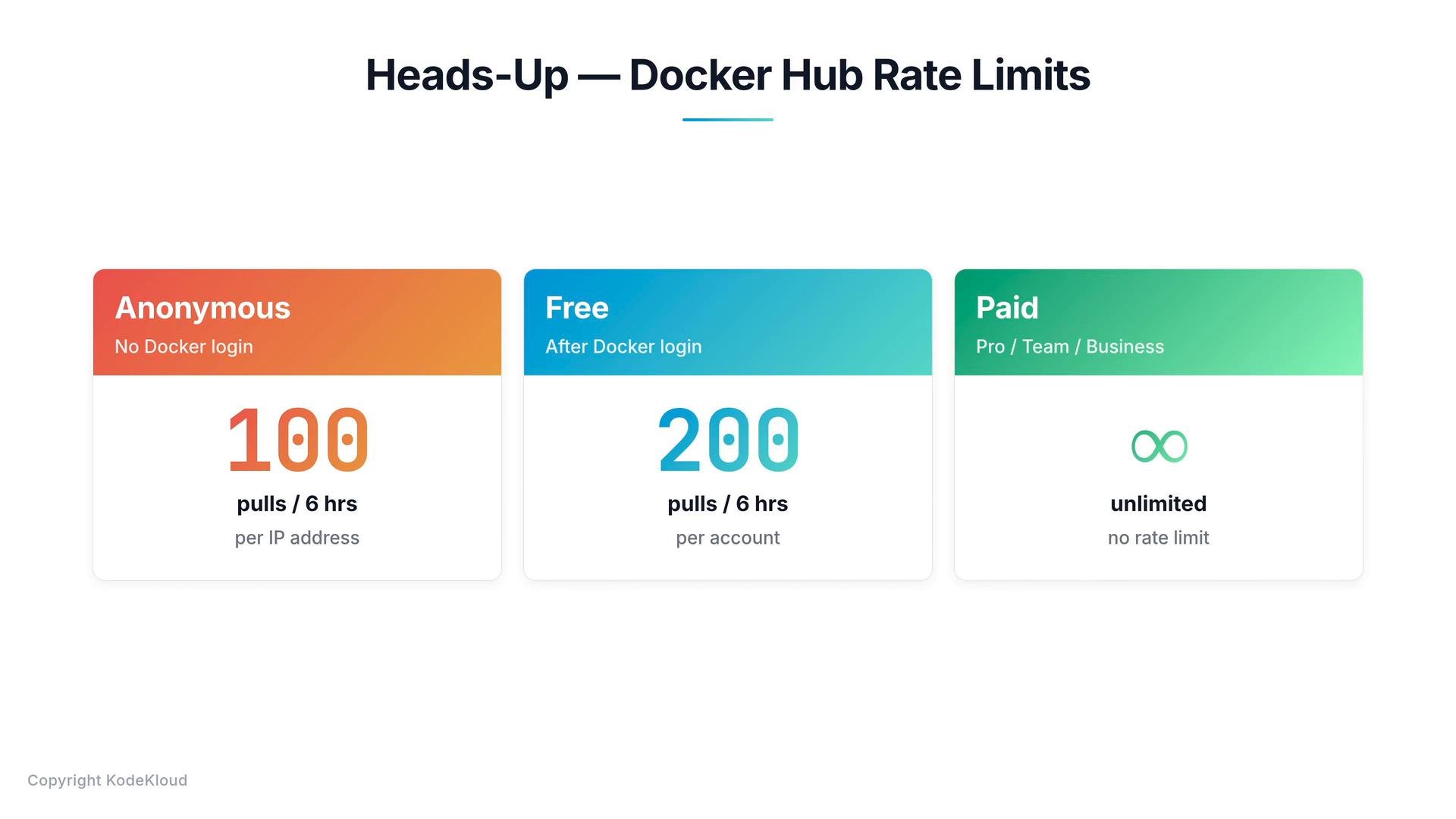 [Docker Hub](https://hub.docker.com) enforces pull rate limits for unauthenticated and authenticated accounts. If you see "too many requests" errors while following this lesson, log in with `docker login` or use a paid plan to avoid interruptions.
## docker ps — List running (and all) containers
* `docker ps` lists running containers and shows columns such as CONTAINER ID, IMAGE, COMMAND, CREATED, STATUS, PORTS, and NAMES.
* Docker auto-generates a friendly container name (for example, `silly_sammet`) unless you set one with `--name`.
To include stopped/exited containers, add `-a`:
```bash theme={null}
docker ps -a
```
Example outputs:
```bash theme={null}
$ docker ps
CONTAINER ID IMAGE COMMAND CREATED STATUS PORTS NAMES
796856ac413d nginx "nginx -g 'daemon of...'" 7 seconds ago Up 6 seconds 80/tcp silly_sammet
$ docker ps -a
CONTAINER ID IMAGE COMMAND CREATED STATUS NAMES
796856ac413d nginx "nginx -g 'daemon of...'" 7 seconds ago Up 6 seconds silly_sammet
12a0f4b2c8d3 redis "redis-server" 2 minutes ago Exited (0) 30 seconds ago eager_curie
8e5d92ab1f7c ubuntu "/bin/bash" 5 minutes ago Exited (0) 4 minutes ago hopeful_ada
```
## Stop and remove containers
* Stop a running container:
```bash theme={null}
docker stop
```
You can provide the full container ID or the first unique characters.
* After stopping, the container will appear in `docker ps -a` with `Exited` status.
* Remove a stopped container permanently:
```bash theme={null}
docker rm
```
Example sequence:
```bash theme={null}
$ docker ps
CONTAINER ID IMAGE STATUS NAMES
796856ac413d nginx Up 6 seconds silly_sammet
$ docker stop silly_sammet
silly_sammet
$ docker ps
$ docker ps -a
CONTAINER ID IMAGE STATUS NAMES
796856ac413d nginx Exited (0) 4 seconds ago silly_sammet
$ docker rm silly_sammet
silly_sammet
$ docker ps -a
# container no longer present
```
Before removing an image with `docker rmi`, stop and remove any containers that depend on it. Removing an image in use will fail.
## docker images, docker rmi, and docker pull — Image management
* `docker images` lists images on the host including repository, tag, image ID, creation time, and size.
* Remove an image with:
```bash theme={null}
docker rmi
```
(Stop and remove containers that use the image first.)
* Pull an image without running it:
```bash theme={null}
docker pull
```
Example:
```bash theme={null}
$ docker images
REPOSITORY TAG IMAGE ID CREATED SIZE
nginx latest f68d6e55e065 4 days ago 109MB
redis latest 4760dc956b2d 15 months ago 107MB
ubuntu latest f975c503748d 16 months ago 112MB
alpine latest 3fd9065eaf02 18 months ago 4.14MB
$ docker rmi nginx
Untagged: nginx:latest
Deleted: sha256:f68d6e55e065...
$ docker pull ubuntu
Using default tag: latest
Status: Image is up to date for ubuntu:latest
```
## Why an `ubuntu` container often exits immediately
Containers run the command specified in the image’s `CMD` or `ENTRYPOINT`. Base images like `ubuntu` usually don’t run a long-lived process, so the container starts, runs the default command (often non-interactive or nothing), then exits.
Example:
```bash theme={null}
$ docker run ubuntu
$ docker ps -a
CONTAINER ID IMAGE COMMAND STATUS NAMES
45aacca36850 ubuntu "/bin/bash" Exited (0) 41 seconds ago distracted_mcclintock
```
To keep a container alive, run a long-running command or service (for example, `sleep`, a shell with interactive mode, or an actual daemon).
## Run a specific command when starting a container
You can override the image’s default command by appending a command to `docker run`:
```bash theme={null}
docker run ubuntu sleep 5
```
This starts the container, runs `sleep 5`, then the container exits after 5 seconds.
If you want an interactive shell:
```bash theme={null}
docker run -it ubuntu /bin/bash
```
## Execute commands inside a running container: docker exec
`docker exec` runs a command inside an already-running container. This is handy for debugging, inspecting files, or running a shell.
Example: viewing `/etc/hosts` inside a container
```bash theme={null}
$ docker ps
CONTAINER ID IMAGE COMMAND STATUS NAMES
538d037f94a7 ubuntu "sleep 100" Up 4 seconds distracted_mcclintock
$ docker exec distracted_mcclintock cat /etc/hosts
127.0.0.1 localhost
::1 localhost
# (example output)
```
To get an interactive shell inside a running container:
```bash theme={null}
docker exec -it /bin/bash
```
## Foreground (attached) vs detached mode
* By default `docker run` attaches the container’s stdout/stderr to your terminal (foreground). Pressing Ctrl-C will stop the container.
* To start a container in the background, use `-d` (detached):
```bash theme={null}
docker run -d --name myweb codecloud/simple-web-app
```
* Reattach to a container’s streams with:
```bash theme={null}
docker attach
```
Example:
```bash theme={null}
# foreground (attached)
$ docker run codecloud/simple-web-app
# detached (background)
$ docker run -d --name myweb codecloud/simple-web-app
# back at prompt immediately
$ docker ps
CONTAINER ID IMAGE COMMAND STATUS PORTS NAMES
a1b2c3d4e5f6 codecloud/simple-web-app "..." Up 2s 80/tcp myweb
# attach later if needed
$ docker attach myweb
```
## Quick reference — common Docker commands
| Command | Purpose | Example |
| -: | - | - |
| `docker run` | Create & start a container | `docker run nginx` |
| `docker run -d` | Start container in background (detached) | `docker run -d --name myweb nginx` |
| `docker ps` | List running containers | `docker ps` |
| `docker ps -a` | List all containers, including stopped | `docker ps -a` |
| `docker stop` | Stop a running container | `docker stop \`docker ps -q\`\` |
| `docker rm` | Remove stopped container | `docker rm \`docker ps -a -q\`\` |
| `docker images` | List local images | `docker images` |
| `docker rmi` | Remove an image | `docker rmi nginx` |
| `docker pull` | Download an image without running | `docker pull ubuntu` |
| `docker exec` | Run a command in a running container | `docker exec -it myweb /bin/bash` |
| `docker attach` | Attach to container’s stdio | `docker attach myweb` |
Note: In the examples above, when angle brackets are used for placeholders, use backticks around them. For example, `docker stop `\\`
## Tips and reminders
* You only need the leading unique characters of a container ID to reference it.
* Stop and remove containers before removing their images.
* Authenticate with `docker login` to increase pull quotas and reduce rate-limit interruptions.
* Use `-it` for interactive shells (`-i` keeps STDIN open; `-t` allocates a pseudo-TTY).
## Links and references
* Docker Hub: [https://hub.docker.com](https://hub.docker.com)
* Docker CLI reference: [https://docs.docker.com/engine/reference/commandline/cli/](https://docs.docker.com/engine/reference/commandline/cli/)
* Docker run reference: [https://docs.docker.com/engine/reference/commandline/run/](https://docs.docker.com/engine/reference/commandline/run/)
Next: practice these commands in the hands-on exercises to reinforce the concepts covered.
This documentation is built and hosted on [Mintlify](https://mintlify.com), a developer documentation platform.
[Docker Hub](https://hub.docker.com) enforces pull rate limits for unauthenticated and authenticated accounts. If you see "too many requests" errors while following this lesson, log in with `docker login` or use a paid plan to avoid interruptions.
## docker ps — List running (and all) containers
* `docker ps` lists running containers and shows columns such as CONTAINER ID, IMAGE, COMMAND, CREATED, STATUS, PORTS, and NAMES.
* Docker auto-generates a friendly container name (for example, `silly_sammet`) unless you set one with `--name`.
To include stopped/exited containers, add `-a`:
```bash theme={null}
docker ps -a
```
Example outputs:
```bash theme={null}
$ docker ps
CONTAINER ID IMAGE COMMAND CREATED STATUS PORTS NAMES
796856ac413d nginx "nginx -g 'daemon of...'" 7 seconds ago Up 6 seconds 80/tcp silly_sammet
$ docker ps -a
CONTAINER ID IMAGE COMMAND CREATED STATUS NAMES
796856ac413d nginx "nginx -g 'daemon of...'" 7 seconds ago Up 6 seconds silly_sammet
12a0f4b2c8d3 redis "redis-server" 2 minutes ago Exited (0) 30 seconds ago eager_curie
8e5d92ab1f7c ubuntu "/bin/bash" 5 minutes ago Exited (0) 4 minutes ago hopeful_ada
```
## Stop and remove containers
* Stop a running container:
```bash theme={null}
docker stop
```
You can provide the full container ID or the first unique characters.
* After stopping, the container will appear in `docker ps -a` with `Exited` status.
* Remove a stopped container permanently:
```bash theme={null}
docker rm
```
Example sequence:
```bash theme={null}
$ docker ps
CONTAINER ID IMAGE STATUS NAMES
796856ac413d nginx Up 6 seconds silly_sammet
$ docker stop silly_sammet
silly_sammet
$ docker ps
$ docker ps -a
CONTAINER ID IMAGE STATUS NAMES
796856ac413d nginx Exited (0) 4 seconds ago silly_sammet
$ docker rm silly_sammet
silly_sammet
$ docker ps -a
# container no longer present
```
Before removing an image with `docker rmi`, stop and remove any containers that depend on it. Removing an image in use will fail.
## docker images, docker rmi, and docker pull — Image management
* `docker images` lists images on the host including repository, tag, image ID, creation time, and size.
* Remove an image with:
```bash theme={null}
docker rmi
```
(Stop and remove containers that use the image first.)
* Pull an image without running it:
```bash theme={null}
docker pull
```
Example:
```bash theme={null}
$ docker images
REPOSITORY TAG IMAGE ID CREATED SIZE
nginx latest f68d6e55e065 4 days ago 109MB
redis latest 4760dc956b2d 15 months ago 107MB
ubuntu latest f975c503748d 16 months ago 112MB
alpine latest 3fd9065eaf02 18 months ago 4.14MB
$ docker rmi nginx
Untagged: nginx:latest
Deleted: sha256:f68d6e55e065...
$ docker pull ubuntu
Using default tag: latest
Status: Image is up to date for ubuntu:latest
```
## Why an `ubuntu` container often exits immediately
Containers run the command specified in the image’s `CMD` or `ENTRYPOINT`. Base images like `ubuntu` usually don’t run a long-lived process, so the container starts, runs the default command (often non-interactive or nothing), then exits.
Example:
```bash theme={null}
$ docker run ubuntu
$ docker ps -a
CONTAINER ID IMAGE COMMAND STATUS NAMES
45aacca36850 ubuntu "/bin/bash" Exited (0) 41 seconds ago distracted_mcclintock
```
To keep a container alive, run a long-running command or service (for example, `sleep`, a shell with interactive mode, or an actual daemon).
## Run a specific command when starting a container
You can override the image’s default command by appending a command to `docker run`:
```bash theme={null}
docker run ubuntu sleep 5
```
This starts the container, runs `sleep 5`, then the container exits after 5 seconds.
If you want an interactive shell:
```bash theme={null}
docker run -it ubuntu /bin/bash
```
## Execute commands inside a running container: docker exec
`docker exec` runs a command inside an already-running container. This is handy for debugging, inspecting files, or running a shell.
Example: viewing `/etc/hosts` inside a container
```bash theme={null}
$ docker ps
CONTAINER ID IMAGE COMMAND STATUS NAMES
538d037f94a7 ubuntu "sleep 100" Up 4 seconds distracted_mcclintock
$ docker exec distracted_mcclintock cat /etc/hosts
127.0.0.1 localhost
::1 localhost
# (example output)
```
To get an interactive shell inside a running container:
```bash theme={null}
docker exec -it /bin/bash
```
## Foreground (attached) vs detached mode
* By default `docker run` attaches the container’s stdout/stderr to your terminal (foreground). Pressing Ctrl-C will stop the container.
* To start a container in the background, use `-d` (detached):
```bash theme={null}
docker run -d --name myweb codecloud/simple-web-app
```
* Reattach to a container’s streams with:
```bash theme={null}
docker attach
```
Example:
```bash theme={null}
# foreground (attached)
$ docker run codecloud/simple-web-app
# detached (background)
$ docker run -d --name myweb codecloud/simple-web-app
# back at prompt immediately
$ docker ps
CONTAINER ID IMAGE COMMAND STATUS PORTS NAMES
a1b2c3d4e5f6 codecloud/simple-web-app "..." Up 2s 80/tcp myweb
# attach later if needed
$ docker attach myweb
```
## Quick reference — common Docker commands
| Command | Purpose | Example |
| -: | - | - |
| `docker run` | Create & start a container | `docker run nginx` |
| `docker run -d` | Start container in background (detached) | `docker run -d --name myweb nginx` |
| `docker ps` | List running containers | `docker ps` |
| `docker ps -a` | List all containers, including stopped | `docker ps -a` |
| `docker stop` | Stop a running container | `docker stop \`docker ps -q\`\` |
| `docker rm` | Remove stopped container | `docker rm \`docker ps -a -q\`\` |
| `docker images` | List local images | `docker images` |
| `docker rmi` | Remove an image | `docker rmi nginx` |
| `docker pull` | Download an image without running | `docker pull ubuntu` |
| `docker exec` | Run a command in a running container | `docker exec -it myweb /bin/bash` |
| `docker attach` | Attach to container’s stdio | `docker attach myweb` |
Note: In the examples above, when angle brackets are used for placeholders, use backticks around them. For example, `docker stop `\\`
## Tips and reminders
* You only need the leading unique characters of a container ID to reference it.
* Stop and remove containers before removing their images.
* Authenticate with `docker login` to increase pull quotas and reduce rate-limit interruptions.
* Use `-it` for interactive shells (`-i` keeps STDIN open; `-t` allocates a pseudo-TTY).
## Links and references
* Docker Hub: [https://hub.docker.com](https://hub.docker.com)
* Docker CLI reference: [https://docs.docker.com/engine/reference/commandline/cli/](https://docs.docker.com/engine/reference/commandline/cli/)
* Docker run reference: [https://docs.docker.com/engine/reference/commandline/run/](https://docs.docker.com/engine/reference/commandline/run/)
Next: practice these commands in the hands-on exercises to reinforce the concepts covered.
This documentation is built and hosted on [Mintlify](https://mintlify.com), a developer documentation platform.