> ## Documentation Index
> Fetch the complete documentation index at: https://notes.kodekloud.com/llms.txt
> Use this file to discover all available pages before exploring further.
# Images and Registries
> Guide to container images and registries, including building, tagging, pushing, pulling, running containers, and orchestration options.
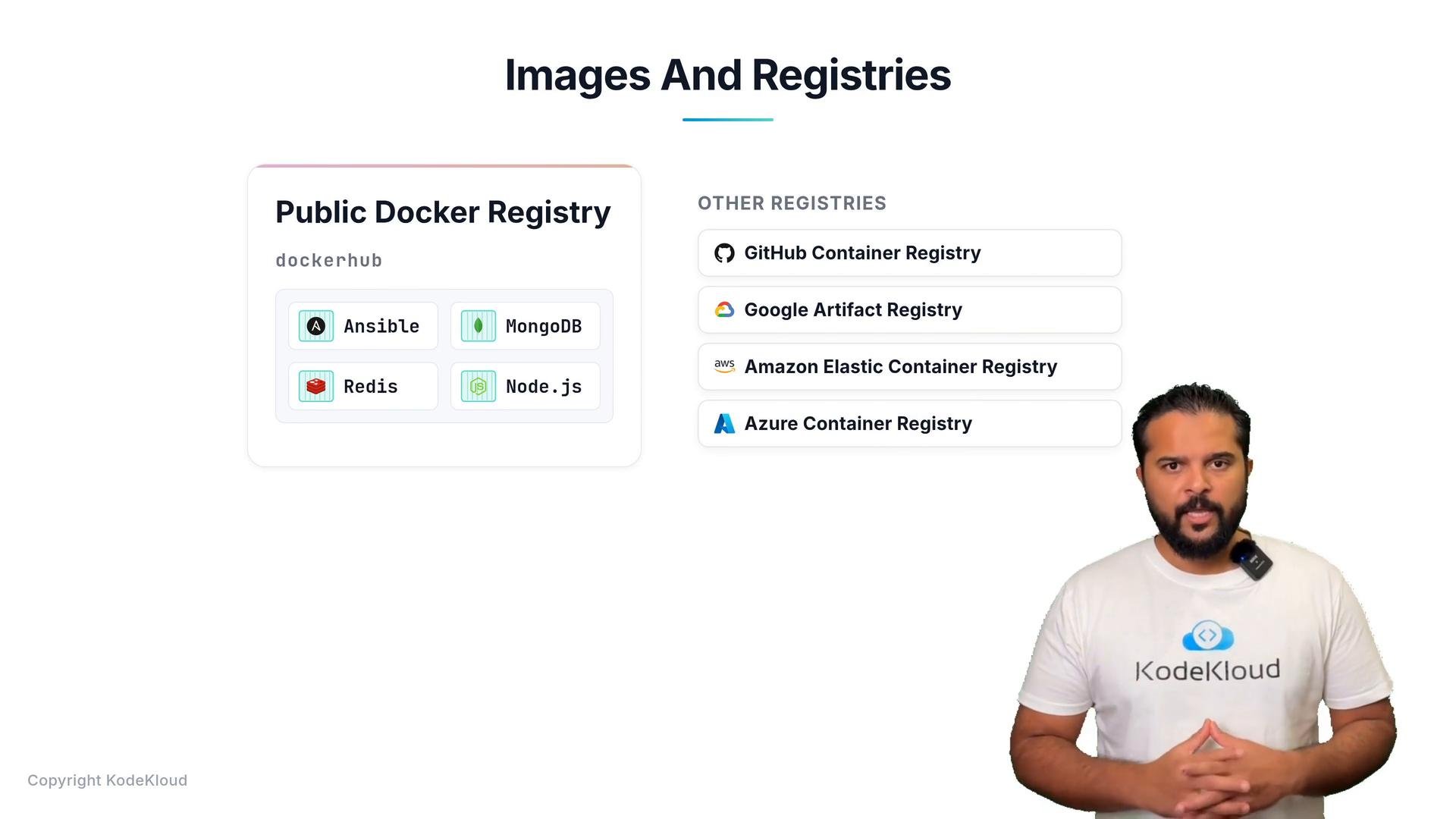
Containerized applications are commonly distributed as container images hosted in public and private registries. These registries let you discover, pull, and share images for operating systems, databases, developer tools, and complete application stacks.
Popular registries include:
* [Docker Hub](https://hub.docker.com) — the most widely used public registry
* [GitHub Container Registry](https://github.com/features/packages)
* [Google Artifact Registry](https://cloud.google.com/artifact-registry)
* [AWS Elastic Container Registry (ECR)](https://aws.amazon.com/ecr/)
* [Azure Container Registry](https://azure.microsoft.com/en-us/services/container-registry/)
 How registries and images are used
* Discover an image for the software you need (e.g., nginx, mongo, redis, node).
* Pull that image to a host that has Docker installed.
* Run one or more containers from the same image for testing, scaling, or production.
If you need multiple instances of a service, you can start several containers from the same image and put a load balancer in front. When a container fails, you destroy it and start another from the same image. For production-level availability and orchestration consider tools such as:
* [Docker Compose](https://docs.docker.com/compose/) — define and run multi-container apps on a single host.
* [Docker Swarm](https://docs.docker.com/engine/swarm/) — Docker’s native clustering.
* [Kubernetes](https://kubernetes.io) — production-grade orchestration for clustering, scaling, and self-healing.
Public registries like Docker Hub are convenient for discovery and quick testing, but private registries or cloud-specific registries (ECR, ACR, GCR) are commonly used for production images and often require authentication.
Images vs. containers
| Concept | What it is | Key characteristics |
| -: | - | - |
| Image | A packaged, immutable filesystem and metadata used as a template (like a VM template) | Read-only, versioned (tagged), stored in registries |
| Container | A running instance of an image | Isolated process with its own filesystem view, env vars, and process tree; shares host kernel |
Pulling and running an image
When you run an image with `docker run`, Docker pulls the image if it's not already present locally and then creates and starts a container.
Example: pull (if needed) and run nginx detached, mapping host port 80 to container port 80:
```bash theme={null}
docker run -d --name webserver -p 80:80 nginx:1.27
```
Building your own image
If there’s no public image that fits your needs, create your own image using a Dockerfile, tag it, and push it to a registry (e.g., Docker Hub). Example Dockerfile:
```dockerfile theme={null}
FROM nginx:1.27
COPY ./html /usr/share/nginx/html
```
Build and push to Docker Hub (replace `yourdockerhubusername` and tag as appropriate):
```bash theme={null}
# Build the image (run this in the directory containing the Dockerfile)
docker build -t yourdockerhubusername/custom-nginx:1.0 .
# Make sure you're logged into Docker Hub
docker login
# Push the image to Docker Hub
docker push yourdockerhubusername/custom-nginx:1.0
```
Run your published image:
```bash theme={null}
docker run -d --name my-custom-nginx -p 8080:80 yourdockerhubusername/custom-nginx:1.0
```
Image tag example
```text theme={null}
nginx:1.27
```
Quick reference — common commands
| Action | Command |
| - | - |
| Run an image | `docker run -d --name NAME -p HOSTPORT:CONTAINERPORT imagename:tag` |
| Build an image | `docker build -t username/imagename:tag .` |
| Push an image | `docker push username/imagename:tag` |
| Login to registry | `docker login` |
Links and references
* [Docker Hub](https://hub.docker.com)
* [GitHub Container Registry](https://github.com/features/packages)
* [Google Artifact Registry](https://cloud.google.com/artifact-registry)
* [AWS ECR](https://aws.amazon.com/ecr/)
* [Azure Container Registry](https://azure.microsoft.com/en-us/services/container-registry/)
* [Docker Compose docs](https://docs.docker.com/compose/)
* [Kubernetes](https://kubernetes.io)
This documentation is built and hosted on [Mintlify](https://mintlify.com), a developer documentation platform.
How registries and images are used
* Discover an image for the software you need (e.g., nginx, mongo, redis, node).
* Pull that image to a host that has Docker installed.
* Run one or more containers from the same image for testing, scaling, or production.
If you need multiple instances of a service, you can start several containers from the same image and put a load balancer in front. When a container fails, you destroy it and start another from the same image. For production-level availability and orchestration consider tools such as:
* [Docker Compose](https://docs.docker.com/compose/) — define and run multi-container apps on a single host.
* [Docker Swarm](https://docs.docker.com/engine/swarm/) — Docker’s native clustering.
* [Kubernetes](https://kubernetes.io) — production-grade orchestration for clustering, scaling, and self-healing.
Public registries like Docker Hub are convenient for discovery and quick testing, but private registries or cloud-specific registries (ECR, ACR, GCR) are commonly used for production images and often require authentication.
Images vs. containers
| Concept | What it is | Key characteristics |
| -: | - | - |
| Image | A packaged, immutable filesystem and metadata used as a template (like a VM template) | Read-only, versioned (tagged), stored in registries |
| Container | A running instance of an image | Isolated process with its own filesystem view, env vars, and process tree; shares host kernel |
Pulling and running an image
When you run an image with `docker run`, Docker pulls the image if it's not already present locally and then creates and starts a container.
Example: pull (if needed) and run nginx detached, mapping host port 80 to container port 80:
```bash theme={null}
docker run -d --name webserver -p 80:80 nginx:1.27
```
Building your own image
If there’s no public image that fits your needs, create your own image using a Dockerfile, tag it, and push it to a registry (e.g., Docker Hub). Example Dockerfile:
```dockerfile theme={null}
FROM nginx:1.27
COPY ./html /usr/share/nginx/html
```
Build and push to Docker Hub (replace `yourdockerhubusername` and tag as appropriate):
```bash theme={null}
# Build the image (run this in the directory containing the Dockerfile)
docker build -t yourdockerhubusername/custom-nginx:1.0 .
# Make sure you're logged into Docker Hub
docker login
# Push the image to Docker Hub
docker push yourdockerhubusername/custom-nginx:1.0
```
Run your published image:
```bash theme={null}
docker run -d --name my-custom-nginx -p 8080:80 yourdockerhubusername/custom-nginx:1.0
```
Image tag example
```text theme={null}
nginx:1.27
```
Quick reference — common commands
| Action | Command |
| - | - |
| Run an image | `docker run -d --name NAME -p HOSTPORT:CONTAINERPORT imagename:tag` |
| Build an image | `docker build -t username/imagename:tag .` |
| Push an image | `docker push username/imagename:tag` |
| Login to registry | `docker login` |
Links and references
* [Docker Hub](https://hub.docker.com)
* [GitHub Container Registry](https://github.com/features/packages)
* [Google Artifact Registry](https://cloud.google.com/artifact-registry)
* [AWS ECR](https://aws.amazon.com/ecr/)
* [Azure Container Registry](https://azure.microsoft.com/en-us/services/container-registry/)
* [Docker Compose docs](https://docs.docker.com/compose/)
* [Kubernetes](https://kubernetes.io)
This documentation is built and hosted on [Mintlify](https://mintlify.com), a developer documentation platform.