> ## Documentation Index
> Fetch the complete documentation index at: https://notes.kodekloud.com/llms.txt
> Use this file to discover all available pages before exploring further.
# Create Files and Directories
> Introduction to creating and managing files and directories in Linux covering filesystem layout, absolute and relative paths, and common commands like ls pwd and cd
In this lesson you'll learn the foundational concepts needed to create, delete, copy, and move files and directories in Linux. Before performing those file operations, it’s important to understand the file system layout and how the shell interprets paths.
Key concepts covered here:
* What the Linux file system tree is
* The difference between absolute and relative paths
* How to list files and interpret `ls` output
* How to view and change your current working directory
## Listing files and directories
To list files and directories — including hidden ones (names beginning with a dot) — use:
```bash theme={null}
ls -la
```
* `-a` shows all entries (including `.` and `..` and files that start with `.`).
* `-l` uses the long listing format (permissions, owner, group, size, modification time).
Example outputs:
```bash theme={null}
$ ls -la
total 4
drwxr-xr-x 3 aaron aaron 4096 Nov 1 17:57 .
drwxr-xr-x 7 root root 4096 Oct 26 16:54 ..
-rw-r--r-- 1 aaron aaron 18 Jul 27 09:21 .bash_logout
-rw-r--r-- 1 aaron aaron 141 Jul 27 09:21 .bash_profile
drwxr-xr-x 2 aaron aaron 4096 Oct 19 00:11 Desktop
drwxr-xr-x 3 aaron aaron 4096 Oct 23 18:15 Documents
```
A simple `ls -a` shows hidden entries alongside visible ones:
```bash theme={null}
$ ls -a
.
..
.ssh
.bash_logout
.bash_profile
.bashrc
Desktop
Documents
Downloads
Music
Pictures
Videos
```
To list files in another directory, supply the path to `ls`, for example:
```bash theme={null}
ls /var/log
```
Combine flags such as `-l` (long), `-a` (all), and `-h` (human-readable sizes) to get a detailed, readable listing:
```bash theme={null}
ls -alh /var/log
```
Example:
```bash theme={null}
$ ls -alh /var/log
total 76K
drwxr-xr-x 6 root root 4.0K Nov 1 17:57 .
drwxr-xr-x 21 root root 4.0K Oct 26 16:54 ..
-rw-r--r-- 1 root root 5.0K Nov 1 17:56 syslog
-rw-r--r-- 1 root root 18 Jul 27 09:21 boot.log
drwxr-xr-x 2 root root 4.0K Oct 19 00:11 apt
```
Flags can be combined in any order: `ls -alh`, `ls -lha`, and `ls -hal` are equivalent. Use whichever ordering you find easiest to remember.
## Callouts
Hidden files in Linux begin with a dot `.`. Tools and configuration files (like `.bashrc`) are commonly hidden to avoid cluttering normal directory listings.
## Quick command reference
| Command | Purpose | Example |
| -: | - | - |
| `ls` | List files and directories | `ls -la` |
| `pwd` | Print the current working directory | `pwd` |
| `cd` | Change directory | `cd /var/log` or `cd ..` |
| `cd -` | Switch back to previous directory | `cd -` |
| `cd` (no args) | Go to home directory | `cd` |
## The Linux file system tree
Linux organizes everything under a single top-level root directory: `/`. This creates an inverted tree structure where every file and directory stems from `/`. Common top-level directories include `/home`, `/var`, `/etc`, `/usr`, and `/root`. User home directories live under `/home` (for example, `/home/aaron`).
## Absolute paths
An absolute path always begins at the root `/` and specifies the full route to a file or directory. Example:
```text theme={null}
/home/aaron/Documents/invoice.pdf
```
This path begins at `/`, then moves to `home`, `aaron`, `Documents`, and finally the file `invoice.pdf`.
## Current directory and relative paths
Your shell session always has a current working directory. To display it, use:
```bash theme={null}
pwd
```
Example:
```bash theme={null}
$ pwd
/home/aaron
```
Use `cd` to change directories. Examples:
```bash theme={null}
# Change using an absolute path:
cd /var/log
# Change to a specific home using an absolute path:
cd /home/aaron
# Move up one directory (relative path):
cd ..
```
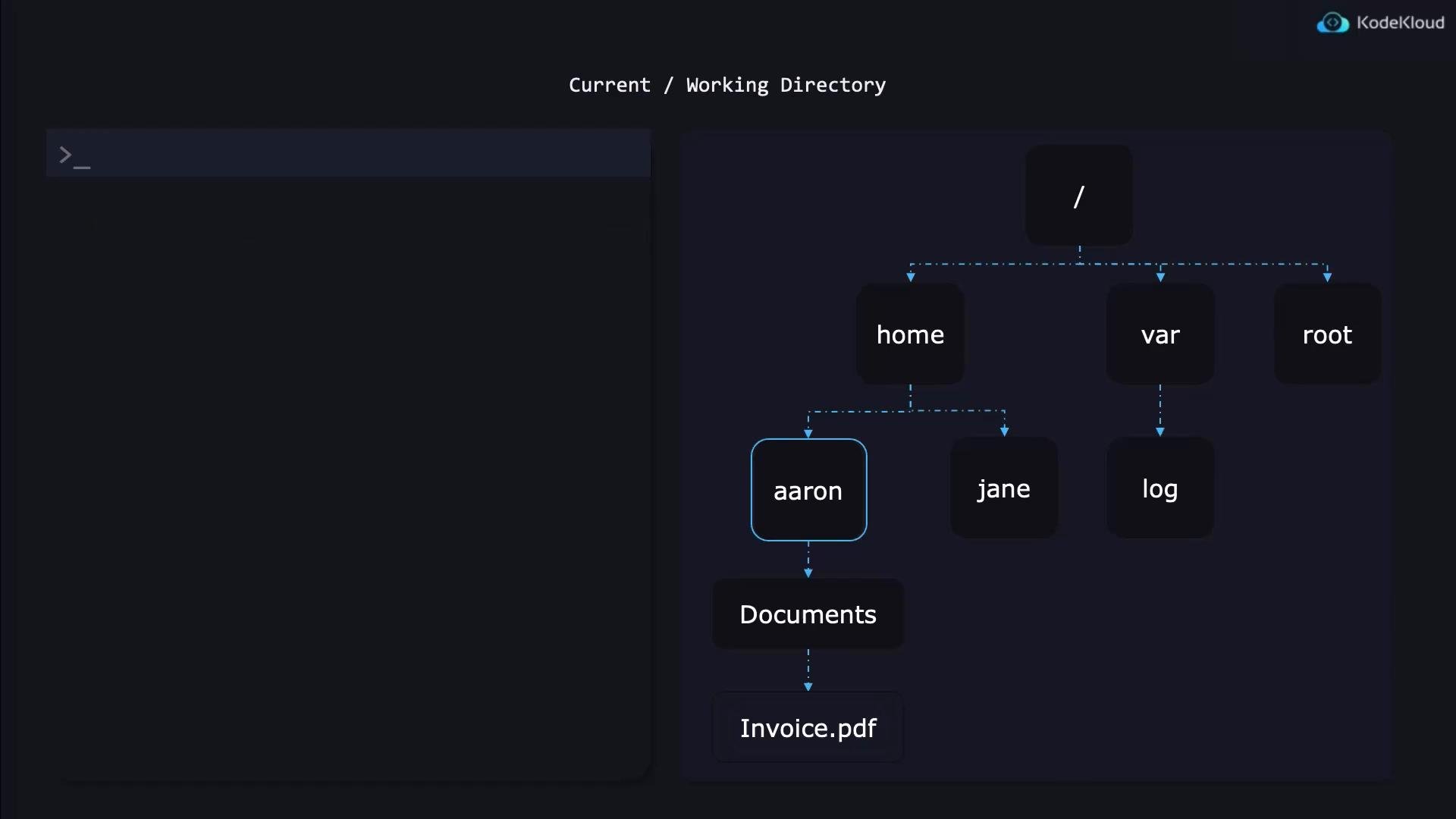 Relative paths are interpreted from your current working directory. If your current directory is `/home/aaron`, here are common ways to reference files:
* Descend into a subdirectory:
* `Documents/invoice.pdf` → `/home/aaron/Documents/invoice.pdf`
* Refer to a file in the current directory:
* `invoice.pdf` → `/home/aaron/invoice.pdf`
* Refer to a file in the parent directory:
* `../invoice.pdf` → `/home/invoice.pdf` (one level up)
You can chain `..` segments to go up multiple levels, for example `../../otherdir/file.txt` moves up two directories before descending into `otherdir`.
## Additional tips
* `cd /` takes you to the root directory (`/`).
* `cd -` switches back to your previous working directory.
* `cd` with no arguments returns you to your home directory (e.g. `/home/aaron`).
## References and further reading
* [Linux filesystem hierarchy (Wikipedia)](https://en.wikipedia.org/wiki/Filesystem_Hierarchy_Standard)
* [GNU coreutils `ls` manual](https://www.gnu.org/software/coreutils/manual/coreutils.html#ls-invocation)
This documentation is built and hosted on [Mintlify](https://mintlify.com), a developer documentation platform.
Relative paths are interpreted from your current working directory. If your current directory is `/home/aaron`, here are common ways to reference files:
* Descend into a subdirectory:
* `Documents/invoice.pdf` → `/home/aaron/Documents/invoice.pdf`
* Refer to a file in the current directory:
* `invoice.pdf` → `/home/aaron/invoice.pdf`
* Refer to a file in the parent directory:
* `../invoice.pdf` → `/home/invoice.pdf` (one level up)
You can chain `..` segments to go up multiple levels, for example `../../otherdir/file.txt` moves up two directories before descending into `otherdir`.
## Additional tips
* `cd /` takes you to the root directory (`/`).
* `cd -` switches back to your previous working directory.
* `cd` with no arguments returns you to your home directory (e.g. `/home/aaron`).
## References and further reading
* [Linux filesystem hierarchy (Wikipedia)](https://en.wikipedia.org/wiki/Filesystem_Hierarchy_Standard)
* [GNU coreutils `ls` manual](https://www.gnu.org/software/coreutils/manual/coreutils.html#ls-invocation)
This documentation is built and hosted on [Mintlify](https://mintlify.com), a developer documentation platform.