> ## Documentation Index
> Fetch the complete documentation index at: https://notes.kodekloud.com/llms.txt
> Use this file to discover all available pages before exploring further.
# Login and System Documentation
> Explains local and remote Linux logins (GUI, RDP, SSH) and how to access built-in command documentation using --help, pagers, and man pages.
Welcome — this lesson explains three common ways to access a Linux system and how to find built-in documentation from the command line. You'll learn:
* Local graphical (desktop) login
* Remote graphical login (RDP from Windows)
* Remote text-mode login (SSH)
Finally, we'll cover how to use built-in help: `--help`, pagers, and `man` pages.
Quick overview
| Access method | When to use | Example / notes |
| - | - | - |
| Local graphical | You are physically at a machine with a desktop environment (GNOME, KDE, etc.) | Log in from the display manager and open a terminal emulator |
| Remote graphical (RDP) | You want a full remote desktop from Windows | Use an RDP server on Linux (e.g., `xrdp`) and Windows Remote Desktop (`mstsc`) |
| Remote text-mode (SSH) | Servers without a GUI or when you only need a shell | `ssh username@10.0.0.81` — supports key-based auth and port forwarding |
Local graphical login
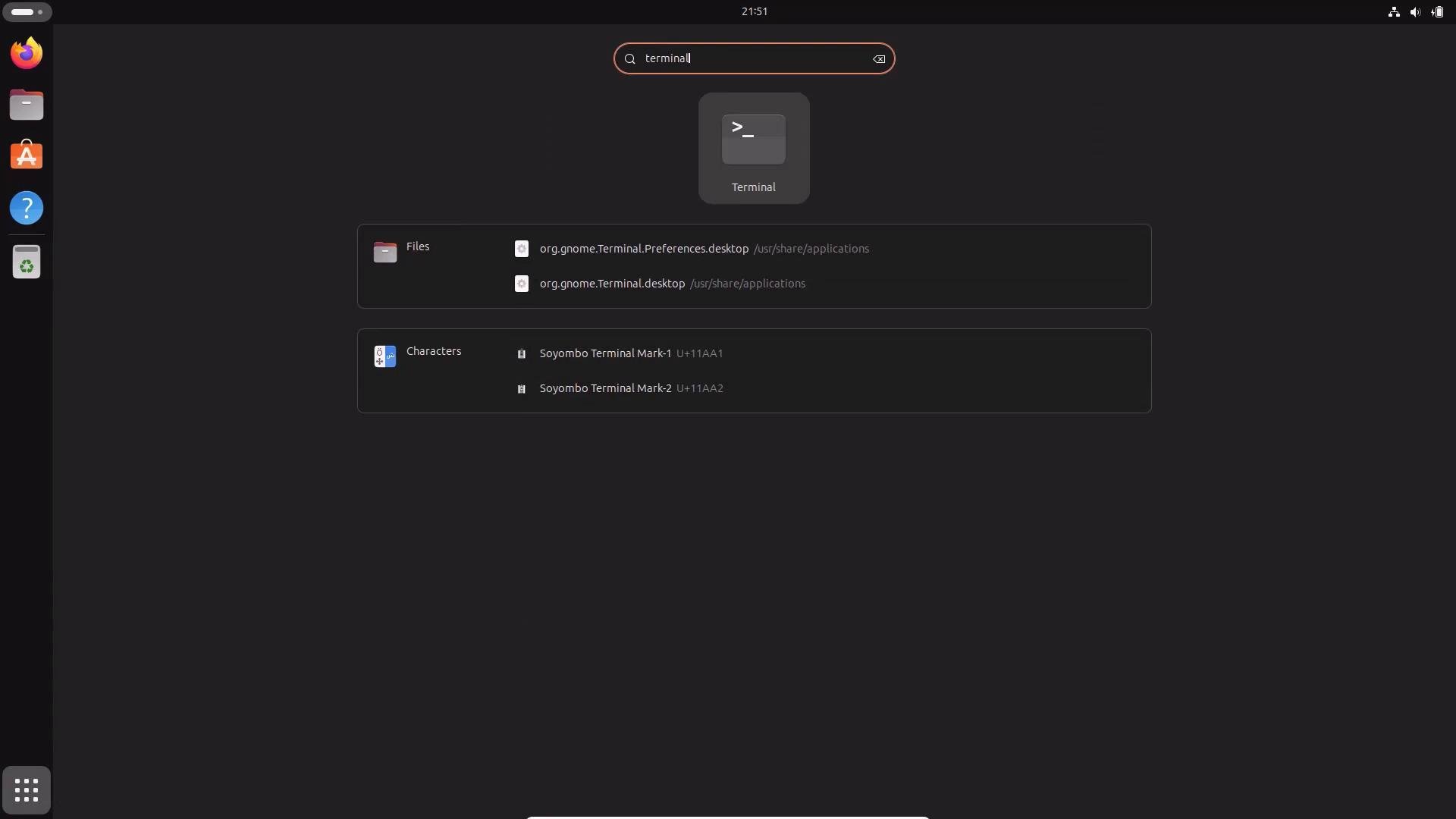
If you have a desktop environment installed (for example Ubuntu with GNOME), use the local display manager on the machine:
1. At the physical machine, pick your username on the login screen.
2. Enter your password.
3. After login you'll see the desktop environment; open a terminal emulator for command-line work.
When finished, use the logout option from the system menu.
 Remote graphical login (RDP from Windows)
If you need a remote desktop from a Windows PC, RDP is one option. On the Linux side you must run an RDP server such as xrdp to provide desktop sessions. On Windows, open Remote Desktop Connection (`mstsc`) and connect to the Linux host IP (for example `10.0.0.81`).
* On first connection you may see a certificate prompt — accept only if you trust the host.
* Enter your username and password on the remote login screen.
* The remote desktop appears inside the RDP window; maximize if you'd like a full-screen experience.
Useful links:
* xrdp: [https://www.xrdp.org/](https://www.xrdp.org/)
* Remote Desktop (Windows client): [https://learn.microsoft.com/en-us/windows-server/remote/remote-desktop-services/clients/remote-desktop-client-for-windows](https://learn.microsoft.com/en-us/windows-server/remote/remote-desktop-services/clients/remote-desktop-client-for-windows)
When accepting certificates or host warnings, confirm the host identity first. Only accept certificates from hosts you trust to avoid man-in-the-middle risks.
Remote text-mode login (SSH)
SSH is the standard way to get a remote shell on Linux servers. It works the same from Windows (PowerShell/Terminal), macOS, and Linux:
Basic connection:
```bash theme={null}
ssh username@10.0.0.81
```
On first-time connections you will see an authenticity prompt. Type `yes` to add the host key to `~/.ssh/known_hosts`, then enter your password:
```text theme={null}
C:\Users\jerem>ssh aaron@10.0.0.81
The authenticity of host '10.0.0.81 (10.0.0.81)' can't be established.
ED25519 key fingerprint is SHA256:uQlWcezYgjeQPr67eRGz0iv/EwdBodyqAJ00G7ZCaEY.
This key is not known by any other names.
Are you sure you want to continue connecting (yes/no/[fingerprint])? yes
Warning: Permanently added '10.0.0.81' (ED25519) to the list of known hosts.
aaron@10.0.0.81's password:
Welcome to Ubuntu 23.10 (GNU/Linux 6.5.0-26-generic x86_64)
* Documentation: https://help.ubuntu.com
* Management: https://landscape.canonical.com
* Support: https://ubuntu.com/advantage
68 updates can be applied immediately.
To see these additional updates run: apt list --upgradable
aaron@kodekloud:~$
```
Tip: Use SSH key-based authentication for better security and convenience. Example workflow:
```bash theme={null}
# Generate a key pair
ssh-keygen -t ed25519 -C "your_email@example.com"
# Copy public key to remote host (interactive prompt)
ssh-copy-id username@10.0.0.81
```
Prefer key-based authentication over passwords. Use `ssh-agent` and `ssh-add` to cache keys for sessions and enable two-factor or certificate-based methods for stronger security.
Built-in system documentation
Linux provides multiple help sources accessible from the shell. Use the method that fits the level of detail you need.
Common help options
| Command | Use case |
| - | - |
| `command --help` | Quick usage summary and common options |
| `man command` | Detailed manual page with structured sections (NAME, SYNOPSIS, DESCRIPTION, EXAMPLES) |
| Pager (less/more) | Use when output is longer than one screen; navigation: arrows, Page Up/Down, `q` to quit |
Quick help with --help
Many commands print concise usage and option summaries with `--help`. For example, to review `ls` options:
```bash theme={null}
ls --help
```
Look for the `-l` option to use the long listing format. Example excerpt:
```bash theme={null}
$ ls --help
Usage: ls [OPTION]... [FILE]...
List information about the FILEs (the current directory by default).
...
-l use a long listing format
```
Pager behavior and longer help output
Long help text is often displayed in a pager (usually `less`). Navigate with arrow keys, Page Up/Page Down, and press `q` to exit. Example:
```bash theme={null}
journalctl --help
```
The output may show a pager prompt like `lines 1-27` indicating you can scroll.
Manual pages (man)
Most important commands have a `man` page. Use `man ` to open a detailed manual:
```bash theme={null}
man journalctl
```
Man pages are organized with standard sections: NAME, SYNOPSIS, DESCRIPTION, OPTIONS, EXAMPLES, and FILES. Example header from `journalctl`:
```text theme={null}
JOURNALCTL(1) journalctl JOURNALCTL(1)
NAME
journalctl - Query the systemd journal
SYNOPSIS
journalctl [OPTIONS...] [MATCHES...]
```
Manual sections and disambiguation
Man pages are grouped into numbered sections. Some names appear in multiple sections (e.g., `printf` as a shell command and as a C library function). To list and understand sections, read the `man` manual:
```bash theme={null}
man man
```
Common sections include:
| Section | Content |
| - | - |
| 1 | Executable programs or shell commands |
| 2 | System calls |
| 3 | Library calls |
| 4 | Special files (usually in /dev) |
| 5 | File formats and conventions |
| 6 | Games |
| 7 | Miscellaneous |
| 8 | System administration commands |
If you need the `printf` command (section 1) rather than the C library function (section 3), specify the section:
```bash theme={null}
man 1 printf
```
Summary
This lesson covered local and remote logins (GUI and SSH) and how to access built-in documentation using `--help`, pagers, and `man` pages. Use these tools to explore command options and become more effective on Linux systems.
Remote graphical login (RDP from Windows)
If you need a remote desktop from a Windows PC, RDP is one option. On the Linux side you must run an RDP server such as xrdp to provide desktop sessions. On Windows, open Remote Desktop Connection (`mstsc`) and connect to the Linux host IP (for example `10.0.0.81`).
* On first connection you may see a certificate prompt — accept only if you trust the host.
* Enter your username and password on the remote login screen.
* The remote desktop appears inside the RDP window; maximize if you'd like a full-screen experience.
Useful links:
* xrdp: [https://www.xrdp.org/](https://www.xrdp.org/)
* Remote Desktop (Windows client): [https://learn.microsoft.com/en-us/windows-server/remote/remote-desktop-services/clients/remote-desktop-client-for-windows](https://learn.microsoft.com/en-us/windows-server/remote/remote-desktop-services/clients/remote-desktop-client-for-windows)
When accepting certificates or host warnings, confirm the host identity first. Only accept certificates from hosts you trust to avoid man-in-the-middle risks.
Remote text-mode login (SSH)
SSH is the standard way to get a remote shell on Linux servers. It works the same from Windows (PowerShell/Terminal), macOS, and Linux:
Basic connection:
```bash theme={null}
ssh username@10.0.0.81
```
On first-time connections you will see an authenticity prompt. Type `yes` to add the host key to `~/.ssh/known_hosts`, then enter your password:
```text theme={null}
C:\Users\jerem>ssh aaron@10.0.0.81
The authenticity of host '10.0.0.81 (10.0.0.81)' can't be established.
ED25519 key fingerprint is SHA256:uQlWcezYgjeQPr67eRGz0iv/EwdBodyqAJ00G7ZCaEY.
This key is not known by any other names.
Are you sure you want to continue connecting (yes/no/[fingerprint])? yes
Warning: Permanently added '10.0.0.81' (ED25519) to the list of known hosts.
aaron@10.0.0.81's password:
Welcome to Ubuntu 23.10 (GNU/Linux 6.5.0-26-generic x86_64)
* Documentation: https://help.ubuntu.com
* Management: https://landscape.canonical.com
* Support: https://ubuntu.com/advantage
68 updates can be applied immediately.
To see these additional updates run: apt list --upgradable
aaron@kodekloud:~$
```
Tip: Use SSH key-based authentication for better security and convenience. Example workflow:
```bash theme={null}
# Generate a key pair
ssh-keygen -t ed25519 -C "your_email@example.com"
# Copy public key to remote host (interactive prompt)
ssh-copy-id username@10.0.0.81
```
Prefer key-based authentication over passwords. Use `ssh-agent` and `ssh-add` to cache keys for sessions and enable two-factor or certificate-based methods for stronger security.
Built-in system documentation
Linux provides multiple help sources accessible from the shell. Use the method that fits the level of detail you need.
Common help options
| Command | Use case |
| - | - |
| `command --help` | Quick usage summary and common options |
| `man command` | Detailed manual page with structured sections (NAME, SYNOPSIS, DESCRIPTION, EXAMPLES) |
| Pager (less/more) | Use when output is longer than one screen; navigation: arrows, Page Up/Down, `q` to quit |
Quick help with --help
Many commands print concise usage and option summaries with `--help`. For example, to review `ls` options:
```bash theme={null}
ls --help
```
Look for the `-l` option to use the long listing format. Example excerpt:
```bash theme={null}
$ ls --help
Usage: ls [OPTION]... [FILE]...
List information about the FILEs (the current directory by default).
...
-l use a long listing format
```
Pager behavior and longer help output
Long help text is often displayed in a pager (usually `less`). Navigate with arrow keys, Page Up/Page Down, and press `q` to exit. Example:
```bash theme={null}
journalctl --help
```
The output may show a pager prompt like `lines 1-27` indicating you can scroll.
Manual pages (man)
Most important commands have a `man` page. Use `man ` to open a detailed manual:
```bash theme={null}
man journalctl
```
Man pages are organized with standard sections: NAME, SYNOPSIS, DESCRIPTION, OPTIONS, EXAMPLES, and FILES. Example header from `journalctl`:
```text theme={null}
JOURNALCTL(1) journalctl JOURNALCTL(1)
NAME
journalctl - Query the systemd journal
SYNOPSIS
journalctl [OPTIONS...] [MATCHES...]
```
Manual sections and disambiguation
Man pages are grouped into numbered sections. Some names appear in multiple sections (e.g., `printf` as a shell command and as a C library function). To list and understand sections, read the `man` manual:
```bash theme={null}
man man
```
Common sections include:
| Section | Content |
| - | - |
| 1 | Executable programs or shell commands |
| 2 | System calls |
| 3 | Library calls |
| 4 | Special files (usually in /dev) |
| 5 | File formats and conventions |
| 6 | Games |
| 7 | Miscellaneous |
| 8 | System administration commands |
If you need the `printf` command (section 1) rather than the C library function (section 3), specify the section:
```bash theme={null}
man 1 printf
```
Summary
This lesson covered local and remote logins (GUI and SSH) and how to access built-in documentation using `--help`, pagers, and `man` pages. Use these tools to explore command options and become more effective on Linux systems.
 This documentation is built and hosted on [Mintlify](https://mintlify.com), a developer documentation platform.