> ## Documentation Index
> Fetch the complete documentation index at: https://notes.kodekloud.com/llms.txt
> Use this file to discover all available pages before exploring further.
# Demo Using an MCP Server
> Guide to registering, running, and querying a local MCP flight booking server with RooCode, exploring resources, transports, and example responses.
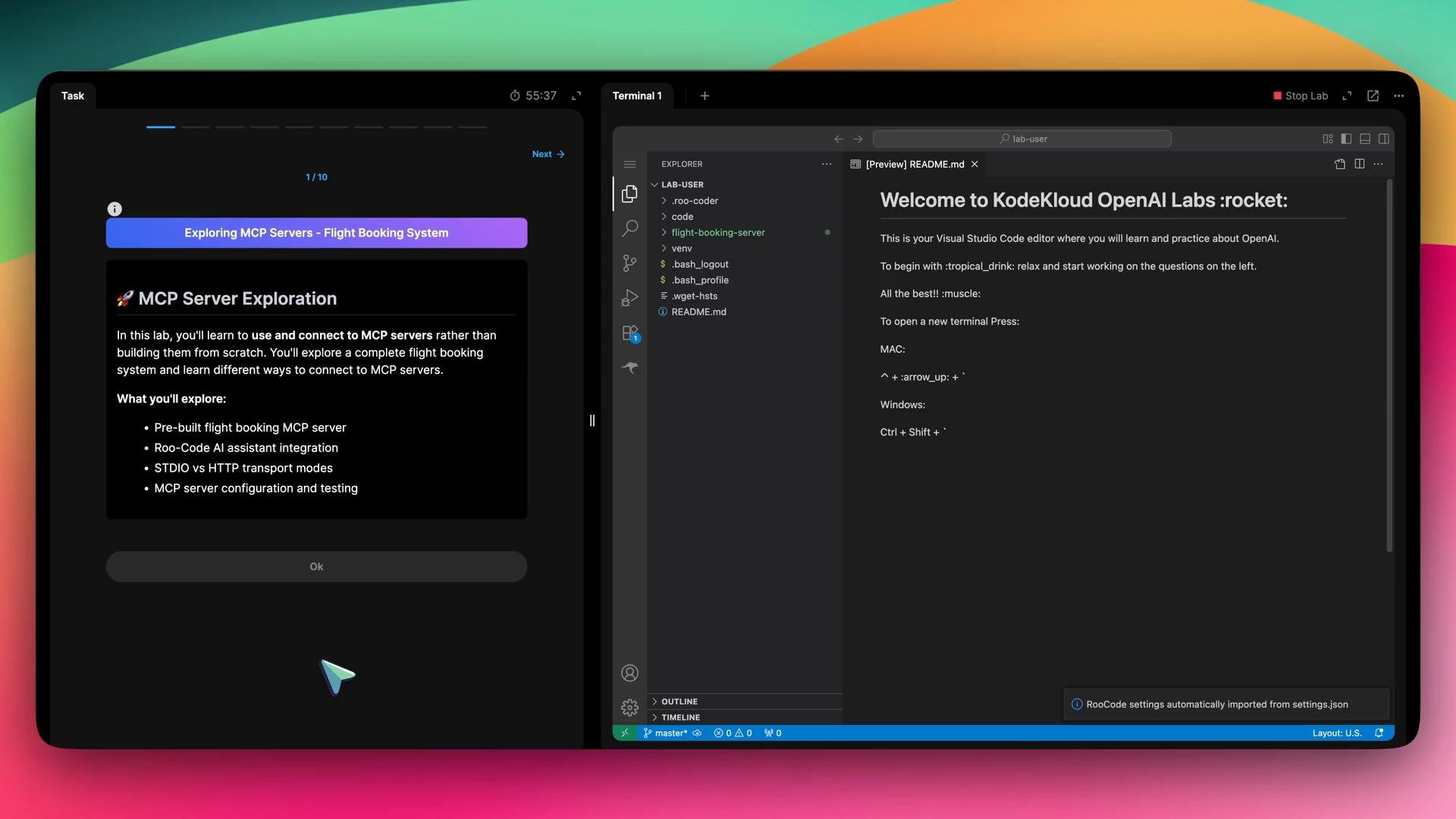
In this lesson we'll connect to and use an existing MCP (Model Context Protocol) server. You'll learn how to locate the server code in the workspace, register it with the RooCode MCP plugin, and run a simple query (searching flights) through the chat assistant.
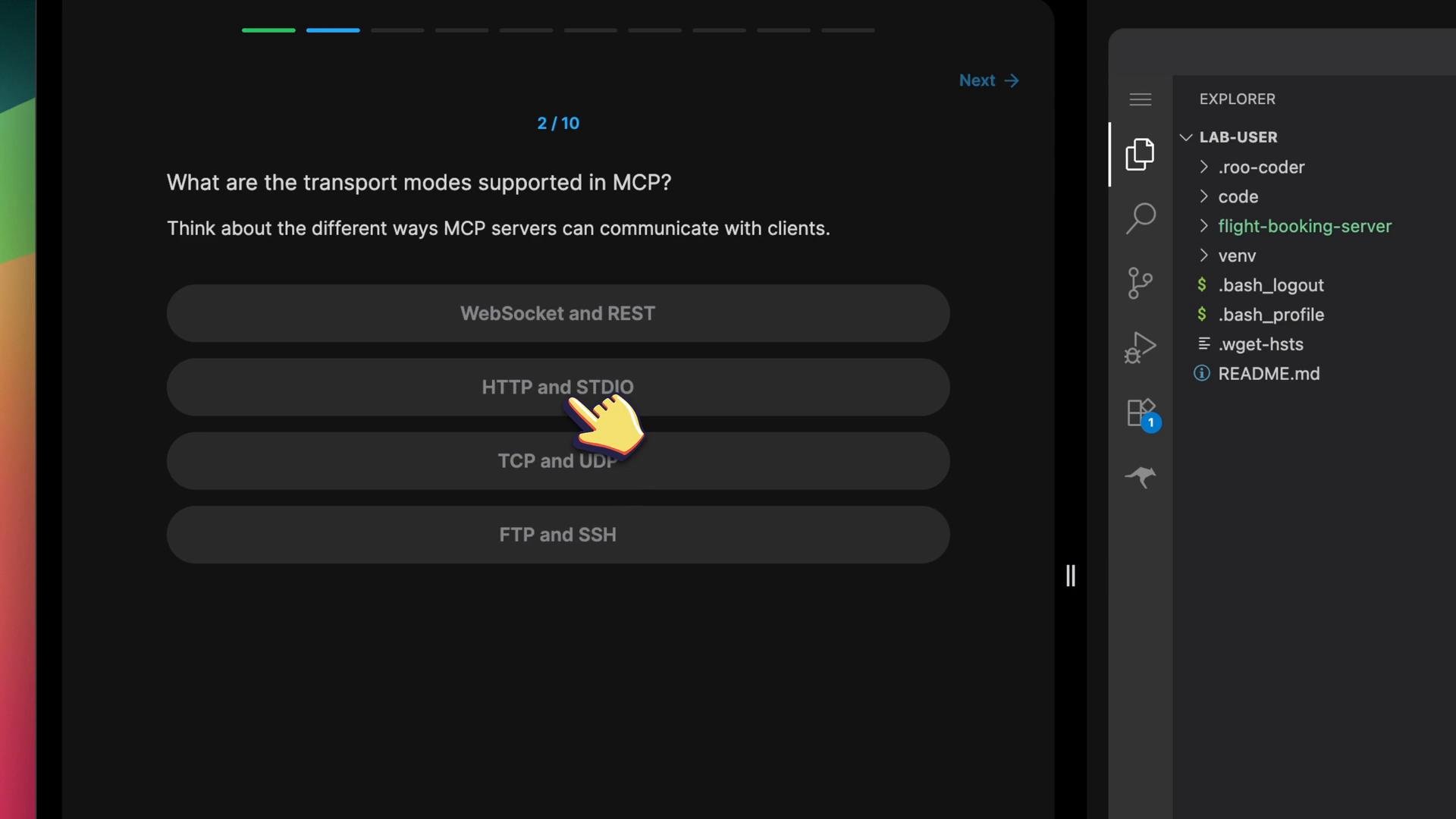
 Quick orientation question:
What transport modes does MCP support?
| Option | Notes |
| - | - |
| WebSocket and REST | Not used by MCP in this example |
| HTTP and STDIO | Correct — MCP supports `HTTP` and `STDIO` transports |
| TCP and UDP | Not applicable here |
| FTP and SSH | Not applicable |
Quick orientation question:
What transport modes does MCP support?
| Option | Notes |
| - | - |
| WebSocket and REST | Not used by MCP in this example |
| HTTP and STDIO | Correct — MCP supports `HTTP` and `STDIO` transports |
| TCP and UDP | Not applicable here |
| FTP and SSH | Not applicable |
 Repository inspection
Open the workspace file explorer and locate the `flight-booking-server` folder. A typical listing in the workspace looks like this:
```bash theme={null}
EXPLORER
LAB-USER
.roo-coder
code
flight-booking-server
.venv
.gitignore
.python-version
main.py
pyproject.toml
README.md
server.py
uv.lock
venv
.bash_logout
.bash_profile
.wget-hsts
README.md
```
The multiple-choice task asks which files are present inside `flight-booking-server`. The important files for this lesson are `server.py` (the MCP server code) and `pyproject.toml` (dependency and project metadata).
Open `server.py` to inspect how resources and tools are exposed via MCP. You’ll see resource decorators similar to these:
```python theme={null}
@mcp.resource("file://airports")
def get_airports():
"""Get list of available airports"""
return {
"LAX": {"name": "Los Angeles International", "city": "Los Angeles", "country": "US"},
"JFK": {"name": "John F. Kennedy International", "city": "New York", "country": "US"},
"LHR": {"name": "London Heathrow", "city": "London", "country": "UK"},
}
@mcp.resource("file://airlines")
def get_airlines():
"""Get list of available airlines and their information"""
return {
"AA": {"name": "American Airlines", "country": "US"},
"BA": {"name": "British Airways", "country": "UK"},
"DL": {"name": "Delta Air Lines", "country": "US"},
"UA": {"name": "United Airlines", "country": "US"},
}
```
You don't need to memorize every line in `server.py` right now — the focus here is registering and using the MCP server. We'll look at relevant functions as needed when you query the server.
Minimal server setup
For context, the server in this project uses FastMCP to register resource endpoints. A condensed version of the setup looks like this:
```python theme={null}
from mcp.server.fastmcp import FastMCP
# Create an MCP server instance
mcp = FastMCP("Flight Booking Server")
@mcp.resource("file://airports")
def get_airports():
"""Get list of available airports"""
return {
"LAX": {"name": "Los Angeles International", "city": "Los Angeles", "country": "US"},
"JFK": {"name": "John F. Kennedy International", "city": "New York", "country": "US"},
"LHR": {"name": "London Heathrow", "city": "London", "country": "UK"},
}
@mcp.resource("file://airlines")
def get_airlines():
"""Get list of available airlines"""
return {
"AA": {"name": "American Airlines", "country": "US"},
"BA": {"name": "British Airways", "country": "UK"},
"DL": {"name": "Delta Air Lines", "country": "US"},
}
# ...rest of server startup code (e.g., mcp.serve())...
```
Registering the MCP server with RooCode
To let the RooCode assistant discover and call the local server, you add an MCP server entry in the RooCode MCP configuration. The configuration maps a friendly name to the command used to start the server and its working directory. In this lab the configuration is:
```json theme={null}
{
"mcpServers": {
"flight-booking": {
"command": "uv",
"args": ["run", "python", "server.py"],
"cwd": "/home/lab-user/flight-booking-server"
}
}
}
```
Explanation:
* `command`: the program RooCode will invoke (`uv` in this environment).
* `args`: the arguments to run the Python server (here, `run python server.py`).
* `cwd`: the working directory where `server.py` is located.
Steps to connect the server in RooCode
1. Open the RooCode extension/plugin in your workspace.
2. Go to the "MCP servers" section and choose "Add Project MCP".
3. Paste the JSON configuration (above) into the configuration field and save.
4. Refresh the MCP Servers list. The "flight-booking" entry should appear and show a green/success status when detected.
5. Expand the server entry to view tools and resources discovered from `server.py`.
Security reminder
When the assistant requests to use an MCP server you must approve the access. Only approve servers and configurations from trusted projects — the assistant will run server-side code on your behalf.
Querying the MCP server from RooCode
Once the MCP server is registered and running, you can ask RooCode to perform actions that use server-side resources. For example, in the chat input send:
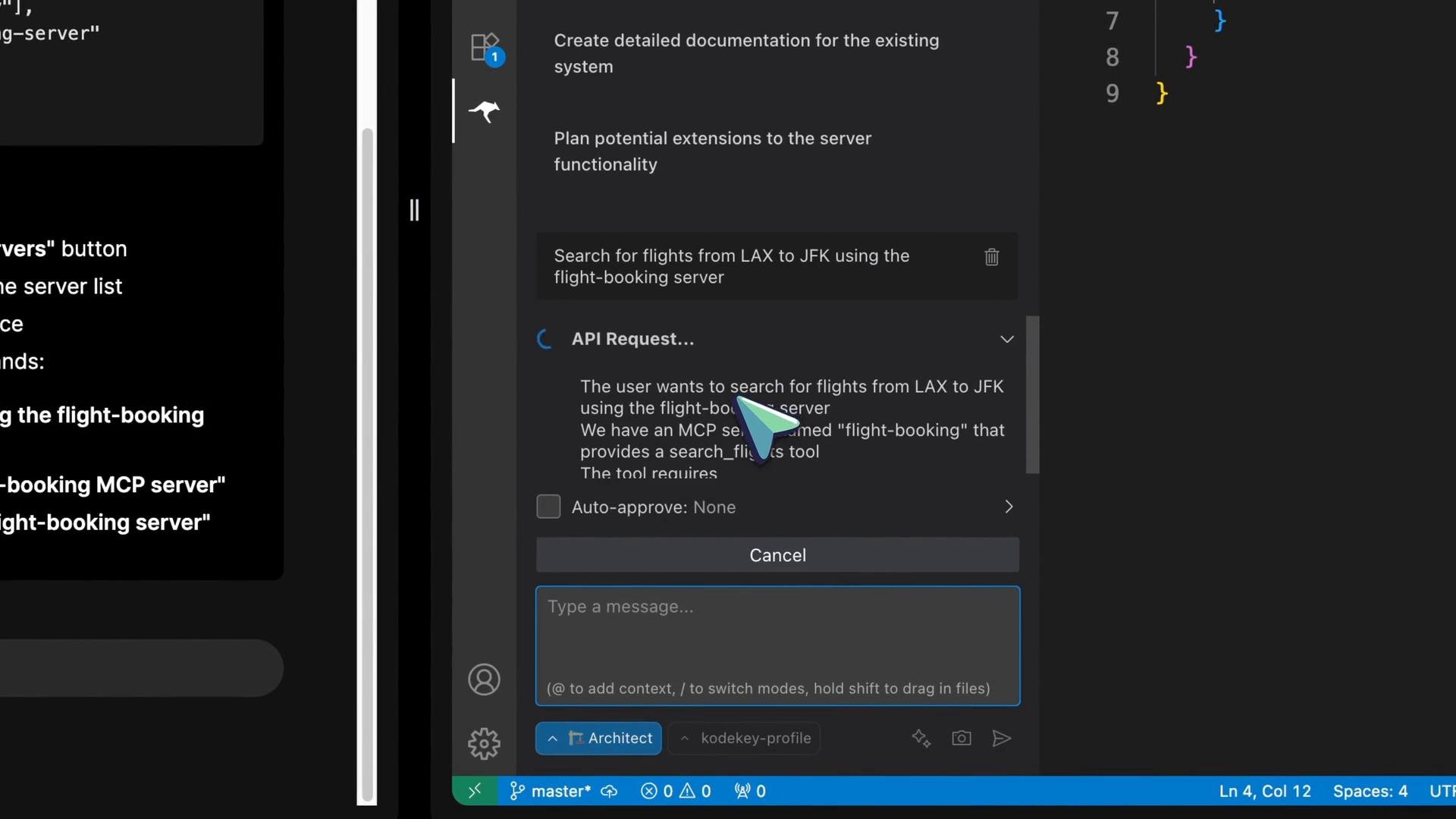
Search for flights from LAX to JFK using the flight-booking server.
RooCode will detect the configured MCP server, ask for your permission to use it, then execute the relevant resource/tool handlers and return the server-generated result.
Repository inspection
Open the workspace file explorer and locate the `flight-booking-server` folder. A typical listing in the workspace looks like this:
```bash theme={null}
EXPLORER
LAB-USER
.roo-coder
code
flight-booking-server
.venv
.gitignore
.python-version
main.py
pyproject.toml
README.md
server.py
uv.lock
venv
.bash_logout
.bash_profile
.wget-hsts
README.md
```
The multiple-choice task asks which files are present inside `flight-booking-server`. The important files for this lesson are `server.py` (the MCP server code) and `pyproject.toml` (dependency and project metadata).
Open `server.py` to inspect how resources and tools are exposed via MCP. You’ll see resource decorators similar to these:
```python theme={null}
@mcp.resource("file://airports")
def get_airports():
"""Get list of available airports"""
return {
"LAX": {"name": "Los Angeles International", "city": "Los Angeles", "country": "US"},
"JFK": {"name": "John F. Kennedy International", "city": "New York", "country": "US"},
"LHR": {"name": "London Heathrow", "city": "London", "country": "UK"},
}
@mcp.resource("file://airlines")
def get_airlines():
"""Get list of available airlines and their information"""
return {
"AA": {"name": "American Airlines", "country": "US"},
"BA": {"name": "British Airways", "country": "UK"},
"DL": {"name": "Delta Air Lines", "country": "US"},
"UA": {"name": "United Airlines", "country": "US"},
}
```
You don't need to memorize every line in `server.py` right now — the focus here is registering and using the MCP server. We'll look at relevant functions as needed when you query the server.
Minimal server setup
For context, the server in this project uses FastMCP to register resource endpoints. A condensed version of the setup looks like this:
```python theme={null}
from mcp.server.fastmcp import FastMCP
# Create an MCP server instance
mcp = FastMCP("Flight Booking Server")
@mcp.resource("file://airports")
def get_airports():
"""Get list of available airports"""
return {
"LAX": {"name": "Los Angeles International", "city": "Los Angeles", "country": "US"},
"JFK": {"name": "John F. Kennedy International", "city": "New York", "country": "US"},
"LHR": {"name": "London Heathrow", "city": "London", "country": "UK"},
}
@mcp.resource("file://airlines")
def get_airlines():
"""Get list of available airlines"""
return {
"AA": {"name": "American Airlines", "country": "US"},
"BA": {"name": "British Airways", "country": "UK"},
"DL": {"name": "Delta Air Lines", "country": "US"},
}
# ...rest of server startup code (e.g., mcp.serve())...
```
Registering the MCP server with RooCode
To let the RooCode assistant discover and call the local server, you add an MCP server entry in the RooCode MCP configuration. The configuration maps a friendly name to the command used to start the server and its working directory. In this lab the configuration is:
```json theme={null}
{
"mcpServers": {
"flight-booking": {
"command": "uv",
"args": ["run", "python", "server.py"],
"cwd": "/home/lab-user/flight-booking-server"
}
}
}
```
Explanation:
* `command`: the program RooCode will invoke (`uv` in this environment).
* `args`: the arguments to run the Python server (here, `run python server.py`).
* `cwd`: the working directory where `server.py` is located.
Steps to connect the server in RooCode
1. Open the RooCode extension/plugin in your workspace.
2. Go to the "MCP servers" section and choose "Add Project MCP".
3. Paste the JSON configuration (above) into the configuration field and save.
4. Refresh the MCP Servers list. The "flight-booking" entry should appear and show a green/success status when detected.
5. Expand the server entry to view tools and resources discovered from `server.py`.
Security reminder
When the assistant requests to use an MCP server you must approve the access. Only approve servers and configurations from trusted projects — the assistant will run server-side code on your behalf.
Querying the MCP server from RooCode
Once the MCP server is registered and running, you can ask RooCode to perform actions that use server-side resources. For example, in the chat input send:
Search for flights from LAX to JFK using the flight-booking server.
RooCode will detect the configured MCP server, ask for your permission to use it, then execute the relevant resource/tool handlers and return the server-generated result.
 Example server response
After you approve access and RooCode calls the server, a typical JSON response might look like:
```json theme={null}
{
"origin": "LAX",
"destination": "JFK",
"result": [
{"flight": "FL123", "price": 299},
{"flight": "FL456", "price": 399}
]
}
```
This indicates the MCP server is reachable and returning structured data for the requested query.
Next steps and exploration ideas
* Inspect `server.py` to see how resources, tools, and handlers are implemented and how MCP exposes them.
* Modify or extend resource handlers (e.g., add booking, availability checks) and then reload the MCP entry in RooCode to test changes.
* Use `pyproject.toml` to manage dependencies and ensure the environment can run the server.
* Experiment with `HTTP` and `STDIO` modes if you adapt MCP transport options for other integrations.
References
* Python documentation: [https://www.python.org/doc/](https://www.python.org/doc/)
* If you're using project tooling (like `uv`/`uvicorn`), check the respective tool docs for command syntax and options.
This documentation is built and hosted on [Mintlify](https://mintlify.com), a developer documentation platform.
Example server response
After you approve access and RooCode calls the server, a typical JSON response might look like:
```json theme={null}
{
"origin": "LAX",
"destination": "JFK",
"result": [
{"flight": "FL123", "price": 299},
{"flight": "FL456", "price": 399}
]
}
```
This indicates the MCP server is reachable and returning structured data for the requested query.
Next steps and exploration ideas
* Inspect `server.py` to see how resources, tools, and handlers are implemented and how MCP exposes them.
* Modify or extend resource handlers (e.g., add booking, availability checks) and then reload the MCP entry in RooCode to test changes.
* Use `pyproject.toml` to manage dependencies and ensure the environment can run the server.
* Experiment with `HTTP` and `STDIO` modes if you adapt MCP transport options for other integrations.
References
* Python documentation: [https://www.python.org/doc/](https://www.python.org/doc/)
* If you're using project tooling (like `uv`/`uvicorn`), check the respective tool docs for command syntax and options.
This documentation is built and hosted on [Mintlify](https://mintlify.com), a developer documentation platform.