> ## Documentation Index
> Fetch the complete documentation index at: https://notes.kodekloud.com/llms.txt
> Use this file to discover all available pages before exploring further.
# MCP Inspector
> A lightweight web app that connects to MCP servers to browse prompts, tools, resources, history, and notifications for testing and debugging.
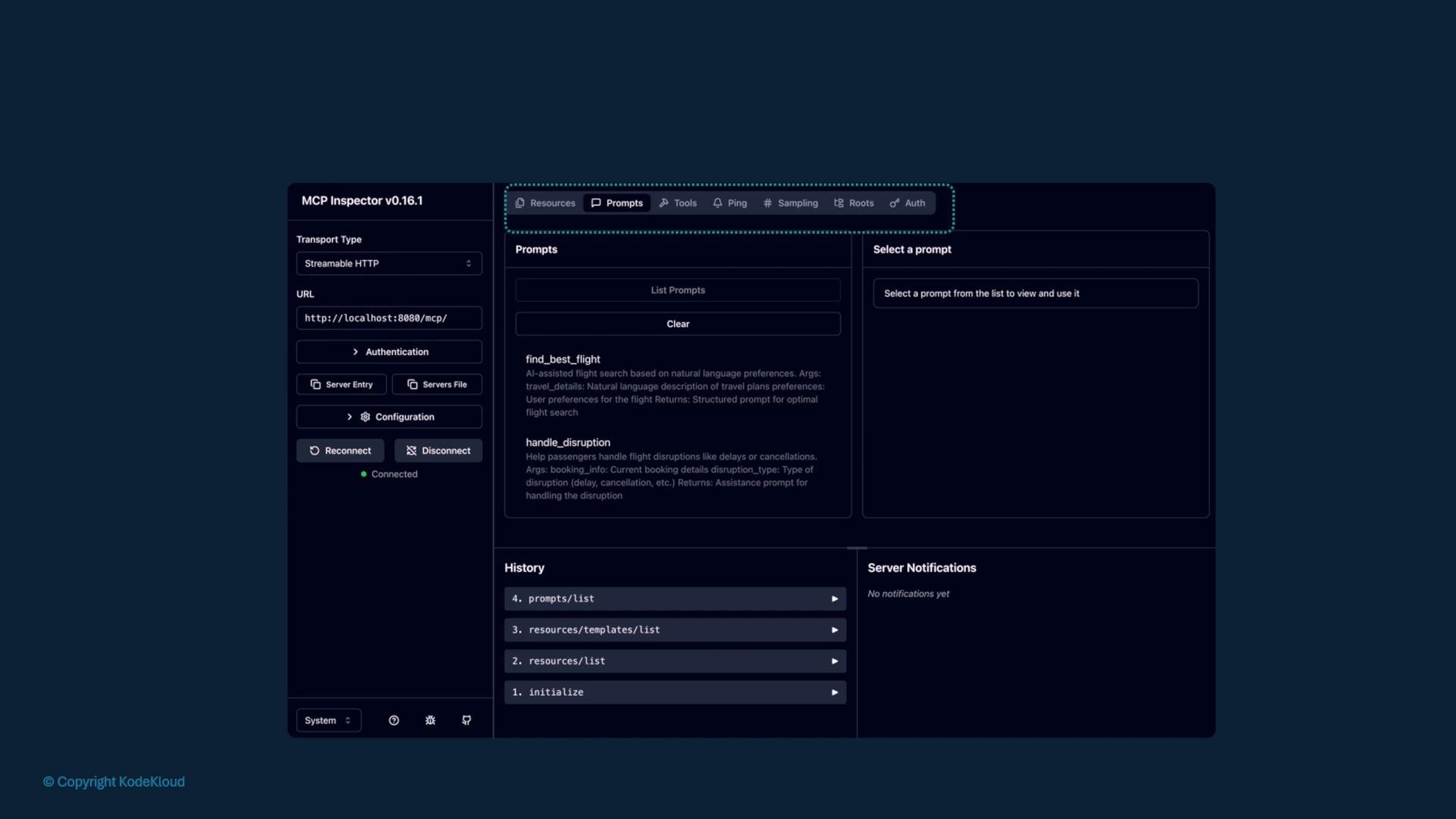
The MCP Inspector is a lightweight web application that connects to an MCP (Model Context Protocol) server and provides a visual interface to explore prompts, tools, resources, history, and notifications — so you can test and debug an MCP server without building a client first.
Useful when you need to:
* Browse available prompts and inspect prompt definitions.
* Explore tools and resources registered on the MCP server.
* Review server history, notifications, and execution traces.
Relevant links:
* MCP course: [https://learn.kodekloud.com/user/courses/mcp-for-beginners](https://learn.kodekloud.com/user/courses/mcp-for-beginners)
* Model Context Protocol (MCP) reference: [https://learn.kodekloud.com/user/courses/mcp-for-beginners](https://learn.kodekloud.com/user/courses/mcp-for-beginners)
## Install & run
The inspector is published as an npm package and can be launched directly via `npx`. Depending on the package namespace, use one of these commands:
```bash theme={null}
# If published as an unscoped package:
npx modelcontextprotocol/inspector
# Or, if the package is scoped:
npx @modelcontextprotocol/inspector
```
When started, the inspector launches a local web server and prints the URL to open in your browser. Example output:
```bash theme={null}
$ npx modelcontextprotocol/inspector
MCP Inspector v0.16.1
Starting web server...
HTTP server listening on http://localhost:8080/mcp/
Open the URL above in your browser.
```
## Connect the Inspector to an MCP server
1. Open the URL reported by the inspector in your browser (for example `http://localhost:8080/mcp/`).
2. In the Inspector UI, use the Connect control in the left column to enter the MCP server base URL (for example `http://localhost:8080/mcp/`) and click Connect.
3. Once connected, the UI displays Prompts, Tools, Resources, History, and Notifications. You can click individual entries to view details and run or inspect calls.
 ## Quick reference
| Action | Description | Example |
| - | - | - |
| Start inspector | Launches the local inspector web server | `npx modelcontextprotocol/inspector` |
| Inspector URL | Open this in your browser to access the UI | `http://localhost:8080/mcp/` |
| Connect to server | Enter your MCP server base URL in the Connect control | `http://localhost:8080/mcp/` |
| Inspect items | Browse Prompts, Tools, Resources, History, Notifications | Click any list item in the UI |
## Troubleshooting & tips
Ensure [Node.js](https://nodejs.org/) and [npx](https://www.npmjs.com/package/npx) are installed locally before running the inspector. If the inspector runs on a remote host, use that host's reachable URL and open any required ports/firewall rules so your browser can access the web UI.
* If the Inspector prints an address like `http://localhost:8080/mcp/` but you are connecting from a different machine, replace `localhost` with the host IP or hostname reachable from your browser (or run the inspector on the workstation directly).
* If the browser shows CORS or network errors, verify the MCP server URL is correct and that any proxies, firewalls, or VPNs allow access.
* For automated testing or CI, you can run the inspector on a headless host and access it via a tunneled port or reverse proxy.
## Further reading
* [MCP course — Learn KodeKloud](https://learn.kodekloud.com/user/courses/mcp-for-beginners)
* Node.js: [https://nodejs.org/](https://nodejs.org/)
* npx package runner: [https://www.npmjs.com/package/npx](https://www.npmjs.com/package/npx)
This documentation is built and hosted on [Mintlify](https://mintlify.com), a developer documentation platform.
## Quick reference
| Action | Description | Example |
| - | - | - |
| Start inspector | Launches the local inspector web server | `npx modelcontextprotocol/inspector` |
| Inspector URL | Open this in your browser to access the UI | `http://localhost:8080/mcp/` |
| Connect to server | Enter your MCP server base URL in the Connect control | `http://localhost:8080/mcp/` |
| Inspect items | Browse Prompts, Tools, Resources, History, Notifications | Click any list item in the UI |
## Troubleshooting & tips
Ensure [Node.js](https://nodejs.org/) and [npx](https://www.npmjs.com/package/npx) are installed locally before running the inspector. If the inspector runs on a remote host, use that host's reachable URL and open any required ports/firewall rules so your browser can access the web UI.
* If the Inspector prints an address like `http://localhost:8080/mcp/` but you are connecting from a different machine, replace `localhost` with the host IP or hostname reachable from your browser (or run the inspector on the workstation directly).
* If the browser shows CORS or network errors, verify the MCP server URL is correct and that any proxies, firewalls, or VPNs allow access.
* For automated testing or CI, you can run the inspector on a headless host and access it via a tunneled port or reverse proxy.
## Further reading
* [MCP course — Learn KodeKloud](https://learn.kodekloud.com/user/courses/mcp-for-beginners)
* Node.js: [https://nodejs.org/](https://nodejs.org/)
* npx package runner: [https://www.npmjs.com/package/npx](https://www.npmjs.com/package/npx)
This documentation is built and hosted on [Mintlify](https://mintlify.com), a developer documentation platform.