> ## Documentation Index
> Fetch the complete documentation index at: https://notes.kodekloud.com/llms.txt
> Use this file to discover all available pages before exploring further.
# Demo Debugging with AI
> Learn to use AI with Composer for debugging a Flask application by capturing errors and applying suggested fixes.
In this lesson, you’ll learn how to leverage AI (via Composer) to debug a Flask application. We’ll capture runtime errors in the browser or terminal, feed them into Composer alongside the relevant code, and apply the suggested fixes—all while applying your own programmer intuition.
## 1. Reproducing & Resolving a Jinja2 Template Error
1. Start your Flask development server and navigate to the login page.
2. Log in with valid credentials.
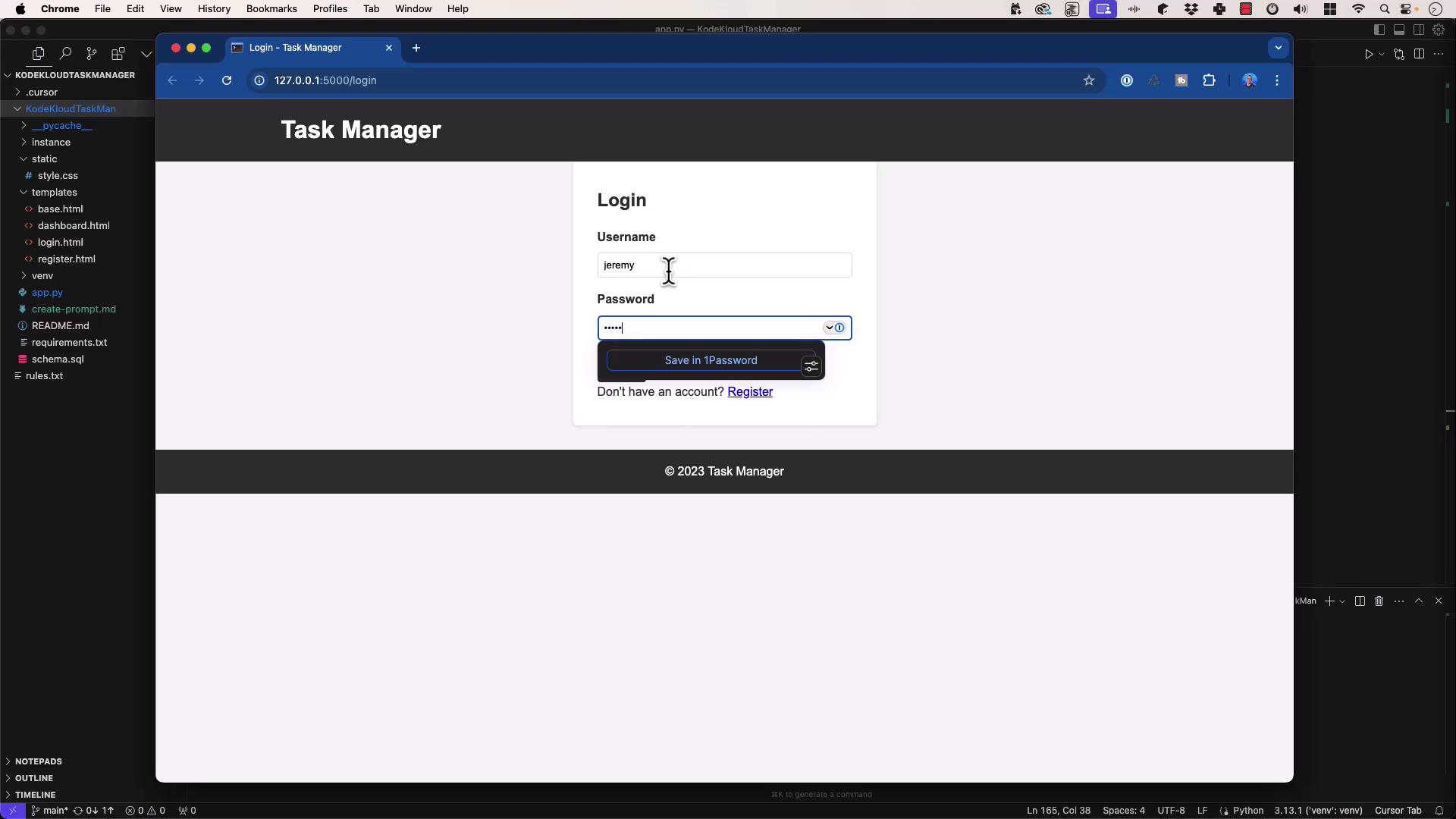
3. After logging in, you may encounter:
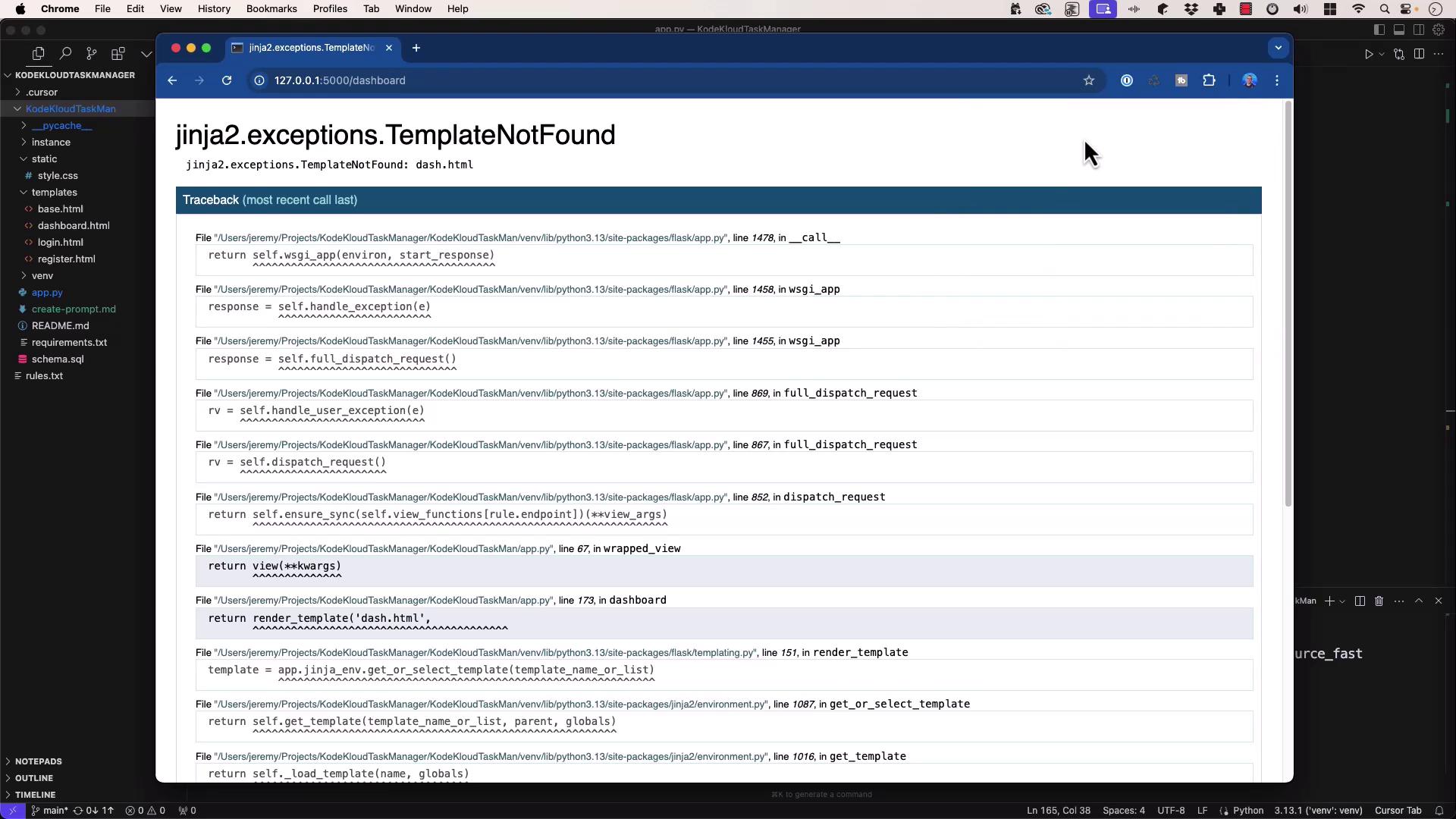
```plaintext theme={null}
jinja2.exceptions.TemplateNotFound: dash.html
127.0.0.1 - - [20/Mar/2025 21:37:51] "GET /dashboard HTTP/1.1" 500 -
```
### The Faulty Route
In **app.py**, the dashboard route is defined as:
```python theme={null}
@app.route('/dashboard')
@login_required
def dashboard():
db = get_db()
# ... build query ...
return render_template('dash.html', tasks=tasks, users=users, statuses=statuses)
```
#### Feeding the Error and Code to Composer
```plaintext theme={null}
jinja2.exceptions.TemplateNotFound: dash.html
```
```python theme={null}
# app.py (excerpt)
@app.route('/dashboard')
@login_required
def dashboard():
db = get_db()
# Build the SELECT query...
return render_template('dash.html', tasks=tasks, users=users, statuses=statuses)
```
Ask Composer:
> “Help me debug this error.”
Composer identifies:
> **Issue:** You reference `dash.html`, but your templates directory contains `dashboard.html`.\
> **Solution:** Rename the template or update the call to `render_template('dashboard.html', …)`.
Always verify your `templates/` folder matches the filenames you pass to `render_template()`.
### Applying the Fix
```diff theme={null}
- return render_template('dash.html', tasks=tasks, users=users, statuses=statuses)
+ return render_template('dashboard.html', tasks=tasks, users=users, statuses=statuses)
```
Reload the page—the dashboard now renders correctly.
***
## 2. Debugging a Database Column Typo
Next, attempt to create a new task via the web interface:
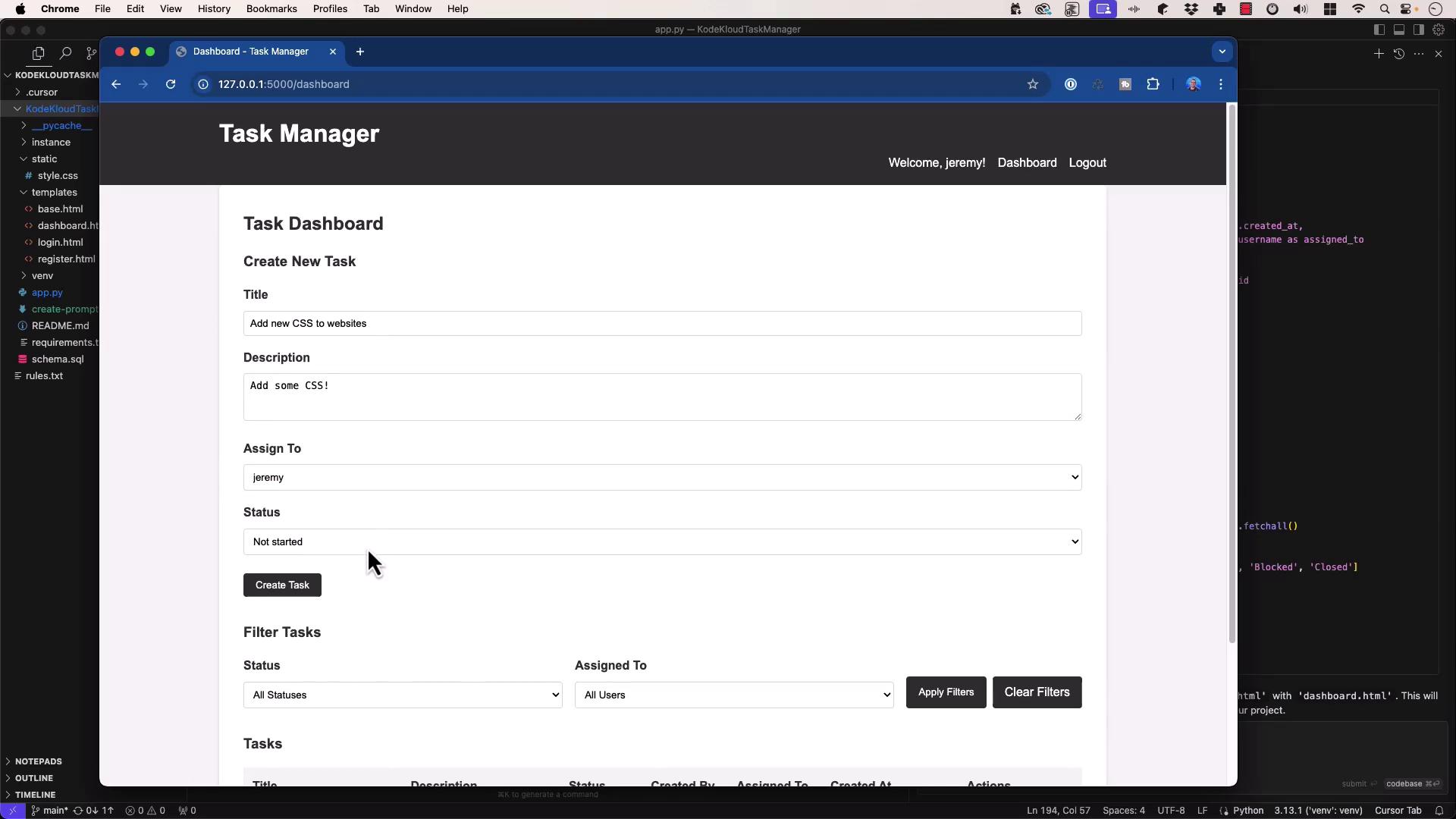
Submitting the form triggers:
```plaintext theme={null}
sqlite3.OperationalError: table tasks has no column named statu3
Traceback (most recent call last):
File ".../flask/app.py", line 1478, in __call__
response = self.handle_exception(e)
...
File "app.py", line 193, in create_task
db.execute(...)
```
### The Faulty INSERT Statement
In **app.py**, the handler is:
```python theme={null}
@app.route('/task/create', methods=['GET', 'POST'])
@login_required
def create_task():
if request.method == 'POST':
title = request.form['title']
description = request.form['description']
status = request.form['status']
assigned_to = request.form['assignee']
db.execute(
'INSERT INTO tasks (title, description, statu3, created_by, assigned_to) '
'VALUES (?, ?, ?, ?, ?)',
(title, description, status, session['user_id'], assigned_to)
)
db.commit()
return redirect(url_for('dashboard'))
return render_template('create_task.html')
```
#### Feeding Code and Error to Composer
```plaintext theme={null}
sqlite3.OperationalError: table tasks has no column named statu3
```
```python theme={null}
db.execute(
'INSERT INTO tasks (title, description, statu3, created_by, assigned_to) VALUES (?, ?, ?, ?, ?)',
(title, description, status, session['user_id'], assigned_to)
)
```
Composer responds:
> **Cause:** The column name `statu3` is mistyped. It should be `status`.\
> **Fix:** Correct the column name in the SQL statement.
Double-check your database schema (e.g., `schema.sql`) before running migrations or inserts.
### Applying the Fix
```diff theme={null}
- 'INSERT INTO tasks (title, description, statu3, created_by, assigned_to) VALUES (?, ?, ?, ?, ?)',
+ 'INSERT INTO tasks (title, description, status, created_by, assigned_to) VALUES (?, ?, ?, ?, ?)',
```
Save and refresh—the new task is created successfully.
***
## 3. Best Practices for AI-Assisted Debugging
| Error Type | Common Cause | Recommended Fix |
| ------------------------ | ----------------- | ---------------------------------------------- |
| Jinja2 TemplateNotFound | Filename mismatch | Update `render_template()` to the correct name |
| sqlite3.OperationalError | Column name typo | Correct the column in your SQL statement |
1. Capture Complete Context
* Include full tracebacks or error messages.
* Paste only the relevant code where the error occurred.
2. Provide Schema or Definitions
* Share your `schema.sql` or data models so the AI can verify table and column names.
3. Trust but Verify
* Apply your own programming knowledge to confirm suggested changes align with your codebase.
4. Experiment with Multiple Models
* If Composer’s recommendation isn’t clear, try another model (e.g., GPT-3.5, GPT-4, Gemini) or start a fresh session.
5. Use Logs as Supplemental Context
* Include application or server logs (from SSH sessions or production environments) for deeper insights.
***
## Links and References
* [Flask Documentation](https://flask.palletsprojects.com/)
* [Jinja2 Error Handling](https://jinja.palletsprojects.com/en/latest/errors/)
* [SQLite Documentation](https://www.sqlite.org/docs.html)
* [Composer AI Assistant Guide](/docs/composer/usage)