> ## Documentation Index
> Fetch the complete documentation index at: https://notes.kodekloud.com/llms.txt
> Use this file to discover all available pages before exploring further.
# Demo Cursor Ask Mode
> This article explains Composers chat pane modes for streamlining development workflows, including generating code, adding context, and inline editing.
During this lesson, you’ll notice Composer’s chat pane now offers three modes—Agent, Cursor Ask, and Edit—accessible via Command-L on Mac or Control-L on Windows/Linux. Although the labels have changed, all previous functionality remains intact. Let’s explore each mode and see how they streamline your development workflow.
## Opening the Chat and Selecting Models
Press Command-L (Mac) or Control-L (Windows/Linux) to open the Composer chat pane. You’ll find three tabs:
* Agent mode
* Cursor Ask mode
* Edit mode
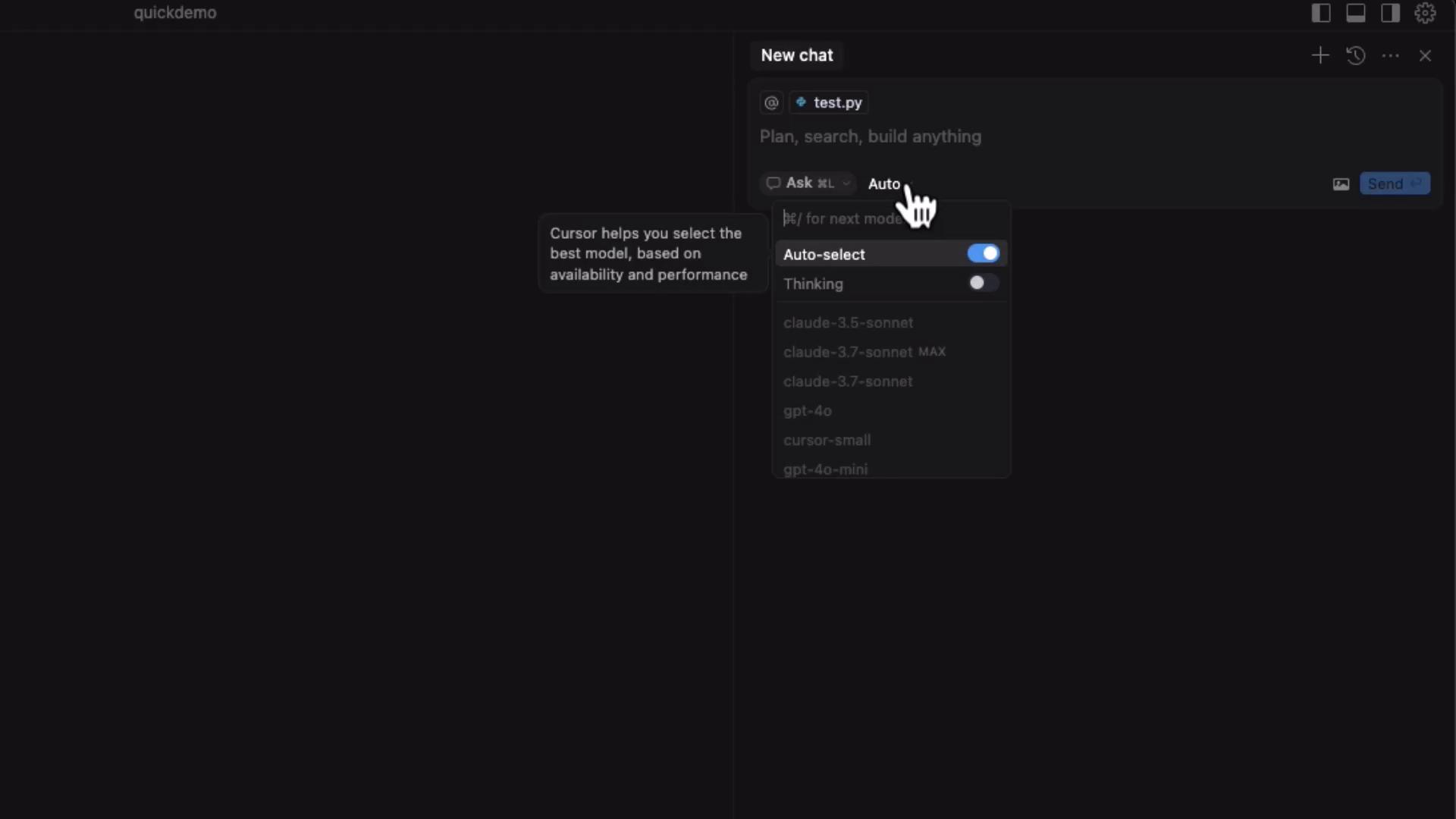
In the model dropdown, choose **Auto-select** to let Composer pick the optimal model, or manually select one (for example, **Cloud 3.7**):
## Adding Files as Context
Composer can reference files or entire folders when generating or editing code. To upload files:
1. In the **Files & Folders** panel, right-click and select **Add context**.
2. Choose your file (e.g., `test.py` or `grades.csv`).
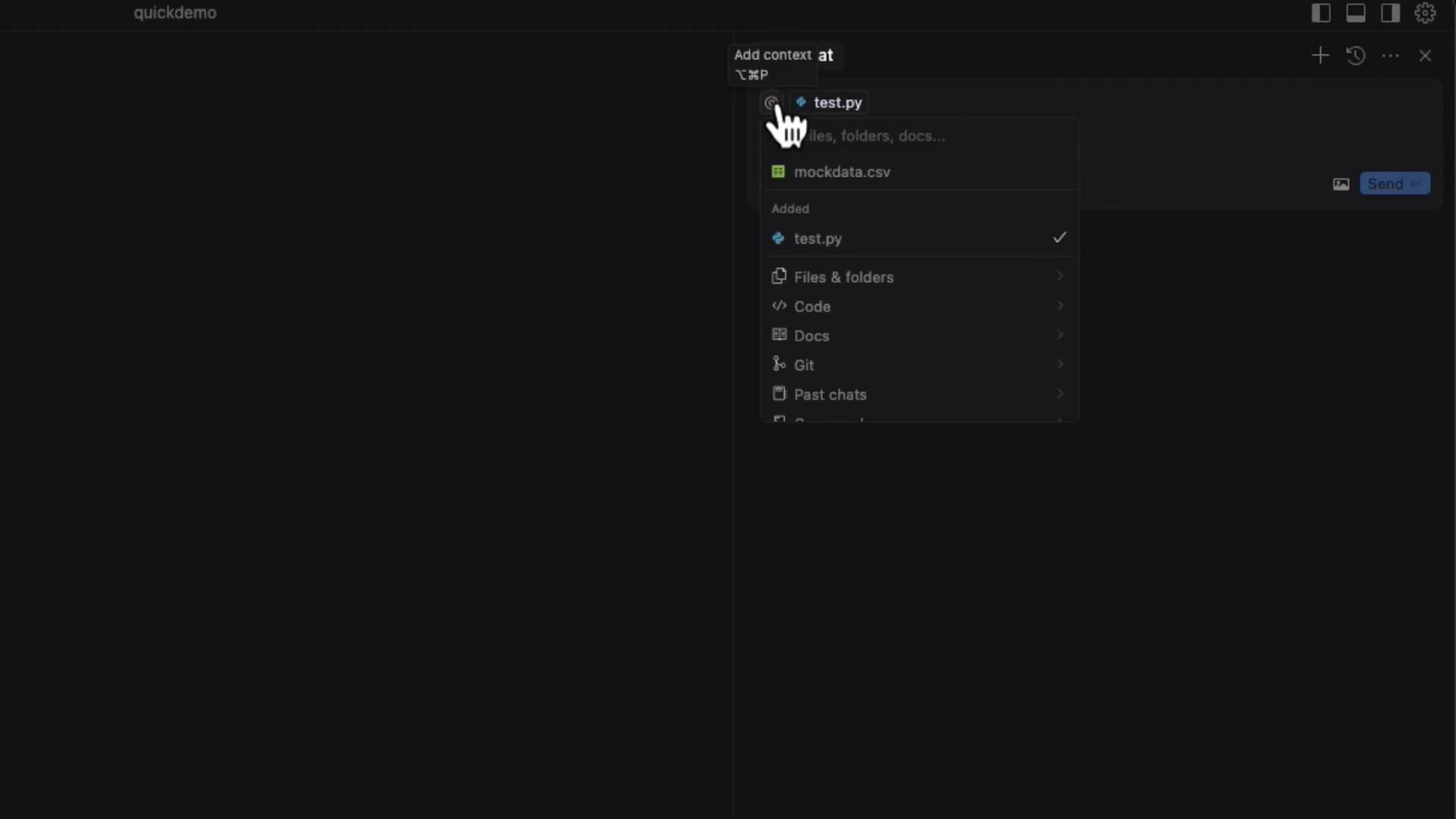
Now Composer will include these files in its context for more accurate suggestions.
***
## Example: Generating a `grades.py` Script
Suppose you have a CSV file named `grades.csv`:
```csv theme={null}
student,math,science,history
Alice,85,90,88
Bob,78,75,80
Charlie,92,88,91
David,75,80,78
Eve,88,85,90
Frank,70,72,75
Grace,84,87,89
Helen,76,79,82
```
1. In **Files & Folders**, search for `grades.csv` and add it as context.
2. Switch to **Cursor Ask mode** and enter:
> Write a Python function to parse `grades.csv` containing student grades and calculate the average score for each student, using [Pandas](https://pandas.pydata.org). Apply it to `grades.py`.
Composer will detect that `grades.py` is empty and suggest code. Click **Apply to grades.py**:
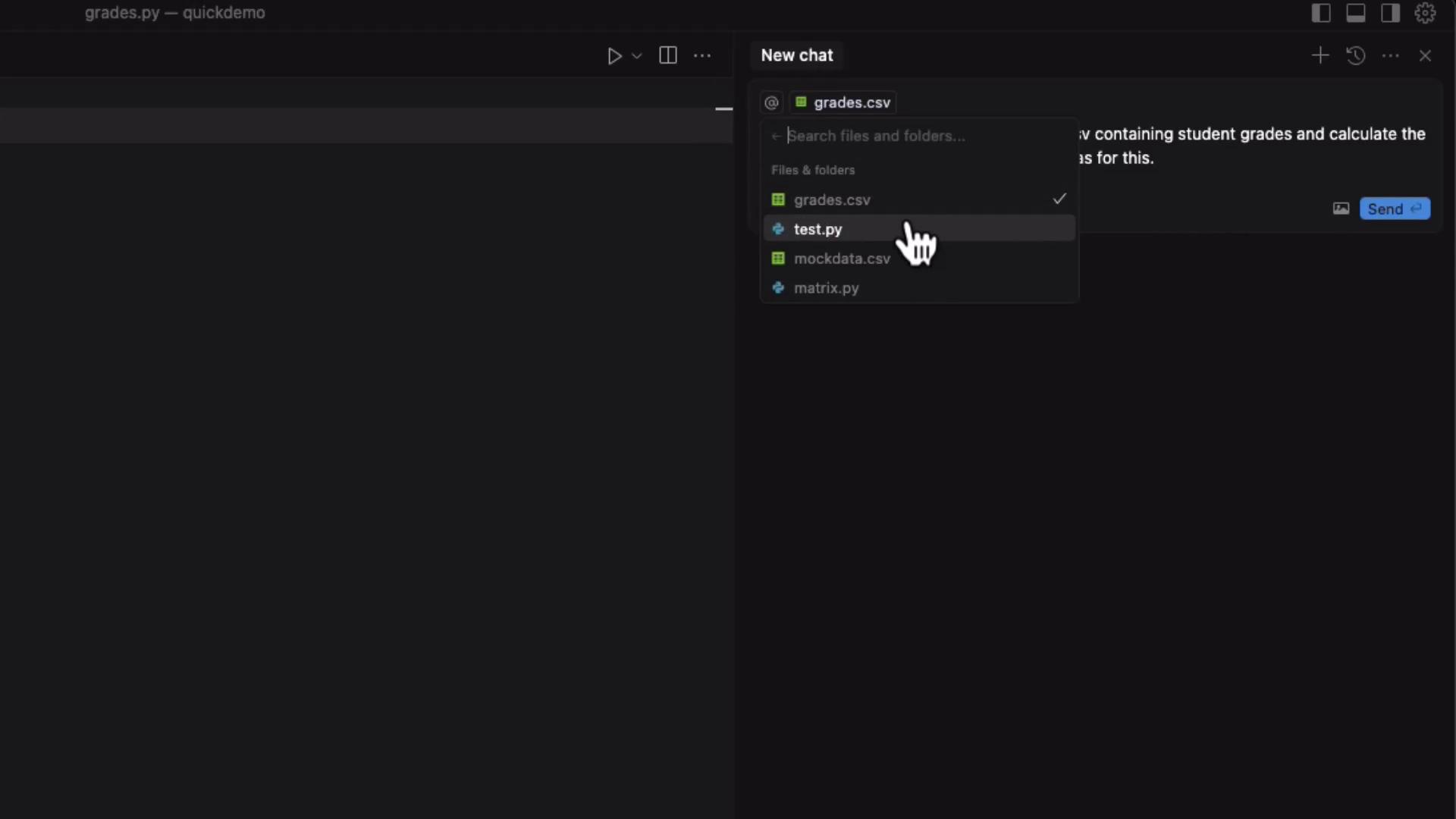
Composer inserts the following into `grades.py`:
```python theme={null}
import pandas as pd
def calculate_student_averages(file_path: str) -> pd.DataFrame:
"""
Parse a CSV file containing student grades and calculate the average score for each student.
Args:
file_path (str): Path to the CSV file.
Returns:
pandas.DataFrame: DataFrame with student names and their average scores.
"""
df = pd.read_csv(file_path)
df['average'] = df.iloc[:, 1:].mean(axis=1)
return df[['student', 'average']]
if __name__ == "__main__":
result = calculate_student_averages('grades.csv')
print(result)
```
Before running the script, install Pandas:
```bash theme={null}
pip install pandas
```
Run the script:
```bash theme={null}
python grades.py
```
You’ll see each student’s average score printed to the console.
***
## Zero-Shot Prompts
You’re not limited to files in context. In a new chat, ask for any snippet:
> Create a function to fetch current weather data from the [OpenWeatherMap API](https://openweathermap.org/api) for a given city.
Composer returns:
```python theme={null}
import requests
def get_weather_data(city: str, api_key: str) -> dict:
"""
Fetch current weather data from OpenWeatherMap API for a given city.
Args:
city (str): Name of the city.
api_key (str): Your OpenWeatherMap API key.
Returns:
dict: Weather data if successful, None otherwise.
"""
base_url = "https://api.openweathermap.org/data/2.5/weather"
params = {
"q": city,
"appid": api_key,
"units": "metric"
}
try:
response = requests.get(base_url, params=params)
response.raise_for_status()
return response.json()
except requests.exceptions.RequestException as e:
print(f"Error fetching weather data: {e}")
return None
```
You can then apply this snippet directly into any open file.
***
## Inline Edits with Edit Mode
In **Edit mode**, select existing code, press Control-K, and provide instructions. For example, highlight `calculate_student_averages` and say:
> Optimize this function for performance.
Or:
> Add a timing decorator to measure execution time.
Composer refactors inline, generating:
```python theme={null}
import time
from functools import wraps
import pandas as pd
def timing_decorator(func):
@wraps(func)
def wrapper(*args, **kwargs):
start_time = time.time()
result = func(*args, **kwargs)
end_time = time.time()
print(f"{func.__name__} executed in {end_time - start_time:.4f} seconds")
return result
return wrapper
@timing_decorator
def calculate_student_averages(file_path: str) -> pd.DataFrame:
"""Parse a CSV file containing student grades and calculate the average score."""
df = pd.read_csv(file_path)
df['average'] = df.iloc[:, 1:].mean(axis=1)
return df[['student', 'average']]
```
Run `python grades.py` again to see timing information alongside the results.
***
## Summary
Composer’s three modes enable you to:
| Mode | Function | Shortcut |
| ---------- | ------------------------------------------------ | ----------------------- |
| Agent mode | Orchestrate multi-step workflows | Command-L / Ctrl-L |
| Cursor Ask | Generate new files or code based on context | Command-L / Ctrl-L |
| Edit mode | Inline AI-assisted refactoring and documentation | Select code + Control-K |
Composer brings AI-driven development directly into your editor, allowing you to generate, refactor, and optimize code with minimal context switching.
***
## Links and References
* [Composer Documentation](https://aka.ms/composer/docs)
* [Pandas Official Site](https://pandas.pydata.org/)
* [OpenWeatherMap API](https://openweathermap.org/api)