> ## Documentation Index
> Fetch the complete documentation index at: https://notes.kodekloud.com/llms.txt
> Use this file to discover all available pages before exploring further.
# Demo Getting Started with Composer
> Build a lightweight task management app using Composer, Flask, and SQLite to track tasks without extra overhead.
Build a lightweight task management app using Composer, Flask, and SQLite. Track tasks—create, assign, update status—without extra overhead.
## Table of Contents
1. [Clone the Repository](#1-cloning-the-repository)
2. [Define the Project in Composer](#2-defining-the-project-with-composer)
3. [Composer Output Overview](#3-prompt-details-and-composer-output)
4. [Review the Database Schema](#4-reviewing-the-database-schema)
5. [Quick Project Structure](#5-quick-project-structure)
6. [Key Application Code (`app.py`)](#6-key-application-code-apppy)
7. [Install & Run](#7-installing--running)
8. [Inspect with DB Browser](#8-inspecting-with-db-browser)
9. [Use the Task Manager](#9-using-the-task-manager)
10. [Conclusion & References](#10-conclusion--references)
***
## 1. Cloning the Repository
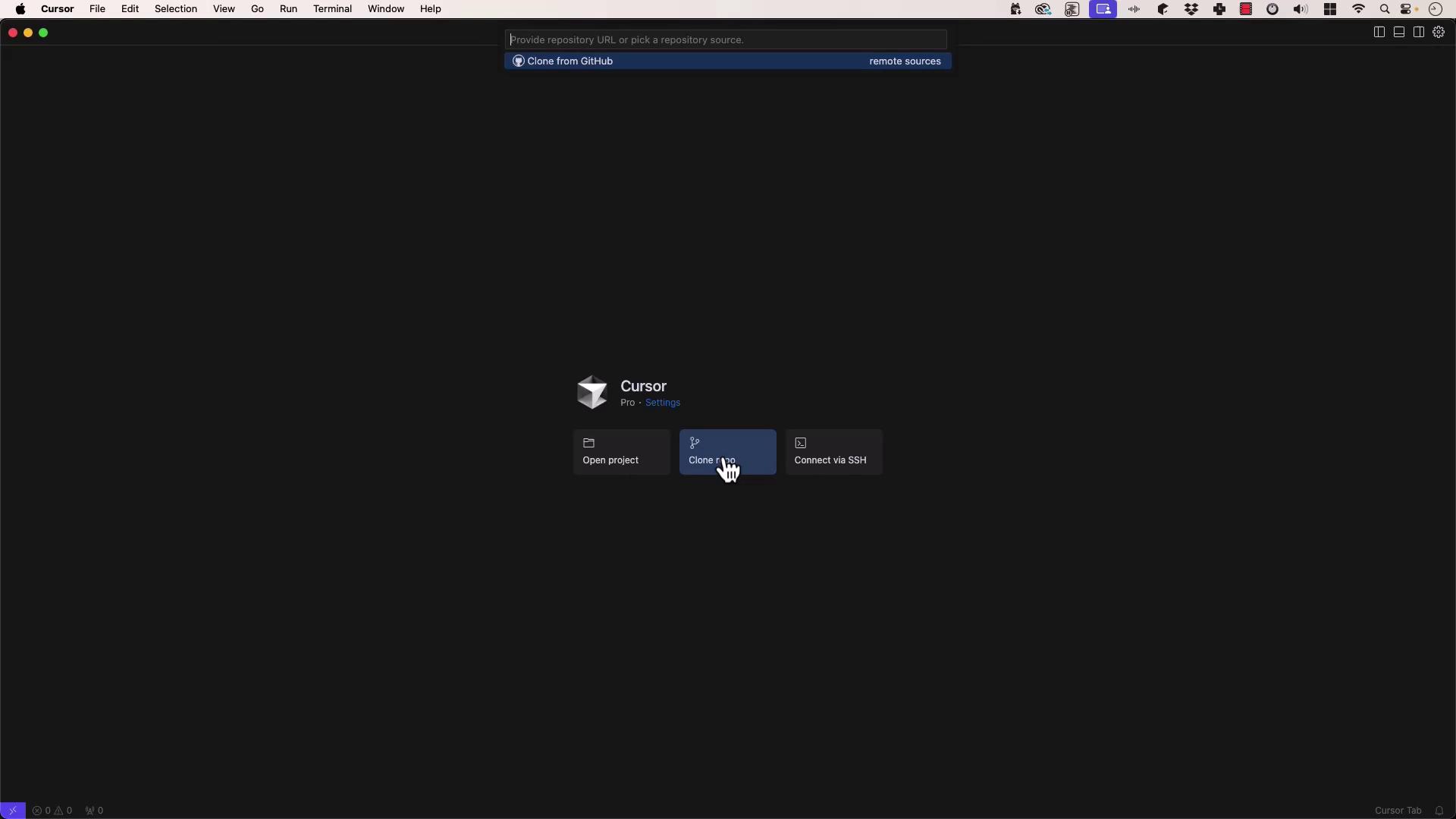
Start by cloning a new, empty GitHub repo into your workspace.
Select your destination folder (e.g., `projects/KodeKloud/task-manager`) and open it:
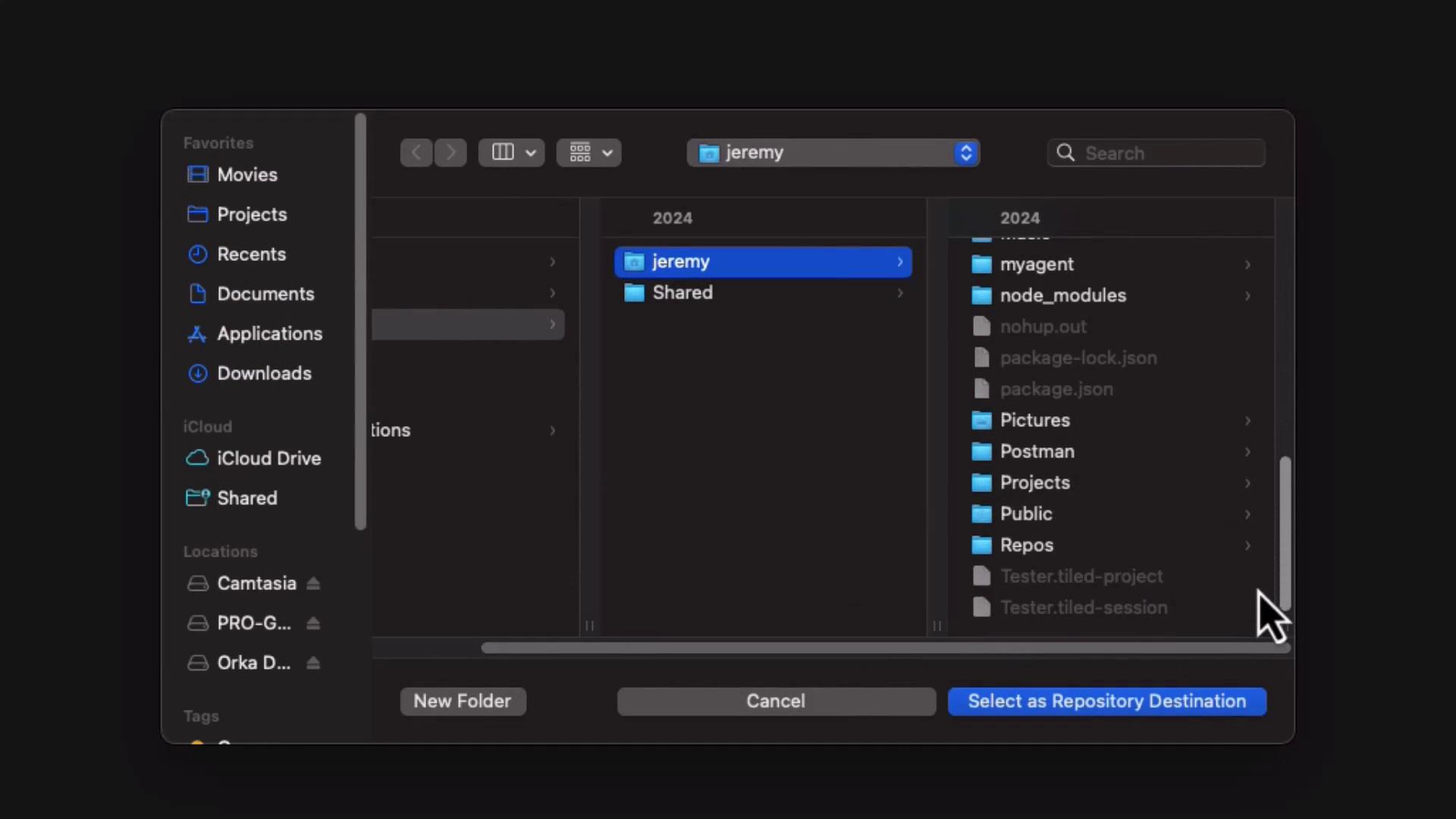
We’ll commit all changes with Git as we proceed.
## 2. Defining the Project with Composer
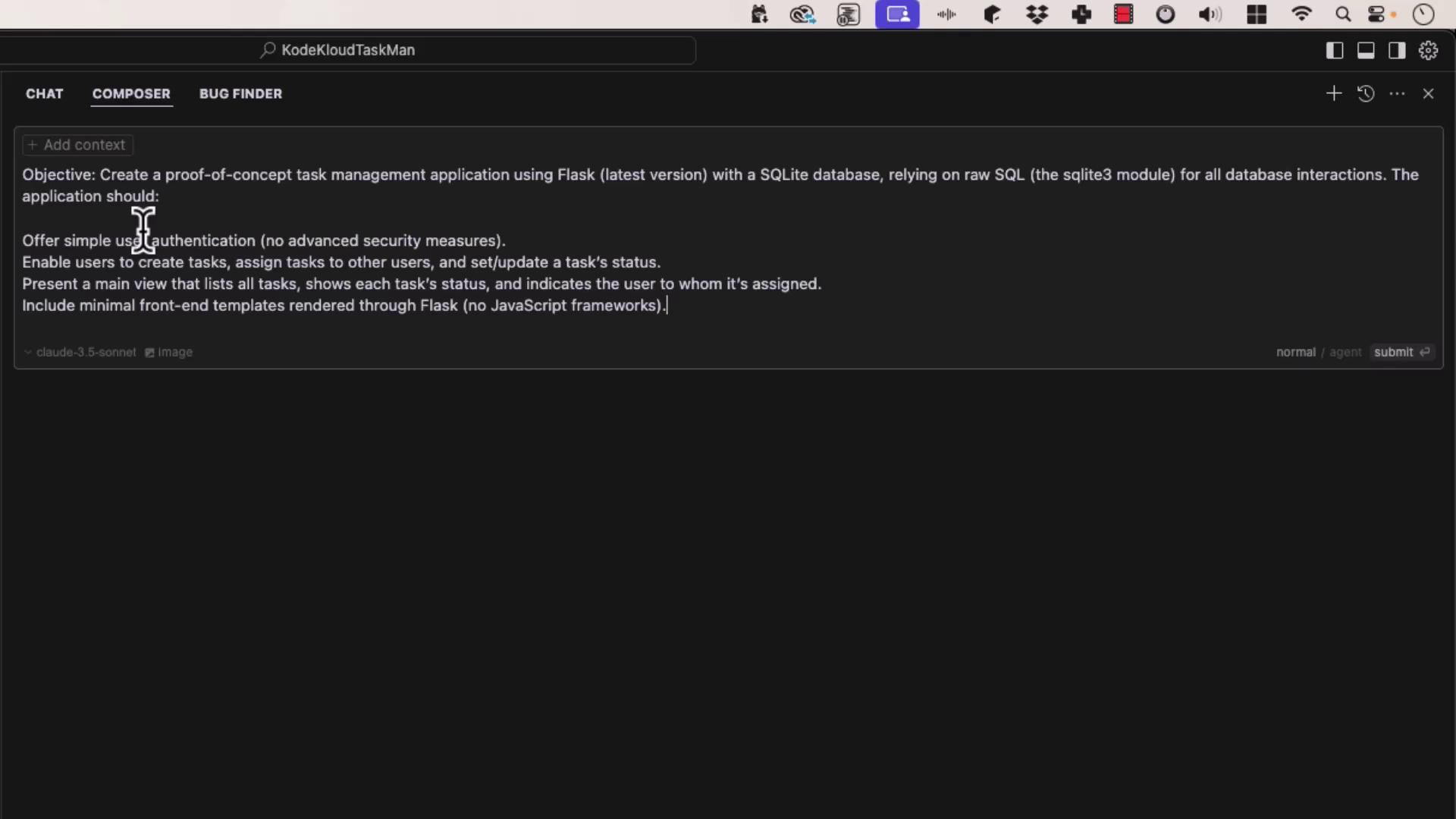
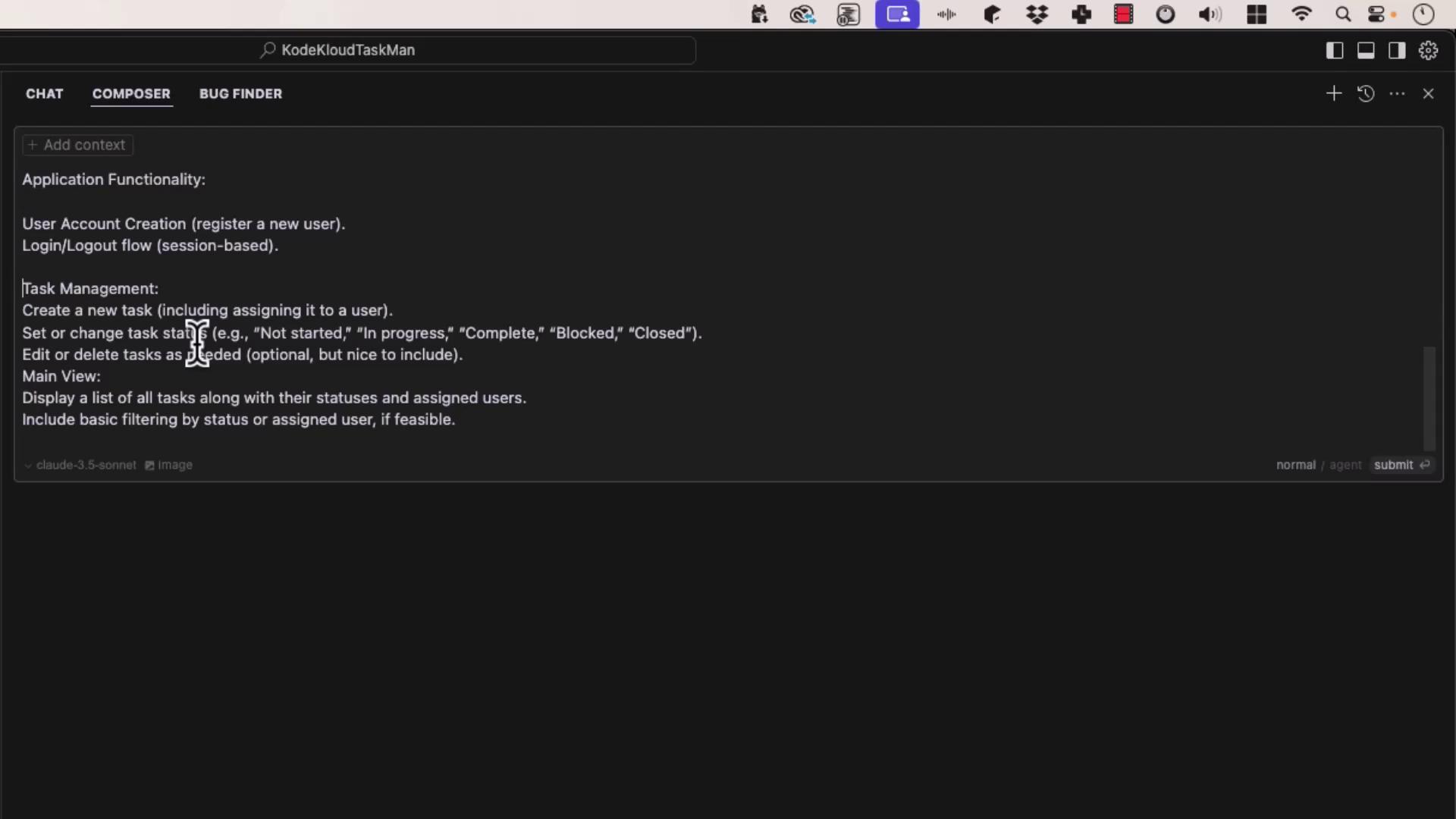
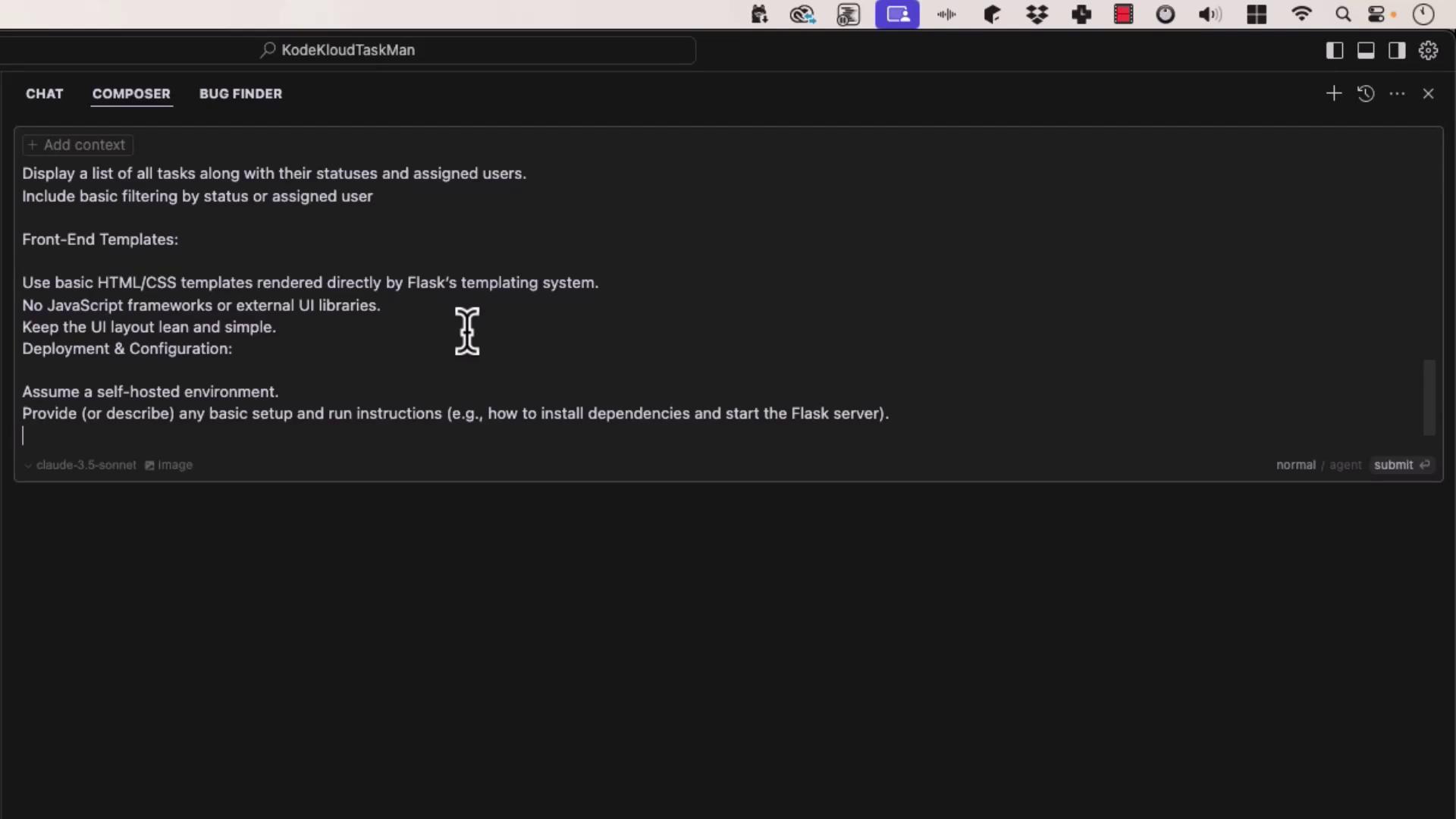
Open Composer (⌘L / Ctrl+L). Craft a precise prompt so the LLM generates only what you need: Flask + SQLite, raw SQL, no JS frameworks.
### Prompt Highlights
* **Objective:** Proof-of-concept task manager using Flask & SQLite3.
* **Features:**
* Username/password authentication (Werkzeug hashing).
* Task CRUD: create, assign, update status (`Not started`, `In progress`, `Complete`, `Blocked`, `Closed`).
* List tasks with filters by status or assignee.
* Jinja2 HTML/CSS templates (no React/Angular).
* **Requirements:**
* Python 3.13+ & virtual environment
* Single or minimal tables (no migrations)
* Self-hosted development setup
Use strong hashing algorithms (e.g., `werkzeug.security`) and rotate your `SECRET_KEY` in production.
## 3. Prompt Details and Composer Output
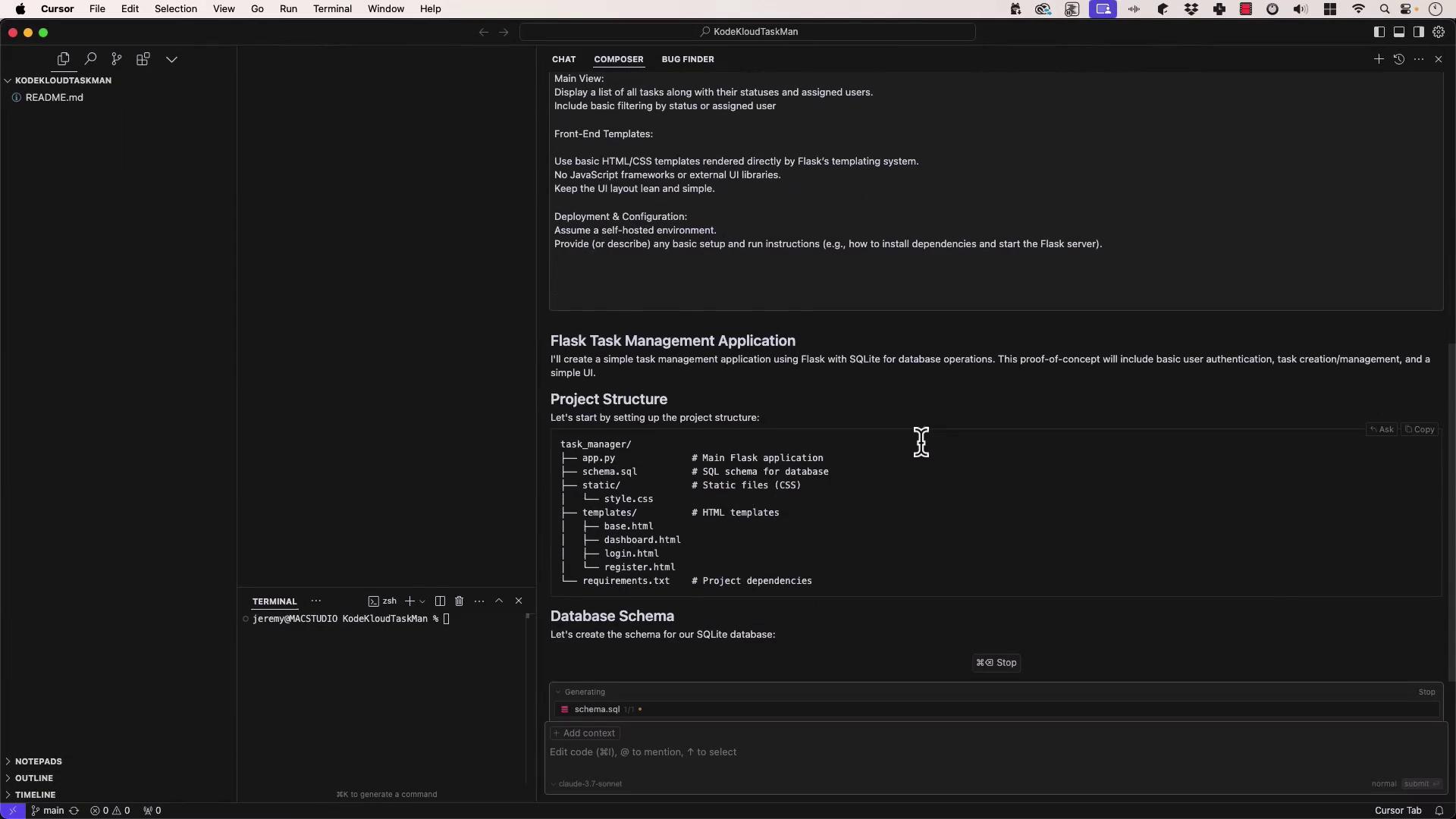
Select your model (we used **Cloud 3.7 Sonnet**). Composer generates:
* `schema.sql`
* `app.py`
* `templates/` (`base.html`, `login.html`, `register.html`, `dashboard.html`)
* `static/style.css`
* `requirements.txt`
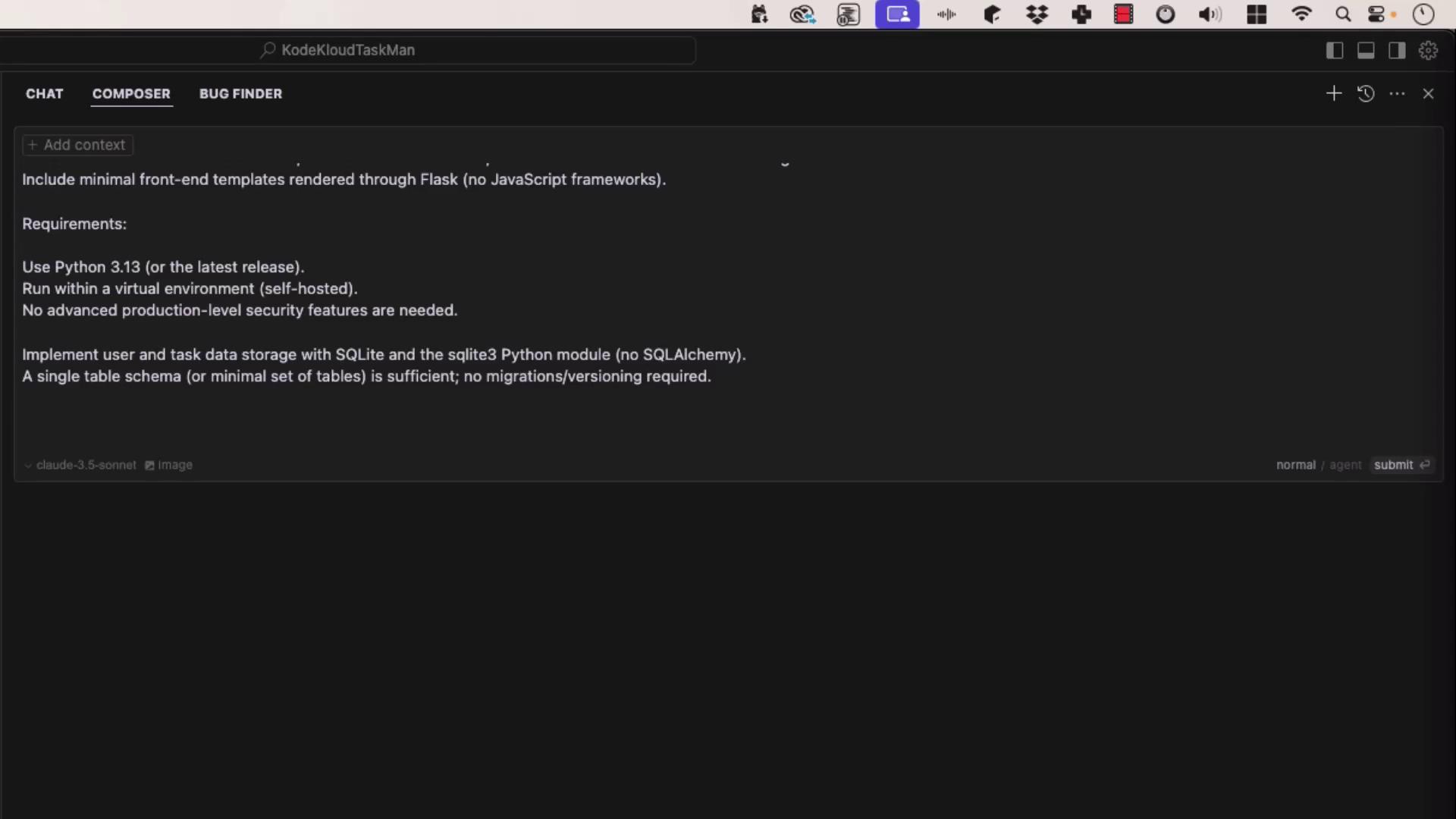
After confirming, Composer scaffolds your project:
## 4. Reviewing the Database Schema
Open **schema.sql** to inspect `users` and `tasks` tables:
```sql theme={null}
DROP TABLE IF EXISTS users;
DROP TABLE IF EXISTS tasks;
CREATE TABLE users (
id INTEGER PRIMARY KEY AUTOINCREMENT,
username TEXT UNIQUE NOT NULL,
password TEXT NOT NULL
);
CREATE TABLE tasks (
id INTEGER PRIMARY KEY AUTOINCREMENT,
title TEXT NOT NULL,
description TEXT,
status TEXT NOT NULL,
created_at TIMESTAMP NOT NULL DEFAULT CURRENT_TIMESTAMP,
created_by INTEGER NOT NULL,
assigned_to INTEGER NOT NULL,
FOREIGN KEY (created_by) REFERENCES users(id),
FOREIGN KEY (assigned_to) REFERENCES users(id)
);
```
## 5. Quick Project Structure
```text theme={null}
.
├── app.py
├── schema.sql
├── requirements.txt
├── static/
│ └── style.css
└── templates/
├── base.html
├── login.html
├── register.html
└── dashboard.html
```
## 6. Key Application Code (`app.py`)
```python theme={null}
import os, sqlite3, logging
from flask import Flask, g, render_template, request, redirect, url_for, session, flash
from werkzeug.security import generate_password_hash, check_password_hash
app = Flask(__name__)
app.config['SECRET_KEY'] = 'dev' # Rotate in prod
app.config['DATABASE'] = os.path.join(app.instance_path, 'task_manager.sqlite')
def get_db():
if 'db' not in g:
os.makedirs(app.instance_path, exist_ok=True)
g.db = sqlite3.connect(app.config['DATABASE'], detect_types=sqlite3.PARSE_DECLTYPES)
g.db.row_factory = sqlite3.Row
return g.db
@app.teardown_appcontext
def close_db(e=None):
db = g.pop('db', None)
if db: db.close()
def init_db():
db = get_db()
with app.open_resource('schema.sql') as f:
db.executescript(f.read().decode('utf8'))
@app.cli.command('init-db')
def init_db_command():
"""Initialize the database."""
init_db()
print('Initialized the database.')
# Authentication helpers
def login_required(view):
from functools import wraps
@wraps(view)
def wrapped_view(**kwargs):
if 'user_id' not in session:
return redirect(url_for('login'))
return view(**kwargs)
return wrapped_view
@app.route('/register', methods=('GET','POST'))
def register():
if request.method == 'POST':
username, password = request.form['username'], request.form['password']
db, error = get_db(), None
if not username: error = 'Username is required.'
elif not password: error = 'Password is required.'
elif db.execute('SELECT id FROM users WHERE username=?', (username,)).fetchone():
error = f'User {username} already exists.'
if error is None:
db.execute('INSERT INTO users (username, password) VALUES (?, ?)',
(username, generate_password_hash(password)))
db.commit()
return redirect(url_for('login'))
flash(error)
return render_template('register.html')
@app.route('/login', methods=('GET','POST'))
def login():
if request.method == 'POST':
username, password = request.form['username'], request.form['password']
db, user = get_db(), None
user = db.execute('SELECT * FROM users WHERE username=?', (username,)).fetchone()
if user and check_password_hash(user['password'], password):
session.clear()
session['user_id'] = user['id']
return redirect(url_for('dashboard'))
flash('Invalid credentials.')
return render_template('login.html')
@app.route('/logout')
def logout():
session.clear()
return redirect(url_for('login'))
@app.route('/')
def index():
return redirect(url_for('dashboard' if 'user_id' in session else 'login'))
@app.route('/dashboard')
@login_required
def dashboard():
status_filter = request.args.get('status', '')
user_filter = request.args.get('user', '')
query = """
SELECT t.id, t.title, t.description, t.status, t.created_at,
c.username AS created_by, a.username AS assigned_to
FROM tasks t
JOIN users c ON t.created_by = c.id
JOIN users a ON t.assigned_to = a.id
WHERE 1=1
"""
params = []
if status_filter:
query += ' AND t.status = ?'; params.append(status_filter)
if user_filter:
query += ' AND assigned_to = ?'; params.append(user_filter)
query += ' ORDER BY t.created_at DESC'
tasks = get_db().execute(query, params).fetchall()
users = get_db().execute('SELECT id, username FROM users').fetchall()
statuses = ['Not started','In progress','Complete','Blocked','Closed']
return render_template('dashboard.html',
tasks=tasks, users=users,
statuses=statuses,
status_filter=status_filter,
user_filter=user_filter)
@app.route('/task/create', methods=('POST',))
@login_required
def create_task():
title = request.form['title']
description = request.form['description']
assigned_to = request.form['assigned_to']
status = request.form['status']
db = get_db()
db.execute(
'INSERT INTO tasks (title, description, status, created_by, assigned_to) VALUES (?, ?, ?, ?, ?)',
(title, description, status, session['user_id'], assigned_to)
)
db.commit()
flash('Task created successfully!')
return redirect(url_for('dashboard'))
@app.route('/task//update', methods=('POST',))
@login_required
def update_task(id):
status = request.form['status']
assigned_to = request.form['assigned_to']
db = get_db()
db.execute('UPDATE tasks SET status=?, assigned_to=? WHERE id=?',
(status, assigned_to, id))
db.commit()
flash('Task updated successfully!')
return redirect(url_for('dashboard'))
@app.route('/task//delete', methods=('POST',))
@login_required
def delete_task(id):
db = get_db()
db.execute('DELETE FROM tasks WHERE id=?', (id,))
db.commit()
flash('Task deleted successfully!')
return redirect(url_for('dashboard'))
if __name__ == '__main__':
logging.basicConfig(level=logging.DEBUG)
app.run(debug=True, host='0.0.0.0', port=5000)
```
## 7. Installing & Running
```bash theme={null}
# 1. Create and activate virtual environment
python3 -m venv venv
source venv/bin/activate # macOS/Linux
# 2. Install dependencies
pip install --upgrade pip
pip install -r requirements.txt
# 3. Initialize the database
flask --app app init-db
# 4. Run the development server
flask --app app run --debug
```
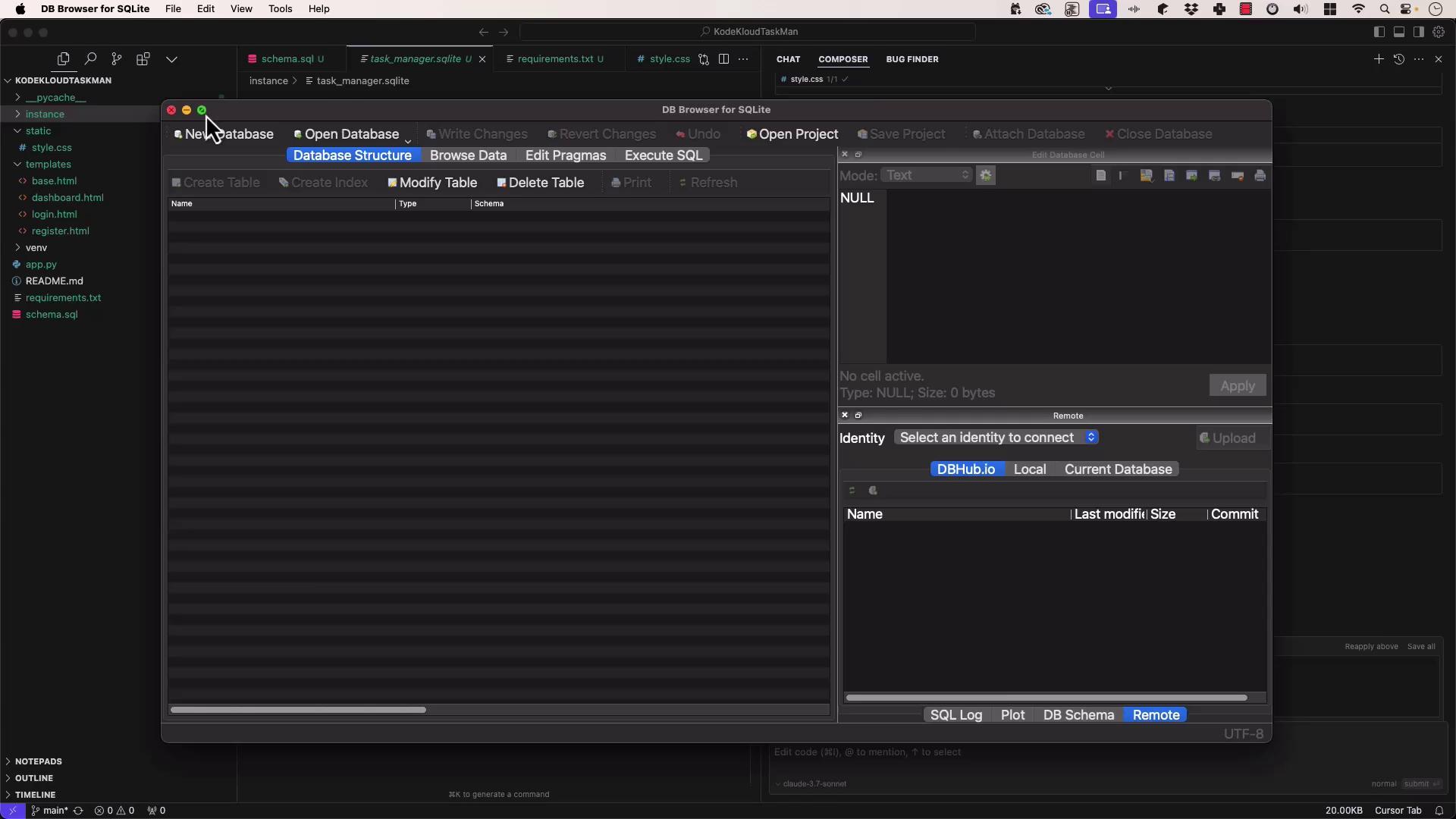
## 8. Inspecting with DB Browser
After initialization, open the SQLite file in [DB Browser for SQLite](https://sqlitebrowser.org/) to verify your tables.
## 9. Using the Task Manager
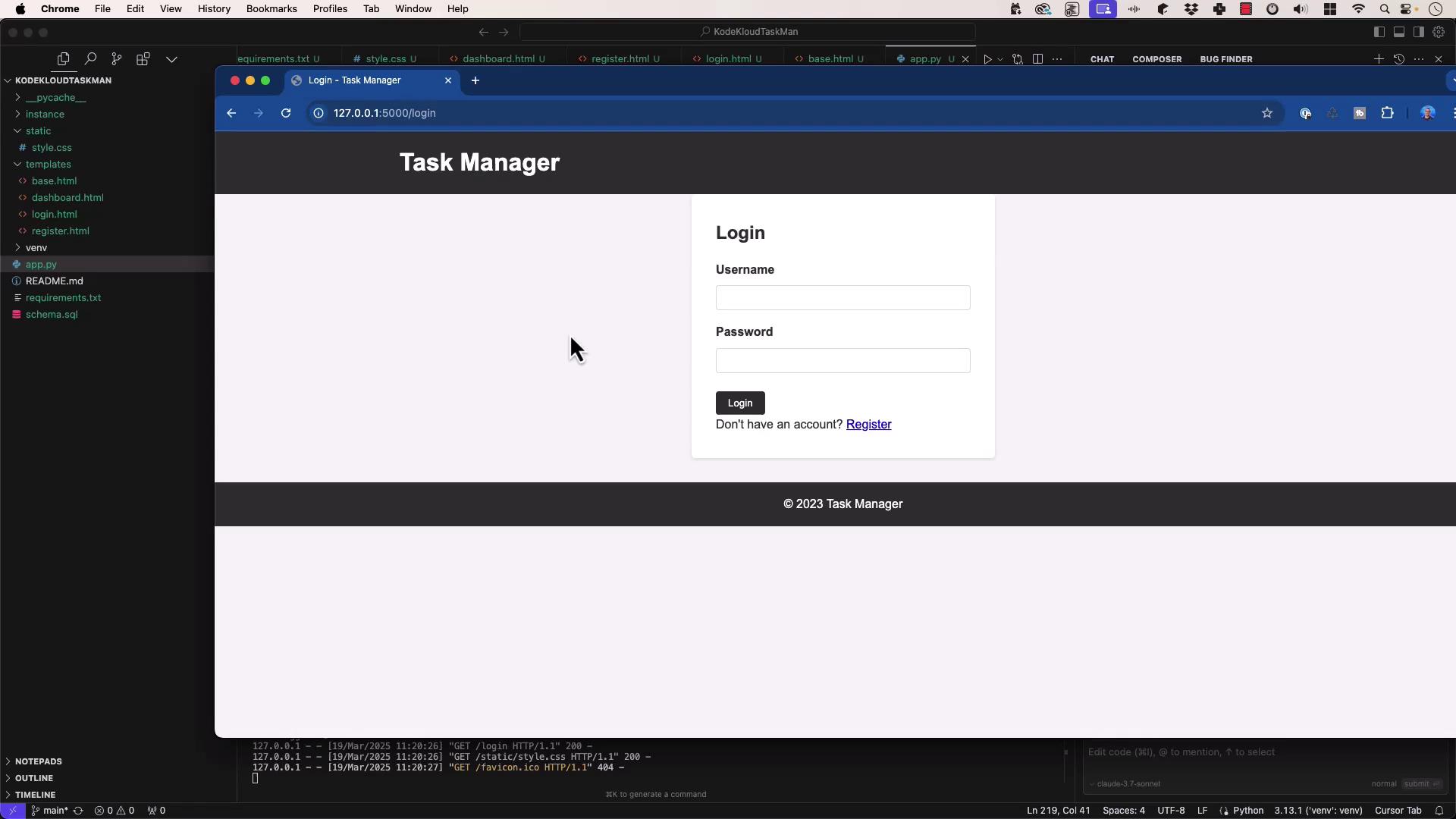
Browse to `http://127.0.0.1:5000/` to see the login screen:
1. **Register** a new user
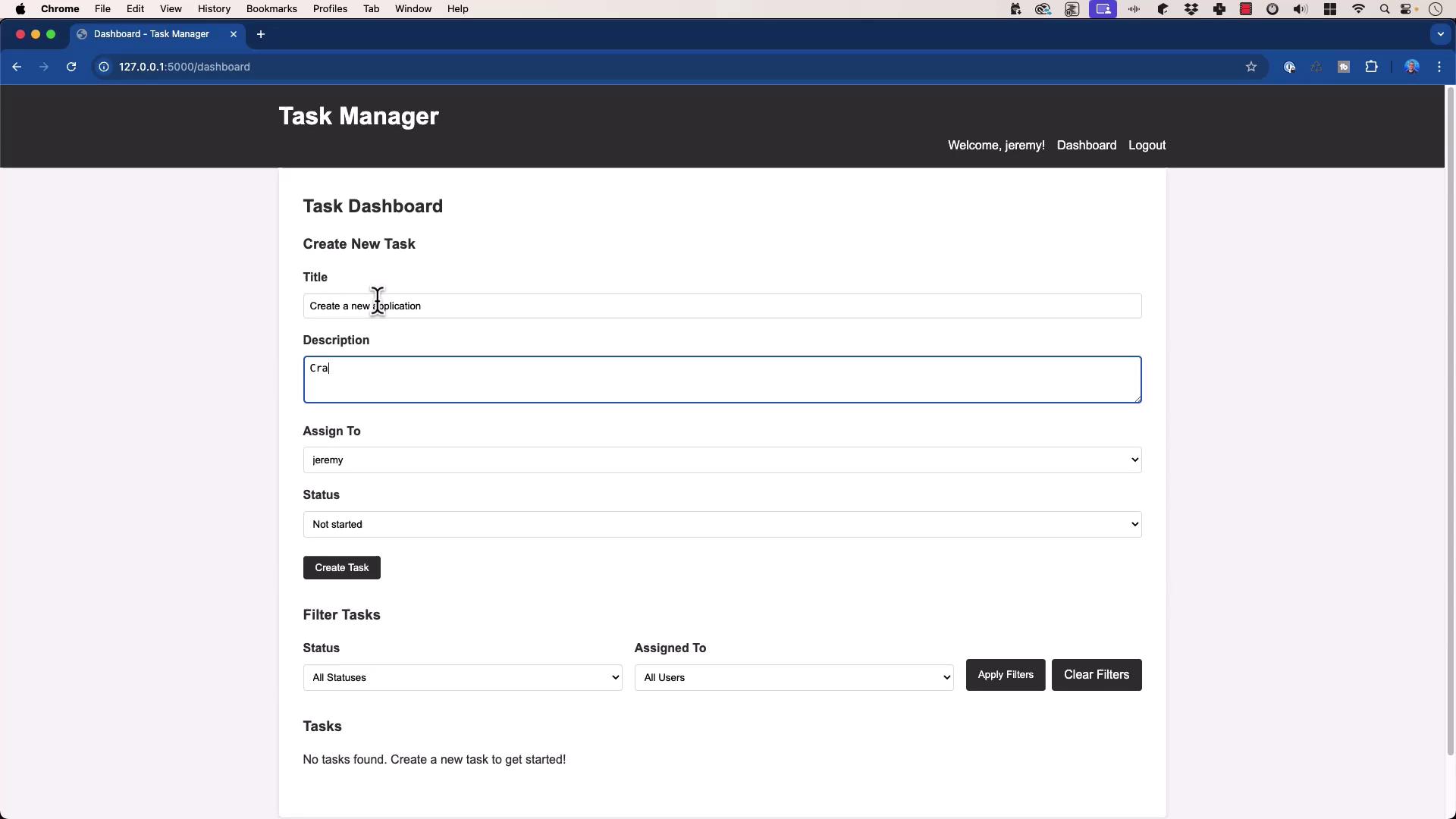
2. **Create & assign** tasks
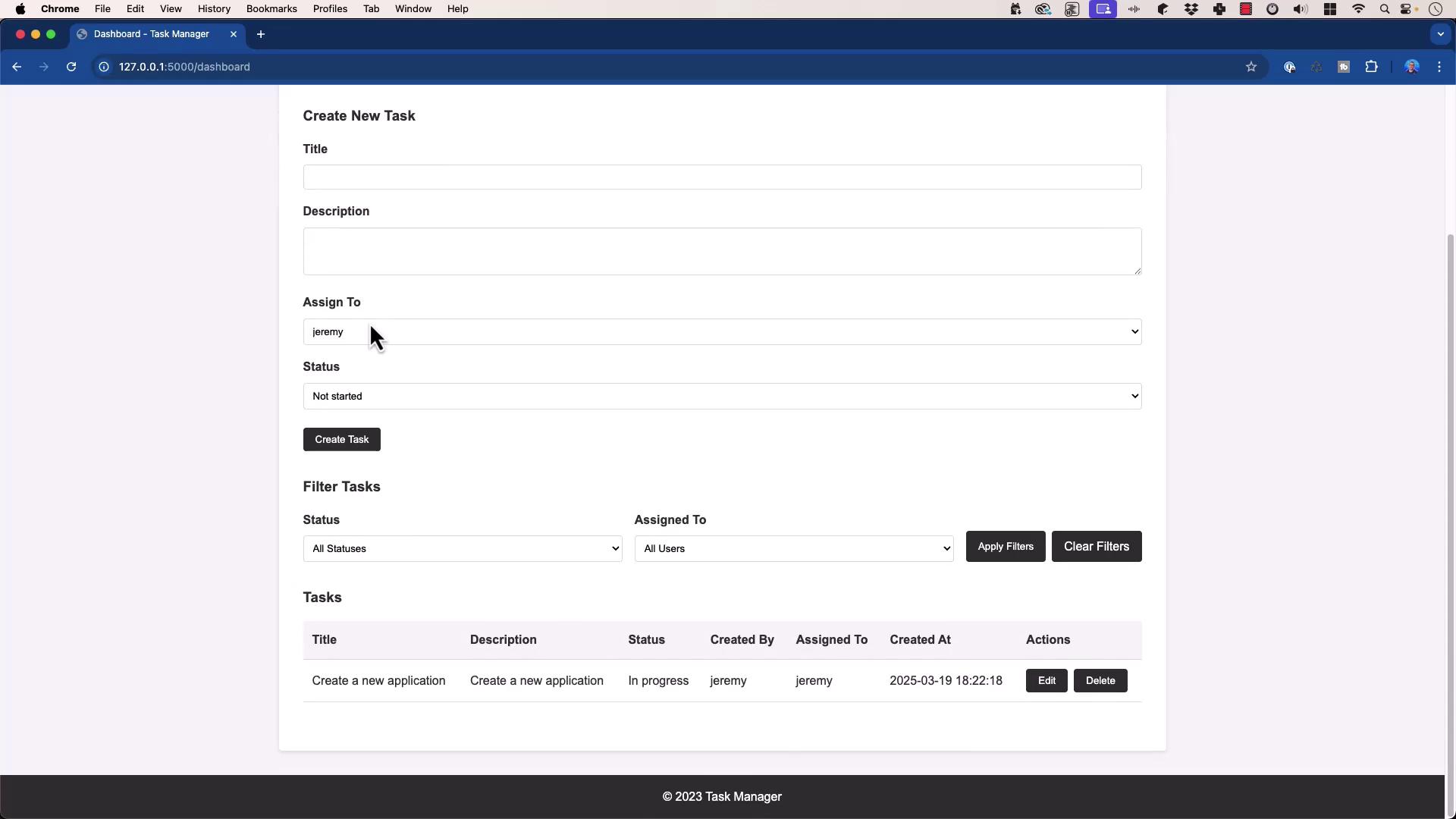
3. **View, update, filter, or delete** tasks:
## 10. Conclusion & References
**Key Takeaways**
* Prompt specificity drives accurate LLM output.
* Model quality (e.g., Cloud 3.7 Sonnet) matters for code generation.
### Further Reading
* [Flask Documentation](https://flask.palletsprojects.com/)
* [SQLite Documentation](https://www.sqlite.org/docs.html)
* [Jinja2 Template Engine](https://jinja.palletsprojects.com/)
* [Werkzeug Security](https://werkzeug.palletsprojects.com/en/latest/utils/#module-werkzeug.security)