> ## Documentation Index
> Fetch the complete documentation index at: https://notes.kodekloud.com/llms.txt
> Use this file to discover all available pages before exploring further.
# Demo Intelligent Code Suggestions
> This guide explores how Cursor AI enhances Python development with intelligent code suggestions through three powerful modes.
In this guide, we’ll explore how **Cursor AI** supercharges your Python development by offering three powerful modes of code suggestions:
1. **Generate New Code Snippets** (Command K / Ctrl + K)
2. **Inline Chat for Refactors** (Command L / Ctrl + L)
3. **Quick Inline Completions** (Comments + Tab)
We’ll demonstrate these features by parsing a simple CSV file in a Python project.
***
## Project Setup
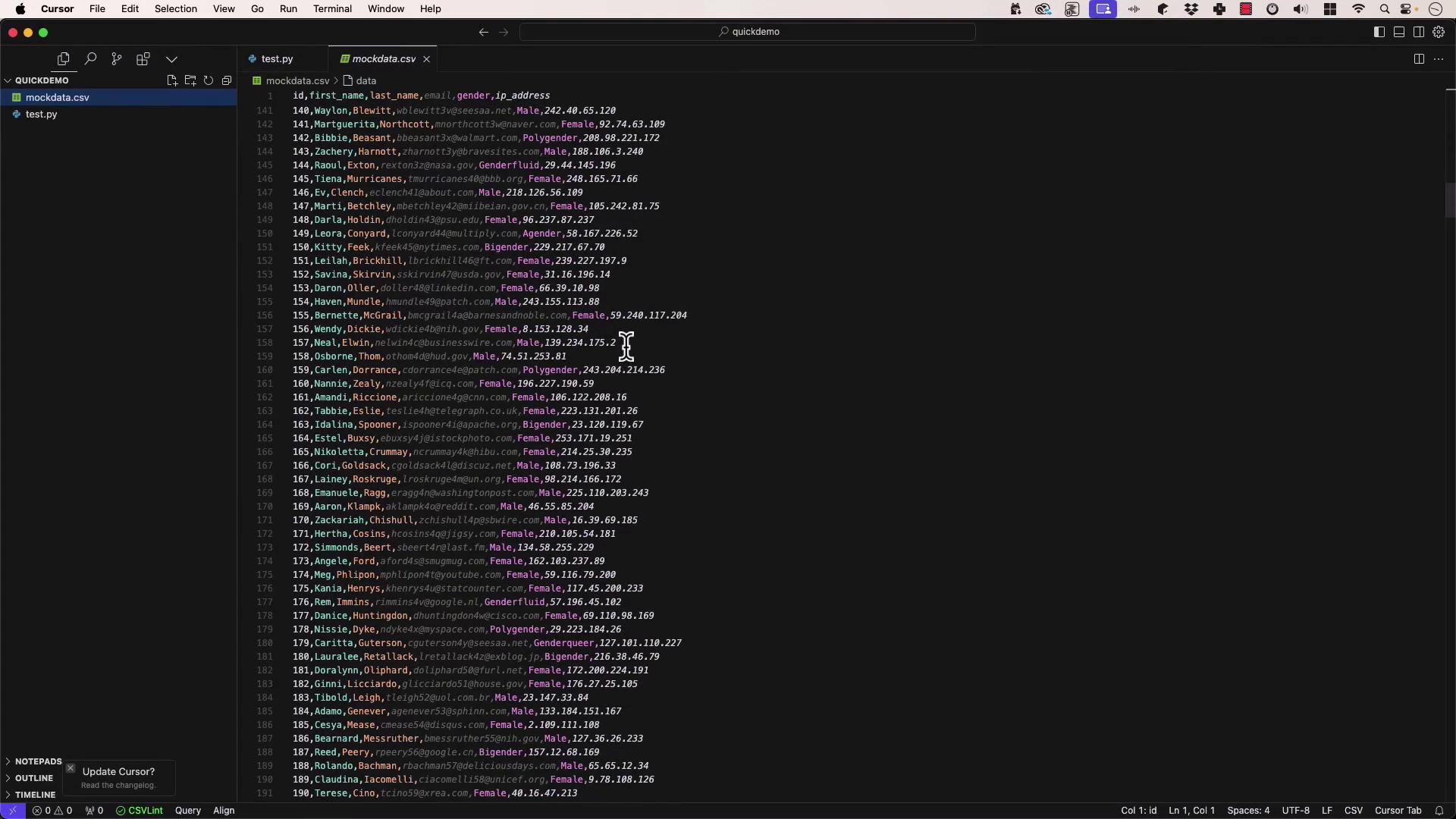
1. Create a folder named `Quick Demo`.
2. Inside it, add:
* `test.py`
* `mockdata.csv` containing headers and rows of user data.
```bash theme={null}
mkdir "Quick Demo" && cd "Quick Demo"
touch test.py mockdata.csv
```
Ensure `mockdata.csv` is in the same directory as `test.py` so the script can locate it.
***
## 1. Generate Code with Command K
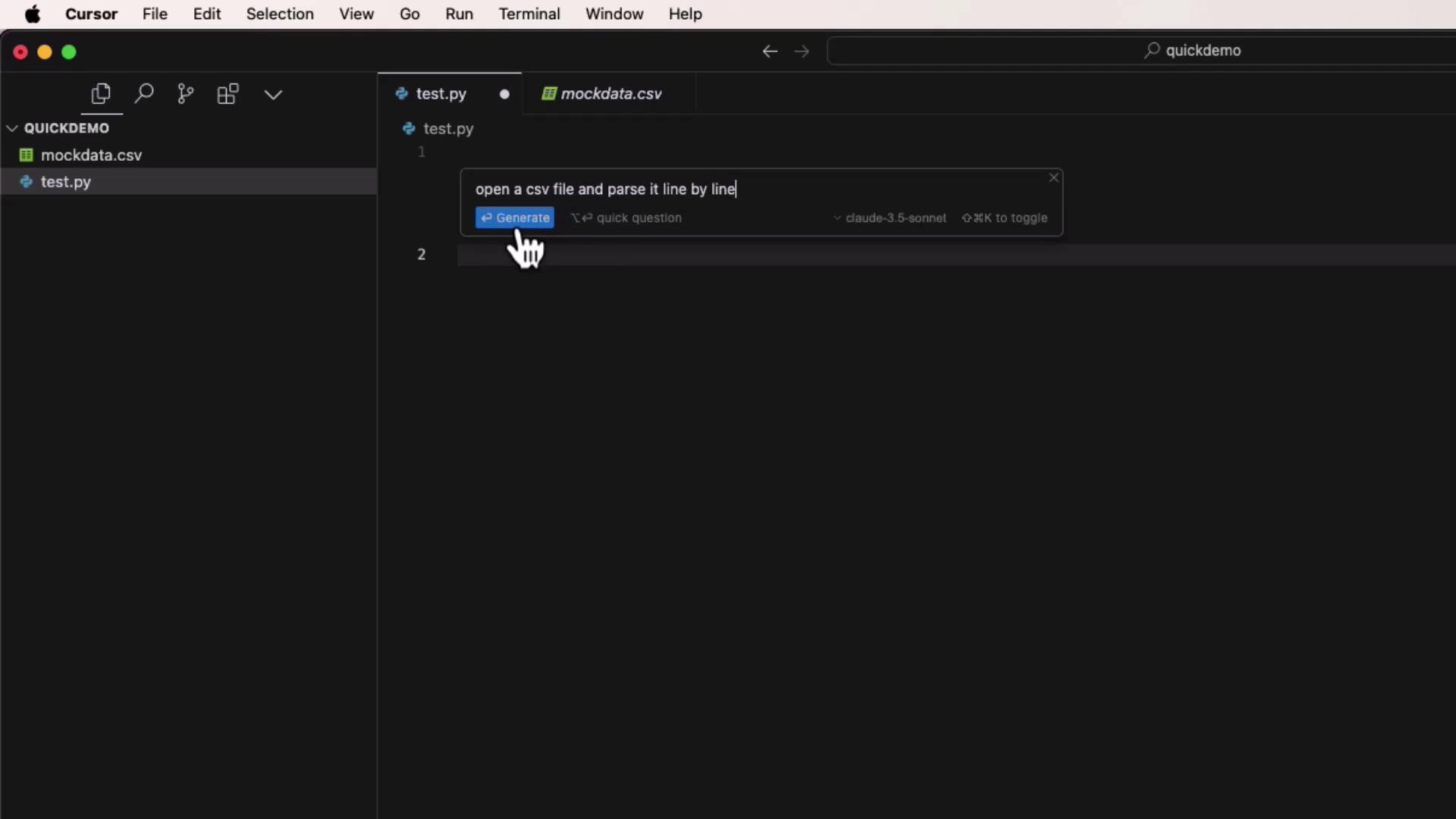
With `test.py` open, press **Command K** (macOS) or **Ctrl + K** (Windows/Linux).\
**Prompt:**
> Open `mockdata.csv` and parse it line by line.
Select a model (e.g., **Claude 3.5 Sonnet**) and accept the generated snippet:
```python theme={null}
import csv
with open('mockdata.csv', 'r') as file:
csv_reader = csv.reader(file)
header = next(csv_reader) # Skip header
for row in csv_reader:
# Each row is a list of values
user_id, first_name, last_name, email, gender, ip_address = row
print(f"Processing user {first_name} {last_name}")
```
***
## 2. Wrap in `main()` with Inline Chat (Command L)
To structure your script entry point:
1. Press **Command L** (macOS) or **Ctrl + L** (Windows/Linux).
2. Enter:
> “Please wrap this code in a `main()` function and add the `if __name__ == '__main__'` guard.”
Cursor AI will suggest the edits. Apply them to get:
```python theme={null}
import csv
def main():
with open('mockdata.csv', 'r') as file:
csv_reader = csv.reader(file)
header = next(csv_reader)
for row in csv_reader:
user_id, first_name, last_name, email, gender, ip_address = row
print(f"Processing user {first_name} {last_name}")
if __name__ == "__main__":
main()
```
Run it in your terminal:
```bash theme={null}
python3 test.py
```
You’ll see:
```text theme={null}
Processing user Vinnie Orne
Processing user Rudolf Tweedle
Processing user Kelliina Boyens
...
```
Using **Command L** lets Cursor AI review your entire file (or project) for context-aware refactors.
***
## 3. Quick Inline Edits with Comments + Tab
For one-line tweaks, simply write a comment and hit **Tab**.\
For example, to print only IP addresses that aren’t `192.168.1.1`:
```python theme={null}
# only show IP address if it is not 192.168.1.1
```
After accepting the suggestion, the loop becomes:
```python theme={null}
for row in csv_reader:
user_id, first_name, last_name, email, gender, ip_address = row
# only show IP address if it is not 192.168.1.1
if ip_address != '192.168.1.1':
print(ip_address)
print(f"Processing user {first_name} {last_name}")
```
Re-run the script to verify the change.
***
## 4. When to Use Each Mode
| Mode | Shortcut | Best For |
| ------------------ | -------------------- | ------------------------------------------- |
| Generate New Code | Command K / Ctrl + K | Creating new functions or large code blocks |
| Inline Chat | Command L / Ctrl + L | Wrapping, refactoring, or multi-line edits |
| Quick Inline Edits | Comments + Tab | Small, one-line improvements |
Avoid overusing auto-generated code without review—always test and validate generated snippets.
***
## 5. Controlling Context Scope
* **Inline Comments & Command K**\
Scope is limited to the open file and surrounding lines.
* **Command L (Chat)**\
Can reference the full project, additional files, or external sources (when enabled).
***
Intelligent code suggestions from **Cursor AI** can dramatically accelerate Python development by handling boilerplate and routine edits. Next, we’ll build a full project from scratch using these tools!
## Links and References
* [Cursor AI Official Site](https://cursor.so/)
* [Python `csv` Module](https://docs.python.org/3/library/csv.html)
* [Python Documentation](https://docs.python.org/3/)
* [Cursor AI Keyboard Shortcuts](/docs/shortcuts)