> ## Documentation Index
> Fetch the complete documentation index at: https://notes.kodekloud.com/llms.txt
> Use this file to discover all available pages before exploring further.
# Azure Files
> Azure Files is a cloud-based file-share service offering SMB and NFS shares for legacy applications and containerized workloads.
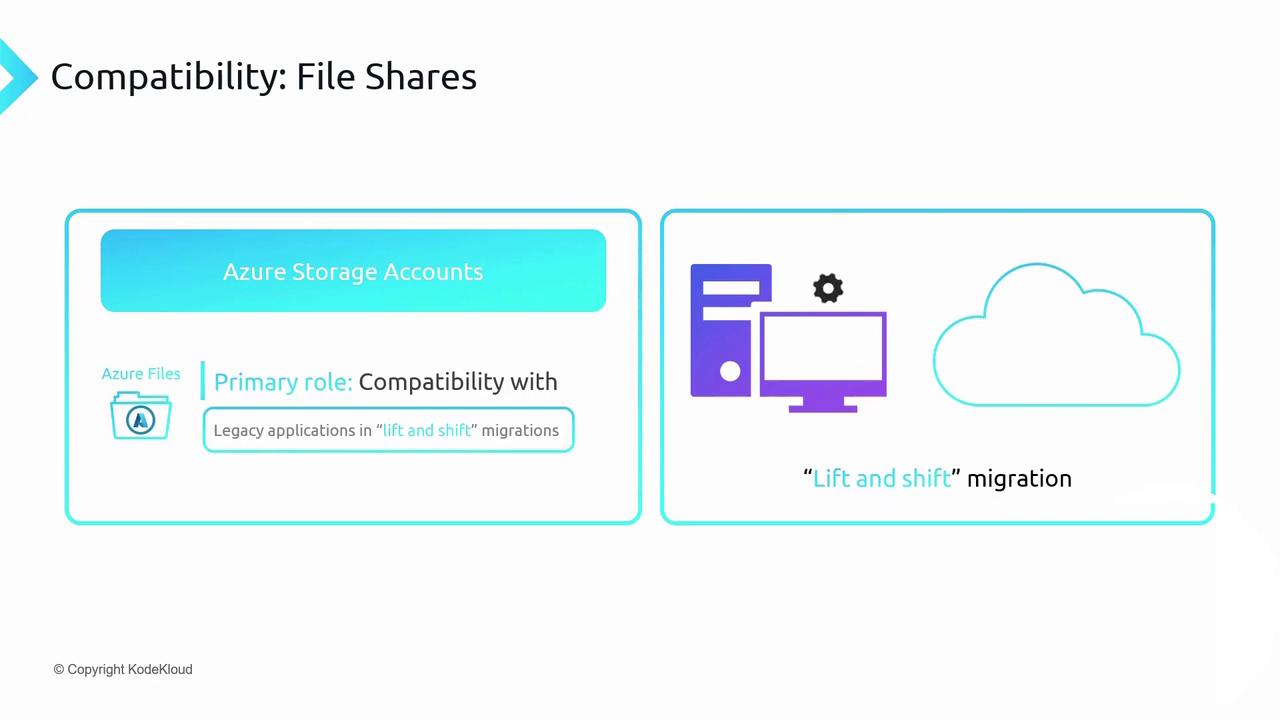
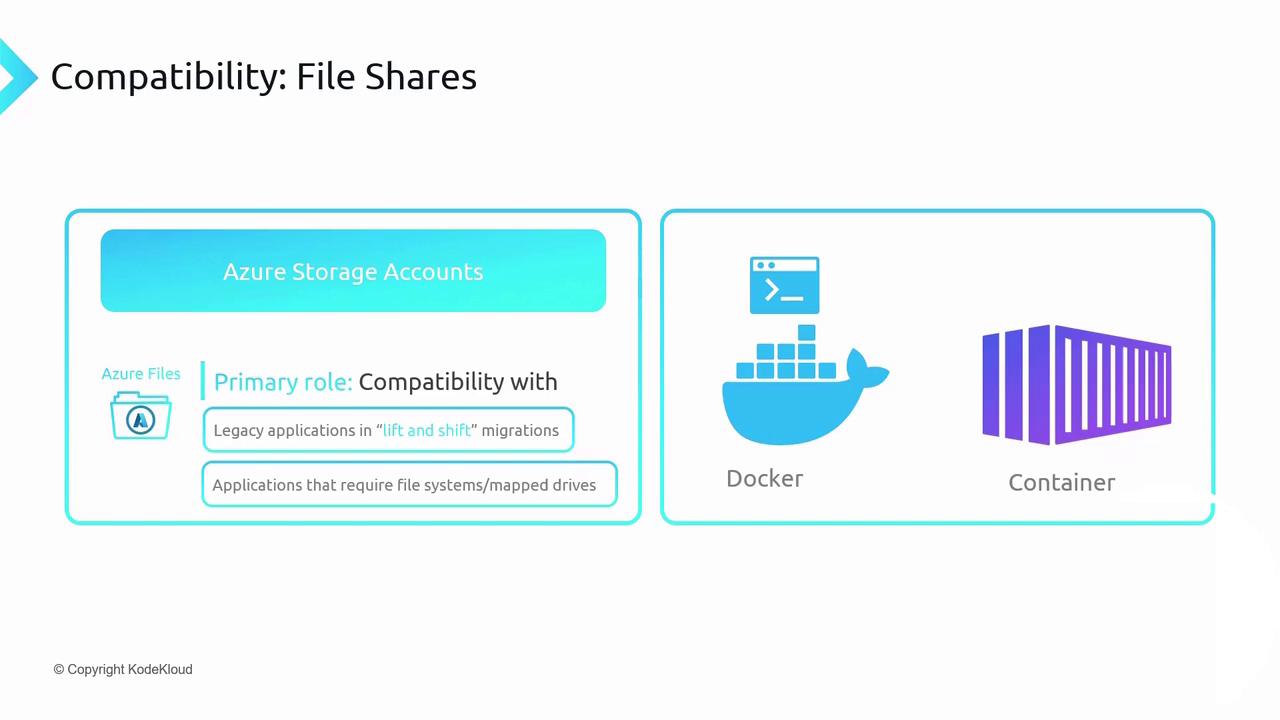
Azure Files is a fully managed, cloud-native file-share service within an Azure Storage account. It offers SMB- and NFS-based shares that behave like a local file system, making it perfect for “lift-and-shift” migrations of legacy applications and for containerized workloads requiring persistent, network-mounted storage.
For containerized scenarios—such as Docker containers running in Azure—Azure Files can mount an SMB share into any container, giving applications a familiar file-system path for configuration, logs, or shared data.
## Protocol Support
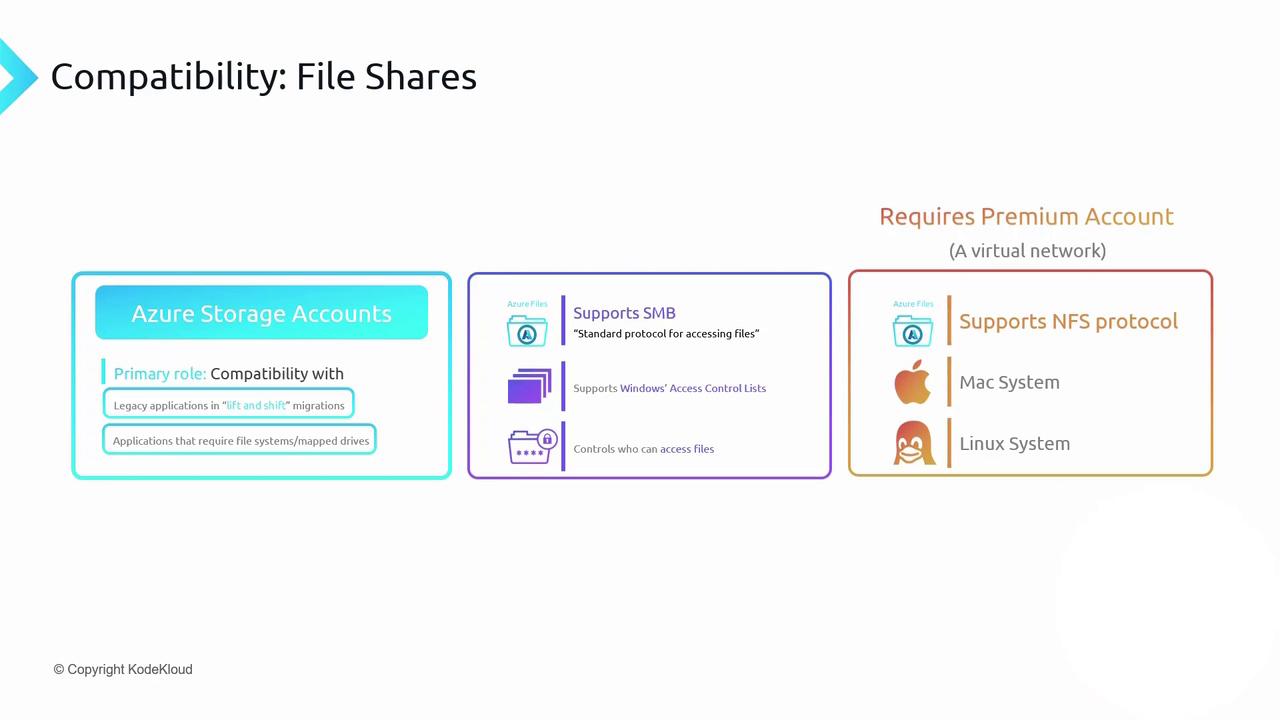
Azure Files provides two primary network file protocols:
* **SMB (Server Message Block)**\
Fully compatible with Windows clients and supports Windows ACLs just as on-premises.
* **NFS (Network File System 4.1)**\
Ideal for Linux and macOS workloads. Available only in **Premium** storage accounts within a virtual network.
NFS support requires a Premium storage account and VNet deployment.\
SMB is available in both Standard and Premium tiers.
## Capacity, Scale, and Quotas
| Feature | Limit |
| ------------------------------ | ----------- |
| Maximum share size | 100 TiB |
| Maximum individual file size | 1 TiB |
| Maximum concurrent connections | 2,000/share |
To avoid unexpected costs and uncontrolled growth, configure **share quotas** to cap the total data stored.
## Uploading and Managing Files
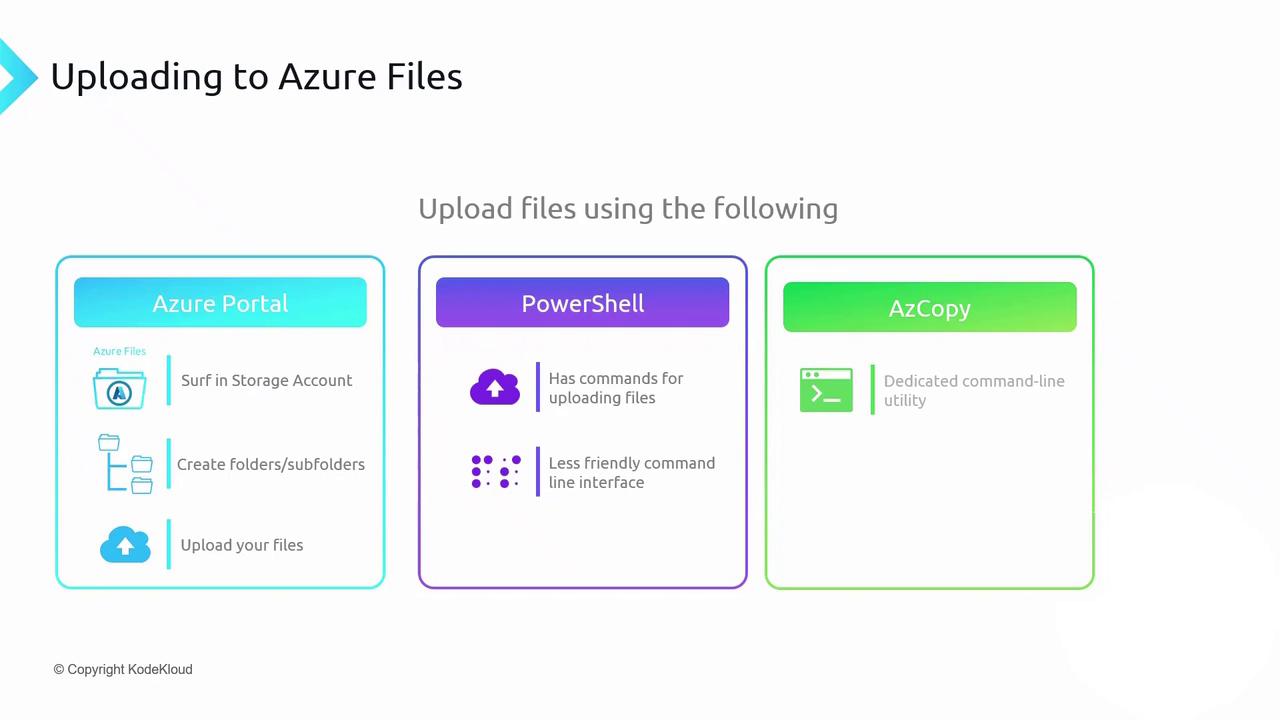
You can add, retrieve, and organize files in an Azure Files share using:
| Method | Use Case | Sample Command / Action |
| ------------ | ----------------------------------- | ------------------------------------------------ |
| Azure Portal | Quick GUI-based creation and upload | Click **Upload** within the Azure Storage UI |
| PowerShell | Script and automation | `New-AzStorageShare`; `Get-AzStorageFileContent` |
| AzCopy | High-performance, large-scale moves | `azcopy copy ... --recursive` |
### Example: Upload with AzCopy
```bash theme={null}
azcopy copy "/local/path/*" \
"https://.file.core.windows.net/?" \
--recursive
```
## Azure File Sync
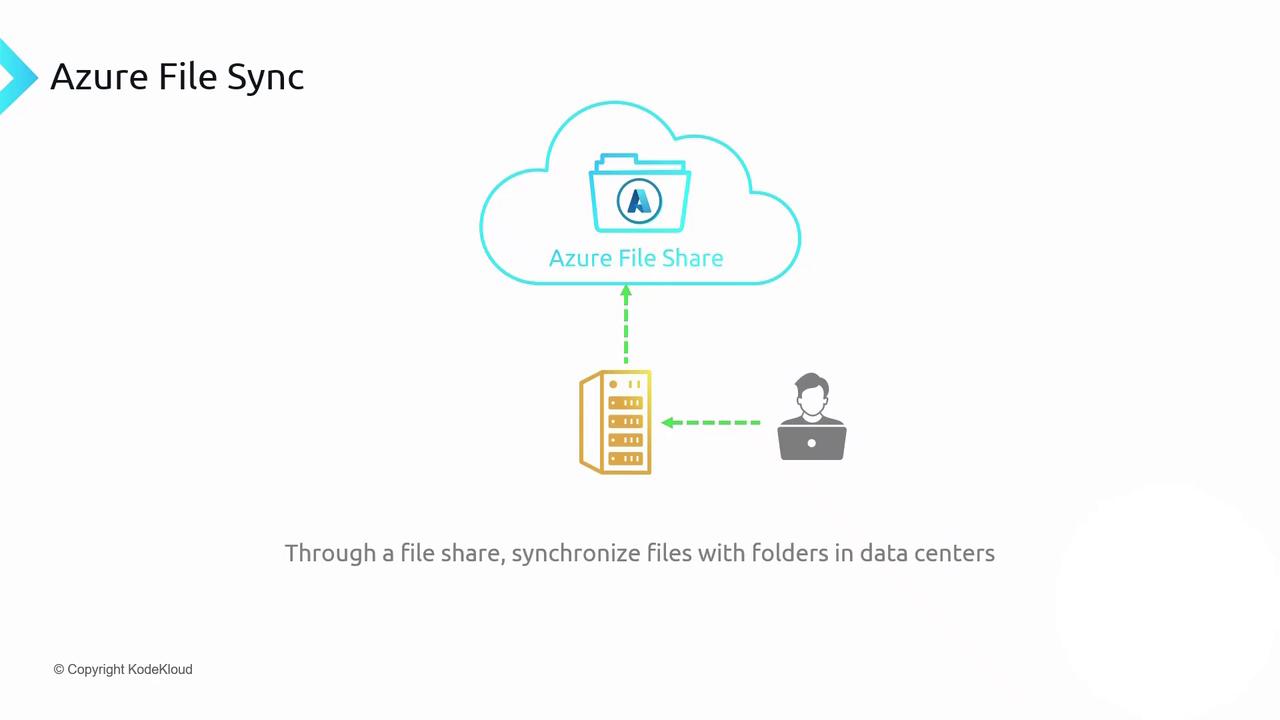
Azure File Sync extends your on-premises Windows file servers into Azure Files. Deploy the **Azure File Sync agent**, register your server with a Storage Sync Service, and create a sync group to connect local folders to an Azure file share. File changes replicate bidirectionally:
* **On-prem → Azure**: New or modified files upload automatically.
* **Azure → On-prem**: Updates propagate to all registered servers.
Large-scale synchronization can incur data transfer charges and may impact network performance. Plan your cache settings and sync schedules to optimize costs and user experience.
## Links and References
* [Azure Files documentation](https://docs.microsoft.com/azure/storage/files/)
* [AzCopy v10 Guide](https://docs.microsoft.com/azure/storage/common/storage-use-azcopy-v10/)
* [Azure File Sync planning](https://docs.microsoft.com/azure/storage/files/storage-sync-files-planning)