> ## Documentation Index
> Fetch the complete documentation index at: https://notes.kodekloud.com/llms.txt
> Use this file to discover all available pages before exploring further.
# Demo Create Azure Storage Account
> This guide explains how to provision an Azure Storage Account through the Azure portal with steps for configuration.
In this guide, you’ll learn how to provision an **Azure Storage Account** through the Azure portal. Follow each step carefully to set up your storage with the right configuration for performance, redundancy, and cost.
## 1. Navigate to Storage Accounts
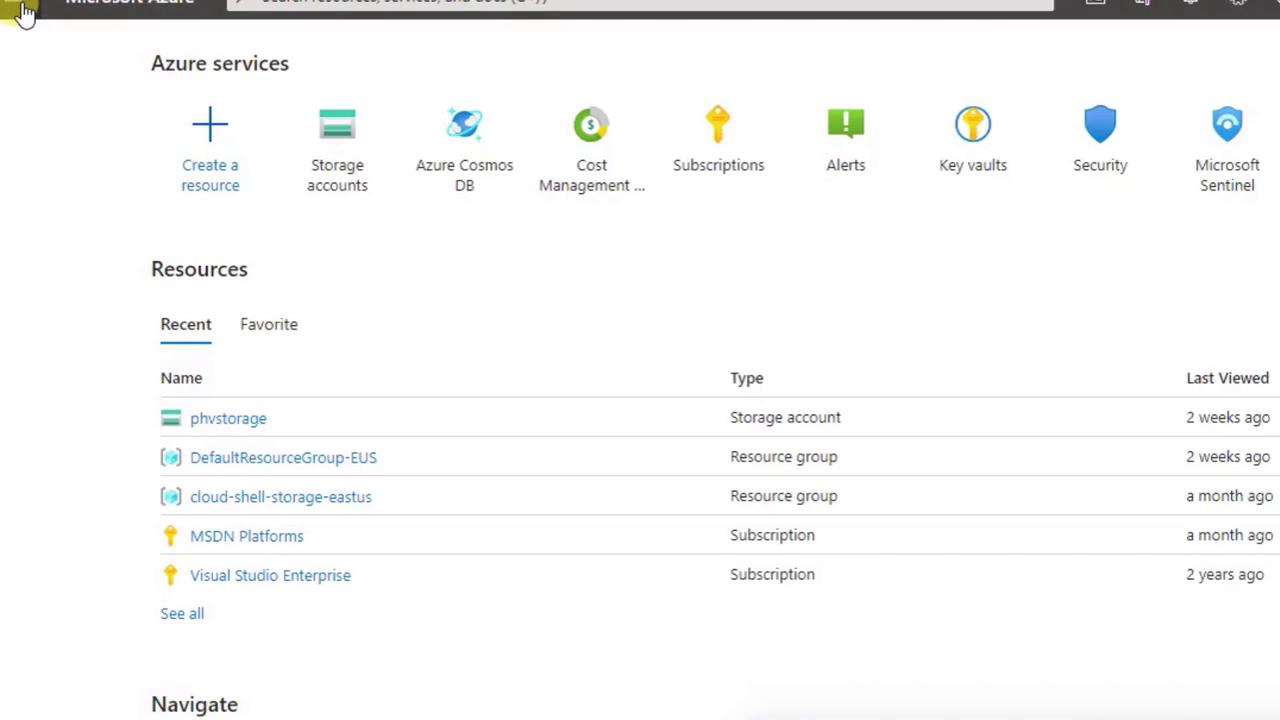
1. Sign in at [portal.azure.com](https://portal.azure.com) to reach the Azure dashboard.
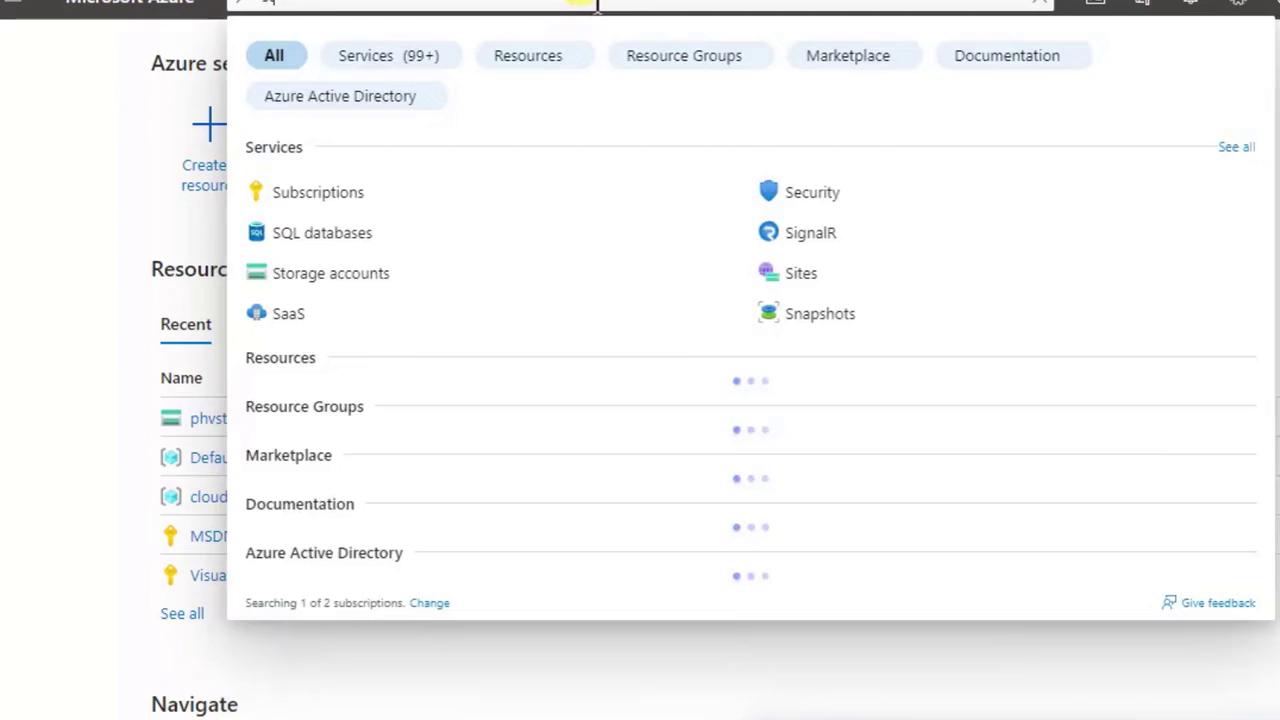
2. Use the **Search** bar at the top instead of scrolling through the left-hand menu.
3. Type **Storage accounts** and select it from the dropdown.
## 2. Launch the Creation Wizard
* In the **Storage Accounts** blade, click **+ Create** (or **New**) to open the multi-step wizard.
* You’ll see tabs across the top (Basics, Networking, Data Protection, etc.) and a **Review + create** button at the bottom.
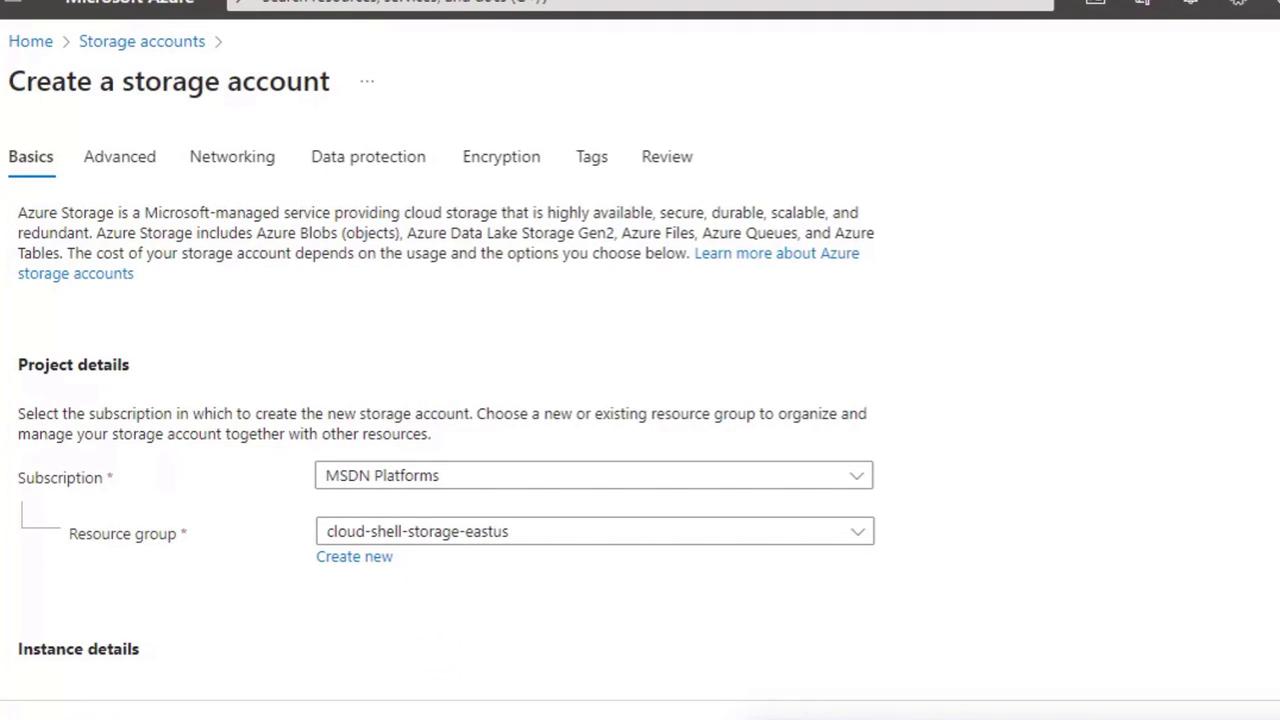
> Most demos only require filling out the **Basics** tab—the other tabs use recommended defaults.
## 3. Complete the Basics Tab
Populate these four required fields:
| Field | Description |
| -------------------- | --------------------------------------------------------------------------------------- |
| Subscription | Choose the Azure subscription for billing. |
| Resource Group | Select an existing resource group or create a new one for organizing related resources. |
| Storage Account Name | Must be **globally unique**, lowercase letters and numbers only, no spaces. |
| Region | The Azure datacenter location. Azure also assigns a paired region for geo-redundancy. |
Your storage account name forms part of the service URL (`.blob.core.windows.net`). If the chosen name is taken, append a unique suffix (e.g., your initials or date).
Scroll down to configure **Performance** and **Redundancy**.
## 4. Select Performance and Redundancy Options
| Option | Choices | Use Case |
| ----------- | -------------------------------------------------------------------------------------------- | ---------------------------------------------------------- |
| Performance | Standard (cost-effective)
Premium (low latency) | Standard for general workloads; Premium for I/O-intensive. |
| Redundancy | Locally-redundant (LRS)
Geo-redundant (GRS)
Read-access geo-redundant (RA-GRS) | LRS for single-region protection; GRS for cross-region. |
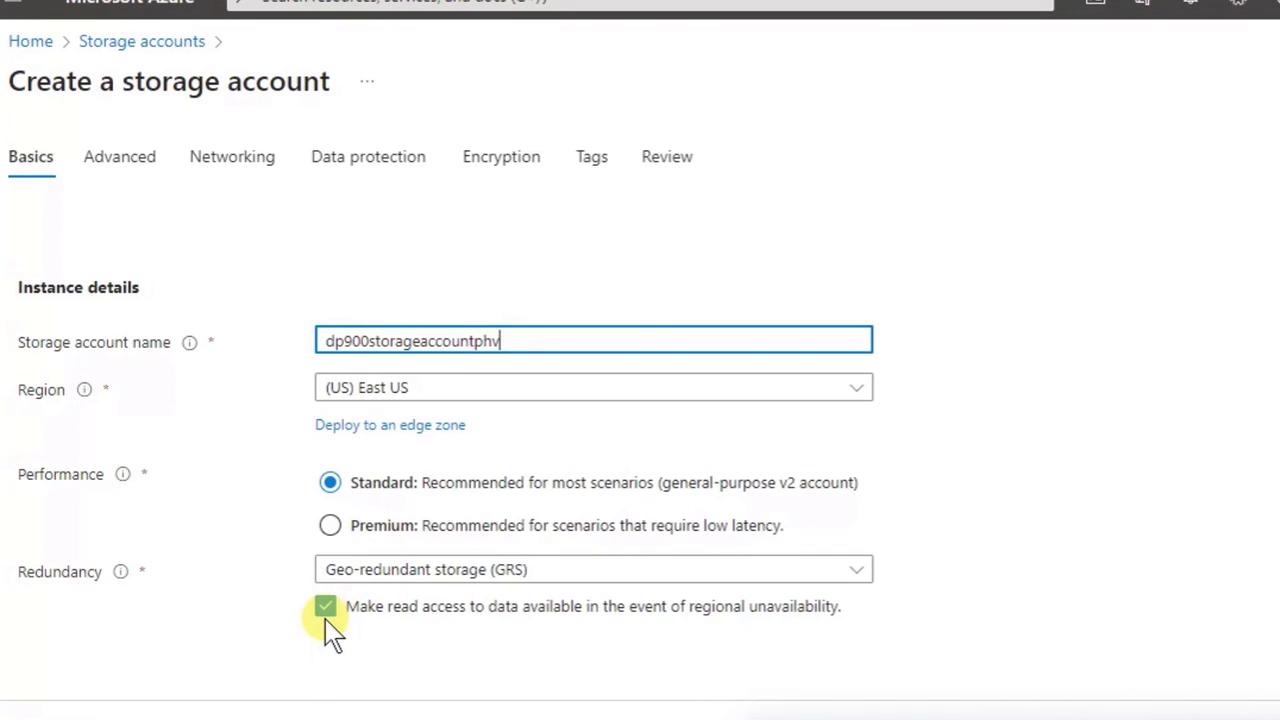
For this demo:
* **Performance**: Standard
* **Redundancy**: Geo-redundant storage (GRS)
## 5. Review + Create
1. Click **Review + create**.
2. The portal validates your configuration.
3. Click **Create** to start deployment.
Deployments run asynchronously—you’ll see a notification in the top-right when complete. Click **Go to resource** to open your new storage account.
## 6. Explore Your New Storage Account
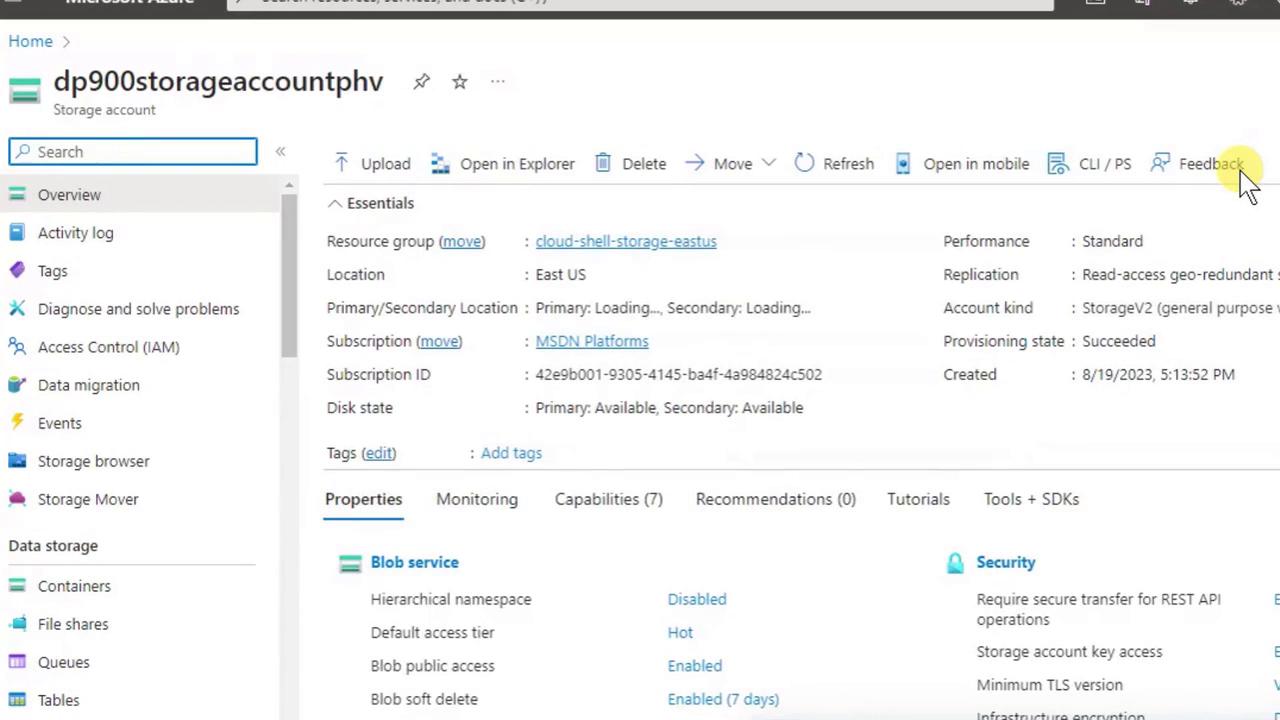
On the **Overview** page you can:
* View **Containers** (Blob storage) and **File shares** (SMB file storage)
* Check essentials like resource group, subscription, and region
* Upload data or delete the account
## 7. List All Storage Accounts
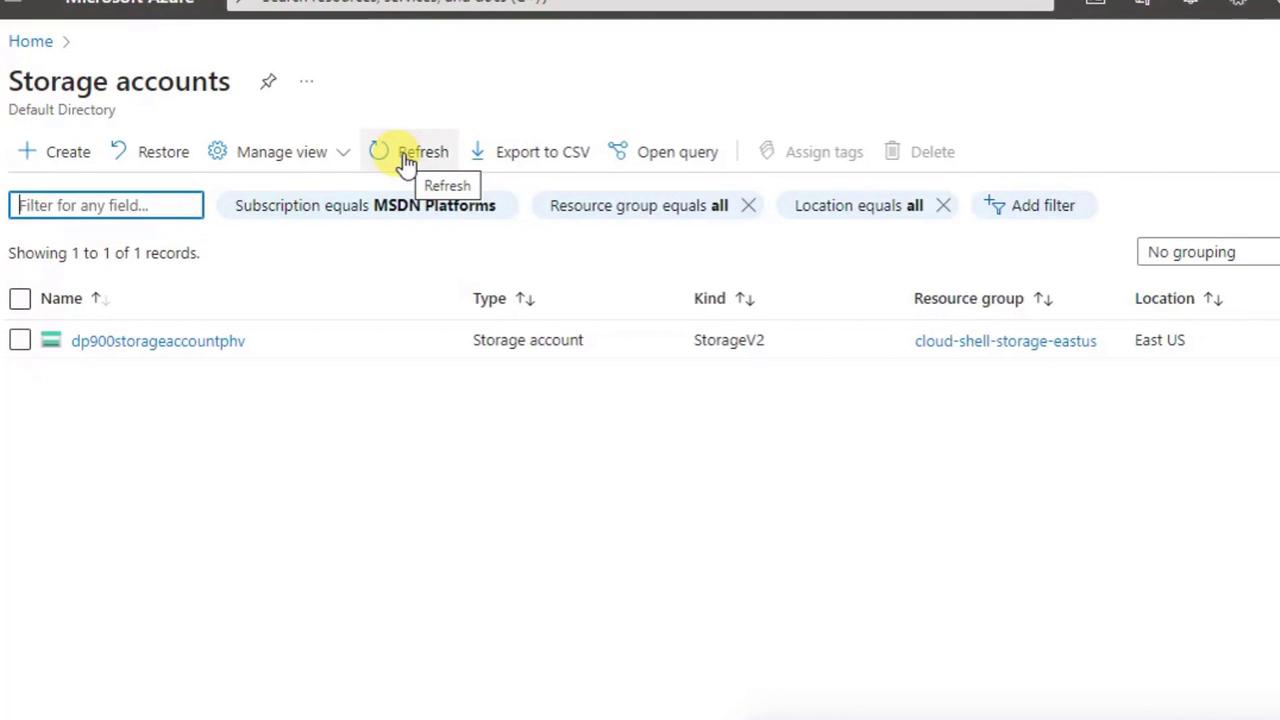
1. Search again for **Storage accounts**.
2. Confirm the correct **Subscription** filter is applied.
3. Click **Refresh** if your new account isn’t visible immediately.
***
## Links and References
* [Azure Storage documentation](https://docs.microsoft.com/azure/storage/)
* [Create a storage account in Azure](https://docs.microsoft.com/azure/storage/common/storage-account-create)
* [Azure Regions and Availability Zones](https://azure.microsoft.com/global-infrastructure/geographies/)