> ## Documentation Index
> Fetch the complete documentation index at: https://notes.kodekloud.com/llms.txt
> Use this file to discover all available pages before exploring further.
# Demo Normalized Tables
> This walkthrough explores normalized tables in Azure SQL Database using SQL Server Management Studio for visualizing schemas and relationships.
Welcome to this walkthrough on exploring normalized tables in an [Azure SQL Database](https://azure.microsoft.com/services/sql-database/) using [SQL Server Management Studio (SSMS)](https://docs.microsoft.com/en-us/sql/ssms). While [Azure Data Studio](https://docs.microsoft.com/en-us/sql/azure-data-studio) also supports querying and diagrams, SSMS’s layout is particularly useful for visualizing table schemas and relationships. This demo highlights how Azure SQL Database works seamlessly with tools built for on-premises SQL Server.
***
## 1. Connect and Browse Tables
1. Open SSMS and connect to your Azure SQL Database instance.
2. In Object Explorer, expand **Databases** → *YourDatabase* → **Tables**.
3. Locate **SalesLT.Customer** and expand it to view columns and keys.
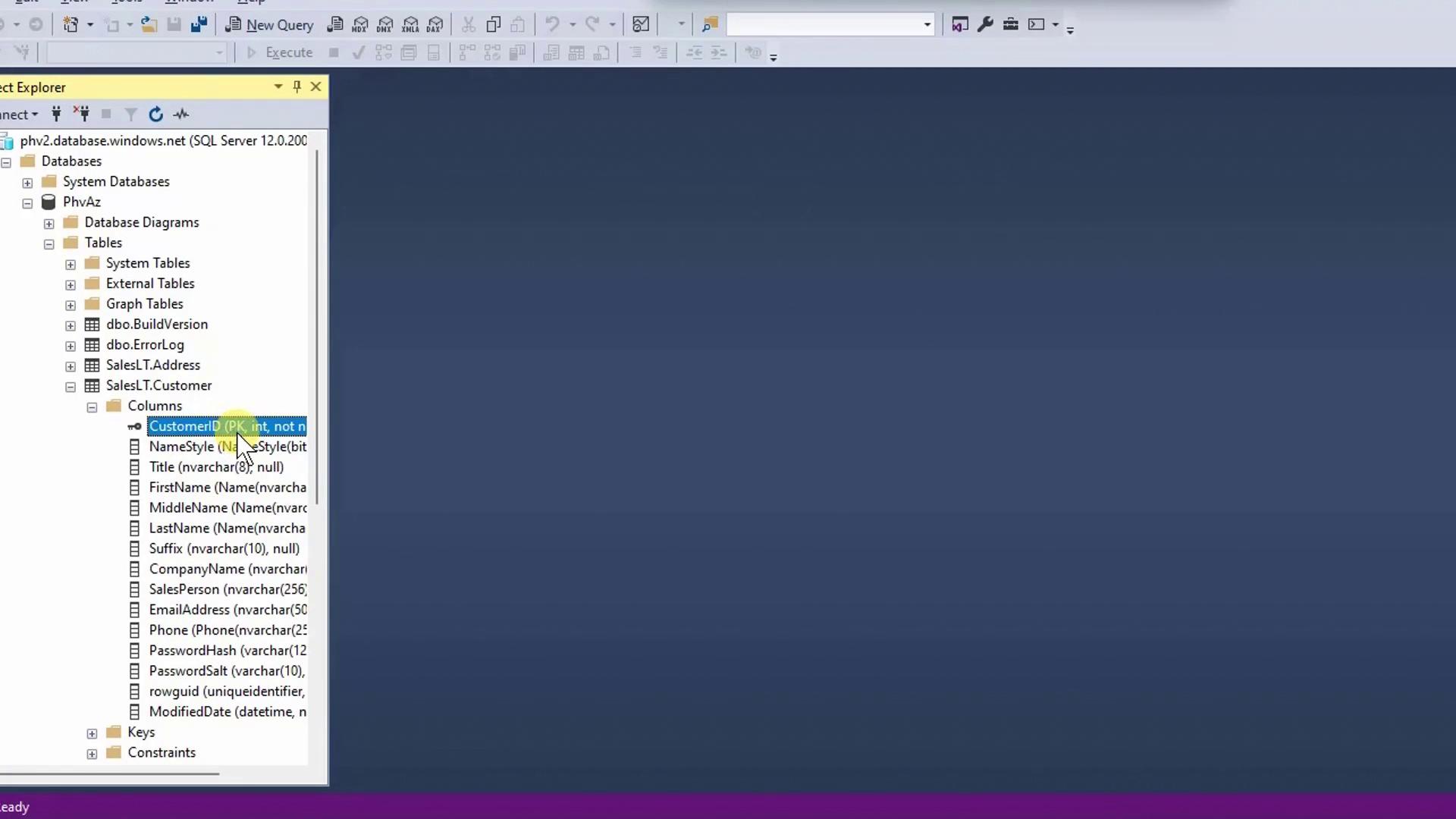
| Entity | Description | Key Columns |
| ---------------- | -------------------- | ------------------------------------------- |
| Customer | Customer profiles | `CustomerID` (PK) |
| SalesOrderHeader | Order summaries | `SalesOrderID` (PK), `CustomerID` (FK) |
| SalesOrderDetail | Line items per order | `SalesOrderDetailID` (PK), `ProductID` (FK) |
| Product | Product catalog | `ProductID` (PK) |
| Address | Address directory | `AddressID` (PK) |
You can use Azure Data Studio for most tasks, but SSMS provides automated database diagrams for clearer relationship mapping.
***
## 2. Query Sample Orders
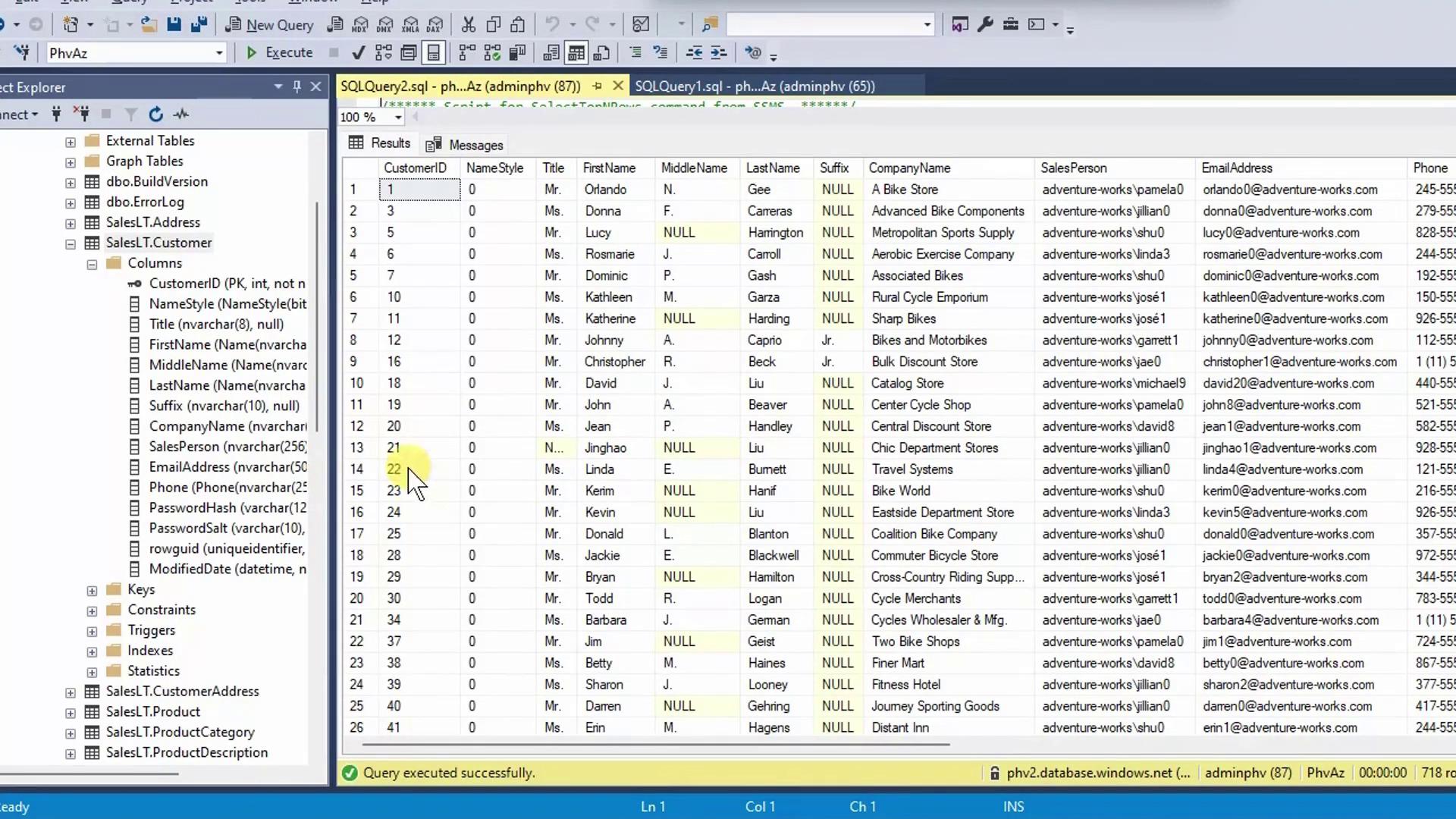
Right-click **SalesLT.SalesOrderHeader** → *Select Top 1,000 Rows*. SSMS generates and runs:
```sql theme={null}
SELECT TOP (1000)
[SalesOrderID],
[RevisionNumber],
[OrderDate],
[DueDate],
[ShipDate],
[Status],
[OnlineOrderFlag],
[SalesOrderNumber],
[PurchaseOrderNumber],
[AccountNumber],
[CustomerID],
[ShipToAddressID],
[BillToAddressID],
[ShipMethod],
[CreditCardApprovalCode],
[SubTotal],
[TaxAmt]
FROM [SalesLT].[SalesOrderHeader];
```
You’ll see 32 records and corresponding `CustomerID` values:
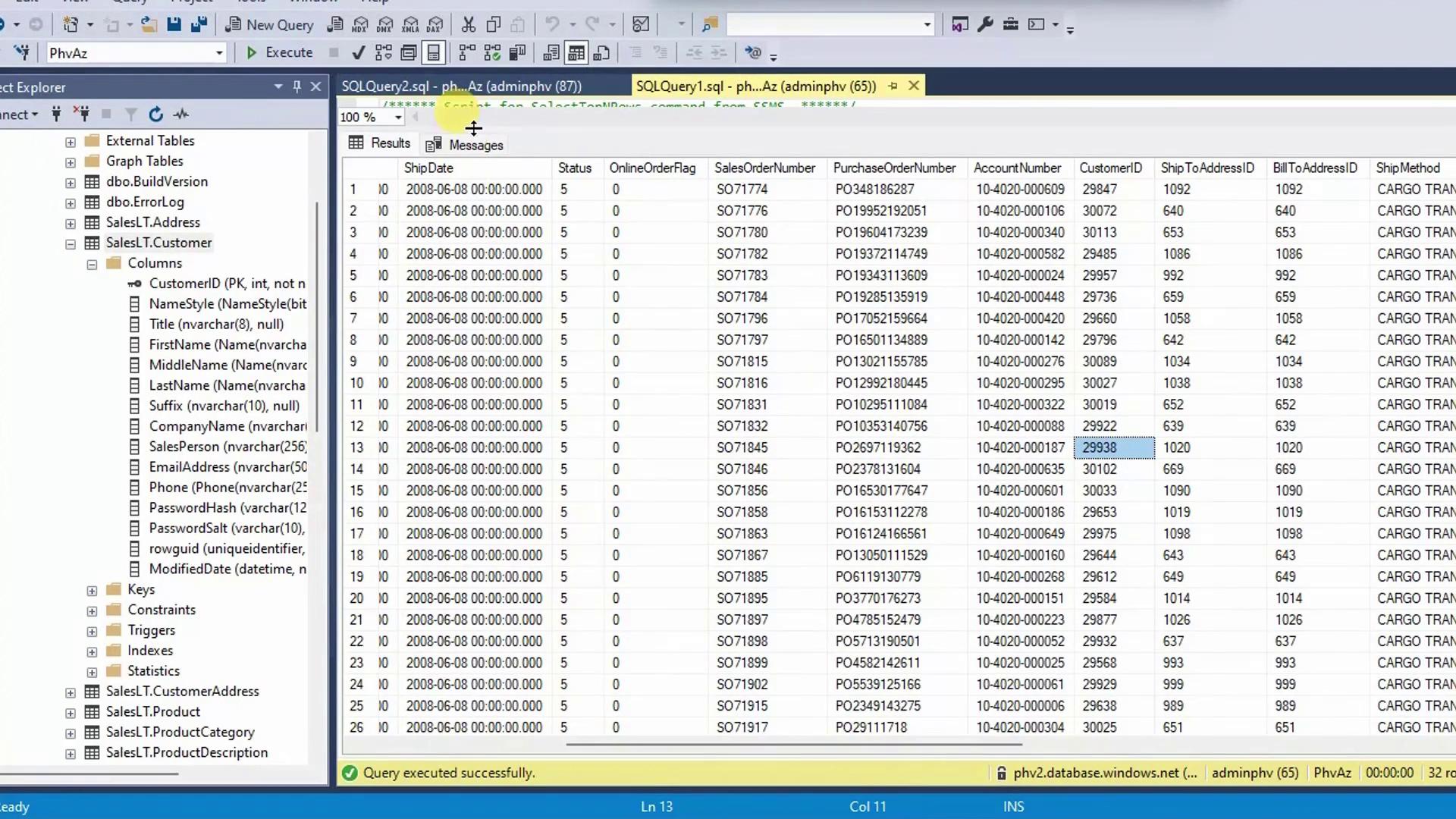
Next, verify `CustomerID` matches by querying the customer table:
```sql theme={null}
SELECT TOP (1000)
CustomerID,
Name,
EmailAddress
FROM [SalesLT].[Customer];
```
Avoid retrieving extremely large datasets without filters in production. Use `WHERE` clauses or `TOP` to limit results and protect performance.
***
## 3. Joining Tables via FK–PK
Instead of manual lookups, join **SalesOrderHeader** and **Customer** on `CustomerID`:
```sql theme={null}
SELECT
soh.SalesOrderID,
soh.OrderDate,
c.Name AS CustomerName,
c.EmailAddress
FROM [SalesLT].[SalesOrderHeader] AS soh
JOIN [SalesLT].[Customer] AS c
ON soh.CustomerID = c.CustomerID;
```
This query returns each order alongside its customer details in one view.
***
## 4. Visualizing Relationships with a Database Diagram
In SSMS Object Explorer, right-click **Database Diagrams** → *New Database Diagram*. Add the relevant tables to auto-generate this schema view:
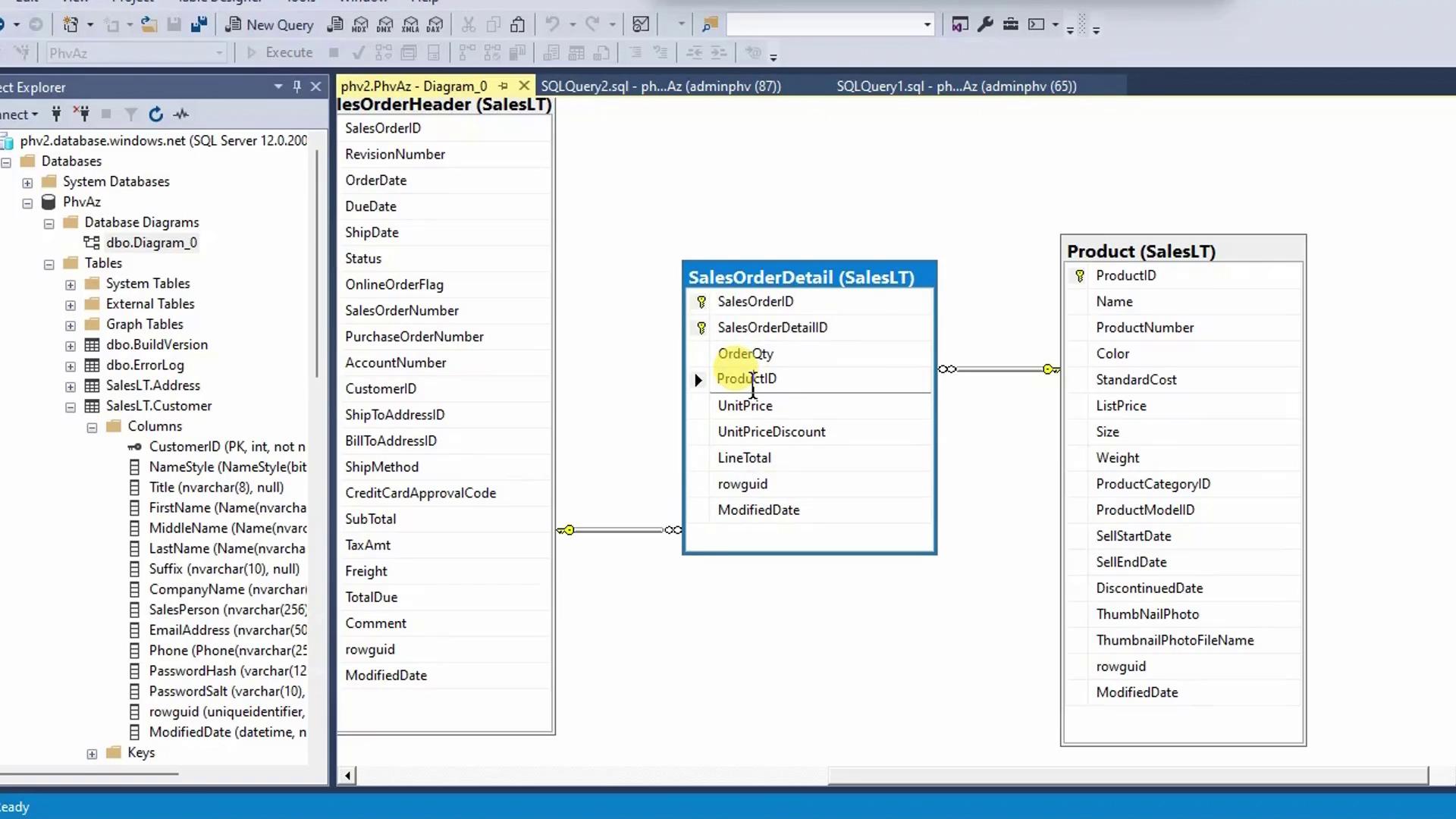
Key relationships illustrated:
* **SalesLT.Customer → SalesLT.CustomerAddress → SalesLT.Address**\
(Supports billing, shipping, and contact addresses per customer)
* **SalesLT.SalesOrderHeader → SalesLT.Address**\
(`ShipToAddressID`, `BillToAddressID`)
* **SalesLT.SalesOrderHeader → SalesLT.SalesOrderDetail → SalesLT.Product**
***
## 5. Benefits of Normalized Design
Normalization with clear FK–PK constraints:
* Eliminates redundant data across tables
* Ensures consistent, reliable updates
* Streamlines data maintenance
* Enables efficient, focused queries
***
## References
* [Azure SQL Database Documentation](https://docs.microsoft.com/azure/azure-sql/)
* [SQL Server Management Studio (SSMS)](https://docs.microsoft.com/sql/ssms)
* [Relational Database Normalization](https://en.wikipedia.org/wiki/Database_normalization)