> ## Documentation Index
> Fetch the complete documentation index at: https://notes.kodekloud.com/llms.txt
> Use this file to discover all available pages before exploring further.
# Demo Running SQL Statements
> Learn to run basic T-SQL statements in Azure SQL Database using Azure Data Studio, including connecting, exploring, and executing queries.
In this lesson, you’ll learn how to run basic T-SQL statements against an Azure SQL Database using Azure Data Studio. We’ll cover:
* Connecting to your database
* Exploring tables and views
* Executing `SELECT`, `DELETE`, and `UPDATE` queries
* Best practices for clause ordering
## 1. Connect with Azure Data Studio
1. In the Azure portal, open your **Azure SQL Database** resource and click **Open Azure Data Studio**.
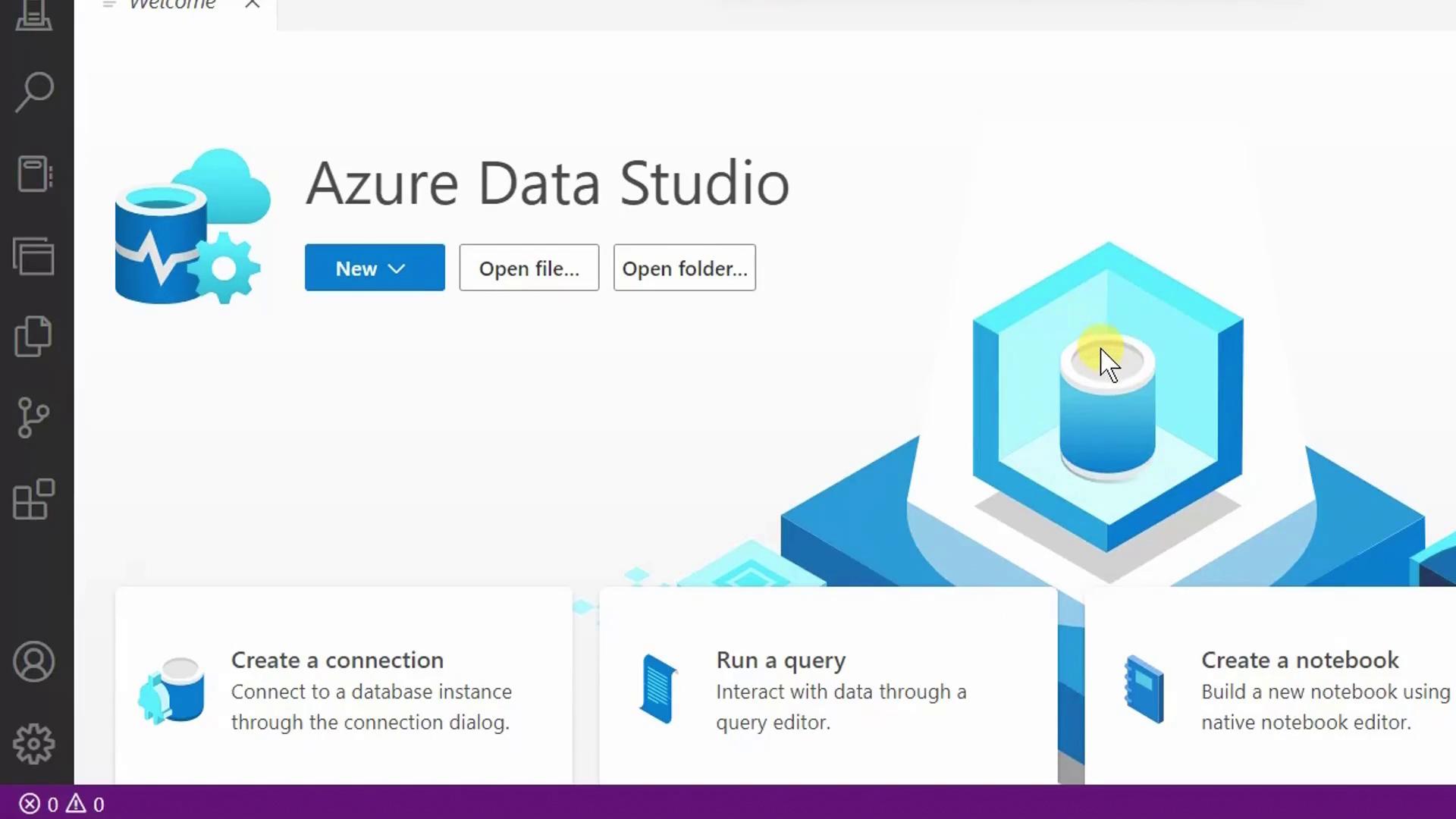
2. Azure Data Studio will launch and reconnect you to the last database you accessed.
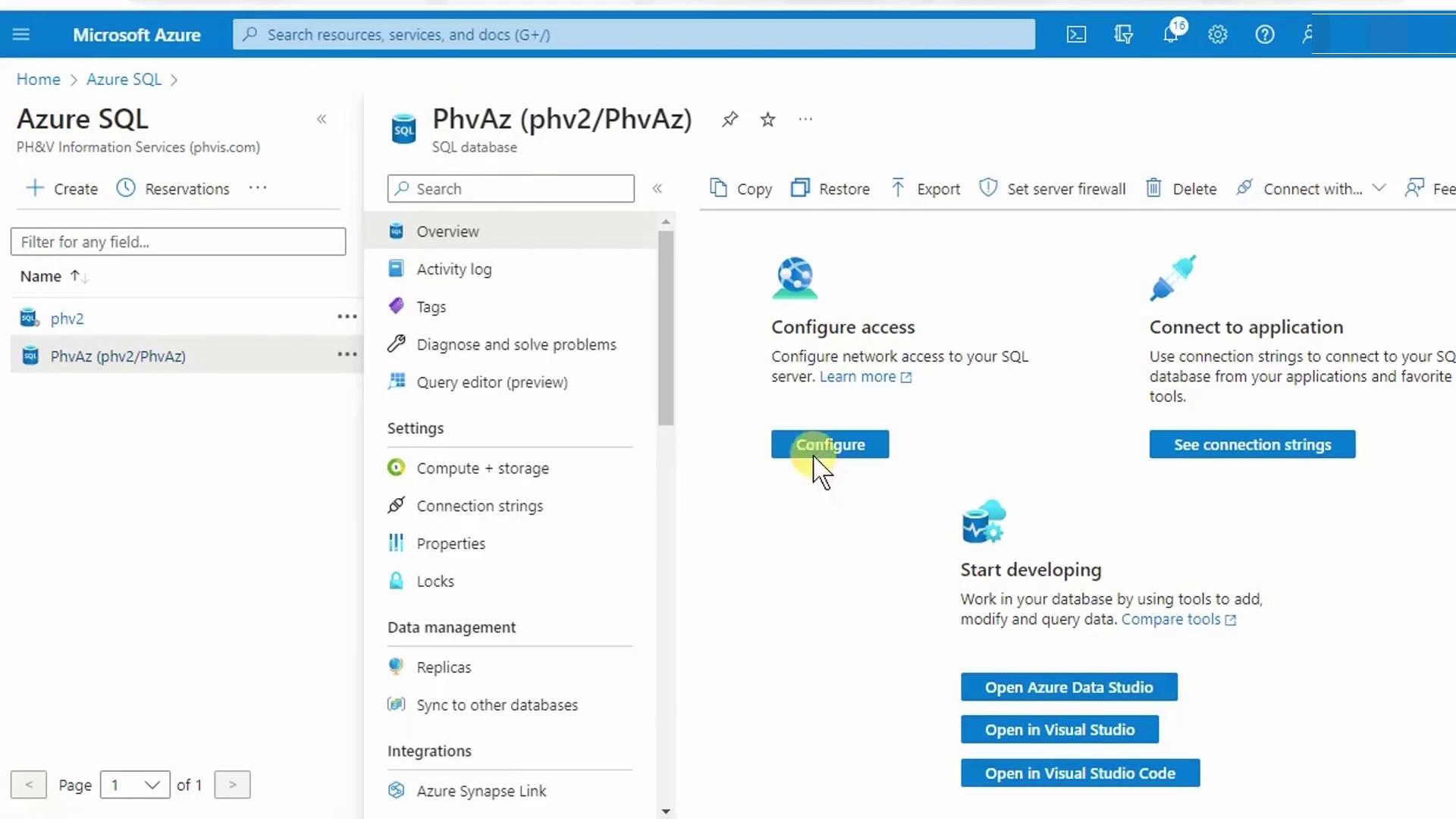
3. When prompted, choose **Launch** since Azure Data Studio is already installed.
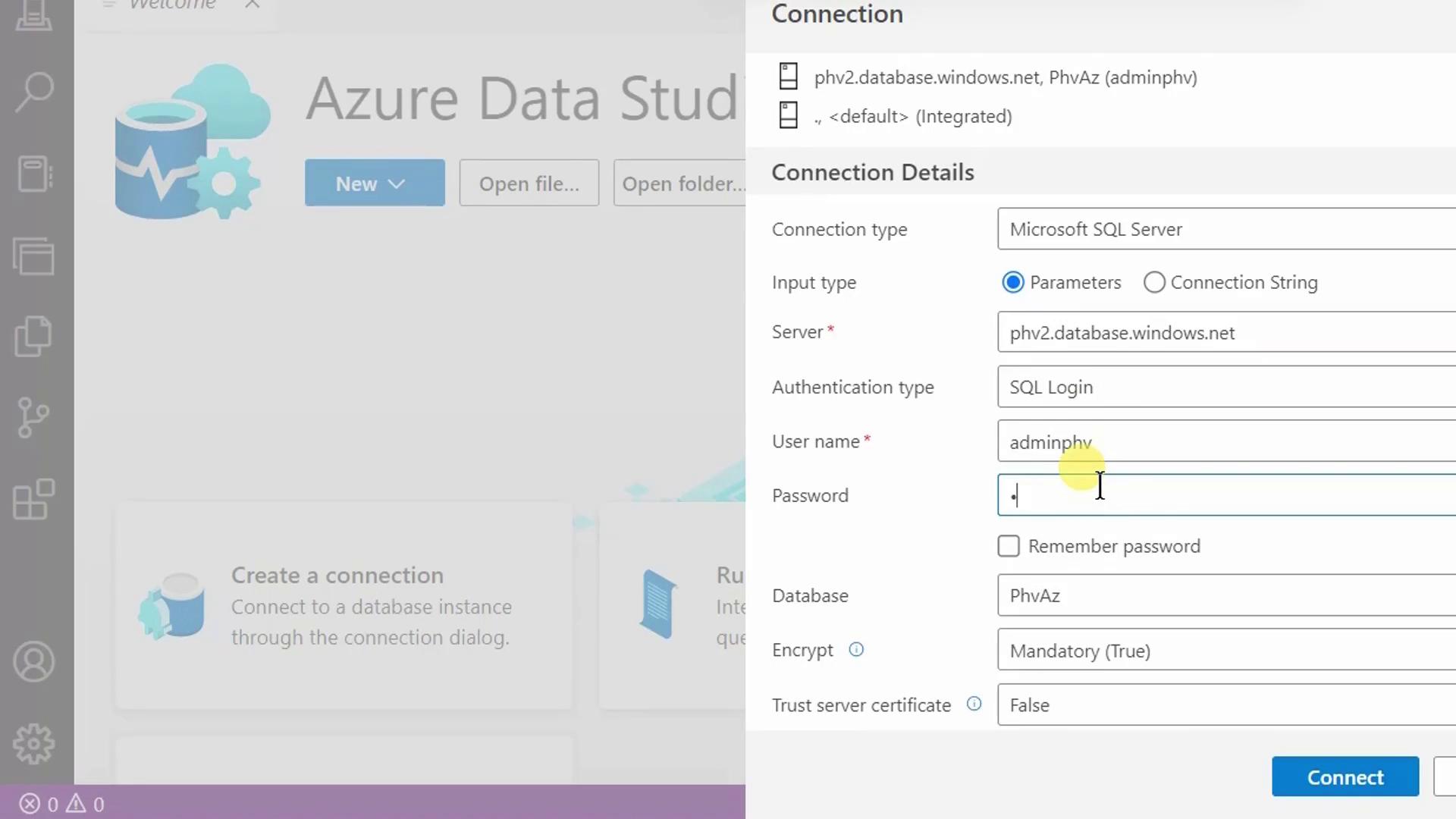
4. Enter your server administrator login and password, then click **Connect**.
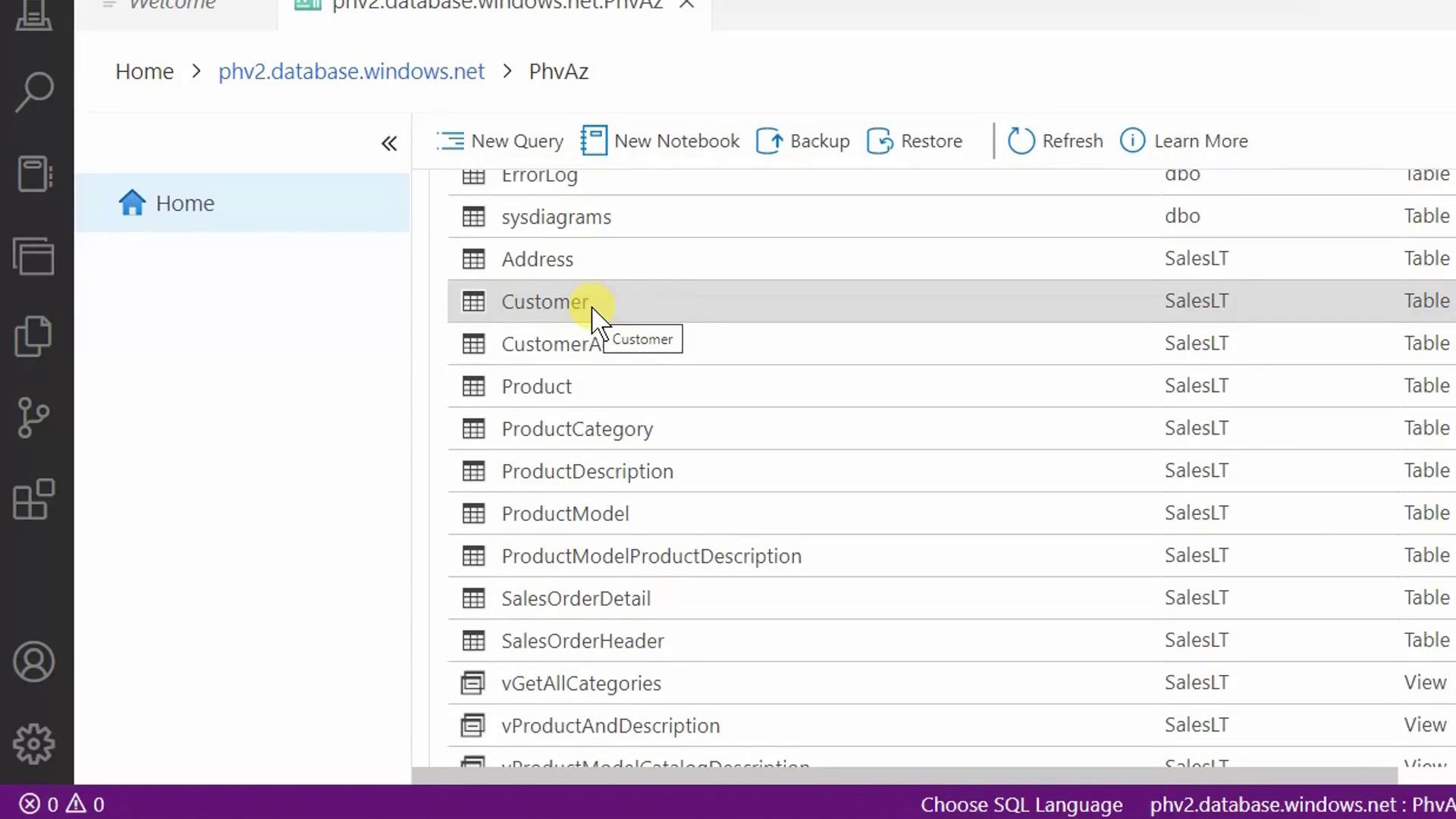
## 2. Explore Database Objects
Once connected, the **Object Explorer** displays your database’s schemas, tables, views, and more. Here’s a view of the `SalesLT` schema showing the `Customer` and `Product` tables.
## 3. Run SELECT Queries
Click **New Query** (or press Ctrl+N) to open a SQL editor. Then try these examples:
### 3.1 Retrieve All Rows and Columns
```sql theme={null}
SELECT *
FROM SalesLT.Customer;
```
### 3.2 Select Specific Columns
```sql theme={null}
SELECT FirstName,
LastName
FROM SalesLT.Customer;
```
### 3.3 Sort Results
```sql theme={null}
SELECT FirstName,
LastName
FROM SalesLT.Customer
ORDER BY LastName;
```
### 3.4 Filter with WHERE
```sql theme={null}
SELECT CustomerID,
FirstName,
LastName
FROM SalesLT.Customer
WHERE LastName = 'Adams'
ORDER BY LastName;
```
Always place `WHERE` before `ORDER BY`.\
Incorrect ordering will trigger a syntax error.
### Clause Order Reference
| Clause | Purpose |
| -------- | ------------------- |
| SELECT | Specify columns |
| FROM | Identify the table |
| WHERE | Filter rows |
| ORDER BY | Sort the result set |
## 4. Modify Data
### 4.1 Delete a Row
To remove Francis Adams (`CustomerID = 491`):
```sql theme={null}
DELETE FROM SalesLT.Customer
WHERE CustomerID = 491;
```
Result:
```text theme={null}
(1 row affected)
```
Re-run the `SELECT` to verify:
```sql theme={null}
SELECT CustomerID, FirstName, LastName
FROM SalesLT.Customer
WHERE LastName = 'Adams'
ORDER BY LastName;
```
Omitting the `WHERE` clause in a `DELETE` statement removes *all* rows.\
Use `BEGIN TRANSACTION` and `ROLLBACK` for safety during testing.
### 4.2 Update a Row
To correct Jay Adams (`CustomerID = 544`) to “Adamson”:
```sql theme={null}
UPDATE SalesLT.Customer
SET LastName = 'Adamson'
WHERE CustomerID = '544';
```
Result:
```text theme={null}
(1 row affected)
```
Verify the change:
```sql theme={null}
SELECT CustomerID, FirstName, LastName
FROM SalesLT.Customer
WHERE LastName = 'Adamson'
ORDER BY LastName;
```
## 5. Summary
You’ve now:
* Connected to Azure SQL Database with Azure Data Studio
* Explored schemas, tables, and views
* Run `SELECT`, `DELETE`, and `UPDATE` statements
* Learned proper T-SQL clause ordering
## Links and References
* [Azure Data Studio Documentation](https://docs.microsoft.com/azure/data-studio/)
* [Azure SQL Database Overview](https://docs.microsoft.com/azure/azure-sql/)
* [T-SQL Reference](https://docs.microsoft.com/sql/t-sql/)