> ## Documentation Index
> Fetch the complete documentation index at: https://notes.kodekloud.com/llms.txt
> Use this file to discover all available pages before exploring further.
# How Does Terraform Actually Work
> Explains how Terraform translates declarative HCL into infrastructure changes, using state, planning, providers, dependency graph, and remote state for collaboration and drift management.
This lesson explains what happens under the hood when you run Terraform and how it translates your declarative HCL configuration into real infrastructure changes.
Terraform is declarative: you describe the desired end state of your infrastructure using [HCL (the HashiCorp Configuration Language)](https://developer.hashicorp.com/hcl). Terraform figures out what to create, change, or delete to reach that target state.
For example, to request three Amazon EC2 instances and an Application Load Balancer, your configuration might look like this:
```hcl theme={null}
resource "aws_instance" "web" {
count = 3
ami = "ami-0123456789abcdef0"
instance_type = "t3.micro"
}
resource "aws_lb" "app_lb" {
name = "app-lb"
internal = false
load_balancer_type = "application"
subnets = ["subnet-0123", "subnet-0456"]
}
```
When you run `terraform apply`, Terraform turns that desired state into the necessary cloud API calls to create or modify real resources so the live environment matches your configuration.
What about duplicate or repeated resources? In the example above, `count = 3` ensures Terraform will create three instances and manage them as a single logical resource block.
## How Terraform Knows What Currently Exists
Terraform tracks resources it manages using a state file (by default `terraform.tfstate`). This JSON file maps resource blocks from your configuration to actual cloud resource IDs and metadata. Example snippet from a state file:
```json theme={null}
{
"resources": [
{
"type": "aws_instance",
"name": "web",
"instances": [
{
"attributes": {
"id": "i-0abc123def456"
}
}
]
}
]
}
```
When planning changes, Terraform compares three sources of truth:
| Source | What it is | Purpose |
| ------------------- | --------------------- | --------------------------------------- |
| Configuration (HCL) | Your `.tf` files | Desired end state |
| Saved state | `terraform.tfstate` | Last known mapping of managed resources |
| Live resources | Queried via providers | Current reality in the cloud |
## What `terraform plan` Does
`terraform plan` previews changes by comparing the configuration, the saved state, and the live resources. It reports what will be created, changed, or destroyed without making any modifications.
```bash theme={null}
# show the planned actions without applying them
dev:~/infra$ terraform plan
```
Review the plan before running `terraform apply` so you can validate the intended changes.
## Terraform Core vs Providers
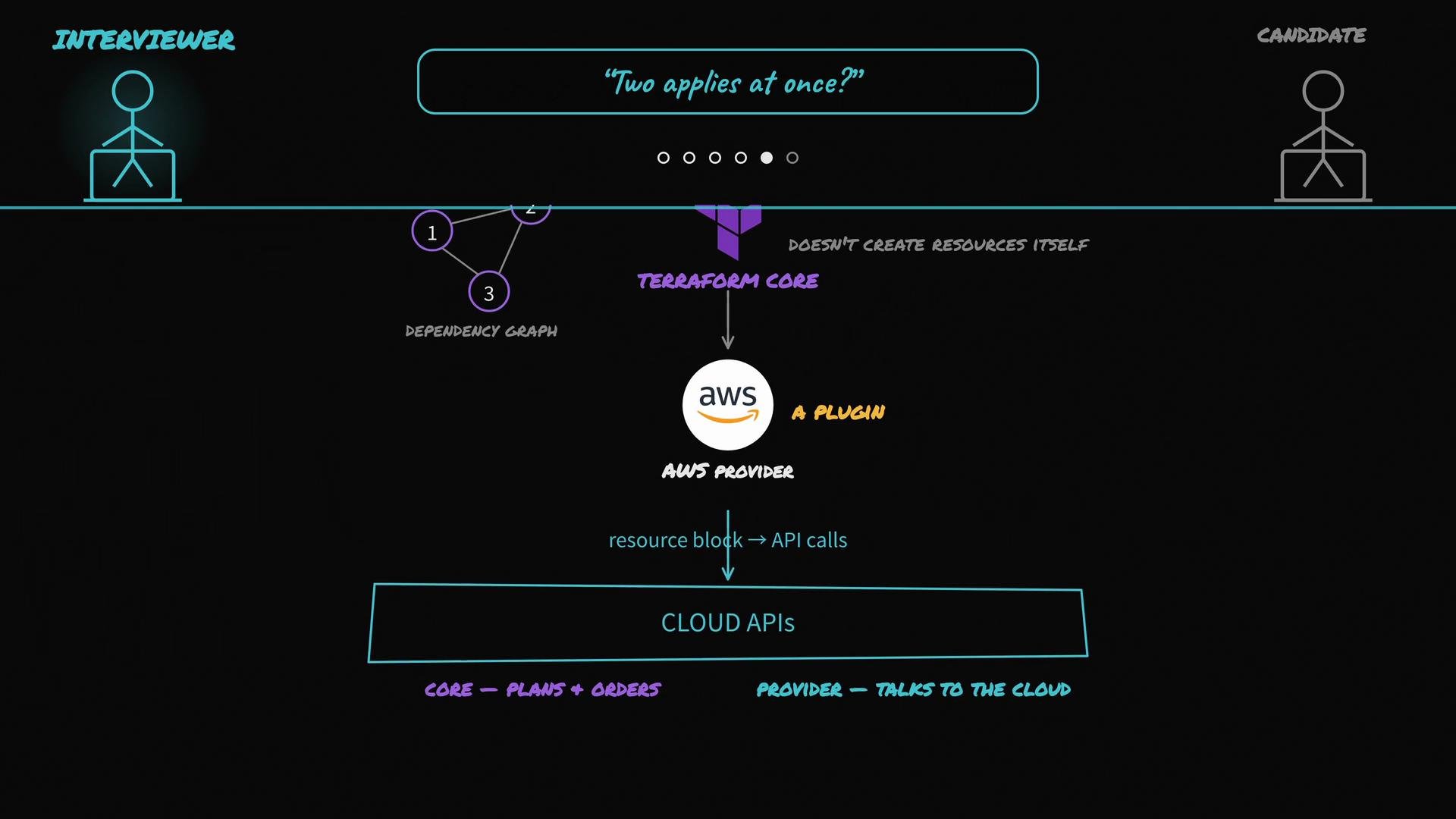
Terraform Core orchestrates the overall process; providers perform the actual API calls.
Terraform Core:
* Reads your HCL configuration
* Loads the saved state file
* Queries provider plugins for live resource states
* Builds a dependency graph of resources
* Computes a plan with the right operation order (create/update/delete)
* Invokes provider plugins in that order to enact changes
Provider plugins (for example, the AWS provider) implement the platform-specific logic and make the cloud API requests. Terraform Core does not call cloud APIs directly — it delegates to providers.
 ## Collaboration: Remote State and Locking
When multiple engineers run `terraform apply` against the same infrastructure, you must avoid conflicting updates. Terraform supports remote backends and state locking to prevent race conditions.
Common remote backend patterns:
* S3 backend + DynamoDB for locking (AWS)
* Terraform Cloud / Terraform Enterprise
* Other supported remote backends with lock support
If one user holds the lock during an `apply`, any concurrent `apply` attempts will be blocked until the lock is released. This prevents concurrent modifications that could corrupt the shared state or the real infrastructure.
Use a remote backend with locking (for example, S3 + DynamoDB or Terraform Cloud) when multiple engineers collaborate on the same infrastructure to avoid race conditions.
Do not manually edit `terraform.tfstate`. Manual edits can corrupt the state and lead to resource drift or accidental destruction. Use Terraform commands (`taint`, `state` subcommands, etc.) to manage state safely.
## Handling Manual Changes (Drift)
If someone modifies a managed resource outside Terraform (for example, via a cloud console), Terraform will not automatically adopt those changes. On the next `terraform plan` or `terraform apply`, Terraform:
* Queries the live resource via the provider,
* Compares live state to the saved state and configuration,
* Reports any drift in the plan,
* And will update or recreate the resource during `apply` to match your configuration (if required).
This ensures the configuration remains the single source of truth.
## Quick Reference: Command Purposes
| Command | Purpose |
| ------------------ | ----------------------------------------------------- |
| `terraform init` | Initialize working directory and download providers |
| `terraform plan` | Preview changes without applying |
| `terraform apply` | Apply the planned changes to reach desired state |
| `terraform state` | Inspect and manipulate the state file (use with care) |
| `terraform import` | Bring existing resources under Terraform management |
## Summary
* Declare the desired end state in HCL.
* Terraform stores resource mappings in `terraform.tfstate`.
* `terraform plan` compares configuration, state, and live resources and shows a preview.
* Terraform Core builds the dependency graph and orchestrates the order of operations.
* Provider plugins perform the actual cloud API calls.
* Use remote state and locking to safely collaborate across teams.
* Drift (manual changes) is detected on the next plan/apply and corrected to match your configuration.
Links and references:
* [HCL (HashiCorp Configuration Language)](https://developer.hashicorp.com/hcl)
* [AWS EC2 Overview](https://learn.kodekloud.com/user/courses/amazon-elastic-compute-cloud-ec2)
* [Amazon S3](https://learn.kodekloud.com/user/courses/amazon-simple-storage-service-amazon-s3)
* [DynamoDB](https://aws.amazon.com/dynamodb/)
* [Terraform Cloud](https://learn.kodekloud.com/user/courses/hashicorp-terraform-cloud)
## Collaboration: Remote State and Locking
When multiple engineers run `terraform apply` against the same infrastructure, you must avoid conflicting updates. Terraform supports remote backends and state locking to prevent race conditions.
Common remote backend patterns:
* S3 backend + DynamoDB for locking (AWS)
* Terraform Cloud / Terraform Enterprise
* Other supported remote backends with lock support
If one user holds the lock during an `apply`, any concurrent `apply` attempts will be blocked until the lock is released. This prevents concurrent modifications that could corrupt the shared state or the real infrastructure.
Use a remote backend with locking (for example, S3 + DynamoDB or Terraform Cloud) when multiple engineers collaborate on the same infrastructure to avoid race conditions.
Do not manually edit `terraform.tfstate`. Manual edits can corrupt the state and lead to resource drift or accidental destruction. Use Terraform commands (`taint`, `state` subcommands, etc.) to manage state safely.
## Handling Manual Changes (Drift)
If someone modifies a managed resource outside Terraform (for example, via a cloud console), Terraform will not automatically adopt those changes. On the next `terraform plan` or `terraform apply`, Terraform:
* Queries the live resource via the provider,
* Compares live state to the saved state and configuration,
* Reports any drift in the plan,
* And will update or recreate the resource during `apply` to match your configuration (if required).
This ensures the configuration remains the single source of truth.
## Quick Reference: Command Purposes
| Command | Purpose |
| ------------------ | ----------------------------------------------------- |
| `terraform init` | Initialize working directory and download providers |
| `terraform plan` | Preview changes without applying |
| `terraform apply` | Apply the planned changes to reach desired state |
| `terraform state` | Inspect and manipulate the state file (use with care) |
| `terraform import` | Bring existing resources under Terraform management |
## Summary
* Declare the desired end state in HCL.
* Terraform stores resource mappings in `terraform.tfstate`.
* `terraform plan` compares configuration, state, and live resources and shows a preview.
* Terraform Core builds the dependency graph and orchestrates the order of operations.
* Provider plugins perform the actual cloud API calls.
* Use remote state and locking to safely collaborate across teams.
* Drift (manual changes) is detected on the next plan/apply and corrected to match your configuration.
Links and references:
* [HCL (HashiCorp Configuration Language)](https://developer.hashicorp.com/hcl)
* [AWS EC2 Overview](https://learn.kodekloud.com/user/courses/amazon-elastic-compute-cloud-ec2)
* [Amazon S3](https://learn.kodekloud.com/user/courses/amazon-simple-storage-service-amazon-s3)
* [DynamoDB](https://aws.amazon.com/dynamodb/)
* [Terraform Cloud](https://learn.kodekloud.com/user/courses/hashicorp-terraform-cloud)