> ## Documentation Index
> Fetch the complete documentation index at: https://notes.kodekloud.com/llms.txt
> Use this file to discover all available pages before exploring further.
# What Happens on docker run nginx
> Step-by-step explanation of what happens when running docker run nginx, covering image layers, writable layer, namespaces, cgroups, container runtimes, filesystem mounting, and networking
In this walkthrough we’ll follow the exact sequence of events that occur when you run `docker run` against the official NGINX image. This is a practical, interview-ready explanation that ties Docker components to the underlying Linux kernel features—namespaces, cgroups, union filesystems, and the container runtimes. Read the steps below to understand how a simple `docker run nginx` becomes an isolated, networked process on your host.
1. Docker client → Docker daemon
* The `docker` CLI sends your request to the Docker daemon (`dockerd`). The daemon manages images, containers, storage, and networking.
* Dockerd delegates low-level operations to components such as `containerd` and an OCI runtime (for example, `runc`) to create, prepare, and start the container environment.
* Relevant links:
* Docker daemon: [https://docs.docker.com/engine/reference/commandline/dockerd/](https://docs.docker.com/engine/reference/commandline/dockerd/)
* containerd: [https://containerd.io/](https://containerd.io/)
* runc: [https://github.com/opencontainers/runc](https://github.com/opencontainers/runc)
2. Check for the image locally (pull if needed)
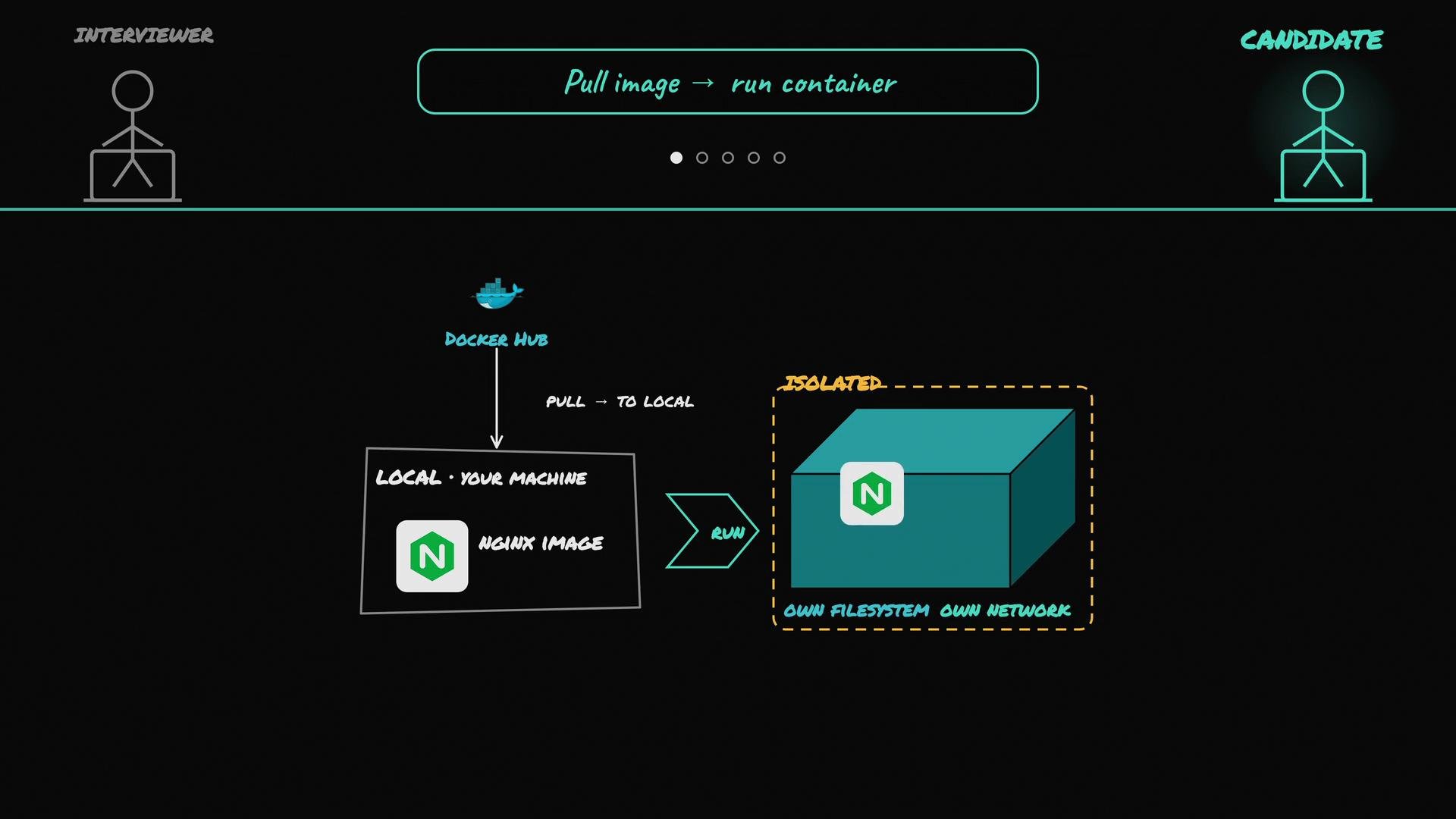
* Dockerd looks in the local image store for the requested image tag (for example, `nginx:latest`).
* If the image is missing, dockerd pulls it from a registry such as Docker Hub and stores the image layers on the host so future runs can reuse them.
* Registry: [https://hub.docker.com/](https://hub.docker.com/)
3. Image layers and the writable container layer
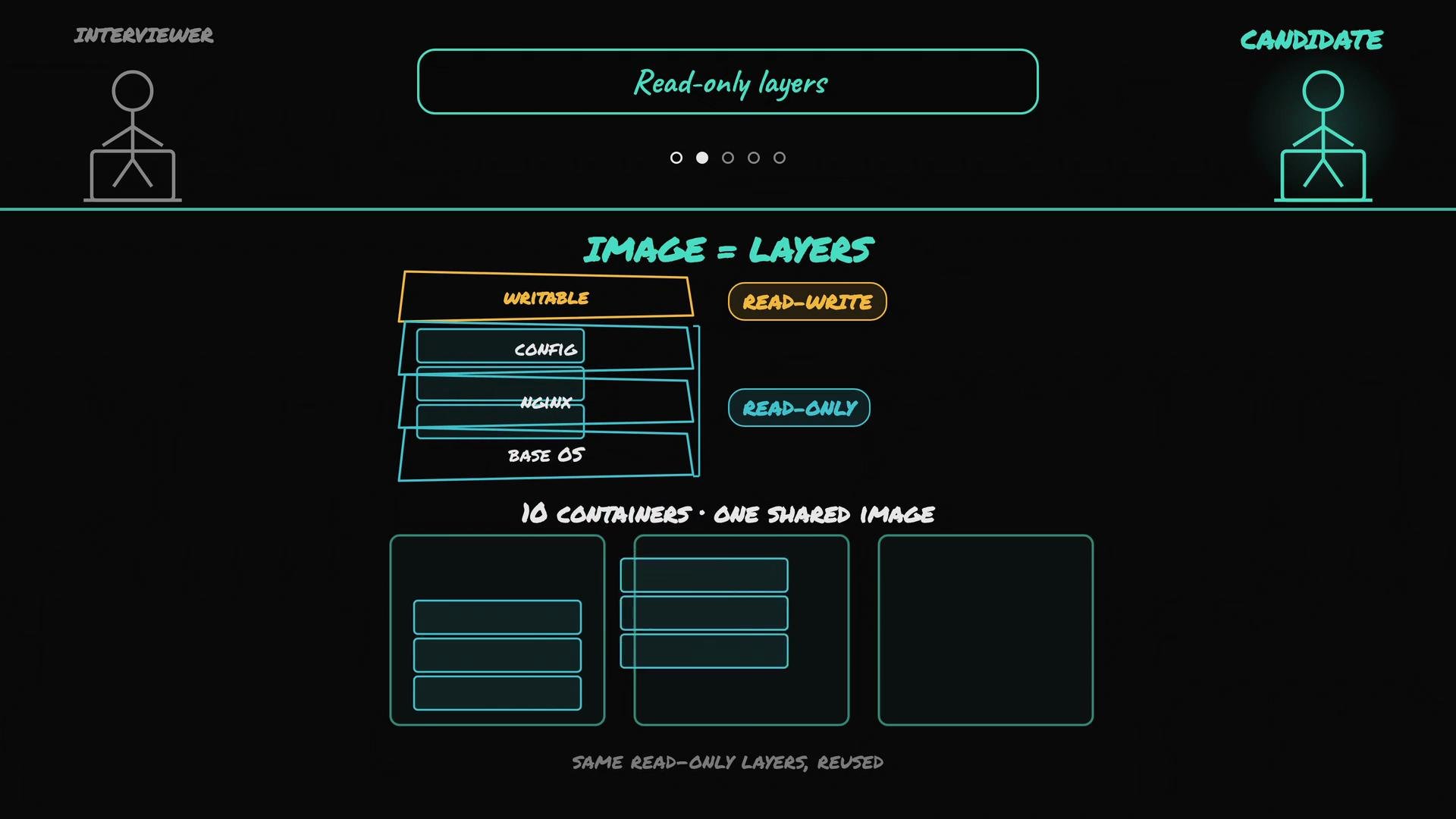
* A Docker image is built from multiple read-only layers stacked together (base OS, runtime binaries, app files, etc.).
* When creating a container, Docker mounts a thin writable layer on top of those read-only layers (typically using a union filesystem like `overlay2`).
* Runtime changes—logs, temporary files, and other state—are written into that writable layer unique to the container, enabling multiple containers to share the same underlying image layers efficiently.
* Storage driver docs: [https://docs.docker.com/storage/storagedriver/overlayfs-driver/](https://docs.docker.com/storage/storagedriver/overlayfs-driver/)
 4. Container = a normal Linux process in an isolated environment
* Under the hood, a container is one or more standard Linux processes started by the runtime. Inside the container, the main process runs as PID 1 within a separate PID namespace.
* The OCI runtime (`runc` or equivalent) sets up namespaces, mounts, and cgroups, and then execs the container process (NGINX in this case).
* The container process is still a host process, but kernel primitives make it appear isolated.
A container is simply regular Linux processes with kernel-enforced isolation. From the process’s perspective it has its own filesystem, network interfaces, and process table—even though the kernel is shared with the host.
5. Isolation via namespaces (what a container can see)
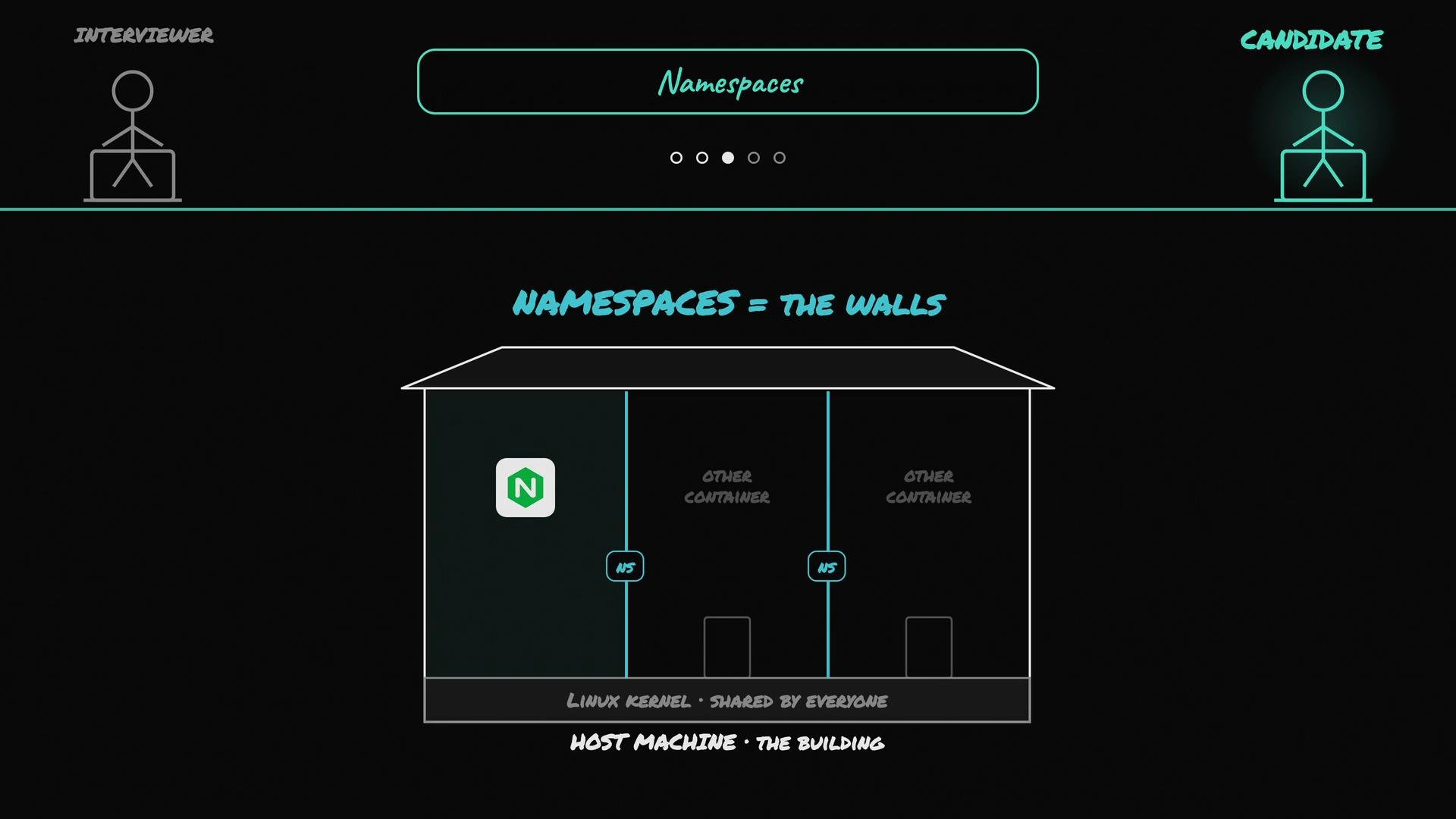
* Linux namespaces isolate what a process can observe and interact with:
* PID namespace — container processes see only the container’s PID tree.
* Mount namespace — gives the container a private view of the filesystem (image layers + writable layer).
* Network namespace — provides a separate networking stack (interfaces, routing, IPs).
* UTS, IPC, and user namespaces — isolate hostname, interprocess communication, and user/group IDs.
* Namespaces act like separate rooms inside the same building: each room (namespace) has its own view while sharing the same kernel.
Namespaces quick reference:
| Namespace | Isolates / Purpose | Example effect |
| --------- | ---------------------------------- | ----------------------------------------------------------- |
| PID | Process IDs and visibility | PID 1 inside container is isolated from host PID namespace |
| Mount | Filesystem mounts and view | Container sees its combined image layers and writable layer |
| Network | Interfaces, routing, IP addresses | Container has `eth0` and its own IP on a bridge network |
| UTS | Hostname and domain name | Container can set its own hostname without changing host |
| IPC | System V IPC, POSIX message queues | Container IPC mechanisms are private |
| User | User and group IDs | Remap container UIDs to different host UIDs for isolation |
4. Container = a normal Linux process in an isolated environment
* Under the hood, a container is one or more standard Linux processes started by the runtime. Inside the container, the main process runs as PID 1 within a separate PID namespace.
* The OCI runtime (`runc` or equivalent) sets up namespaces, mounts, and cgroups, and then execs the container process (NGINX in this case).
* The container process is still a host process, but kernel primitives make it appear isolated.
A container is simply regular Linux processes with kernel-enforced isolation. From the process’s perspective it has its own filesystem, network interfaces, and process table—even though the kernel is shared with the host.
5. Isolation via namespaces (what a container can see)
* Linux namespaces isolate what a process can observe and interact with:
* PID namespace — container processes see only the container’s PID tree.
* Mount namespace — gives the container a private view of the filesystem (image layers + writable layer).
* Network namespace — provides a separate networking stack (interfaces, routing, IPs).
* UTS, IPC, and user namespaces — isolate hostname, interprocess communication, and user/group IDs.
* Namespaces act like separate rooms inside the same building: each room (namespace) has its own view while sharing the same kernel.
Namespaces quick reference:
| Namespace | Isolates / Purpose | Example effect |
| --------- | ---------------------------------- | ----------------------------------------------------------- |
| PID | Process IDs and visibility | PID 1 inside container is isolated from host PID namespace |
| Mount | Filesystem mounts and view | Container sees its combined image layers and writable layer |
| Network | Interfaces, routing, IP addresses | Container has `eth0` and its own IP on a bridge network |
| UTS | Hostname and domain name | Container can set its own hostname without changing host |
| IPC | System V IPC, POSIX message queues | Container IPC mechanisms are private |
| User | User and group IDs | Remap container UIDs to different host UIDs for isolation |
 6. Resource control via cgroups (what a container can use)
* Control groups (cgroups v2) limit and account for resource usage: CPU shares, memory limits, block I/O, and more.
* When you pass runtime limits like `--memory` or `--cpus` to `docker run`, Docker creates a cgroup for that container and writes the limits; the kernel enforces them. Exceeding memory limits can trigger the OOM killer.
* Example:
```bash theme={null}
docker run --memory 512m --cpus 1.5 nginx
```
* In short: namespaces control visibility (what a container can see), and cgroups control resource budgets (what a container can consume).
* cgroups docs: [https://www.kernel.org/doc/html/latest/admin-guide/cgroup-v2.html](https://www.kernel.org/doc/html/latest/admin-guide/cgroup-v2.html)
7. Networking: how a container talks to the outside world
* By default, Docker connects containers to a host-level bridge network. Each container receives its own network namespace, an interface (e.g., `eth0`), and an internal IP on the bridge.
* Containers can initiate outbound connections directly. To expose container services to external clients, you publish a host port and map it to the container port. Docker sets up DNAT rules (via iptables/netfilter) or uses its networking proxy to forward traffic.
* Example (publish port 80 in the container on host port 8080):
```bash theme={null}
docker run -p 8080:80 nginx
```
* After this command, requests to `http://localhost:8080` on the host are forwarded to port `80` in the container where NGINX listens.
* Networking docs: [https://docs.docker.com/network/bridge/](https://docs.docker.com/network/bridge/)
* iptables: [https://netfilter.org/projects/iptables/index.html](https://netfilter.org/projects/iptables/index.html)
6. Resource control via cgroups (what a container can use)
* Control groups (cgroups v2) limit and account for resource usage: CPU shares, memory limits, block I/O, and more.
* When you pass runtime limits like `--memory` or `--cpus` to `docker run`, Docker creates a cgroup for that container and writes the limits; the kernel enforces them. Exceeding memory limits can trigger the OOM killer.
* Example:
```bash theme={null}
docker run --memory 512m --cpus 1.5 nginx
```
* In short: namespaces control visibility (what a container can see), and cgroups control resource budgets (what a container can consume).
* cgroups docs: [https://www.kernel.org/doc/html/latest/admin-guide/cgroup-v2.html](https://www.kernel.org/doc/html/latest/admin-guide/cgroup-v2.html)
7. Networking: how a container talks to the outside world
* By default, Docker connects containers to a host-level bridge network. Each container receives its own network namespace, an interface (e.g., `eth0`), and an internal IP on the bridge.
* Containers can initiate outbound connections directly. To expose container services to external clients, you publish a host port and map it to the container port. Docker sets up DNAT rules (via iptables/netfilter) or uses its networking proxy to forward traffic.
* Example (publish port 80 in the container on host port 8080):
```bash theme={null}
docker run -p 8080:80 nginx
```
* After this command, requests to `http://localhost:8080` on the host are forwarded to port `80` in the container where NGINX listens.
* Networking docs: [https://docs.docker.com/network/bridge/](https://docs.docker.com/network/bridge/)
* iptables: [https://netfilter.org/projects/iptables/index.html](https://netfilter.org/projects/iptables/index.html)
 8. Final startup steps
* Dockerd ensures mounts, namespaces, and cgroups are configured, then the runtime execs NGINX as the container’s PID 1.
* Container logs and runtime state go to the container’s writable layer unless you bind-mount directories or use Docker volumes for persistence or sharing.
* Use bind mounts or volumes to persist configuration, logs, or state across container restarts, for example:
```bash theme={null}
docker run -v /host/nginx/conf:/etc/nginx/conf.d -p 8080:80 nginx
```
Summary — concise flow
* docker CLI → dockerd → check/pull image → assemble filesystem (read-only image layers + writable layer) → set up namespaces (PID, network, mount, etc.) → configure cgroups → configure networking and port mappings → start the container process (NGINX) as PID 1.
* This mix of image layering, namespaces, and cgroups is what makes containers lightweight, isolated, and resource-controlled.
Quick command examples
| Goal | Command |
| ------------------------------------- | ------------------------------------------------------------------- |
| Run NGINX (default) | `docker run nginx` |
| Expose container port 80 on host 8080 | `docker run -p 8080:80 nginx` |
| Limit memory to 512 MB and CPU to 1.5 | `docker run --memory 512m --cpus 1.5 nginx` |
| Mount host config directory | `docker run -v /host/nginx/conf:/etc/nginx/conf.d -p 8080:80 nginx` |
Further reading and references
* Docker documentation: [https://docs.docker.com/](https://docs.docker.com/)
* Docker Hub (NGINX): [https://hub.docker.com/\_/nginx](https://hub.docker.com/_/nginx)
* containerd: [https://containerd.io/](https://containerd.io/)
* runc: [https://github.com/opencontainers/runc](https://github.com/opencontainers/runc)
* cgroups v2: [https://www.kernel.org/doc/html/latest/admin-guide/cgroup-v2.html](https://www.kernel.org/doc/html/latest/admin-guide/cgroup-v2.html)
* overlay2 storage driver: [https://docs.docker.com/storage/storagedriver/overlayfs-driver/](https://docs.docker.com/storage/storagedriver/overlayfs-driver/)
8. Final startup steps
* Dockerd ensures mounts, namespaces, and cgroups are configured, then the runtime execs NGINX as the container’s PID 1.
* Container logs and runtime state go to the container’s writable layer unless you bind-mount directories or use Docker volumes for persistence or sharing.
* Use bind mounts or volumes to persist configuration, logs, or state across container restarts, for example:
```bash theme={null}
docker run -v /host/nginx/conf:/etc/nginx/conf.d -p 8080:80 nginx
```
Summary — concise flow
* docker CLI → dockerd → check/pull image → assemble filesystem (read-only image layers + writable layer) → set up namespaces (PID, network, mount, etc.) → configure cgroups → configure networking and port mappings → start the container process (NGINX) as PID 1.
* This mix of image layering, namespaces, and cgroups is what makes containers lightweight, isolated, and resource-controlled.
Quick command examples
| Goal | Command |
| ------------------------------------- | ------------------------------------------------------------------- |
| Run NGINX (default) | `docker run nginx` |
| Expose container port 80 on host 8080 | `docker run -p 8080:80 nginx` |
| Limit memory to 512 MB and CPU to 1.5 | `docker run --memory 512m --cpus 1.5 nginx` |
| Mount host config directory | `docker run -v /host/nginx/conf:/etc/nginx/conf.d -p 8080:80 nginx` |
Further reading and references
* Docker documentation: [https://docs.docker.com/](https://docs.docker.com/)
* Docker Hub (NGINX): [https://hub.docker.com/\_/nginx](https://hub.docker.com/_/nginx)
* containerd: [https://containerd.io/](https://containerd.io/)
* runc: [https://github.com/opencontainers/runc](https://github.com/opencontainers/runc)
* cgroups v2: [https://www.kernel.org/doc/html/latest/admin-guide/cgroup-v2.html](https://www.kernel.org/doc/html/latest/admin-guide/cgroup-v2.html)
* overlay2 storage driver: [https://docs.docker.com/storage/storagedriver/overlayfs-driver/](https://docs.docker.com/storage/storagedriver/overlayfs-driver/)