

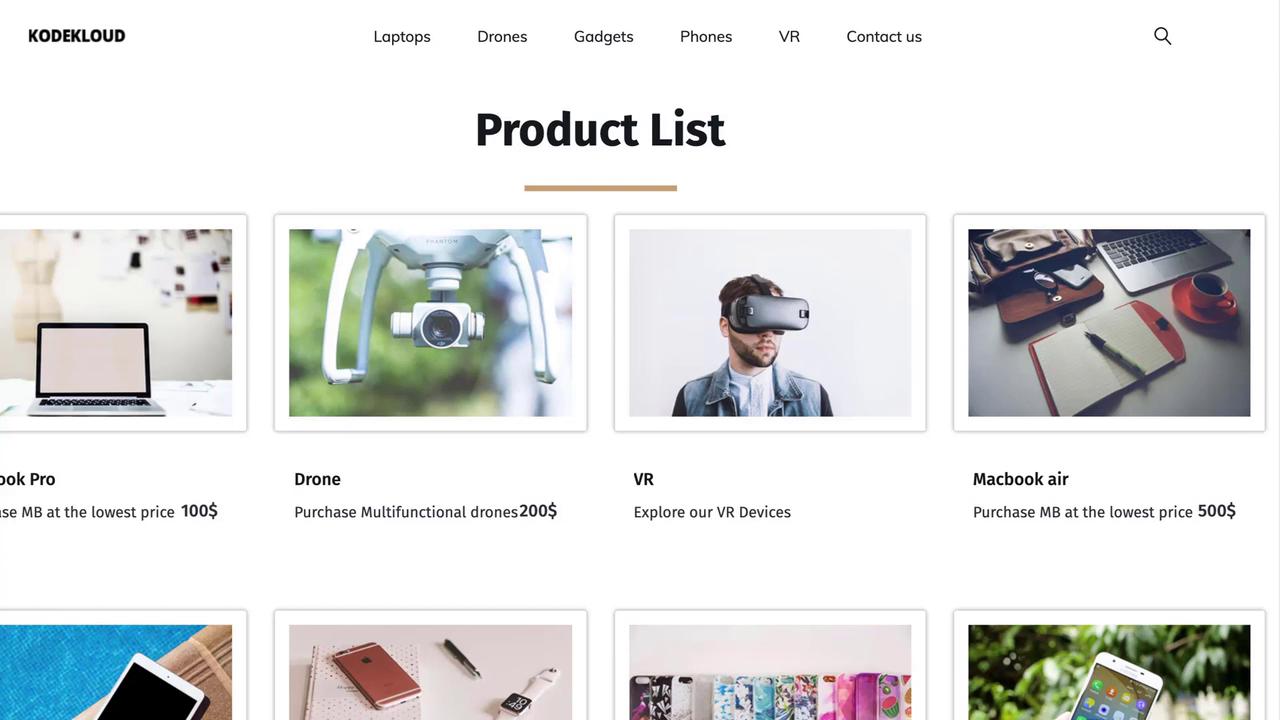
Environment Setup and Task Overview
We start by preparing a CentOS machine to deploy the application. The overall procedure includes:- Installing and configuring the firewall.
- Setting up the MariaDB database.
- Installing and configuring the Apache HTTP Server and PHP.
- Downloading and configuring the application code.
- Verifying the deployment using tools like curl.
Step 1: Firewall Configuration
Begin by installing and starting the firewalld service on your CentOS machine:Step 2: MariaDB Database Setup
Install the MariaDB server, adjust the configuration, and configure firewall rules for SQL access. Although the configuration file (/etc/my.cnf) is similar to that of MySQL, you can use the MySQL client to interact with MariaDB.Be sure to adjust port settings or other configuration parameters in
/etc/my.cnf as needed for your environment.Step 3: Apache and PHP Setup
Install Apache, PHP, and Git. Then, configure Apache to serve PHP by prioritizingindex.php over index.html and open port 80 for external traffic:
Multi-Node Deployment Configuration
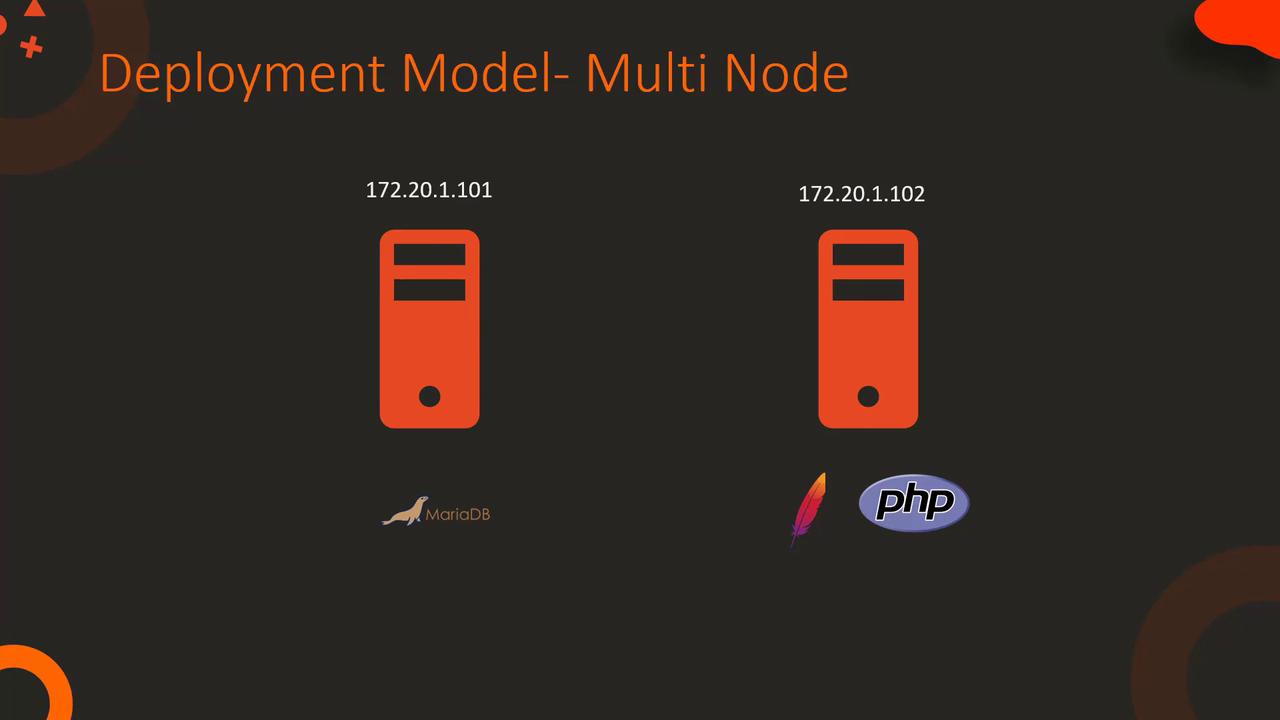
For multi-node deployments, host the database server and web server on different nodes. Ensure that the web server’sindex.php is updated with the correct database server IP, and update database user permissions for remote access. The diagram below illustrates this multi-node setup:
Always ensure that user permissions and access control settings are securely configured when allowing remote connections.
Code Explanation: HTML/PHP for Displaying Products
Theindex.php file is responsible for connecting to the MariaDB database and retrieving product data for display on the website. Below is a snippet demonstrating the database connection and data retrieval process:
Demonstration
The example below reiterates how the PHP code connects to the database and retrieves product records, reinforcing the concepts discussed:This guide provided a complete walkthrough for deploying a LAMP stack application for the KodeKloud e-commerce website, covering both single-node and multi-node configurations. Enjoy setting up your lab environment and exploring the project!