> ## Documentation Index
> Fetch the complete documentation index at: https://notes.kodekloud.com/llms.txt
> Use this file to discover all available pages before exploring further.
# Java Build and Packaging
> Overview of compiling Java source to bytecode, packaging into JAR or WAR, generating documentation, and using build tools like Ant, Maven, and Gradle to automate builds and CI workflows.
This lesson covers the essentials of building a Java application: how source code becomes JVM bytecode, how to package applications for distribution, and how build automation tools streamline and standardize the process for projects of any size.
## Simple build process
A minimal Java build has three steps:
1. Write source code (.java)
2. Compile to JVM bytecode (.class)
3. Run on a Java Virtual Machine (JVM)
Example source file:
```java theme={null}
// MyClass.java
public class MyClass {
public static void main(String[] args) {
System.out.println("Hello World");
}
}
```
Compile the source into bytecode:
```bash theme={null}
javac MyClass.java
```
This produces `MyClass.class`. Run the program with the Java launcher (specify the class name without `.class`):
```bash theme={null}
java MyClass
# Output:
# Hello World
```
You can inspect the JVM instructions (bytecode) with `javap -c`:
```bash theme={null}
javap -c MyClass
```
Because JVM implementations exist for many platforms, Java bytecode is cross-platform: compile once, run anywhere that provides a compatible JVM.
## Packaging: JAR and WAR
Applications typically include many classes plus resources (configuration, images, web assets). Packaging these into archives makes distribution and deployment simpler.
* JAR (Java ARchive): Bundles class files, libraries, and resources into a single compressed archive.
* WAR (Web ARchive): Layout for web applications; contains web-specific directories and static files.
Create a simple JAR by specifying the output file and files to include:
```bash theme={null}
jar cf MyApp.jar MyClass.class Service1.class Service2.class
```
When creating a JAR, the `jar` tool generates a default `META-INF/MANIFEST.MF`. To make a JAR executable (so you can run `java -jar MyApp.jar`) you must include a `Main-Class` entry. Two common approaches:
1. Use the `-e` option to set the entry point:
```bash theme={null}
jar cfe MyApp.jar MyClass MyClass.class Service1.class
```
2. Or provide a custom manifest file (e.g., `manifest.txt`):
```text theme={null}
Manifest-Version: 1.0
Created-By: 1.8.0_242 (Private Build)
Main-Class: MyClass
```
Include that manifest when building the JAR:
```bash theme={null}
jar cfm MyApp.jar manifest.txt -C build/ .
```
Run the packaged JAR on any machine with a Java Runtime Environment (JRE):
```bash theme={null}
java -jar MyApp.jar
```
If your application depends on external libraries, ensure they are available at runtime. Either use the Class-Path manifest entry, supply required JARs on the `-cp`/`--class-path`, or build a single "fat" or "uber" JAR that bundles dependencies.
## Generating documentation
Document source with Javadoc. Running `javadoc` on source files generates an HTML documentation site:
```bash theme={null}
javadoc -d doc MyClass.java
```
This creates an HTML site in the `doc` directory for other developers to browse.
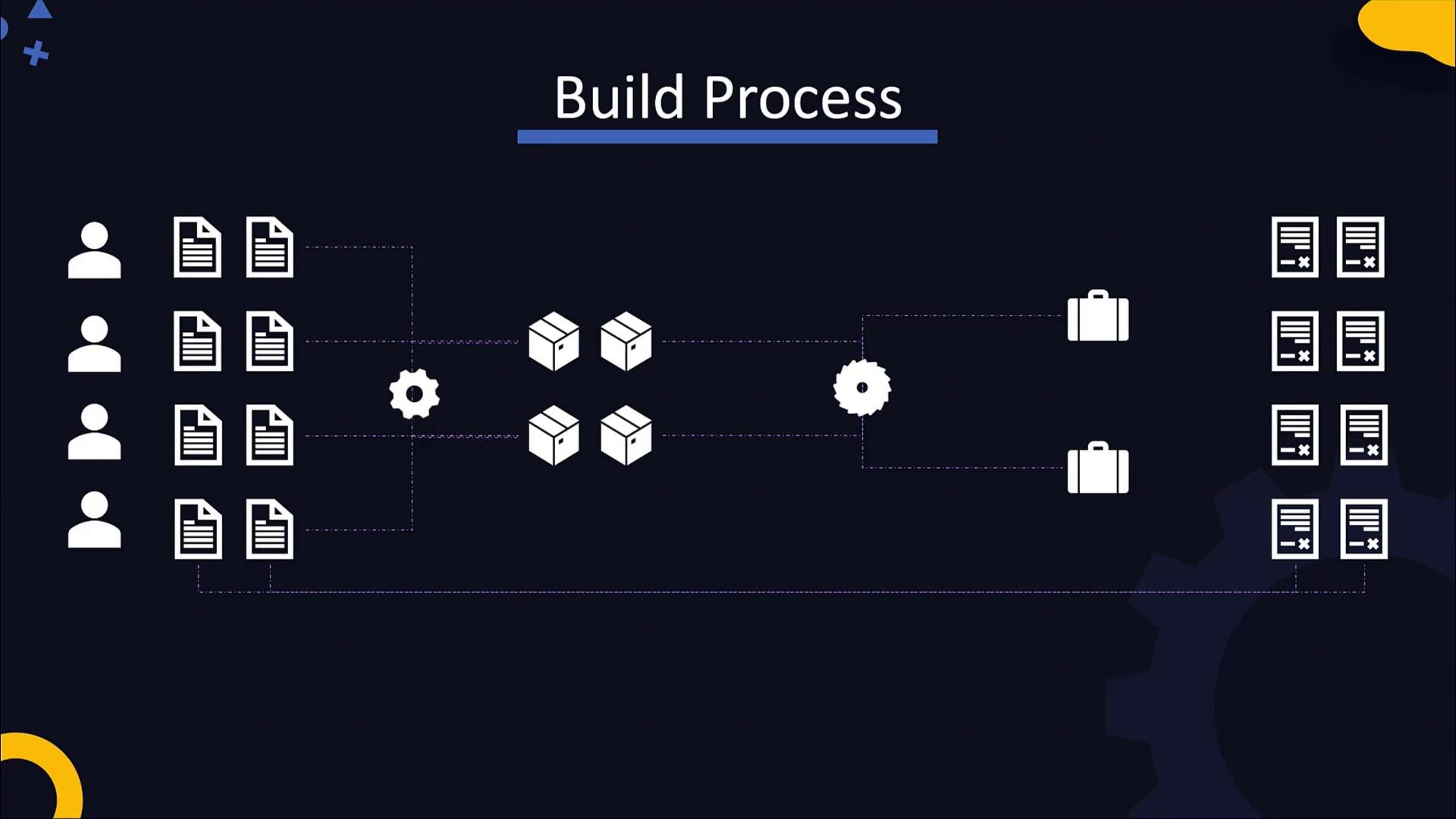
## When builds get bigger
Larger projects and team workflows typically require more steps:
* Compiling multiple modules
* Running unit and integration tests
* Static analysis and linting
* Security and vulnerability scanning
* Packaging, signing artifacts, and publishing to artifact repositories
Manual command sequences become error-prone when projects grow or many developers contribute concurrently. Build automation tools provide repeatable, auditable, and CI/CD-friendly workflows.
 ## Build tools: Ant, Maven, Gradle
Common Java build tools let you describe build steps in configuration files and run them consistently across environments.
| Tool | Approach | Typical use case |
| - | - | - |
| Ant | XML-based scripts with explicit targets | Fine-grained control; legacy projects |
| Maven | Convention-over-configuration (`pom.xml`) lifecycle | Dependency management and standardized project structure |
| Gradle | Groovy/Kotlin DSL, extensible plugin ecosystem | Modern builds, incremental builds, multi-module projects |
Below is an example Ant build file that compiles code, generates Javadoc, and creates a JAR. Targets declare dependencies so Ant executes them in the required order.
```xml theme={null}
Main target
```
Run the default (main) target:
```bash theme={null}
ant
# BUILD SUCCESSFUL
# Total time: 2 seconds
```
Or run specific targets, for example only compile and jar:
```bash theme={null}
ant compile jar
```
Build tools let teams automate and standardize repetitive steps (compile, test, package, publish). Integrate these tools with CI/CD pipelines to enforce consistency and reduce manual errors.
## Gradle example
A minimal Gradle build script (Groovy DSL) that applies plugins and defines the main class:
```groovy theme={null}
buildscript {
repositories {
mavenCentral()
}
dependencies {
classpath 'com.bmuschko:gradle-docker-plugin:3.0.6'
}
}
apply plugin: 'java'
apply plugin: 'application'
apply plugin: 'com.bmuschko.docker-java-application'
mainClassName = 'MyClass'
```
Common Gradle commands:
* Build the application:
```bash theme={null}
./gradlew build
```
* Run the application:
```bash theme={null}
./gradlew run
```
Gradle offers a rich plugin ecosystem (Docker, publishing, test reporting) and is widely used for modern Java builds, multi-module projects, and CI environments.
## Summary
Key takeaways:
* Source (.java) -> compile with `javac` -> bytecode (.class) executed by the JVM.
* Use the `java` launcher to run classes; use `javadoc` to generate API documentation.
* Package applications into JAR/WAR archives; include a `Main-Class` manifest entry to make JARs executable.
* Ensure external libraries are available at runtime via classpath entries or by creating a fat/uber JAR.
* Use build tools (Ant, Maven, Gradle) to automate compilation, testing, packaging, and publishing in a repeatable way.
## Build tools: Ant, Maven, Gradle
Common Java build tools let you describe build steps in configuration files and run them consistently across environments.
| Tool | Approach | Typical use case |
| - | - | - |
| Ant | XML-based scripts with explicit targets | Fine-grained control; legacy projects |
| Maven | Convention-over-configuration (`pom.xml`) lifecycle | Dependency management and standardized project structure |
| Gradle | Groovy/Kotlin DSL, extensible plugin ecosystem | Modern builds, incremental builds, multi-module projects |
Below is an example Ant build file that compiles code, generates Javadoc, and creates a JAR. Targets declare dependencies so Ant executes them in the required order.
```xml theme={null}
Main target
```
Run the default (main) target:
```bash theme={null}
ant
# BUILD SUCCESSFUL
# Total time: 2 seconds
```
Or run specific targets, for example only compile and jar:
```bash theme={null}
ant compile jar
```
Build tools let teams automate and standardize repetitive steps (compile, test, package, publish). Integrate these tools with CI/CD pipelines to enforce consistency and reduce manual errors.
## Gradle example
A minimal Gradle build script (Groovy DSL) that applies plugins and defines the main class:
```groovy theme={null}
buildscript {
repositories {
mavenCentral()
}
dependencies {
classpath 'com.bmuschko:gradle-docker-plugin:3.0.6'
}
}
apply plugin: 'java'
apply plugin: 'application'
apply plugin: 'com.bmuschko.docker-java-application'
mainClassName = 'MyClass'
```
Common Gradle commands:
* Build the application:
```bash theme={null}
./gradlew build
```
* Run the application:
```bash theme={null}
./gradlew run
```
Gradle offers a rich plugin ecosystem (Docker, publishing, test reporting) and is widely used for modern Java builds, multi-module projects, and CI environments.
## Summary
Key takeaways:
* Source (.java) -> compile with `javac` -> bytecode (.class) executed by the JVM.
* Use the `java` launcher to run classes; use `javadoc` to generate API documentation.
* Package applications into JAR/WAR archives; include a `Main-Class` manifest entry to make JARs executable.
* Ensure external libraries are available at runtime via classpath entries or by creating a fat/uber JAR.
* Use build tools (Ant, Maven, Gradle) to automate compilation, testing, packaging, and publishing in a repeatable way.
 Further reading and references:
* [Java Platform, Standard Edition Documentation](https://docs.oracle.com/en/java/)
* [Javadoc Tool documentation](https://docs.oracle.com/en/java/javase/11/tools/javadoc.html)
* [Gradle User Manual](https://docs.gradle.org/)
* [Maven Introduction](https://maven.apache.org/what-is-maven.html)
Practice these steps locally or in a sandbox environment to reinforce learning and to see how CI/CD and container workflows automate many of these tasks in a DevOps pipeline.
This documentation is built and hosted on [Mintlify](https://mintlify.com), a developer documentation platform.
Further reading and references:
* [Java Platform, Standard Edition Documentation](https://docs.oracle.com/en/java/)
* [Javadoc Tool documentation](https://docs.oracle.com/en/java/javase/11/tools/javadoc.html)
* [Gradle User Manual](https://docs.gradle.org/)
* [Maven Introduction](https://maven.apache.org/what-is-maven.html)
Practice these steps locally or in a sandbox environment to reinforce learning and to see how CI/CD and container workflows automate many of these tasks in a DevOps pipeline.
This documentation is built and hosted on [Mintlify](https://mintlify.com), a developer documentation platform.