> ## Documentation Index
> Fetch the complete documentation index at: https://notes.kodekloud.com/llms.txt
> Use this file to discover all available pages before exploring further.
# Python Introduction
> This lesson offers an in-depth introduction to Python, a widely used programming language for modern applications.
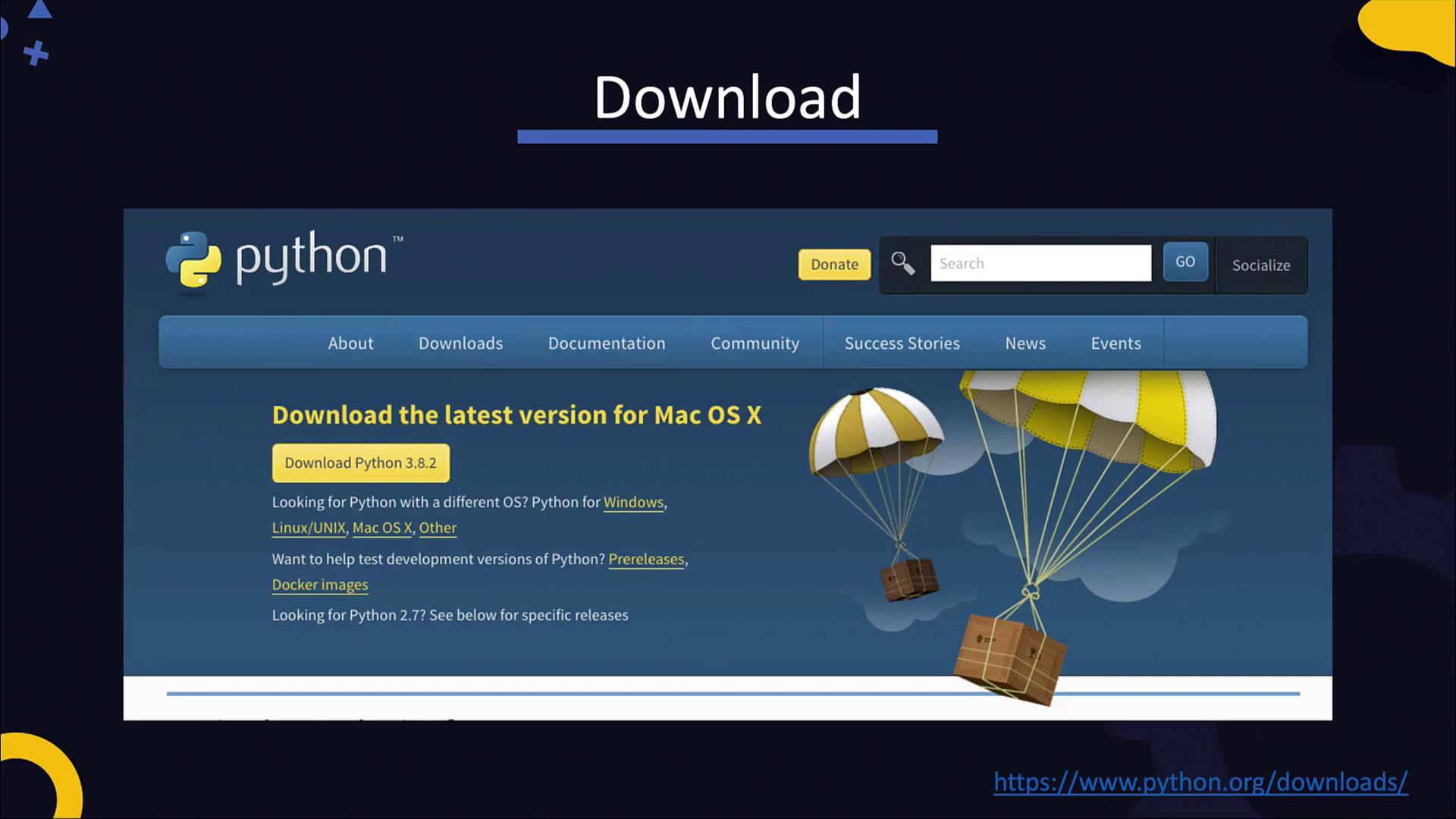
This lesson offers an in-depth introduction to Python, a free, open-source, and cross-platform programming language widely used in modern applications such as machine learning, data science, and artificial intelligence. Before you begin coding, ensure that the appropriate Python interpreter is installed on your system. You can download the latest version from the [official Python downloads page](https://www.python.org/downloads/).

After downloading the installer for your operating system, note that there are two major versions of Python available:
1. **Python 2**\
Released in 2000, Python 2 reached the end of its development lifecycle in 2010. It is maintained only for legacy applications.
2. **Python 3**\
Introduced in 2008, Python 3 is actively maintained and introduces significant improvements along with new features. It is the recommended choice for modern software development.
Programs written in Python 2 require the Python 2 interpreter, while those written in Python 3 need the Python 3 interpreter. This ensures compatibility and allows you to take advantage of the latest features and improvements.
Many operating systems come with Python pre-installed. You can verify your installation by executing the following commands in your terminal:
* For Python 2, run:\
`python2`
* For Python 3, run:\
`python3`
If Python is installed as `python` without an explicit version, you can check the version using `python -V` to determine whether it points to Python 2 or Python 3.
In cases where Python is not pre-installed, you can install it using your system's package manager. For example, some systems allow installing Python 2 with the package name "python2" and Python 3.6 with "python36". It is also possible to have both versions installed concurrently.
To launch the interactive Python interpreter, simply type the appropriate command in your terminal:
* For Python 2:\
`python2`
* For Python 3:\
`python3`
Once inside the interpreter, type your Python commands interactively. To exit the session, simply type `exit()`.
Below are some sample commands along with their expected outputs:
```bash theme={null}
yum install python2
```
```console theme={null}
python2
Python 2.7.16 (default, Nov 17 2019, 00:07:27)
[GCC 8.3.1 20190507 (Red Hat 8.3.1-4)] on linux2
Type "help", "copyright", "credits" or "license" for more information.
>>> exit()
```
```console theme={null}
python2 -V
Python 2.7.16
```
```bash theme={null}
yum install python36
```
```console theme={null}
python3
Python 3.6.8 (default, Nov 21 2019, 19:31:34)
[GCC 8.3.1 20190507 (Red Hat 8.3.1-4)] on linux
Type "help", "copyright", "credits" or "license" for more information.
>>> exit()
```
To run a Python program, invoke the corresponding interpreter followed by your program's filename. For instance, imagine you have a simple "Hello World" program. Running it with Python 2 would look like this:
```bash theme={null}
python2 main.py
Hello World
```
The content of `main.py` is as follows:
```python theme={null}
def print_message():
print("Hello World")
if __name__ == '__main__':
print_message()
```
Install Python, run the sample application, and observe its output. In the next lesson, we will explore dependency management and build processes in Python, equipping you with the skills to effectively manage Python projects.