> ## Documentation Index
> Fetch the complete documentation index at: https://notes.kodekloud.com/llms.txt
> Use this file to discover all available pages before exploring further.
# Working your way through the CLI
> This lesson covers fundamental Linux CLI concepts essential for efficient command-line operations and system management in the Linux environment.
In this lesson, we explore fundamental Linux CLI concepts—an essential crash course for anyone looking to build proficiency in the Linux environment. Whether you're an aspiring DevOps engineer or a seasoned developer transitioning from Windows, mastering these CLI skills will pave the way for efficient command-line operations and system management.
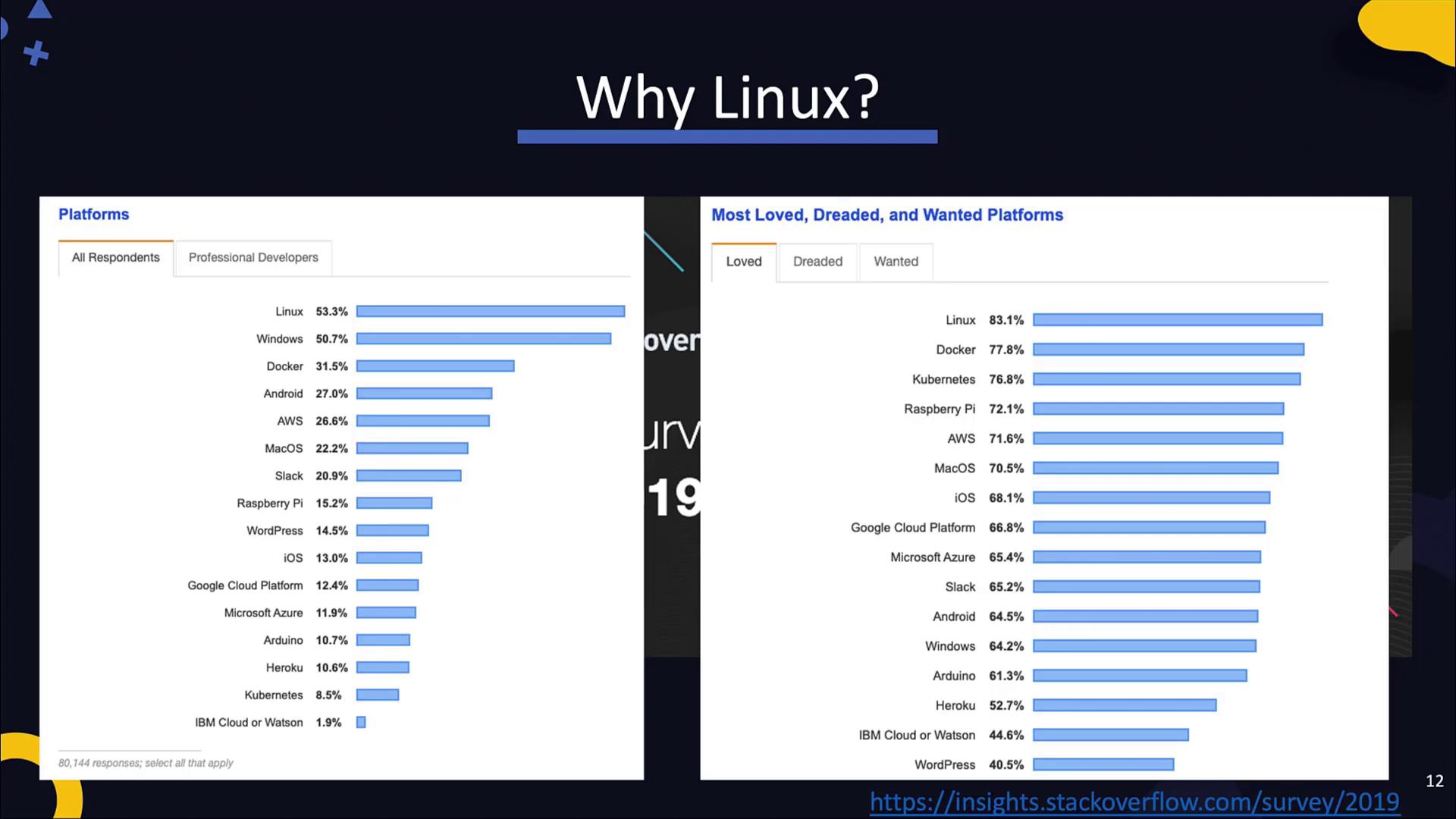
While designing this course, we leveraged insights from Stack Overflow and student surveys to focus on the most in-demand technologies. According to community feedback, Linux remains the most widely used and highly favored platform among developers. If you’re new to Linux, it's highly recommended to become familiar with its basic operations, as many modern DevOps tools—such as Docker, Ansible, and Kubernetes—are built around Linux. For example, Docker originally supported only Linux, and even though Ansible can manage Windows systems, it requires a Linux controller. Moreover, Kubernetes master nodes operate exclusively on Linux. A solid Linux foundation is critical if you plan to pursue certifications and proficiency in these areas.
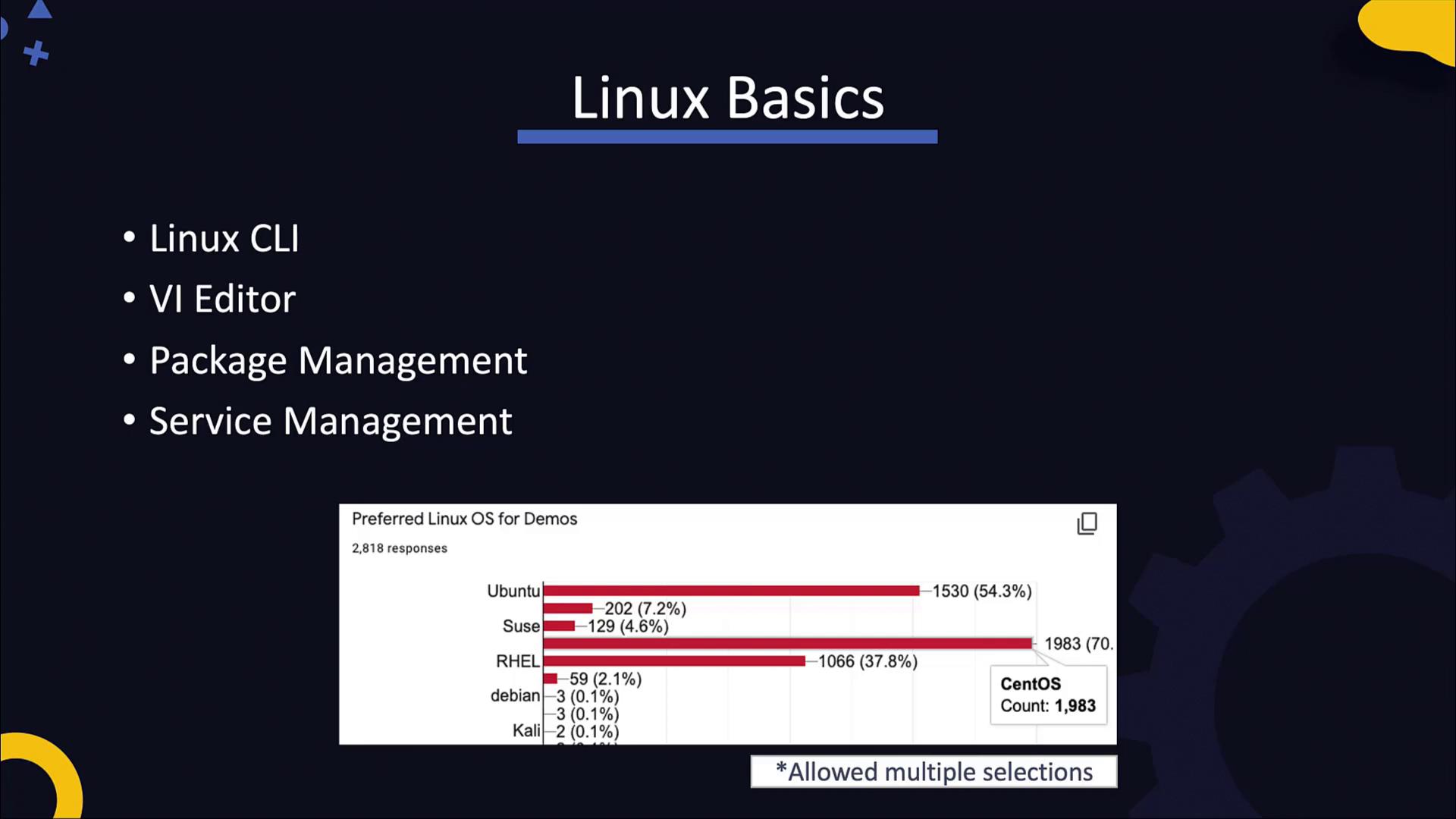
In this lesson, we cover Linux fundamentals, including the Command Line Interface (CLI), text editors like vi, package management, and service management. Our student survey demonstrated a strong preference for CentOS—making it an ideal starting point. CentOS, being the free community version of RHEL, provides experiences that are transferable to both Red Hat Enterprise Linux and certification tracks like Linux Essentials or the Linux Foundation Certified Systems Administrator exam.
For those interested in a deeper dive, consider enrolling in the [Learning Linux Basics Course & Labs](https://learn.kodekloud.com/user/courses/learning-linux-basics-course-labs). This course employs a unique story/comic-style approach along with practical labs to enhance your understanding.
Today, we begin our Linux crash course using lab environments. Working with a pre-provisioned Linux system will help you become comfortable with the CLI and core commands before you set up your own Linux system using tools like VirtualBox.
## The Linux Shell and Common Command-Line Tools
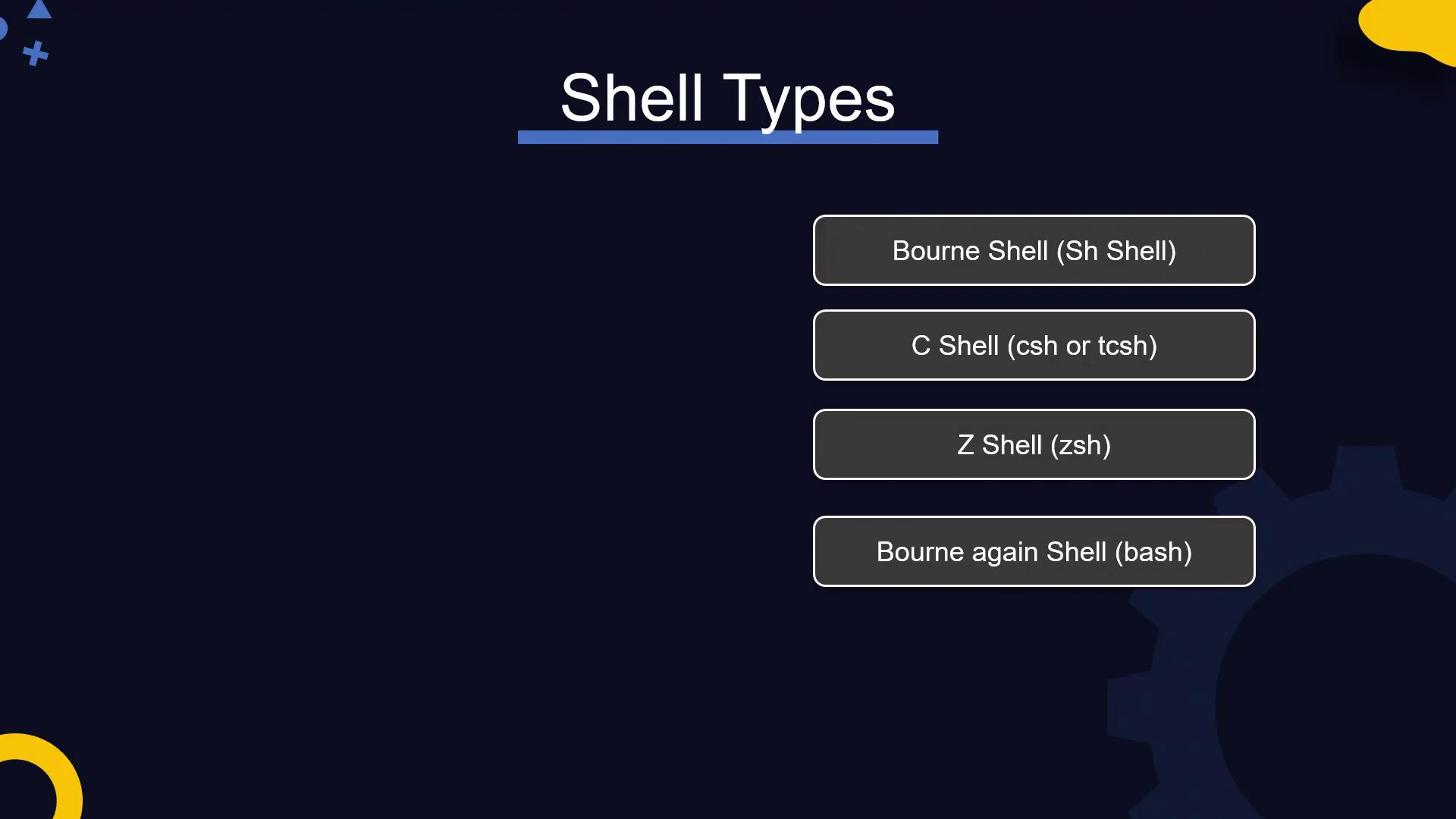
Linux systems offer both graphical user interfaces (GUIs) and command-line interfaces (CLIs), but the CLI (or shell) is indispensable in many IT environments—particularly on servers where a GUI is rarely available. Numerous shells exist:
* Bourne shell (sh)
* C shell (csh or tcsh)
* Z shell (zsh)
* Bourne Again Shell (bash)
While the older Bourne shell is limited, the modern bash shell offers advanced features such as arithmetic operations, conditionals, and arrays. To verify which shell you are using, run:
```bash theme={null}
echo $SHELL
```
The echo command prints text or the value of an environment variable, as indicated by the dollar sign.
## Core Linux Commands
Below is a list of essential Linux commands for file and directory management:
| Command | Description | Example Usage |
| ------- | ------------------------------------------------------------------ | --------------------------------- |
| echo | Prints a line of text or an environment variable's value | `echo Hi` |
| ls | Lists the contents of a directory | `ls` |
| cd | Changes the current directory | `cd my_dir1` |
| pwd | Displays the current working directory | `pwd` |
| mkdir | Creates a new directory | `mkdir new_directory` |
| rm | Removes files or directories | `rm sample_file.txt` |
| cp | Copies files or directories (use `-R` for directories recursively) | `cp new_file.txt copy_file.txt` |
| mv | Moves or renames files and directories | `mv new_file.txt sample_file.txt` |
| touch | Creates a new, empty file | `touch new_file.txt` |
For example, here are some basic commands with sample outputs:
```bash theme={null}
echo Hi
# Output:
# Hi
```
```bash theme={null}
ls
# Output (example):
# file.txt my_dir1 file2.conf
```
```bash theme={null}
cd my_dir1
```
```bash theme={null}
pwd
# Output (example):
# /home/my_dir1
```
```bash theme={null}
mkdir new_directory
```
```bash theme={null}
cd new_directory; mkdir www; pwd
# Output (example):
# /home/my_dir1/new_directory
```
The above example demonstrates executing multiple commands in sequence by separating them with semicolons. This method enables streamlined operations within the CLI.
To create an entire directory tree in a single command, use the following:
```bash theme={null}
mkdir -p /tmp/asia/india/bangalore
```
The `-p` option ensures that the entire directory tree is created if it doesn’t already exist. Conversely, to remove a directory and its contents recursively, you can use:
```bash theme={null}
rm -r /path/to/directory
```
## Working with Files
File manipulation is a common Linux task. Here are some basic file operations:
1. Create an empty file:
```bash theme={null}
touch new_file.txt
```
2. Add content to a file using redirection:
```bash theme={null}
cat > new_file.txt
This is some sample content.
# (Press CTRL+D to save)
```
3. Display the file contents:
```bash theme={null}
cat new_file.txt
# Output:
# This is some sample content.
```
For editing files, text editors like vi or vim are essential tools and will be covered in more detail later in the course. Additionally, you can easily copy, move, and delete files:
```bash theme={null}
cp new_file.txt copy_file.txt
mv new_file.txt sample_file.txt # This renames the file
rm sample_file.txt
```
These commands allow you to duplicate, rename/move, and remove files as required.
We encourage you to practice using these commands within a lab environment to build confidence and improve your command line proficiency.
As you progress through the labs, focus on mastering these CLI fundamentals. The next section will guide you through deploying a Linux system on your laptop using tools like VirtualBox, providing a solid foundation for deeper exploration in future lessons.
Happy learning!