> ## Documentation Index
> Fetch the complete documentation index at: https://notes.kodekloud.com/llms.txt
> Use this file to discover all available pages before exploring further.
# DNS
> This lesson introduces DNS on Linux, covering basic concepts, essential commands, and hands-on lab challenges for beginners.
In this lesson, we introduce DNS on Linux for beginners. We cover basic DNS concepts and demonstrate the essential commands needed to configure and troubleshoot DNS on Linux hosts. By the end, you'll have the opportunity to complete a hands-on lab with DNS challenges directly in your browser.
Imagine you have two computers—A and B—on the same network, with IP addresses 192.168.1.10 and 192.168.1.11 respectively. You can verify connectivity by pinging computer B from computer A using its IP address:
```bash theme={null}
ping 192.168.1.11
```
Sample output:
```plain theme={null}
Reply from 192.168.1.11: bytes=32 time=4ms TTL=117
Reply from 192.168.1.11: bytes=32 time=4ms TTL=117
```
Suppose system B provides database services and you want to refer to it by an easy-to-remember name like "db". Attempting to ping "db" immediately, however, results in:
```bash theme={null}
ping db
```
```plain theme={null}
ping: unknown host db
```
To resolve this, add an entry to the `/etc/hosts` file on system A to map the IP address to the name "db":
```bash theme={null}
cat >> /etc/hosts
192.168.1.11 db
```
Now, pinging "db" directs traffic to 192.168.1.11:
```bash theme={null}
ping db
```
```plain theme={null}
PING db (192.168.1.11) 56(84) bytes of data.
64 bytes from db (192.168.1.11): icmp_seq=1 ttl=64 time=0.052 ms
64 bytes from db (192.168.1.11): icmp_seq=2 ttl=64 time=0.079 ms
```
Keep in mind that system A relies entirely on the `/etc/hosts` entry for name resolution. It does not verify whether system B’s actual hostname (as reported by the `hostname` command) matches "db".
You can also add multiple aliases for the same IP address. For instance, to associate system B with both "db" and "[www.google.com](http://www.google.com)", update the `/etc/hosts` file as follows:
```bash theme={null}
cat >> /etc/hosts
192.168.1.11 db
192.168.1.11 www.google.com
```
After this, both names will resolve to 192.168.1.11. Test it with:
```bash theme={null}
ping db
```
```plain theme={null}
PING db (192.168.1.11) 56(84) bytes of data.
64 bytes from db (192.168.1.11): icmp_seq=1 ttl=64 time=0.052 ms
64 bytes from db (192.168.1.11): icmp_seq=2 ttl=64 time=0.079 ms
```
```bash theme={null}
ping www.google.com
```
```plain theme={null}
PING www.google.com (192.168.1.11) 56(84) bytes of data.
64 bytes from www.google.com (192.168.1.11): icmp_seq=1 ttl=64 time=0.052 ms
64 bytes from www.google.com (192.168.1.11): icmp_seq=2 ttl=64 time=0.079 ms
```
Each time you reference a hostname—whether using ping, SSH, or curl—the system first checks the `/etc/hosts` file:
```bash theme={null}
cat >> /etc/hosts
192.168.1.11 db
192.168.1.11 www.google.com
ping db
ssh db
curl http://www.google.com
```
This translation of a hostname to an IP address is known as name resolution. While managing small networks via local `/etc/hosts` files works well, maintaining consistency becomes difficult as the number of hosts increases.
If a server’s IP address changes, updating the `/etc/hosts` file on every host can be a major headache. A centralized DNS server eliminates this problem.
## Centralizing DNS with a DNS Server
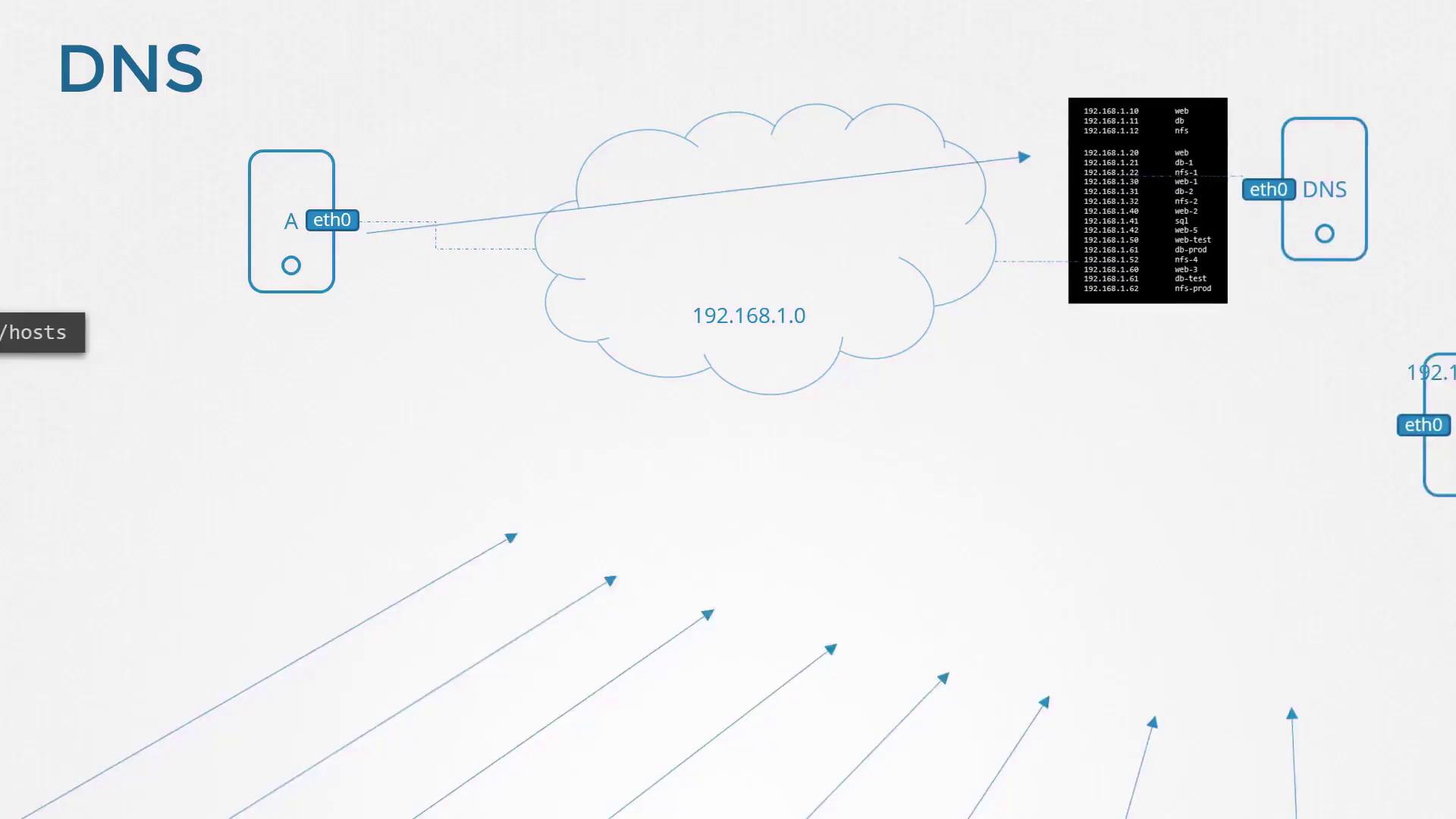
To simplify name resolution in larger networks, you store these mappings on a single DNS server. For example, consider these entries on your centralized DNS server:
```bash theme={null}
cat >> /etc/hosts
192.168.1.10 web
192.168.1.11 db
192.168.1.12 nfs
192.168.1.20 web
192.168.1.21 db-1
192.168.1.22 nfs-1
192.168.1.31 web-1
192.168.1.32 db-2
192.168.1.40 web-2
192.168.1.41 sql
192.168.1.42 web-5
192.168.1.61 web-test
192.168.1.63 db-prod
192.168.1.64 nfs-4
192.168.1.60 web-3
192.168.1.62 nfs-prod
```
Configure each host on your network to use this DNS server for name resolution by specifying its IP address in the `/etc/resolv.conf` file. For example, if your DNS server’s IP address is 192.168.1.100, add:
```bash theme={null}
cat >> /etc/resolv.conf
nameserver 192.168.1.100
```
With this setup, if a hostname isn’t locally resolved via `/etc/hosts`, the system queries the DNS server. Updating the DNS server’s mappings automatically refreshes host resolution across the network.
Local `/etc/hosts` entries remain useful for specific purposes. For instance, if you provision a test server that only you need to access, add an entry like this:
```bash theme={null}
cat >> /etc/hosts
192.168.1.115 test
ping test
```
Output:
```plain theme={null}
PING test (192.168.1.115) 56(84) bytes of data.
64 bytes from test (192.168.1.115): icmp_seq=1 ttl=64 time=0.052 ms
64 bytes from test (192.168.1.115): icmp_seq=2 ttl=64 time=0.079 ms
```
The DNS resolution order is controlled by `/etc/nsswitch.conf`. By default, it is set to:
```bash theme={null}
cat /etc/nsswitch.conf
hosts: files dns
```
This configuration instructs the system to check the local `/etc/hosts` file first ("files") and then query the DNS server ("dns").
If a hostname isn’t found in either the local file or on the DNS server (for example, [www.facebook.com](http://www.facebook.com) when your DNS does not forward unresolved queries), the ping will fail. To resolve external domains, you can add a public DNS server (such as Google's 8.8.8.8) to `/etc/resolv.conf` or set your internal DNS server to forward queries.
Consider this scenario: Initially, pinging [www.facebook.com](http://www.facebook.com) fails.
```bash theme={null}
cat >> /etc/hosts
192.168.1.115 test
ping www.facebook.com
```
Output:
```plain theme={null}
ping: www.facebook.com: Temporary failure in name resolution
```
Once you add the DNS server in `/etc/resolv.conf`:
```bash theme={null}
cat >> /etc/resolv.conf
nameserver 192.168.1.100
ping www.facebook.com
```
Output:
```plain theme={null}
PING star-mini.c10r.facebook.com (157.240.13.35) 56(84) bytes of data.
64 bytes from edge-star-mini-shv-02-sin6.facebook.com (157.240.13.35): icmp_seq=1 ttl=50 time=5.70 ms
```
The ".com" indicates a top-level domain (TLD) that classifies the website under specific categories such as commercial or network-related.
## DNS Hierarchy and Search Domains
Consider the hierarchical structure of Google’s domain. The primary domain is "google.com", while "www" is one of its subdomains. Other subdomains like maps.google.com, drive.google.com, apps.google.com, and mail.google.com represent different Google services. When queried, your DNS server may need to forward the request up the hierarchy—which involves root DNS servers, TLD servers, and authoritative DNS servers—to resolve the domain to the correct IP address.
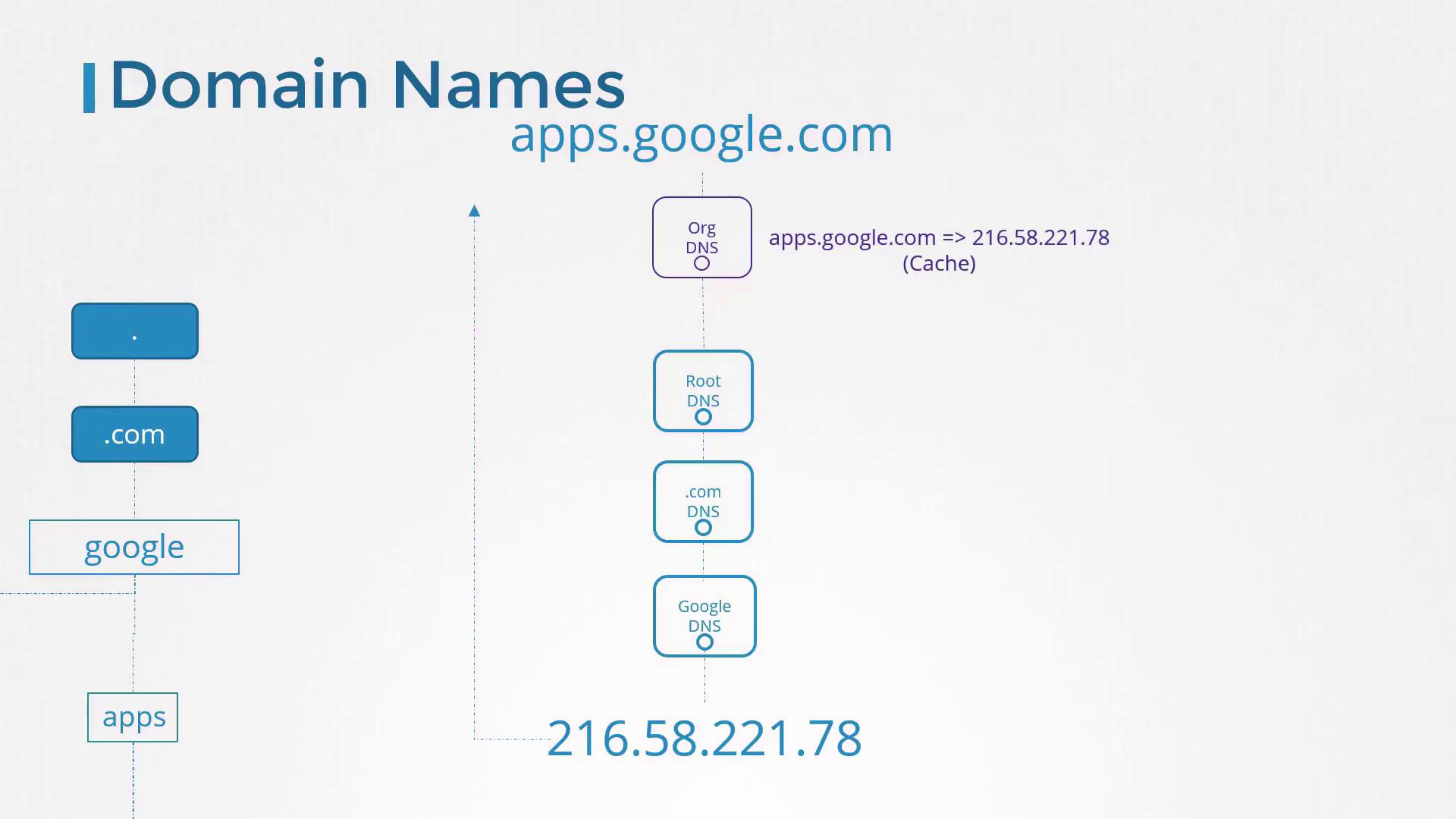
Similarly, an organization might use a domain such as mycompany.com with subdomains like [www.mycompany.com](http://www.mycompany.com) for the public website, mail.mycompany.com for email, drive.mycompany.com for storage, payroll.mycompany.com for payroll services, and hr.mycompany.com for human resources. These DNS records are centrally managed by the internal DNS server.
To simplify internal hostname resolution, you can configure a search domain in `/etc/resolv.conf`. This allows you to use short names instead of fully qualified domain names. For example:
```bash theme={null}
cat >> /etc/resolv.conf
nameserver 192.168.1.100
search mycompany.com
```
Now, when you ping a short name like "web", the system automatically appends "mycompany.com" to resolve it:
```bash theme={null}
ping web.mycompany.com
```
Output:
```plain theme={null}
PING web.mycompany.com (192.168.1.10) 56(84) bytes of data.
64 bytes from web.mycompany.com (192.168.1.10): icmp_seq=1 ttl=64 time=0.052 ms
```
Attempting to ping "web" without proper search settings may result in a resolution failure:
```bash theme={null}
ping web
```
Output:
```plain theme={null}
ping: web: Temporary failure in name resolution
```
You can also list multiple domains in the search configuration to allow the resolver to try several suffixes for a short hostname.
## Common DNS Record Types
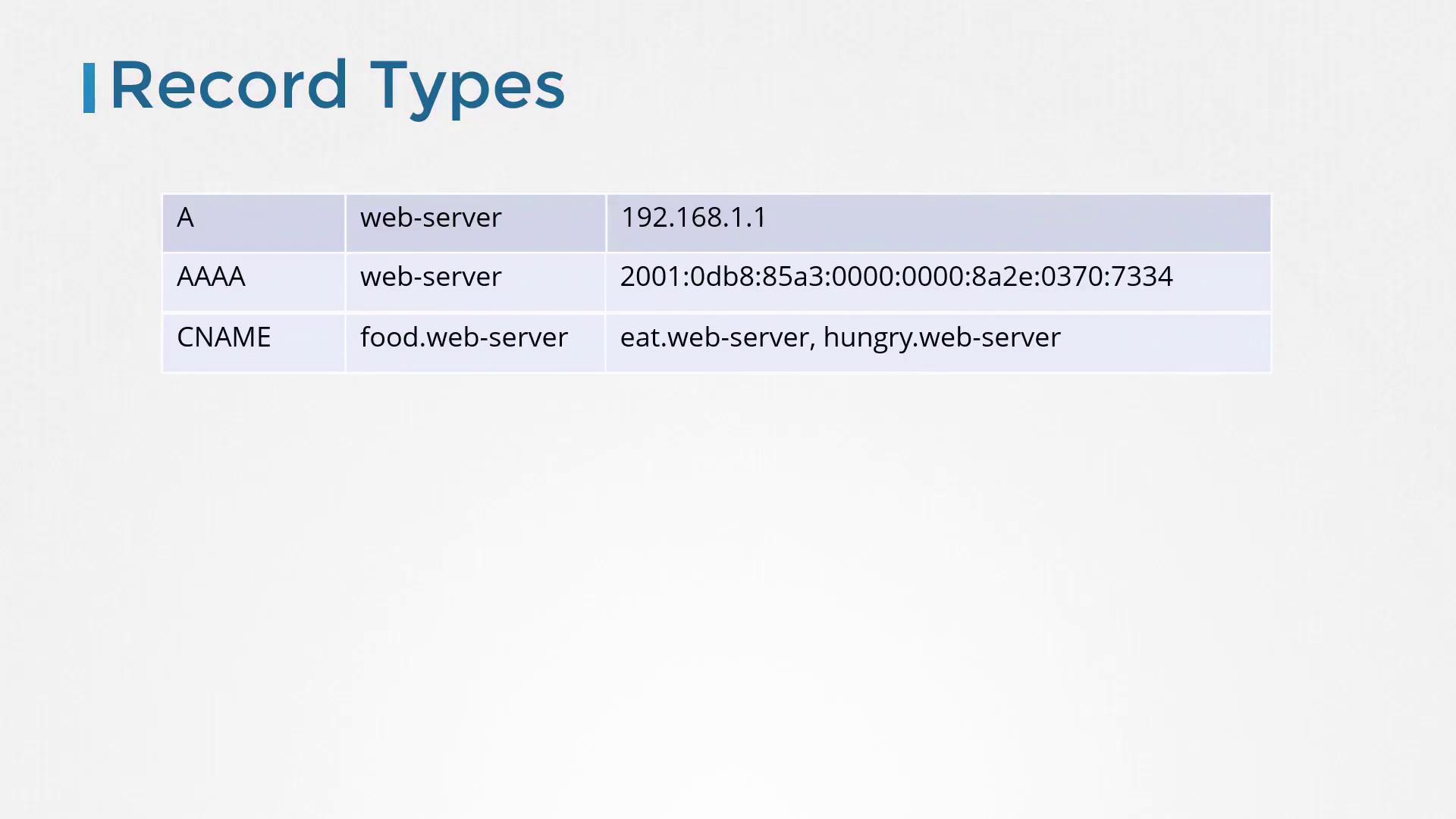
DNS servers store mappings between hostnames and IP addresses, and these mappings are defined by various record types. Below is a table summarizing common DNS record types:
| Record Type | Example Hostname | Example Mapping |
| ----------- | ---------------- | ------------------------------------------- |
| A | web-server | 192.168.1.1 |
| AAAA | web-server | 2001:0db8:85a3:0000:0000:8a2e:0370:7334 |
| CNAME | food.web-server | Points to eat.web-server, hungry.web-server |
An A record maps a hostname to an IPv4 address, while an AAAA record maps a hostname to an IPv6 address. A CNAME (canonical name) record creates an alias for another domain name—useful for routing multiple names to the same application.
## DNS Diagnostic Tools
While ping is a standard tool for checking DNS resolution, utilities like NSLookup and DIG provide more detailed insights.
For example, NSLookup directly queries a DNS server, bypassing local `/etc/hosts` entries:
```bash theme={null}
nslookup www.google.com
```
Sample output:
```plain theme={null}
Server: 8.8.8.8
Address: 8.8.8.8#53
Non-authoritative answer:
Name: www.google.com
Address: 172.217.0.132
```
Similarly, DIG provides comprehensive DNS information:
```bash theme={null}
dig www.google.com
```
Sample output:
```plain theme={null}
; <<>> DiG 9.10.3-P4-Ubuntu <<>> www.google.com
;; global options: +cmd
;; Got answer:
;; ->>HEADER<<- opcode: QUERY, status: NOERROR, id: 28065
;; flags: qr rd ra; QUERY: 1, ANSWER: 6, AUTHORITY: 0, ADDITIONAL: 1
;; OPT PSEUDOSECTION:
; EDNS: version: 0, flags:; udp: 512
;; QUESTION SECTION:
;www.google.com. IN A
;; ANSWER SECTION:
www.google.com. 245 IN A 64.233.177.103
www.google.com. 245 IN A 64.233.177.105
www.google.com. 245 IN A 64.233.177.147
www.google.com. 245 IN A 64.233.177.106
www.google.com. 245 IN A 64.233.177.104
www.google.com. 245 IN A 64.233.177.99
;; Query time: 5 msec
;; SERVER: 8.8.8.8#53(8.8.8.8)
;; WHEN: Sun Mar 24 04:34:33 UTC 2019
;; MSG SIZE rcvd: 139
```
As you work through practice exercises, you will configure, view, and troubleshoot DNS on actual systems using these tools.
That concludes this lesson on DNS. Happy learning!