> ## Documentation Index
> Fetch the complete documentation index at: https://notes.kodekloud.com/llms.txt
> Use this file to discover all available pages before exploring further.
# Git Remote Repositories
> Explains remote Git repositories, hosting options, setup, push/clone workflows, merging, conflict resolution, and common commands for collaborating with teammates.
Let's continue our discussion on Git by covering remote repositories — the central place where team members share and combine their work.
When you initialize a Git repository on your laptop, that's a local Git repository. In a team, each developer typically has their own local repository with a copy of the project files. For example, one person might edit `main.py`, another `db.py`, someone else `cache.py`, and so on.
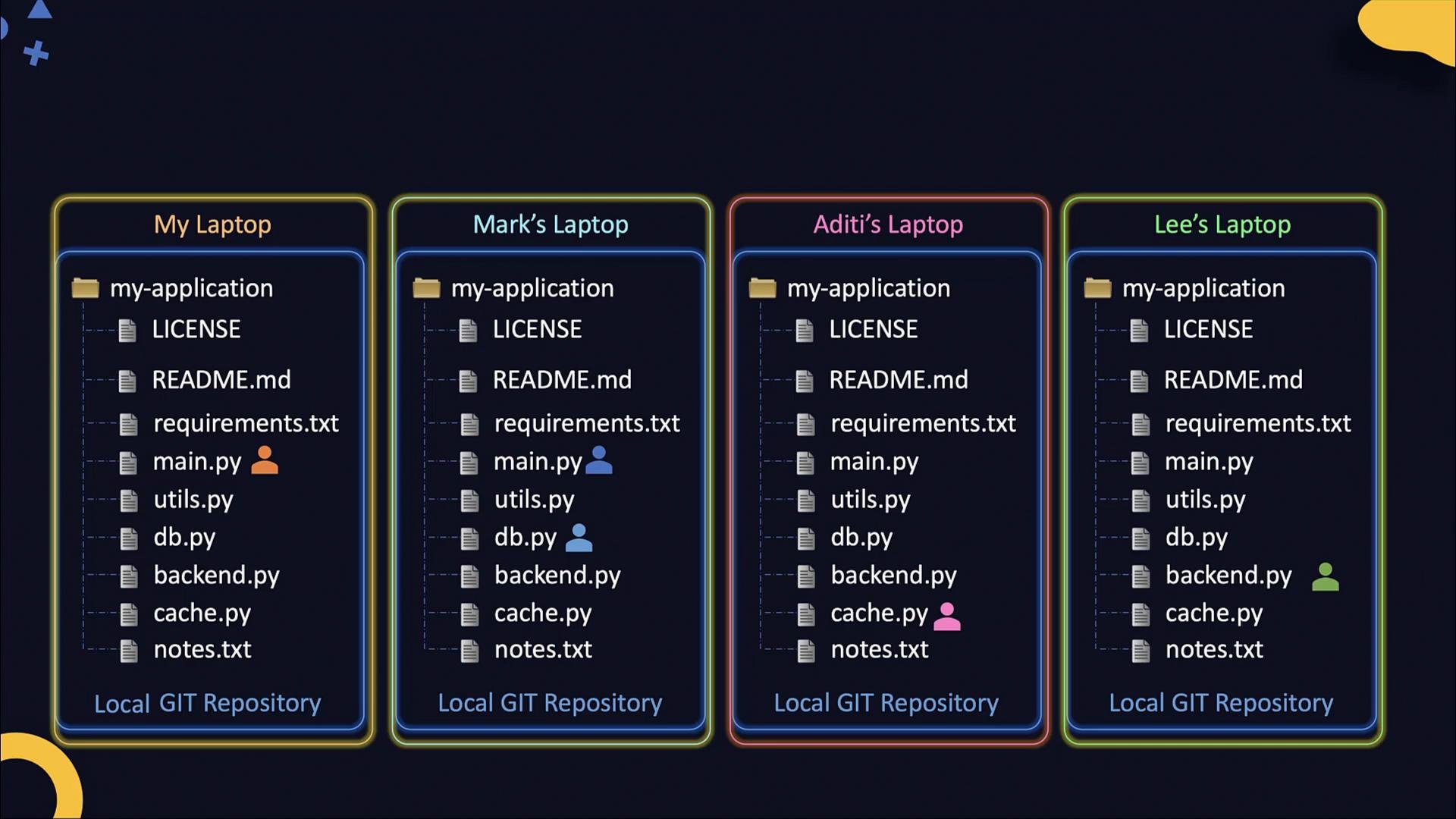 When everyone's changes are ready, those local commits need to be consolidated in a central place — a remote Git repository. Remotes can be hosted on the public internet (for example, GitHub or GitLab), or on servers inside your own network (self-hosted Git servers). The remote holds a combined history and becomes the single source of truth that developers push to and pull from.
Example layout of a remote repository (logical view):
```text theme={null}
Remote GIT Repository
my-application
LICENSE
README.md
requirements.txt
main.py
utils.py
db.py
backend.py
cache.py
```
How merging works
* When team members push commits, the remote stores that history.
* Git can automatically merge changes when edits touch different parts of the same file.
* If two commits change the same line in the same file, a merge conflict occurs and must be resolved manually.
* After conflicts are resolved and pushed, everyone can pull the merged history and obtain the latest combined copy.
What is a remote Git repository and how do you set one up?
* Self-hosted: Install Git on a server and expose it via `git daemon`, SSH, or smart HTTP(s).
* Hosted services: Use GitHub, GitLab, Bitbucket, etc., which provide web UIs, access control, pull requests, CI/CD integrations, and more.
* Private instances: Run a private GitLab or other Git hosting inside your network for greater control.
Table: Remote hosting options at a glance
| Hosting option | Best for | Example |
| -: | - | - |
| Public hosted | Quick setup, collaboration, wide integrations | [GitHub](https://github.com), [GitLab](https://gitlab.com) |
| Self-hosted Git server | Full control, internal-only access | `git daemon`, SSH-based Git, smart HTTP(s) |
| Private GitLab instance | Team collaboration inside a private network | `gitlab.example.com` |
Git is the distributed version control system (the tool). GitHub and GitLab are hosted services that provide remote repositories, web interfaces, access controls, pull requests, and many extras that simplify team collaboration.
Preparing and pushing local code to a remote repository
1. Initialize the local repo, add files, and commit:
```bash theme={null}
echo "# my-application" >> README.md
git init
git add README.md
git commit -m "first commit"
```
2. Create a remote repository on your hosting service (for example, via the GitHub UI at `https://github.com/new`). Save the repository URL shown by the hosting service.
3. Add the remote locally and push:
```bash theme={null}
# Add a remote (replace and as appropriate)
git remote add
# Example using GitHub as the remote named 'github'
git remote add github https://github.com/mmumshad/my-application.git
# Push the local branch to the remote. Use your branch name (e.g., master or main).
# The -u option sets the upstream tracking reference for the local branch.
git push -u github master
```
Important notes:
* When writing commands in documentation, use backticks around placeholders like `git remote add ` so MDX doesn't interpret angle brackets.
* Remote names are aliases for convenience. `origin` is the conventional default name for the primary remote, but you can name remotes anything (e.g., `github`, `gitlab`, `upstream`). You can also configure multiple remotes for the same repository.
Many hosting services now use `main` as the default branch name instead of `master`. Check your service's default branch and adjust commands (for example, `git push -u origin main`) accordingly.
Cloning and default remote setup
* When a new developer needs a local copy, they use `git clone` with the remote URL. Cloning copies the repository and automatically configures a remote named `origin`.
```bash theme={null}
# Clone the repo (example)
git clone https://github.com/mmumshad/my-application.git
```
* After cloning, `git remote -v` shows configured remotes:
```bash theme={null}
git remote -v
# Example output:
# origin https://github.com/mmumshad/my-application.git (fetch)
# origin https://github.com/mmumshad/my-application.git (push)
```
* Since `origin` is set up automatically on clone, you generally do not need to run `git remote add` after cloning.
Common workflows: pushing, pulling, and updating
* Make changes, stage, and commit locally:
```bash theme={null}
git add main.py
git commit -m "Update main.py with feature X"
```
* Push commits to the remote:
```bash theme={null}
# Push to the remote named 'origin' (or another remote name you configured)
git push origin master
```
* Get other people's changes by pulling from the remote:
```bash theme={null}
git pull origin master
```
`git pull` is shorthand for `git fetch` followed by `git merge` (or `git fetch` + `git rebase` when configured). It updates your local branch with commits from the remote.
Quick reference table: common commands
| Action | Command | Notes |
| - | - | - |
| Initialize repo | `git init` | Creates a local Git repository |
| Add remote | `git remote add ` | Use backticks for placeholders |
| Clone repo | `git clone ` | Sets `origin` automatically |
| Show remotes | `git remote -v` | Lists `fetch` and `push` URLs |
| Push changes | `git push ` | Use `-u` once to set upstream |
| Pull changes | `git pull ` | Fetch + merge (or rebase) |
Resolving merge conflicts
* If two people edit different lines, Git usually merges automatically.
* If the same line is changed by two people, Git marks a conflict in the file and you must edit the file, resolve the conflict markers, stage the resolved file, and commit.
* After resolving conflicts and pushing, other team members can pull the updated, conflict-free history.
Next steps and practice
* Practice the full lifecycle: initialize a repo, create a remote, push, clone, pull, and intentionally create & resolve a simple merge conflict.
* Apply these concepts to a real project and collaborate with teammates or loop through a small CI workflow.
Links and references
* [GitHub](https://github.com)
* [GitLab](https://gitlab.com)
* [Git documentation - git remote](https://git-scm.com/docs/git-remote)
* [Git documentation - git push](https://git-scm.com/docs/git-push)
We’ll cover more advanced Git topics and workflows in future lessons and hope to offer an in-depth Git course soon.
This documentation is built and hosted on [Mintlify](https://mintlify.com), a developer documentation platform.
When everyone's changes are ready, those local commits need to be consolidated in a central place — a remote Git repository. Remotes can be hosted on the public internet (for example, GitHub or GitLab), or on servers inside your own network (self-hosted Git servers). The remote holds a combined history and becomes the single source of truth that developers push to and pull from.
Example layout of a remote repository (logical view):
```text theme={null}
Remote GIT Repository
my-application
LICENSE
README.md
requirements.txt
main.py
utils.py
db.py
backend.py
cache.py
```
How merging works
* When team members push commits, the remote stores that history.
* Git can automatically merge changes when edits touch different parts of the same file.
* If two commits change the same line in the same file, a merge conflict occurs and must be resolved manually.
* After conflicts are resolved and pushed, everyone can pull the merged history and obtain the latest combined copy.
What is a remote Git repository and how do you set one up?
* Self-hosted: Install Git on a server and expose it via `git daemon`, SSH, or smart HTTP(s).
* Hosted services: Use GitHub, GitLab, Bitbucket, etc., which provide web UIs, access control, pull requests, CI/CD integrations, and more.
* Private instances: Run a private GitLab or other Git hosting inside your network for greater control.
Table: Remote hosting options at a glance
| Hosting option | Best for | Example |
| -: | - | - |
| Public hosted | Quick setup, collaboration, wide integrations | [GitHub](https://github.com), [GitLab](https://gitlab.com) |
| Self-hosted Git server | Full control, internal-only access | `git daemon`, SSH-based Git, smart HTTP(s) |
| Private GitLab instance | Team collaboration inside a private network | `gitlab.example.com` |
Git is the distributed version control system (the tool). GitHub and GitLab are hosted services that provide remote repositories, web interfaces, access controls, pull requests, and many extras that simplify team collaboration.
Preparing and pushing local code to a remote repository
1. Initialize the local repo, add files, and commit:
```bash theme={null}
echo "# my-application" >> README.md
git init
git add README.md
git commit -m "first commit"
```
2. Create a remote repository on your hosting service (for example, via the GitHub UI at `https://github.com/new`). Save the repository URL shown by the hosting service.
3. Add the remote locally and push:
```bash theme={null}
# Add a remote (replace and as appropriate)
git remote add
# Example using GitHub as the remote named 'github'
git remote add github https://github.com/mmumshad/my-application.git
# Push the local branch to the remote. Use your branch name (e.g., master or main).
# The -u option sets the upstream tracking reference for the local branch.
git push -u github master
```
Important notes:
* When writing commands in documentation, use backticks around placeholders like `git remote add ` so MDX doesn't interpret angle brackets.
* Remote names are aliases for convenience. `origin` is the conventional default name for the primary remote, but you can name remotes anything (e.g., `github`, `gitlab`, `upstream`). You can also configure multiple remotes for the same repository.
Many hosting services now use `main` as the default branch name instead of `master`. Check your service's default branch and adjust commands (for example, `git push -u origin main`) accordingly.
Cloning and default remote setup
* When a new developer needs a local copy, they use `git clone` with the remote URL. Cloning copies the repository and automatically configures a remote named `origin`.
```bash theme={null}
# Clone the repo (example)
git clone https://github.com/mmumshad/my-application.git
```
* After cloning, `git remote -v` shows configured remotes:
```bash theme={null}
git remote -v
# Example output:
# origin https://github.com/mmumshad/my-application.git (fetch)
# origin https://github.com/mmumshad/my-application.git (push)
```
* Since `origin` is set up automatically on clone, you generally do not need to run `git remote add` after cloning.
Common workflows: pushing, pulling, and updating
* Make changes, stage, and commit locally:
```bash theme={null}
git add main.py
git commit -m "Update main.py with feature X"
```
* Push commits to the remote:
```bash theme={null}
# Push to the remote named 'origin' (or another remote name you configured)
git push origin master
```
* Get other people's changes by pulling from the remote:
```bash theme={null}
git pull origin master
```
`git pull` is shorthand for `git fetch` followed by `git merge` (or `git fetch` + `git rebase` when configured). It updates your local branch with commits from the remote.
Quick reference table: common commands
| Action | Command | Notes |
| - | - | - |
| Initialize repo | `git init` | Creates a local Git repository |
| Add remote | `git remote add ` | Use backticks for placeholders |
| Clone repo | `git clone ` | Sets `origin` automatically |
| Show remotes | `git remote -v` | Lists `fetch` and `push` URLs |
| Push changes | `git push ` | Use `-u` once to set upstream |
| Pull changes | `git pull ` | Fetch + merge (or rebase) |
Resolving merge conflicts
* If two people edit different lines, Git usually merges automatically.
* If the same line is changed by two people, Git marks a conflict in the file and you must edit the file, resolve the conflict markers, stage the resolved file, and commit.
* After resolving conflicts and pushing, other team members can pull the updated, conflict-free history.
Next steps and practice
* Practice the full lifecycle: initialize a repo, create a remote, push, clone, pull, and intentionally create & resolve a simple merge conflict.
* Apply these concepts to a real project and collaborate with teammates or loop through a small CI workflow.
Links and references
* [GitHub](https://github.com)
* [GitLab](https://gitlab.com)
* [Git documentation - git remote](https://git-scm.com/docs/git-remote)
* [Git documentation - git push](https://git-scm.com/docs/git-push)
We’ll cover more advanced Git topics and workflows in future lessons and hope to offer an in-depth Git course soon.
This documentation is built and hosted on [Mintlify](https://mintlify.com), a developer documentation platform.