> ## Documentation Index
> Fetch the complete documentation index at: https://notes.kodekloud.com/llms.txt
> Use this file to discover all available pages before exploring further.
# Git
> Practical Git introduction covering installation, initializing repositories, staging and committing changes, common workflows, and basic push pull collaboration to track and share code
In this lesson we cover Git — the distributed version control system used to track source code, configuration files, playbooks, and more. Whether you're a developer, system administrator, support engineer, or project manager, basic Git skills are essential for downloading code, managing changes, and collaborating with others.
What we'll cover
* What Git does and why it matters.
* How to install Git and verify the installation.
* Creating and working with repositories (local and remote).
* How to stage, commit, and inspect changes.
* Common workflows and next steps (clone, push, pull) and the difference between Git and hosting services like GitHub.
This article focuses on the essentials so you can quickly download code, make local changes, and share them to a remote repository. Git can be deep — consider this a practical starting point.
What problem does Git solve?
Imagine a small Flask app with a handful of files (LICENSE, README.md, requirements.txt, main.py). With only occasional edits you might remember your changes. As the project grows or multiple people contribute, you need a way to:
* Track what changed, when, and who changed it.
* Let multiple developers work simultaneously without overwriting each other.
* Create named snapshots (versions) of the project at important milestones.
Git addresses these needs by tracking changes to files and providing tools to create commits, branch, merge, and synchronize with remote repositories.
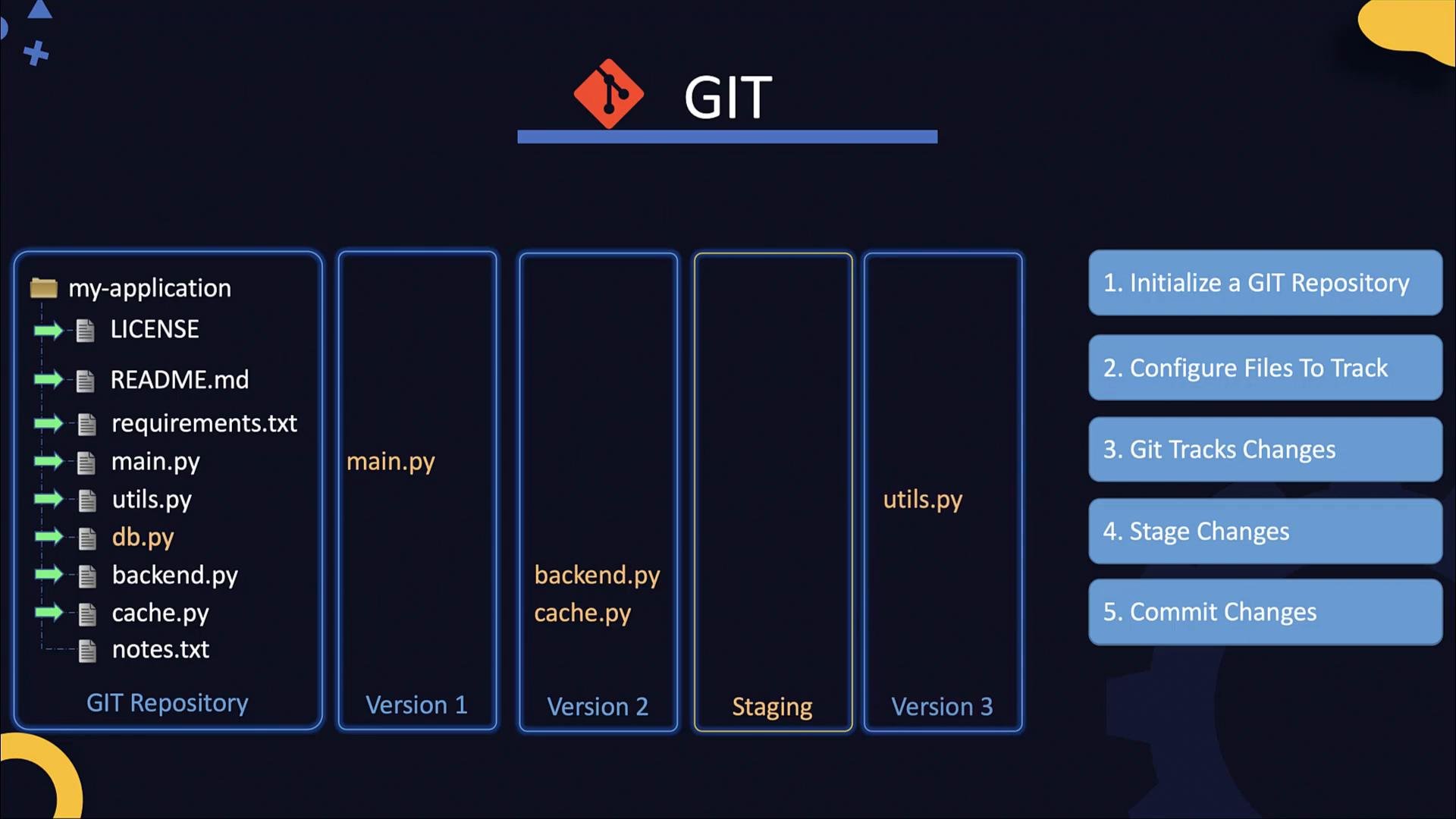
High-level Git workflow
1. Initialize a Git repository in your project directory (`git init`) or clone an existing remote repository (`git clone`).
2. Choose which files Git should track (use `.gitignore` to exclude files).
3. Stage a coherent set of changes into the index using `git add`.
4. Create a commit (`git commit`) to record a snapshot.
5. Repeat: edit → stage → commit; push and pull to synchronize with remote repositories when collaborating.
A few important points
* Git does not auto-version on save. You explicitly create versions with `git add` + `git commit`.
* Stage only the changes you intend to include in a commit to keep history focused.
* The working directory, staging area (index), and the commit history are the main Git states to understand.
Concise textual summary
* Working directory: your files.
* `.git` directory: repository metadata created by `git init`.
* Staging area (index): `git add` selects what goes into the next commit.
* Commit: `git commit` records the staged snapshot as a new version.
 Getting started: commands and examples
1. Install Git
* On CentOS/RHEL:
```bash theme={null}
sudo yum install -y git
```
* For other operating systems, follow the official instructions: [https://git-scm.com/downloads](https://git-scm.com/downloads)
Verify the installation:
```bash theme={null}
git --version
# Example output:
# git version 2.31.1
```
2. Initialize a repository
To start tracking an existing project directory:
```bash theme={null}
git init
# Example output:
# Initialized empty Git repository in my-application/.git/
```
This creates a hidden `.git` directory that contains all repository metadata and history.
3. Check repository status
Before adding files, check what Git sees:
```bash theme={null}
git status
# Example output:
# On branch master
# No commits yet
#
# Untracked files:
# (use "git add ..." to include in what will be committed)
#
# LICENSE
# README.md
# backend.py
# cache.py
# db.py
# main.py
# requirements.txt
# utils.py
# notes.txt
```
4. Decide which files to track
You can add each file explicitly:
```bash theme={null}
git add LICENSE README.md backend.py cache.py db.py main.py requirements.txt utils.py
```
Or add everything and use a `.gitignore` to exclude personal or generated files such as `notes.txt`. `.gitignore` is the standard way to exclude files from being tracked.
After staging, verify:
```bash theme={null}
git status
# Example output indicating staged files:
# On branch master
# No commits yet
#
# Changes to be committed:
# (use "git rm --cached ..." to unstage)
#
# new file: LICENSE
# new file: README.md
# new file: backend.py
# new file: cache.py
# new file: db.py
# new file: main.py
# new file: requirements.txt
# new file: utils.py
#
# Untracked files:
# notes.txt
```
5. Modify files and stage specific changes
When you edit a tracked file (e.g., `main.py`) Git marks it as modified:
```bash theme={null}
git status
# Example output:
# Changes not staged for commit:
# (use "git add ..." to update what will be committed)
# (use "git restore ..." to discard changes in working directory)
#
# modified: main.py
```
Stage the modified file:
```bash theme={null}
git add main.py
```
You can also stage only parts of a file (`git add -p`) when you want finer-grained commits.
6. Commit changes
Create a commit from staged changes and include a descriptive message:
```bash theme={null}
git commit -m "Initial commit"
# Example output:
# [master (root-commit) f5cdb03] Initial commit
# 8 files changed, 1 insertion(+)
# create mode 100644 LICENSE
# create mode 100644 README.md
# create mode 100644 backend.py
# create mode 100644 cache.py
# create mode 100644 db.py
# create mode 100644 main.py
# create mode 100644 requirements.txt
# create mode 100644 utils.py
```
Write commit messages that clearly describe what changed and why. Small, focused commits with meaningful messages make history easier to read, review, and revert if needed.
How `git add` behaves
* Untracked files: `git add ` both starts tracking and stages the file.
* Tracked and modified files: `git add ` stages the current changes for the next commit.
* Partial staging: use `git add -p` to interactively choose hunks to stage.
Quick reference table
| Command | Purpose | Example / Notes |
| - | -: | - |
| `git init` | Initialize a local repository | Creates `.git` directory |
| `git status` | Show repository state | See untracked, staged, and modified files |
| `git add ` | Stage file(s) for commit | Stages changes to be included in next commit |
| `git commit -m "msg"` | Create a commit from staged files | Records snapshot with message |
| `git clone ` | Copy a remote repo locally | Use when starting from a remote source |
| `git push` | Send commits to a remote | Requires a configured remote (e.g., origin) |
| `git pull` | Fetch & merge from remote | Sync local branch with remote branch |
Summary and next steps
* Core local workflow: `git init` → `git add` → `git commit`.
* Use `git status` often to understand repository state.
* Practice creating commits, making targeted changes, and using `.gitignore` to exclude local files.
* Next topics to learn: cloning remote repositories (`git clone`), connecting to remotes (`git remote add`), pushing and pulling (`git push`, `git pull`), branching and merging, and collaboration workflows (forks, pull requests).
Useful references
* Official Git downloads and documentation: [https://git-scm.com/](https://git-scm.com/)
* Learn Git basics with interactive tutorials: [https://try.github.io/](https://try.github.io/) or [https://learngitbranching.js.org/](https://learngitbranching.js.org/)
That's the end of this introduction. Practice these steps hands-on to become comfortable; remote collaboration (clone, push, pull, branching) is the natural next step.
This documentation is built and hosted on [Mintlify](https://mintlify.com), a developer documentation platform.
Getting started: commands and examples
1. Install Git
* On CentOS/RHEL:
```bash theme={null}
sudo yum install -y git
```
* For other operating systems, follow the official instructions: [https://git-scm.com/downloads](https://git-scm.com/downloads)
Verify the installation:
```bash theme={null}
git --version
# Example output:
# git version 2.31.1
```
2. Initialize a repository
To start tracking an existing project directory:
```bash theme={null}
git init
# Example output:
# Initialized empty Git repository in my-application/.git/
```
This creates a hidden `.git` directory that contains all repository metadata and history.
3. Check repository status
Before adding files, check what Git sees:
```bash theme={null}
git status
# Example output:
# On branch master
# No commits yet
#
# Untracked files:
# (use "git add ..." to include in what will be committed)
#
# LICENSE
# README.md
# backend.py
# cache.py
# db.py
# main.py
# requirements.txt
# utils.py
# notes.txt
```
4. Decide which files to track
You can add each file explicitly:
```bash theme={null}
git add LICENSE README.md backend.py cache.py db.py main.py requirements.txt utils.py
```
Or add everything and use a `.gitignore` to exclude personal or generated files such as `notes.txt`. `.gitignore` is the standard way to exclude files from being tracked.
After staging, verify:
```bash theme={null}
git status
# Example output indicating staged files:
# On branch master
# No commits yet
#
# Changes to be committed:
# (use "git rm --cached ..." to unstage)
#
# new file: LICENSE
# new file: README.md
# new file: backend.py
# new file: cache.py
# new file: db.py
# new file: main.py
# new file: requirements.txt
# new file: utils.py
#
# Untracked files:
# notes.txt
```
5. Modify files and stage specific changes
When you edit a tracked file (e.g., `main.py`) Git marks it as modified:
```bash theme={null}
git status
# Example output:
# Changes not staged for commit:
# (use "git add ..." to update what will be committed)
# (use "git restore ..." to discard changes in working directory)
#
# modified: main.py
```
Stage the modified file:
```bash theme={null}
git add main.py
```
You can also stage only parts of a file (`git add -p`) when you want finer-grained commits.
6. Commit changes
Create a commit from staged changes and include a descriptive message:
```bash theme={null}
git commit -m "Initial commit"
# Example output:
# [master (root-commit) f5cdb03] Initial commit
# 8 files changed, 1 insertion(+)
# create mode 100644 LICENSE
# create mode 100644 README.md
# create mode 100644 backend.py
# create mode 100644 cache.py
# create mode 100644 db.py
# create mode 100644 main.py
# create mode 100644 requirements.txt
# create mode 100644 utils.py
```
Write commit messages that clearly describe what changed and why. Small, focused commits with meaningful messages make history easier to read, review, and revert if needed.
How `git add` behaves
* Untracked files: `git add ` both starts tracking and stages the file.
* Tracked and modified files: `git add ` stages the current changes for the next commit.
* Partial staging: use `git add -p` to interactively choose hunks to stage.
Quick reference table
| Command | Purpose | Example / Notes |
| - | -: | - |
| `git init` | Initialize a local repository | Creates `.git` directory |
| `git status` | Show repository state | See untracked, staged, and modified files |
| `git add ` | Stage file(s) for commit | Stages changes to be included in next commit |
| `git commit -m "msg"` | Create a commit from staged files | Records snapshot with message |
| `git clone ` | Copy a remote repo locally | Use when starting from a remote source |
| `git push` | Send commits to a remote | Requires a configured remote (e.g., origin) |
| `git pull` | Fetch & merge from remote | Sync local branch with remote branch |
Summary and next steps
* Core local workflow: `git init` → `git add` → `git commit`.
* Use `git status` often to understand repository state.
* Practice creating commits, making targeted changes, and using `.gitignore` to exclude local files.
* Next topics to learn: cloning remote repositories (`git clone`), connecting to remotes (`git remote add`), pushing and pulling (`git push`, `git pull`), branching and merging, and collaboration workflows (forks, pull requests).
Useful references
* Official Git downloads and documentation: [https://git-scm.com/](https://git-scm.com/)
* Learn Git basics with interactive tutorials: [https://try.github.io/](https://try.github.io/) or [https://learngitbranching.js.org/](https://learngitbranching.js.org/)
That's the end of this introduction. Practice these steps hands-on to become comfortable; remote collaboration (clone, push, pull, branching) is the natural next step.
This documentation is built and hosted on [Mintlify](https://mintlify.com), a developer documentation platform.