> ## Documentation Index
> Fetch the complete documentation index at: https://notes.kodekloud.com/llms.txt
> Use this file to discover all available pages before exploring further.
# Demo Docker Build and Push
> This article provides a guide to build and push a Docker image using a Jenkins Pipeline with Maven and Spring Boot.
In this hands-on guide, you’ll use a Jenkins Pipeline to build a Spring Boot JAR with Maven, run unit tests, then build and push a Docker image to Docker Hub, tagging it with the Git commit SHA.
## Pipeline Stages
| Stage | Purpose |
| --------------------------- | ---------------------------------------------------- |
| Build Artifact – Maven | Compile code and package the JAR |
| Unit Tests – JUnit & JaCoCo | Execute tests and collect coverage |
| Docker Build & Push | Build Docker image, tag with `$GIT_COMMIT`, and push |
## Dockerfile
Include this `Dockerfile` at the repo root to define your container:
```dockerfile theme={null}
FROM openjdk:8-jdk-alpine
EXPOSE 8080
ARG JAR_FILE=target/*.jar
ADD ${JAR_FILE} app.jar
ENTRYPOINT ["java", "-jar", "/app.jar"]
```
This:
* Starts from the lightweight `openjdk:8-jdk-alpine` image
* Exposes port 8080 (Spring Boot default)
* Adds the JAR built by Maven
* Runs the JAR on container start
## Initial Jenkinsfile
Add a **Docker Build & Push** stage after Maven build and unit tests:
```groovy theme={null}
pipeline {
agent any
stages {
stage('Build Artifact - Maven') {
steps {
sh 'mvn clean package -DskipTests=true'
archive 'target/*.jar'
}
}
stage('Unit Tests - JUnit and Jacoco') {
steps {
sh 'mvn test'
}
post {
always {
junit 'target/surefire-reports/*.xml'
jacoco execPattern: 'target/jacoco.exec'
}
}
}
stage('Docker Build and Push') {
steps {
sh 'printenv'
sh 'docker build -t siddharth67/numeric-app:"$GIT_COMMIT" .'
sh 'docker push siddharth67/numeric-app:"$GIT_COMMIT"'
}
}
}
}
```
`printenv` lists all Jenkins environment variables. We leverage `$GIT_COMMIT` to tag images uniquely.
## Inspecting Images on the Jenkins VM
On the VM where Docker runs, list existing images:
```bash theme={null}
root@devsecops-cloud:~$ docker images
REPOSITORY TAG IMAGE ID CREATED SIZE
weaveworks/weave-npc latest d1a364dc548d 2 weeks ago 133MB
weaveworks/weave-kube 2.8.1 f792d56d4ff 6 months ago 39.3MB
k8s.gcr.io/kube-proxy v1.20.0 df29c2434e6 6 months ago 89MB
...
```
Trigger the pipeline. The **Docker Build** step succeeds but the **Push** fails:
```bash theme={null}
Successfully built c2552997972a
Successfully tagged siddharth67/numeric-app:936d67ea8d593e435dcdf8878fef8578c71c886
The push refers to repository [docker.io/siddharth67/numeric-app]
denied: requested access to the resource is denied
```
Push failure means Jenkins doesn’t have Docker Hub credentials configured.
## Configuring Docker Hub Credentials in Jenkins
Ensure the **Docker Pipeline** plugin is installed:
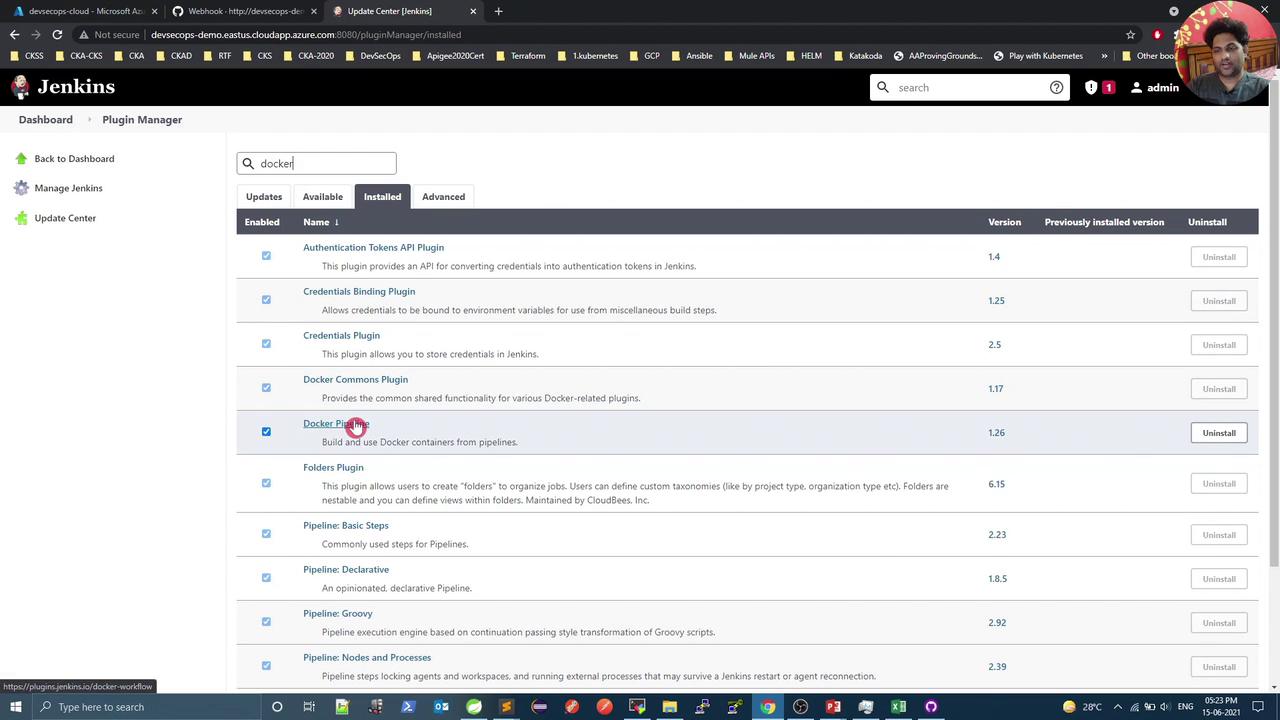
Then add Docker Hub credentials:
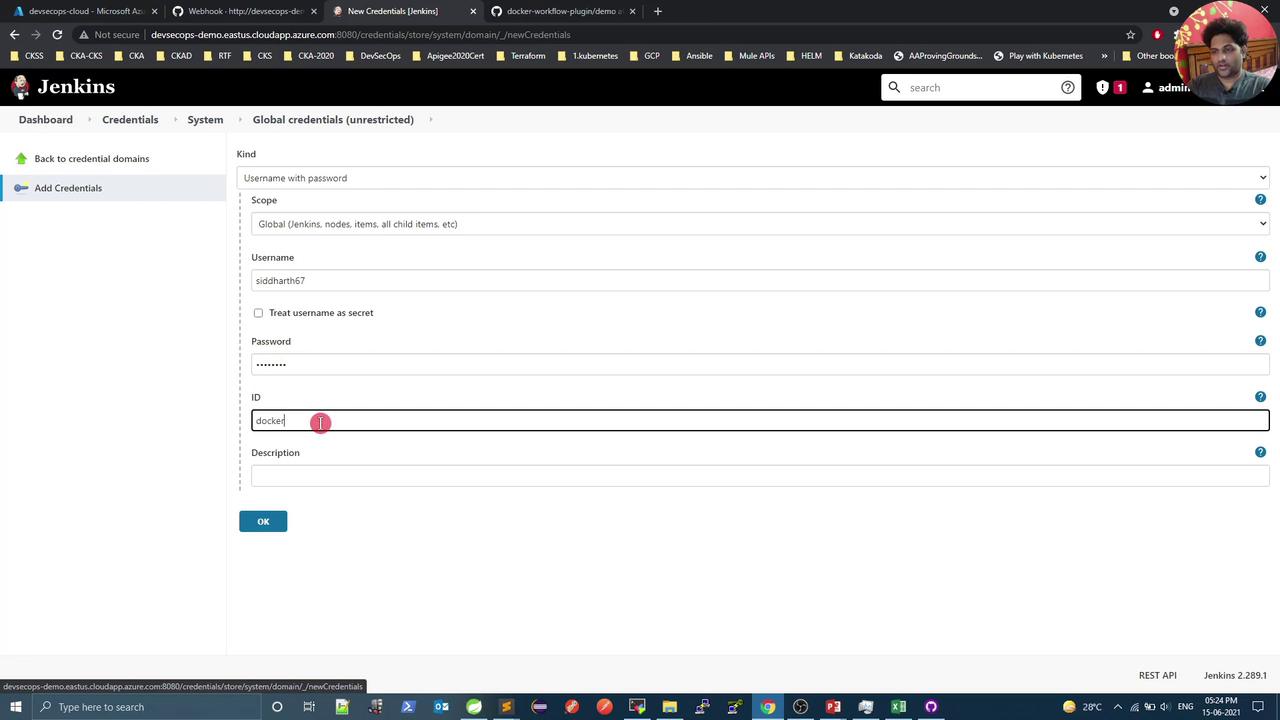
1. Go to **Manage Jenkins** → **Manage Credentials** → **Global** → **Add Credentials**
2. Select **Username with password**
3. Enter your Docker Hub username & password
4. Set an ID (e.g., `docker-hub`) and save
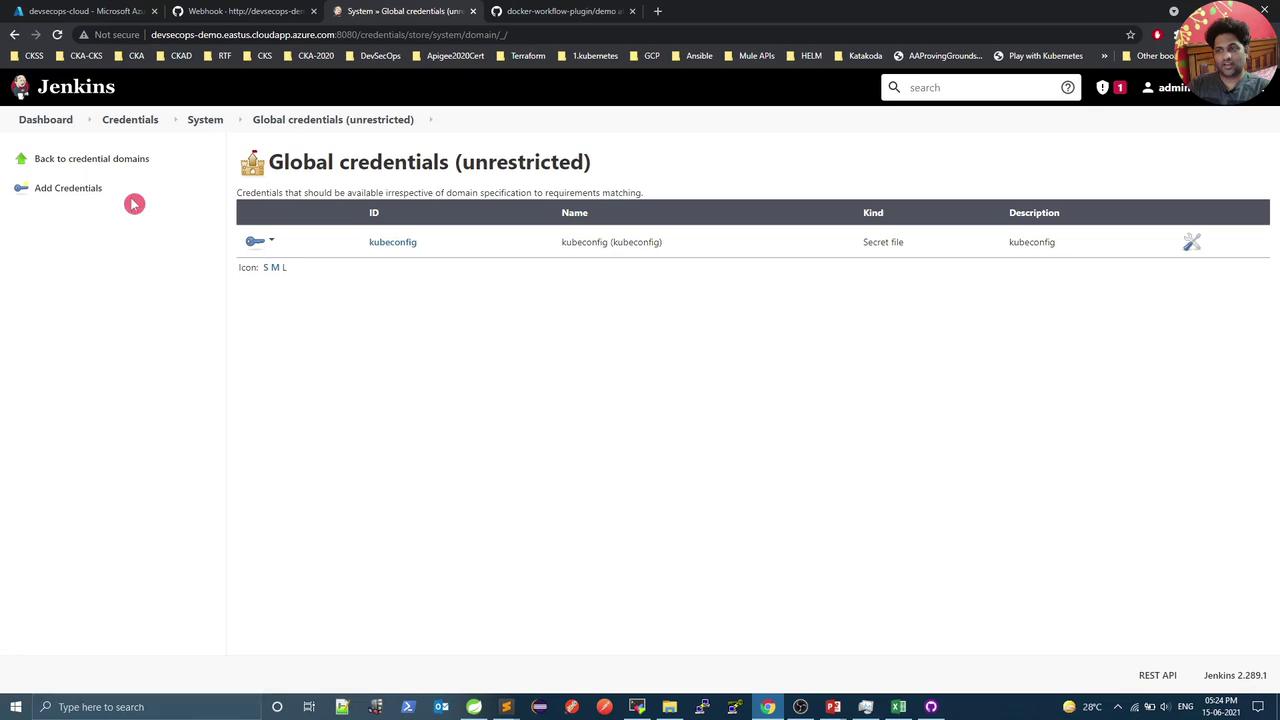
## Updated Jenkinsfile
Wrap Docker commands in `withDockerRegistry`, referencing the credential ID:
```groovy theme={null}
pipeline {
agent any
stages {
stage('Build Artifact - Maven') {
steps {
sh 'mvn clean package -DskipTests=true'
archive 'target/*.jar'
}
}
stage('Unit Tests - JUnit and Jacoco') {
steps {
sh 'mvn test'
}
post {
always {
junit 'target/surefire-reports/*.xml'
jacoco execPattern: 'target/jacoco.exec'
}
}
}
stage('Docker Build and Push') {
steps {
withDockerRegistry(credentialsId: 'docker-hub', url: '') {
sh 'docker build -t siddharth67/numeric-app:"$GIT_COMMIT" .'
sh 'docker push siddharth67/numeric-app:"$GIT_COMMIT"'
}
}
}
}
}
```
An empty `url` defaults to Docker Hub. Make sure `credentialsId` matches the ID you created.
## Verifying Build & Push
Re-run the pipeline. You should see:
```bash theme={null}
# Shell Script - docker build -t siddharth67/numeric-app="$GIT_COMMIT" # (self time 9s)
# Shell Script - docker push siddharth67/numeric-app="$GIT_COMMIT" # (self time 310ms)
```
List images again to confirm the new tags:
```bash theme={null}
root@devsecops-cloud:~$ docker images
REPOSITORY TAG IMAGE ID CREATED SIZE
siddharth67/numeric-app 8be376a2279c6b3d924c62779a9e90c71 a014560b0908 32 seconds ago 122MB
siddharth67/numeric-app 93d6e7e8ad593a435bcdf8787b7fe8f5 c52599977e7a 4 minutes ago 122MB
nginx latest d1a364dc548d 2 weeks ago 133MB
...
```
You’ve now successfully built and pushed your Docker image. Next, integrate deployment to your Kubernetes cluster via the Jenkins Pipeline.
## Links and References
* [Jenkins Pipeline Documentation](https://www.jenkins.io/doc/book/pipeline/)
* [Docker Hub](https://hub.docker.com/)
* [Jenkins Docker Pipeline Plugin](https://plugins.jenkins.io/docker-workflow/)