> ## Documentation Index
> Fetch the complete documentation index at: https://notes.kodekloud.com/llms.txt
> Use this file to discover all available pages before exploring further.
# Demo Jenkins Git hub Integration and Maven Build
> Learn to integrate GitHub with Jenkins using webhooks for automated builds and configure a Maven build within a Jenkins pipeline for Java projects.
In this guide, you’ll learn how to integrate GitHub with Jenkins using webhooks to trigger automated builds. We’ll also demonstrate how to configure a simple Maven build within a Jenkins pipeline. By the end, you’ll have a fully automated CI workflow for your Java projects.
## 1. Set Up GitHub Webhook
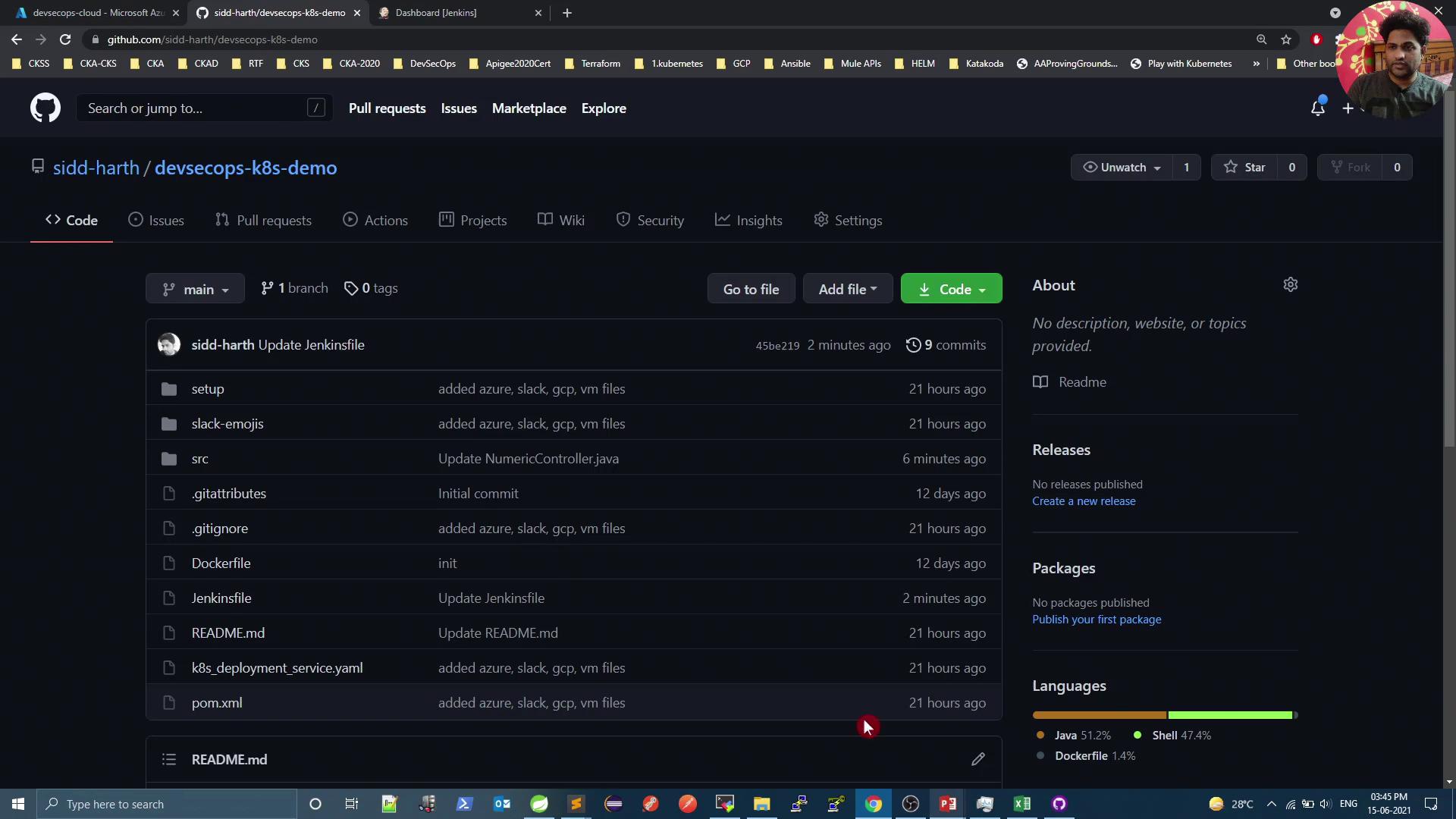
1. Open your GitHub repository in the browser.
2. Navigate to **Settings** > **Webhooks**.
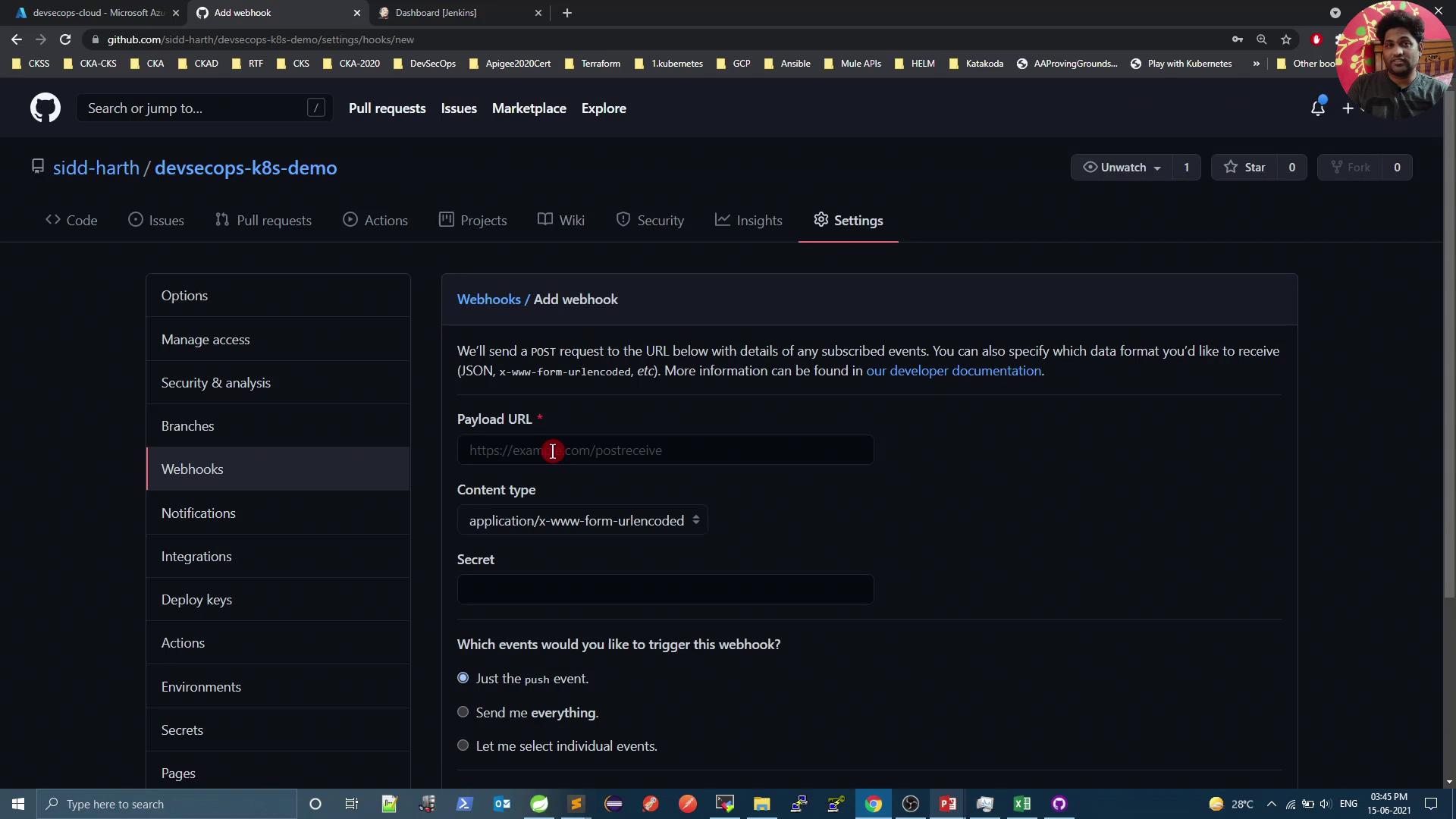
3. Click **Add webhook**.
4. Configure the webhook fields as follows:
| Setting | Value | Description |
| ------------ | -------------------------------------------- | ----------------------------------- |
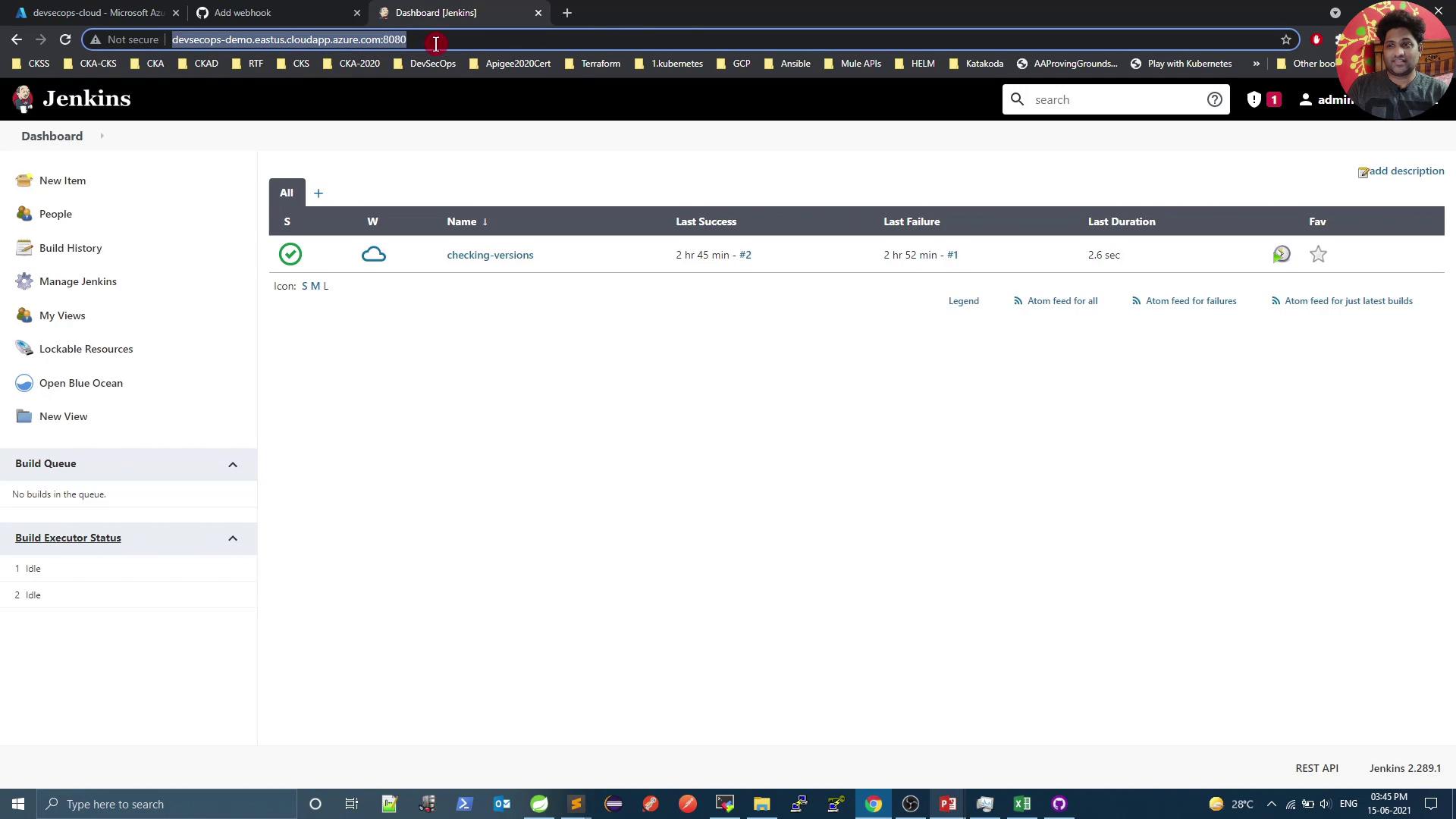
| Payload URL | `https:///github-webhook/` | Jenkins listens here for events. |
| Content type | `application/json` | Ensures JSON payload delivery. |
| Events | Just the push event | Triggers on `git push` to branches. |
5. Click **Add webhook**.
Make sure your Jenkins instance is accessible from the internet or via VPN so GitHub can reach the webhook endpoint.
## 2. Create a New Jenkins Pipeline Job
1. Go to your Jenkins dashboard.
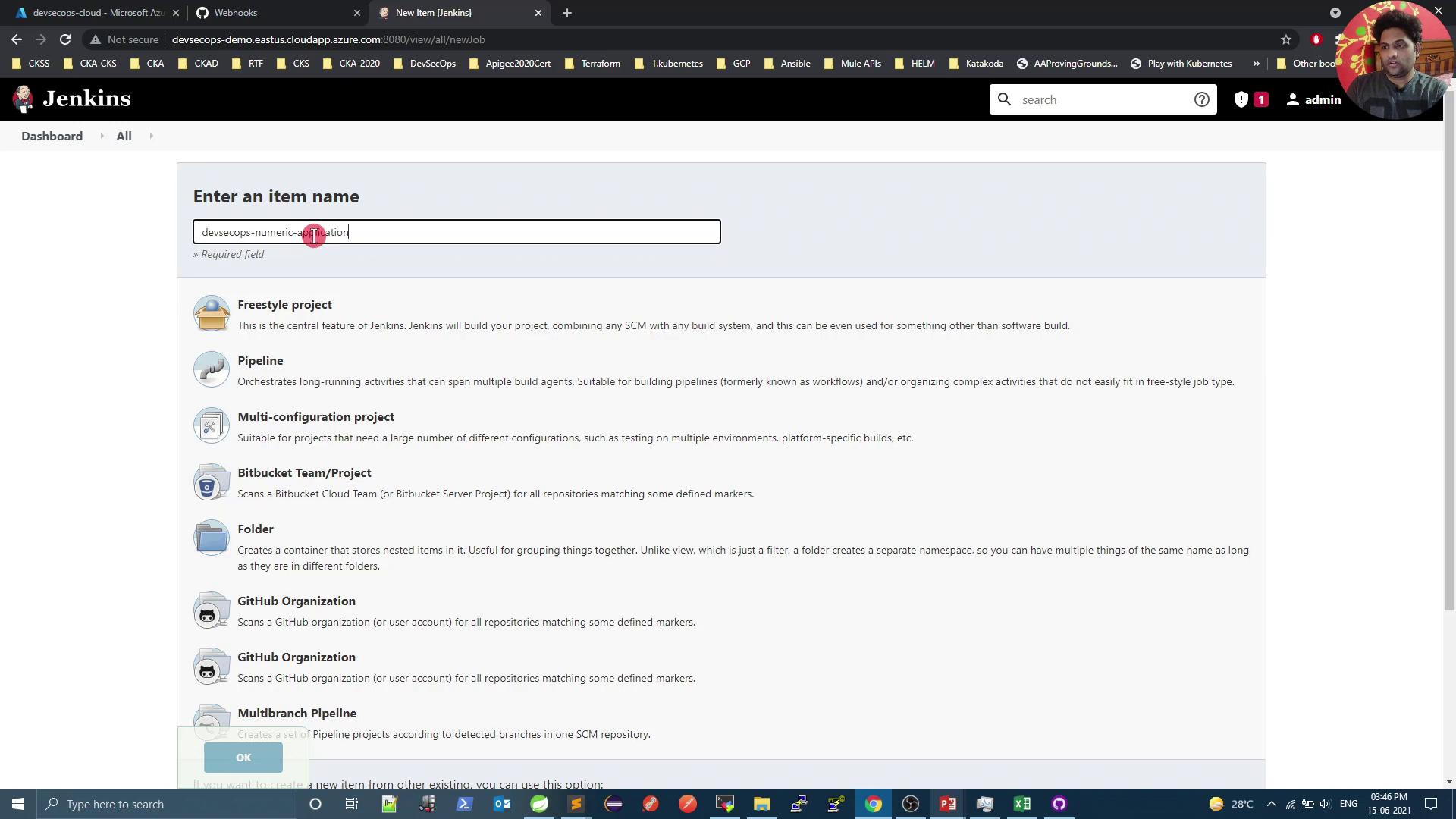
2. Click **New Item**.
3. Enter a name (e.g., `devsecops-numeric-application`).
4. Select **Pipeline**, then click **OK**.
## 3. Configure the Pipeline
In the job’s **Configure** screen:
1. Under **Build Triggers**, enable **GitHub hook trigger for GIT SCM polling**.
2. Scroll to **Pipeline**:
* **Definition**: Pipeline script from SCM
* **SCM**: Git
* **Repository URL**: `https://github.com/your-org/your-repo.git`
* **Branch**: `main`
3. Click **Save**.
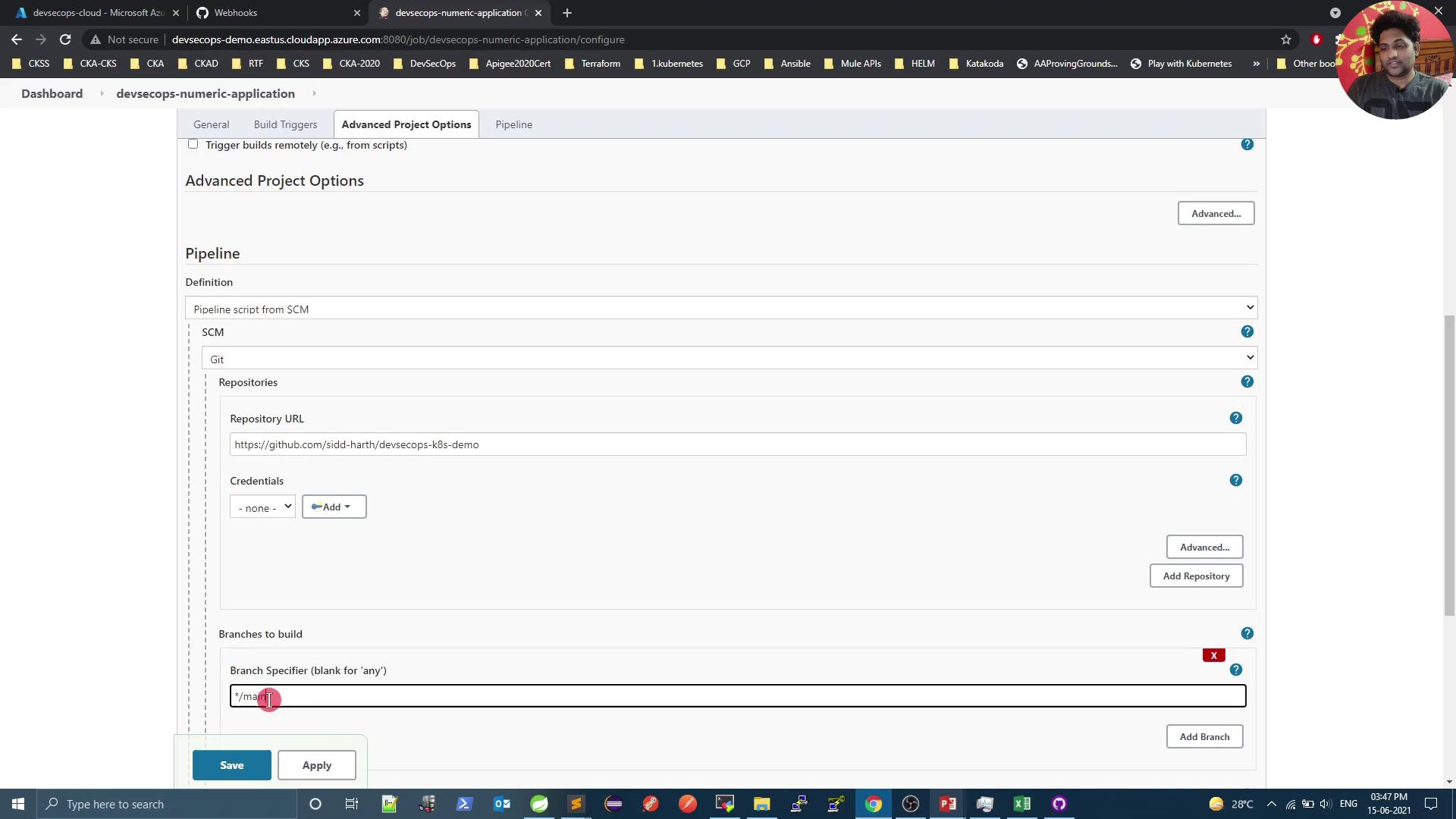
Ensure the **GitHub Integration** and **Pipeline** plugins are installed in Jenkins to enable SCM polling and webhook triggers.
## 4. Define Your Jenkinsfile
At the root of your GitHub repository, add a file named `Jenkinsfile`:
```groovy theme={null}
pipeline {
agent any
stages {
stage('Build Artifact') {
steps {
// Compile and package without running tests
sh "mvn clean package -DskipTests=true"
// Archive the JAR for download
archive 'target/*.jar'
}
}
}
}
```
This pipeline uses the `any` agent, runs the Maven `package` goal, skips tests, and archives the resulting JAR.
## 5. Run Your First Build
1. Commit and push the `Jenkinsfile`:
```bash theme={null}
git add Jenkinsfile
git commit -m "Add Jenkins pipeline for Maven build"
git push origin main
```
2. In Jenkins, open your pipeline job and click **Build Now**.
3. Monitor the console output. The initial build will download all dependencies.
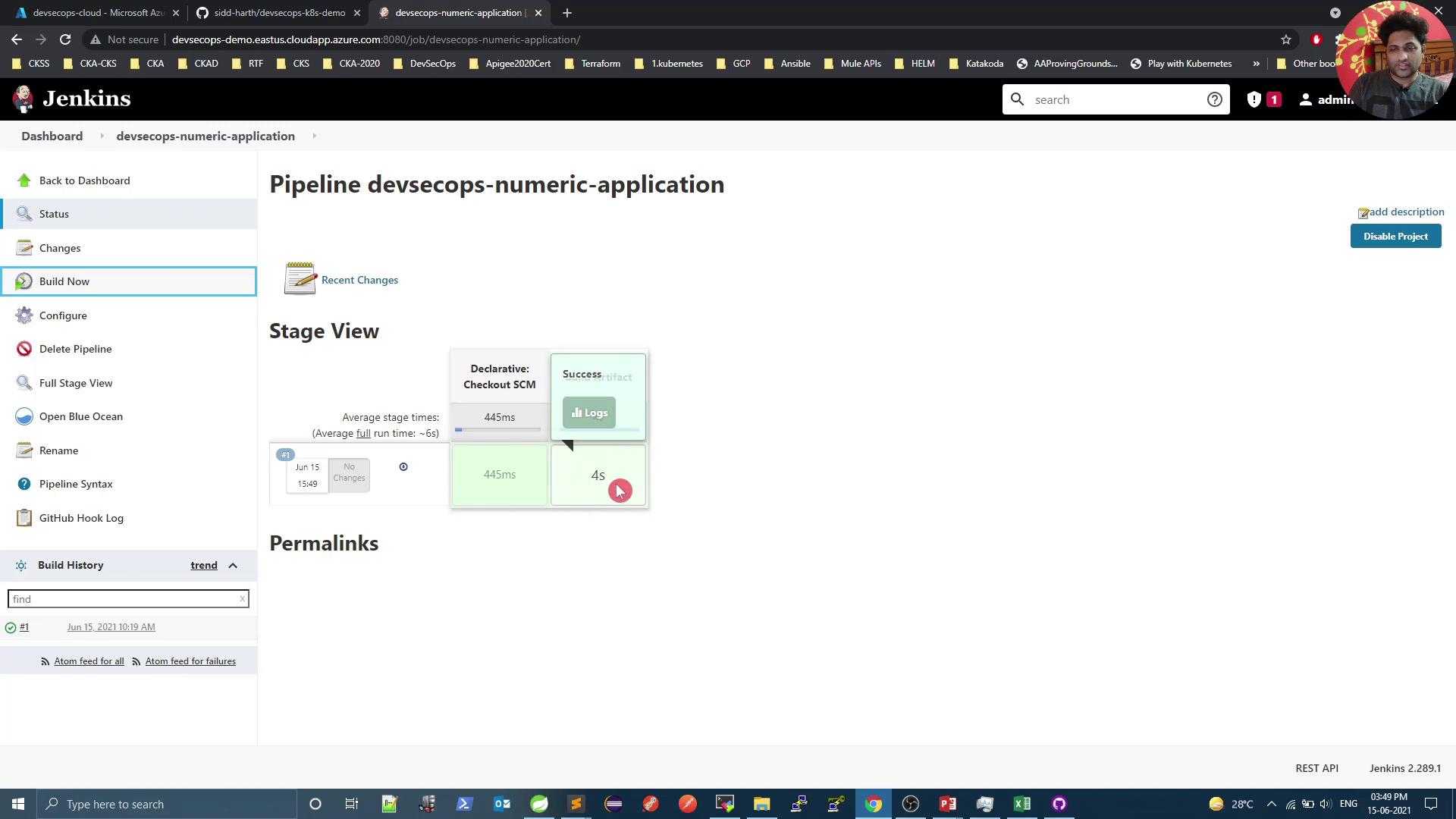
## 6. Automate Builds via Webhook
Now every push to `main` triggers a new build automatically. For example:
```bash theme={null}
git commit -am "Remove outdated comment"
git push origin main
```
Jenkins will start a fresh build as soon as GitHub sends the webhook event.
## 7. Verify Webhook Deliveries
To inspect delivery logs:
1. In your GitHub repo, go to **Settings** > **Webhooks**.
2. Click on the webhook entry.
3. Review **Recent Deliveries** for payloads and response codes.
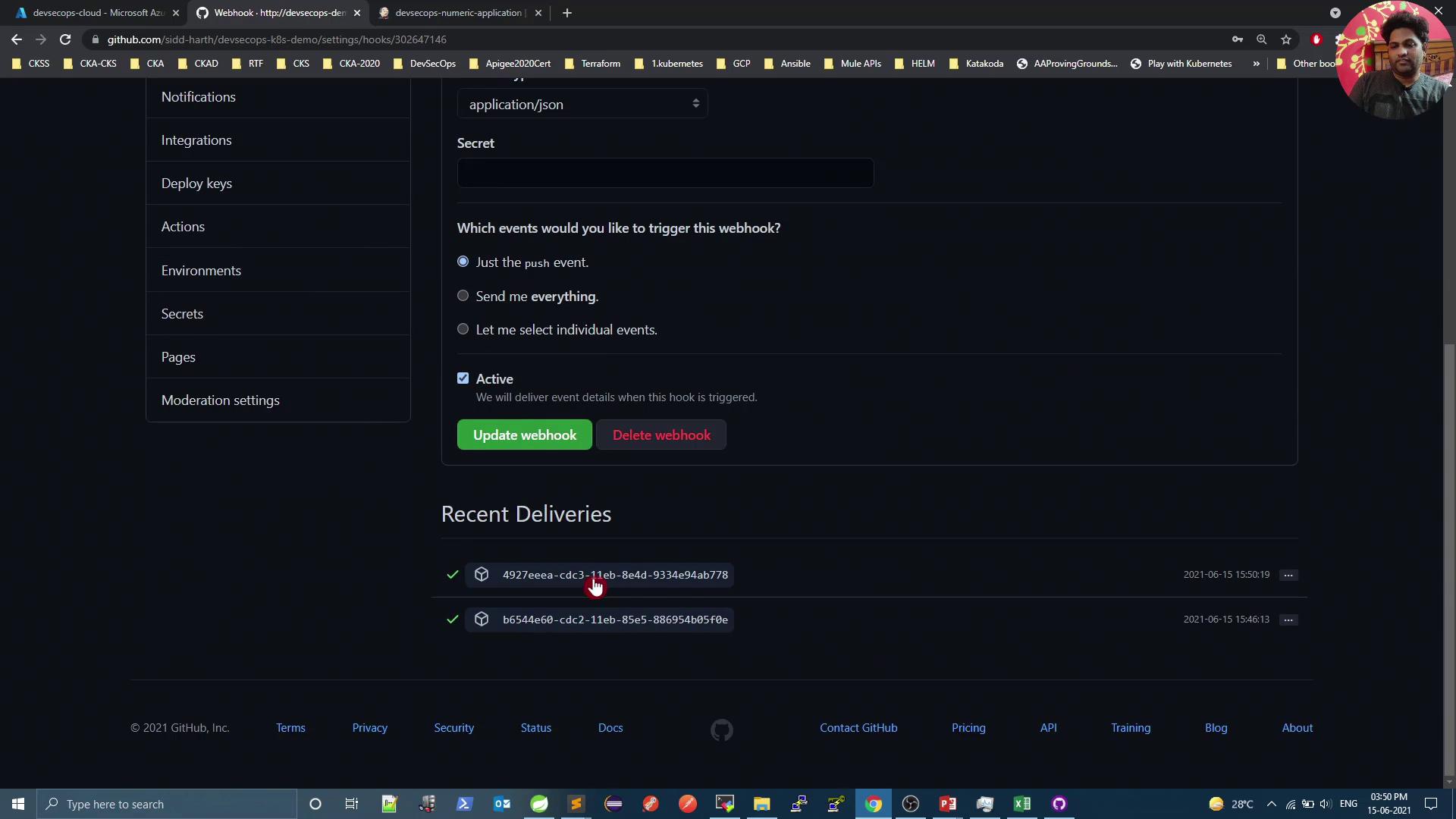
## 8. Sample Webhook Payload
Below is a trimmed example of the JSON GitHub sends on a push:
```json theme={null}
{
"ref": "refs/heads/main",
"before": "45be219a25dfe24f251196152de6df004b7c02e",
"after": "2d66f5307c8f2d0d9ea1e6b1982ef187f8b33a21",
"repository": {
"id": 376897057,
"name": "devsecops-k8s-demo",
"full_name": "sidd-harth/devsecops-k8s-demo",
"private": false,
"owner": {
"login": "sidd-harth",
"id": 2892541,
"avatar_url": "https://avatars.githubusercontent.com/u/2892541?v=4"
}
}
}
```
***
## Links and References
* [Jenkins Documentation](https://www.jenkins.io/doc/)
* [GitHub Webhooks](https://docs.github.com/en/developers/webhooks-and-events/webhooks/about-webhooks)
* [Maven Getting Started Guide](https://maven.apache.org/guides/getting-started/)