> ## Documentation Index
> Fetch the complete documentation index at: https://notes.kodekloud.com/llms.txt
> Use this file to discover all available pages before exploring further.
# Demo Stopping VM Instance to save Credits
> This tutorial explains how to stop an Azure VM to save credits during a free trial.
In this tutorial you'll learn how to:
* Check your Azure free trial credits
* Stop your virtual machine (VM) when it’s idle
* Start the VM again when you need it
* Review detailed cost analysis to monitor your spending
Since running a VM continuously consumes credits, stopping it when idle helps you extend your free trial.
## 1. Checking Your Remaining Credits
1. Sign in to the Azure portal: [https://portal.azure.com](https://portal.azure.com)
2. Click the **Notifications** (bell) icon in the top-right corner.
3. View the remaining credits for your free trial under **Notifications**.
If you don’t see your credits immediately, refresh the portal or wait a few seconds for the dashboard to update.
## 2. Stopping the VM
1. In the left-hand menu, select **Virtual machines**.
2. Find your VM (for example, **devsecops-cloud**).
3. Click **Stop** at the top of the VM overview.
4. Confirm the shutdown when prompted.
As the VM deallocates, you’ll see a notification with its status and updated subscription credit:
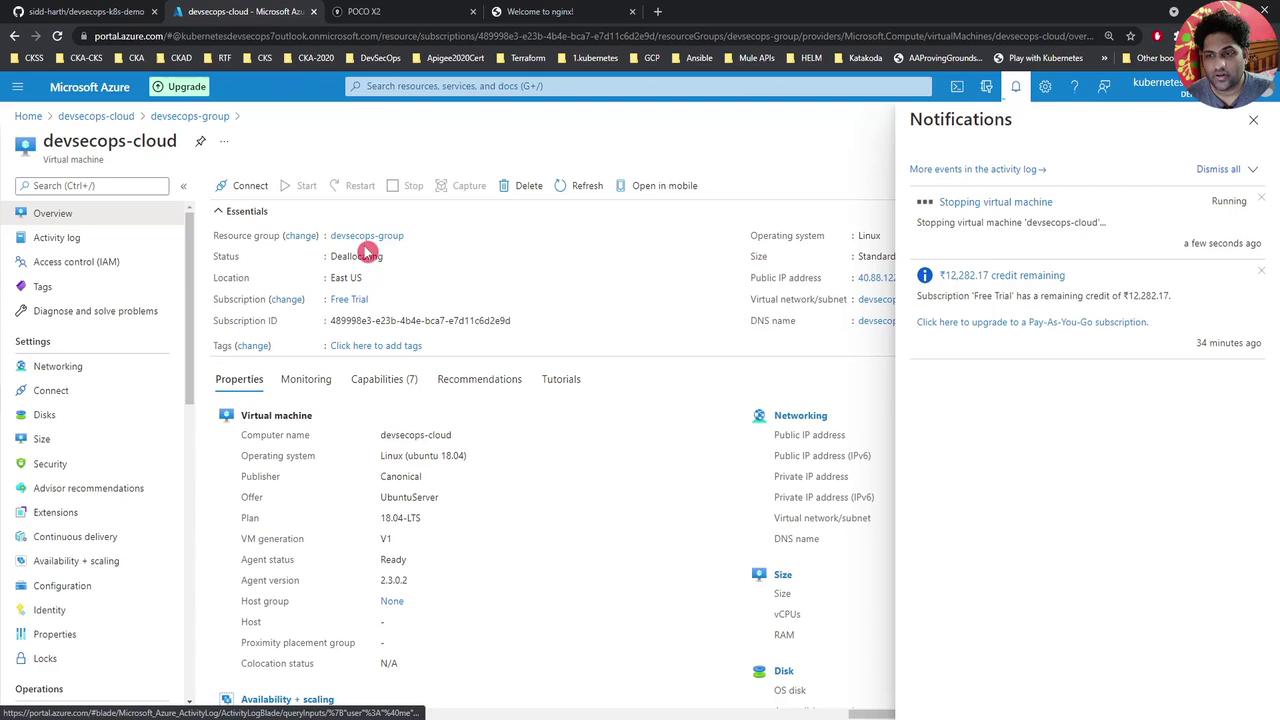
Stopping (deallocating) a VM releases compute resources and stops billing for core hours, but you may still incur charges for allocated storage and public IP addresses.
## 3. Starting the VM Again
When you’re ready to resume work:
1. Navigate back to **Virtual machines**.
2. Select your VM.
3. Click **Start** at the top of the overview page.
4. Wait a few moments for the VM to power on.
You’ll receive a notification once the VM has started successfully.
## 4. Viewing Detailed Cost Analysis
To break down your spending by resource and service:
1. In the Azure portal, select **Resource groups** in the left menu.
2. Click on your resource group (e.g., **DevSecOps**).
3. Under **Cost Management + Billing**, choose **Cost analysis**.
4. Select the desired time range (for example, **This month**) to view charts and tables.
| Metric | Description | Example |
| -------------------- | -------------------------------------------- | ------------------ |
| Compute Hours | Total VM runtime in hours | 120 hours |
| Storage Transactions | Read/write operations on managed disks | 5,000 transactions |
| Public IP Allocation | Hours the public IP was reserved (even idle) | 720 hours |
| Data Transfer | Egress data out of Azure | 15 GB |
Cost analysis data may take several hours (or up to 24 hours) to fully populate after you create or modify resources.
***
By stopping your VM when it’s idle and using **Cost analysis** regularly, you’ll maximize your Azure free trial credits and avoid unexpected charges.
## Links and References
* [Azure Portal](https://portal.azure.com/)
* [Azure Cost Management + Billing](https://docs.microsoft.com/azure/cost-management-billing/)
* [Understand Azure VM billing rates](https://docs.microsoft.com/azure/virtual-machines/pricing)