> ## Documentation Index
> Fetch the complete documentation index at: https://notes.kodekloud.com/llms.txt
> Use this file to discover all available pages before exploring further.

# Demo Slack Notification Legacy App

> Learn to integrate Slack with Jenkins for automated build notifications, enhancing alerts with rich formatting and job details.

In this lesson, you’ll learn how to integrate Slack with Jenkins so that every build event sends a notification to your Slack channel. We’ll begin with basic alerts and then enhance them using Slack’s attachments and rich formatting.

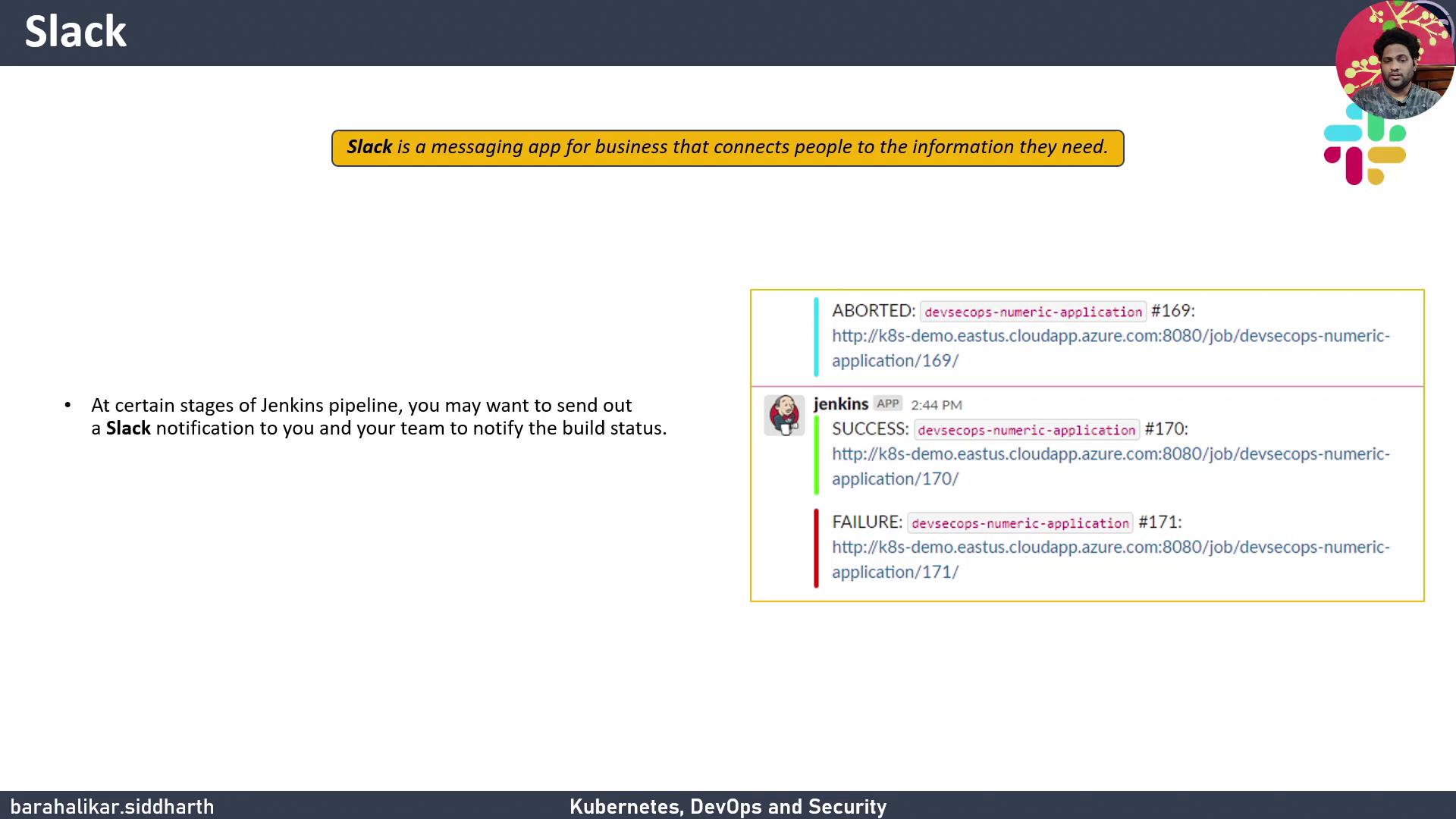
Slack is a leading collaboration platform that delivers real-time notifications to your team. By connecting Jenkins to Slack, you can automatically post build statuses—SUCCESS, FAILURE, or ABORTED—along with job details and a link to the build.
<Frame>
  ![The image is a slide about using Slack for business communication, specifically for sending notifications about Jenkins pipeline build statuses. It includes examples of Slack messages indicating build results such as "ABORTED," "SUCCESS," and "FAILURE."](https://kodekloud.com/kk-media/image/upload/v1752873661/notes-assets/images/DevSecOps-Kubernetes-DevOps-Security-Demo-Slack-Notification-Legacy-App/slack-business-communication-jenkins-notifications.jpg)
</Frame>

Key notification fields:

* Build status
* Job name and build number
* Direct link to build results

We’ll cover:

1. Install & verify the Slack Notification Plugin
2. Create a Slack workspace & channel
3. Add Jenkins CI to Slack
4. Configure Jenkins global settings
5. Define a shared library for notifications
6. Implement the notification logic
7. Integrate in your Jenkinsfile
8. Test the integration

***

## 1. Install and Verify the Slack Notification Plugin

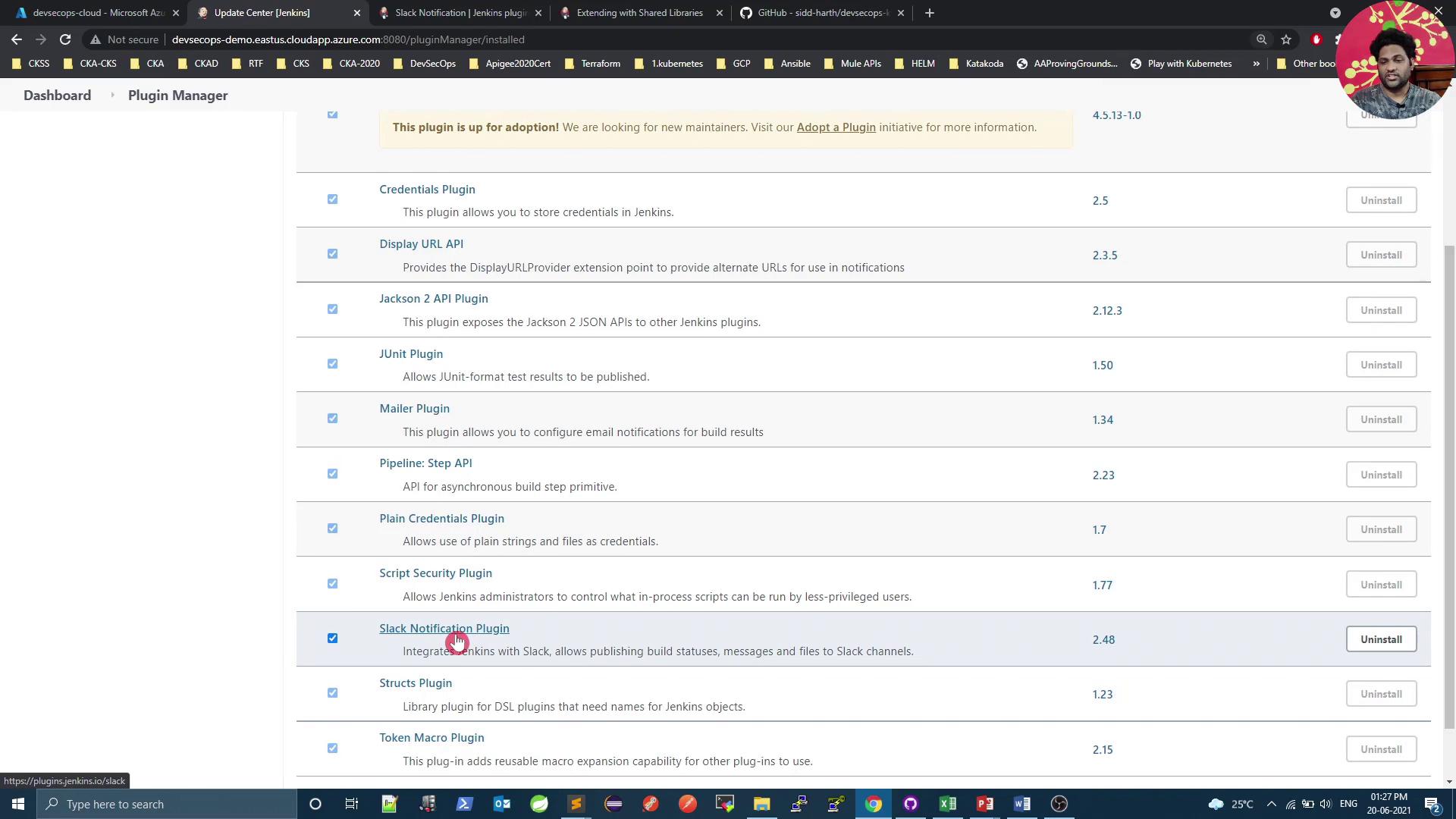
Install the official [Slack Notification Plugin](https://plugins.jenkins.io/slack/) on your Jenkins instance. We’re using version **2.48**.
<Frame>
  ![The image shows a Jenkins Plugin Manager interface with a list of installed plugins, including details like plugin names, descriptions, versions, and uninstall options. A notification at the top mentions that a plugin is up for adoption.](https://kodekloud.com/kk-media/image/upload/v1752873662/notes-assets/images/DevSecOps-Kubernetes-DevOps-Security-Demo-Slack-Notification-Legacy-App/jenkins-plugin-manager-installed-plugins.jpg)
</Frame>

> **Note: Compatibility**\
> Verify plugin compatibility with your Jenkins LTS/core version. Check the [plugin’s changelog](https://plugins.jenkins.io/slack/) before upgrading.

***

## 2. Create a Slack Workspace and Channel

1. Sign in to your Slack workspace (the free plan works).
2. Create a new channel named **#jenkins** (or any name you prefer). This is where Jenkins will post notifications.

> **Note: Channel Permissions**\
> Ensure Jenkins has posting permissions. Workspace admins can adjust these under **Settings & administration**.

***

## 3. Add the Jenkins CI App to Slack

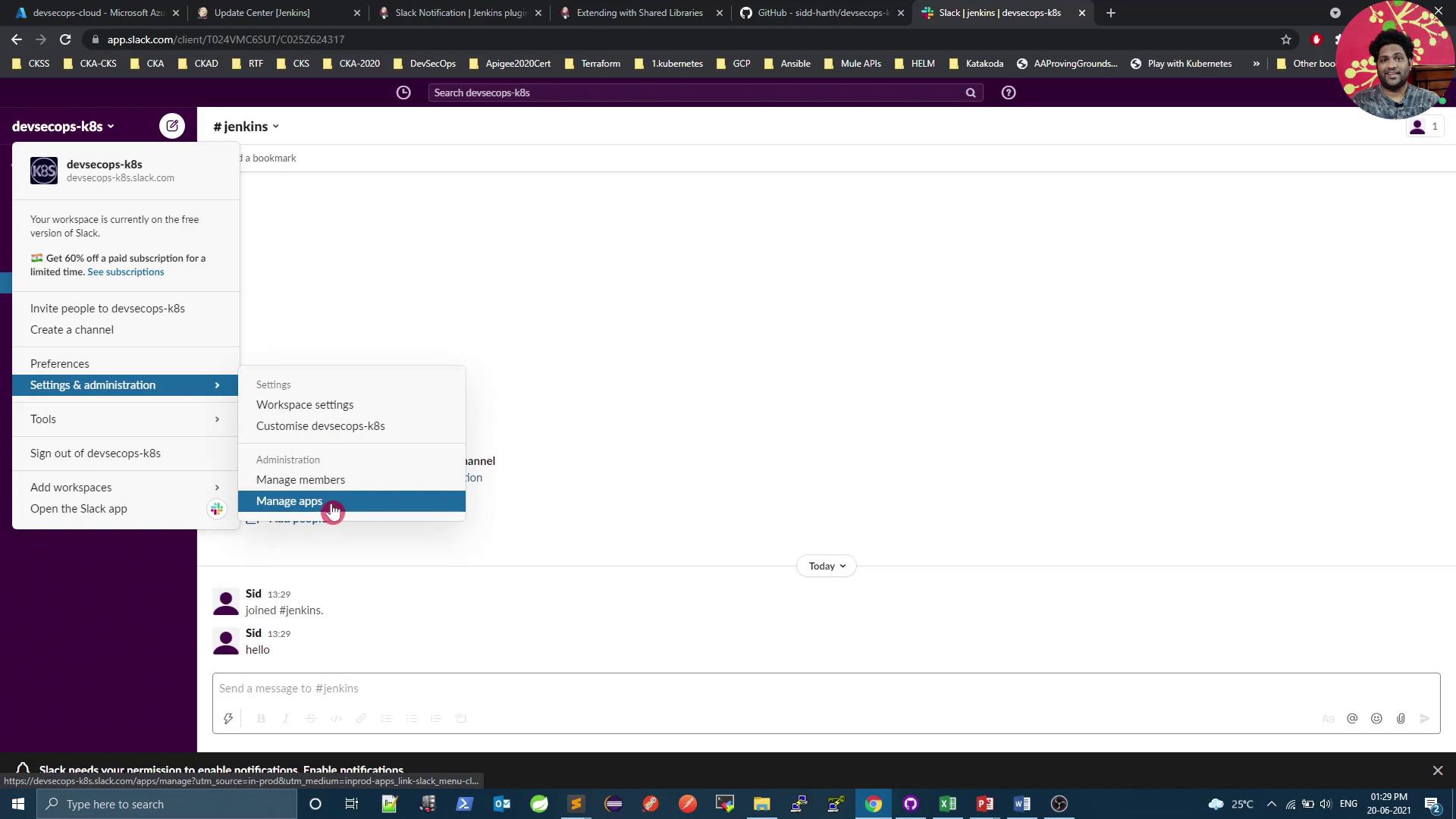
1. In Slack, click your workspace name → **Settings & administration** → **Manage apps**.
<Frame>
  ![The image shows a Slack workspace interface with a dropdown menu open, highlighting the "Manage apps" option under "Settings & administration." The workspace is named "devsecops-k8s," and there is a chat window visible with a user named "Sid" having joined the "#jenkins" channel.](https://kodekloud.com/kk-media/image/upload/v1752873663/notes-assets/images/DevSecOps-Kubernetes-DevOps-Security-Demo-Slack-Notification-Legacy-App/slack-workspace-manage-apps-dropdown.jpg)
</Frame>

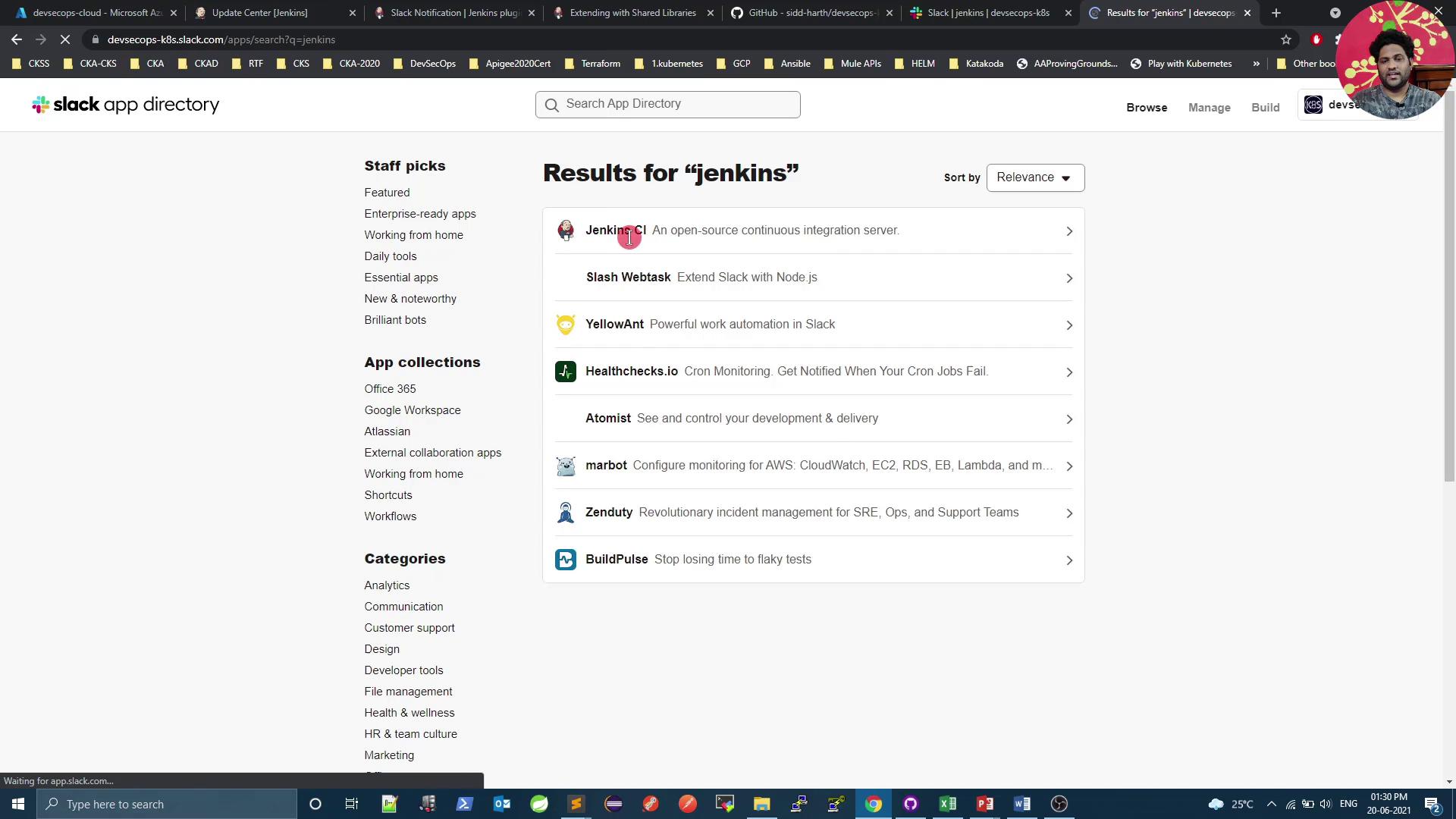
2. Search for **Jenkins** in the App Directory and select **Jenkins CI**.
<Frame>
  ![The image shows the Slack App Directory with search results for "Jenkins," listing various related apps and integrations. The interface includes categories and collections for browsing different types of apps.](https://kodekloud.com/kk-media/image/upload/v1752873665/notes-assets/images/DevSecOps-Kubernetes-DevOps-Security-Demo-Slack-Notification-Legacy-App/slack-app-directory-jenkins-search-results.jpg)
</Frame>

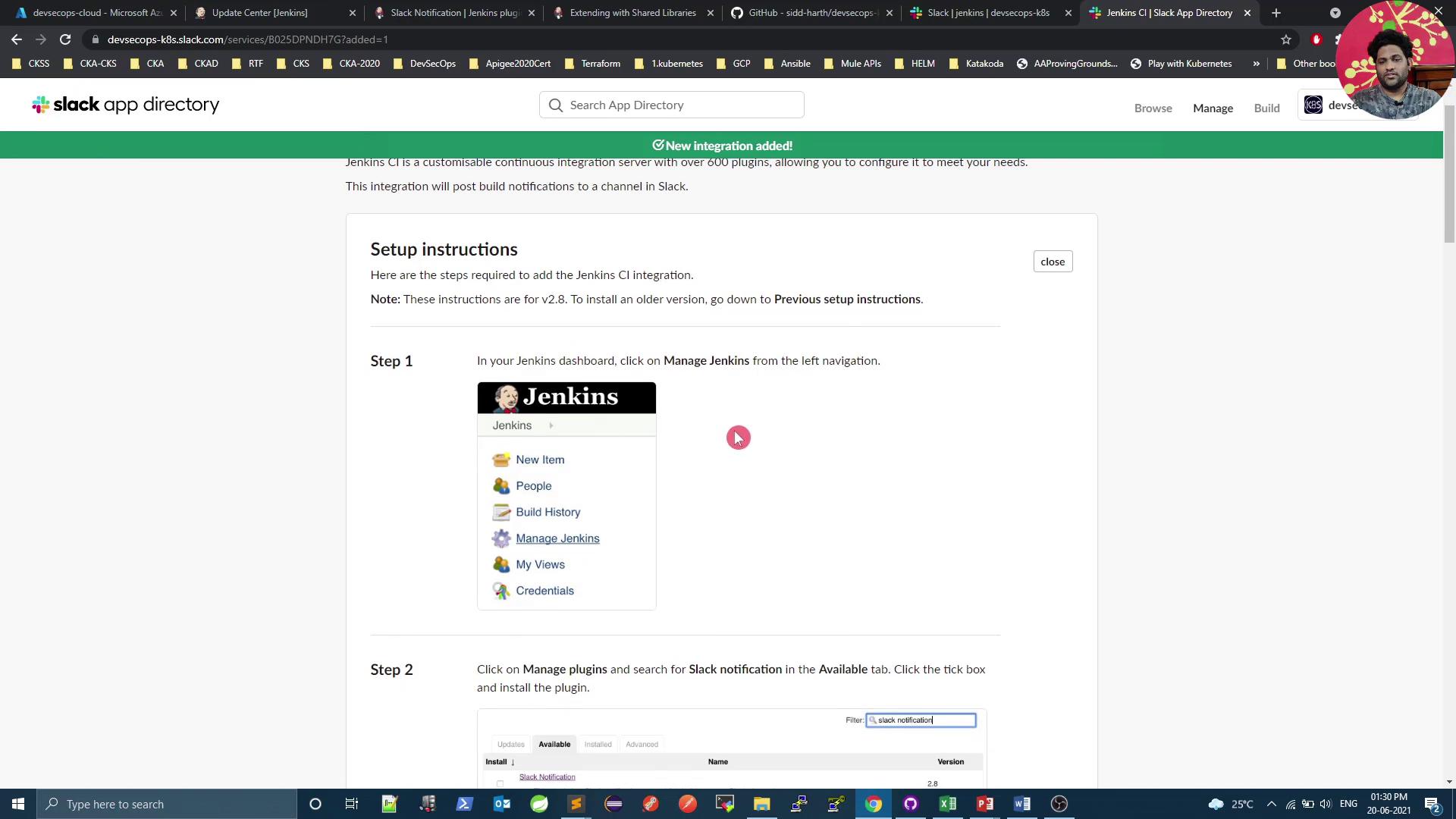
3. Click **Add to Slack** and follow the prompts.
<Frame>
  ![The image shows a webpage from the Slack app directory with setup instructions for integrating Jenkins CI with Slack. It includes steps for managing Jenkins plugins and installing the Slack notification plugin.](https://kodekloud.com/kk-media/image/upload/v1752873666/notes-assets/images/DevSecOps-Kubernetes-DevOps-Security-Demo-Slack-Notification-Legacy-App/slack-jenkins-ci-integration-setup.jpg)
</Frame>

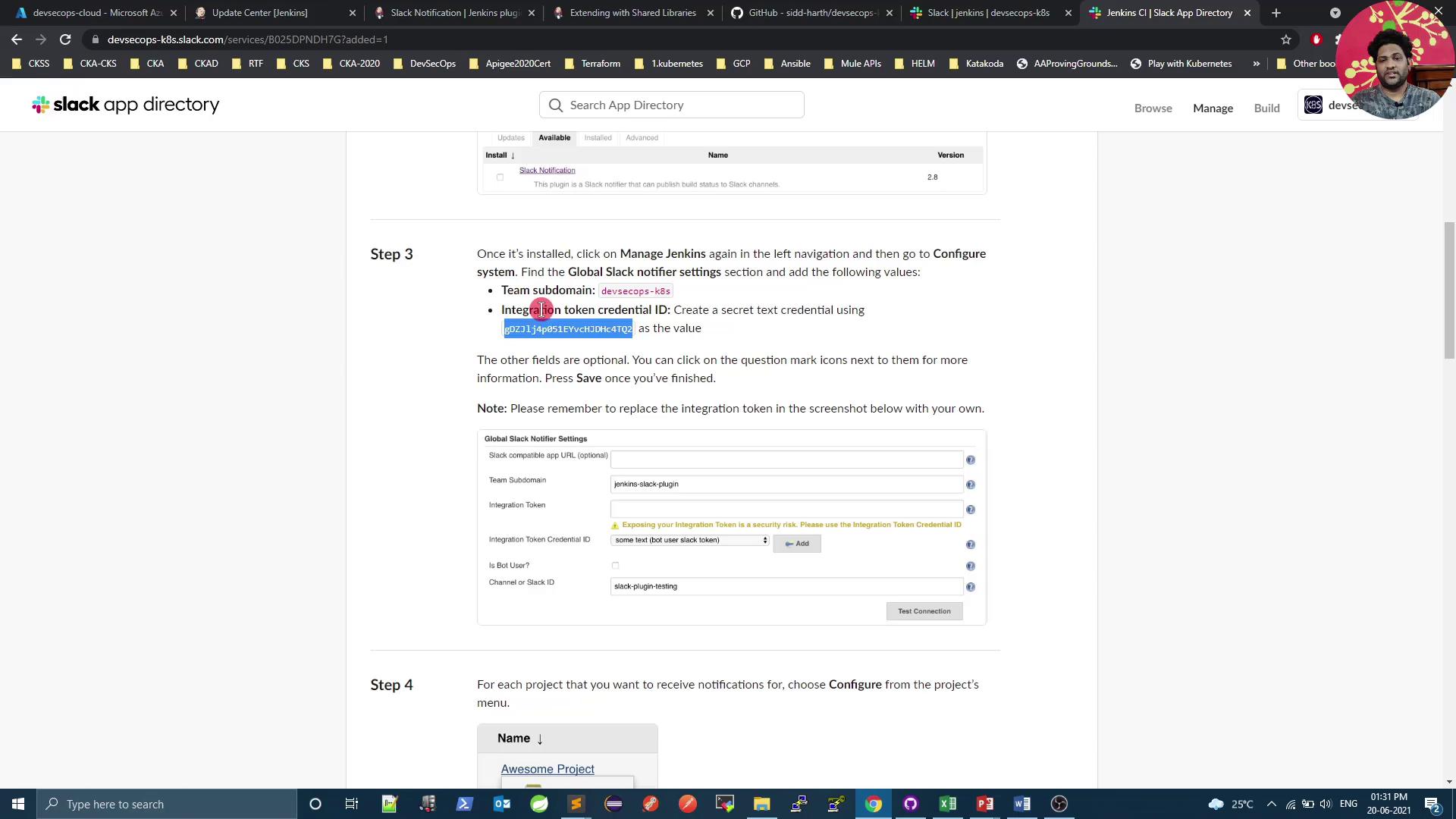
4. Choose the **#jenkins** channel and authorize the app.
<Frame>
  ![The image shows a webpage from the Slack app directory with instructions for configuring Slack notifications in Jenkins. It includes steps for setting up the integration token and other related settings.](https://kodekloud.com/kk-media/image/upload/v1752873667/notes-assets/images/DevSecOps-Kubernetes-DevOps-Security-Demo-Slack-Notification-Legacy-App/slack-jenkins-notifications-setup-guide.jpg)
</Frame>

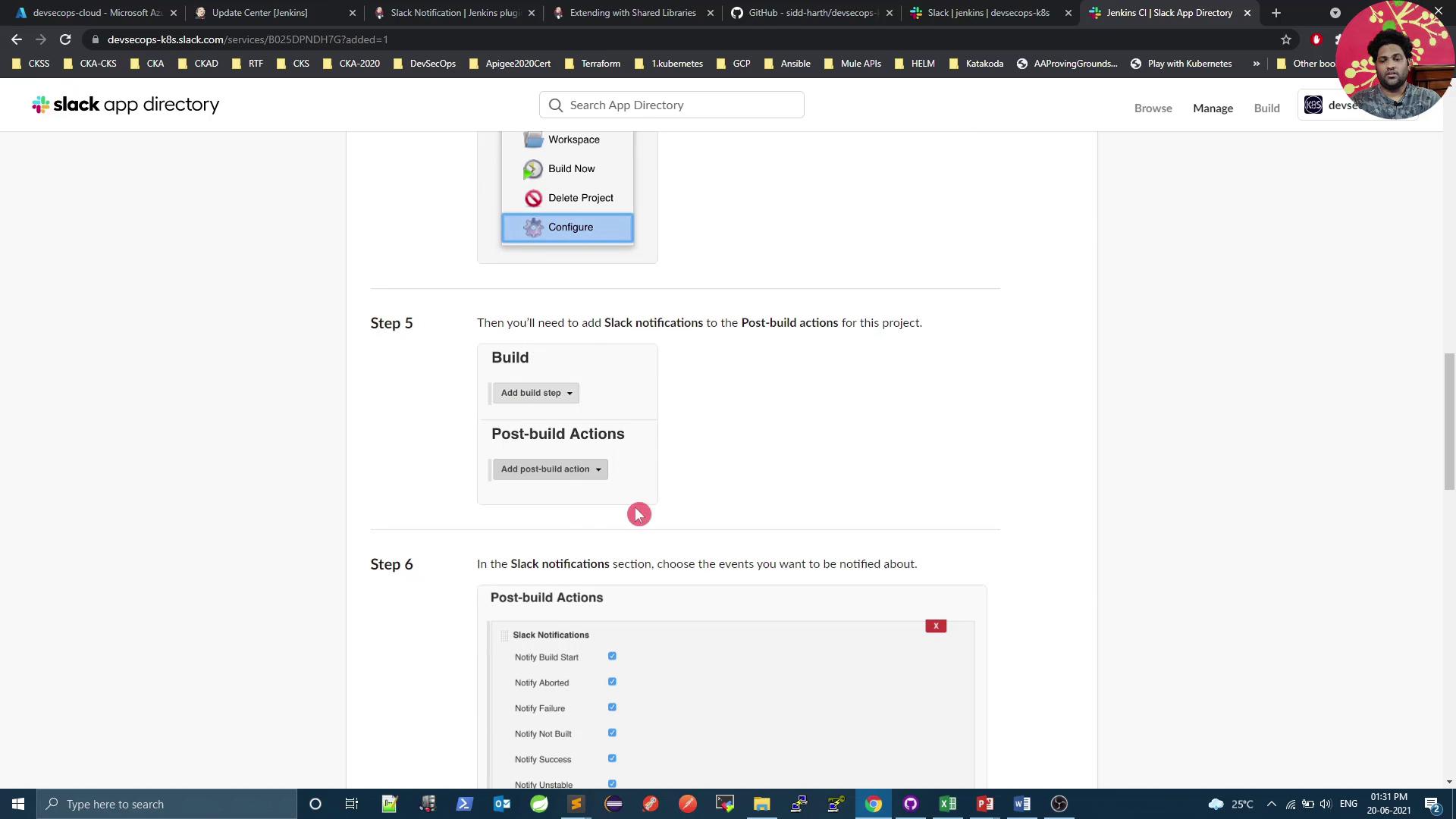
5. Copy the **Integration Token** provided.
<Frame>
  ![The image shows a webpage from the Slack app directory with instructions for adding Slack notifications to Jenkins post-build actions. It includes steps for configuring build and post-build actions, with a focus on Slack notifications.](https://kodekloud.com/kk-media/image/upload/v1752873668/notes-assets/images/DevSecOps-Kubernetes-DevOps-Security-Demo-Slack-Notification-Legacy-App/slack-notifications-jenkins-instructions.jpg)
</Frame>

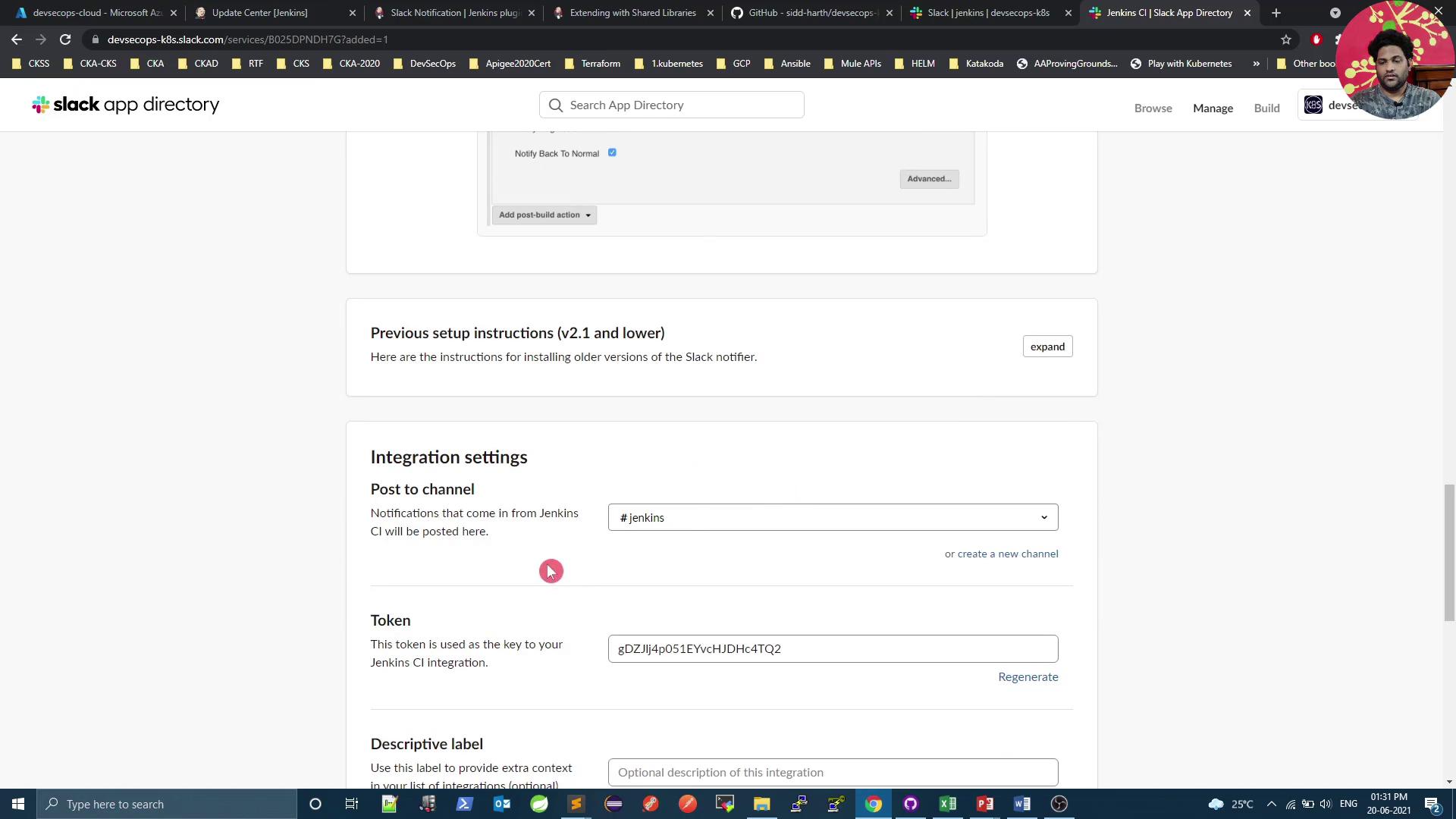
6. Note your **Team Subdomain** (e.g., `devsecops-k8s`) and **Token** for Jenkins configuration.
<Frame>
  ![The image shows a Slack app directory page with integration settings for posting notifications from Jenkins CI to a Slack channel. It includes fields for selecting a channel and entering a token.](https://kodekloud.com/kk-media/image/upload/v1752873669/notes-assets/images/DevSecOps-Kubernetes-DevOps-Security-Demo-Slack-Notification-Legacy-App/slack-app-directory-jenkins-integration.jpg)
</Frame>

***

## 4. Configure Jenkins Global Settings

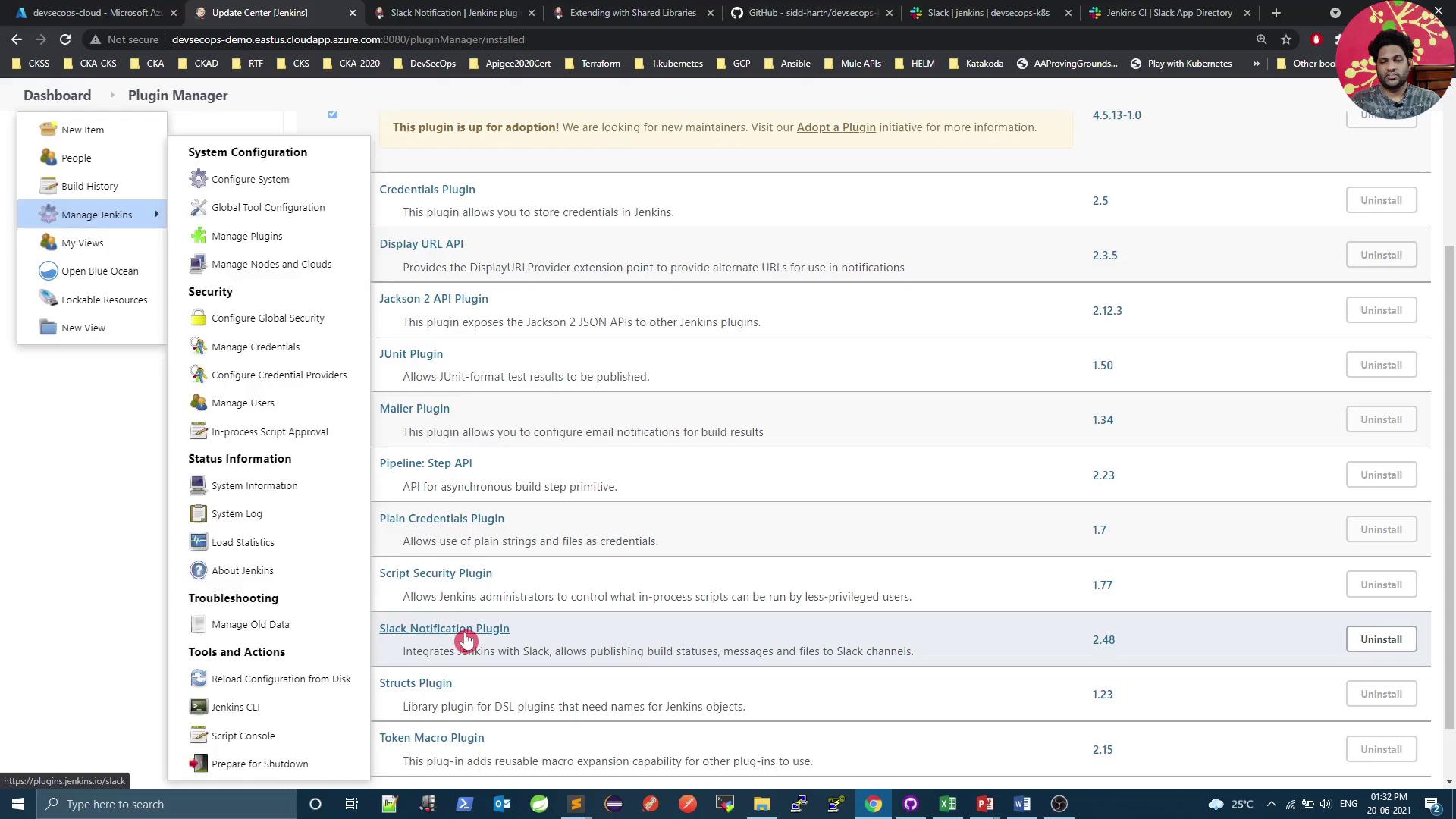
1. In Jenkins, go to **Manage Jenkins** → **Configure System** and scroll to the **Slack** section.
<Frame>
  ![The image shows a Jenkins Plugin Manager interface with a list of installed plugins, including options to uninstall them. The left sidebar displays various management and configuration options for Jenkins.](https://kodekloud.com/kk-media/image/upload/v1752873671/notes-assets/images/DevSecOps-Kubernetes-DevOps-Security-Demo-Slack-Notification-Legacy-App/jenkins-plugin-manager-interface-plugins.jpg)
</Frame>

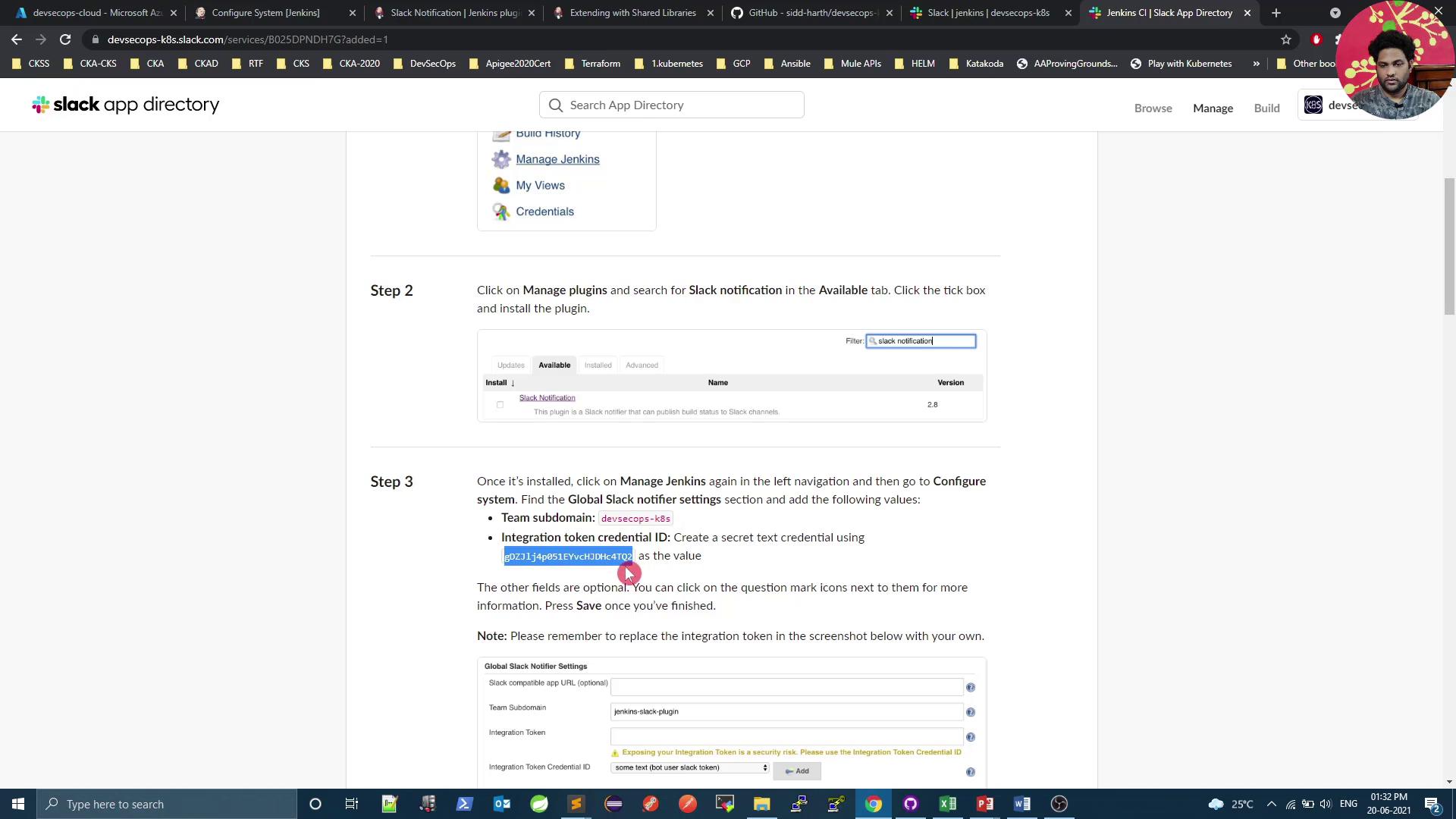
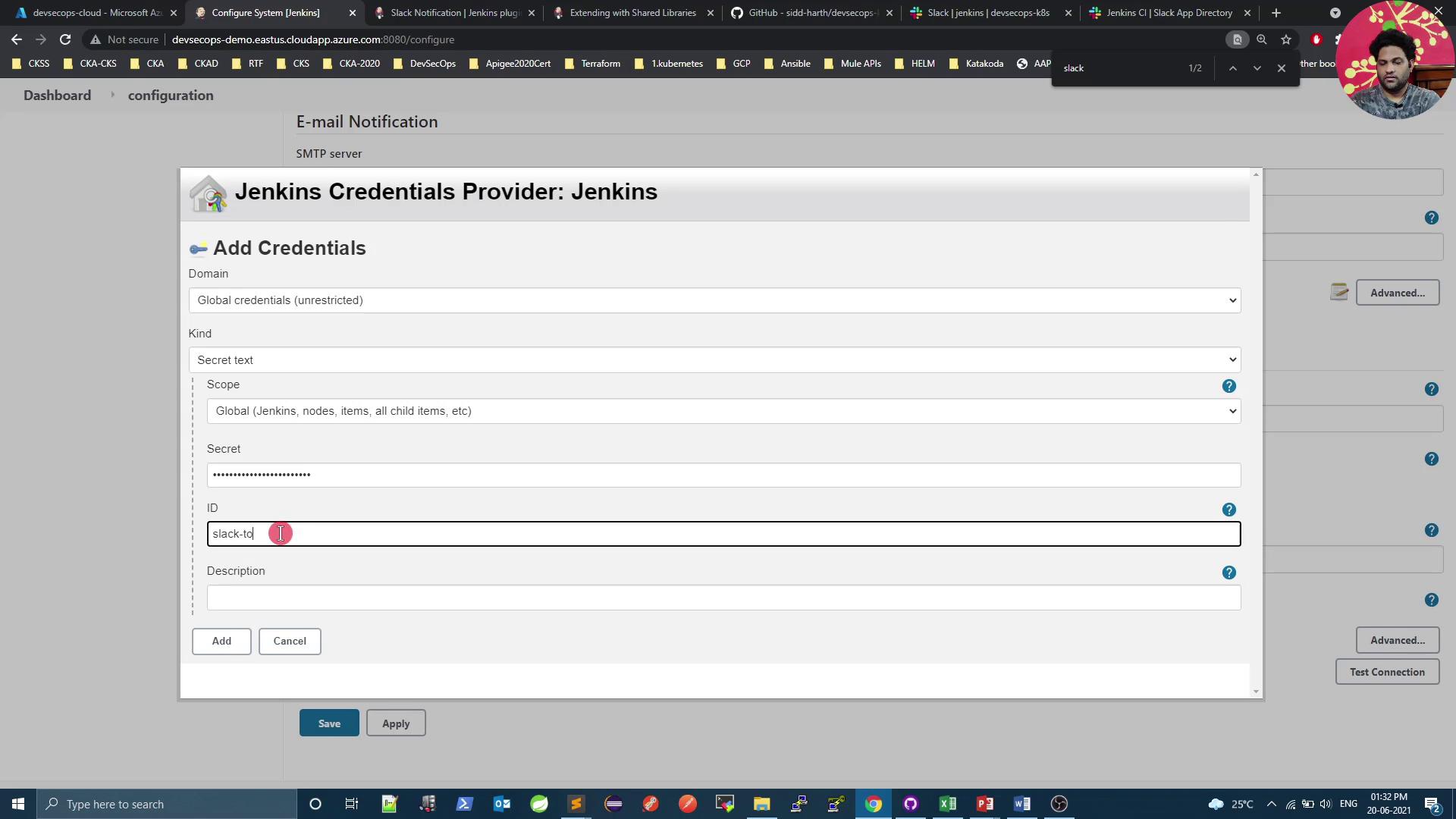
2. Enter your **Team Domain** and click **Add** under **Credentials**.
3. Choose **Secret Text**, paste your Slack token, and save.
<Frame>
  ![The image shows a webpage with instructions for installing and configuring the Slack notification plugin in Jenkins. It includes steps for managing plugins and setting up the global Slack notifier settings.](https://kodekloud.com/kk-media/image/upload/v1752873672/notes-assets/images/DevSecOps-Kubernetes-DevOps-Security-Demo-Slack-Notification-Legacy-App/slack-notification-plugin-jenkins-setup.jpg)
</Frame>

<Frame>
  ![The image shows a Jenkins interface where credentials are being added, with fields for domain, kind, scope, secret, ID, and description.](https://kodekloud.com/kk-media/image/upload/v1752873673/notes-assets/images/DevSecOps-Kubernetes-DevOps-Security-Demo-Slack-Notification-Legacy-App/jenkins-credentials-interface-adding-fields.jpg)
</Frame>

4. Click **Test Connection** to verify Jenkins can post to Slack. You should receive a confirmation message in your channel.

> **Warning: Protect Your Token**\
> Never expose your Slack token in logs or code—always store it as a Jenkins credential.

***

## 5. Define a Shared Library for Notifications

Centralize your Slack notification logic by creating a Jenkins Shared Library in a Git repo:

```text theme={null}
(root)
± src
|  ± org
|    ± foo
|      ± Bar.groovy          # org.foo.Bar class
± vars
|  ± sendNotification.groovy # wrapper for slackSend
|  ± sendNotification.txt    # help text for the global var
± resources
|  ± org
|    ± foo
|      ± Bar.json            # static helper data
```

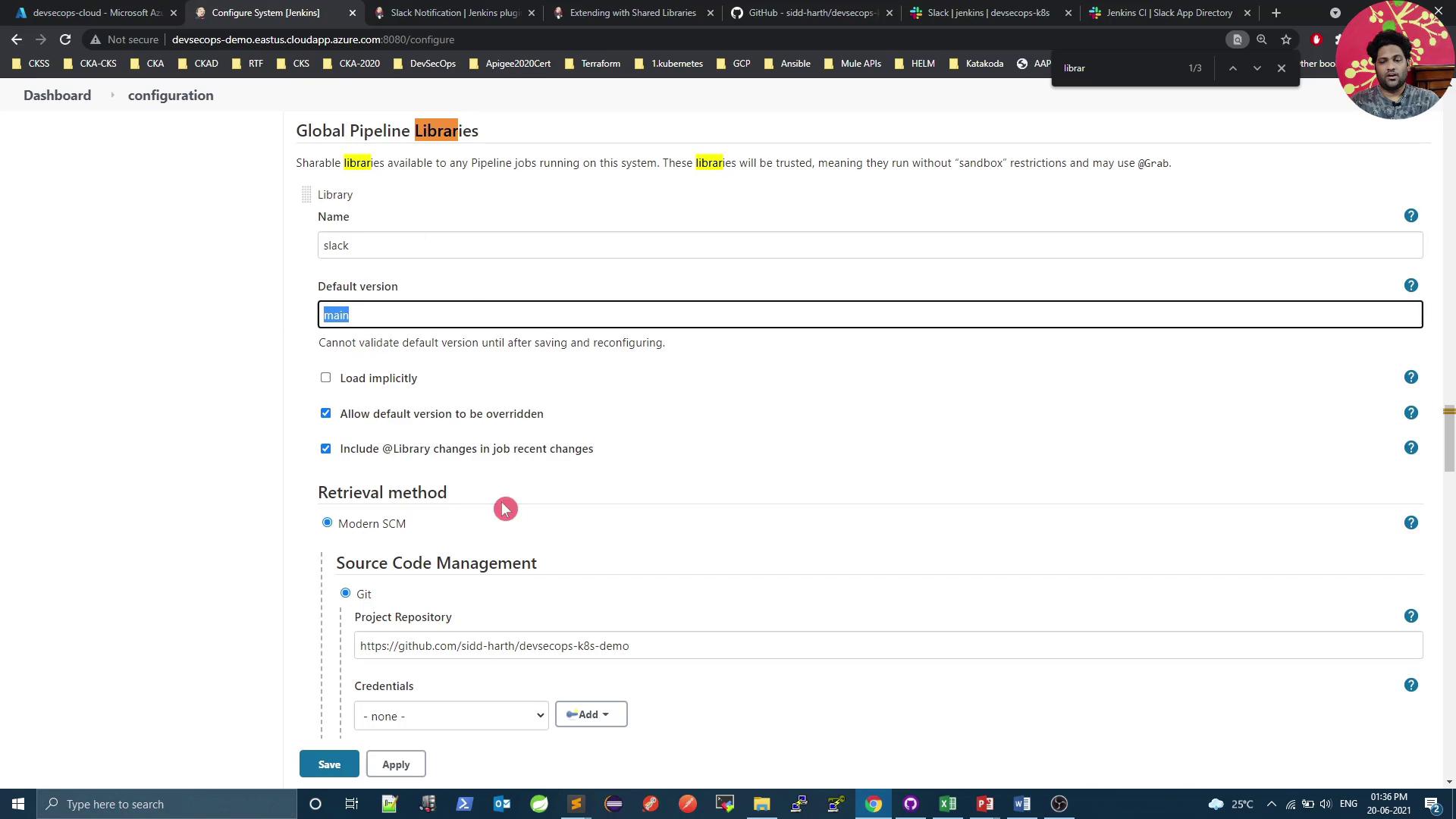
### 5.1 Configure the Global Pipeline Library

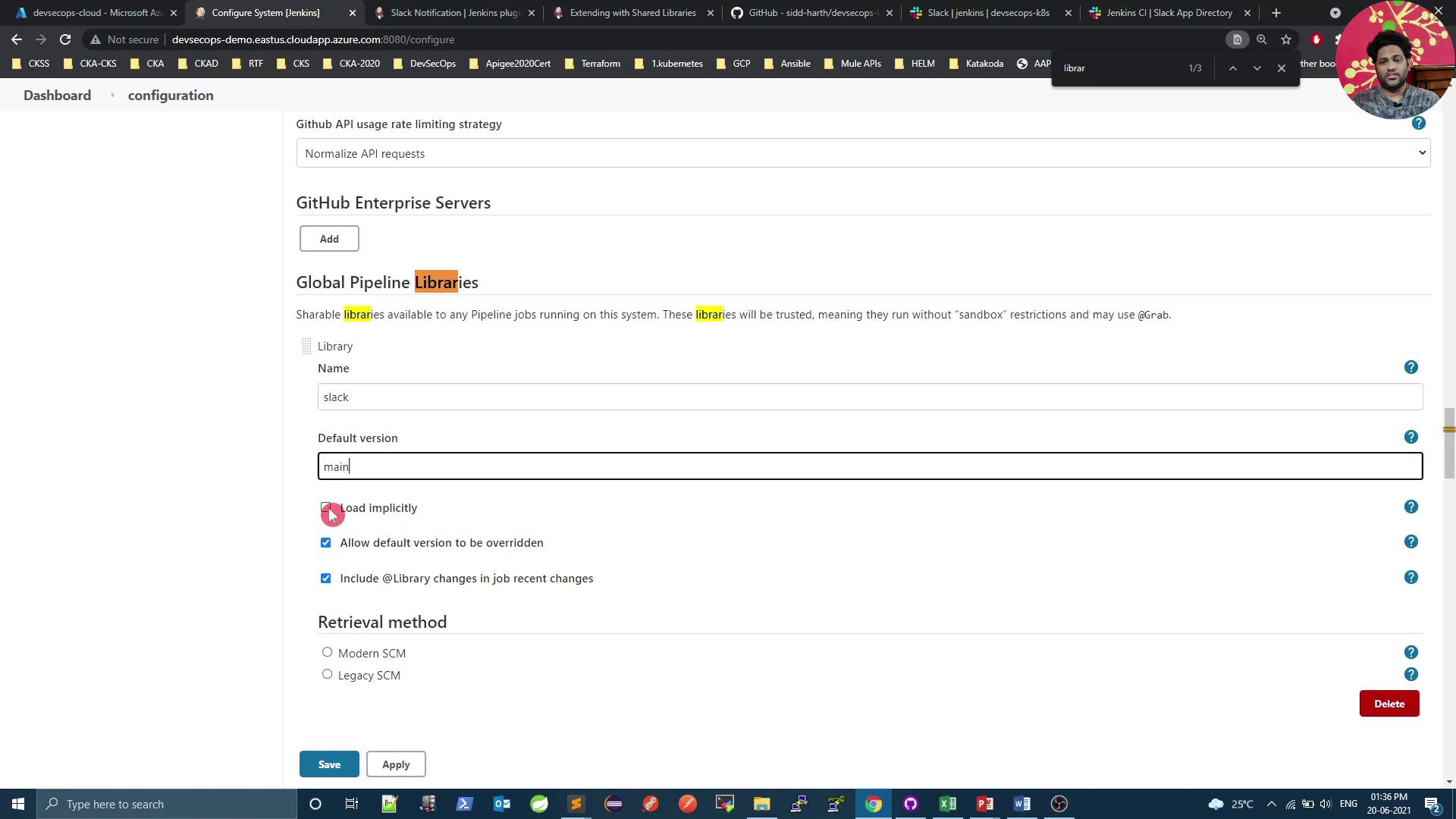
1. In Jenkins, go to **Manage Jenkins** → **Configure System** → **Global Pipeline Libraries**.
<Frame>
  ![The image shows a configuration page for Jenkins, specifically for setting up global pipeline libraries. It includes options for adding a library, setting a default version, and choosing a retrieval method.](https://kodekloud.com/kk-media/image/upload/v1752873674/notes-assets/images/DevSecOps-Kubernetes-DevOps-Security-Demo-Slack-Notification-Legacy-App/jenkins-global-pipeline-libraries-configuration.jpg)
</Frame>

2. Click **Add** and configure:
   * **Name**: `slack`
   * **Default Version**: `main`
   * **Retrieval Method**: Git
   * **Project Repository**: `<your-git-repo-url>`

<Frame>
  ![The image shows a Jenkins configuration page for setting up Global Pipeline Libraries, with options for library name, default version, and retrieval method using Git.](https://kodekloud.com/kk-media/image/upload/v1752873675/notes-assets/images/DevSecOps-Kubernetes-DevOps-Security-Demo-Slack-Notification-Legacy-App/jenkins-global-pipeline-libraries-configuration-2.jpg)
</Frame>

3. Save the configuration.

***

## 6. Implement the Notification Logic

Create `vars/sendNotification.groovy` in your shared library:

```groovy theme={null}
def call(String buildStatus = 'STARTED') {
    // Fallback to SUCCESS if undefined
    buildStatus = buildStatus ?: 'SUCCESS'

    // Choose color by status
    def color = (buildStatus == 'SUCCESS') ? '#47ec05' :
                (buildStatus == 'UNSTABLE') ? '#5eeded' : '#ec2805'

    // Build the message
    def msg = "*${buildStatus}* `${env.JOB_NAME}` #${env.BUILD_NUMBER}\n${env.BUILD_URL}"

    // Send to Slack
    slackSend(color: color, message: msg)
}
```

Table: Build status → Slack color

| Build Status | Hex Color |
| ------------ | --------- |
| SUCCESS      | #47ec05   |
| UNSTABLE     | #5eeded   |
| FAILURE      | #ec2805   |

***

## 7. Integrate in Your Jenkinsfile

Atop your `Jenkinsfile`, load the library and invoke `sendNotification` in the `post` block:

```groovy theme={null}
@Library('slack') _
pipeline {
    agent any
    stages {
        stage('Build') {
            steps {
                sh 'mvn clean package -DskipTests=true'
                archive 'target/*.jar'
            }
        }
        // ... other stages ...
    }
    post {
        always {
            // Send Slack notification with the final build result
            sendNotification currentBuild.result
        }
    }
}
```

> **Note: Customizing Notifications**\
> You can extend `sendNotification` to include Slack attachments, fields, and action buttons for richer messages.

***

## 8. Test the Integration

1. Commit and push your shared library and `Jenkinsfile`.
2. Trigger a new build in Jenkins.
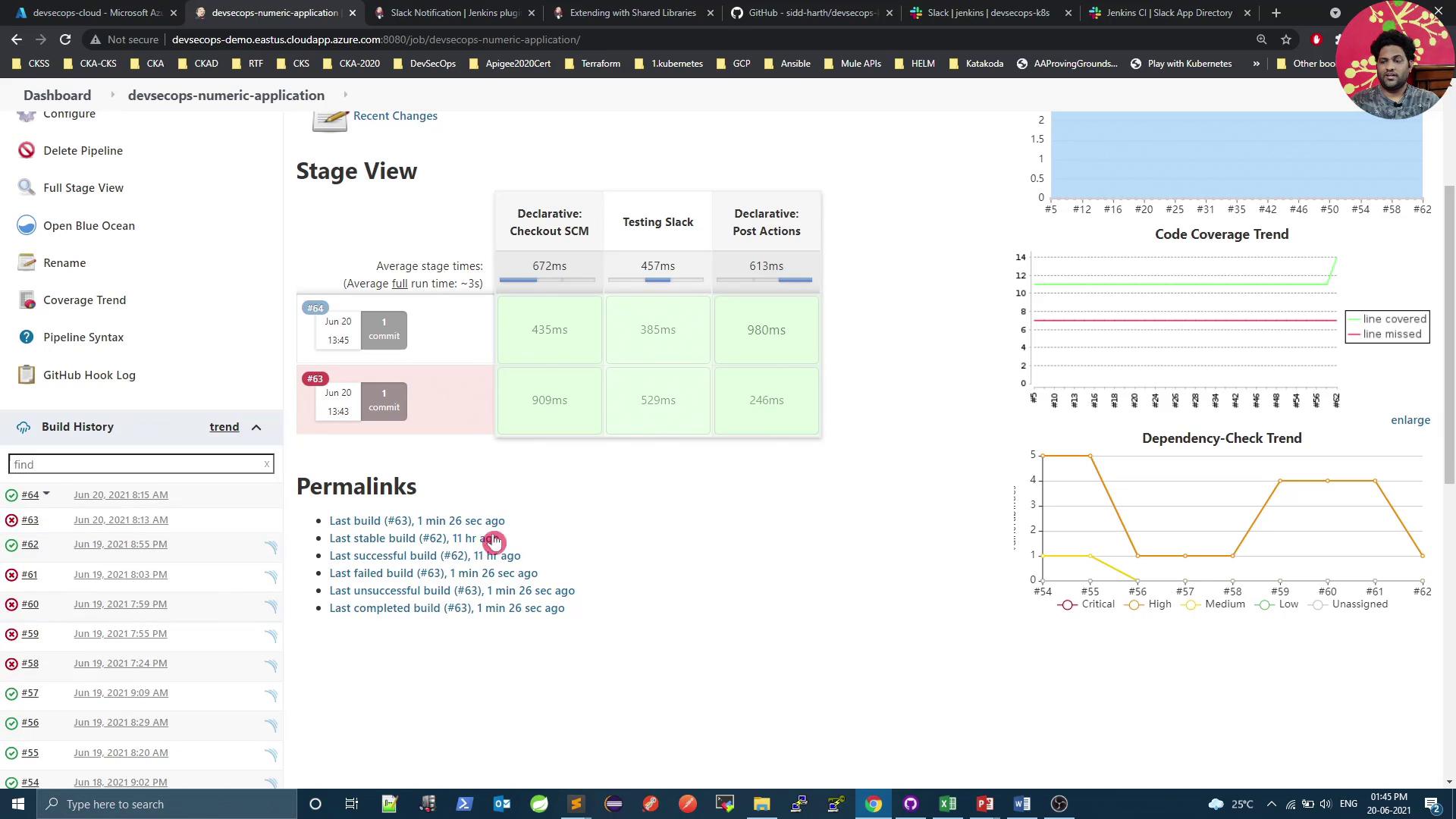
3. Review the build in Jenkins:
<Frame>
  ![The image shows a Jenkins dashboard with build history, stage view, and graphs for code coverage and dependency-check trends.](https://kodekloud.com/kk-media/image/upload/v1752873676/notes-assets/images/DevSecOps-Kubernetes-DevOps-Security-Demo-Slack-Notification-Legacy-App/jenkins-dashboard-build-history-graphs.jpg)
</Frame>

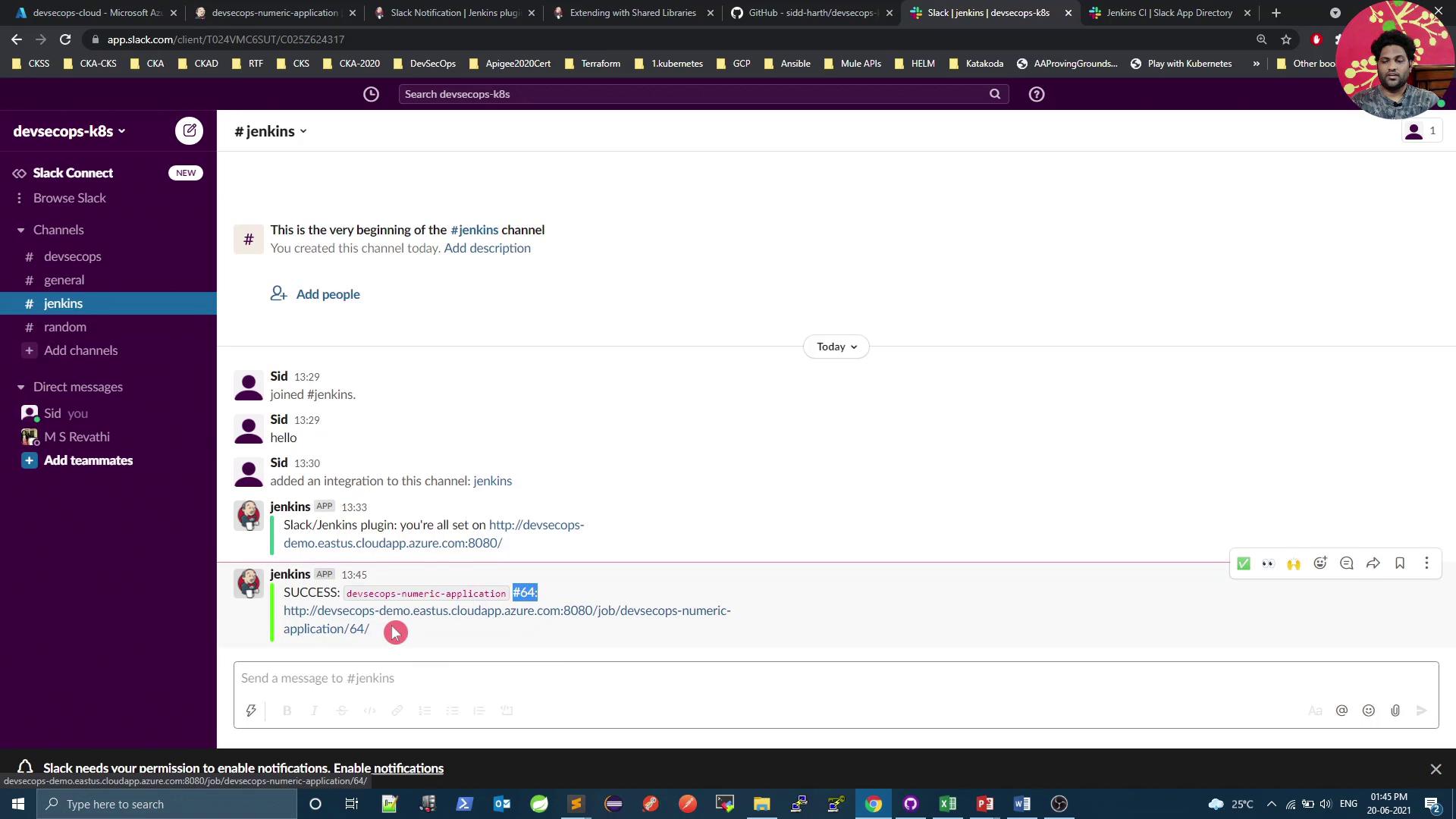
4. Check Slack’s **#jenkins** channel for a green “SUCCESS” notification:
<Frame>
  ![The image shows a Slack workspace with a channel named "#jenkins" where users are discussing Jenkins integration and a successful application deployment. The interface includes a sidebar with channels and direct messages.](https://kodekloud.com/kk-media/image/upload/v1752873677/notes-assets/images/DevSecOps-Kubernetes-DevOps-Security-Demo-Slack-Notification-Legacy-App/slack-workspace-jenkins-discussion.jpg)
</Frame>

5. To simulate a failure, add `sh 'exit 1'` in a build step, push, and confirm a red “FAILURE” alert.

***

## Next Steps

You’ve set up basic Slack notifications with build status, job name, ID, and URL. Coming up:

* Slack attachments with fields and images
* Dynamic channels based on branch or environment
* Interactive message buttons and menus

Stay tuned for more advanced Slack–Jenkins integrations!

***

## Links and References

* [Slack API Documentation](https://api.slack.com/)
* [Slack Notification Plugin for Jenkins](https://plugins.jenkins.io/slack/)
* [Jenkins Shared Library Guide](https://www.jenkins.io/doc/book/pipeline/shared-libraries/)
* [Jenkins Pipeline Syntax](https://www.jenkins.io/doc/book/pipeline/syntax/)
* [Slack App Directory](https://slack.com/apps)

<CardGroup>
  <Card title="Watch Video" icon="video" cta="Learn more" href="https://learn.kodekloud.com/user/courses/devsecops-kubernetes-devops-security/module/877bd662-968c-40a5-bda6-a42b600ea957/lesson/a1268074-637a-4211-8bfb-36f23e4880be" />

  <Card title="Practice Lab" icon="installation" cta="Learn more" href="https://learn.kodekloud.com/user/courses/devsecops-kubernetes-devops-security/module/877bd662-968c-40a5-bda6-a42b600ea957/lesson/53c1c7de-19b0-4056-a351-69a236f0ca57" />
</CardGroup>