> ## Documentation Index
> Fetch the complete documentation index at: https://notes.kodekloud.com/llms.txt
> Use this file to discover all available pages before exploring further.
# Trivy Basics
> This guide explains how to use Trivy, a vulnerability scanner for container images and artifacts, covering installation, scanning, and output formats.
In this guide, you’ll discover how to use Trivy—a fast, easy-to-use vulnerability scanner for container images and other artifacts. Trivy inspects both operating system packages (Alpine, RHEL, CentOS, Debian, Distroless) and application dependencies (NPM, Cargo, NuGet, Go modules, Maven). We’ll demonstrate scanning a Maven-based Java application, but the commands apply to any supported language or OS.
## Installation
You can install Trivy as a standalone binary or run it via Docker.
### Standalone Binary
Download the latest release from the [Trivy GitHub Releases page](https://github.com/aquasecurity/trivy/releases), then:
```bash theme={null}
# Scan with default settings
trivy image nginx:alpine
# Only show HIGH and CRITICAL issues
trivy image --severity HIGH,CRITICAL ruby:2.4.0
# Scan OS packages only
trivy image --vuln-type os nodejs-image:1.2
# Skip updating the local database
trivy image --skip-update python:3.4-alpine3.9
```
If you skip the vulnerability database update (`--skip-update`), you may miss newly disclosed CVEs.
### Using Docker
Use the official Trivy image and mount a cache to speed up repeat scans:
```bash theme={null}
docker run --rm \
-v $HOME/.cache:/root/.cache/ \
aquasec/trivy:latest \
--exit-code 0 \
--severity HIGH \
nginx:latest
docker run --rm \
-v $HOME/.cache:/root/.cache/ \
aquasec/trivy:latest \
--exit-code 1 \
--severity CRITICAL \
nginx:latest
```
Mounting `~/.cache` ensures that vulnerability databases persist between runs, dramatically reducing scan time.
## Scan Exit Codes
Control your CI/CD pipeline behavior by setting one of these exit codes:
* `--exit-code 0`\
Always returns 0—even if vulnerabilities are found.
* `--exit-code 1`\
Returns 1 when vulnerabilities meet or exceed your severity threshold.
Use the exit code strategy to fail builds when critical flaws are detected.
## Output Formats
Trivy supports three formats:
| Format | Description | Usage |
| -------- | ------------------------------ | --------------------------------------- |
| table | Human-readable table (default) | `--format table` |
| json | Machine-readable JSON | `--format json` |
| template | Custom Go-template output | `--format template --template "@/path"` |
Example:
```bash theme={null}
trivy image nginx:alpine --format json > report.json
```
## Listing All Packages
By default, Trivy only reports packages with known vulnerabilities. To list every package in the image:
```bash theme={null}
trivy image --list-all-pkgs
```
This helps you understand the full software inventory, not just vulnerable components.
## Common Options
| Option | Description |
| ---------------------------------- | ------------------------------------------------------- |
| `--format [table\|json\|template]` | Choose output format (default: `table`) |
| `--exit-code <0\|1>` | Set exit code when vulnerabilities exceed threshold |
| `--list-all-pkgs` | Show all installed packages |
| `--severity ` | Comma-separated severity levels (e.g., `CRITICAL,HIGH`) |
| `--vuln-type ` | Scan OS packages or application libraries |
| `--skip-update` | Skip updating the vulnerability database |
## Sample Report
Below is a sample Trivy table output, showing each vulnerability’s ID, severity, installed version, and fixed version when available:
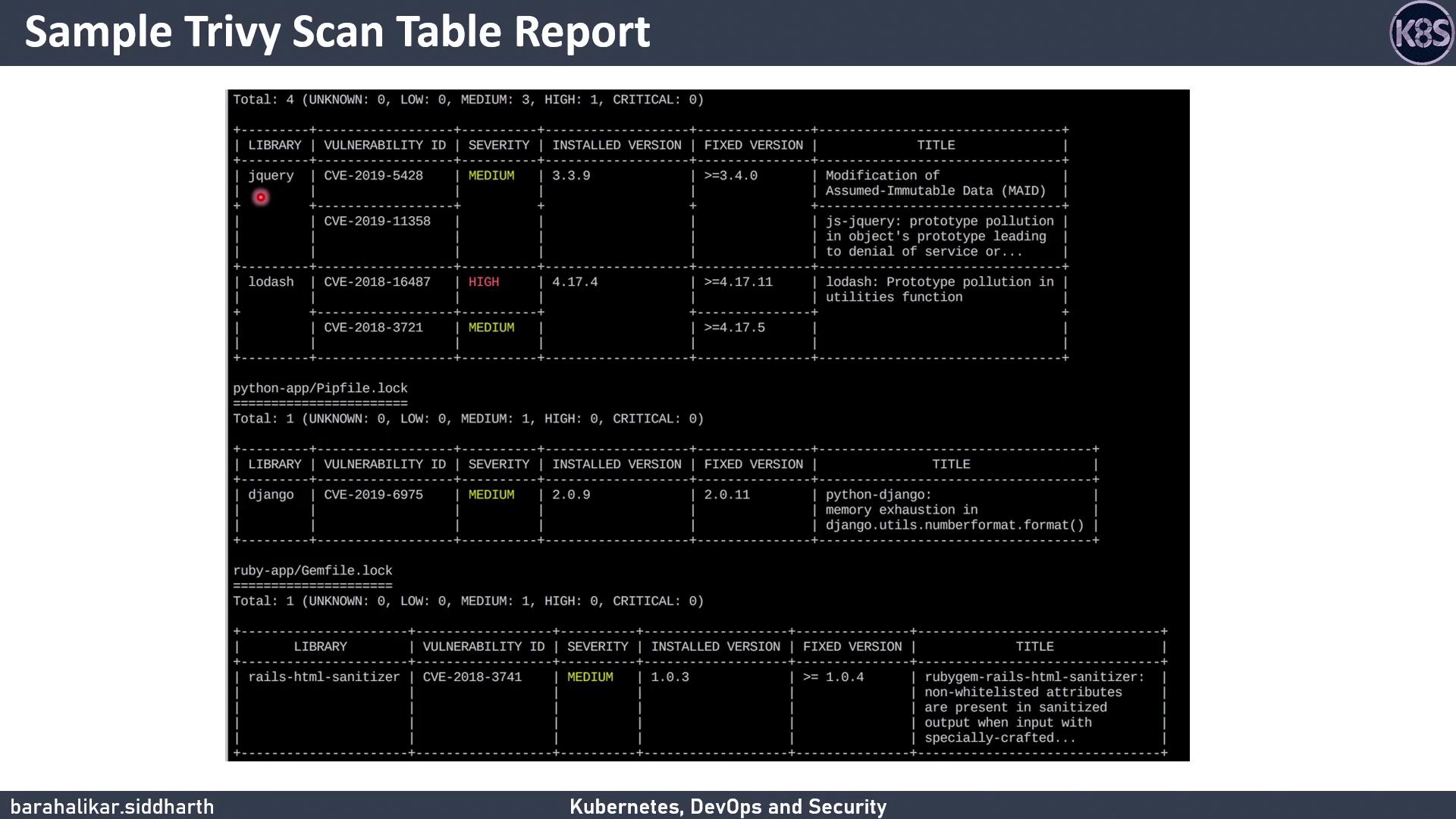
Key columns:
* **Vulnerability ID** (e.g., CVE-2021-1234)
* **Severity** level
* **Installed version**
* **Fixed version** (if available)
When scanning a full image, Trivy aggregates OS-level and application dependency vulnerabilities in one report.
***
## References & Links
* [Trivy Documentation](https://aquasecurity.github.io/trivy/)
* [Trivy GitHub Repository](https://github.com/aquasecurity/trivy)
* [Kubernetes Basics](https://kubernetes.io/docs/concepts/overview/what-is-kubernetes/)
Now you’re ready to run your own vulnerability scans and integrate Trivy into your CI/CD pipeline. Happy scanning!