> ## Documentation Index
> Fetch the complete documentation index at: https://notes.kodekloud.com/llms.txt
> Use this file to discover all available pages before exploring further.
# Demo Falco Slack Notifications
> Learn to send Falco security alerts to a Slack channel using Falco Sidekick and Slack Incoming Webhooks.
Learn how to send real-time Falco security alerts into a Slack channel using **Falco Sidekick** and Slack Incoming Webhooks. This guide walks you through creating a Slack channel, configuring a webhook, installing Sidekick via Helm, and testing alerts.
## Prerequisites
* A running Kubernetes cluster with Falco installed via Helm
* A Slack workspace with permission to create channels and apps
* `helm` and `kubectl` CLI tools configured for your cluster
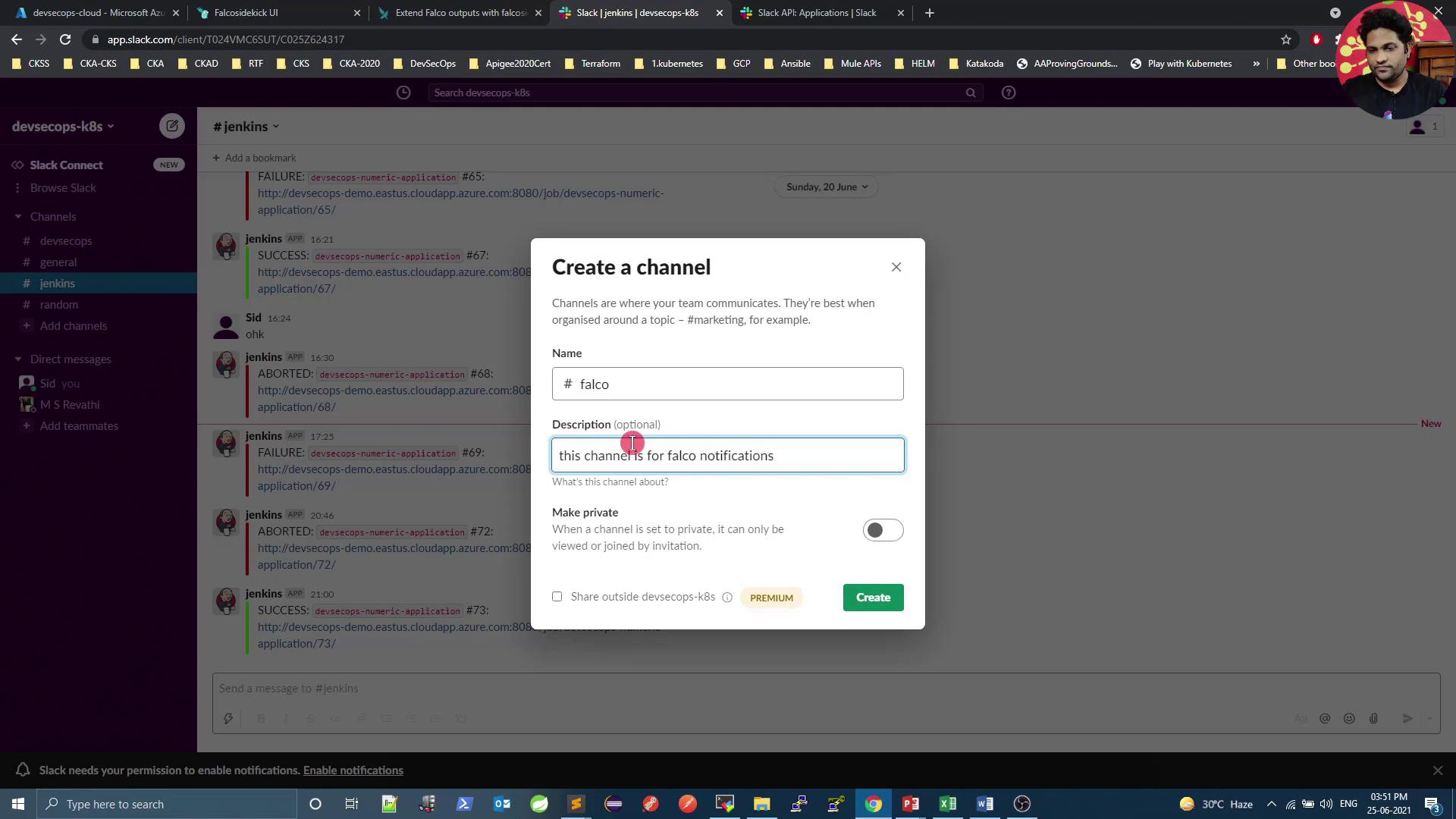
## 1. Create a Slack Channel
Create a dedicated channel (for example, `#falco`) to receive Falco alerts.
## 2. Configure an Incoming Webhook
Follow these steps to set up an incoming webhook in Slack.
1. Open the [Slack Incoming Webhooks documentation](https://api.slack.com/messaging/webhooks).
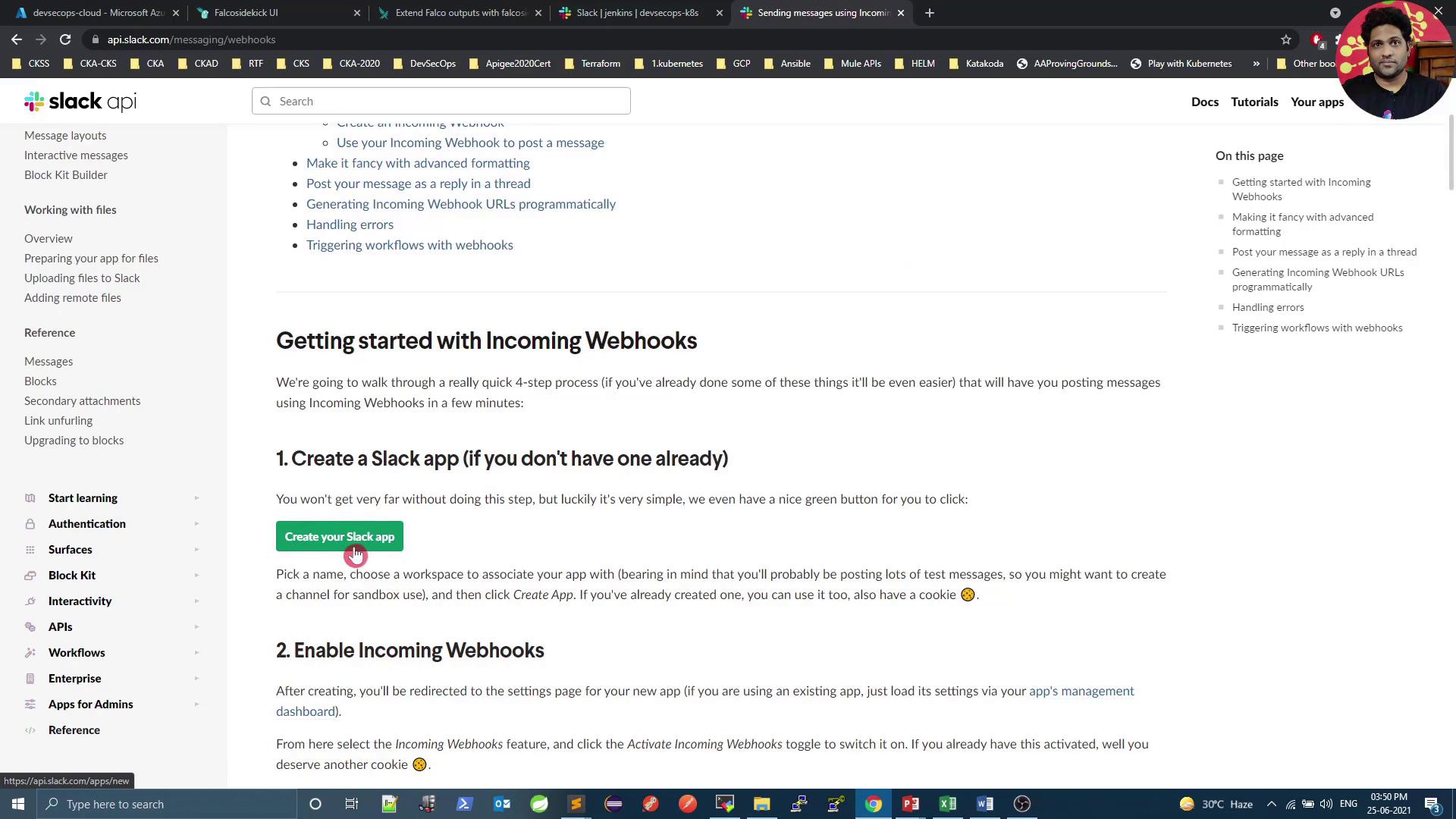
2. Click **Create an app**, choose **From scratch**, and pick your workspace.
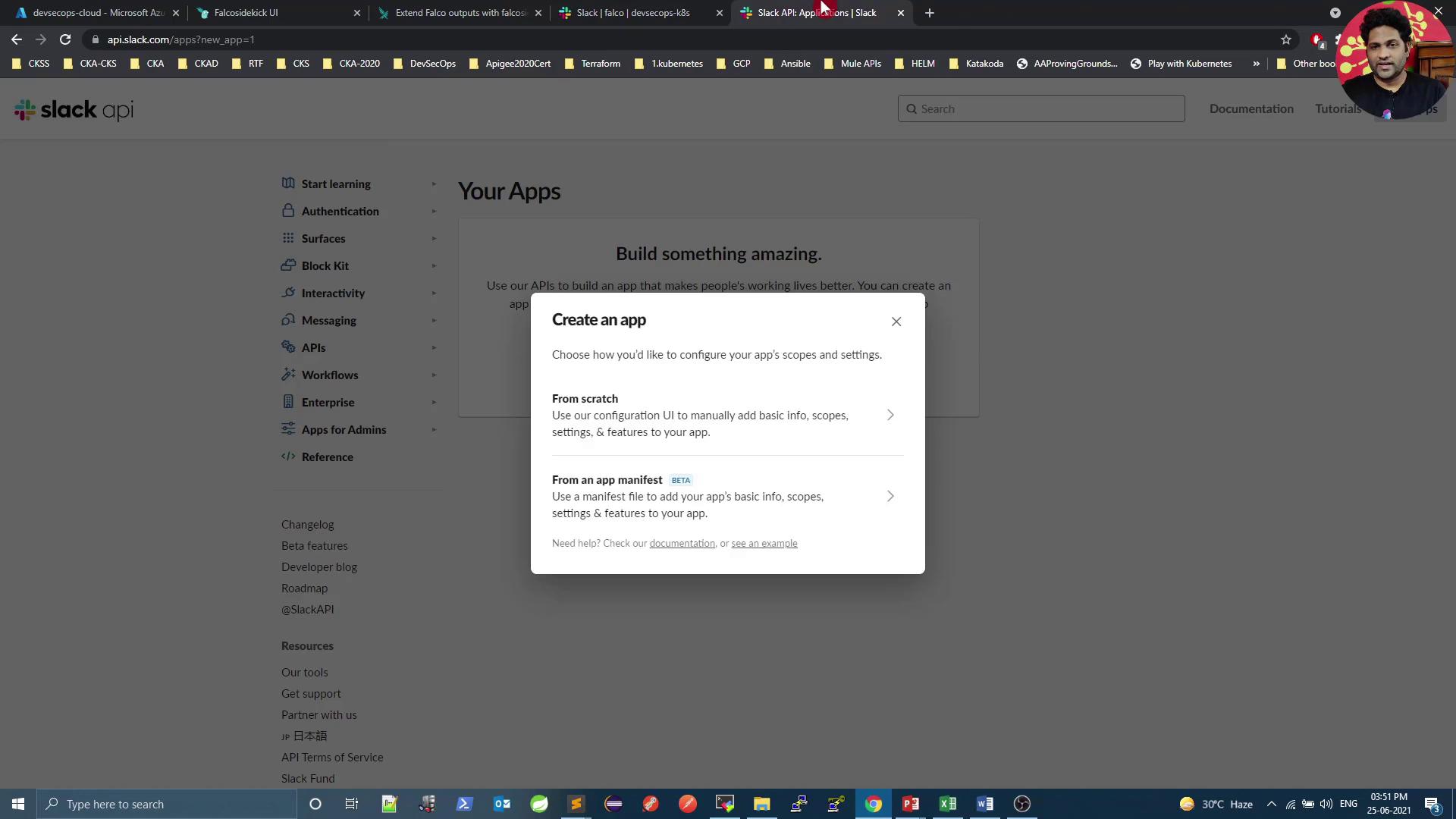
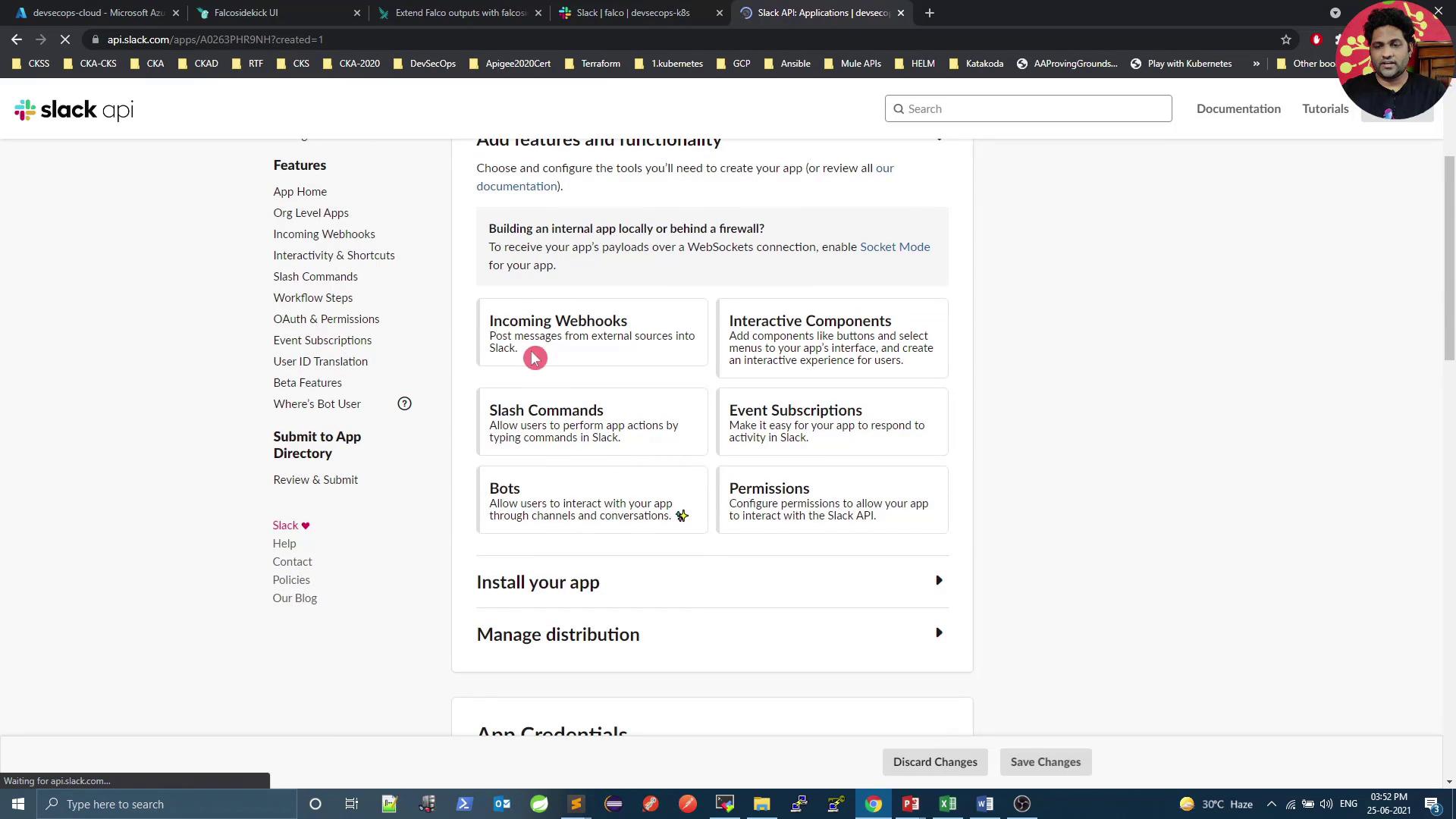
3. Under **Features**, enable **Incoming Webhooks**.
4. Click **Add New Webhook to Workspace**, select `#falco`, and authorize. Copy the generated URL:
```text theme={null}
https://hooks.slack.com/services/T00000000/B00000000/XXXXXXXXXXXXXXXXXXXXXXXX
```
Treat your webhook URL like a password. Do not expose it in public repositories.
5. Verify the webhook with `curl`:
```bash theme={null}
curl -X POST -H 'Content-type: application/json' \
--data '{"text":"Hello, Falco!"}' \
https://hooks.slack.com/services/T00000000/B00000000/XXXXXXXXXXXXXXXXXXXXXXXX
```
You should see **“Hello, Falco!”** in the `#falco` channel.
## 3. Install Falco Sidekick with Slack Integration
Use Helm to enable Falco Sidekick and configure Slack:
```bash theme={null}
helm upgrade falco falcosecurity/falco \
--set falcosidekick.enabled=true \
--set falcosidekick.webui.enabled=true \
--set falcosidekick.config.slack.webhookurl="https://hooks.slack.com/services/T00000000/B00000000/XXXXXXXXXXXXXXXXXXXXXXXX" \
--set falcosidekick.config.customfields="environment:production,datacenter:paris" \
-n falco
```
| Configuration Key | Description | Example |
| ------------------------------------- | ------------------------------- | ------------------------------------------- |
| falcosidekick.enabled | Enable Falco Sidekick component | `true` |
| falcosidekick.webui.enabled | Sidekick Web UI | `true` |
| falcosidekick.config.slack.webhookurl | Slack incoming webhook URL | `"https://hooks.slack.com/services/…"` |
| falcosidekick.config.customfields | Custom metadata fields | `"environment:production,datacenter:paris"` |
After upgrading, confirm the release and running pods:
```bash theme={null}
helm ls -n falco
kubectl get all -n falco
```
## 4. Trigger a Test Alert
Spawn a shell in a container to generate a Falco alert. Replace `n1` with your Pod name:
```bash theme={null}
kubectl exec -it n1 -- sh -c "touch /tmp/test && ls /tmp/test"
```
Falco detects the shell spawn and Sidekick forwards the alert to Slack.
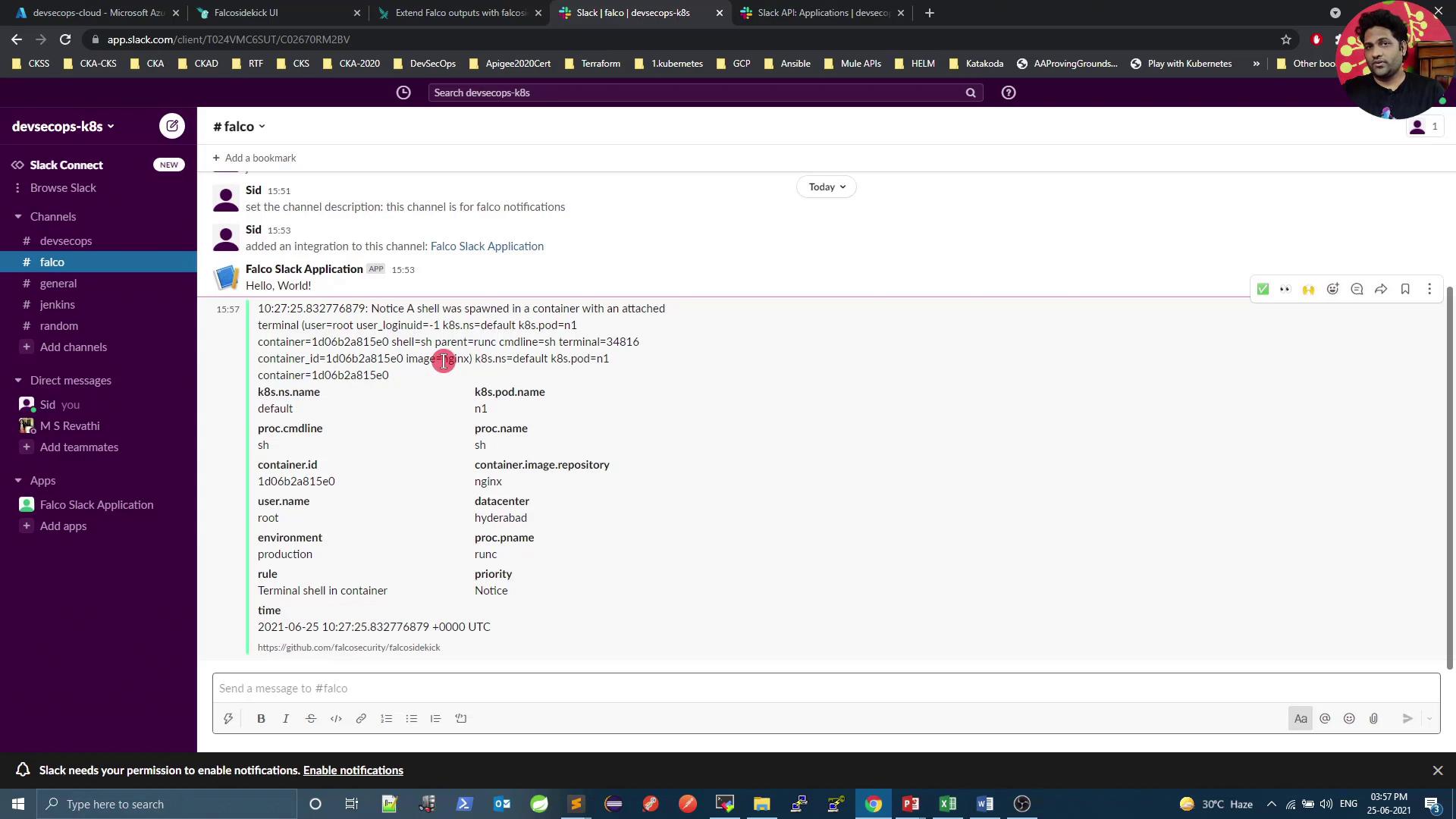
The message includes rule name, priority, container details, pod/namespace, custom fields, timestamp, and process info.
## Conclusion
You've successfully integrated Falco with Slack for real-time monitoring. To extend this setup—sending alerts to Microsoft Teams, Discord, Elasticsearch, Datadog, and more—update the `falcosidekick.config` in your Helm command.
## Links and References
* [Falco Sidekick Repository](https://github.com/falcosecurity/falcosidekick)
* [Slack Incoming Webhooks](https://api.slack.com/messaging/webhooks)
* [Falco Documentation](https://falco.org/docs/)