> ## Documentation Index
> Fetch the complete documentation index at: https://notes.kodekloud.com/llms.txt
> Use this file to discover all available pages before exploring further.

# Demo Slack Jenkins Custom App

> Learn to send interactive Slack notifications from Jenkins using attachments, custom emojis, and buttons through a step-by-step guide.

In this guide, you’ll learn how to send rich, interactive Slack notifications from Jenkins using attachments, custom emojis, and buttons. We’ll walk through:

* Creating a custom Slack App & bot user
* Assigning OAuth scopes for attachments and emojis
* Generating and storing an OAuth token in Jenkins
* Configuring the Slack plugin in Jenkins
* Testing notifications and troubleshooting common issues

By the end, your Jenkins pipelines can post build status, Git details, Kubernetes metadata, and clickable actions—all with custom formatting.

***

## Prerequisites: Slack Notification Plugin

<Callout icon="lightbulb" color="#1CB2FE">
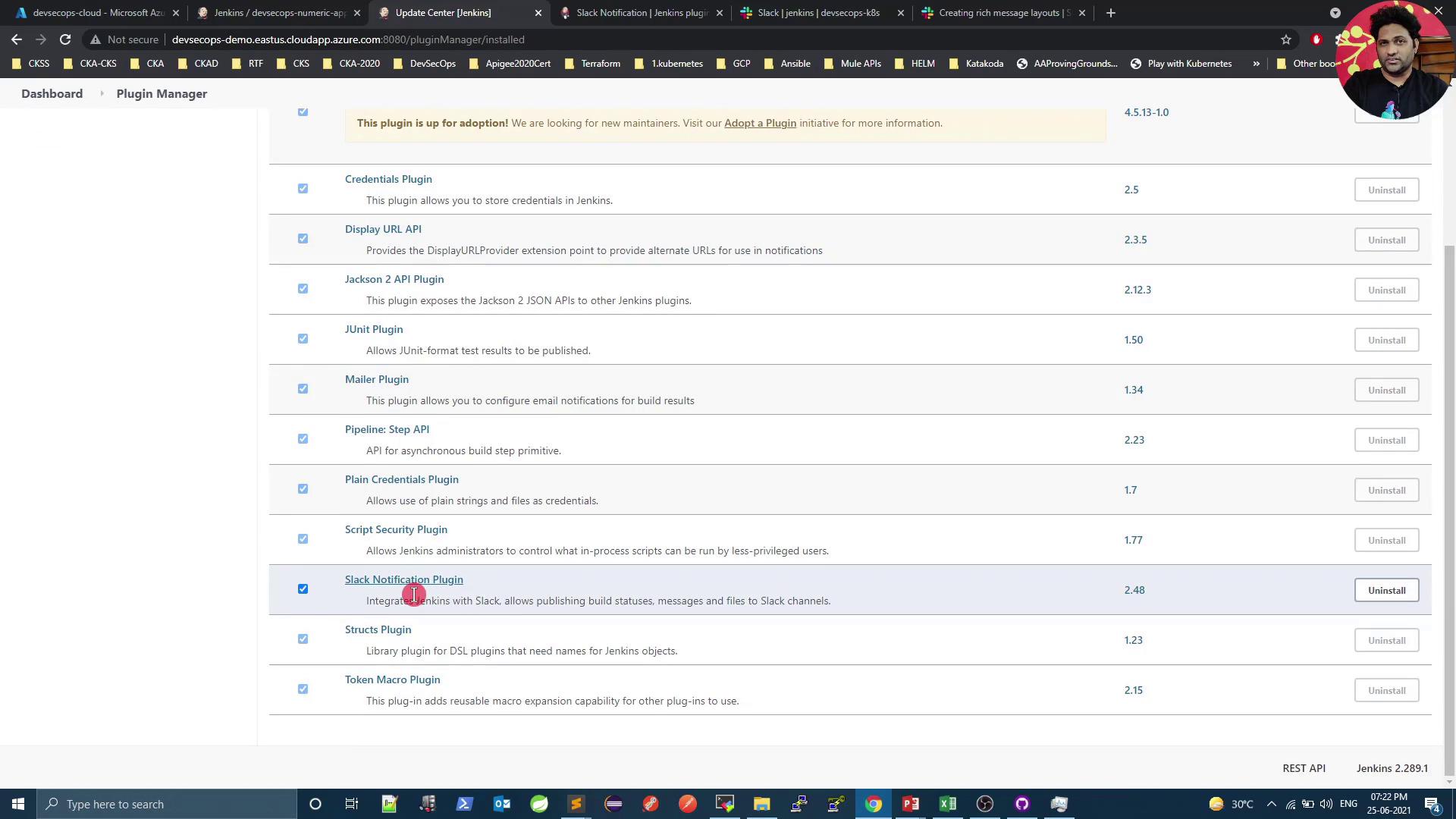
  Make sure the **Slack Notification Plugin** is installed in your Jenkins instance. It provides the `slackSend` step with support for attachments and Block Kit layouts.
</Callout>

<Frame>
  ![The image shows a Jenkins Plugin Manager interface with a list of installed plugins, including details like version numbers and options to uninstall. The browser tabs and taskbar are visible, indicating a desktop environment.](https://kodekloud.com/kk-media/image/upload/v1752873796/notes-assets/images/DevSecOps-Kubernetes-DevOps-Security-Demo-Slack-Jenkins-Custom-App/jenkins-plugin-manager-installed-plugins.jpg)
</Frame>

To start, send a simple text notification:

```groovy theme={null}
slackSend color: 'good', message: 'Hello from Jenkins Pipeline!'
```

### Adding Attachments

Define an attachments array to include richer content:
<Frame>
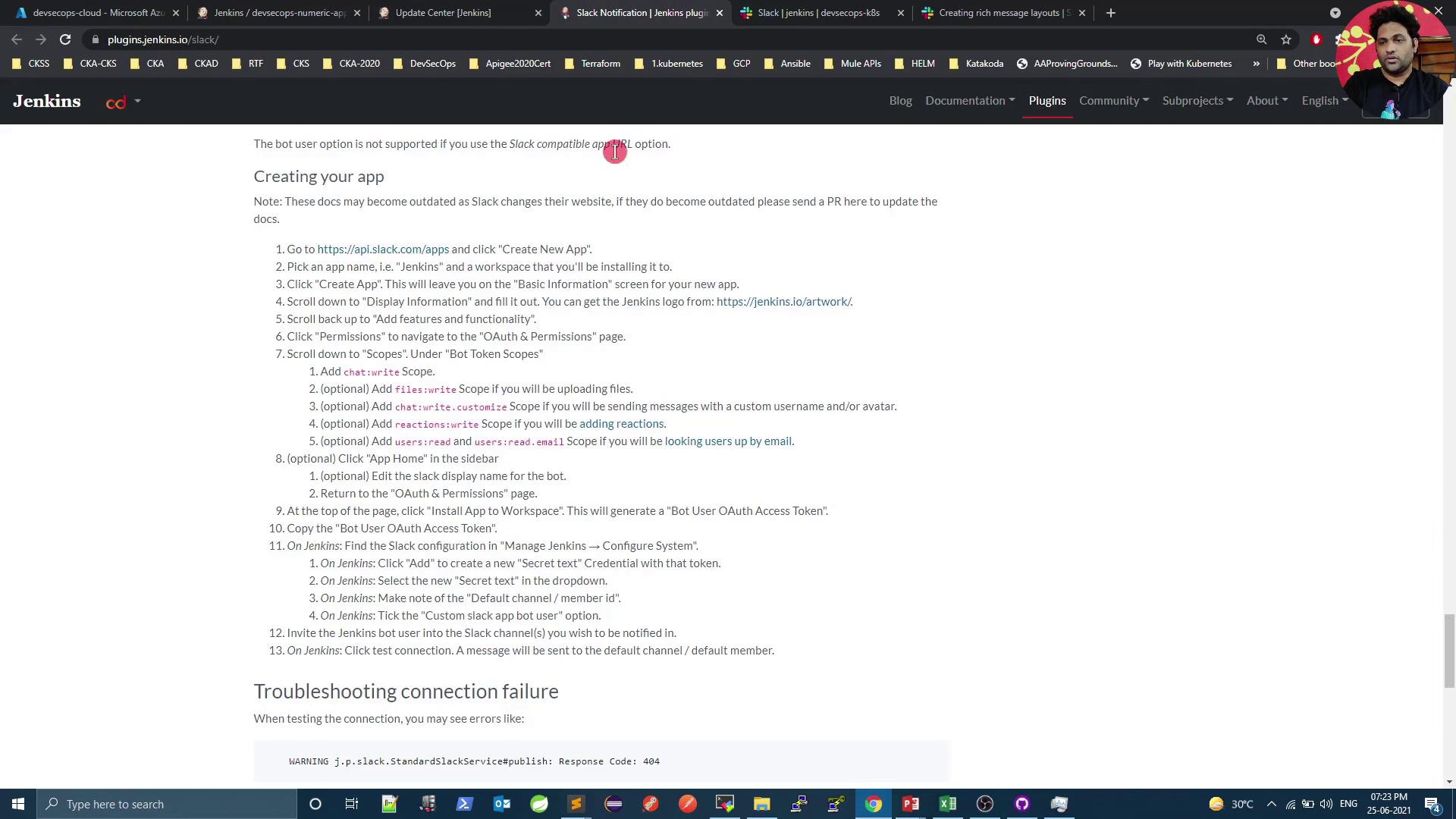
  ![The image shows a webpage with instructions for creating a Slack app, specifically for integrating with Jenkins. The page includes a step-by-step guide and troubleshooting information.](https://kodekloud.com/kk-media/image/upload/v1752873797/notes-assets/images/DevSecOps-Kubernetes-DevOps-Security-Demo-Slack-Jenkins-Custom-App/slack-app-jenkins-integration-guide.jpg)
</Frame>

```groovy theme={null}
def attachments = [
  [
    text:     'I find your lack of faith disturbing!',
    fallback: 'Vader is upset.',
    color:    '#ff0000'
  ]
]
slackSend(channel: '#general', attachments: attachments)
```

Attachments require a bot user in Slack. Let’s create one next.

***

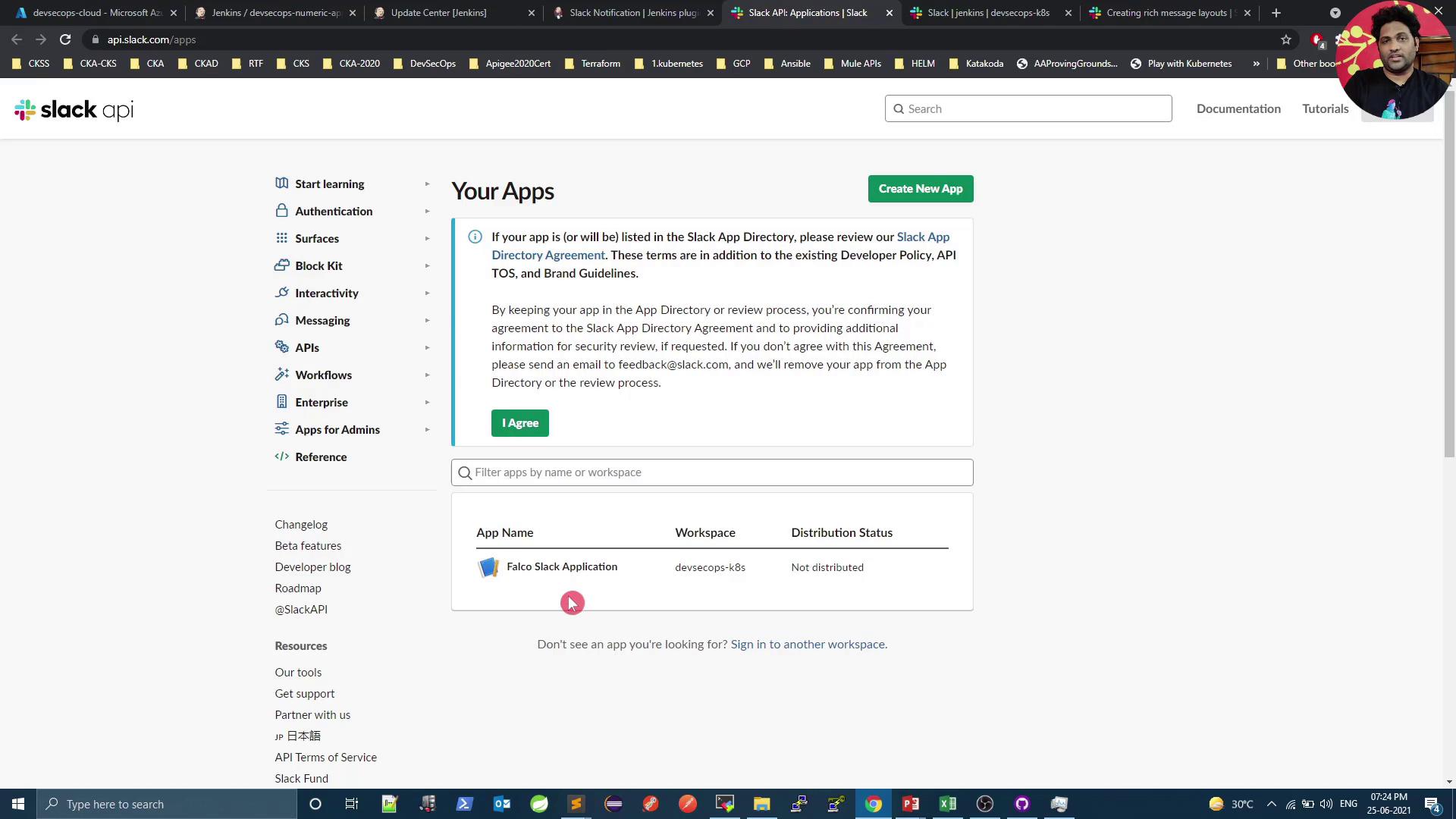
## 1. Create a Slack App

1. Open the Slack API dashboard:\
   [https://api.slack.com/apps](https://api.slack.com/apps)

2. Click **Create an App** and choose **From scratch**.

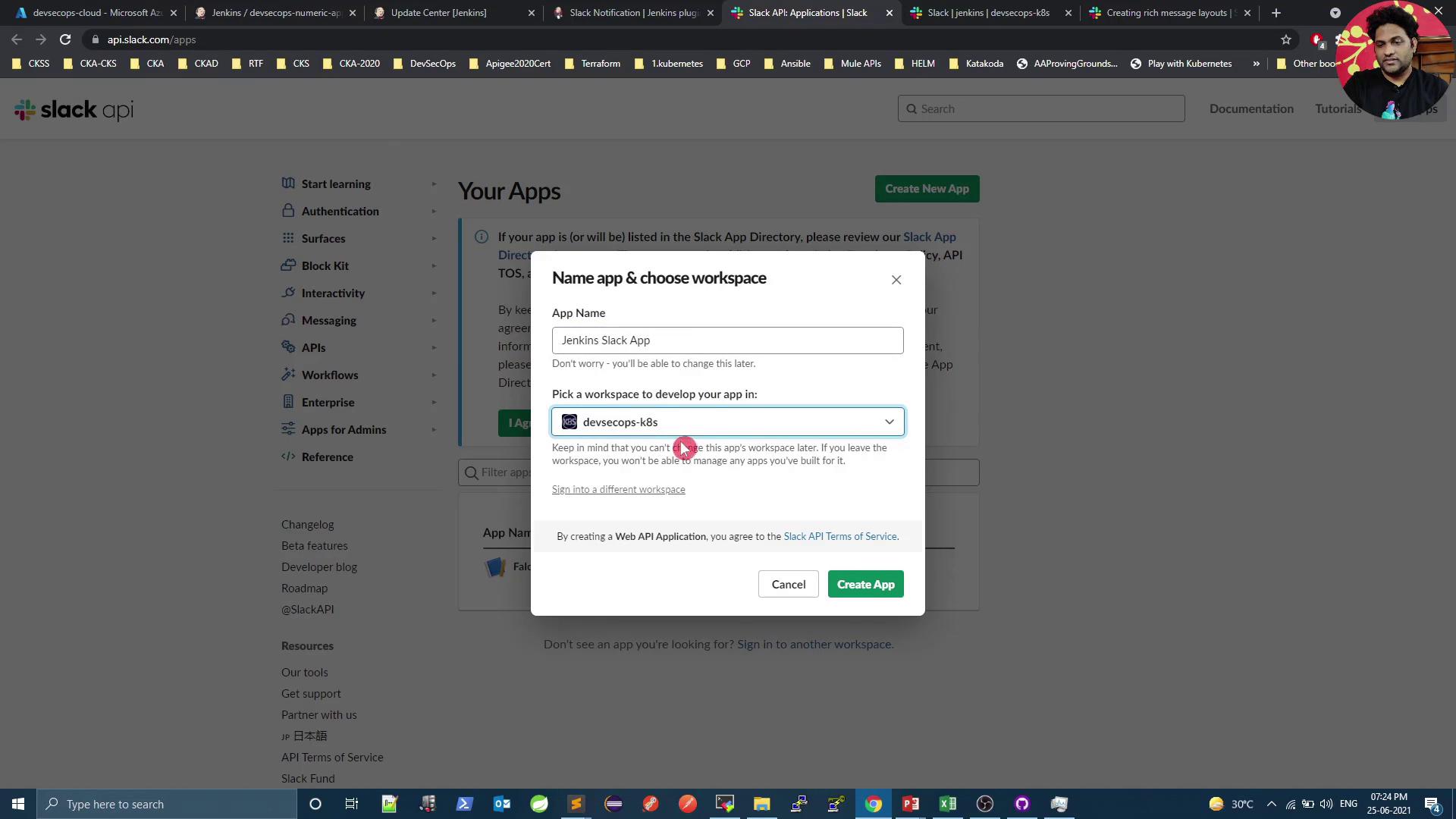
3. Enter a name (e.g., *Jenkins Slack App*) and select your workspace.
<Frame>
  ![The image shows a Slack API dashboard with options to create a new app and manage existing ones. It includes a section listing an app named "Falco Slack Application" with its workspace and distribution status.](https://kodekloud.com/kk-media/image/upload/v1752873798/notes-assets/images/DevSecOps-Kubernetes-DevOps-Security-Demo-Slack-Jenkins-Custom-App/slack-api-dashboard-app-management.jpg)
</Frame>

<Frame>
  ![The image shows a Slack API webpage with a pop-up window titled "Create an app," offering options to configure an app from scratch or using an app manifest. The background displays various menu options related to Slack API features.](https://kodekloud.com/kk-media/image/upload/v1752873799/notes-assets/images/DevSecOps-Kubernetes-DevOps-Security-Demo-Slack-Jenkins-Custom-App/slack-api-create-app-popup-options.jpg)
</Frame>

<Frame>
  ![The image shows a Slack API webpage where a user is creating a new app named "Jenkins Slack App" and selecting a workspace called "devsecops-k8s." A pop-up window is open for naming the app and choosing the workspace.](https://kodekloud.com/kk-media/image/upload/v1752873800/notes-assets/images/DevSecOps-Kubernetes-DevOps-Security-Demo-Slack-Jenkins-Custom-App/slack-api-jenkins-app-creation.jpg)
</Frame>

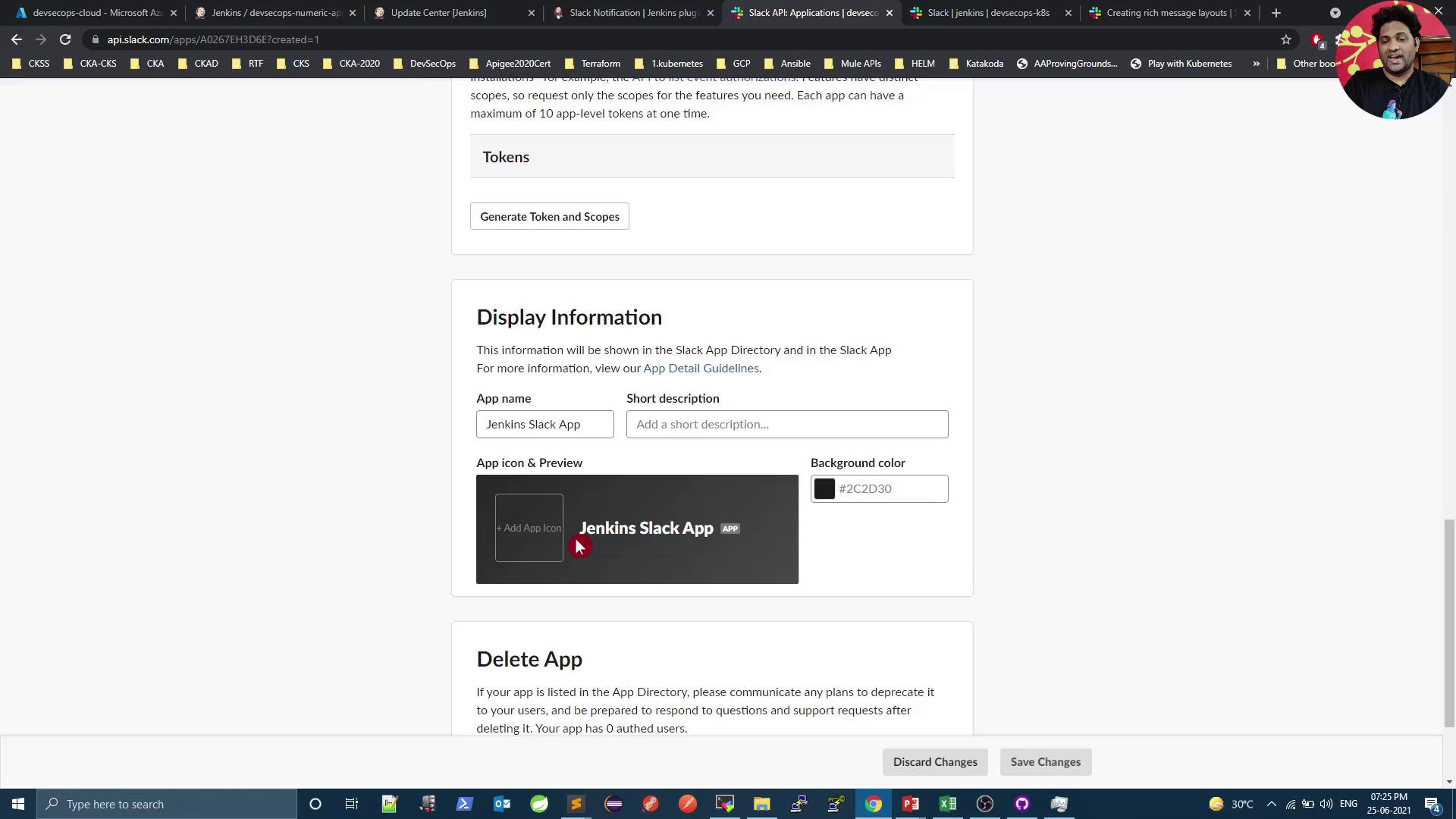
Optionally, customize the app’s icon and description:
<Frame>
  ![The image shows a Slack API settings page for a "Jenkins Slack App," where display information such as app name, icon, and background color can be configured. There are options to generate tokens and delete the app.](https://kodekloud.com/kk-media/image/upload/v1752873801/notes-assets/images/DevSecOps-Kubernetes-DevOps-Security-Demo-Slack-Jenkins-Custom-App/jenkins-slack-app-api-settings.jpg)
</Frame>

***

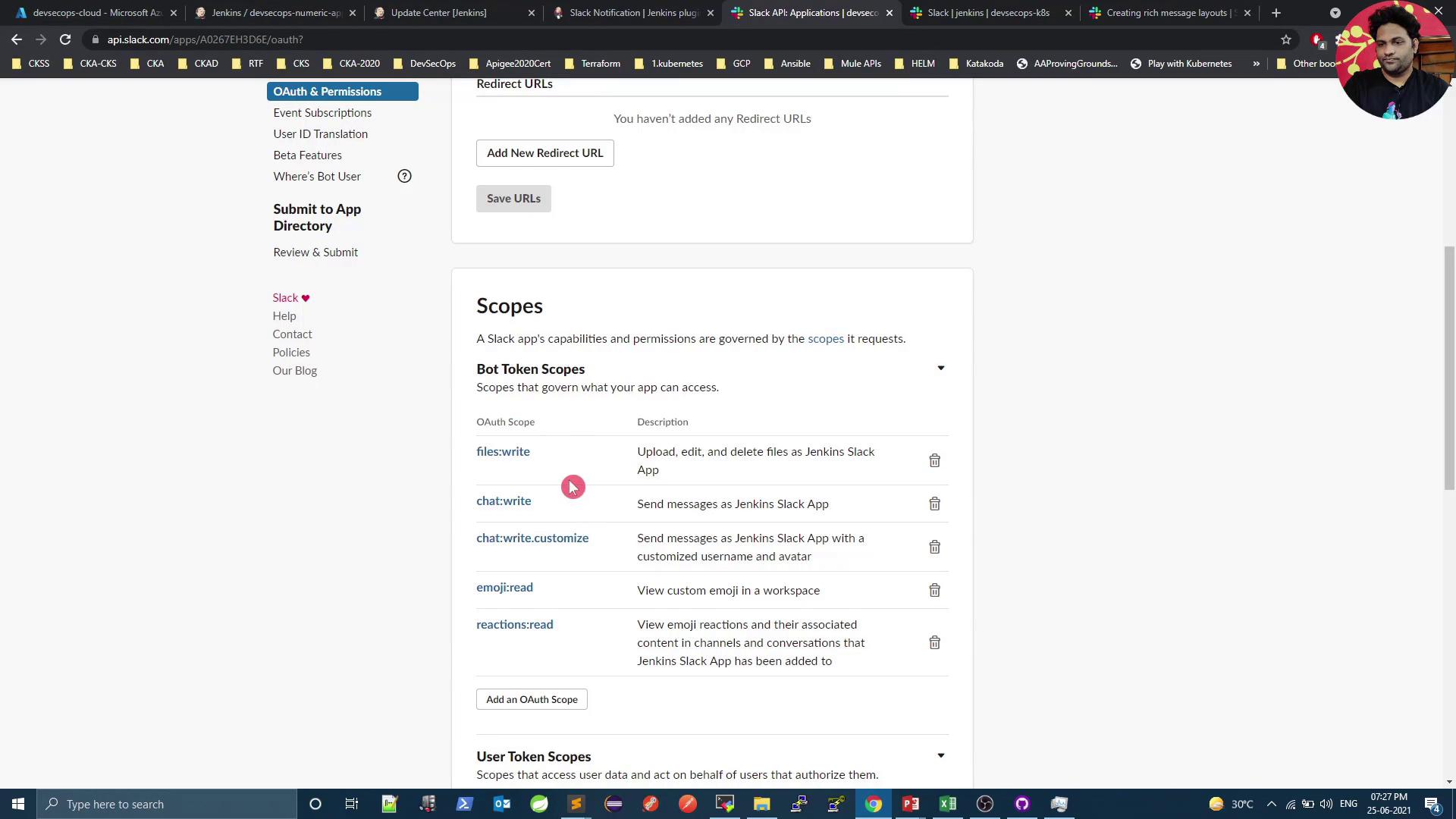
## 2. Assign Bot OAuth Scopes

In your app settings, go to **OAuth & Permissions** → **Bot Token Scopes**. Add the following:

| Scope                | Purpose                                     |
| -------------------- | ------------------------------------------- |
| files:write          | Upload and manage files                     |
| chat:write           | Post messages in channels & direct messages |
| chat:write.customize | Use attachments and interactive elements    |
| emoji:read           | List custom emojis                          |
| reactions:write      | Add or remove reactions                     |
<Frame>
  ![The image shows a Slack API settings page with OAuth and permissions details, including bot token scopes for a Slack app. Various scopes like files:write and chat:write are listed with their descriptions.](https://kodekloud.com/kk-media/image/upload/v1752873802/notes-assets/images/DevSecOps-Kubernetes-DevOps-Security-Demo-Slack-Jenkins-Custom-App/slack-api-settings-oauth-permissions.jpg)
</Frame>

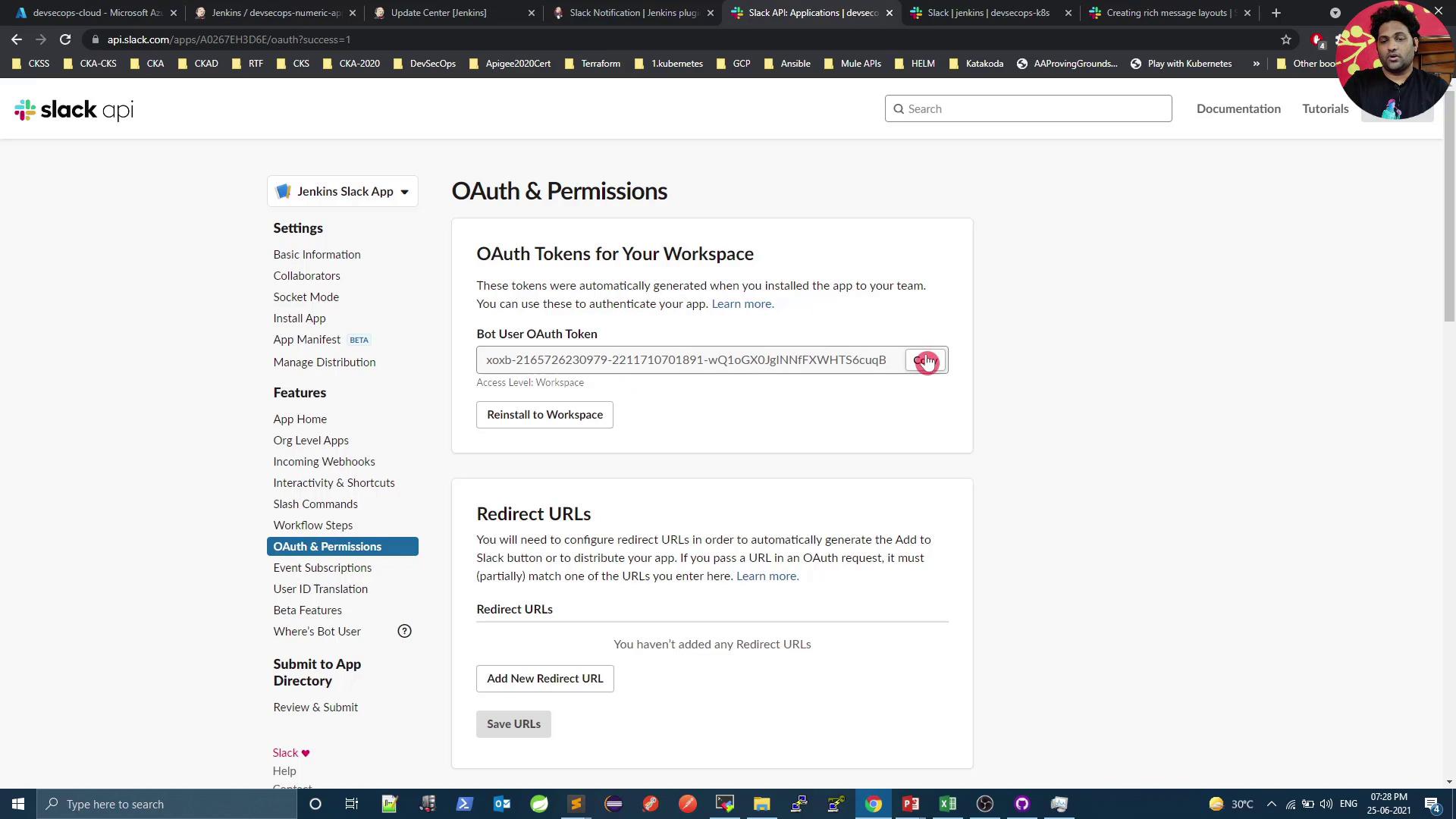
Scroll up and click **Install to Workspace**, then authorize. Copy the **Bot User OAuth Token** from the dashboard:
<Frame>
  ![The image shows the Slack API dashboard, specifically the "OAuth & Permissions" section, displaying a Bot User OAuth Token and options for redirect URLs.](https://kodekloud.com/kk-media/image/upload/v1752873804/notes-assets/images/DevSecOps-Kubernetes-DevOps-Security-Demo-Slack-Jenkins-Custom-App/slack-api-oauth-permissions-dashboard.jpg)
</Frame>

***

## 3. Configure Jenkins

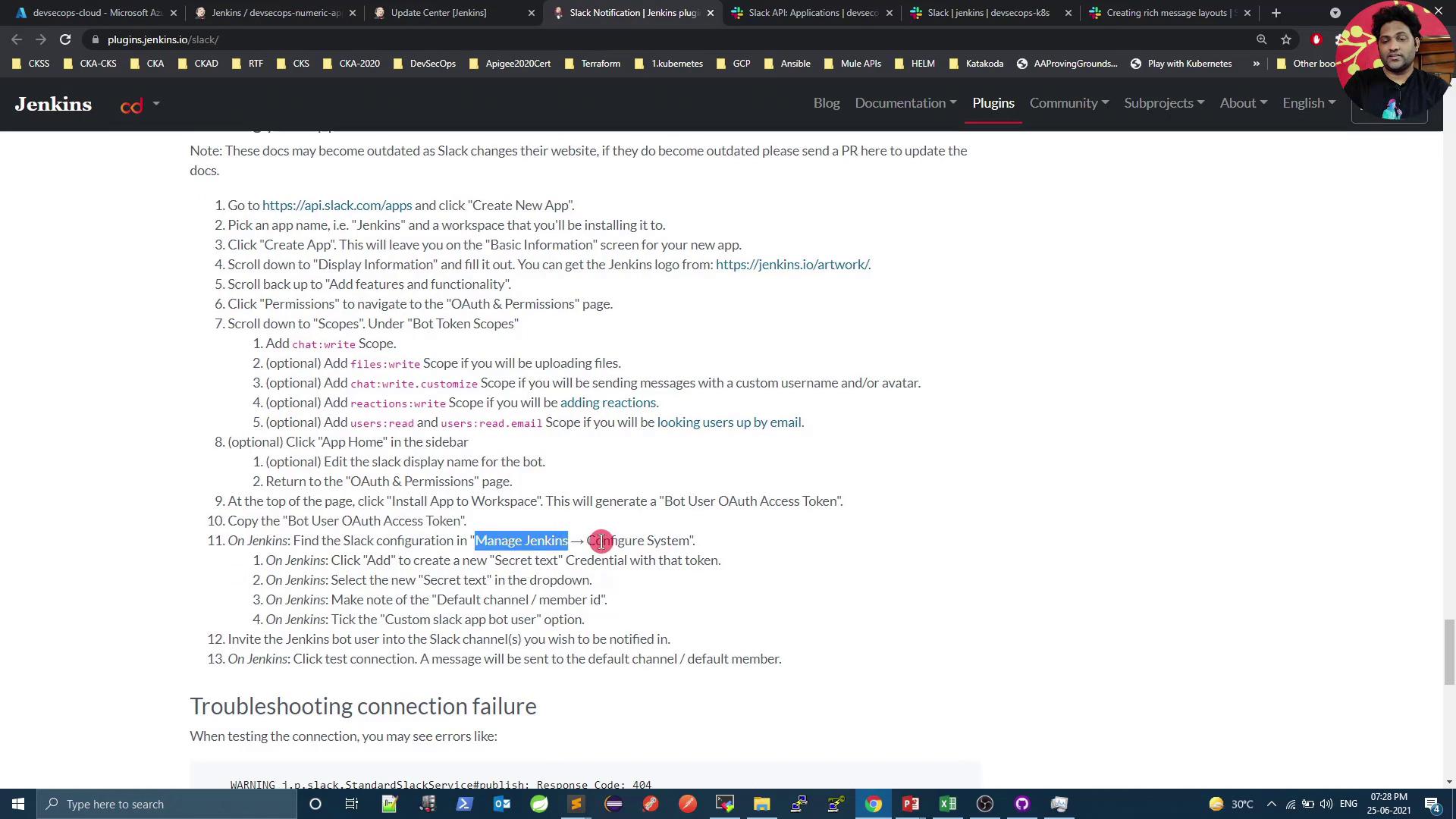
1. In Jenkins, navigate to **Manage Jenkins** → **Configure System**.
2. Find the **Slack** section.
<Frame>
  ![The image shows a webpage with instructions for integrating Slack with Jenkins, detailing steps for setting up a new Slack app and configuring permissions. The browser has multiple tabs open, and there's a small profile picture in the top right corner.](https://kodekloud.com/kk-media/image/upload/v1752873805/notes-assets/images/DevSecOps-Kubernetes-DevOps-Security-Demo-Slack-Jenkins-Custom-App/slack-jenkins-integration-instructions-webpage.jpg)
</Frame>

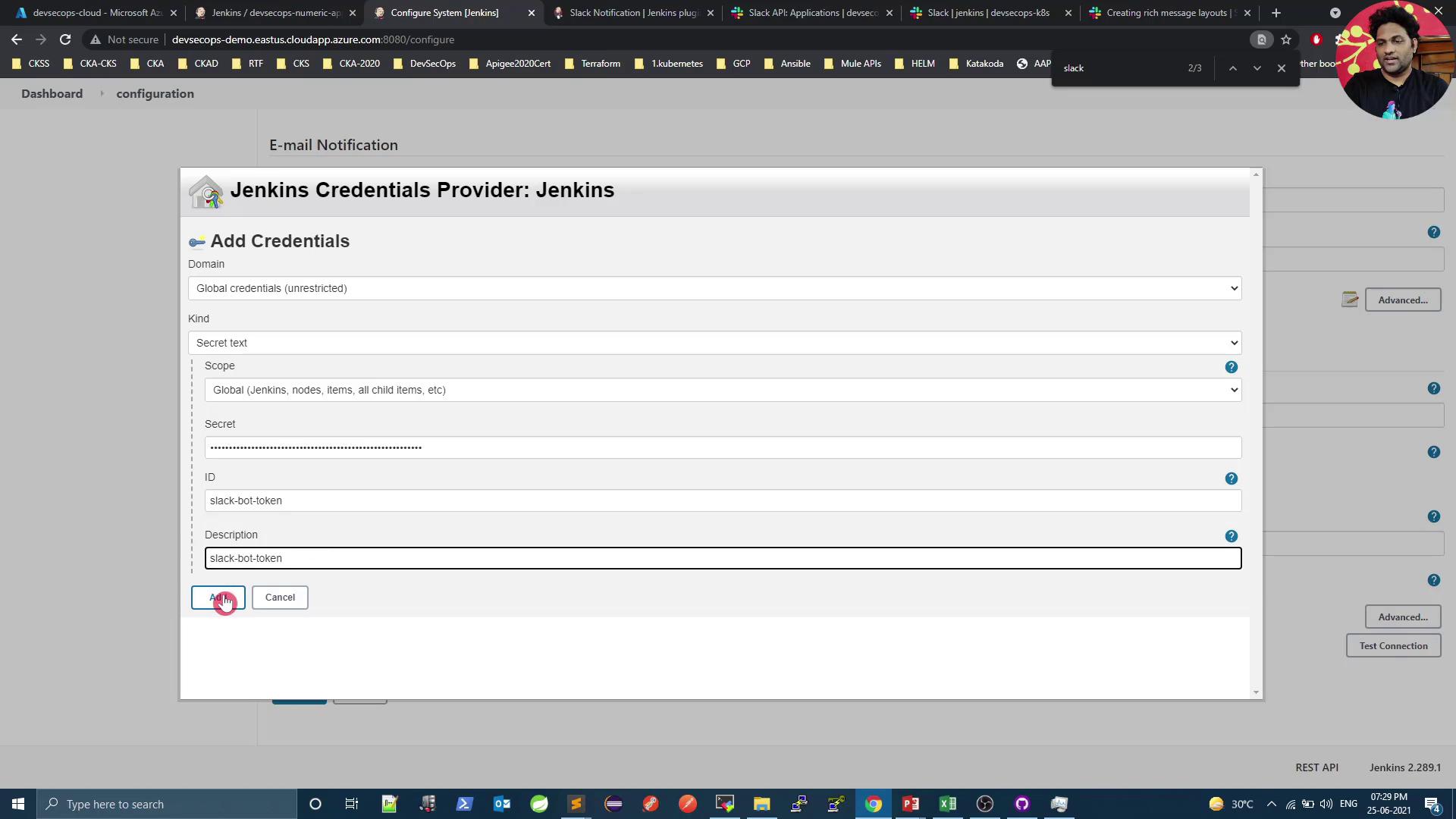
3. Under **Credentials**, click **Add** → **Jenkins** → **Secret text**.
4. Paste your Bot User OAuth Token and give it an ID (e.g., `slack-bot-token`).
<Frame>
  ![The image shows a Jenkins interface where credentials are being added, specifically a secret text for a Slack bot token. The interface includes fields for domain, kind, scope, secret, ID, and description.](https://kodekloud.com/kk-media/image/upload/v1752873806/notes-assets/images/DevSecOps-Kubernetes-DevOps-Security-Demo-Slack-Jenkins-Custom-App/jenkins-credentials-slack-bot-token.jpg)
</Frame>

5. Back in the Slack section, set:
   * **Team Domain**: your-workspace
   * **Integration Token Credential**: select your secret text
   * **Default Channel**: `#jenkins`

### Test the Connection

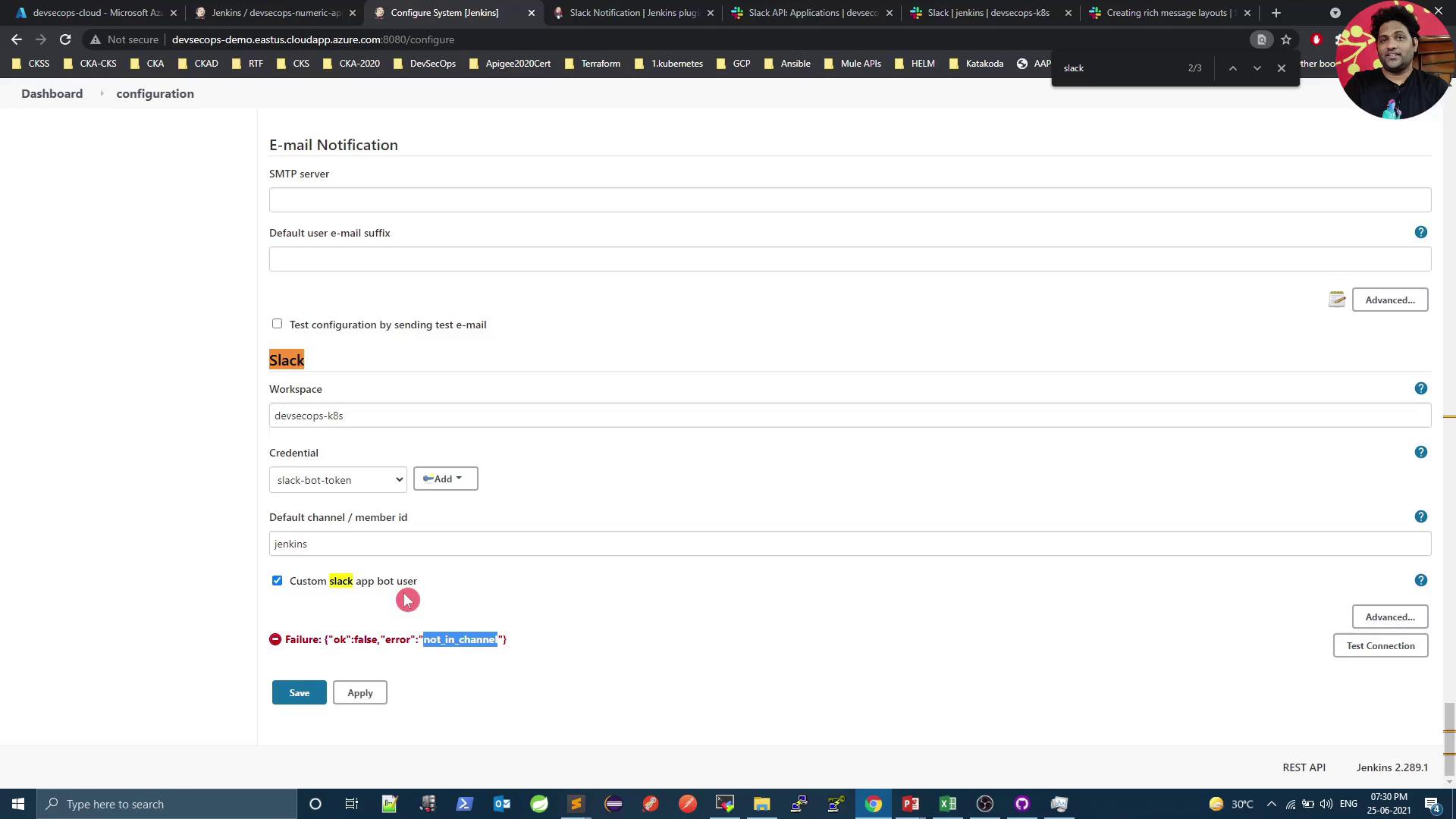
Click **Test Connection**.

<Callout icon="triangle-alert" color="#FF6B6B">
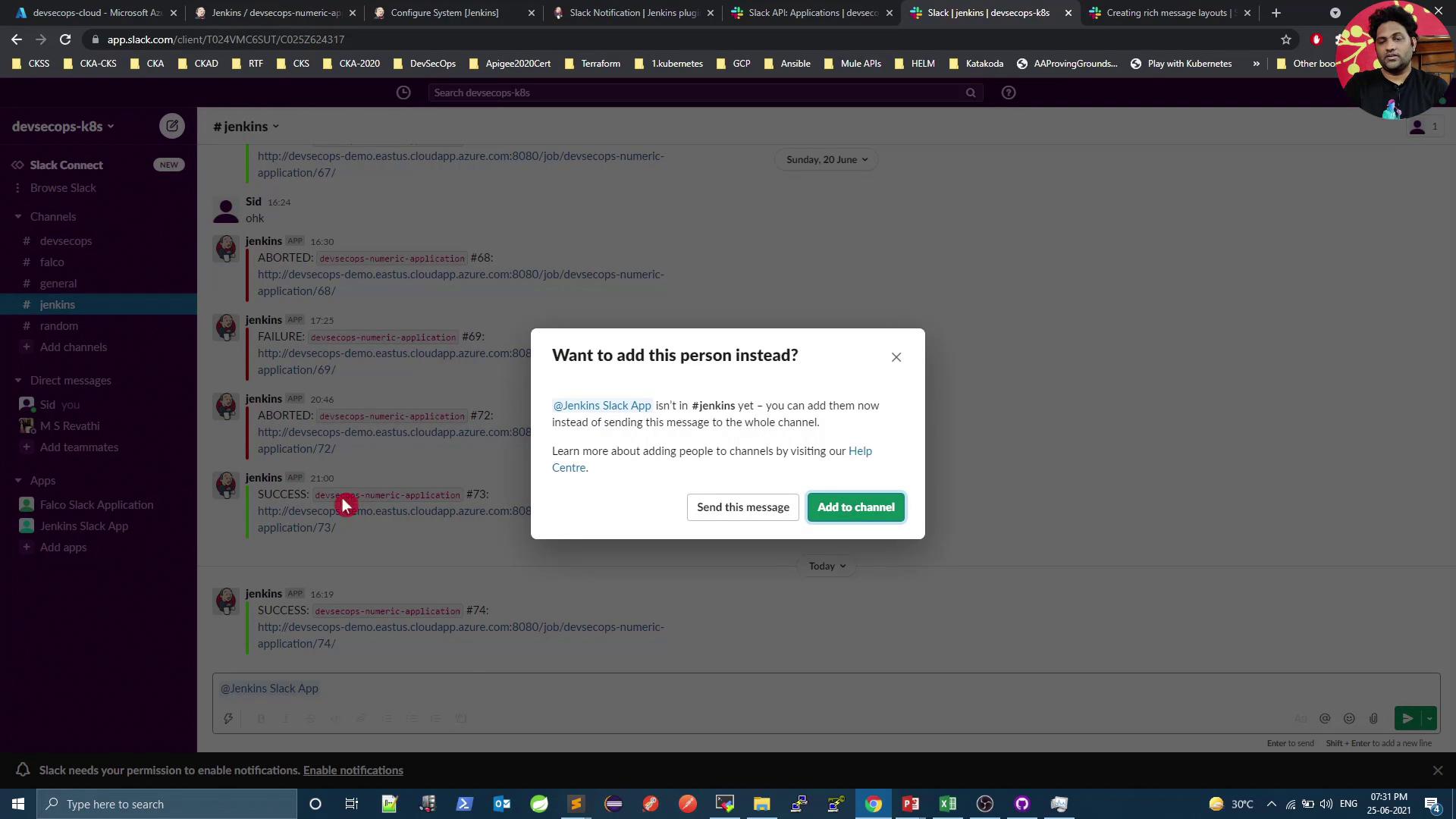
  If you receive `{"ok":false,"error":"not_in_channel"}`, the bot hasn’t been invited to your channel yet.
</Callout>

<Frame>
  ![The image shows a Jenkins configuration page for setting up email and Slack notifications, with a Slack integration error message displayed.](https://kodekloud.com/kk-media/image/upload/v1752873807/notes-assets/images/DevSecOps-Kubernetes-DevOps-Security-Demo-Slack-Jenkins-Custom-App/jenkins-email-slack-notifications-error.jpg)
</Frame>

Invite the bot in Slack:

<Frame>
  ![The image shows a Slack interface with a popup message asking if the user wants to add the "Jenkins Slack App" to the "#jenkins" channel. The background displays a series of Jenkins build notifications.](https://kodekloud.com/kk-media/image/upload/v1752873808/notes-assets/images/DevSecOps-Kubernetes-DevOps-Security-Demo-Slack-Jenkins-Custom-App/slack-interface-jenkins-app-popup.jpg)
</Frame>

Once invited, re-run **Test Connection**—you should see a success message.

***

## Next Steps

* Explore **Slack Block Kit** for advanced layouts: [Block Kit Builder](https://app.slack.com/block-kit-builder)
* Use interactive buttons and menus in your pipeline notifications
* Integrate job logs, Git diff summaries, or Kubernetes pod links

## Links and References

* [Slack API: Apps](https://api.slack.com/apps)
* [Slack OAuth Scopes](https://api.slack.com/scopes)
* [Jenkins Slack Notification Plugin](https://plugins.jenkins.io/slack/)
* [Jenkins Pipeline Syntax](https://www.jenkins.io/doc/book/pipeline/syntax/)
* [Slack Block Kit Documentation](https://api.slack.com/block-kit)

<CardGroup>
  <Card title="Watch Video" icon="video" cta="Learn more" href="https://learn.kodekloud.com/user/courses/devsecops-kubernetes-devops-security/module/fc1733bc-1e9c-4e38-ae86-84e6bd9af04d/lesson/f48f114c-156f-404b-84d0-8d61b9d5d41a" />
</CardGroup>