> ## Documentation Index
> Fetch the complete documentation index at: https://notes.kodekloud.com/llms.txt
> Use this file to discover all available pages before exploring further.
# Disaster Recovery UCP
> Learn how to back up and restore your Docker UCP deployment to ensure business continuity.
Ensure business continuity by learning how to back up and restore your Docker UCP deployment. This guide covers:
* What to back up
* CLI and UI backup methods
* Step-by-step restore procedures
* Key considerations and best practices
***
## Components to Back Up
Protect the following UCP components to guarantee a smooth recovery:
| Component | Description |
| --------------------- | ------------------------------------------------------------------------------------------------ |
| **UCP Configuration** | Enterprise license, Client CA bundles, access control (teams, users, roles), certificates & keys |
| **etcd Objects** | Kubernetes declarative objects (Pods, Deployments, ReplicaSets, ConfigMaps, Secrets) |
| **UCP Volumes** | Named volumes managed by UCP |
| **Monitoring Data** | Metrics and logs collected by UCP |
UCP does **not** back up Docker Swarm services, configs, or overlay networks. Use Docker Swarm tools for those workloads.
***
## Backing Up UCP
You can perform backups via the CLI or the UCP web interface.
### 1. Backup with the CLI
Run the official UCP image in backup mode. Mount the Docker socket and a host directory to store the archive:
```bash theme={null}
docker container run \
--rm \
--log-driver none \
--name ucp-backup \
--volume /var/run/docker.sock:/var/run/docker.sock \
--volume /tmp:/backup \
docker/ucp:3.2.5 backup \
--file /backup/ucp-backup.tar \
--passphrase "YourStrongPass" \
--include-logs=false
```
* `--file` specifies the output archive path
* `--passphrase` encrypts the backup
* `--include-logs` toggles container logs (default: true)
### 2. Backup via UCP Web UI
1. Log in as an admin.
2. Navigate to **Admin Settings → Backup**.
3. Click **Start Backup**, set a passphrase, and monitor progress.
***
## Restoring UCP
Follow these two main steps to restore UCP from a backup:
### Step 1. Uninstall Any Existing UCP
If UCP is already installed, remove it cleanly:
```bash theme={null}
docker container run \
--rm -it \
--volume /var/run/docker.sock:/var/run/docker.sock \
docker/ucp:3.2.5 uninstall
```
### Step 2. Perform the Restore
Pipe the backup archive into the UCP restore command:
```bash theme={null}
docker container run \
--rm -i \
--name ucp-restore \
--volume /var/run/docker.sock:/var/run/docker.sock \
--volume /tmp:/backup \
docker/ucp:3.2.5 restore \
--passphrase "YourStrongPass" < /backup/ucp-backup.tar
```
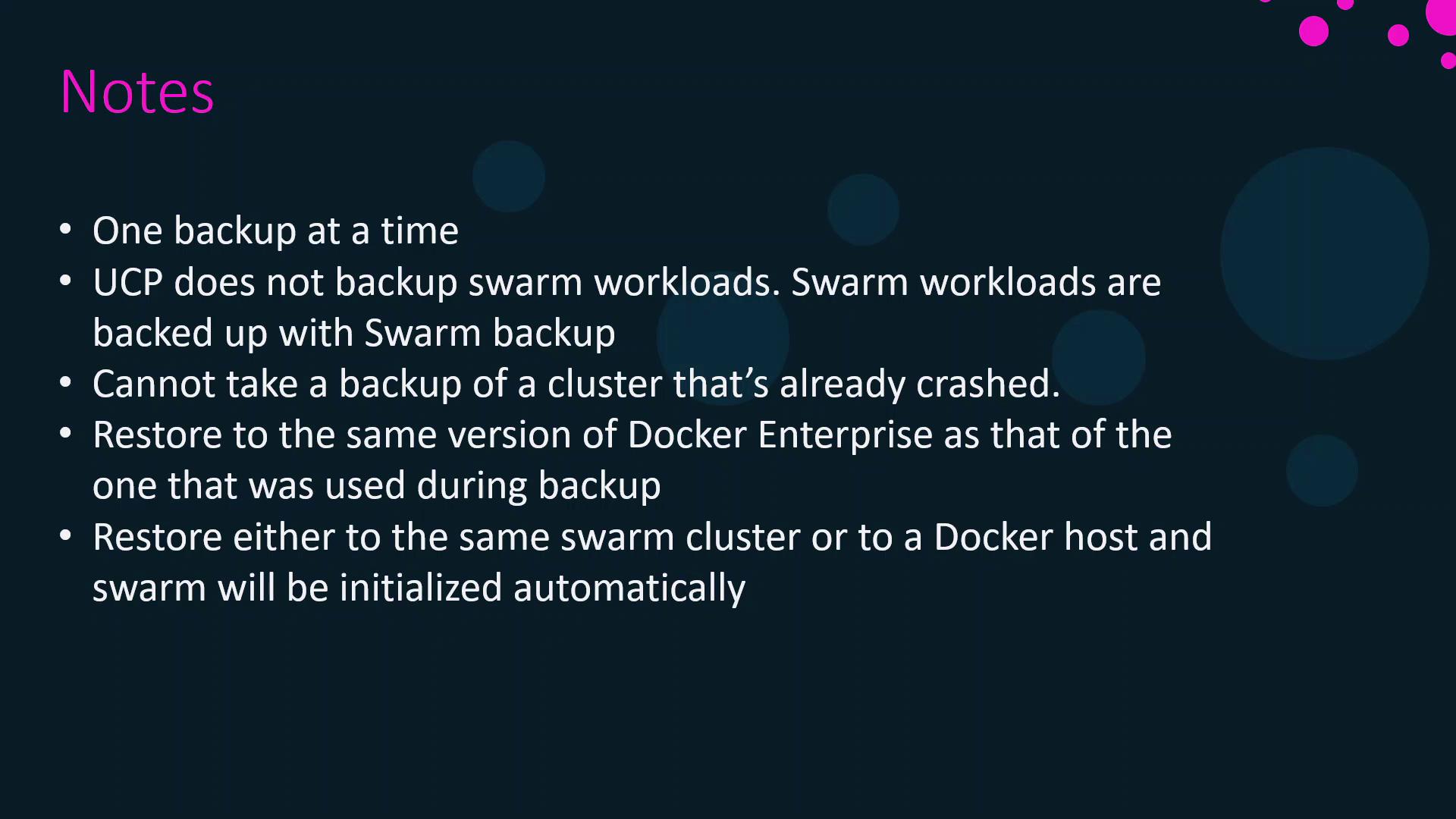
During restore you can choose to:
* Reuse the same Swarm cluster
* Provision a new Swarm cluster
* Restore onto a standalone Docker host (UCP initializes Swarm automatically)
***
## Key Considerations
| Topic | Details |
| -------------------- | ------------------------------------------------------------------------------------ |
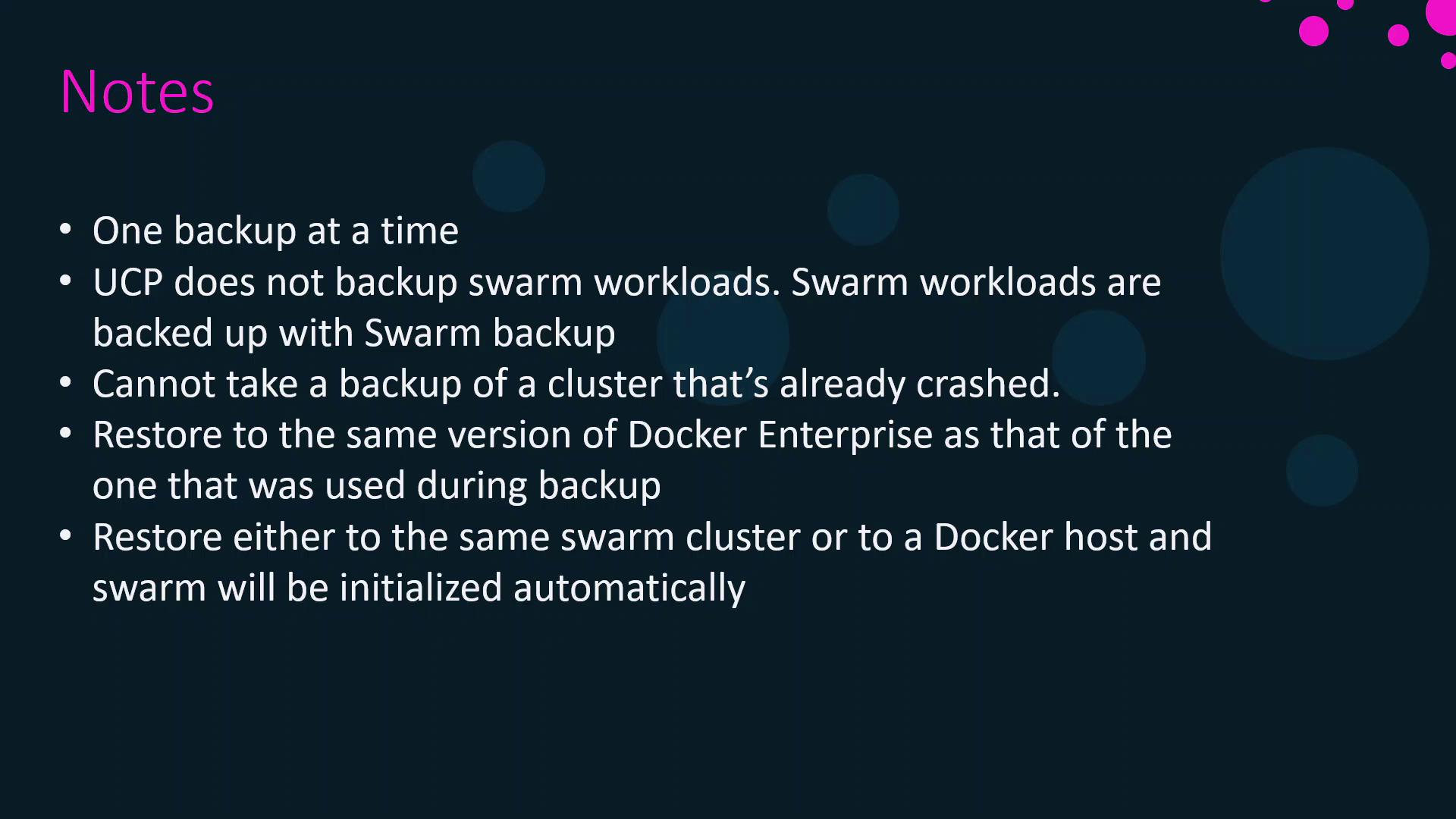
| Single Operation | Only one UCP backup or restore can run at a time. |
| Cluster Version | Restore targets **must** match the backup’s Docker Enterprise/UCP version. |
| Swarm Workloads | UCP backups **exclude** Docker Swarm services, configs, and networks. |
| Failed Cluster | You **cannot** back up a cluster that has already failed—prepare backups in advance. |
| Restore Destinations | Original Swarm cluster, new cluster, or standalone Docker host. |
Always verify that your passphrase and backup archive are accessible before starting a restore.
***
## References
* [Docker UCP Backup & Restore Documentation](https://docs.docker.com/ee/ucp/admin/disaster_recovery/)
* [Docker Swarm Backup Strategies](https://docs.docker.com/engine/swarm/backup/)
* [Docker Certified Associate Exam Guide](https://success.docker.com/certification)