> ## Documentation Index
> Fetch the complete documentation index at: https://notes.kodekloud.com/llms.txt
> Use this file to discover all available pages before exploring further.
# Demo Docker Compose
> Learn to migrate a Docker Compose setup from version 1 to version 3, removing deprecated options and configuring PostgreSQL environment variables.
In this guide, you’ll learn how to migrate a basic Docker Compose setup from version 1 to version 3. We’ll remove deprecated options, configure environment variables for PostgreSQL, and explore build and deployment best practices.
## 1. Starting with the Basic Compose File (Version 1)
Here’s a simple Compose file in version 1 syntax defining five services:
```yaml theme={null}
redis:
image: redis
db:
image: postgres:9.4
vote:
image: voting-app
ports:
- "5000:80"
links:
- redis
worker:
image: worker-app
links:
- db
- redis
result:
image: result-app
ports:
- "5011:80"
links:
- db
```
Version 1 is straightforward but lacks support for:
* Automatic network creation
* Built-in DNS service discovery
* Named volumes and advanced deployment options
## 2. Upgrading to Version 3
Compose version 3 unlocks Docker Swarm compatibility, automatic networking, and enhanced resource definitions. Follow these steps:
1. Add `version: "3"` at the top.
2. Nest all services under the `services:` key.
3. Remove `links:`—service names now resolve via DNS.
```yaml theme={null}
version: "3"
services:
redis:
image: redis
db:
image: postgres:9.4
vote:
image: voting-app
ports:
- "5000:80"
worker:
image: worker-app
result:
image: result-app
ports:
- "5001:80"
```
In version 3, Docker Compose automatically creates a default network. Services communicate by name, e.g., `redis` ↔ `db`.
## 3. Specifying Build Options
You can define how images are built directly in your Compose file. Examples from [Docker’s docs](https://docs.docker.com/compose/compose-file/compose-file-v3/#build):
Simple build context:
```yaml theme={null}
version: "3.9"
services:
webapp:
build: ./dir
```
Custom Dockerfile and build args:
```yaml theme={null}
version: "3.9"
services:
webapp:
build:
context: ./dir
dockerfile: Dockerfile-alternate
args:
buildno: 1
```
Build with image tag:
```yaml theme={null}
services:
webapp:
build: ./dir
image: webapp:tag
```
In Swarm mode, `docker stack deploy` ignores the `build` option. You must build images locally with `docker build` or push them to a registry before deploying.
## 4. Deploying with Docker Compose
With your version 3 Compose file in place, start all services:
```bash theme={null}
docker-compose up
```
Sample output:
```bash theme={null}
WARNING: The Docker Engine you're using is running in swarm mode.
Compose does not use swarm mode to deploy services to multiple nodes
in a swarm. All containers will be scheduled on the current node.
To deploy your application across the swarm, use `docker stack deploy`.
Creating network "code_default" with the default driver
Creating code_redis_1 ... done
Creating code_db_1 ... done
Creating code_vote_1 ... done
Creating code_worker_1 ... done
Creating code_result_1 ... done
```
Here, `code_default` is the auto-generated network, and all containers are prefixed with the project name (`code_`).
If you want to run in detached mode, add `-d`:
```bash theme={null}
docker-compose up -d
```
## 5. Handling PostgreSQL Initialization
On first run, PostgreSQL requires a superuser password. Without it, you’ll see:
```bash theme={null}
db_1 | Error: Database is uninitialized and superuser password is not specified.
db_1 | You must specify POSTGRES_PASSWORD for the superuser. Use
db_1 | "-e POSTGRES_PASSWORD=password" to set it in "docker run".
```
Add environment variables under the `db` service:
```yaml theme={null}
version: "3"
services:
redis:
image: redis
db:
image: postgres:9.4
environment:
POSTGRES_USER: postgres
POSTGRES_PASSWORD: postgres
vote:
image: voting-app
ports:
- "5000:80"
worker:
image: worker-app
result:
image: result-app
ports:
- "5001:80"
```
Restart in detached mode:
```bash theme={null}
docker-compose up -d
```
### PostgreSQL Environment Variables
| Variable | Description |
| ------------------ | ------------------------------------- |
| POSTGRES\_USER | Superuser name (default: `postgres`) |
| POSTGRES\_PASSWORD | Superuser password (required on init) |
## 6. Verifying the Setup
Once all containers are running, open your browser and test the apps:
* Voting app: [http://localhost:5000](http://localhost:5000)
* Results app: [http://localhost:5001](http://localhost:5001)
1. Cast a vote for one option (e.g., **cats**).
2. Confirm the result updates correctly.
3. Vote again (e.g., **dogs**) and verify real-time results.
Your Docker Compose setup is now:
* Version 3 compliant
* Automatically networked
* Securely initializing PostgreSQL
## Links and References
* [Docker Compose File Reference](https://docs.docker.com/compose/compose-file/)
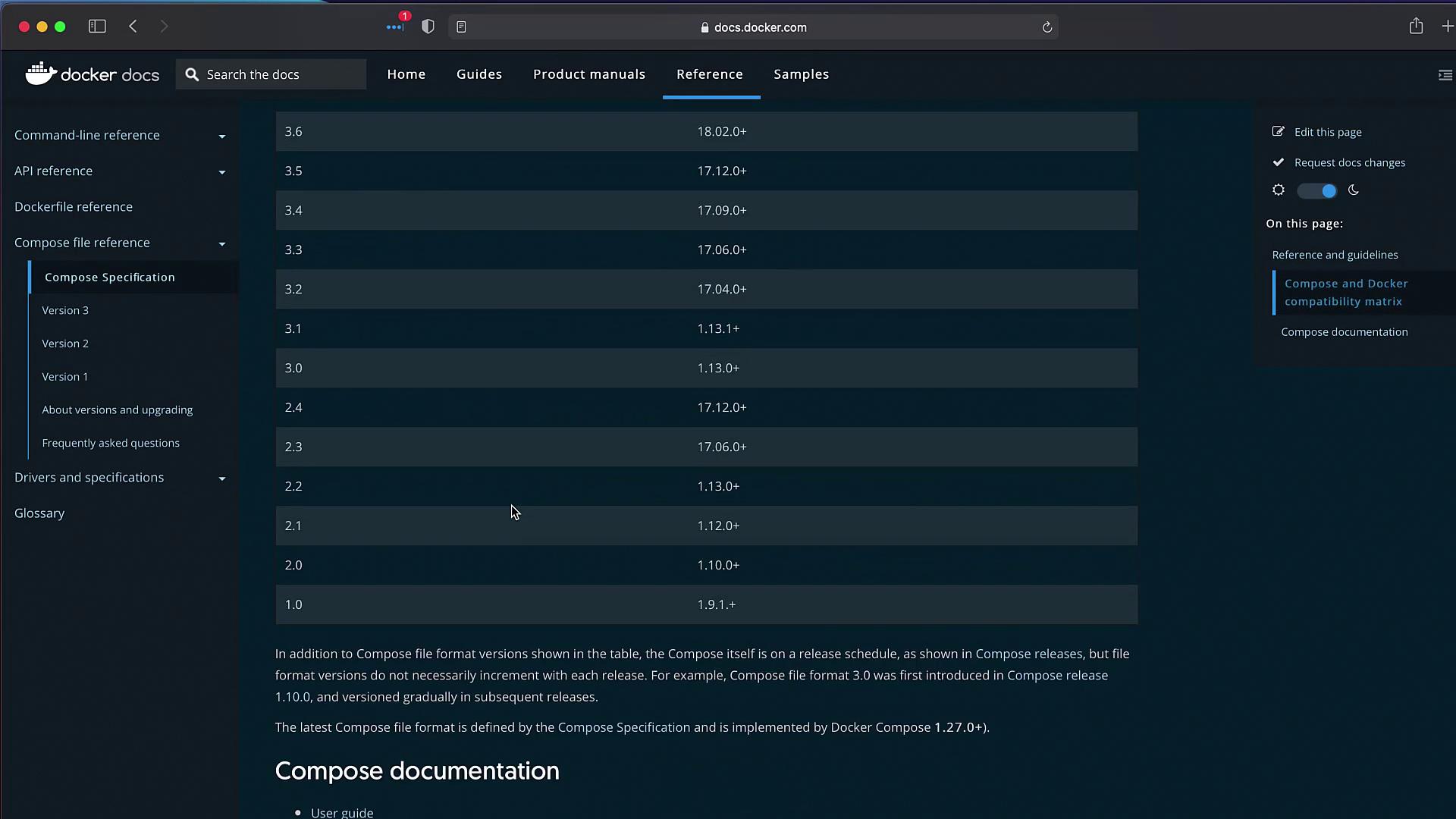
* [Compose and Docker Compatibility Matrix](https://docs.docker.com/compose/compose-file/compose-versioning/)
* [Docker Stack Deploy](https://docs.docker.com/engine/swarm/stack-deploy/)
## Further Reading
| Resource | Description |
| -------------------- | ------------------------------------------------- |
| Docker Documentation | Official guides and references |
| Kubernetes Basics | Overview of container orchestration (K8s) |
| Terraform Registry | Modules for automated infrastructure provisioning |