> ## Documentation Index
> Fetch the complete documentation index at: https://notes.kodekloud.com/llms.txt
> Use this file to discover all available pages before exploring further.
# Example Voting Application with Docker Compose
> Learn to orchestrate a multi-service voting application using Docker Compose, including Redis, PostgreSQL, a voting frontend, a worker processor, and a results dashboard.
In this step-by-step tutorial, you’ll learn how to orchestrate a multi-service voting application using Docker Compose. By the end, you’ll have a running stack that includes Redis, PostgreSQL, a voting frontend, a worker processor, and a results dashboard.
## Prerequisites
* Docker Engine installed (version ≥ 19.03)
* Basic familiarity with `docker` CLI
* A terminal/SSH session on Linux, macOS, or Windows WSL
## Step 1: Install Docker Compose
Docker Compose isn’t bundled with Docker Engine by default. Install it on Linux with:
```bash theme={null}
sudo curl -L "https://github.com/docker/compose/releases/download/1.16.1/docker-compose-$(uname -s)-$(uname -m)" \
-o /usr/local/bin/docker-compose
sudo chmod +x /usr/local/bin/docker-compose
docker-compose --version
```
Expected output:
```bash theme={null}
docker-compose version 1.16.1, build 1719ceb
```
Replace `1.16.1` with the latest stable release. See the [Compose releases on GitHub](https://github.com/docker/compose/releases) for details.
## Step 2: Clean Up Existing Containers
Before deploying, stop any previous demo containers:
```bash theme={null}
# List running containers
docker ps
# Stop containers by ID or prefix
docker stop 69 54 5b 2f 0b
# Verify all relevant containers are stopped
docker ps
```
Stopping containers will terminate running services. Ensure you don’t have unsaved data in those containers.
## Step 3: Define Services in docker-compose.yml
Create a file named `docker-compose.yml` with the following content. It leverages Compose file format version 3.
```yaml theme={null}
version: '3'
services:
redis:
image: redis
db:
image: postgres:9.4
vote:
image: voting-app
ports:
- "5000:80"
depends_on:
- redis
worker:
image: worker-app
depends_on:
- db
- redis
result:
image: result-app
ports:
- "5001:80"
depends_on:
- db
```
### Service Overview
| Service | Image | Ports | Description |
| ------- | -------------- | ------- | --------------------------------------------- |
| redis | `redis` | – | In-memory queue for incoming votes |
| db | `postgres:9.4` | – | Persistent storage for vote records |
| vote | `voting-app` | 5000→80 | Frontend where users cast their vote |
| worker | `worker-app` | – | Processes queued votes into the PostgreSQL DB |
| result | `result-app` | 5001→80 | Displays aggregated vote results |
The `depends_on` key ensures containers start in the correct order, but it doesn’t wait for health checks. Consider adding healthchecks for production workloads.\
See the [Compose file reference](https://docs.docker.com/compose/compose-file/compose-versioning/) for advanced options.
## Step 4: Deploy the Stack
From the directory containing `docker-compose.yml`, run:
```bash theme={null}
docker-compose up -d
```
This command will pull images, create a default network, and start all five containers. Container names are prefixed by your folder name (e.g., `root_redis_1`).
Verify everything is up:
```bash theme={null}
docker ps
```
You should see containers for Redis, PostgreSQL, vote, worker, and result.
## Step 5: Access the Application
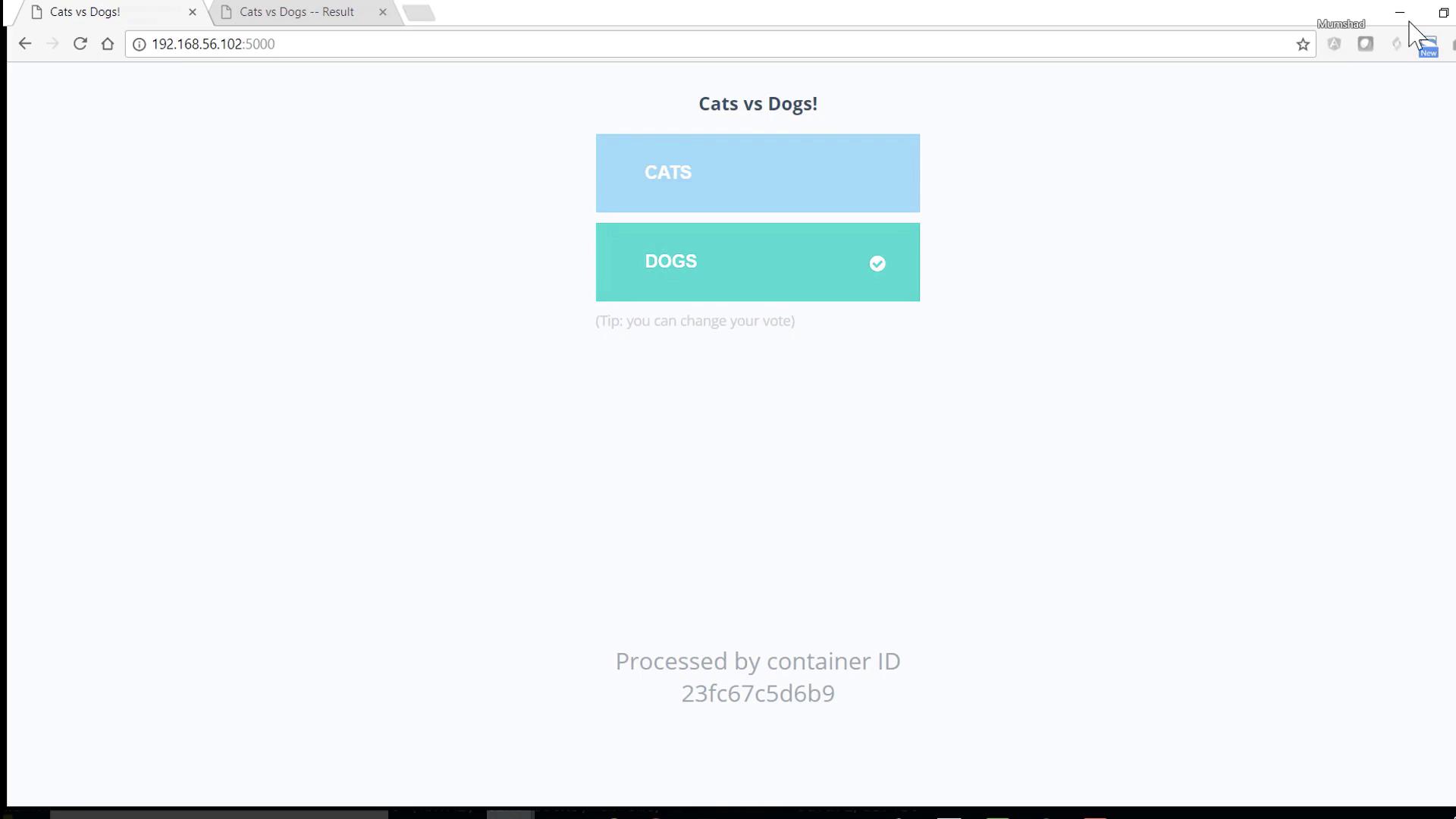
* Voting interface: [http://localhost:5000](http://localhost:5000)
* Results dashboard: [http://localhost:5001](http://localhost:5001)
Cast a vote on the first page, then switch to the results page to see real-time counts.
## Clean Up
When you’re done testing, stop and remove all services with:
```bash theme={null}
docker-compose down
```
This command stops containers and removes the network. Volumes and images remain unless you add the `--volumes` or `--rmi all` flags.
## References and Further Reading
* [Docker Compose Installation](https://docs.docker.com/compose/install/)
* [Compose File Versioning](https://docs.docker.com/compose/compose-file/compose-versioning/)
* [Docker CLI Reference](https://docs.docker.com/engine/reference/commandline/ps/)