> ## Documentation Index
> Fetch the complete documentation index at: https://notes.kodekloud.com/llms.txt
> Use this file to discover all available pages before exploring further.
# Demo DTR Setup
> This guide covers the installation and configuration of Docker Trusted Registry on a Universal Control Plane cluster.
In this guide, we’ll install and configure Docker Trusted Registry (DTR) on a Universal Control Plane (UCP) cluster powered by Docker Enterprise Engine.
## Table of Contents
1. [Review Documentation and Prerequisites](#1-review-documentation-and-prerequisites)
2. [Prepare the DTR Node](#2-prepare-the-dtr-node)
3. [Add the DTR Node as a UCP Worker](#3-add-the-dtr-node-as-a-ucp-worker)
4. [Install Docker Trusted Registry](#4-install-docker-trusted-registry)
5. [Verify DTR Access](#5-verify-dtr-access)
## 1. Review Documentation and Prerequisites
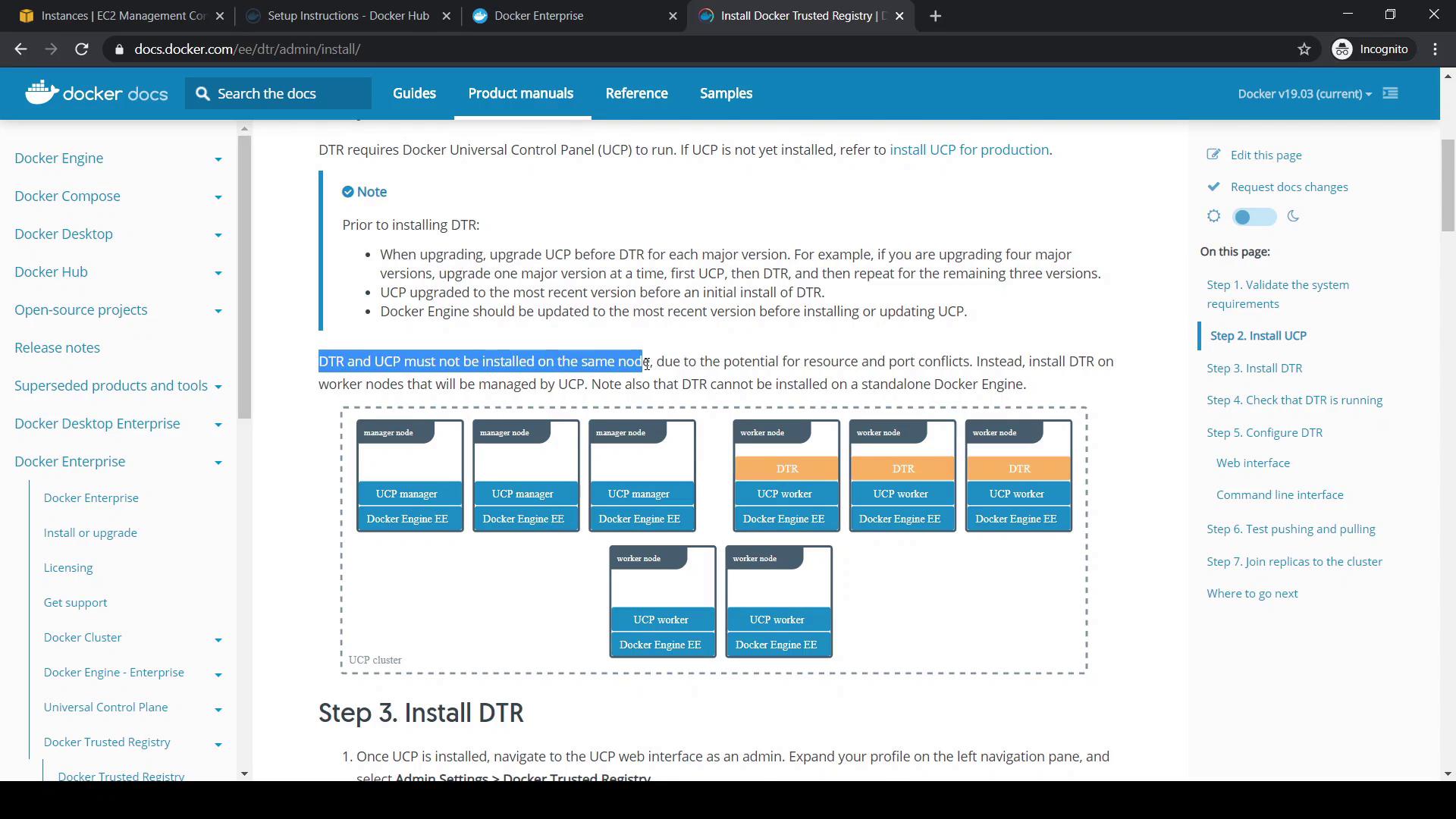
Before proceeding, review the official [Docker Trusted Registry installation guide](https://docs.docker.com/ee/dtr/admin/install/) and confirm your environment meets the requirements:
| Requirement Type | Details |
| --------------------- | ------------------------------------------------------------------------------ |
| Software | Docker Enterprise Engine, fixed hostname on DTR node, UCP-managed worker nodes |
| Hardware (Minimum) | 16 GB RAM, 2-core CPU, 10 GB free disk |
| Hardware (Production) | 16 GB RAM, 4-core CPU, 25–100 GB free disk |
| Network Ports | TCP 80, TCP 443 |
Never co-locate a UCP manager and DTR on the same host—each requires its own node.
## 2. Prepare the DTR Node
### 2.1 Remove Existing Docker Packages
Ensure no conflicting Docker packages remain:
```bash theme={null}
sudo yum remove -y \
docker \
docker-client \
docker-client-latest \
docker-common \
docker-latest \
docker-latest-logrotate \
docker-logrotate \
docker-selinux \
docker-engine-selinux \
docker-engine
```
After removal, confirm that no Docker daemons are running:\
`ps aux | grep docker`
### 2.2 Install Docker Engine Enterprise
Follow the [Docker Engine installation guide](https://docs.docker.com/engine/install/) for your OS. After installation, verify the Docker version:
```bash theme={null}
docker version
```
Expected output snippet:
```text theme={null}
Client: Docker Engine - Enterprise
Version: 19.03.5
API version: 1.40
Server: Docker Engine - Enterprise
Engine:
Version: 19.03.5
API version: 1.40
```
## 3. Add the DTR Node as a UCP Worker
1. In UCP, navigate to **Shared Resources > Nodes**.
2. Click **Add Node**, select **Linux**, and choose **Worker**.
3. Copy the generated `docker swarm join` command:
```bash theme={null}
docker swarm join \
--token SWMTKN-1-4liabct184f4xm0b3zr... \
172.31.32.217:2377
```
4. On the DTR node, run the join command:
```bash theme={null}
docker swarm join \
--token SWMTKN-1-4liabct184f4xm0b3zr... \
172.31.32.217:2377
This node joined a swarm as a worker.
```
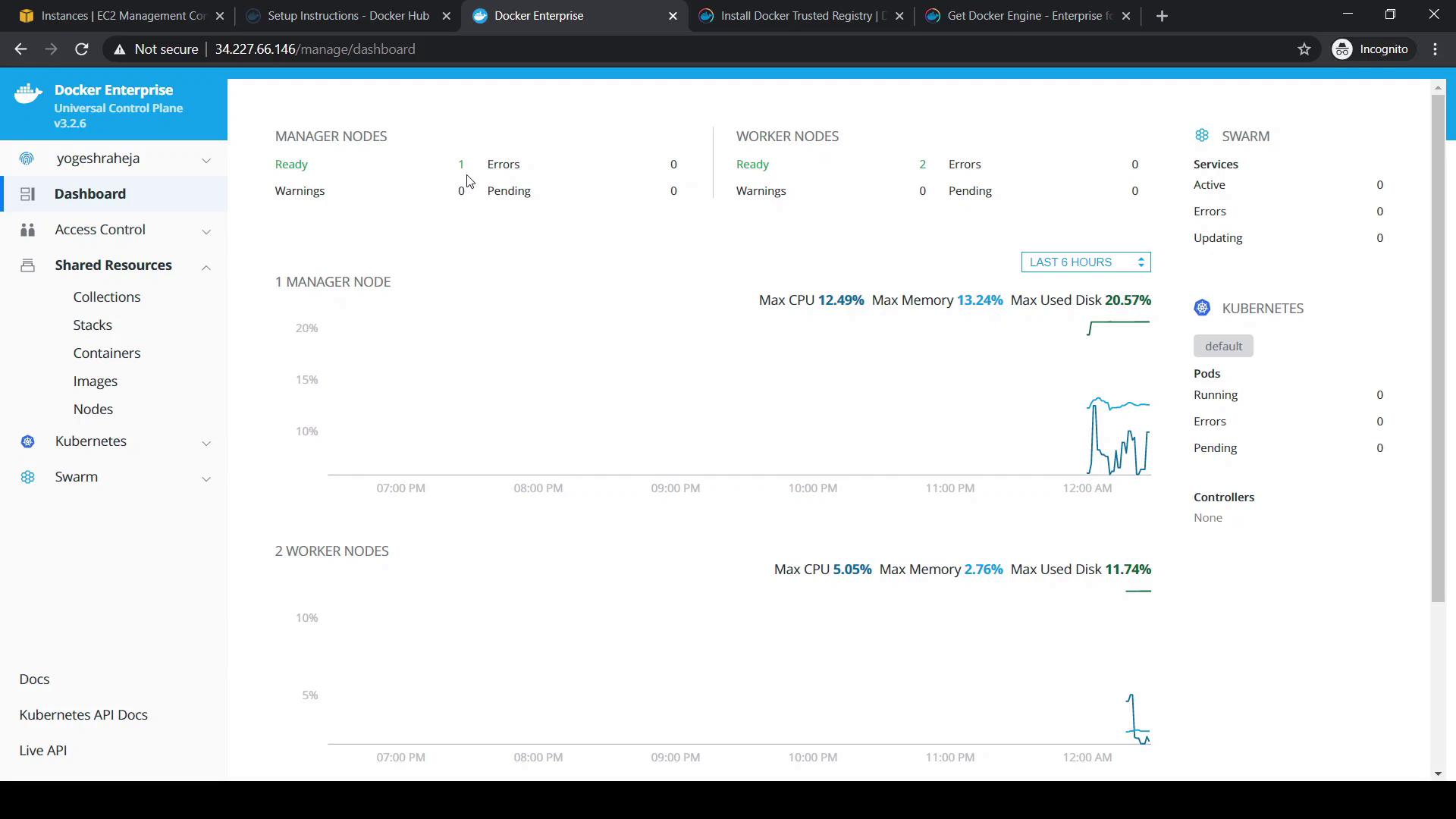
5. Return to the UCP console and confirm the new worker status turns green.
6. In **Dashboard**, verify you have one manager and two workers.
## 4. Install Docker Trusted Registry
1. In UCP, click your admin username, then navigate to **Admin Settings > Docker Trusted Registry**.
2. Select your DTR node and, if needed, set an external DTR URL. For demos, you can enable **Disable TLS verification** (not recommended for production).
3. Copy the installer command and replace `--ucp-url` with your manager’s private IP:
```bash theme={null}
# Discover the manager's private IP
ip addr show eth0
# Run the installer
docker run -it --rm docker/dtr install \
--ucp-node dtrnode \
--ucp-username yogeshraheja \
--ucp-url https://172.31.32.217 \
--ucp-insecure-tls
```
4. Enter your UCP password when prompted. The installer will:
* Pull the `docker/dtr` image
* Perform prechecks on ports 80 and 443
* Create the `dtr-ol` network
* Provision certificates, volumes, and database containers
```text theme={null}
Unable to find image 'docker/dtr:latest' locally
latest: Pulling from docker/dtr
...
INFO[0000] Beginning Docker Trusted Registry installation
ucp-password:
INFO[0008] Verifying [80 443] ports on dtrnode
INFO[0015] Creating network: dtr-ol
...
INFO[0028] Installation is complete
INFO[0029] Replica ID is set to: f469e841601a
```
## 5. Verify DTR Access
1. Retrieve the public IP of your DTR node from your cloud provider.
2. Open `https://` in a browser.
3. Log in with your UCP credentials. On first access, no repositories appear.
4. Explore the DTR sidebar for **Users**, **Organizations**, **Repositories**, and **Settings**.
Congratulations! You now have Docker Enterprise Engine, Universal Control Plane, and Docker Trusted Registry fully operational.
## Links and References
* [Docker Trusted Registry Admin Guide](https://docs.docker.com/ee/dtr/admin/install/)
* [Docker Engine Install Documentation](https://docs.docker.com/engine/install/)
* [Docker Enterprise UCP Documentation](https://docs.docker.com/ee/ucp/)