> ## Documentation Index
> Fetch the complete documentation index at: https://notes.kodekloud.com/llms.txt
> Use this file to discover all available pages before exploring further.
# Demo Docker EE Setup
> This guide explains how to install Docker Enterprise Edition on AWS, including setup, configuration, and deployment of applications.
In this guide, you will learn how to install Docker Enterprise Edition (EE) on AWS. We cover registering for a 30-day Docker EE trial, installing Docker EE Engine on CentOS 7.6, configuring Universal Control Plane (UCP) and Docker Trusted Registry (DTR), and deploying a sample application with both Swarm and Kubernetes on your UCP cluster.
## Architecture and Prerequisites
All three CentOS 7.6 nodes share a flat network, have required ports open, and run NTP for time sync.
| Node | Role | vCPU | RAM | Storage | IP Assignment |
| ----------- | ----------- | ---- | ----- | ------- | ---------------- |
| ucp-manager | UCP Manager | 2 | 8 GB | 20 GB | Public + Private |
| ucp-worker | UCP Worker | 2 | 8 GB | 20 GB | Public + Private |
| dtr-node | DTR Node | 4 | 16 GB | 20 GB | Public + Private |
## 1. Register for Docker EE Trial License
1. Sign in to Docker Hub: [https://hub.docker.com](https://hub.docker.com)
2. Navigate to **Explore → Docker EE → CentOS**.
3. Under **Get Docker Enterprise CentOS**, click **Start One-Month Trial** and submit the form.
4. After activation, go to **My Content** to view your license.
5. Click **Setup** to copy your private Docker EE repository URL.
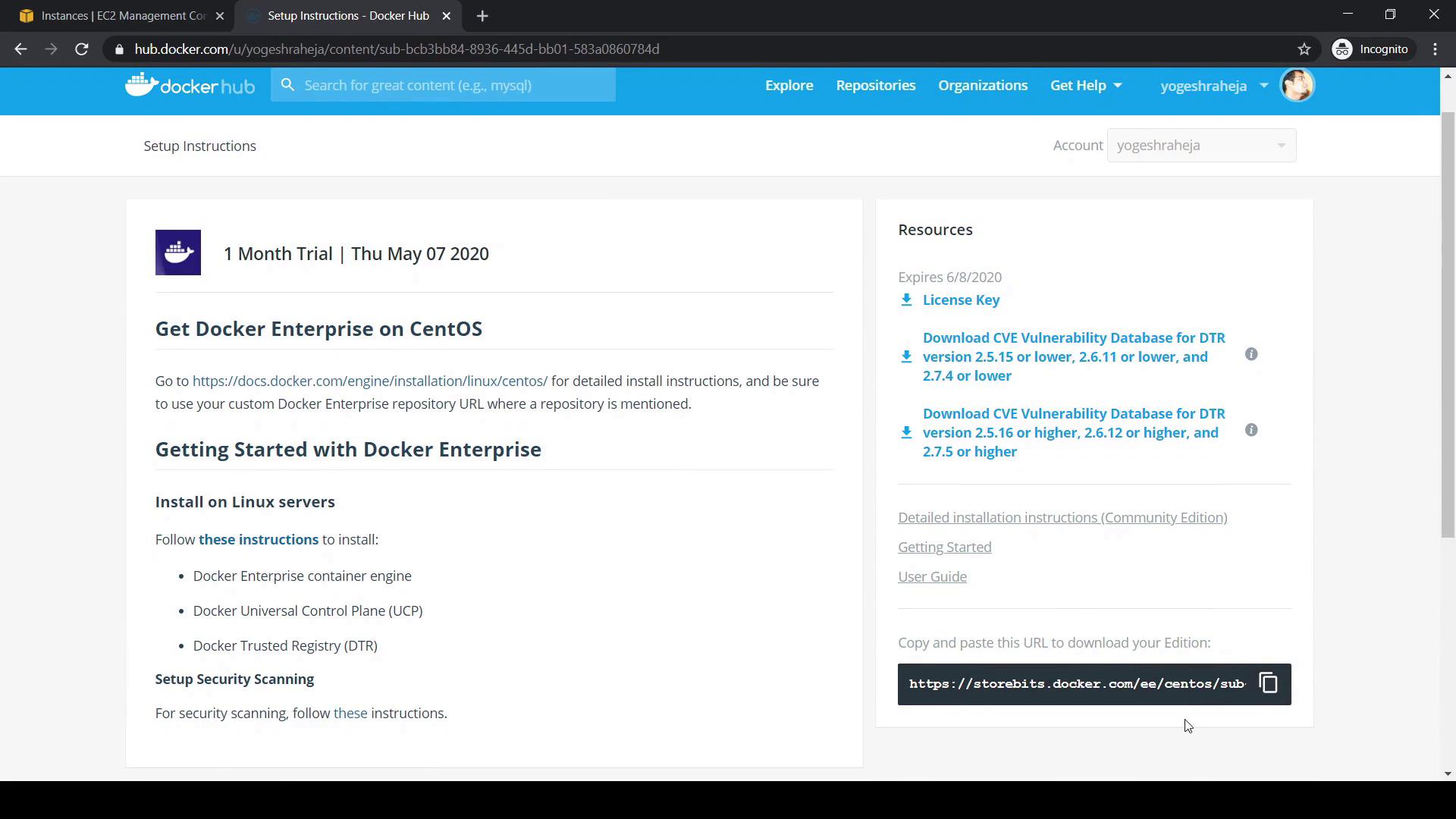
Ensure your corporate firewall allows access to `storebits.docker.com` and any other Docker EE endpoints.
## 2. Review Official Installation Documentation
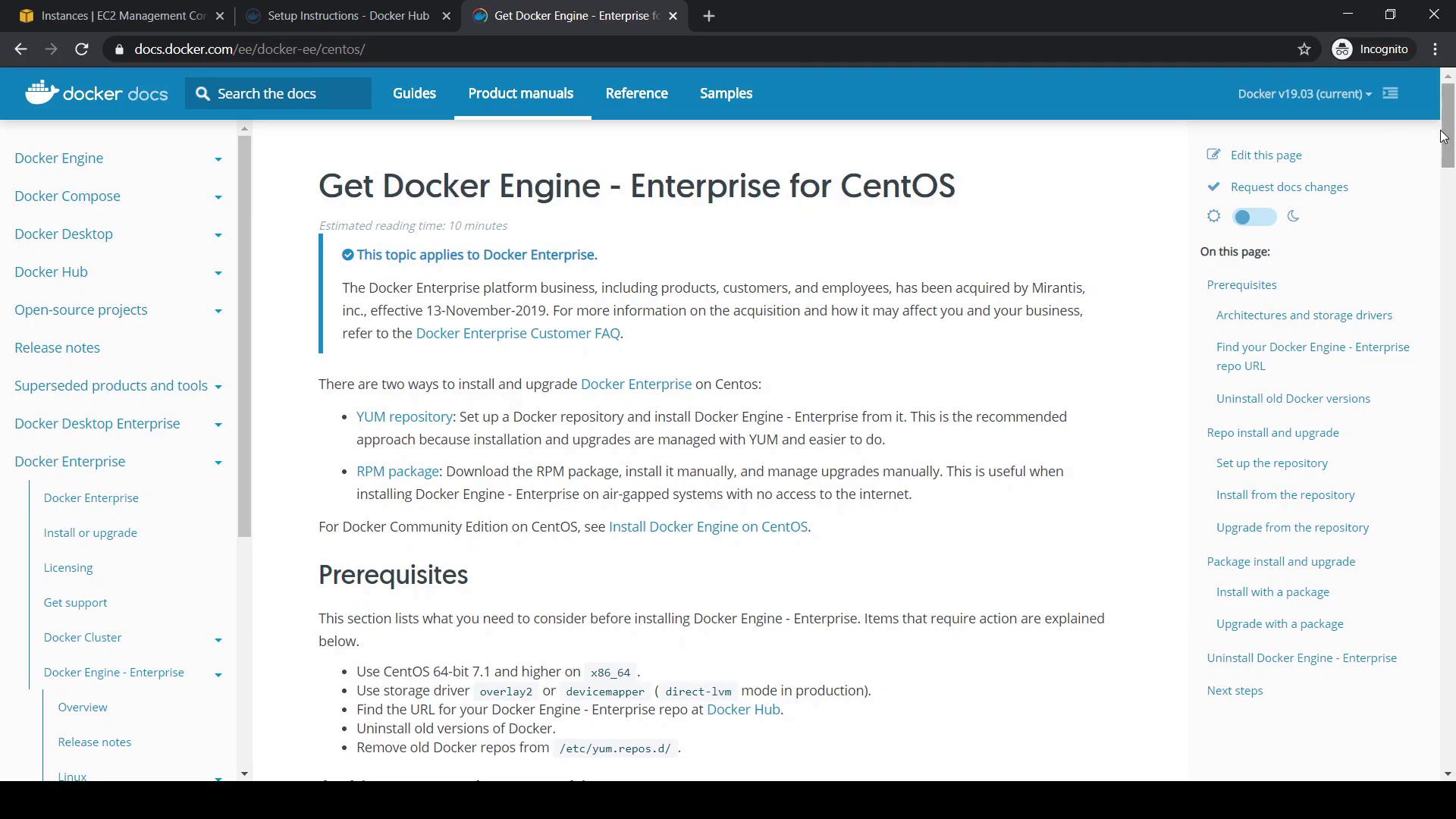
Visit the Mirantis-hosted docs for Docker EE Engine:
1. Go to [https://docs.docker.com](https://docs.docker.com) → **Product Manual → Docker Enterprise**.
2. Select **Engine → Linux → CentOS**.
You’ll find prerequisites (CentOS 7.1+) and steps to configure the Docker EE Yum repository. Be aware of the Mirantis acquisition announcement effective November 13, 2019.
## 3. Install Docker EE Engine
Perform these steps on **ucp-manager** (then repeat on **ucp-worker** and **dtr-node**):
### 3.1 Verify CentOS Version
```bash theme={null}
[root@ucp-manager ~]# cat /etc/centos-release
CentOS Linux release 7.6.1810 (Core)
```
### 3.2 Remove Any Older Docker Packages
```bash theme={null}
sudo yum remove -y docker \
docker-client \
docker-client-latest \
docker-common \
docker-latest \
docker-latest-logrotate \
docker-logrotate \
docker-engine || true
```
### 3.3 Configure the Docker EE Repository
1. Export your private repository URL (replace ``):
```bash theme={null}
export DOCKERURL=""
```
2. Store it in Yum variables:
```bash theme={null}
sudo sh -c 'echo "$DOCKERURL/centos" > /etc/yum/vars/dockerurl'
```
3. Install prerequisites and add the Docker EE repo:
```bash theme={null}
sudo yum install -y yum-utils device-mapper-persistent-data lvm2
sudo -E yum-config-manager \
--add-repo \
"$DOCKERURL/centos/docker-ee.repo"
```
### 3.4 Fix `$dockerosversion` Placeholder (if needed)
If `yum repolist` returns a `$dockerosversion` error, edit `/etc/yum.repos.d/docker-ee.repo`:
```ini theme={null}
[docker-ee-stable]
name=Docker EE Stable - $basearch
baseurl=https://storebits.docker.com/ee/centos/sub-/centos/7/$basearch/stable
...
```
Replace `$dockerosversion` with `7` under `[docker-ee-stable]`, then rerun:
```bash theme={null}
sudo yum repolist
```
Editing repository files incorrectly can break package resolution. Always back up the `.repo` file before making changes.
### 3.5 Install Docker EE Packages
```bash theme={null}
sudo yum install -y docker-ee docker-ee-cli containerd.io
```
### 3.6 Enable and Start Docker
```bash theme={null}
sudo systemctl enable docker
sudo systemctl start docker
sudo systemctl status docker
```
### 3.7 Verify the Installation
```bash theme={null}
[root@ucp-manager ~]# docker version
Client: Docker Engine - Enterprise
Version: 19.03.5
...
Server: Docker Engine - Enterprise
Engine:
Version: 19.03.5
...
```
Congratulations! You have successfully installed Docker EE Engine on CentOS 7.6. Next, you will configure UCP and DTR, add worker nodes, and deploy sample workloads using Swarm and Kubernetes.
***
## Links and References
* [Docker EE Trial on Docker Hub](https://hub.docker.com)
* [Docker Enterprise Documentation](https://docs.docker.com/ee/)
* [Kubernetes Basics](https://kubernetes.io/docs/concepts/overview/what-is-kubernetes/)
* [Mirantis Acquisition Announcement](https://www.mirantis.com/blog/)