> ## Documentation Index
> Fetch the complete documentation index at: https://notes.kodekloud.com/llms.txt
> Use this file to discover all available pages before exploring further.
# Demo RBAC in Docker EE
> This guide explains how to configure Role-Based Access Control in Docker Enterprise Edition using Universal Control Plane.
In this guide, you’ll learn how to configure Role-Based Access Control (RBAC) in Docker Enterprise Edition (EE) using Universal Control Plane (UCP). We’ll walk through:
* Setting up an organization and teams
* Creating users and assigning them to teams
* Defining a custom role and collection
* Granting permissions
* Verifying access for each user
By the end, you’ll see how RBAC in Docker EE ensures that teams can only perform the actions they’re authorized for.
***
## Use Case Overview
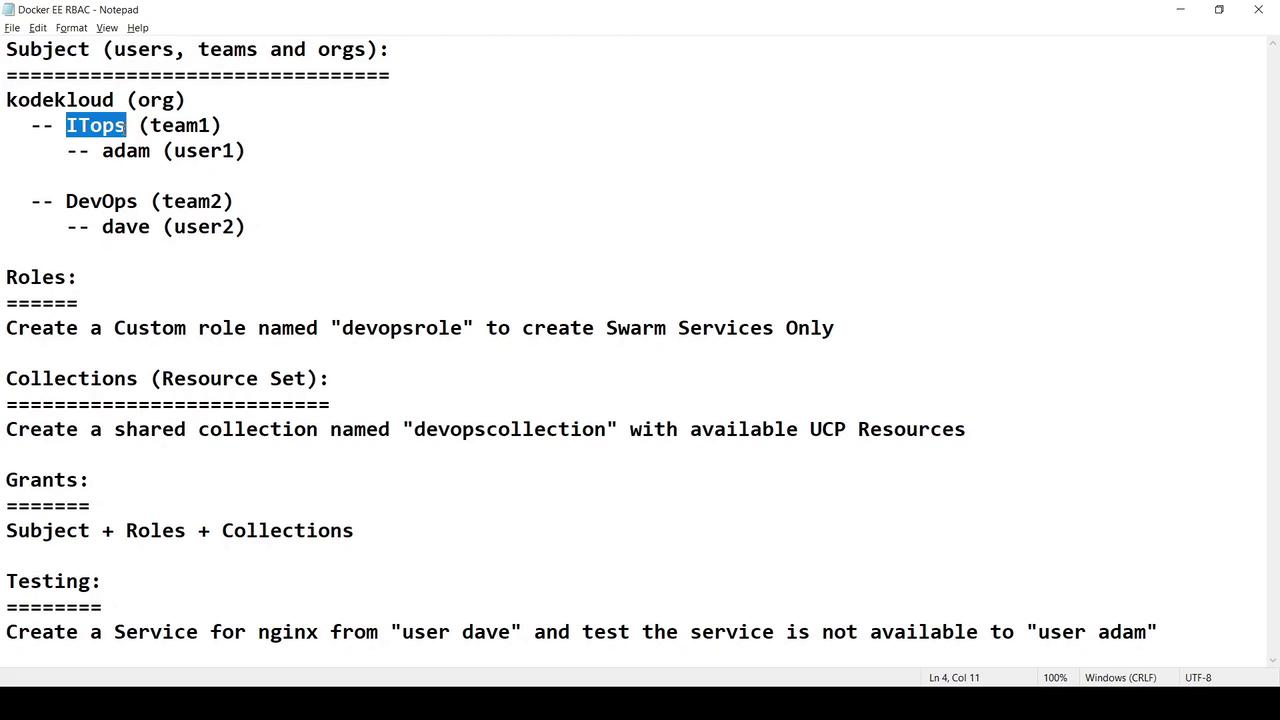
We want to implement RBAC for an organization named `KodeKloud`, with two teams and two users. Here’s the plan:
| Component | Identifier | Purpose |
| ------------ | ------------------------------- | ---------------------------------------- |
| Organization | `KodeKloud` | Parent entity for teams and resources |
| Teams | `ITOps`, `DevOps` | Logical groups for users |
| Users | `Adam` (ITOps), `Dave` (DevOps) | Team members |
| Role | `DevOps Role` | Permissions to manage Swarm services |
| Collection | `DevOps Collection` | UCP resources exposed to the DevOps team |
| Grant | DevOps Role + Collection | Assign to DevOps team under KodeKloud |
| Testing | Dave vs. Adam | Confirm allowed vs. denied operations |
***
## 1. Creating Users
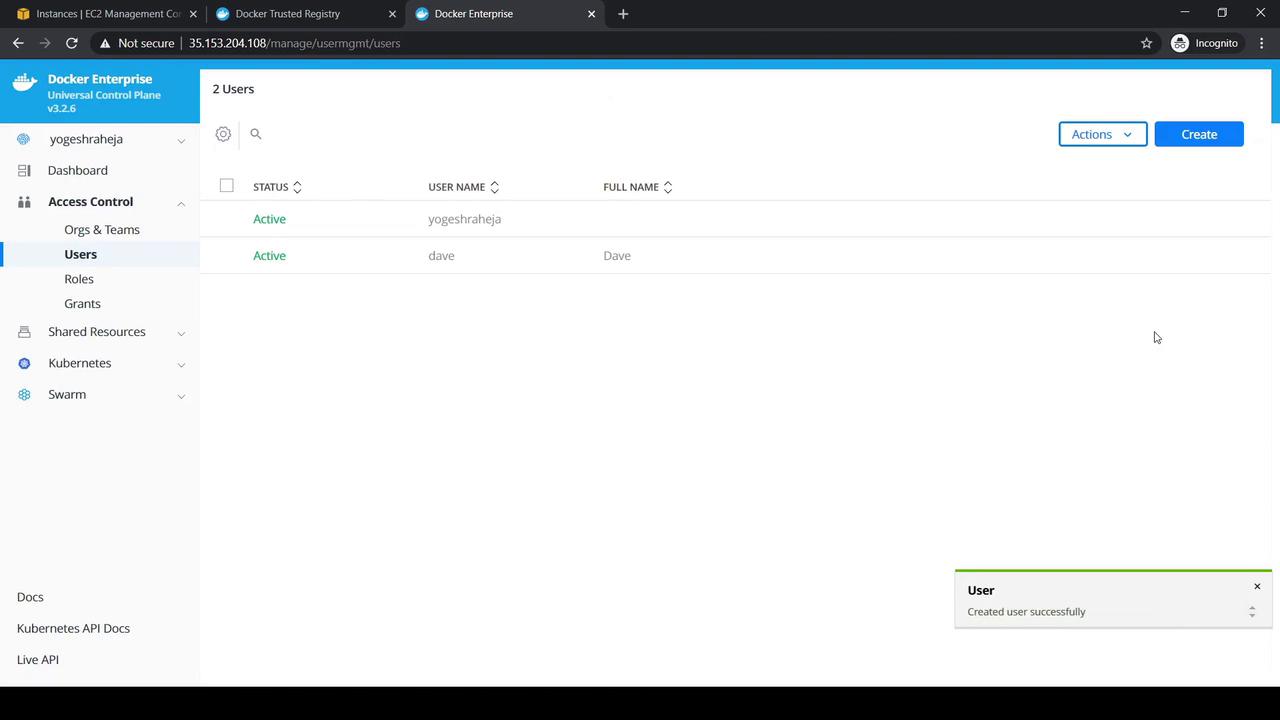
You must be logged in as a UCP admin (e.g., `Yogesh Raheja`) to manage users.
1. Sign in to UCP as the admin user.
2. Navigate to **Access Control → Users** and click **Create**.
3. Enter **Dave**’s details (username, password, full name) and **Create**.
4. Repeat the process to add **Adam**.
***
## 2. Creating Organization and Teams
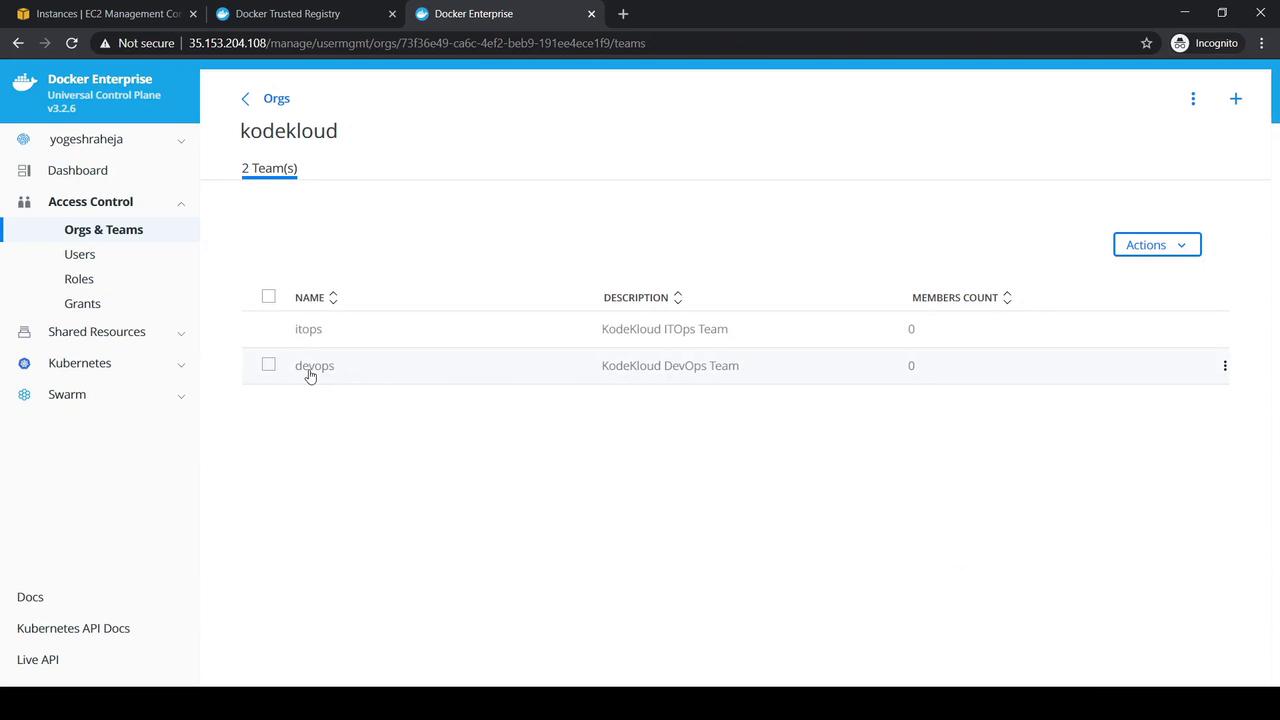
1. Go to **Access Control → Orgs & Teams**.
2. Click **Create**, set **Name** to `KodeKloud`, and save.
3. Under the new org, select **Create a Team** and add `ITOps`.
4. Click the **+** icon again to add the `DevOps` team.
***
## 3. Assigning Users to Teams
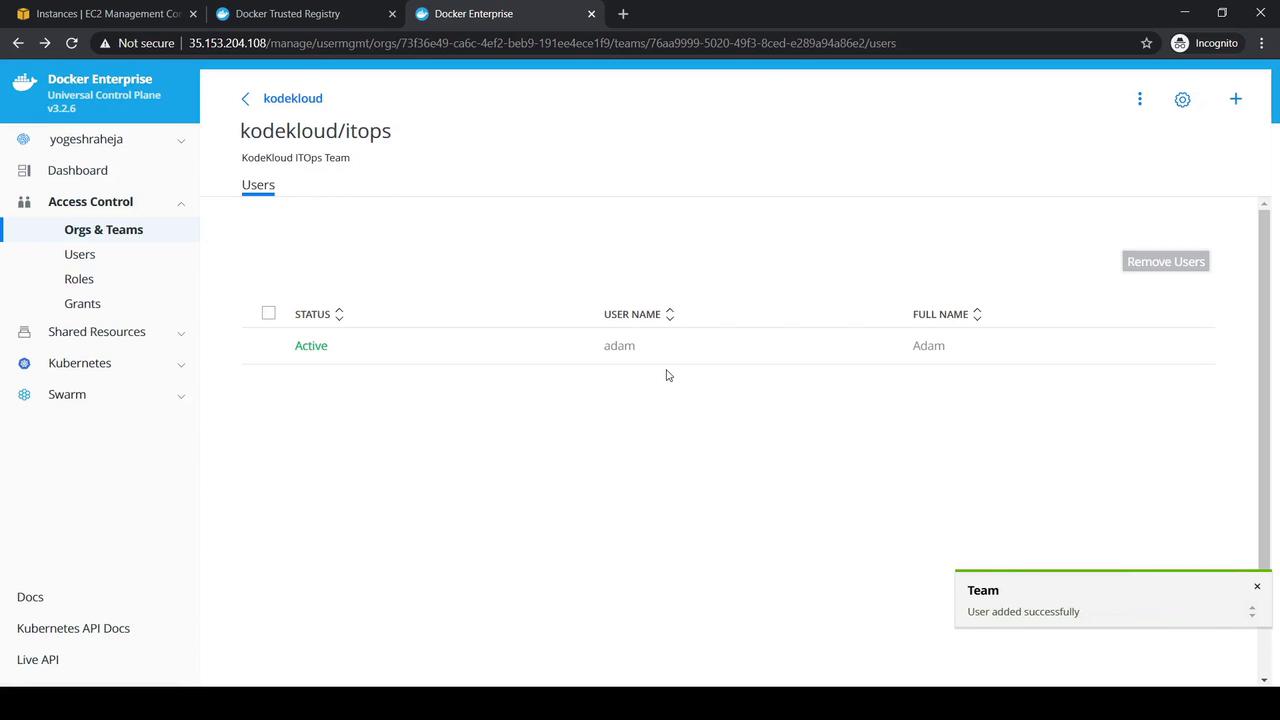
1. Select **DevOps** → **Add User** → choose **Dave**.
2. Select **ITOps** → **Add User** → choose **Adam**.
Each team should now list one member.
***
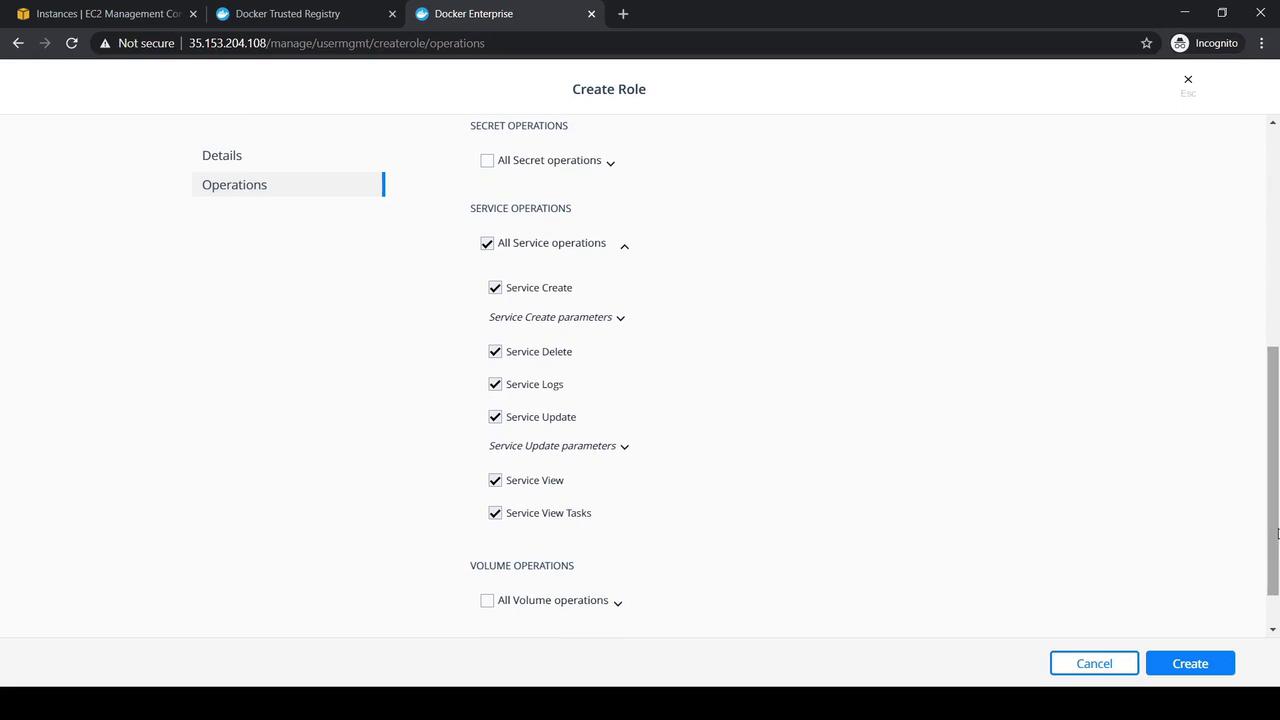
## 4. Creating the DevOps Role
1. Navigate to **Access Control → Roles → Swarm**.
2. Click **Create**, set **Role Name** to `DevOps Role`.
3. Expand **Service** under **Operations** and select **All Service Operations**.
4. Click **Create**.
***
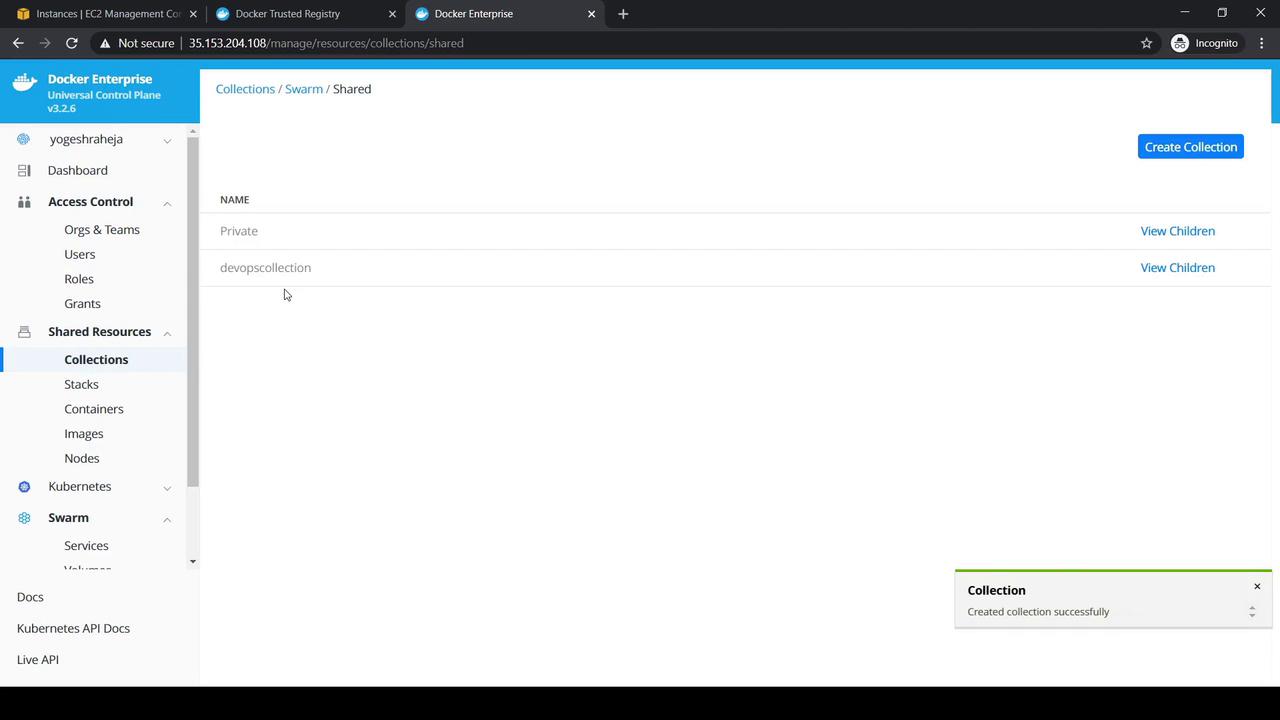
## 5. Creating the DevOps Collection
1. Go to **Shared Resources → Collections**.
2. Under the **Swarm** default collection, click **View Children** and choose **Shared**.
3. Click **Create Collection**, name it `DevOps Collection`, and save.
***
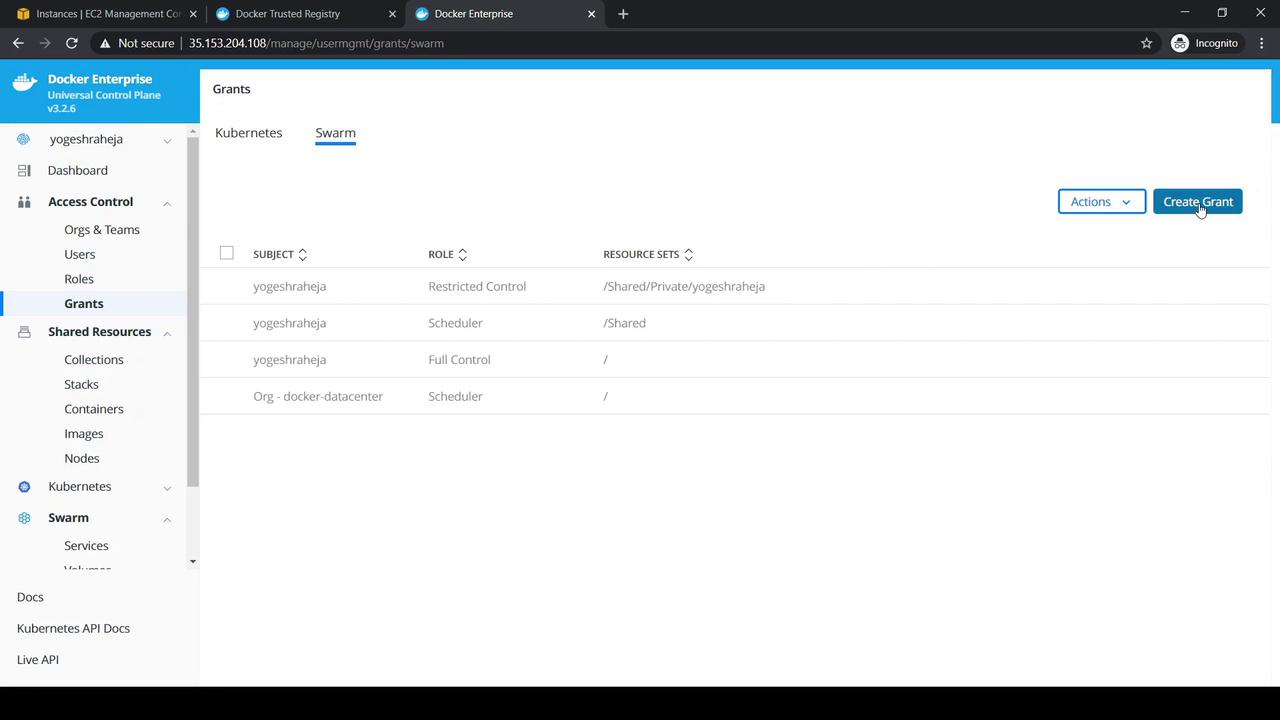
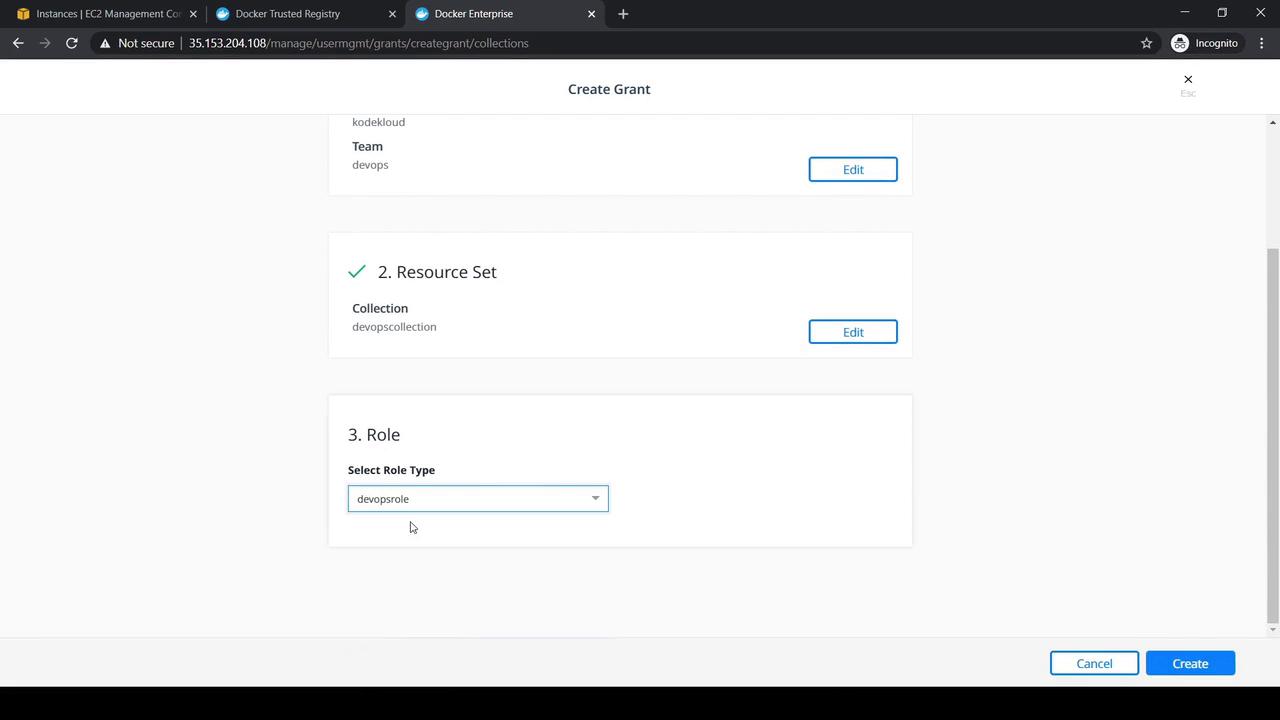
## 6. Granting the Role and Collection
1. Head to **Access Control → Grants → Swarm** and click **Create Grant**.
2. Under **Subject**, select **Organization: KodeKloud** and **Team: DevOps**, then **Next**.
3. Choose **DevOps Collection** for the **Resource Set**, then **Next**.
4. Pick **DevOps Role** under **Role Type** and click **Create**.
***
## 7. Testing RBAC as Dave
1. Log out, then sign in to UCP as **Dave**.
2. Verify that his profile displays the **DevOps Collection**, **DevOps Role**, and the grant.
3. Switch to the **Swarm** tab and click **Create Service**:
* **Service Name**: `nginx`
* **Image**: `nginx:latest`
* **Mode**: `replicated` (replicas: `1`)
4. Click **Create** and confirm the service appears.
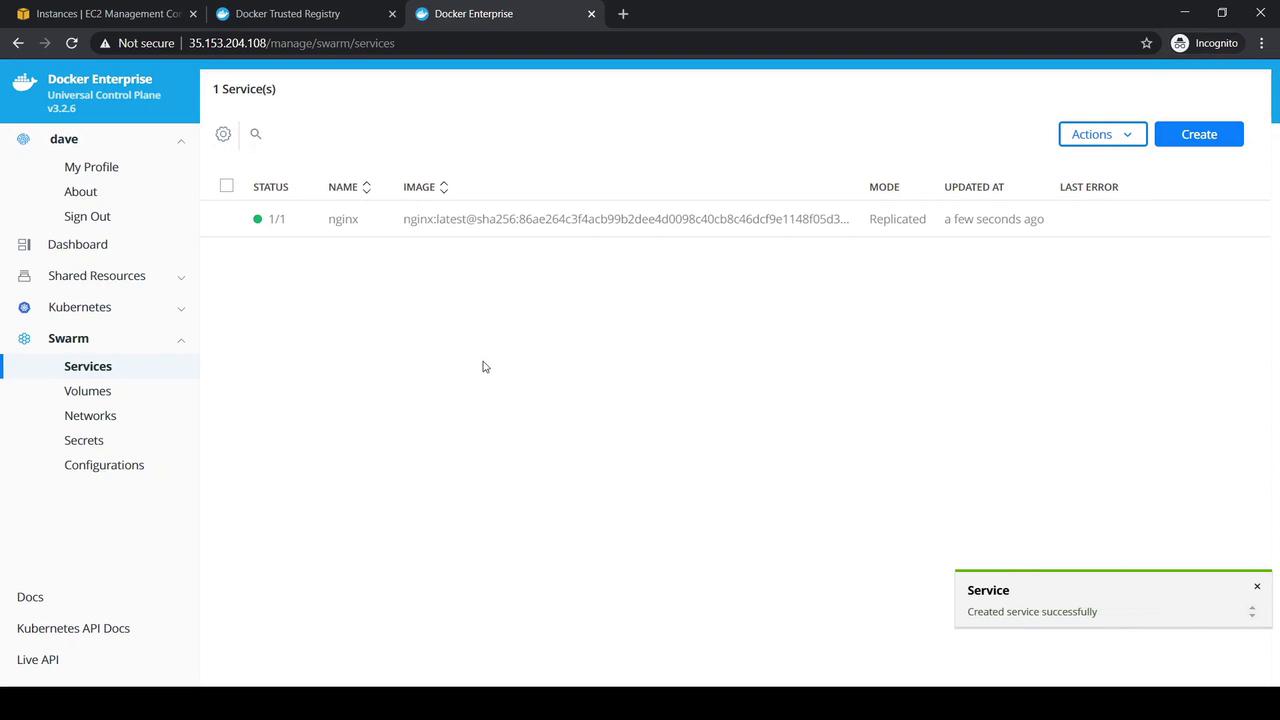
Next, attempt to create a Kubernetes namespace (which should be denied):
```yaml theme={null}
apiVersion: v1
kind: Namespace
metadata:
name: testnamespace
```
UCP will return an “access denied” error, confirming Kubernetes operations are blocked for Dave.
***
## 8. Verifying Adam Has No Access
1. Log out and sign back in as **Adam**.
2. Navigate to **Swarm → Services**.
3. Adam should see **no services**, including the one Dave created.
***
## Links and References
* [Docker UCP RBAC Best Practices](https://docs.docker.com/ee/ucp/admin/configure/rbac/)
* [Docker Enterprise Edition Overview](https://docs.docker.com/ee/)
* [Docker Certified Associate Exam Guide](https://www.kodekloud.com/certificate/docker-certified-associate)
Consider automating user and team management with the UCP CLI or API for large-scale environments.