> ## Documentation Index
> Fetch the complete documentation index at: https://notes.kodekloud.com/llms.txt
> Use this file to discover all available pages before exploring further.
# UCP Setting for LDAP integration
> This article explains how to configure LDAP integration in Docker Universal Control Plane for user and group management.
Docker Universal Control Plane (UCP) offers native authentication and authorization while integrating seamlessly with existing LDAP directory services. By configuring LDAP in UCP, you can manage users and groups through your enterprise directory.
## Prerequisites
* A running Docker UCP cluster (v3.2+ recommended)
* Administrator credentials for UCP
* LDAP/AD server details (URL, Bind DN, Base DN, certificates)
## 1. Log In to the UCP Console
1. Open your browser and go to your UCP console URL (e.g., [https://ucp.example.com](https://ucp.example.com)).
2. Enter your administrator **Username** and **Password**, then click **Login**.
Make sure your browser can resolve the UCP hostname and that port 443 is accessible.
## 2. Navigate to Authentication Settings
1. From the top-right menu, click **Admin Settings**.
2. Select **Authentication & Authorization** to reveal UCP’s identity management options.
## 3. Enable LDAP Integration
1. Scroll to the **LDAP** section.
2. Toggle **LDAP Enabled** to **Yes**.
If your LDAP server requires encryption, ensure you use an `ldaps://` URL or provide a CA certificate for TLS.
## 4. Configure LDAP Directory Details
Once you enable LDAP, the configuration form expands. Complete these fields as provided by your LDAP administrator:
| Field | Description |
| ---------------------------------- | ------------------------------------------------------------------------------------------------- |
| **LDAP Server URL** | URL of your LDAP service (e.g., `ldap://ad.example.com` or `ldaps://ad.example.com`). |
| **Bind DN** | Distinguished Name for the LDAP reader account (e.g., `cn=read-back,ou=ServiceAccounts,dc=corp`). |
| **Bind Password** | Password for the Bind DN account. |
| **Base DN** | Root of your directory tree (e.g., `dc=corp,dc=example,dc=com`). |
| **User Search Filter** | LDAP filter to locate users (e.g., `(objectClass=person)`). |
| **Group Search Filter** (optional) | Filter to discover groups (e.g., `(objectClass=group)`). |
| **Additional Domains** (optional) | Comma-separated Base DNs if you have multiple OUs. |
> Note: Consult your LDAP/AD administrators for the exact values and any custom search scopes.
## 5. Test Connection and Synchronize Accounts
1. Under **Test Login**, enter a sample LDAP username and password, then click **Test** to verify connectivity.
2. Once the test succeeds, click **Manual Synchronization** to import users and groups into UCP.
3. Review the synchronization results to confirm that expected accounts appear.
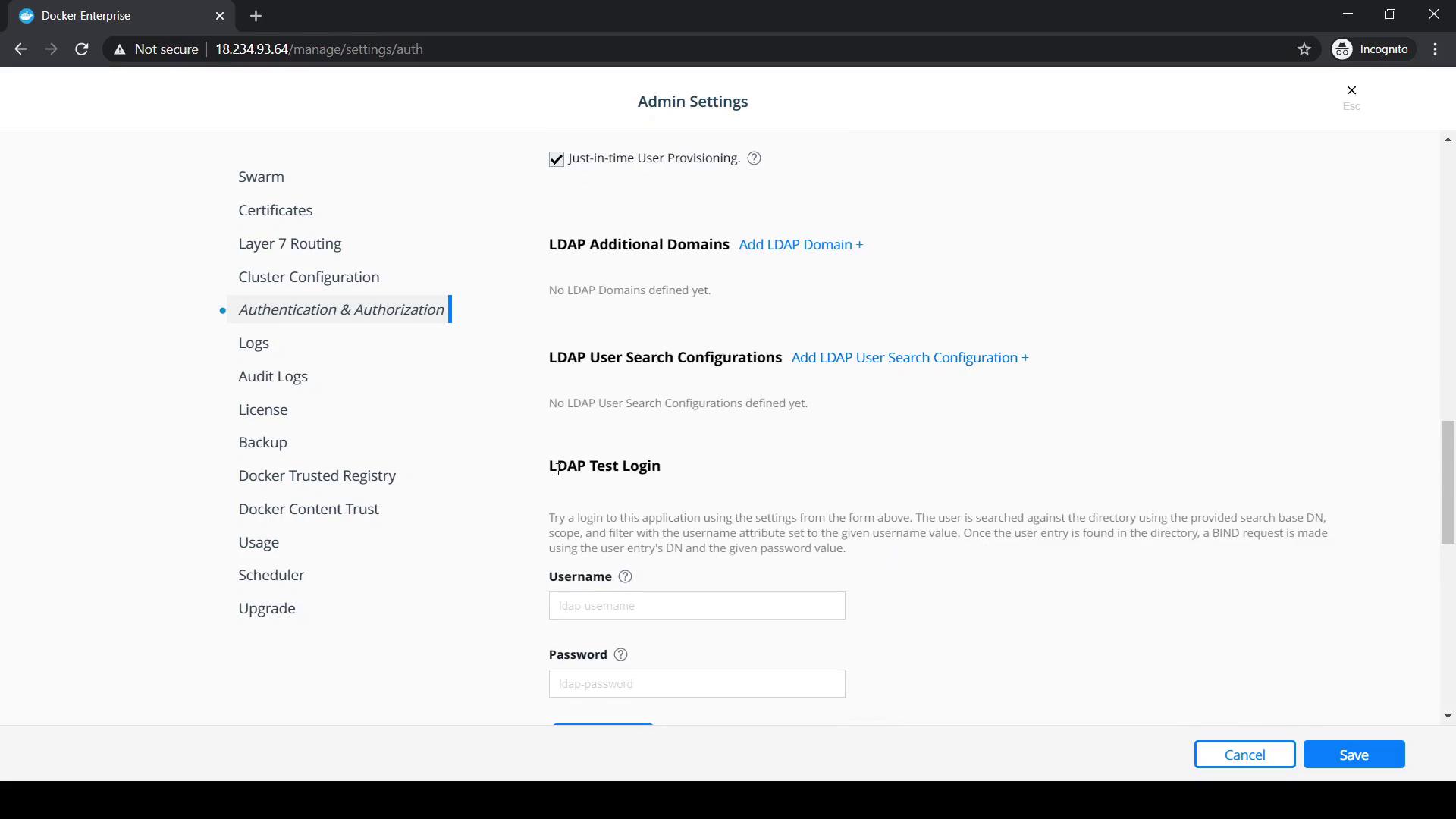
Finally, click **Save** at the bottom of the page to apply your LDAP settings.
## Links and References
* [Docker UCP Authentication](https://docs.docker.com/ee/ucp/admin/configure/ldap/)
* [LDAP Filter Syntax](https://ldap.com/ldap-filters/)
* [Docker Enterprise Edition Documentation](https://docs.docker.com/ee/)